steering GMC ACADIA 2022 Workshop Manual
[x] Cancel search | Manufacturer: GMC, Model Year: 2022, Model line: ACADIA, Model: GMC ACADIA 2022Pages: 397, PDF Size: 6.98 MB
Page 229 of 397
GMC Acadia/Acadia Denali Owner Manual (GMNA-Localizing-U.S./Canada/
Mexico-15170041) - 2022 - CRC - 10/6/21
228 Driving and Operating
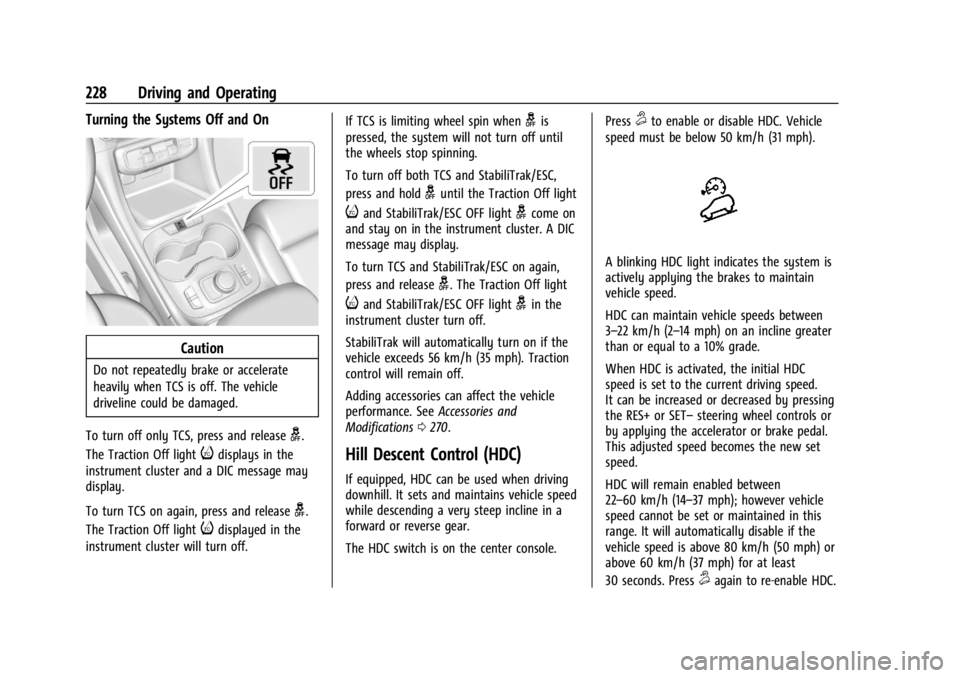
Turning the Systems Off and On
Caution
Do not repeatedly brake or accelerate
heavily when TCS is off. The vehicle
driveline could be damaged.
To turn off only TCS, press and release
g.
The Traction Off light
idisplays in the
instrument cluster and a DIC message may
display.
To turn TCS on again, press and release
g.
The Traction Off light
idisplayed in the
instrument cluster will turn off. If TCS is limiting wheel spin when
gis
pressed, the system will not turn off until
the wheels stop spinning.
To turn off both TCS and StabiliTrak/ESC,
press and hold
guntil the Traction Off light
iand StabiliTrak/ESC OFF lightgcome on
and stay on in the instrument cluster. A DIC
message may display.
To turn TCS and StabiliTrak/ESC on again,
press and release
g. The Traction Off light
iand StabiliTrak/ESC OFF lightgin the
instrument cluster turn off.
StabiliTrak will automatically turn on if the
vehicle exceeds 56 km/h (35 mph). Traction
control will remain off.
Adding accessories can affect the vehicle
performance. See Accessories and
Modifications 0270.
Hill Descent Control (HDC)
If equipped, HDC can be used when driving
downhill. It sets and maintains vehicle speed
while descending a very steep incline in a
forward or reverse gear.
The HDC switch is on the center console. Press
5to enable or disable HDC. Vehicle
speed must be below 50 km/h (31 mph).
A blinking HDC light indicates the system is
actively applying the brakes to maintain
vehicle speed.
HDC can maintain vehicle speeds between
3–22 km/h (2–14 mph) on an incline greater
than or equal to a 10% grade.
When HDC is activated, the initial HDC
speed is set to the current driving speed.
It can be increased or decreased by pressing
the RES+ or SET– steering wheel controls or
by applying the accelerator or brake pedal.
This adjusted speed becomes the new set
speed.
HDC will remain enabled between
22–60 km/h (14–37 mph); however vehicle
speed cannot be set or maintained in this
range. It will automatically disable if the
vehicle speed is above 80 km/h (50 mph) or
above 60 km/h (37 mph) for at least
30 seconds. Press
5again to re-enable HDC.
Page 230 of 397
GMC Acadia/Acadia Denali Owner Manual (GMNA-Localizing-U.S./Canada/
Mexico-15170041) - 2022 - CRC - 10/6/21
Driving and Operating 229
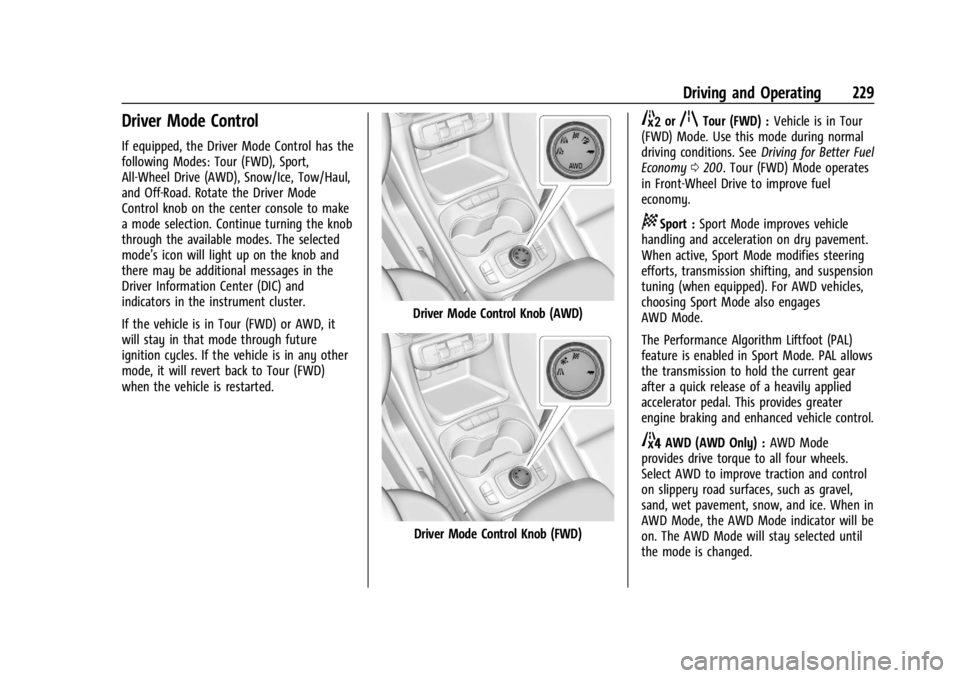
Driver Mode Control
If equipped, the Driver Mode Control has the
following Modes: Tour (FWD), Sport,
All-Wheel Drive (AWD), Snow/Ice, Tow/Haul,
and Off-Road. Rotate the Driver Mode
Control knob on the center console to make
a mode selection. Continue turning the knob
through the available modes. The selected
mode’s icon will light up on the knob and
there may be additional messages in the
Driver Information Center (DIC) and
indicators in the instrument cluster.
If the vehicle is in Tour (FWD) or AWD, it
will stay in that mode through future
ignition cycles. If the vehicle is in any other
mode, it will revert back to Tour (FWD)
when the vehicle is restarted.
Driver Mode Control Knob (AWD)
Driver Mode Control Knob (FWD)
5orqTour (FWD) :Vehicle is in Tour
(FWD) Mode. Use this mode during normal
driving conditions. See Driving for Better Fuel
Economy 0200. Tour (FWD) Mode operates
in Front-Wheel Drive to improve fuel
economy.
8Sport : Sport Mode improves vehicle
handling and acceleration on dry pavement.
When active, Sport Mode modifies steering
efforts, transmission shifting, and suspension
tuning (when equipped). For AWD vehicles,
choosing Sport Mode also engages
AWD Mode.
The Performance Algorithm Liftfoot (PAL)
feature is enabled in Sport Mode. PAL allows
the transmission to hold the current gear
after a quick release of a heavily applied
accelerator pedal. This provides greater
engine braking and enhanced vehicle control.
4AWD (AWD Only) : AWD Mode
provides drive torque to all four wheels.
Select AWD to improve traction and control
on slippery road surfaces, such as gravel,
sand, wet pavement, snow, and ice. When in
AWD Mode, the AWD Mode indicator will be
on. The AWD Mode will stay selected until
the mode is changed.
Page 231 of 397
GMC Acadia/Acadia Denali Owner Manual (GMNA-Localizing-U.S./Canada/
Mexico-15170041) - 2022 - CRC - 10/6/21
230 Driving and Operating
AWD is active in AWD, Sport, and Off-Road
Modes.
Sport, Tow/Haul, and Off-Road Modes are
cancelled with each ignition cycle and will
return to Tour (FWD) Mode.
6Snow/Ice (FWD Only) :Snow/Ice Mode
improves vehicle acceleration on snow and
ice covered roads.
_Tow/Haul : This feature can assist
when towing a heavy load. Use this mode
to assist in maintaining desired vehicle
speeds when driving on downhill grades by
using the engine and transmission. When
active, Tow/Haul Mode modifies
transmission shifting, suspension tuning,
steering effort, and Trailer Sway Control. For
AWD vehicles, choosing Tow/Haul Mode also
engages AWD Mode. See Driving
Characteristics and Towing Tips 0258.
Automatic Engine Grade Braking
Automatic Engine Grade Braking assists
when driving downhill. It maintains vehicle
speed by automatically implementing a shift
pattern that uses the engine and the
transmission to slow the vehicle. The system
will automatically command downshifts to
reduce vehicle speed. The normal shift pattern will return once the vehicle is on a
low grade or when the accelerator pedal is
pressed.
While in the Electronic Range Select (ERS)
mode, grade braking is deactivated, allowing
the driver to select a range and limiting the
highest gear available. Grade braking is
available for normal driving and in
Tow/Haul Mode.
See
Automatic Transmission 0220.
7Off-Road (AWD Only) : Use this mode
for off-road recreational driving. When
active, Off-Road Mode modifies accelerator
pedal response, ABS, TCS, steering effort,
suspension tuning, and the StabiliTrak/ESC
system. Choosing Off-Road Mode also
engages AWD Mode. For more information
on Off-Road Mode, see Off-Road Driving
0 203.
Cruise Control
{
Warning
Cruise control can be dangerous where
you cannot drive safely at a steady
speed. Do not use cruise control on
winding roads or in heavy traffic. (Continued)
Warning (Continued)
Cruise control can be dangerous on
slippery roads. On such roads, fast
changes in tire traction can cause
excessive wheel slip, and you could lose
control. Do not use cruise control on
slippery roads.
With cruise control, a speed of about
40 km/h (25 mph) or more can be
maintained without keeping your foot on
the accelerator. Cruise control does not work
at speeds below about 40 km/h (25 mph).
If the StabiliTrak/Electronic Stability Control
(ESC) system begins to limit wheel spin
while using cruise control, the cruise control
automatically disengages. See Traction
Control/Electronic Stability Control 0227. If a
collision alert occurs when cruise control is
activated, cruise control is disengaged. See
Forward Collision Alert (FCA) System 0246.
When road conditions allow the cruise
control to be safely used, cruise control can
be turned back on.
Turning off the TCS or StabiliTrak/ESC
system will disengage the cruise control.
If the brakes are applied, cruise control
disengages.
Page 236 of 397
GMC Acadia/Acadia Denali Owner Manual (GMNA-Localizing-U.S./Canada/
Mexico-15170041) - 2022 - CRC - 10/6/21
Driving and Operating 235
Increasing Speed While ACC is at a Set Speed
If ACC is already activated, do one of the
following:
.Use the accelerator to get to the higher
speed. Press SET–. Release the control
and the accelerator pedal. The vehicle will
now cruise at the higher speed.
When the accelerator pedal is pressed,
ACC will not brake because it is
overridden. While overridden, the ACC
indicator will turn blue on the instrument
cluster and heads up display, if equipped.
.Press and hold RES+ until the desired set
speed appears on the display, then
release it.
.To increase vehicle speed in small
increments, briefly press RES+. For each
press, the vehicle goes 1 km/h (1 mph)
faster.
.To increase speed in larger increments,
hold RES+. While holding RES+, the vehicle
speed increases to the next 5 km/h
(5 mph) step, then continues to increase
by 5 km/h (5 mph) at a time. The set speed can also be increased while
the vehicle is stopped.
.If stopped with the brake applied, press
RES+ until the desired set speed is
displayed.
.If ACC is holding the vehicle at a stop and
there is another vehicle directly ahead,
pressing RES+ will increase the set speed.
Pressing RES+ when there is no longer a
vehicle ahead will cause ACC to resume.
When it is determined that there is no
vehicle ahead or the vehicle ahead is beyond
the selected following gap, then the vehicle
speed will increase to the set speed.
Reducing Speed While ACC is at a Set Speed
If ACC is already activated, do one of the
following:
.Use the brake to get to the desired lower
speed. Press SET– down and release the
accelerator pedal. The vehicle will now
cruise at the lower speed.
.Press and hold SET– until the desired
lower speed is reached, then release it.
.To decrease the vehicle speed in smaller
increments, briefly press SET−. For each
press, the vehicle goes about 1 km/h
(1 mph) slower.
.To decrease the vehicle speed in larger
increments, hold SET−. While holding
SET−, the vehicle speed decreases to the
next 5 km/h (5 mph) step, then continues
to decrease by 5 km/h (5 mph) at a time.
The set speed can also be decreased while
the vehicle is stopped.
.If stopped with the brake applied, press
or hold SET− until the desired set speed is
displayed.
Selecting the Follow Distance Gap
When a slower moving vehicle is detected
ahead within the selected following gap,
ACC will adjust the vehicle's speed and
attempt to maintain the follow distance gap
selected.
Press
[on the steering wheel to adjust
the following gap. Each press cycles the gap
button through three settings: Far, Medium,
or Near.
When pressed, the current gap setting
displays briefly on the instrument cluster
and HUD, if equipped. The gap setting will
be maintained until it is changed.
Since each gap setting corresponds to a
following time (Far, Medium, or Near), the
following distance will vary based on vehicle
Page 248 of 397
GMC Acadia/Acadia Denali Owner Manual (GMNA-Localizing-U.S./Canada/
Mexico-15170041) - 2022 - CRC - 10/6/21
Driving and Operating 247
FCA warnings will not occur unless the FCA
system detects a vehicle ahead. When a
vehicle is detected, the vehicle ahead
indicator will display green. Vehicles may
not be detected on curves, highway exit
ramps, or hills, due to poor visibility; or if a
vehicle ahead is partially blocked by
pedestrians or other objects. FCA will not
detect another vehicle ahead until it is
completely in the driving lane.
{Warning
FCA does not provide a warning to help
avoid a crash, unless it detects a vehicle.
FCA may not detect a vehicle ahead if
the FCA sensor is blocked by dirt, snow,
or ice, or if the windshield is damaged.
It may also not detect a vehicle on
winding or hilly roads, or in conditions
that can limit visibility such as fog, rain,
or snow, or if the headlamps or
windshield are not cleaned or in proper
condition. Keep the windshield,
headlamps, and FCA sensors clean and in
good repair.Collision Alert
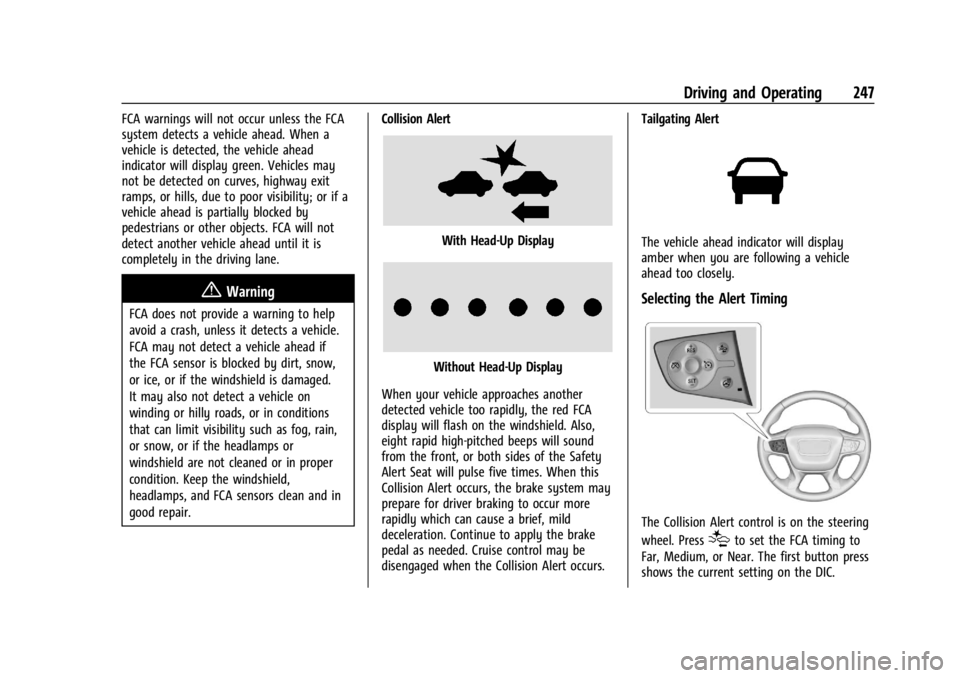
With Head-Up Display
Without Head-Up Display
When your vehicle approaches another
detected vehicle too rapidly, the red FCA
display will flash on the windshield. Also,
eight rapid high-pitched beeps will sound
from the front, or both sides of the Safety
Alert Seat will pulse five times. When this
Collision Alert occurs, the brake system may
prepare for driver braking to occur more
rapidly which can cause a brief, mild
deceleration. Continue to apply the brake
pedal as needed. Cruise control may be
disengaged when the Collision Alert occurs. Tailgating Alert
The vehicle ahead indicator will display
amber when you are following a vehicle
ahead too closely.
Selecting the Alert Timing
The Collision Alert control is on the steering
wheel. Press
[to set the FCA timing to
Far, Medium, or Near. The first button press
shows the current setting on the DIC.
Page 254 of 397
GMC Acadia/Acadia Denali Owner Manual (GMNA-Localizing-U.S./Canada/
Mexico-15170041) - 2022 - CRC - 10/6/21
Driving and Operating 253
LCA displays may not come on when
passing a vehicle quickly, for a stopped
vehicle, or when towing a trailer. The LCA
detection zones that extend back from the
side of the vehicle do not move further back
when a trailer is towed. Use caution while
changing lanes when towing a trailer. LCA
may alert to objects attached to the vehicle,
such as a trailer, bicycle, or object extending
out to either side of the vehicle. Attached
objects may also interfere with the
detection of vehicles. This is normal system
operation; the vehicle does not need service.
LCA may not always alert the driver to
vehicles in the next lane over, especially in
wet conditions or when driving on sharp
curves. The system does not need to be
serviced. The system may light up due to
guardrails, signs, trees, shrubs, and other
non-moving objects. This is normal system
operation; the vehicle does not need service.
LCA may not operate when the LCA sensors
in the left or right corners of the rear
bumper are covered with mud, dirt, snow,
ice, or slush, or in heavy rainstorms. For
cleaning instructions, see "Washing the
Vehicle" underExterior Care0338. If the DIC
still displays the system unavailable message after cleaning both sides of the
vehicle toward the rear corners of the
vehicle, see your dealer.
If the LCA displays do not light up when
moving vehicles are in the side blind zone or
are rapidly approaching this zone and the
system is clean, the system may need
service. Take the vehicle to your dealer.
Radio Frequency Information
See
Radio Frequency Statement 0373.
Lane Keep Assist (LKA)
If equipped, LKA may help avoid crashes due
to unintentional lane departures. This
system uses a camera to detect lane
markings between 60 km/h (37 mph) and
180 km/h (112 mph). It may assist by gently
turning the steering wheel if the vehicle
approaches a detected lane marking. It may
also provide a Lane Departure Warning
(LDW) alert if the vehicle crosses a detected
lane marking. LKA can be overridden by
turning the steering wheel. This system is
not intended to keep the vehicle centered in
the lane. LKA will not assist and alert if the
turn signal is active in the direction of lane
departure, or if it detects that you are
accelerating, braking or actively steering.
{Warning
The LKA system does not continuously
steer the vehicle. It may not keep the
vehicle in the lane or give a Lane
Departure Warning (LDW) alert, even if a
lane marking is detected.
The LKA and LDW systems may not:
.Provide an alert or enough steering
assist to avoid a lane departure or
crash.
.Detect lane markings under poor
weather or visibility conditions. This
can occur if the windshield or
headlamps are blocked by dirt, snow,
or ice; if they are not in proper
condition; or if the sun shines directly
into the camera.
.Detect road edges.
.Detect lanes on winding or hilly roads.
If LKA only detects lane markings on one
side of the road, it will only assist or
provide an LDW alert when approaching
the lane on the side where it has
detected a lane marking. Even with LKA
and LDW, you must steer the vehicle. (Continued)
Page 255 of 397
GMC Acadia/Acadia Denali Owner Manual (GMNA-Localizing-U.S./Canada/
Mexico-15170041) - 2022 - CRC - 10/6/21
254 Driving and Operating
Warning (Continued)
Always keep your attention on the road
and maintain proper vehicle position
within the lane, or vehicle damage,
injury, or death could occur. Always keep
the windshield, headlamps, and camera
sensors clean and in good repair. Do not
use LKA in bad weather conditions or on
roads with unclear lane markings, such as
construction zones.
{Warning
Using LKA while towing a trailer or on
slippery roads could cause loss of control
of the vehicle and a crash. Turn the
system off.
How the System Works
LKA uses a camera sensor installed on the
windshield ahead of the rearview mirror to
detect lane markings. It may provide brief
steering assist if it detects an unintended
lane departure. It may further provide an
audible alert, or the driver seat may pulse,
indicating that a lane marking has been
crossed.To turn LKA on and off, press
Aon the
center console. If equipped, the indicator
light on the button comes on when LKA is
on and turns off when LKA is disabled.
When on,
Ais white, if equipped,
indicating that the system is not ready to
assist.
Ais green if LKA is ready to
assist. LKA may assist by gently turning the
steering wheel if the vehicle approaches a
detected lane marking.
Ais amber when
assisting. It may also provide a Lane
Departure Warning (LDW) alert by flashing
Aamber if the vehicle crosses a
detected lane marking. Additionally, there
may be three beeps on the right or left,
or the driver seat may pulse three times,
depending on the lane departure direction.
Take Steering
The LKA system does not continuously steer
the vehicle. If LKA does not detect active
driver steering, an alert and chime may be
provided. Steer the vehicle to dismiss. LKA
may become temporarily unavailable after
repeated take steering alerts.
When the System Does Not Seem to
Work Properly
The system performance may be
affected by:
.Close vehicles ahead.
.Sudden lighting changes, such as when
driving through tunnels.
.Banked roads.
.Roads with poor lane markings, such as
two-lane roads.
If the LKA system is not functioning
properly when lane markings are clearly
visible, cleaning the windshield may help.
A camera blocked message may display if
the camera is blocked. Some driver
assistance systems may have reduced
performance or not work at all. An LKA or
LDW unavailable message may display if the
systems are temporarily unavailable. This
message could be due to a blocked camera.
The LKA system does not need service. Clean
the outside of the windshield behind the
rearview mirror.
LKA assistance and/or LDW alerts may occur
due to tar marks, shadows, cracks in the
road, temporary or construction lane
markings, or other road imperfections. This
Page 261 of 397
GMC Acadia/Acadia Denali Owner Manual (GMNA-Localizing-U.S./Canada/
Mexico-15170041) - 2022 - CRC - 10/6/21
260 Driving and Operating
beyond the passed vehicle before returning
to the lane. Pass on level roadways. Avoid
passing on hills if possible.
Backing Up
Hold the bottom of the steering wheel with
one hand. To move the trailer to the left,
move that hand to the left. To move the
trailer to the right, move that hand to the
right. Always back up slowly and, if possible,
have someone guide you.
Making TurnsCaution
Turn more slowly and make wider arcs
when towing a trailer to prevent damage
to your vehicle. Making very sharp turns
could cause the trailer to contact the
vehicle.
Make wider turns than normal when towing,
so the trailer will not go over soft shoulders,
over curbs, or strike road signs, trees,
or other objects. Always signal turns well in
advance. Do not steer or brake suddenly.
Driving on Grades
Reduce speed and shift to a lower gear
before starting down a long or steep
downhill grade. If the transmission is not
shifted down, the brakes may overheat and
result in reduced braking efficiency.
The vehicle can tow in D (Drive). Shift the
transmission to a lower gear if the
transmission shifts too often under heavy
loads and/or hilly conditions.
When towing at higher altitudes, engine
coolant will boil at a lower temperature
than at lower altitudes. If the engine is
turned off immediately after towing at high
altitude on steep uphill grades, the vehicle
could show signs similar to engine
overheating. To avoid this, let the engine
run, preferably on level ground, with the
transmission in P (Park) for a few minutes
before turning the engine off. If the
overheat warning comes on, see Engine
Overheating 0284.
Viewing Systems
If equipped, the viewing systems on the
vehicle can improve visibility while hitching,
backing, and driving with a trailer. See
Driver Assistance Systems 0240 and
Assistance Systems for Parking or Backing
0 241.
Parking on Hills
{Warning
To prevent serious injury or death,
always park your vehicle and trailer on a
level surface when possible.
When parking your vehicle and your trailer
on a hill: 1. Press the brake pedal, but do not shift into P (Park) yet. Turn the wheels into
the curb if facing downhill or into traffic
if facing uphill.
2. Have someone place chocks under the trailer wheels.
3. When the wheel chocks are in place, gradually release the brake pedal to
allow the chocks to absorb the load of
the trailer.
Page 296 of 397
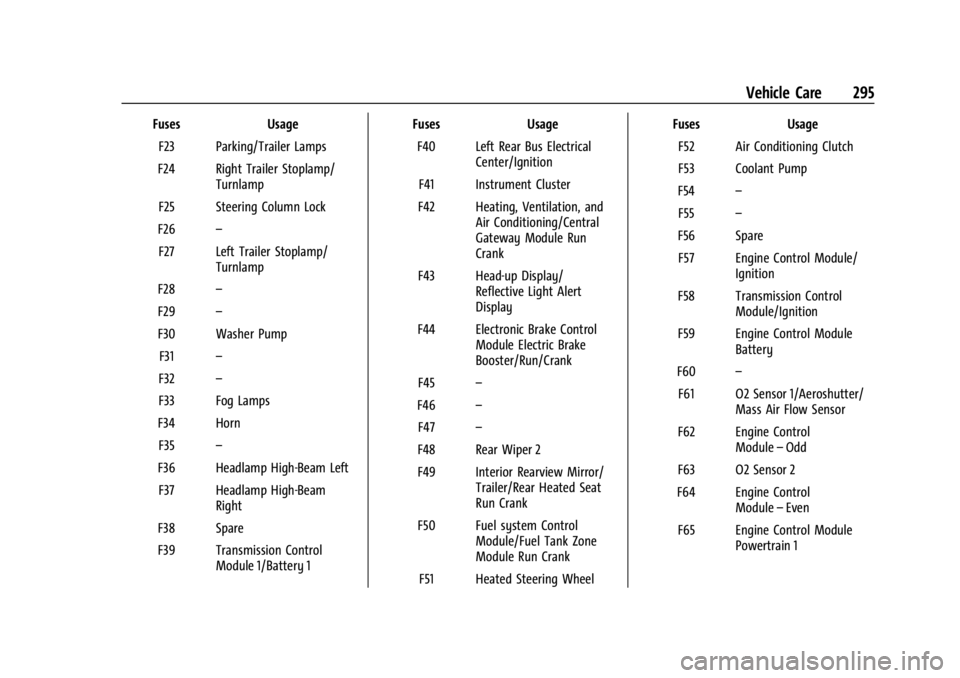
GMC Acadia/Acadia Denali Owner Manual (GMNA-Localizing-U.S./Canada/
Mexico-15170041) - 2022 - CRC - 10/6/21
Vehicle Care 295
FusesUsage
F23 Parking/Trailer Lamps
F24 Right Trailer Stoplamp/ Turnlamp
F25 Steering Column Lock
F26 –
F27 Left Trailer Stoplamp/ Turnlamp
F28 –
F29 –
F30 Washer Pump F31 –
F32 –
F33 Fog Lamps
F34 Horn F35 –
F36 Headlamp High-Beam Left F37 Headlamp High-Beam Right
F38 Spare
F39 Transmission Control Module 1/Battery 1 Fuses
Usage
F40 Left Rear Bus Electrical Center/Ignition
F41 Instrument Cluster
F42 Heating, Ventilation, and Air Conditioning/Central
Gateway Module Run
Crank
F43 Head-up Display/ Reflective Light Alert
Display
F44 Electronic Brake Control Module Electric Brake
Booster/Run/Crank
F45 –
F46 –
F47 –
F48 Rear Wiper 2
F49 Interior Rearview Mirror/ Trailer/Rear Heated Seat
Run Crank
F50 Fuel system Control Module/Fuel Tank Zone
Module Run Crank
F51 Heated Steering Wheel Fuses
Usage
F52 Air Conditioning Clutch
F53 Coolant Pump
F54 –
F55 –
F56 Spare F57 Engine Control Module/ Ignition
F58 Transmission Control Module/Ignition
F59 Engine Control Module Battery
F60 –
F61 O2 Sensor 1/Aeroshutter/ Mass Air Flow Sensor
F62 Engine Control Module–Odd
F63 O2 Sensor 2
F64 Engine Control Module–Even
F65 Engine Control Module Powertrain 1
Page 298 of 397
GMC Acadia/Acadia Denali Owner Manual (GMNA-Localizing-U.S./Canada/
Mexico-15170041) - 2022 - CRC - 10/6/21
Vehicle Care 297
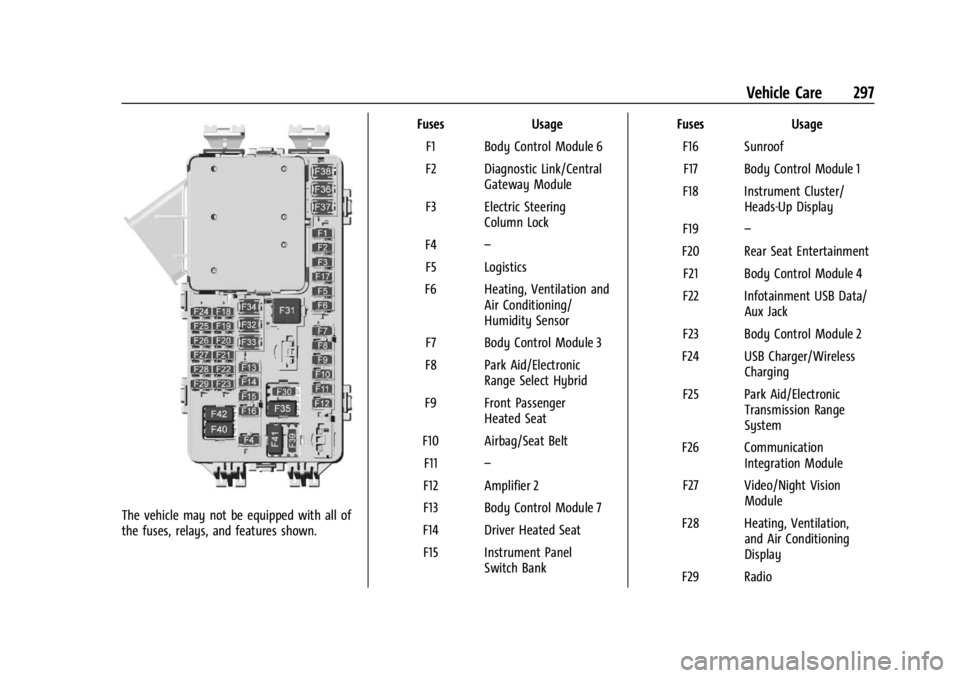
The vehicle may not be equipped with all of
the fuses, relays, and features shown.Fuses Usage
F1 Body Control Module 6
F2 Diagnostic Link/Central Gateway Module
F3 Electric Steering Column Lock
F4 –
F5 Logistics
F6 Heating, Ventilation and Air Conditioning/
Humidity Sensor
F7 Body Control Module 3
F8 Park Aid/Electronic Range Select Hybrid
F9 Front Passenger Heated Seat
F10 Airbag/Seat Belt F11 –
F12 Amplifier 2
F13 Body Control Module 7
F14 Driver Heated Seat F15 Instrument Panel Switch Bank Fuses Usage
F16 SunroofF17 Body Control Module 1
F18 Instrument Cluster/ Heads-Up Display
F19 –
F20 Rear Seat Entertainment F21 Body Control Module 4
F22 Infotainment USB Data/ Aux Jack
F23 Body Control Module 2
F24 USB Charger/Wireless Charging
F25 Park Aid/Electronic Transmission Range
System
F26 Communication Integration Module
F27 Video/Night Vision Module
F28 Heating, Ventilation, and Air Conditioning
Display
F29 Radio