infotainment GMC ACADIA 2022 Owners Manual
[x] Cancel search | Manufacturer: GMC, Model Year: 2022, Model line: ACADIA, Model: GMC ACADIA 2022Pages: 397, PDF Size: 6.98 MB
Page 2 of 397
GMC Acadia/Acadia Denali Owner Manual (GMNA-Localizing-U.S./Canada/
Mexico-15170041) - 2022 - CRC - 10/6/21
Contents
Introduction . . . . . . . . . . . . . . . . . . . . . . . . . . . . . . 1
Keys, Doors, and Windows . . . . . . . . . . . . . . . 6
Seats and Restraints . . . . . . . . . . . . . . . . . . . . . 35
Storage . . . . . . . . . . . . . . . . . . . . . . . . . . . . . . . . . 84
Instruments and Controls . . . . . . . . . . . . . . . 90
Lighting . . . . . . . . . . . . . . . . . . . . . . . . . . . . . . . . . 132
Infotainment System . . . . . . . . . . . . . . . . . . . 139
Climate Controls . . . . . . . . . . . . . . . . . . . . . . . . 192
Driving and Operating . . . . . . . . . . . . . . . . . . 199
Vehicle Care . . . . . . . . . . . . . . . . . . . . . . . . . . . 269
Service and Maintenance . . . . . . . . . . . . . . . 347
Technical Data . . . . . . . . . . . . . . . . . . . . . . . . . 360
Customer Information . . . . . . . . . . . . . . . . . . 365
Reporting Safety Defects . . . . . . . . . . . . . . . 373
OnStar . . . . . . . . . . . . . . . . . . . . . . . . . . . . . . . . . . 377
Connected Services . . . . . . . . . . . . . . . . . . . . . 382
Index . . . . . . . . . . . . . . . . . . . . . . . . . . 385
Introduction
The names, logos, emblems, slogans, vehicle
model names, and vehicle body designs
appearing in this manual including, but not
limited to, GM, the GM logo, GMC, the GMC
Truck Emblem, ACADIA, and DENALI are
trademarks and/or service marks of General
Motors LLC, its subsidiaries, affiliates,
or licensors.
For vehicles first sold in Canada, substitute
the name“General Motors of Canada
Company” for GMC wherever it appears in
this manual.
This manual describes features that may or
may not be on the vehicle because of
optional equipment that was not purchased
on the vehicle, model variants, country
specifications, features/applications that may
not be available in your region, or changes subsequent to the printing of this owner’s
manual, including changes in standard or
optional content.
Refer to the purchase documentation
relating to your specific vehicle to confirm
the features.
Keep this manual in the vehicle for quick
reference.Canadian Vehicle Owners
A French language manual can be obtained
from your dealer, at www.helminc.com,
or from:
Propriétaires Canadiens
On peut obtenir un exemplaire de ce guide
en français auprès du concessionnaire ou à
l'adresse suivante:
Helm, Incorporated
Attention: Customer Service
47911 Halyard Drive
Plymouth, MI 48170
USA
Litho in U.S.A.
Part No. 84849429 B Second Printing©2021 General Motors LLC. All Rights Reserved.
Page 6 of 397

GMC Acadia/Acadia Denali Owner Manual (GMNA-Localizing-U.S./Canada/
Mexico-15170041) - 2022 - CRC - 10/6/21
Introduction 5
1.Air Vents 0197.
2. Exterior Lamp Controls 0132.
Turn Signal Lever. See Turn and
Lane-Change Signals 0135.
3. Instrument Cluster (Base and Midlevel)
098 or
Instrument Cluster (Uplevel) 0101.
4. Windshield Wiper/Washer 092.
Rear Window Wiper/Washer 093.
5. Light Sensor. See Automatic Headlamp
System 0134.
6. Infotainment. See Overview0140.
7. Dual Automatic Climate Control System
0192.
8. USB Port 0148 (If Equipped).
9. Wireless Charging 095 (If Equipped).
10. Heated and Ventilated Front Seats 042
(If Equipped).
11.
|Hazard Warning Flashers 0135.
gTraction Control/Electronic Stability
Control 0227.
XPark Assist Switch. See Assistance
Systems for Parking or Backing 0241 (If
Equipped). 12.
Driver Mode Control 0229.
13.
ALane Keep Assist (LKA) 0253 (If
Equipped).
5Hill Descent Control (HDC) 0228 (If
Equipped).
14.
hAuto Stop Disable Button. See Stop/
Start System 0215 (If Equipped).
15. Power Outlets 094.
16. Shift Switches. See Automatic
Transmission 0220.
17. ENGINE START/STOP Button. See Starting
the Engine 0214.
18. Steering Wheel Controls 091 (If
Equipped).
Driver Information Center (DIC) Buttons.
See Driver Information Center (DIC) (Base
Level) 0116 or
Driver Information Center (DIC) (Midlevel
and Uplevel) 0118.
19. Horn 092.
20. Steering Wheel Adjustment 091. 21.
Cruise Control 0230.
Adaptive Cruise Control (Advanced) 0232
(If Equipped).
Forward Collision Alert (FCA) System
0 246 (If Equipped).
Heated Steering Wheel 091 (If
Equipped).
22. Hood Release. See Hood0271.
23. Instrument Panel Illumination Control
0136 (Out of View).
Head-Up Display (HUD) 0120 (If
Equipped).
24. Data Link Connector (DLC) (Out of View). SeeMalfunction Indicator Lamp (Check
Engine Light) 0108.
25. Electric Parking Brake 0225.
Page 92 of 397
GMC Acadia/Acadia Denali Owner Manual (GMNA-Localizing-U.S./Canada/
Mexico-15170041) - 2022 - CRC - 10/6/21
Instruments and Controls 91
Controls
Steering Wheel Adjustment
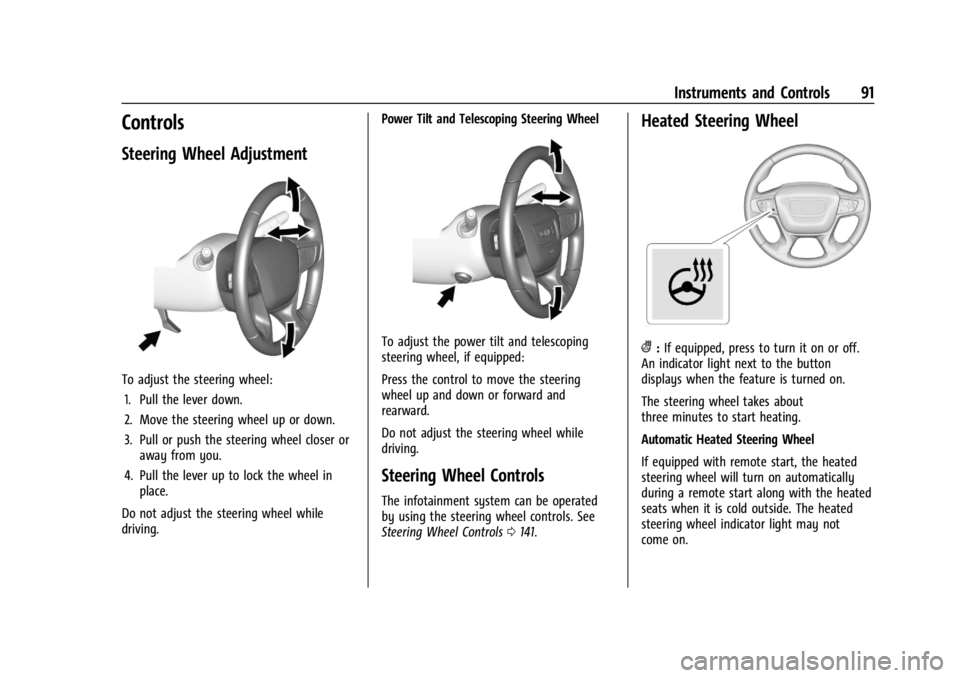
To adjust the steering wheel:1. Pull the lever down.
2. Move the steering wheel up or down.
3. Pull or push the steering wheel closer or away from you.
4. Pull the lever up to lock the wheel in place.
Do not adjust the steering wheel while
driving. Power Tilt and Telescoping Steering Wheel
To adjust the power tilt and telescoping
steering wheel, if equipped:
Press the control to move the steering
wheel up and down or forward and
rearward.
Do not adjust the steering wheel while
driving.
Steering Wheel Controls
The infotainment system can be operated
by using the steering wheel controls. See
Steering Wheel Controls
0141.
Heated Steering Wheel
(:If equipped, press to turn it on or off.
An indicator light next to the button
displays when the feature is turned on.
The steering wheel takes about
three minutes to start heating.
Automatic Heated Steering Wheel
If equipped with remote start, the heated
steering wheel will turn on automatically
during a remote start along with the heated
seats when it is cold outside. The heated
steering wheel indicator light may not
come on.
Page 95 of 397
GMC Acadia/Acadia Denali Owner Manual (GMNA-Localizing-U.S./Canada/
Mexico-15170041) - 2022 - CRC - 10/6/21
94 Instruments and Controls
Compass
The vehicle may have a compass display on
the Driver Information Center (DIC). The
compass receives its heading and other
information from the Global Positioning
System (GPS) antenna, StabiliTrak/Electronic
Stability Control (ESC), and vehicle speed
information.
The compass system is designed to operate
for a certain number of miles or degrees of
turn before needing a signal from the GPS
satellites. When the compass display shows
CAL, drive the vehicle for a short distance in
an open area where it can receive a GPS
signal. The compass system will
automatically determine when a GPS signal
is restored and provide a heading again.
Clock
Set the time and date using the
infotainment system. See "Time/Date" under
Settings0174.
Power Outlets
Power Outlets 12 Volt Direct Current
The vehicle has two 12-volt outlets that can
be used to plug in electrical equipment, such
as a cell phone or MP3 player. The power outlets are located:
.On the center stack below the climate
controls.
.In the rear cargo area.
Lift the cover to access the outlet and
replace when not in use.
{Warning
Power is always supplied to the rear
cargo power outlet. Do not leave
electrical equipment plugged in when the
vehicle is not in use because the vehicle
could catch fire and cause injury or
death.
Caution
Leaving electrical equipment plugged in
for an extended period of time while the
ignition is off will drain the battery.
Always unplug electrical equipment when
not in use and do not plug in equipment
that exceeds the maximum 15 amp
rating. Certain accessory plugs may not be
compatible with the accessory power outlet
and could overload vehicle and adapter
fuses. If a problem is experienced, see your
dealer.
When adding electrical equipment, be sure
to follow the proper installation instructions
included with the equipment. See
Add-On
Electrical Equipment 0268.
Caution
Hanging heavy equipment from the
power outlet can cause damage not
covered by the vehicle warranty. The
power outlets are designed for accessory
power plugs only, such as cell phone
charge cords.
Power Outlet 110V/120V Alternating
Current
If equipped with this power outlet it can be
used to plug in electrical equipment that
uses a maximum limit of 150 watts.
Page 96 of 397
GMC Acadia/Acadia Denali Owner Manual (GMNA-Localizing-U.S./Canada/
Mexico-15170041) - 2022 - CRC - 10/6/21
Instruments and Controls 95
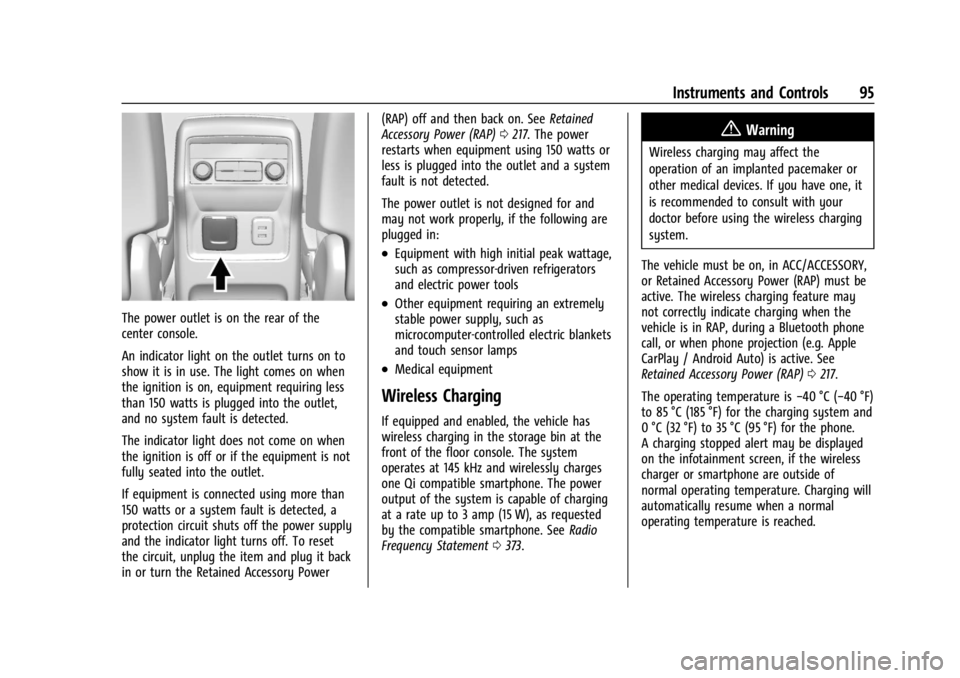
The power outlet is on the rear of the
center console.
An indicator light on the outlet turns on to
show it is in use. The light comes on when
the ignition is on, equipment requiring less
than 150 watts is plugged into the outlet,
and no system fault is detected.
The indicator light does not come on when
the ignition is off or if the equipment is not
fully seated into the outlet.
If equipment is connected using more than
150 watts or a system fault is detected, a
protection circuit shuts off the power supply
and the indicator light turns off. To reset
the circuit, unplug the item and plug it back
in or turn the Retained Accessory Power(RAP) off and then back on. See
Retained
Accessory Power (RAP) 0217. The power
restarts when equipment using 150 watts or
less is plugged into the outlet and a system
fault is not detected.
The power outlet is not designed for and
may not work properly, if the following are
plugged in:
.Equipment with high initial peak wattage,
such as compressor-driven refrigerators
and electric power tools
.Other equipment requiring an extremely
stable power supply, such as
microcomputer-controlled electric blankets
and touch sensor lamps
.Medical equipment
Wireless Charging
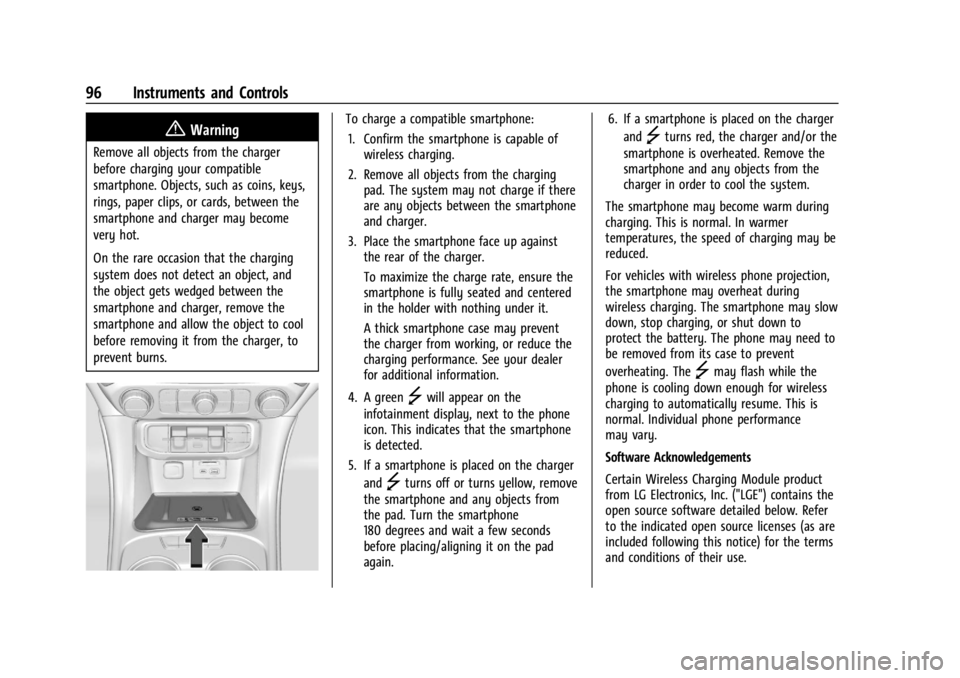
If equipped and enabled, the vehicle has
wireless charging in the storage bin at the
front of the floor console. The system
operates at 145 kHz and wirelessly charges
one Qi compatible smartphone. The power
output of the system is capable of charging
at a rate up to 3 amp (15 W), as requested
by the compatible smartphone. See Radio
Frequency Statement 0373.
{Warning
Wireless charging may affect the
operation of an implanted pacemaker or
other medical devices. If you have one, it
is recommended to consult with your
doctor before using the wireless charging
system.
The vehicle must be on, in ACC/ACCESSORY,
or Retained Accessory Power (RAP) must be
active. The wireless charging feature may
not correctly indicate charging when the
vehicle is in RAP, during a Bluetooth phone
call, or when phone projection (e.g. Apple
CarPlay / Android Auto) is active. See
Retained Accessory Power (RAP) 0217.
The operating temperature is −40 °C (−40 °F)
to 85 °C (185 °F) for the charging system and
0 °C (32 °F) to 35 °C (95 °F) for the phone.
A charging stopped alert may be displayed
on the infotainment screen, if the wireless
charger or smartphone are outside of
normal operating temperature. Charging will
automatically resume when a normal
operating temperature is reached.
Page 97 of 397
GMC Acadia/Acadia Denali Owner Manual (GMNA-Localizing-U.S./Canada/
Mexico-15170041) - 2022 - CRC - 10/6/21
96 Instruments and Controls
{Warning
Remove all objects from the charger
before charging your compatible
smartphone. Objects, such as coins, keys,
rings, paper clips, or cards, between the
smartphone and charger may become
very hot.
On the rare occasion that the charging
system does not detect an object, and
the object gets wedged between the
smartphone and charger, remove the
smartphone and allow the object to cool
before removing it from the charger, to
prevent burns.
To charge a compatible smartphone:1. Confirm the smartphone is capable of wireless charging.
2. Remove all objects from the charging pad. The system may not charge if there
are any objects between the smartphone
and charger.
3. Place the smartphone face up against the rear of the charger.
To maximize the charge rate, ensure the
smartphone is fully seated and centered
in the holder with nothing under it.
A thick smartphone case may prevent
the charger from working, or reduce the
charging performance. See your dealer
for additional information.
4. A green
]will appear on the
infotainment display, next to the phone
icon. This indicates that the smartphone
is detected.
5. If a smartphone is placed on the charger and
]turns off or turns yellow, remove
the smartphone and any objects from
the pad. Turn the smartphone
180 degrees and wait a few seconds
before placing/aligning it on the pad
again. 6. If a smartphone is placed on the charger
and
]turns red, the charger and/or the
smartphone is overheated. Remove the
smartphone and any objects from the
charger in order to cool the system.
The smartphone may become warm during
charging. This is normal. In warmer
temperatures, the speed of charging may be
reduced.
For vehicles with wireless phone projection,
the smartphone may overheat during
wireless charging. The smartphone may slow
down, stop charging, or shut down to
protect the battery. The phone may need to
be removed from its case to prevent
overheating. The
]may flash while the
phone is cooling down enough for wireless
charging to automatically resume. This is
normal. Individual phone performance
may vary.
Software Acknowledgements
Certain Wireless Charging Module product
from LG Electronics, Inc. ("LGE") contains the
open source software detailed below. Refer
to the indicated open source licenses (as are
included following this notice) for the terms
and conditions of their use.
Page 125 of 397
GMC Acadia/Acadia Denali Owner Manual (GMNA-Localizing-U.S./Canada/
Mexico-15170041) - 2022 - CRC - 10/6/21
124 Instruments and Controls
All messages should be taken seriously;
clearing the message does not correct the
problem.
If a SERVICE message appears, see your
dealer.
Follow the instructions given in the
messages. The system displays messages
regarding the following topics:
.Service Messages
.Fluid Levels
.Vehicle Security
.Brakes
.Steering
.Ride Control Systems
.Driver Assistance Systems
.Cruise Control
.Lighting and Bulb Replacement
.Wiper/Washer Systems
.Doors and Windows
.Seat Belts
.Airbag Systems
.Engine and Transmission
.Tire Pressure
.Battery
Engine Power Messages
ENGINE POWER IS REDUCED
This message displays when the vehicle's
propulsion power is reduced. A reduction in
propulsion power can affect the vehicle's
ability to accelerate. If this message is on,
but there is no observed reduction in
performance, proceed to your destination.
Under certain conditions the performance
may be reduced the next time the vehicle is
driven. The vehicle may be driven while this
message is on, but maximum acceleration
and speed may be reduced. Anytime this
message stays on, or displays repeatedly,
the vehicle should be taken to your dealer
for service as soon as possible.
Under certain operating conditions,
propulsion will be disabled. Try restarting
after the ignition has been off for
30 seconds.
Vehicle Speed Messages
SPEED LIMITED TO XXX KM/H (MPH)
This message shows that the vehicle speed
has been limited to the speed displayed. The
limited speed is a protection for variouspropulsion and vehicle systems, such as
lubrication, thermal, brakes, suspension,
Teen Driver if equipped, or tires.
Vehicle Personalization
The following are all possible vehicle
personalization features. Depending on the
vehicle, some may not be available.
For System, Apps, and Personal features and
functions, see
Settings0174.
To access the vehicle personalization menu: 1. Touch the Settings icon on the Home Page of the infotainment display.
2. Touch Vehicle to display a list of available options.
3. Touch to select the desired feature setting.
4. Touch
9orRto turn a feature off or on.
5. Touch
zto go to the top level of the
Settings menu.
The menu may contain the following:
Rear Seat Reminder
This allows for a chime and a message when
the rear door has been opened before or
during operation of the vehicle.
Page 127 of 397

GMC Acadia/Acadia Denali Owner Manual (GMNA-Localizing-U.S./Canada/
Mexico-15170041) - 2022 - CRC - 10/6/21
126 Instruments and Controls
Touch Off or On.
Lane Change Alert
The LCA system is a lane-changing aid that
assists drivers with avoiding lane change
crashes. SeeLane Change Alert (LCA) 0251.
When Lane Change Alert is disabled, Side
Blind Zone Alert is also disabled.
Touch Off or On.
Rear Cross Traffic Alert
This allows the Rear Cross Traffic Alert
feature to be turned on or off. See
Assistance Systems for Parking or Backing
0 241.
Touch Off or On.
Comfort and Convenience
Touch and the following may display:
.Chime Volume
.Hands Free Liftgate/Trunk Control
.Reverse Tilt Mirror
.Remote Mirror Folding
.Auto Wipe in Reverse Gear
.Extended Hill Start Assist
Chime Volume
This determines the chime volume level. Touch the controls on the infotainment
display to adjust the volume.
Hands Free Liftgate/Trunk Control
The liftgate may be operated with a kicking
motion under the rear bumper between the
left exhaust pipe and the license plate. See
Liftgate
018.
Touch Off, On-Open and Close,
or On-Open Only.
Reverse Tilt Mirror
When on, the driver, passenger, or both
driver and passenger outside mirrors will tilt
downward when the vehicle is shifted into
R (Reverse) to improve visibility of the
ground near the rear wheels. They may
move from their tilted position when the
vehicle is shifted out of R (Reverse) or
turned off. See Reverse Tilt Mirrors 028.
Touch Off, On - Driver and Passenger, On -
Driver, or On - Passenger.
Remote Mirror Folding
When on, the outside mirrors will
automatically fold or unfold when the
Remote Keyless Entry (RKE) transmitterQ
orKis pressed and held on.
Touch Off or On. Auto Wipe in Reverse Gear
When on and the front wiper is on, the rear
wiper will automatically activate when the
vehicle is shifted to R (Reverse).
Touch Off or On.
Extended Hill Start Assist
This allows the duration of the Hill Start
Assist to be changed.
Touch Extended Hold or Standard Hold.
Lighting
Touch and the following may display:
.Vehicle Locator Lights
.Exit Lighting
Vehicle Locator Lights
This feature will flash the exterior lamps and
allows some of the exterior lamps and most
of the interior lamps to turn on briefly
when
Kon the Remote Keyless Entry (RKE)
transmitter is pressed to locate the vehicle.
Touch Off or On.
Exit Lighting
This allows the selection of how long the
exterior lamps stay on when leaving the
vehicle when it is dark outside.
Page 129 of 397
GMC Acadia/Acadia Denali Owner Manual (GMNA-Localizing-U.S./Canada/
Mexico-15170041) - 2022 - CRC - 10/6/21
128 Instruments and Controls
Passive Door Unlock
This setting specifies which doors unlock
when using the button on the driver door
handle to unlock the vehicle.
Touch All Doors or Driver Door Only.
Passive Door Lock
This setting specifies if the vehicle will
automatically lock, or lock and provide an
alert after all the doors are closed, and you
walk away from the vehicle with the remote
key. SeeRemote Keyless Entry (RKE) System
Operation 07.
Touch Off, On with Horn Chirp, or On.
Remote Left in Vehicle Alert
This feature sounds an alert when the RKE
transmitter is left in the vehicle. This menu
also enables the Remote No Longer In
Vehicle Alert.
Touch Off or On.
Seating Position
Touch and the following may display:
.Seat Entry Memory
.Seat Exit Memory Seat Entry Memory
This feature automatically recalls the
previously stored 1 or 2 button positions
when the ignition is changed from off to on
or ACC/ACCESSORY. See
Memory Seats039.
Touch Off or On.
Seat Exit Memory
This feature automatically recalls the
previously stored exit button positions
when the ignition is changed from on or
ACC/ACCESSORY to off if the driver door is
open or opened. See Memory Seats039.
Touch Off or On.
Teen Driver
See Teen Driver 0180.
Valet Mode
This will lock the infotainment system and
steering wheel controls. It may also limit
access to vehicle storage locations,
if equipped.
To enable valet mode:
1. Enter a four-digit code on the keypad.
2. Select Enter to go to the confirmation screen.
3. Re-enter the four-digit code. Touch Lock or Unlock to lock or unlock the
system. Touch Back to go back to the
previous menu.
Universal Remote System
See
Radio Frequency Statement 0373.
Universal Remote System
Programming
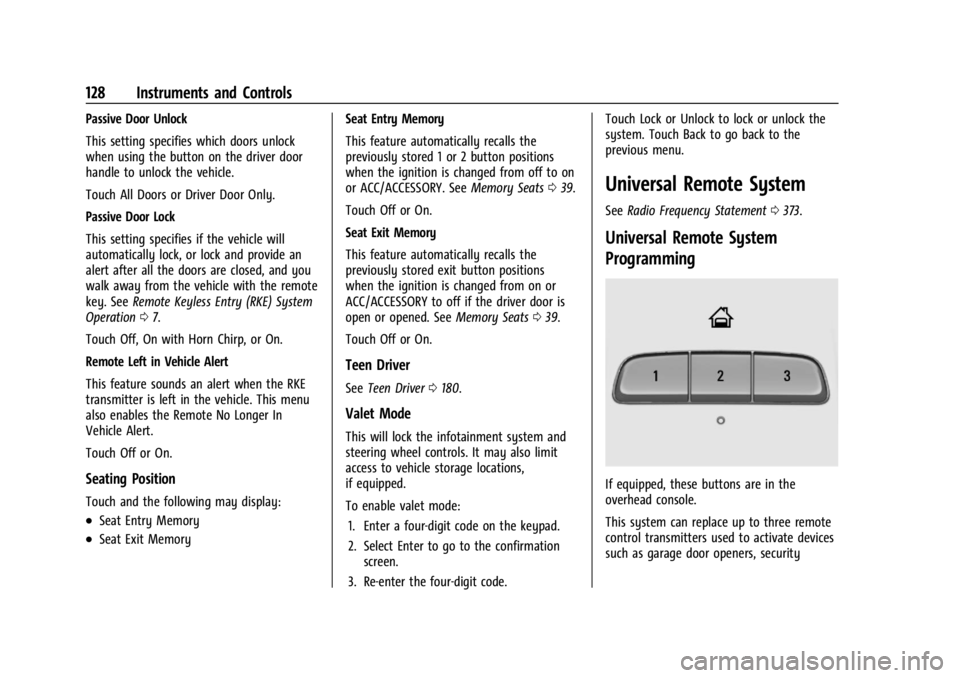
If equipped, these buttons are in the
overhead console.
This system can replace up to three remote
control transmitters used to activate devices
such as garage door openers, security
Page 140 of 397
GMC Acadia/Acadia Denali Owner Manual (GMNA-Localizing-U.S./Canada/
Mexico-15170041) - 2022 - CRC - 10/6/21
Infotainment System 139
Infotainment System
Introduction
Introduction . . . . . . . . . . . . . . . . . . . . . . . . . . . 139
Overview . . . . . . . . . . . . . . . . . . . . . . . . . . . . . . 140
Steering Wheel Controls . . . . . . . . . . . . . . . 141
Using the System . . . . . . . . . . . . . . . . . . . . . 142
Software Updates . . . . . . . . . . . . . . . . . . . . . . 145
Radio
AM-FM Radio . . . . . . . . . . . . . . . . . . . . . . . . . . 145
HD Radio Technology . . . . . . . . . . . . . . . . . . 146
Radio Data System (RDS) . . . . . . . . . . . . . . 147
Satellite Radio . . . . . . . . . . . . . . . . . . . . . . . . . 147
Radio Reception . . . . . . . . . . . . . . . . . . . . . . . 148
Multi-Band Antenna . . . . . . . . . . . . . . . . . . . 148
Audio Players
Avoiding Untrusted Media Devices . . . . 148
USB Port . . . . . . . . . . . . . . . . . . . . . . . . . . . . . . 148
Bluetooth Audio . . . . . . . . . . . . . . . . . . . . . . . 151
Navigation
Using the Navigation System . . . . . . . . . . 152
Maps . . . . . . . . . . . . . . . . . . . . . . . . . . . . . . . . . . 155
Navigation Symbols . . . . . . . . . . . . . . . . . . . . 155
Destination . . . . . . . . . . . . . . . . . . . . . . . . . . . . 156
Global Positioning System (GPS) . . . . . . . 161
Vehicle Positioning . . . . . . . . . . . . . . . . . . . . 162
Problems with Route Guidance . . . . . . . . 162
If the System Needs Service . . . . . . . . . . . 162Map Data Updates . . . . . . . . . . . . . . . . . . . . 163
Database Coverage Explanations . . . . . . . 163
Voice Recognition
Voice Recognition . . . . . . . . . . . . . . . . . . . . . . 163
Phone
Bluetooth (Overview) . . . . . . . . . . . . . . . . . . 168
Bluetooth (Pairing and Using a
Phone) . . . . . . . . . . . . . . . . . . . . . . . . . . . . . . . 169
Apple CarPlay and Android Auto . . . . . . . 172
Settings
Settings . . . . . . . . . . . . . . . . . . . . . . . . . . . . . . . 174
Teen Driver . . . . . . . . . . . . . . . . . . . . . . . . . . . . 180
Trademarks and License Agreements
Trademarks and License Agreements . . . . . . . . . . . . . . . . . . . . . . . . . . 183
Introduction
Read the following pages to become familiar
with the features.
{Warning
Taking your eyes off the road for too
long or too often while using any
infotainment feature can cause a crash.
You or others could be injured or killed.
Do not give extended attention to
infotainment tasks while driving. Limit
your glances at the vehicle displays and
focus your attention on driving. Use voice
commands whenever possible.
The infotainment system has built-in
features intended to help avoid distraction
by disabling some features when driving.
These features may gray out when they are
unavailable. Many infotainment features are
also available through the instrument cluster
and steering wheel controls.