ad blue GMC ACADIA 2023 User Guide
[x] Cancel search | Manufacturer: GMC, Model Year: 2023, Model line: ACADIA, Model: GMC ACADIA 2023Pages: 384, PDF Size: 17.04 MB
Page 149 of 384
GMC Acadia/Acadia Denali Owner Manual (GMNA-Localizing-U.S./Canada/
Mexico-16402009) - 2023 - CRC - 3/28/22
148 Infotainment System
When touching Bluetooth, the radio may
not be able to launch the audio player on
the connected device to start playing. When
the vehicle is not moving, use the mobile
device to begin playback.
All devices launch audio differently. When
selecting Bluetooth as a source, the radio
may show as paused on the display. Press
play on the device or touch
pon the
vehicle display to begin playback.
Browse functionality will be provided where
supported by the Bluetooth device. This
media content will not be part of the
MyMedia source mode.
Some smartphones support sending
Bluetooth music information to display on
the radio. When the radio receives this
information, it will check to see if any is
available and display it. For more
information about supported Bluetooth
features, visit your brand website. See
Online Account 0353 for details.
See Radio Frequency Statement 0359 or
Radio Frequency Statement 0359.
Navigation
Using the Navigation System
If equipped, launch the Nav application by
touching the Nav icon on the Home Page or
on the shortcut tray near the bottom of the
infotainment display.
When the Nav application is launched for
the first time, a product walkthrough is
available. Use of the feature requires the
Terms and Conditions and the Privacy
statement to be confirmed. If available and
signed into a profile, it is also suggested to
enable and confirm Predictive Navigation.
Predictive Navigation (If Equipped)
If Predictive Navigation is available and
confirmed, this feature learns preferences by
remembering where the vehicle has been.
It uses the locations and navigation history
to personalize routes and results.
Predictive Navigation may learn elements
such as:
.Personalized routes based on preferred
streets.
.Search results that provide best matches
at the top of the list.
.Predictive traffic.
.Local map content updating.
Predictive Navigation can also be enabled or
disabled at a later time by touching
A
(Options). While in Options, touch Settings,
then Map and Navigation Settings, and then
Predictive Navigation.
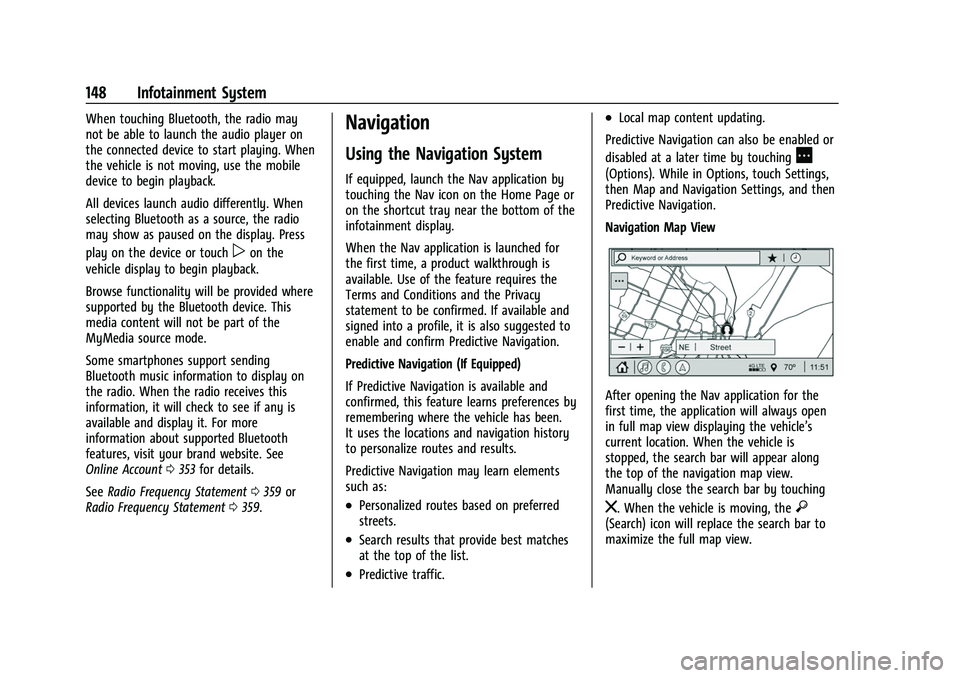
Navigation Map View
After opening the Nav application for the
first time, the application will always open
in full map view displaying the vehicle’s
current location. When the vehicle is
stopped, the search bar will appear along
the top of the navigation map view.
Manually close the search bar by touching
z. When the vehicle is moving, the}(Search) icon will replace the search bar to
maximize the full map view.
Page 165 of 384
GMC Acadia/Acadia Denali Owner Manual (GMNA-Localizing-U.S./Canada/
Mexico-16402009) - 2023 - CRC - 3/28/22
164 Infotainment System
Voice Recognition for the Phone
“Call
stored contact. The command may include
location if the contact has location numbers
stored.
“Call
Mobile,” or“On Other” :Initiate a call to a
stored contact and location at home, at
work, on mobile device, or on another
phone.
“Call
to a cell phone number of seven digits, 10
digits, or three digit emergency numbers.
“Pair Phone” :Begin the Bluetooth pairing
process. Follow the instructions on the
infotainment display.
“Redial” :Initiate a call to the last dialed
number.
“Switch Phone” :Select a different
connected cell phone for outgoing calls.
“Voice Keypad” :Begin a dialog to enter
special numbers like international numbers.
The numbers can be entered in groups of
digits with each group of digits being
repeated back by the system. If the group
of digits is not correct, the command
“Delete” will remove the last group of digits and allow them to be re-entered. Once the
entire number has been entered, the
command
“Call”will start dialing the
number.
Phone Assistant Voice Recognition
Press and holdgon the steering wheel
controls to pass through and launch Google
phone assistant or Siri.
For the low radio, whether connected by
Bluetooth or phone projection, the only
available voice recognition is either Siri
(iPhone) or the Google Assistant (Android).
Phone
Bluetooth (Overview)
The Bluetooth-capable system can be paired
with up to 10 Bluetooth devices and two
active Bluetooth devices, allowing:
.Placement and receipt of calls in a
hands-free mode.
.Sharing of the device’s address book or
contact list with the vehicle.
To minimize driver distraction, before
driving, and with the vehicle parked:
.Become familiar with the features of the
mobile device. Organize the phone book
and contact lists clearly and delete
duplicate or rarely used entries.
If possible, program speed dial or other
shortcuts.
.Review the controls and operation of the
infotainment system.
.Pair mobile device(s) to the vehicle. The
system may not work with all mobile
devices. See “Pairing”later in this section.
Vehicles with a Bluetooth system can use a
Bluetooth-capable mobile device with a
Hands-Free Profile to make and receive
phone calls. The infotainment system and
voice recognition are used to control the
system. The system can be used while the
ignition is on or in accessory mode. The
range of the Bluetooth system can be up to
9.1 m (30 ft). Not all mobile devices support
all functions and not all mobile devices work
with the Bluetooth system. Visit your brand
website for more information about
compatible mobile devices. See Online
Account 0353.
Page 166 of 384
GMC Acadia/Acadia Denali Owner Manual (GMNA-Localizing-U.S./Canada/
Mexico-16402009) - 2023 - CRC - 3/28/22
Infotainment System 165
Controls
Use the controls on the center stack and the
steering wheel to operate the Bluetooth
system.
Steering Wheel Controls
g:Press to answer incoming calls and start
voice recognition on your connected
Bluetooth mobile device.
i: Press to end a call, decline a call,
or cancel an operation. Press to mute or
unmute the infotainment system when not
on a call.
Infotainment System Controls
For information about how to navigate the
menu system using the infotainment
controls, see Overview0136.
Audio System
When using the Bluetooth mobile device
system, sound comes through the vehicle's
front audio system speakers and overrides
the audio system. The volume level while on
a mobile device call can be adjusted by
pressing the steering wheel controls or the
volume control on the center stack. The adjusted volume level remains in memory
for later calls. The volume cannot be
lowered beyond a certain level.
Bluetooth (Pairing and Using a
Phone)
Pairing
A Bluetooth-enabled mobile device must be
paired to the Bluetooth system and then
connected to the vehicle before it can be
used. See the mobile device manufacturer's
user guide for Bluetooth functions before
pairing the device.
Pairing Information
.If no mobile device has been connected,
the Phone main page on the infotainment
display will show the Connect Phone
option. Touch this option to connect.
Another way to connect is to touch the
Phones tab at the top right of the display
and then touch Add Phone.
.A Bluetooth smartphone with music
capability can be paired to the vehicle as
a smartphone and a music player at the
same time.
.Up to 10 devices can be paired to the
Bluetooth system.
.The pairing process is disabled when the
vehicle is moving.
.Pairing only needs to be completed once,
unless the pairing information on the cell
phone changes or the cell phone is
deleted from the system.
.If multiple paired cell phones are within
range of the system, the system connects
to the paired cell phone that is set to
First to Connect. If there is no cell phone
set to First to Connect, it will link to the
cell phone which was used last. To link to
a different paired cell phone, see
“Linking
to a Different Phone” later in this section.
Pairing a Phone 1. Make sure Bluetooth has been enabled on the cell phone before the pairing
process is started.
2. Touch the Phone icon on the Home Page or the phone icon on the shortcut tray
near the bottom of the display.
3. Touch Phones at the top of the infotainment display. There is also a
Connect Phones option in the middle of
the Phone display which will shortcut to
the Phone List menu.
4. Touch Add Phone.
Page 167 of 384
GMC Acadia/Acadia Denali Owner Manual (GMNA-Localizing-U.S./Canada/
Mexico-16402009) - 2023 - CRC - 3/28/22
166 Infotainment System
5. Select the vehicle name shown on theinfotainment display from your cell
phone’s Bluetooth Settings list.
6. Follow the instructions on the cell phone to confirm the six-digit code showing on
the infotainment display and touch Pair.
The code on the cell phone and
infotainment display will need to be
acknowledged for a successful pair.
7. Start the pairing process on the cell phone to be paired to the vehicle. See
the cell phone manufacturer's user guide
for information on this process. Once the
cell phone is paired, it will show under
Connected.
8. If the vehicle name does not appear on your cell phone, there are a few ways to
start the pairing process over:
.Turn the cell phone off and then
back on.
.Go back to the beginning of the
Phone menus on the infotainment
display and restart the pairing
process.
.Reset the cell phone, but this step
should be done as a last effort. 9. If the cell phone prompts to accept
connection or allow phone book
download, touch Always Accept and
Allow. The phone book may not be
available if not accepted.
10. Repeat Steps 1−8 to pair additional cell phones.
First to Connect Paired Phones
If multiple paired cell phones are within
range of the system, the system connects to
the paired cell phone that is set as First to
Connect. To enable a paired cell phone as
the First to Connect phone: 1. Make sure the cell phone is turned on.
2. Touch Settings, then touch System.
3. Touch Phones to access all paired and all connected cell phones and mobile
devices.
4. Touch the information icon or pencil icon to the right of the cell phone to open
the cell phone’s settings menu.
5. Touch the First to Connect option, to enable the setting for that device. Cell phones and mobile devices can be
added, removed, connected, and
disconnected. A sub-menu will display
whenever a request is made to add or
manage cell phones and mobile devices.
Secondary Phone
A cell phone can be enabled as a Secondary
Phone by touching the information icon to
the right of the paired cell phone name to
open the phone settings menu. If a cell
phone is enabled as a Secondary Phone, it
can connect simultaneously alongside
another Bluetooth mobile device. In doing
so, the Secondary Phone will be labeled as
Incoming Calls. This means the mobile
device can only receive calls. The Address
Book of a Secondary Phone will not be
available and hands-free outgoing calls
cannot be placed using this cell phone.
If needed, touch the Secondary Phone while
in the Phones list to swap it into the
Outgoing and Incoming role. This role makes
it possible to place outgoing calls from the
Contacts and Recents list.
Listing All Paired and Connected Phones
1. Touch the Phone icon on the Home Page or the phone icon on the shortcut tray
near the bottom of the display.
Page 168 of 384
GMC Acadia/Acadia Denali Owner Manual (GMNA-Localizing-U.S./Canada/
Mexico-16402009) - 2023 - CRC - 3/28/22
Infotainment System 167
2. Touch Phones.
Disconnecting a Connected Phone 1. Touch the Phone icon on the Home Page.
2. Touch Phones.
3. Touch the information icon or the pencil icon next to the connected cell phone or
mobile device to show the cell phone’s
or mobile device’s information display.
4. Touch Disconnect.
Deleting a Paired Phone 1. Touch the Phone icon on the Home Page or the phone icon on the shortcut tray
near the bottom of the display.
2. Touch Phones.
3. Touch the information icon or the pencil icon next to the connected cell phone to
display the cell phone’s or mobile
device’s information display.
4. Touch Forget Device.
Linking to a Different Phone
To link to a different cell phone, the new
cell phone must be in the vehicle and paired
to the Bluetooth system. 1. Touch the Phone icon on the Home Page or the phone icon on the shortcut tray
near the bottom of the display. 2. Touch Phones.
3. Touch the new cell phone to link to from
the not connected phone list. See “First
to Connect Paired Phones” and
“Secondary Phone” previously in this
section.
Switching to Handset or
Handsfree Mode
To switch between handset or
handsfree mode:
.While the active call is hands-free, touch
the Handset option to switch to the
handset mode.
The mute icon will not be available or
functional while Handset mode is active.
.While the active call is on the handset,
touch the Handset option to switch to the
hands-free mode.
Making a Call Using Contacts and Recent
Calls
Calls can be made through the Bluetooth
system using personal cell phone contact
information for all cell phones that support
the Phone Book feature. Become familiar
with the cell phone settings and operation.
Verify the cell phone supports this feature. The Contacts menu accesses the phone book
stored in the cell phone.
The Recents menu accesses the recents call
list from your cell phone.
To make a call using the Contacts menu:
1. Touch the Phone icon on the Home Page.
2. Touch Contacts.
3. The Contacts list can be searched by using the first character. Touch A-Z on
the infotainment display to scroll
through the list of names.
Touch the name to call.
4. Touch the desired contact number to call.
To make a call using the Recents menu: 1. Touch Phone on the Home Page.
2. Touch Recents.
3. Touch the name or number to call.
Making a Call Using the Keypad
To make a call by dialing the numbers:1. Touch the Phone icon on the Home Page.
2. Touch Keypad and enter a phone number.
3. Touch
#on the infotainment display to
start dialing the number.
Page 169 of 384
GMC Acadia/Acadia Denali Owner Manual (GMNA-Localizing-U.S./Canada/
Mexico-16402009) - 2023 - CRC - 3/28/22
168 Infotainment System
Searching Contacts Using the Keypad
To search for contacts using the keypad:1. Touch the Phone icon on the Home Page.
2. Touch Keypad and enter partial phone numbers or contact names using the
digits on the keypad to search.
Results will show on the right side of the
display. Touch one to place a call.
Accepting or Declining a Call
When an incoming call is received, the
infotainment system mutes and a ring tone
is heard in the vehicle.
Accepting a Call
There are two ways to accept a call:
.Pressgon the steering wheel controls.
.Touch Answer on the infotainment
display.
Declining a Call
There are two ways to decline a call:
.Pression the steering wheel controls.
.Touch Ignore on the infotainment display.
Call Waiting
Call waiting must be supported on the
Bluetooth cell phone and enabled by the
wireless service carrier to work.
Accepting a Call
Press
gto answer, then touch Switch on
the infotainment display.
Declining a Call
Press
ito decline, then touch Ignore on
the infotainment display
Switching Between Calls (Call Waiting
Calls Only)
To switch between calls, touch Phone on the
Home Page to display Call View. While in
Call View, touch the call information of the
call on hold to change calls.
Three-Way Calling
Three-way calling must be supported on the
Bluetooth cell phone and enabled by the
wireless service carrier to work.
To start a three-way call while in a
current call:
1. In the Call View, touch Add Call to add another call. 2. Initiate the second call by selecting from
Recents, Contacts, or Keypad.
3. When the second call is active, touch the merge icon to conference the three-way
call together.
Ending a Call
.Pression the steering wheel controls.
.Touch#on the infotainment display,
next to a call, to end only that call.
Dual Tone Multi-Frequency (DTMF) Tones
The in-vehicle Bluetooth system can send
numbers during a call. This is used when
calling a menu-driven phone system. Use the
Keypad to enter the number.
Apple CarPlay and Android Auto
If equipped, Android Auto and/or Apple
CarPlay capability may be available through
a compatible smartphone. If available, the
Android Auto and Apple CarPlay icons will
change from gray to color on the Home
Page of the infotainment display.
To use Android Auto and/or Apple CarPlay:
Page 170 of 384
GMC Acadia/Acadia Denali Owner Manual (GMNA-Localizing-U.S./Canada/
Mexico-16402009) - 2023 - CRC - 3/28/22
Infotainment System 169
For Wired Phone Projection1. Download the Android Auto app to your smartphone from the Google Play store.
There is no app required for Apple
CarPlay.
2. Connect your Android phone or Apple iPhone by using the factory-provided
phone USB cable and plugging into a
USB data port. For best performance, it is
highly recommended to use the device’s
factory-provided USB cable, which should
be replaced after significant wear to
maintain connection quality. Aftermarket
or third-party cables may not work.
3. When the phone is first connected to activate Apple CarPlay or Android Auto,
accept the terms and conditions on both
the infotainment system and the phone.
4. Follow the instructions on the phone.
The Android Auto and Apple CarPlay icons
on the Home Page will illuminate depending
on the smartphone. Android Auto and/or
Apple CarPlay may automatically launch
upon USB connection. If not, touch the
Android Auto or Apple CarPlay icon on the
Home Page to launch.
Press
{on the center stack to return to the
Home Page. For Wireless Phone Projection
If equipped, verify your phone is wireless
compatible by visiting the Google Android
Auto or Apple CarPlay support page.
1. Download the Android Auto app to your smartphone from the Google Play store.
There is no app required for Apple
CarPlay.
2. For first time connection, there are two ways to set up wireless projection:
.Connect your Android phone or Apple
iPhone by using the factory-provided
phone USB cable and plugging into a
USB data port. For best performance,
it is highly recommended to use the
device’s factory-provided USB cable,
which should be replaced after
significant wear to maintain
connection quality. Aftermarket or
third-party cables may not work.
.Connecting the phone over Bluetooth.
See Bluetooth (Pairing and Using a
Phone) 0165 or
Bluetooth (Overview) 0164.
3. Make sure wireless is turned on the phone for wireless projection to work. 4. When the phone is first connected to
activate Apple CarPlay or Android Auto,
agree to the terms and conditions on
both the infotainment system and the
phone.
5. Follow the instructions on the phone.
The Android Auto and Apple CarPlay icons
on the Home Page will illuminate depending
on the smartphone. Android Auto and/or
Apple CarPlay may automatically launch
upon wireless connection. If not, touch the
Android Auto or Apple CarPlay icon on the
Home Page to launch.
Wireless Carplay and/or Wireless Android
Auto may experience occasional service
disruption due to outside Wi-Fi interference.
To disconnect the phones wireless
projection: 1. Select Settings from the Home Page.
2. Select Phones
3. Touch
4or the pencil icon next to the
phone to be disconnected.
4. Turn off Apple CarPlay or Android Auto.
Press
{on the center stack to return to the
Home Page.
Page 179 of 384
GMC Acadia/Acadia Denali Owner Manual (GMNA-Localizing-U.S./Canada/
Mexico-16402009) - 2023 - CRC - 3/28/22
178 Infotainment System
Bluetooth
The Bluetooth word mark and logos are
owned by the Bluetooth SIG, Inc. and any
use of such marks by General Motors is
under license. Other trademarks and trade
names are those of their respective owners.
Java
Java is a registered trademark of Oracle
and/or its affiliates.
MPEG4–AVC (H.264)
THIS PRODUCT IS LICENSED UNDER THE AVC
PATENT PORTFOLIO LICENSE FOR THE
PERSONAL AND NON-COMMERCIAL USE OF A
CONSUMER TO (i) ENCODE VIDEO IN
COMPLIANCE WITH THE AVC STANDARD
(“AVC VIDEO”) AND/OR (ii) DECODE AVC
VIDEO THAT WAS ENCODED BY A
CONSUMER ENGAGED IN A PERSONAL AND
NON-COMMERCIAL ACTIVITY AND/OR WAS
OBTAINED FROM A VIDEO PROVIDER
LICENSED TO PROVIDE AVC VIDEO. NO
LICENSE IS GRANTED OR SHALL BE IMPLIED
FOR ANY OTHER USE. ADDITIONAL
INFORMATION MAY BE OBTAINED FROM
MPEG LA, LLC. SEE
HTTPS://WWW.MPEGLA.COM.VC-1
THIS PRODUCT IS LICENSED UNDER THE VC-1
PATENT PORTFOLIO LICENSE FOR THE
PERSONAL AND NON-COMMERCIAL USE OF A
CONSUMER TO (i) ENCODE VIDEO IN
COMPLIANCE WITH THE VC-1 STANDARD
(“VC-1 VIDEO”) AND/OR (ii) DECODE VC-1
VIDEO THAT WAS ENCODED BY A
CONSUMER ENGAGED IN A PERSONAL AND
NON-COMMERCIAL ACTIVITY AND/OR WAS
OBTAINED FROM A VIDEO PROVIDER
LICENSED TO PROVIDE VC-1 VIDEO. NO
LICENSE IS GRANTED OR SHALL BE IMPLIED
FOR ANY OTHER USE. ADDITIONAL
INFORMATION MAY BE OBTAINED FROM
MPEG LA, LLC. SEE
HTTPS://WWW.MPEGLA.COM.
MPEG4–Visual
USE OF THIS PRODUCT IN ANY MANNER
THAT COMPLIES WITH THE MPEG-4 VISUAL
STANDARD IS PROHIBITED, EXCEPT FOR USE
BY A CONSUMER ENGAGING IN PERSONAL
AND NON-COMMERCIAL ACTIVITIES.
MP3
MPEG Layer-3 audio coding technology
licensed from Fraunhofer IIS and Thomson.WMV/WMA
This product includes technology owned by
Microsoft Corporation and under a license
from Microsoft Licensing, GP. Use or
distribution of such technology outside of
this product is prohibited without a license
from Microsoft Corporation and/or Microsoft
Licensing, GP as applicable.
Map End User License Agreement
END USER TERMS
The Map Data SD card (“Data”) is provided
for your personal, internal use only and not
for resale. It is protected by copyright, and
is subject to the following terms (this
“End
User License Agreement”) and conditions
which are agreed to by you, on the one
hand, and HERE North America, LLC (“HERE”)
and its licensors (including their licensors
and suppliers) on the other hand.
The Data for areas of Canada includes
information taken with permission from
Canadian authorities, including: © Her
Majesty the Queen in Right of Canada, ©
Queen's Printer for Ontario, © Canada Post
Corporation, GeoBase
®.
Page 227 of 384
GMC Acadia/Acadia Denali Owner Manual (GMNA-Localizing-U.S./Canada/
Mexico-16402009) - 2023 - CRC - 3/29/22
226 Driving and Operating
Increasing Speed While ACC is at a Set Speed
If ACC is already activated, do one of the
following:
.Use the accelerator to get to the higher
speed. Press SET–. Release the control
and the accelerator pedal. The vehicle will
now cruise at the higher speed.
When the accelerator pedal is pressed,
ACC will not brake because it is
overridden. While overridden, the ACC
indicator will turn blue on the instrument
cluster and heads up display, if equipped.
.Press and hold RES+ until the desired set
speed appears on the display, then
release it.
.To increase vehicle speed in small
increments, briefly press RES+. For each
press, the vehicle goes 1 km/h (1 mph)
faster.
.To increase speed in larger increments,
hold RES+. While holding RES+, the vehicle
speed increases to the next 5 km/h
(5 mph) step, then continues to increase
by 5 km/h (5 mph) at a time.
The set speed can also be increased while
the vehicle is stopped.
.If stopped with the brake applied, press
RES+ until the desired set speed is
displayed.
.If ACC is holding the vehicle at a stop and
there is another vehicle directly ahead,
pressing RES+ will increase the set speed.
Pressing RES+ when there is no longer a
vehicle ahead will cause ACC to resume.
When it is determined that there is no
vehicle ahead or the vehicle ahead is beyond
the selected following gap, then the vehicle
speed will increase to the set speed.
Reducing Speed While ACC is at a Set Speed
If ACC is already activated, do one of the
following:
.Use the brake to get to the desired lower
speed. Press SET– down and release the
accelerator pedal. The vehicle will now
cruise at the lower speed.
.Press and hold SET– until the desired
lower speed is reached, then release it.
.To decrease the vehicle speed in smaller
increments, briefly press SET−. For each
press, the vehicle goes about 1 km/h
(1 mph) slower.
.To decrease the vehicle speed in larger
increments, hold SET−. While holding
SET−, the vehicle speed decreases to the
next 5 km/h (5 mph) step, then continues
to decrease by 5 km/h (5 mph) at a time.
The set speed can also be decreased while
the vehicle is stopped.
.If stopped with the brake applied, press
or hold SET− until the desired set speed is
displayed.
Selecting the Follow Distance Gap
When a slower moving vehicle is detected
ahead within the selected following gap,
ACC will adjust the vehicle's speed and
attempt to maintain the follow distance gap
selected.
Press
[on the steering wheel to adjust
the following gap. Each press cycles the gap
button through three settings: Far, Medium,
or Near.
When pressed, the current gap setting
displays briefly on the instrument cluster
and HUD, if equipped. The gap setting will
be maintained until it is changed.
Since each gap setting corresponds to a
following time (Far, Medium, or Near), the
following distance will vary based on vehicle
Page 230 of 384
GMC Acadia/Acadia Denali Owner Manual (GMNA-Localizing-U.S./Canada/
Mexico-16402009) - 2023 - CRC - 3/29/22
Driving and Operating 229
A DIC warning message may display
indicating to shift to P (Park) before exiting
the vehicle. SeeVehicle Messages 0124.
{Warning
If ACC has stopped the vehicle, and if ACC
is disengaged, turned off, or canceled, the
vehicle will no longer be held at a stop.
The vehicle can move. When ACC is
holding the vehicle at a stop, always be
prepared to manually apply the brakes.
{Warning
Leaving the vehicle without placing it in
P (Park) can be dangerous. Do not leave
the vehicle while it is being held at a
stop by ACC. Always place the vehicle in
P (Park) and turn off the ignition before
leaving the vehicle.
ACC Override
If using the accelerator pedal while ACC is
active, the ACC indicator turns blue on the
instrument cluster and HUD, if equipped.
ACC will resume operation when the
accelerator pedal is not being pressed.
{Warning
The ACC will not automatically apply the
brakes if your foot is resting on the
accelerator pedal. You could crash into a
vehicle ahead of you.
Curves in the Road
{Warning
On curves, ACC may not detect a vehicle
ahead in your lane. You could be startled
if the vehicle accelerates up to the set
speed, especially when following a vehicle
exiting or entering exit ramps. You could
lose control of the vehicle or crash. Do
not use ACC while driving on an entrance
or exit ramp. Always be ready to use the
brakes if necessary.
{Warning
On curves, ACC may respond to a vehicle
in another lane, or may not have time to
react to a vehicle in your lane. You could
crash into a vehicle ahead of you, or lose
control of your vehicle. Give extra (Continued)
Warning (Continued)
attention in curves and be ready to use
the brakes if necessary. Select an
appropriate speed while driving in curves.
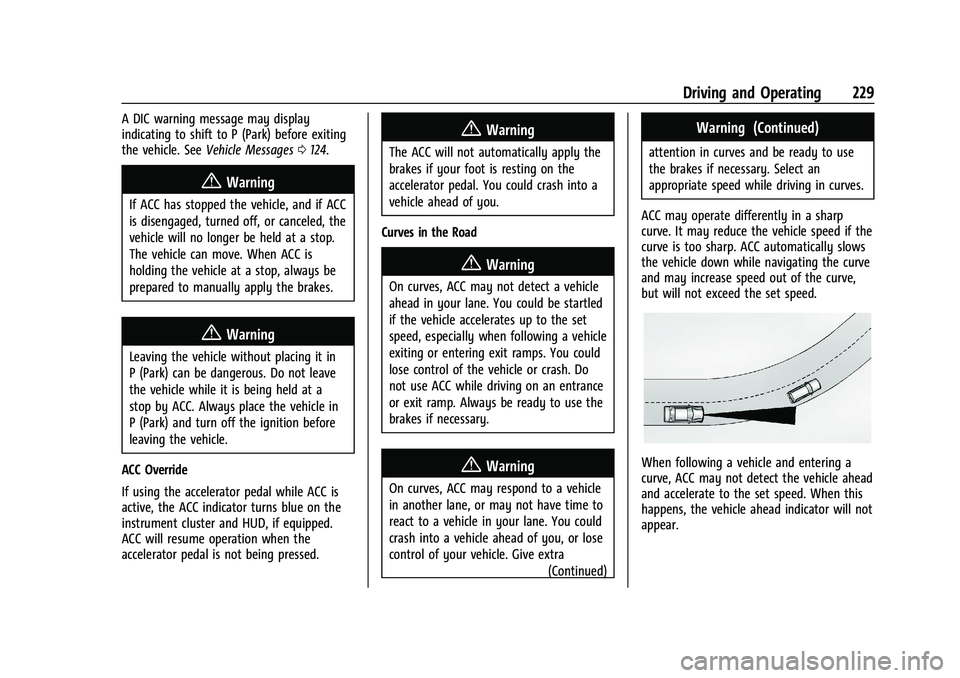
ACC may operate differently in a sharp
curve. It may reduce the vehicle speed if the
curve is too sharp. ACC automatically slows
the vehicle down while navigating the curve
and may increase speed out of the curve,
but will not exceed the set speed.
When following a vehicle and entering a
curve, ACC may not detect the vehicle ahead
and accelerate to the set speed. When this
happens, the vehicle ahead indicator will not
appear.