lock GMC ACADIA LIMITED 2017 Service Manual
[x] Cancel search | Manufacturer: GMC, Model Year: 2017, Model line: ACADIA LIMITED, Model: GMC ACADIA LIMITED 2017Pages: 339, PDF Size: 4.75 MB
Page 99 of 339
GMC Acadia Limited Owner Manual (GMNA-Localizing-U.S.-10283134) -
2017 - crc - 3/30/16
98 Instruments and Controls
Vehicle Personalization
Vehicle Personalization . . . . . . . 132
Universal Remote System
Universal Remote System . . . . 139
Universal Remote SystemProgramming . . . . . . . . . . . . . . . 139
Universal Remote System Operation . . . . . . . . . . . . . . . . . . . 141
Controls
Steering Wheel
Adjustment
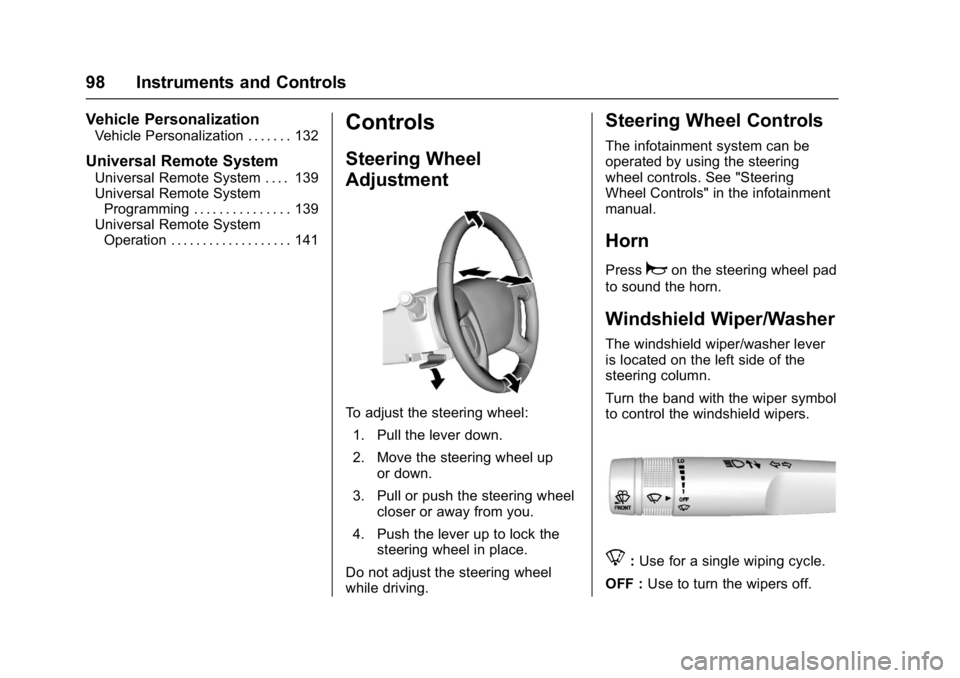
To adjust the steering wheel:
1. Pull the lever down.
2. Move the steering wheel up or down.
3. Pull or push the steering wheel closer or away from you.
4. Push the lever up to lock the steering wheel in place.
Do not adjust the steering wheel
while driving.
Steering Wheel Controls
The infotainment system can be
operated by using the steering
wheel controls. See "Steering
Wheel Controls" in the infotainment
manual.
Horn
Pressaon the steering wheel pad
to sound the horn.
Windshield Wiper/Washer
The windshield wiper/washer lever
is located on the left side of the
steering column.
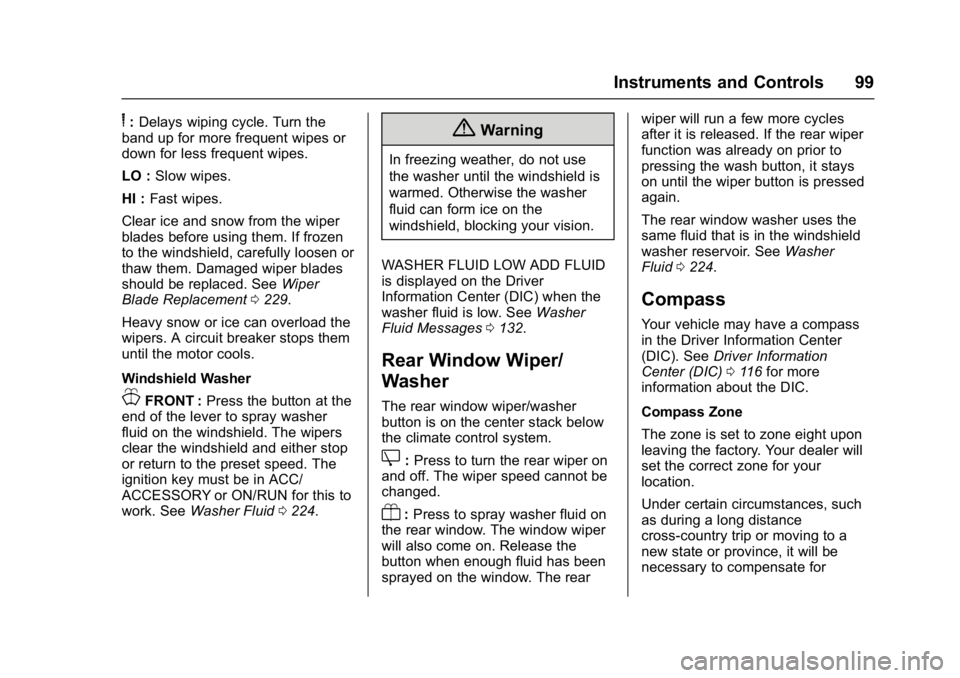
Turn the band with the wiper symbol
to control the windshield wipers.
8: Use for a single wiping cycle.
OFF : Use to turn the wipers off.
Page 100 of 339
GMC Acadia Limited Owner Manual (GMNA-Localizing-U.S.-10283134) -
2017 - crc - 3/30/16
Instruments and Controls 99
6:Delays wiping cycle. Turn the
band up for more frequent wipes or
down for less frequent wipes.
LO : Slow wipes.
HI : Fast wipes.
Clear ice and snow from the wiper
blades before using them. If frozen
to the windshield, carefully loosen or
thaw them. Damaged wiper blades
should be replaced. See Wiper
Blade Replacement 0229.
Heavy snow or ice can overload the
wipers. A circuit breaker stops them
until the motor cools.
Windshield Washer
JFRONT : Press the button at the
end of the lever to spray washer
fluid on the windshield. The wipers
clear the windshield and either stop
or return to the preset speed. The
ignition key must be in ACC/
ACCESSORY or ON/RUN for this to
work. See Washer Fluid 0224.
{Warning
In freezing weather, do not use
the washer until the windshield is
warmed. Otherwise the washer
fluid can form ice on the
windshield, blocking your vision.
WASHER FLUID LOW ADD FLUID
is displayed on the Driver
Information Center (DIC) when the
washer fluid is low. See Washer
Fluid Messages 0132.
Rear Window Wiper/
Washer
The rear window wiper/washer
button is on the center stack below
the climate control system.
Z:Press to turn the rear wiper on
and off. The wiper speed cannot be
changed.
Y: Press to spray washer fluid on
the rear window. The window wiper
will also come on. Release the
button when enough fluid has been
sprayed on the window. The rear wiper will run a few more cycles
after it is released. If the rear wiper
function was already on prior to
pressing the wash button, it stays
on until the wiper button is pressed
again.
The rear window washer uses the
same fluid that is in the windshield
washer reservoir. See
Washer
Fluid 0224.
Compass
Your vehicle may have a compass
in the Driver Information Center
(DIC). See Driver Information
Center (DIC) 0116 for more
information about the DIC.
Compass Zone
The zone is set to zone eight upon
leaving the factory. Your dealer will
set the correct zone for your
location.
Under certain circumstances, such
as during a long distance
cross-country trip or moving to a
new state or province, it will be
necessary to compensate for
Page 102 of 339
GMC Acadia Limited Owner Manual (GMNA-Localizing-U.S.-10283134) -
2017 - crc - 3/30/16
Instruments and Controls 101
To calibrate the compass, use the
following procedure:
Compass Calibration Procedure1. Before calibrating the compass, make sure the compass zone
is set to the variance zone in
which the vehicle is located.
See “Compass Variance (Zone)
Procedure” earlier in this
section.
Do not operate any switches
such as window, sunroof,
climate controls, seats, etc.
during the calibration
procedure.
2. Press the vehicle information button until PRESS
VTO
CALIBRATE COMPASS
displays.
3. Press the set/reset button to start the compass calibration.
4. The DIC will display CALIBRATING: DRIVE IN
CIRCLES. Drive the vehicle in
tight circles at less than 8 km/h
(5 mph) to complete the
calibration. The DIC will display
CALIBRATION COMPLETE for a few seconds when the
calibration is complete. The
DIC display will then return to
the previous menu.
Clock
Touch Settings on the Home Page
Menu, then touch the Set Time or
Set Date settings screen button to
display the different options for
setting the time and date.
Set Time:
.
Touch the up or down arrows to
increase or decrease the Hours,
Minutes, AM, PM, or the 24 hour
setting on the clock.
. Touch and hold to quickly
increase or decrease the time
settings.
. Touch OK to save the
adjustments.
. Touch the Back or Cancel
screen button to cancel the
adjustments. Set Date:
.
Touch the up or down arrows to
increase or decrease the Month,
Day, and Year settings.
. Touch and hold to quickly
increase or decrease the date
settings.
. Touch OK to save the
adjustments.
. Touch the Back or Cancel
screen button to cancel the
adjustments.
Power Outlets
The vehicle has 12-volt outlets that
can be used to plug in electrical
equipment, such as a cell phone or
MP3 player.
The power outlets are located:
.On the center stack below the
climate controls.
. Inside the center console.
. At the rear of the center console.
. In the rear cargo area.
Lift the cover to access the outlet
and replace when not in use.
Page 103 of 339
GMC Acadia Limited Owner Manual (GMNA-Localizing-U.S.-10283134) -
2017 - crc - 3/30/16
102 Instruments and Controls
{Warning
Power is always supplied to the
outlets. Do not leave electrical
equipment plugged in when the
vehicle is not in use because the
vehicle could catch fire and cause
injury or death.
Caution
Leaving electrical equipment
plugged in for an extended period
of time while the vehicle is off will
drain the battery. Always unplug
electrical equipment when not in
use and do not plug in equipment
that exceeds the maximum
20 amp rating.
Certain accessory plugs may not be
compatible with the accessory
power outlet and could overload
vehicle and adapter fuses. If a
problem is experienced, see your
dealer. When adding electrical equipment,
be sure to follow the proper
installation instructions included with
the equipment. See
Add-On
Electrical Equipment 0207.
Caution
Hanging heavy equipment from
the power outlet can cause
damage not covered by the
vehicle warranty. The power
outlets are designed for
accessory power plugs only, such
as cell phone charge cords.
Power Outlet 110V/120V
Alternating Current
If equipped with this power outlet it
can be used to plug in electrical
equipment that uses a maximum
limit of 150 watts.
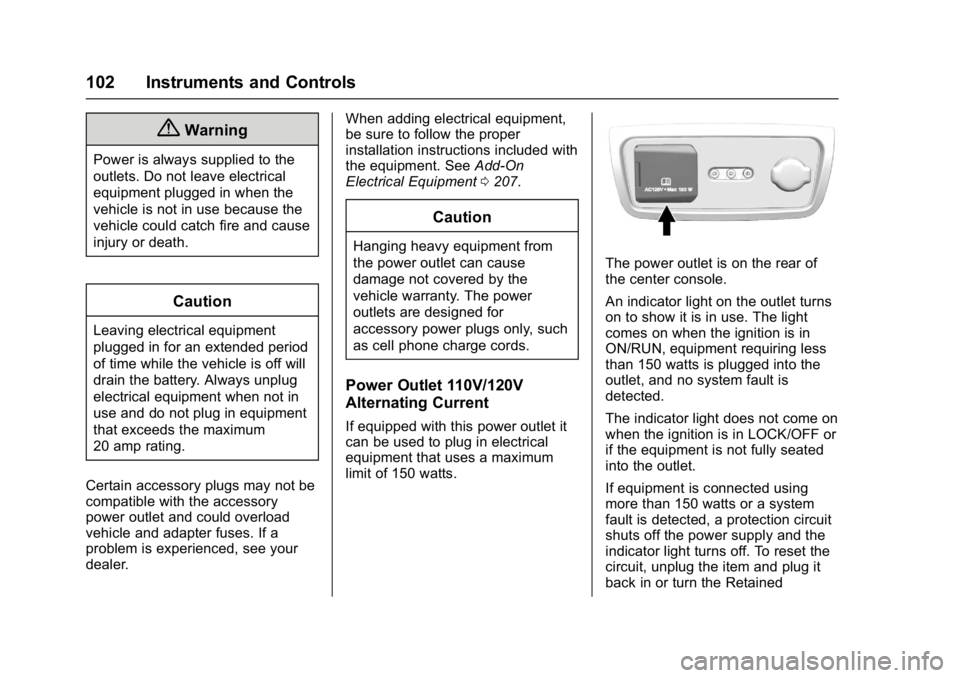
The power outlet is on the rear of
the center console.
An indicator light on the outlet turns
on to show it is in use. The light
comes on when the ignition is in
ON/RUN, equipment requiring less
than 150 watts is plugged into the
outlet, and no system fault is
detected.
The indicator light does not come on
when the ignition is in LOCK/OFF or
if the equipment is not fully seated
into the outlet.
If equipment is connected using
more than 150 watts or a system
fault is detected, a protection circuit
shuts off the power supply and the
indicator light turns off. To reset the
circuit, unplug the item and plug it
back in or turn the Retained
Page 113 of 339
GMC Acadia Limited Owner Manual (GMNA-Localizing-U.S.-10283134) -
2017 - crc - 3/30/16
112 Instruments and Controls
stays on after the parking brake is
fully released, it means there is a
brake problem.
If the light comes on while driving,
pull off the road and stop carefully.
Make sure the parking brake is fully
released. The pedal may be harder
to push or, the pedal may go closer
to the floor. It may take longer to
stop. If the light is still on, have the
vehicle towed for service. See
Towing the Vehicle0274.
{Warning
The brake system might not be
working properly if the brake
system warning light is on.
Driving with the brake system
warning light on can lead to a
crash. If the light is still on after
the vehicle has been pulled off
the road and carefully stopped,
have the vehicle towed for
service. The brake message remains on until
any DIC button is pressed. The
brake light remains on until the
problem is fixed. See
Brake System
Messages 0124.
Antilock Brake System
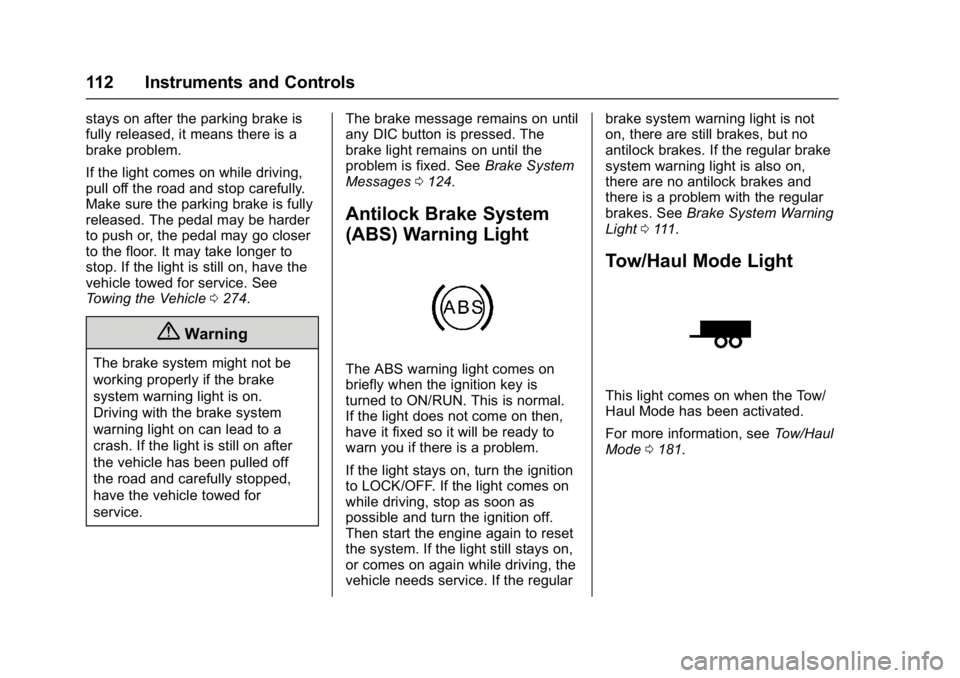
(ABS) Warning Light
The ABS warning light comes on
briefly when the ignition key is
turned to ON/RUN. This is normal.
If the light does not come on then,
have it fixed so it will be ready to
warn you if there is a problem.
If the light stays on, turn the ignition
to LOCK/OFF. If the light comes on
while driving, stop as soon as
possible and turn the ignition off.
Then start the engine again to reset
the system. If the light still stays on,
or comes on again while driving, the
vehicle needs service. If the regular brake system warning light is not
on, there are still brakes, but no
antilock brakes. If the regular brake
system warning light is also on,
there are no antilock brakes and
there is a problem with the regular
brakes. See
Brake System Warning
Light 0111.
Tow/Haul Mode Light
This light comes on when the Tow/
Haul Mode has been activated.
For more information, see Tow/Haul
Mode 0181.
Page 123 of 339
GMC Acadia Limited Owner Manual (GMNA-Localizing-U.S.-10283134) -
2017 - crc - 3/30/16
122 Instruments and Controls
Use the following settings to adjust
the HUD:
9:To turn HUD off, rotate the
dimming knob fully counterclockwise
until the HUD display turns off.
Brightness: Turn the knob on the
HUD control clockwise or
counterclockwise to brighten or dim
the display.
yorz: Press the up or down
arrows to center the HUD image in
your view. The HUD image can only
be adjusted up and down, not side
to side.
?: Press this button to select the
display formats. Release the page
button when the format number with
the desired display is shown on
the HUD.
The HUD image displayed on the
windshield will automatically dim
and brighten to compensate for
outside lighting.
The HUD image can temporarily
light up depending on the angle and
position of the sunlight on the HUD
display. This is normal and will change when the angle of the
sunlight on the HUD display
changes.
Polarized sunglasses could make
the HUD image harder to see.
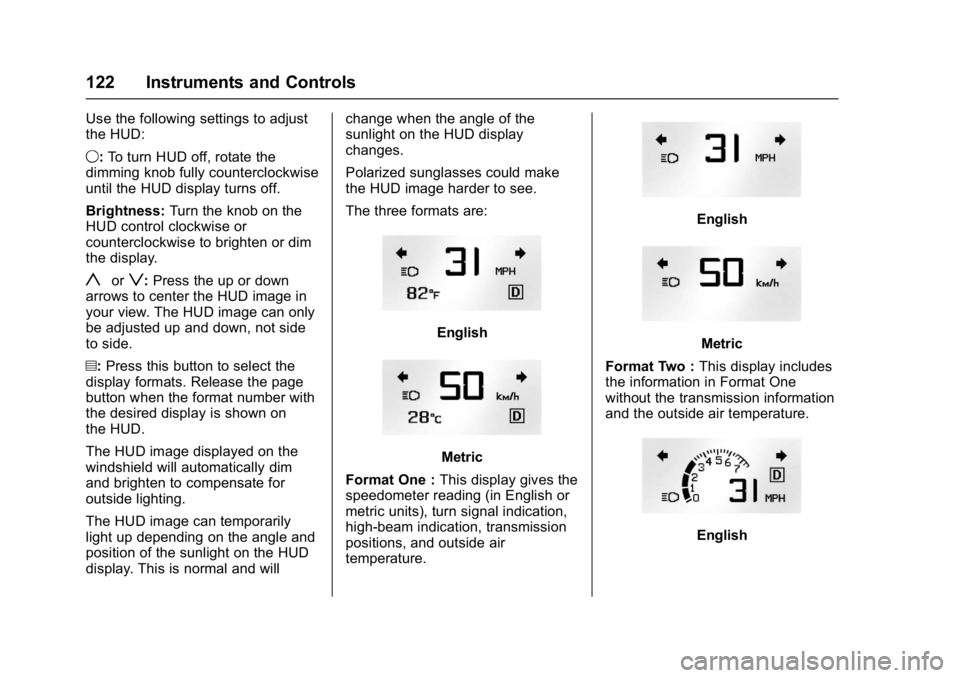
The three formats are:
English
Metric
Format One : This display gives the
speedometer reading (in English or
metric units), turn signal indication,
high-beam indication, transmission
positions, and outside air
temperature.
English
Metric
Format Two : This display includes
the information in Format One
without the transmission information
and the outside air temperature.
English
Page 128 of 339
GMC Acadia Limited Owner Manual (GMNA-Localizing-U.S.-10283134) -
2017 - crc - 3/30/16
Instruments and Controls 127
fuel cap is not tightened properly.
SeeMalfunction Indicator Lamp
(Check Engine Light) 0109.
Reinstall the fuel cap fully. See
Filling the Tank 0198. The
diagnostic system can determine if
the fuel cap has been left off or
improperly installed. A loose or
missing fuel cap allows fuel to
evaporate into the atmosphere.
A few driving trips with the cap
properly installed should turn this
light and message off.
Key and Lock Messages
REPLACE BATTERY IN
REMOTE KEY
This message displays if a Remote
Keyless Entry (RKE) transmitter
battery is low. The battery needs to
be replaced in the transmitter. See
“Battery Replacement” under
Remote Keyless Entry (RKE)
System Operation 025.
Lamp Messages
AUTOMATIC LIGHT
CONTROL OFF
This message displays when the
automatic headlamps are turned off.
This message clears itself after
10 seconds.
AUTOMATIC LIGHT
CONTROL ON
This message displays when the
automatic headlamps are turned on.
This message clears itself after
10 seconds.
TURN SIGNAL ON
This message displays and a chime
sounds if a turn signal is left on for
1.2 km (0.75 mi). Move the turn
signal lever to the off position.
Object Detection System
Messages
FORWARD COLLISION ALERT
UNAVAILABLE
This message displays when
attempting to activate the Forward
Collision Alert (FCA) system when it
is temporarily unavailable. The FCA
system does not need service.
This message could be due to the
camera being blocked. Cleaning the
outside of the windshield behind the
rearview mirror may correct the
issue.
FRT CAMERA BLOCKED
CLEAN WINDSHIELD
This message displays when the
camera is blocked. Cleaning the
outside of the windshield behind the
rearview mirror may correct the
issue. The Lane Departure Warning
system will not operate. Forward
Collision Alert (FCA) may not work
or may not work as well.
Page 129 of 339
GMC Acadia Limited Owner Manual (GMNA-Localizing-U.S.-10283134) -
2017 - crc - 3/30/16
128 Instruments and Controls
LANE DEPARTURE SYS
UNAVAILABLE
This message displays when
attempting to activate the Lane
Departure Warning (LDW) system
when it is temporarily unavailable.
The LDW system does not need
service.
This message could be due to the
camera being blocked. Cleaning the
outside of the windshield behind the
rearview mirror may correct the
issue.
PARK ASST BLOCKED SEE
OWNERS MANUAL
This message displays if there is
something interfering with the Rear
Parking Assist (RPA) system. See
Parking Assist0190.
PARK ASSIST OFF
After the vehicle has been started,
this message displays to remind the
driver that the RPA system has
been turned off. To turn the RPA
system back on, see Parking
Assist 0190.
REAR CROSS TRAFFIC
ALERT SYSTEM OFF
If the vehicle has the Rear Cross
Traffic Alert (RCTA) system, this
message displays when the RCTA
system has been turned off. See
Rear Vision Camera (RVC) 0188
and Driver Information Center
(DIC) 0116.
SERVICE FRONT CAMERA
If this message remains on after
continued driving, the vehicle needs
service. Do not use the Lane
Departure Warning (LDW) and
Forward Collision Alert (FCA)
features. Take the vehicle to your
dealer.
SERVICE PARK ASSIST
This message displays if there is a
problem with the Rear Parking
Assist (RPA) system. Do not use
this system to help you park. See
Parking Assist 0190. See your
dealer for service.
SERVICE SIDE DETECTION
SYSTEM
If your vehicle has the Side Blind
Zone Alert (SBZA) system and this
message displays, both SBZA
displays will remain on indicating
there is a problem with the SBZA
system. If these displays remain on
after continued driving, the system
needs service. See your dealer. See
Side Blind Zone Alert (SBZA) 0193.
SIDE BLIND ZONE ALERT
SYSTEM OFF
If your vehicle has the Side Blind
Zone Alert (SBZA) system, this
message displays when the SBZA
system has been turned off. See
Side Blind Zone Alert (SBZA) 0193
and Driver Information Center
(DIC) 0116.
SIDE DETECTION SYS
TEMPORARILY OFF
If your vehicle has the Side Blind
Zone Alert (SBZA) system, this
message displays when the SBZA
system is disabled because the
sensor cannot detect vehicles in
your blind zone. The sensor may be
Page 130 of 339
GMC Acadia Limited Owner Manual (GMNA-Localizing-U.S.-10283134) -
2017 - crc - 3/30/16
Instruments and Controls 129
blocked by mud, dirt, snow, ice,
or slush. This message may also
display during heavy rain or due to
road spray. It may also come on
when driving in isolated areas with
no guardrails, trees, or road signs
and light traffic. Your vehicle does
not need service. For cleaning
instructions, see“Washing the
Vehicle” inExterior Care 0278. See
Side Blind Zone Alert (SBZA) 0193.
Ride Control System
Messages
SERVICE STABILITRAK
This message displays if there is a
problem with the StabiliTrak®
system. If this message appears, try
to reset the system. Stop; turn off
the engine for at least 15 seconds;
then start the engine again. If this
message still comes on, it means
there is a problem. See your dealer
for service. The vehicle is safe to
drive, however, you do not have the
benefit of StabiliTrak, so reduce
your speed and drive accordingly.
SERVICE TRACTION
CONTROL
This message displays when there
is a problem with the Traction
Control System (TCS). When this
message is displayed, the system
will not limit wheel spin. Adjust your
driving accordingly. See your dealer
for service. See Traction Control/
Electronic Stability Control 0184 for
more information.
TRACTION CONTROL OFF
This message displays when the
Traction Control System (TCS) is
turned off. Adjust your driving
accordingly. See Traction Control/
Electronic Stability Control 0184.
TRACTION CONTROL ON
This message displays when the
Traction Control System (TCS) is
turned on. See Traction Control/
Electronic Stability Control 0184.
This message clears itself after
10 seconds.
Airbag System Messages
SERVICE AIR BAG
This message displays if there is a
problem with the airbag system.
Have your dealer inspect the
system for problems. See Airbag
Readiness Light 0108 andAirbag
System 061 for more information.
Security Messages
SERVICE THEFT DETERRENT
SYSTEM
This message displays when there
is a problem with the theft-deterrent
system. The vehicle may or may not
restart so you may want to take the
vehicle to your dealer before turning
off the engine. See Immobilizer
Operation 035 for more information.
THEFT ATTEMPTED
This message displays if the content
theft-deterrent system has detected
a break-in attempt while you were
away from your vehicle. See Vehicle
Alarm System 034 for more
information.
Page 134 of 339
GMC Acadia Limited Owner Manual (GMNA-Localizing-U.S.-10283134) -
2017 - crc - 3/30/16
Instruments and Controls 133
Entering the Feature
Settings Menu
1. Turn the ignition on and placethe vehicle in P (Park).
To avoid excessive drain on
the battery, it is recommended
that the headlamps are
turned off.
2. Press the customization button to enter the feature settings
menu. If the menu is not
available, FEATURE
SETTINGS AVAILABLE IN
PARK will display. Before
entering the menu, make sure
the vehicle is in P (Park).
Feature Settings Menu Items
The following are customization
features that allow you to program
settings to the vehicle:
DISPLAY IN ENGLISH
This feature will only display if a
language other than English has
been set. This feature allows you to
change the language in which the
DIC messages appear to English. Press the customization button until
the PRESS
VTO DISPLAY IN
ENGLISH screen appears on the
DIC display. Press the set/reset
button once to display all DIC
messages in English.
DISPLAY LANGUAGE
This feature allows you to select the
language in which the DIC
messages will appear.
Press the customization button until
the DISPLAY LANGUAGE screen
appears on the DIC display. Press
the set/reset button once to access
the settings for this feature. Then
press the customization button to
scroll through the following settings:
ENGLISH (default) : All messages
will appear in English.
FRANCAIS : All messages will
appear in French.
ESPANOL : All messages will
appear in Spanish.
NO CHANGE : No change will be
made to this feature. The current
setting will remain. To select a setting, press the set/
reset button while the desired
setting is displayed on the DIC.
AUTO DOOR LOCK
This feature allows you to select
when the vehicle's doors will
automatically lock. See
Automatic
Door Locks 030.
Press the customization button until
AUTO DOOR LOCK appears on the
DIC display. Press the set/reset
button once to access the settings
for this feature. Then press the
customization button to scroll
through the following settings:
SHIFT OUT OF PARK (default) :
The doors will automatically lock
when the vehicle is shifted out of
P (Park).
AT VEHICLE SPEED : The doors
will automatically lock when the
vehicle speed is above 13 km/h
(8 mph) for three seconds.
NO CHANGE : No change will be
made to this feature. The current
setting will remain.