reset GMC CANYON 2009 User Guide
[x] Cancel search | Manufacturer: GMC, Model Year: 2009, Model line: CANYON, Model: GMC CANYON 2009Pages: 414, PDF Size: 2.48 MB
Page 170 of 414
Audio System(s)
Determine which radio the vehicle has and read the
following pages to become familiar with its features.
{CAUTION:
Taking your eyes off the road for extended periods
could cause a crash resulting in injury or death to
you or others. Do not give extended attention to
entertainment tasks while driving.
This system provides access to many audio and non
audio listings.To minimize taking your eyes off the road while driving,
do the following while the vehicle is parked:
Become familiar with the operation and controls of
the audio system.
Set up the tone, speaker adjustments, and preset
radio stations.
For more information, seeDefensive Driving on
page 4-2.
Notice:Contact your dealer/retailer before adding
any equipment.
Adding audio or communication equipment could
interfere with the operation of the vehicle’s engine,
radio, or other systems, and could damage them.
Follow federal rules covering mobile radio and
telephone equipment.
Notice:The chime signals related to safety belts,
parking brake, and other functions of your vehicle
operate through the radio/entertainment system.
If that equipment is replaced or additional equipment
is added to your vehicle, the chimes may not
work. Make sure that replacement or additional
equipment is compatible with your vehicle before
installing it. SeeAccessories and Modifications
on page 5-3.
3-42
Page 174 of 414
Finding a Station
AM FM (AM-FM Radio):Press to switch between FM1,
FM2, or AM. The selection displays.
BAND:Press to switch between FM1, FM2, AM, or
XM1 or XM2 (if equipped). The selection displays.
qrTUNE:Turn to select radio stations.
qSEEKr:Press to go to the previous or to the
next station and stay there.
To scan stations, press and hold either arrow for
two seconds until a beep sounds. The radio goes to a
station, plays for a few seconds, then goes to the
next station. Press either arrow again to stop scanning.
To scan preset stations, press and hold either arrow
for more than four seconds until two beeps sound.
The radio goes to the rst preset station stored on the
pushbuttons, plays for a few seconds, then goes to
the next preset station. Press either arrow again to stop
scanning presets.
qSCANr:Press and hold for more than two seconds.
SCAN or SCN displays and the radio produces one beep.
The radio goes to a station, plays for a few seconds, then
goes to the next station. Press either SCAN arrow again,
to stop scanning presets.To scan preset stations, press and hold either SCAN
arrow for more than four seconds. PSCN or PSC displays
and the radio produces one beep or depending on the
radio, two beeps. The radio goes to a preset station,
plays for a few seconds, then goes to the next preset
station. Press either SCAN arrow again, to stop scanning
presets.
The radio only scans stations with a strong signal that are
in the selected band.
Setting Preset Stations
If the radio does not have XM, up to 18 stations
(six FM1, six FM2, and six AM) can be programmed on
the six numbered pushbuttons.
If the radio has XM, up to 30 stations (six FM1, six FM2,
six AM, six XM1 and six XM2) can be programmed on
the six numbered pushbuttons.
To program either radio:
1. Turn the radio on.
2. Press BAND to select FM1, FM2, AM, or XM1 or
XM2 (if equipped).
For the AM-FM Radio, press AM FM to select
FM1, FM2, or AM.
3. Tune in the desired station.
3-46
Page 177 of 414
Finding a Program Type (PTY) Station
(RDS and XM)
To select and nd a desired PTY perform the following:
1. Press the P-TYPE to activate program type
select mode. P-TYPE or TYPE and a PTY displays.
2. Turn the P-TYPE knob again, to select a PTY.
3. Once the desired PTY displays, press the
SEEK / TYPE button to select and to take you to
the PTY’s rst station.
4. Go to to another station within that PTY by
pressing the SEEK / TYPE button twice to display
the PTY and then go to another station.
To cancel the seek, press the SEEK / TYPE button.
This also exits the program type seek mode and returns
to the last tuned station.
If both PTY and TRAF (traffic) are on, the radio
searches for stations with the selected PTY and traffic
announcements.
If the radio cannot nd the desired program type, NONE
displays and the radio returns to the last tuned station.
SCAN:To scan PTYs, press and hold the SEEK / SCAN
until a beep sounds. The radio goes to a station, plays for
a few seconds, then goes to the next station.BAND (Alternate Frequency):Alternate frequency lets
the radio switch to a stronger station with the same
program type. To turn alternate frequency on, press and
hold BAND for two seconds. AF ON displays. The radio
could switch to stations with a stronger frequency.
To turn alternate frequency off, press and hold BAND
again for two seconds. AF OFF displays. The radio
does not switch to other stations.
This function does not apply for XM Satellite Radio
Service.
Setting Preset PTYs (RDS) Only
For the Radio with CD player, the six pushbuttons have
factory PTY presets. Up to 12 PTYs (six FM1 and
six FM2), can be programmed on the numbered
pushbuttons. To program PTYs:
1. Press BAND to select FM1 or FM2.
2. Turn the P-TYPE knob to activate program type
select mode. TYPE and the last selected PTY
displays.
3. Turn the P-TYPE knob to select a PTY.
4. Press and hold one of the six numbered pushbuttons
until a beep sounds. When that numbered
pushbutton is pressed, the PTY that was set, returns.
5. Repeat the steps for each pushbutton.
3-49
Page 187 of 414
XM Radio Messages
XL (Explicit Language Channels):These channels, or
any others, can be blocked at a customer’s request,
by calling 1-800-852-XMXM (9696).
Updating:The encryption code in the receiver is being
updated, and no action is required. This process
should take no longer than 30 seconds.
No Signl:The system is functioning correctly, but the
vehicle is in a location that is blocking the XM signal.
When the vehicle is moved into an open area, the signal
should return.
Loading:The radio system is acquiring and processing
audio and text data. No action is needed. This message
should disappear shortly.
Off Air:This channel is not currently in service.
Tune to another channel.
CH Unavl:This previously assigned channel is no
longer assigned. Tune to another station. If this station
was one of the presets, choose another station for
that preset button.
Unauth:This channel is blocked or cannot be received
with your XM Subscription package.No Info:No artist, song title, category, or text
information is available at this time on this channel.
The system is working properly.
NotFound:No artist, song title, category, or text
information is available at this time on this channel.
The system is working properly.
XM Lock:The XM receiver in your vehicle could have
previously been in another vehicle. For security
purposes, XM receivers cannot be swapped between
vehicles. If this message is received after having
your vehicle serviced, check with your dealer/retailer.
Radio ID:If this message is received when tuned
to channel 0, there could be a receiver fault. Consult
with your dealer/retailer.
Unknown:If this message is received when tuned to
channel 0, there could be a receiver fault. Consult
with your dealer/retailer.
Check XM:If this message does not clear within a
short period of time, the receiver could have a
fault. Consult with your dealer/retailer.
3-59
Page 197 of 414
If there is a problem detected with StabiliTrak, a
SERVICE STAB SYS message displays on the Driver
Information Center (DIC). SeeDIC Warnings and
Messages on page 3-38for more information. When this
message is displayed, the system is not working.
Adjust your driving accordingly.
StabiliTrak and Traction Control (TCS) come on
automatically whenever the vehicle is started and the
systems are reset with each ignition cycle. However,
when the transfer case is placed in Four-Wheel-Low
mode, StabiliTrak is automatically disabled. See
Four-Wheel Drive on page 2-26for more information. It is
recommended to leave the system on for normal driving
conditions, but it may be necessary to turn the TCS
portion of the system off if the vehicle is stuck in sand,
mud, ice, or snow, and it is necessary to″rock″the
vehicle to attempt to free it. If traction control is turned off,
only the brake-traction control portion of traction control
will work. The engine speed management will be
disabled. In this mode, engine power is not reduced
automatically and the drive wheels can spin more freely.
This can cause the brake-traction control to activate
constantly. SeeIf Your Vehicle is Stuck in Sand, Mud,
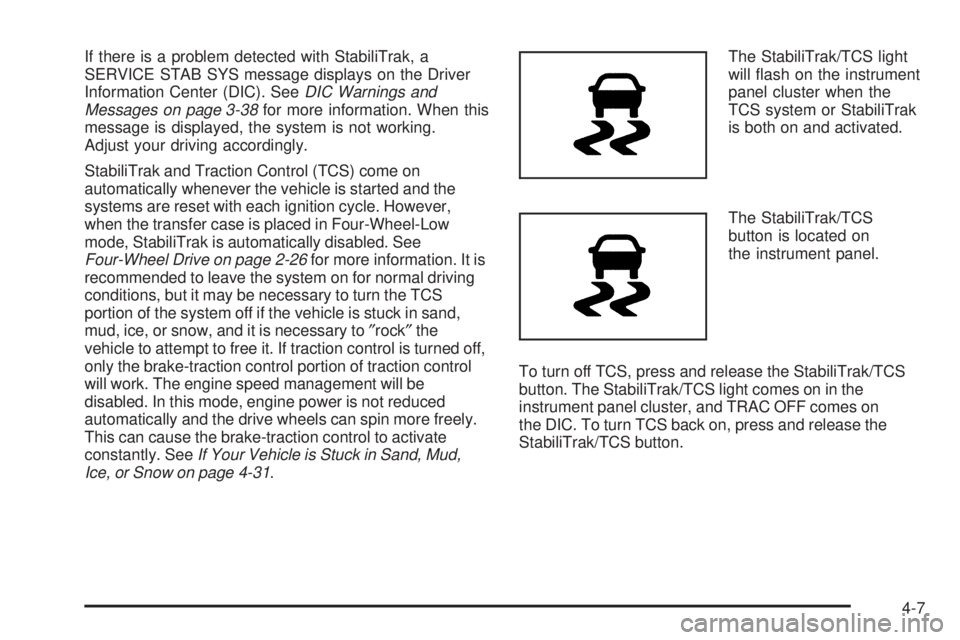
Ice, or Snow on page 4-31.The StabiliTrak/TCS light
will ash on the instrument
panel cluster when the
TCS system or StabiliTrak
is both on and activated.
The StabiliTrak/TCS
button is located on
the instrument panel.
To turn off TCS, press and release the StabiliTrak/TCS
button. The StabiliTrak/TCS light comes on in the
instrument panel cluster, and TRAC OFF comes on
the DIC. To turn TCS back on, press and release the
StabiliTrak/TCS button.
4-7
Page 266 of 414
Cold Temperature Operation
If you are in an area of extreme cold, where the
temperature falls below−20°F (−29°C), use either an
SAE 5W-30 synthetic oil or an SAE 0W-30 engine
oil. Both provide easier cold starting for the engine at
extremely low temperatures. Always use an oil that
meets the required specication, GM6094M. See “What
Kind of Engine Oil to Use” for more information.
Engine Oil Additives / Engine Oil
Flushes
Do not add anything to the oil. The recommended
oils with the starburst symbol that meet GM Standard
GM6094M are all you need for good performance
and engine protection.
Engine oil system ushes are not recommended and
could cause engine damage not covered by the vehicle
warranty.
Engine Oil Life System
When to Change Engine Oil
This vehicle has a computer system that lets you
know when to change the engine oil and lter. This is
based on engine revolutions and engine temperature,
and not on mileage. Based on driving conditions,
the mileage at which an oil change will be indicated
can vary considerably. For the oil life system to
work properly, you must reset the system every time
the oil is changed.
When the system has calculated that oil life has
been diminished, it will indicate that an oil change is
necessary. A CHANGE OIL message will come on.
SeeDIC Warnings and Messages on page 3-38.
Change the oil as soon as possible within the next
600 miles (1 000 km). It is possible that, if you are
driving under the best conditions, the oil life system
might not indicate that an oil change is necessary
for over a year. However, the engine oil and lter must
be changed at least once a year and at this time the
system must be reset. Your dealer/retailer has trained
people who will perform this work using genuine
parts and reset the system. It is also important to check
the oil regularly and keep it at the proper level.
5-18
Page 267 of 414
If the system is ever reset accidentally, you must
change the oil at 3,000 miles (5 000 km) since the last
oil change. Remember to reset the oil life system
whenever the oil is changed.
How to Reset the Engine Oil Life
System
The Engine Oil Life System calculates when to change
the engine oil and lter based on vehicle use. Whenever
the oil is changed, reset the system so it can calculate
when the next oil change is required. If a situation occurs
where you change the oil prior to a CHANGE OIL
message being turned on, reset the system.
To reset the Engine Oil Life system:
1. With the engine off, turn the ignition to ON/RUN.
2. Press and release the stem in the lower center
of the instrument cluster until the OIL LIFE
message is displayed.
3. Once the alternating OIL LIFE and RESET
messages appear, press and hold the stem until
several beeps sound. This conrms that the oil life
system has been reset.
4. Turn the key to LOCK/OFF.If the CHANGE OIL message comes back on when you
start the vehicle, the engine oil life system has not
reset. Repeat the procedure. SeeDIC Warnings and
Messages on page 3-38.
What to Do with Used Oil
Used engine oil contains certain elements that can be
unhealthy for your skin and could even cause cancer.
Do not let used oil stay on your skin for very long. Clean
your skin and nails with soap and water, or a good
hand cleaner. Wash or properly dispose of clothing or
rags containing used engine oil. See the manufacturer’s
warnings about the use and disposal of oil products.
Used oil can be a threat to the environment. If you
change your own oil, be sure to drain all the oil from the
lter before disposal. Never dispose of oil by putting it
in the trash, pouring it on the ground, into sewers, or into
streams or bodies of water. Recycle it by taking it to a
place that collects used oil.
5-19
Page 295 of 414
Headlamp Aiming
Headlamp aim has been preset at the factory and
should need no further adjustment.
However, if your vehicle is damaged in a crash, the
headlamp aim may be affected. Aim adjustment to the
low-beam headlamps may be necessary if oncoming
drivers ash their high-beam headlamps at you
(for vertical aim).
If the headlamps need to be re-aimed, it is
recommended that you take the vehicle to your
dealer/retailer for service.
Bulb Replacement
For the proper type of replacement bulbs, see
Replacement Bulbs on page 5-51.
For any bulb changing procedure not listed in this
section, contact your dealer/retailer.
Halogen Bulbs
{CAUTION:
Halogen bulbs have pressurized gas inside and
can burst if you drop or scratch the bulb. You or
others could be injured. Be sure to read and follow
the instructions on the bulb package.
5-47
Page 316 of 414
Tire Inspection and Rotation
We recommend that you regularly inspect your
vehicle’s tires, including the spare tire, for signs of
wear or damage. SeeWhen It Is Time for New
Tires on page 5-69for more information.
Tires should be rotated every 5,000 to 8,000 miles
(8 000 to 13 000 km). SeeScheduled Maintenance
on page 6-4.
The purpose of a regular tire rotation is to achieve
a uniform wear for all tires on the vehicle. This
will ensure that your vehicle continues to perform
most like it did when the tires were new. The
rst rotation is the most important. SeeScheduled
Maintenance on page 6-4.
Any time you notice unusual wear, rotate your
tires as soon as possible and check wheel
alignment. Also check for damaged tires or wheels.
SeeWhen It Is Time for New Tires on page 5-69
andWheel Replacement on page 5-74.When rotating your tires, always use the correct
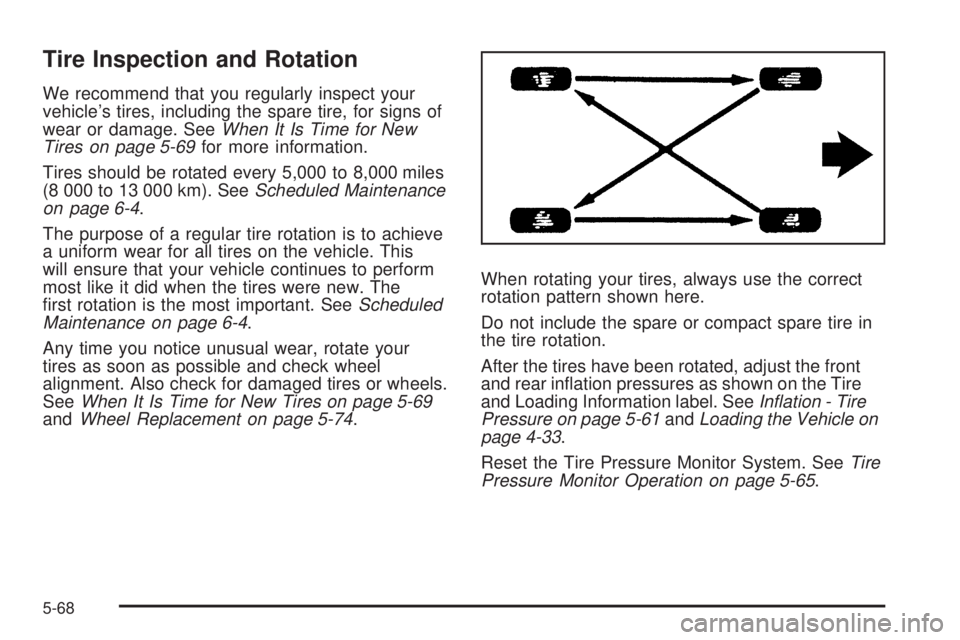
rotation pattern shown here.
Do not include the spare or compact spare tire in
the tire rotation.
After the tires have been rotated, adjust the front
and rear ination pressures as shown on the Tire
and Loading Information label. SeeInflation - Tire
Pressure on page 5-61andLoading the Vehicle on
page 4-33.
Reset the Tire Pressure Monitor System. SeeTire
Pressure Monitor Operation on page 5-65.
5-68
Page 368 of 414
The proper replacement parts, uids, and lubricants to
use are listed inRecommended Fluids and Lubricants
on page 6-11andMaintenance Replacement Parts
on page 6-14. When the vehicle is serviced, make sure
these are used. All parts should be replaced and all
necessary repairs done before you or anyone else
drives the vehicle. We recommend the use of genuine
parts from your dealer/retailer.
Scheduled Maintenance
When the CHANGE OIL message displays, service is
required for the vehicle. SeeDIC Warnings and
Messages on page 3-38. Have the vehicle serviced as
soon as possible within the next 600 miles (1 000 km).
It is possible that, if driving under the best conditions,
the engine oil life system may not indicate that vehicle
service is necessary for over a year. However, the
engine oil and lter must be changed at least once a
year and at this time the system must be reset.
Your dealer/retailer has trained service technicians
who will perform this work using genuine parts and
reset the system.If the engine oil life system is ever reset accidentally,
service the vehicle within 3,000 miles (5 000 km)
since the last service. Remember to reset the oil life
system whenever the oil is changed. SeeEngine Oil Life
System on page 5-18for information on the Engine
Oil Life System and resetting the system.
When the CHANGE OIL message appears, certain
services, checks, and inspections are required.
Required services are described in the following for
“MaintenanceI” and “MaintenanceII.” Generally, it is
recommended that the rst service be MaintenanceI,
the second service be MaintenanceII, and that you
alternate MaintenanceIand MaintenanceIIthereafter.
However, in some cases, MaintenanceIImay be
required more often.
MaintenanceI— Use MaintenanceIif the CHANGE
OIL message displays within 10 months since the
vehicle was purchased or MaintenanceIIwas
performed.
MaintenanceII— Use MaintenanceIIif the previous
service performed was MaintenanceI. Always use
MaintenanceIIwhenever the message displays
10 months or more since the last service or if the
message has not come on at all for one year.
6-4