change time GMC CANYON 2016 User Guide
[x] Cancel search | Manufacturer: GMC, Model Year: 2016, Model line: CANYON, Model: GMC CANYON 2016Pages: 392, PDF Size: 5.31 MB
Page 145 of 392
GMC Canyon Owner Manual (GMNA-Localizing-U.S/Canada-9159361) -
2016 - crc - 8/25/15
144 Lighting
.The light sensor determines it is
daytime.
When the DRL system is on, only
the DRL are on. The taillamps,
sidemarker lamps, instrument panel
lights, and other lamps will not
be on.
When it begins to get dark, the
automatic headlamp system
switches from DRL to the
headlamps.
To turn off the DRL, turn the exterior
lamp control to the off position and
then release. For vehicles first sold
in Canada, off will only work when
the vehicle is in P (Park).
Automatic Headlamp
System
When the exterior lamp control is
set to AUTO and it is dark enough
outside, the headlamps come on
automatically.
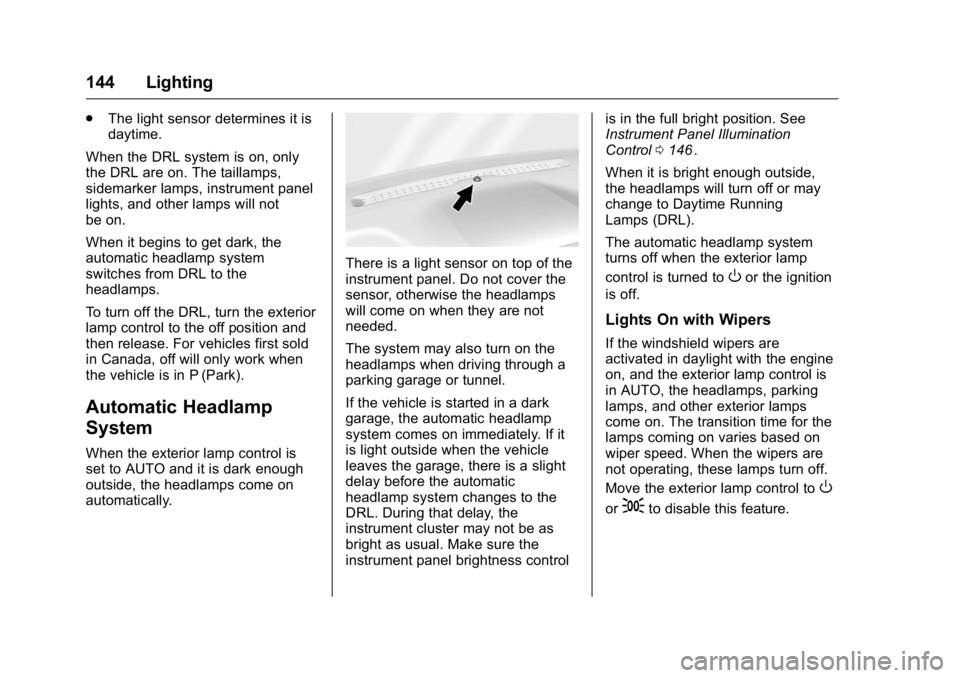
There is a light sensor on top of the
instrument panel. Do not cover the
sensor, otherwise the headlamps
will come on when they are not
needed.
The system may also turn on the
headlamps when driving through a
parking garage or tunnel.
If the vehicle is started in a dark
garage, the automatic headlamp
system comes on immediately. If it
is light outside when the vehicle
leaves the garage, there is a slight
delay before the automatic
headlamp system changes to the
DRL. During that delay, the
instrument cluster may not be as
bright as usual. Make sure the
instrument panel brightness control is in the full bright position. See
Instrument Panel Illumination
Control
0146
ii.
When it is bright enough outside,
the headlamps will turn off or may
change to Daytime Running
Lamps (DRL).
The automatic headlamp system
turns off when the exterior lamp
control is turned to
Oor the ignition
is off.
Lights On with Wipers
If the windshield wipers are
activated in daylight with the engine
on, and the exterior lamp control is
in AUTO, the headlamps, parking
lamps, and other exterior lamps
come on. The transition time for the
lamps coming on varies based on
wiper speed. When the wipers are
not operating, these lamps turn off.
Move the exterior lamp control to
O
or;to disable this feature.
Page 146 of 392
GMC Canyon Owner Manual (GMNA-Localizing-U.S/Canada-9159361) -
2016 - crc - 8/25/15
Lighting 145
Hazard Warning Flashers
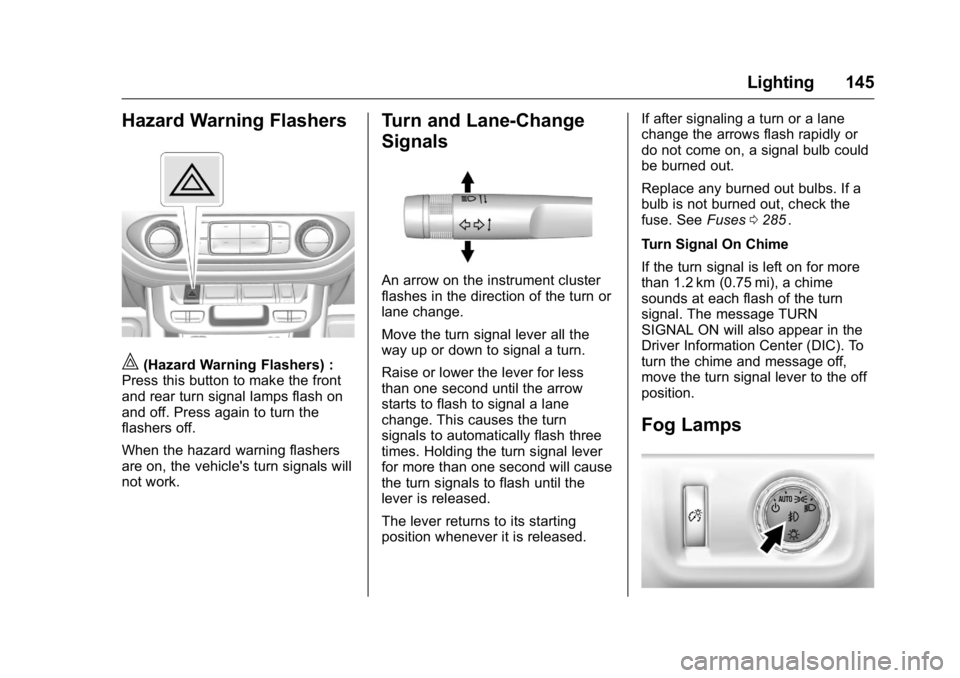
|(Hazard Warning Flashers) :
Press this button to make the front
and rear turn signal lamps flash on
and off. Press again to turn the
flashers off.
When the hazard warning flashers
are on, the vehicle's turn signals will
not work.
Turn and Lane-Change
Signals
An arrow on the instrument cluster
flashes in the direction of the turn or
lane change.
Move the turn signal lever all the
way up or down to signal a turn.
Raise or lower the lever for less
than one second until the arrow
starts to flash to signal a lane
change. This causes the turn
signals to automatically flash three
times. Holding the turn signal lever
for more than one second will cause
the turn signals to flash until the
lever is released.
The lever returns to its starting
position whenever it is released. If after signaling a turn or a lane
change the arrows flash rapidly or
do not come on, a signal bulb could
be burned out.
Replace any burned out bulbs. If a
bulb is not burned out, check the
fuse. See
Fuses0285
ii.
Turn Signal On Chime
If the turn signal is left on for more
than 1.2 km (0.75 mi), a chime
sounds at each flash of the turn
signal. The message TURN
SIGNAL ON will also appear in the
Driver Information Center (DIC). To
turn the chime and message off,
move the turn signal lever to the off
position.
Fog Lamps
Page 148 of 392
GMC Canyon Owner Manual (GMNA-Localizing-U.S/Canada-9159361) -
2016 - crc - 8/25/15
Lighting 147
Dome Lamps
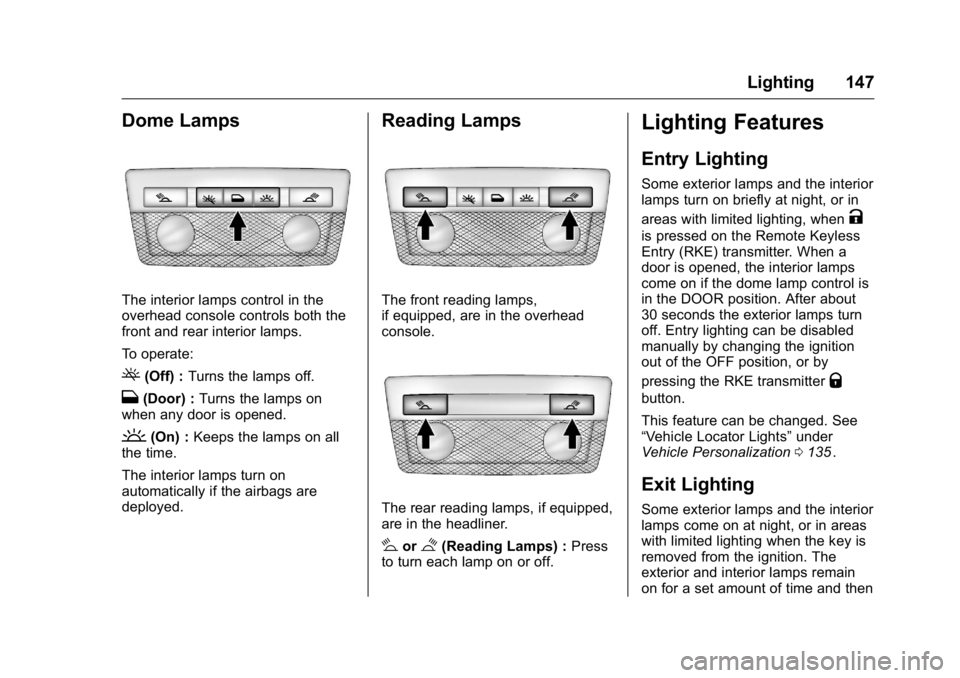
The interior lamps control in the
overhead console controls both the
front and rear interior lamps.
To operate:
((Off) :Turns the lamps off.
H(Door) : Turns the lamps on
when any door is opened.
'(On) : Keeps the lamps on all
the time.
The interior lamps turn on
automatically if the airbags are
deployed.
Reading Lamps
The front reading lamps,
if equipped, are in the overhead
console.
The rear reading lamps, if equipped,
are in the headliner.
#or$(Reading Lamps) : Press
to turn each lamp on or off.
Lighting Features
Entry Lighting
Some exterior lamps and the interior
lamps turn on briefly at night, or in
areas with limited lighting, when
K
is pressed on the Remote Keyless
Entry (RKE) transmitter. When a
door is opened, the interior lamps
come on if the dome lamp control is
in the DOOR position. After about
30 seconds the exterior lamps turn
off. Entry lighting can be disabled
manually by changing the ignition
out of the OFF position, or by
pressing the RKE transmitter
Q
button.
This feature can be changed. See
“Vehicle Locator Lights” under
Vehicle Personalization 0135
ii.
Exit Lighting
Some exterior lamps and the interior
lamps come on at night, or in areas
with limited lighting when the key is
removed from the ignition. The
exterior and interior lamps remain
on for a set amount of time and then
Page 170 of 392
GMC Canyon Owner Manual (GMNA-Localizing-U.S/Canada-9159361) -
2016 - crc - 8/25/15
Infotainment System 169
titles by voice at the highest level if
the number of songs exceeds the
maximum limit.
Voice command option changes
through media content limits are:
.Song files including other
individual files of all media types
such as audiobook chapters,
podcast episodes, and videos.
. Album type folders including
types such as albums and
audiobooks.
There are no restrictions if the
number of song files and albums is
less than 4,000. When the number
of song files connected to the
system is between 4,000 and 8,000,
the content cannot be accessed
directly with one command like
“Play
The restriction is that the command
“Play Song” must be spoken first;
the system will then ask for the song
name. The reply command would be
to say the name of the song to play.
Similar limits exist for album
content. If there are more than
4,000 albums, but less than 8,000, the content cannot be accessed
directly with one command like,
“Play
The
command “Play Album” must first be
spoken; the system will then ask for
the album name. The reply would
be to say the name of the album
to play.
Once the number of songs has
exceeded approximately 8,000,
there is no support for accessing the
songs directly through voice
commands. There will still be
access to the media content by
using commands for playlists,
artists, and genres.
The access commands for playlists,
artists, and genres are prohibited
after the number of this type of
media exceeds 4,000.
The system will provide feedback
the first time voice recognition is
initiated if it has become apparent
that any of these limits are reached
during a device initializing process.Voice Recognition for the
Phone
“Call
call to an entered contact. The
command may include location if
the contact has location numbers
stored.
“Call
“At Work,” “On Mobile,” or“On
Other” :Initiate a call to an entered
contact and location at home, at
work, on mobile device, or on
another phone.
“Call
call to a standard phone number
seven or 10 digits in length, and
also 911, 411, or 611.
“Pair Phone” :Begin the Bluetooth
pairing process. Follow instructions
on the radio display.
“Switch Phone” :Select a different
phone for outgoing calls.
“Voice Keypad” :Begin a dialog to
enter special numbers like
international numbers. The numbers
can be entered in groups of digits
with each group of digits being
repeated back by the system. If the
Page 173 of 392
GMC Canyon Owner Manual (GMNA-Localizing-U.S/Canada-9159361) -
2016 - crc - 8/25/15
172 Infotainment System
Switching to Handset or
Hands-Free Mode
To switch between handset mode
and hands-free mode, use the
OnStar command,“transfer call.”
Pairing
A Bluetooth-enabled cell phone
must be paired to the Bluetooth
system and then connected to the
vehicle before it can be used. See
your cell phone manufacturer's user
guide for Bluetooth functions before
pairing the cell phone. If a Bluetooth
phone is not connected, calls can
be made using OnStar Hands-Free
Calling, if available. See OnStar
Overview 0371
ii, if equipped.
Pairing Information
. Up to five cell phones can be
paired to the Bluetooth system.
. The pairing process is disabled
when the vehicle is moving.
. Pairing only needs to be
completed once per phone,
unless the pairing information on the cell phone changes or the
cell phone is deleted from the
system.
. Only one paired cell phone can
be connected to the Bluetooth
system at a time.
. If multiple paired cell phones are
within range of the system, the
system connects to the first
available paired cell phone in the
order that they were newly
paired to the system. To connect
to a different paired phone, see
“Connecting to a Different
Phone” later in this section.
Pairing a Phone or Device 1. From the Home Page, turn the MENU knob to access the
PHONE screen button, then
press the MENU knob to select
the PHONE screen button. If a
device has been previously
paired, the main Phone menu
will be shown. If no devices
have been paired, Step 2 can
be skipped. 2. Turn the MENU knob and
press to select Manage
Phones.
3. Press the button just below the PAIR screen button. A four-digit
Personal Identification Number
(PIN) appears on the display.
The PIN is used in Step 5.
4. Start the pairing process on the cell phone to be paired to the
vehicle. See the cell phone
manufacturer's user guide for
information on this process.
5. Locate the device named “Your
Vehicle” in the list on the cell
phone. Follow the instructions
on the cell phone to enter the
PIN provided in Step 3. If a six
digit code is shown on the
phone and the vehicle screen,
confirm the codes are the
same. The system recognizes
the new connected phone after
the pairing process is
complete.
6. If the phone prompts to accept connection or allow phone
book download, select Always
Page 177 of 392
GMC Canyon Owner Manual (GMNA-Localizing-U.S/Canada-9159361) -
2016 - crc - 8/25/15
176 Infotainment System
button changes to Handset once
the Bluetooth device confirms it
is operating as hands-free.
Pairing
A Bluetooth-enabled cell phone
must be paired to the Bluetooth
system and then connected to the
vehicle before it can be used. See
your cell phone manufacturer's user
guide for Bluetooth functions before
pairing the cell phone. If a Bluetooth
phone is not connected, calls can
be made using OnStar Hands-Free
Calling, if available. SeeOnStar
Overview 0371
ii.
Pairing Information
. Up to 10 cell phones can be
paired to the Bluetooth system.
. The pairing process is disabled
when the vehicle is moving.
. Pairing only needs to be
completed once per phone,
unless the pairing information on
the cell phone changes or the
cell phone is deleted from the
system. .
Only one paired cell phone can
be connected to the Bluetooth
system at a time.
. If multiple paired cell phones are
within range of the system, the
system connects to the most
recently connected device. To
connect to a different paired
phone, see “Connecting to a
Different Phone” later in this
section.
Pairing a Phone or Device 1. From the Home Page, turn the MENU knob to access the
PHONE screen button, then
press the MENU knob to select
the PHONE screen button. If a
device has been previously
paired, the main Phone menu
will be shown. If no devices
have been paired, Step 2 can
be skipped.
2. Turn the MENU knob and press to select Manage
Phones.
3. Press the button just below the PAIR/screen button. A four-digit
Personal Identification Number (PIN) appears on the display.
The PIN may be used in
Step 5.
4. Start the pairing process on the cell phone to be paired to the
vehicle. See the cell phone
manufacturer's user guide for
information on this process.
5. Locate the device named “GMC IntelliLink” in the list on
the cell phone. Follow the
instructions on the cell phone
to confirm the four-digit code.
After the PIN is successfully
entered or the code is
confirmed, the system confirms
the pairing process is
complete.
6. If the phone prompts to accept connection or allow phone
book download, select always
accept and allow. The phone
book may not be available if
not accepted.
7. Repeat Steps 1–6 to pair additional phones or devices.
Page 181 of 392
GMC Canyon Owner Manual (GMNA-Localizing-U.S/Canada-9159361) -
2016 - crc - 8/25/15
180 Infotainment System
Viewing Sender Information
If equipped, select the name of the
sender to view sender information if
this information matches contact
information already stored.
Select a Predefined Message :
Select from a set of quick
messages. Select the message
to send.
Predefined Messages
These are short text messages that
can be used to send so responses
will not have to be typed.
The messages can be deleted or a
new message can be added.
To add a new message:1. Select Text Settings, then select Manage Predefined
Messages.
2. While in the predefined messages list view, select Add
New Predefined Message and
a keyboard displays.
3. Type a new message and select NEW MSG when done
to add the message. Press the
oBACK button on faceplate to
go back to the predefined
messages list. Select
zto
delete one character at a time.
Memory Full
This message may display if there is
no more room on the phone to store
messages.
Text Settings
Text Alerts : When on, this feature
will display an alert when a new text
message has been received. Select
on or off.
Manage Predefined Messages :
Select to add, change, or delete
predefined messages.
Trademarks and
License Agreements
FCC Information
See Radio Frequency Statement
0 367
ii.
"Made for iPod" and "Made for
iPhone" mean that an electronic
accessory has been designed to
connect specifically to iPod or
iPhone and has been certified by
the developer to meet Apple
performance standards. Apple is not
responsible for the operation of this
device or its compliance with safety
and regulatory standards. Please
note that the use of this accessory
with iPod or iPhone may affect
wireless performance. iPhone
®,
iPod®, iPod classic®, iPod nano®,
Page 182 of 392
GMC Canyon Owner Manual (GMNA-Localizing-U.S/Canada-9159361) -
2016 - crc - 8/25/15
Infotainment System 181
iPod shuffle®, and iPod touch®are
trademarks of Apple Inc., registered
in the U.S. and other countries.
Fees and Taxes: Subscription fee,
taxes, one time activation fee, and
other fees may apply. Subscription
fee is consumer only. All fees and
programming subject to change.
Subscriptions subject to Customer
Agreement available at
www.siriusxm.com. SiriusXM
®
service only available in the
48 contiguous United States and
Canada.
In Canada: Some deterioration of
service may occur in extreme
northern latitudes. This is beyond
the control of SiriusXM
®Satellite
Radio.
Explicit Language Notice: Channels
with frequent explicit language are
indicated with an “XL”preceding the channel name. Channel blocking is
available for SiriusXM Satellite
Radio receivers by notifying
SiriusXM:
.
USA Customers —See
www.siriusxm.com or call
1-866-635–2349.
. Canadian Customers —See
www.xmradio.ca or call
1-877-209-0079.
It is prohibited to copy, decompile,
disassemble, reverse engineer,
hack, manipulate, or otherwise
make available any technology or
software incorporated in receivers
compatible with the SiriusXM
®
Satellite Radio System or that
support the SiriusXM website, the
Online Service or any of its content.
Furthermore, the AMBER voice
compression software included in
this product is protected by
intellectual property rights including
patent rights, copyrights, and trade
secrets of Digital Voice
Systems, Inc.
General Requirements: 1. A License Agreement from
SiriusXM
®is required for any
product that incorporates
SiriusXM Technology and/or for
use of any of the SiriusXM
marks to be manufactured,
distributed, or marketed in the
SiriusXM Service Area.
2. For products to be distributed, marketed, and/or sold in
Canada, a separate agreement
is required with Canadian
Satellite Radio Inc. (operating
as SiriusXM Canada).
Other Information
The Bluetooth®word mark and
logos are owned by the Bluetooth®
SIG, Inc. and any use of such marks
by General Motors is under license.
Other trademarks and trade names
are those of their respective owners.
Page 184 of 392
GMC Canyon Owner Manual (GMNA-Localizing-U.S/Canada-9159361) -
2016 - crc - 8/25/15
Infotainment System 183
rights. Under no circumstances will
Gracenote become liable for any
payment to you for any information
that you provide. You agree that
Gracenote may enforce its rights
under this Agreement against you
directly in its own name.
The Gracenote service uses a
unique identifier to track queries for
statistical purposes. The purpose of
a randomly assigned numeric
identifier is to allow the Gracenote
service to count queries without
knowing anything about who you
are. For more information, see the
web page for the Gracenote Privacy
Policy for the Gracenote service.
The Gracenote Software and each
item of Gracenote Data are licensed
to you "AS IS." Gracenote makes no
representations or warranties,
express or implied, regarding the
accuracy of any Gracenote Data.
Gracenote reserves the right to
delete data from the Gracenote
Servers or to change data
categories for any cause that
Gracenote deems sufficient. No
warranty is made that the Gracenote
Software or Gracenote Servers areerror-free or that functioning of
Gracenote Software or Gracenote
Servers will be uninterrupted.
Gracenote is not obligated to
provide you with new enhanced or
additional data types or categories
that Gracenote may provide in the
future and is free to discontinue its
services at any time.
GRACENOTE DISCLAIMS ALL
WARRANTIES EXPRESS OR
IMPLIED, INCLUDING, BUT NOT
LIMITED TO, IMPLIED
WARRANTIES OF
MERCHANTABILITY, FITNESS
FOR A PARTICULAR PURPOSE,
TITLE, AND NON-INFRINGEMENT.
GRACENOTE DOES NOT
WARRANT THE RESULTS THAT
WILL BE OBTAINED BY YOUR
USE OF THE GRACENOTE
SOFTWARE OR ANY
GRACENOTE SERVER. IN NO
CASE WILL GRACENOTE BE
LIABLE FOR ANY
CONSEQUENTIAL OR
INCIDENTAL DAMAGES OR FOR
ANY LOST PROFITS OR LOST
REVENUES.
© 2013. Gracenote, Inc. All Rights
Reserved.
PANDORA
PANDORA, the PANDORA logo,
and the Pandora trade dress are
trademarks or registered trademarks
of Pandora Media, Inc. Used with
permission.
Unicode
Copyright © 1991-2013 Unicode,
Inc. All rights reserved. Distributed
under the Terms of Use in http://
www.unicode.org/copyright.html.
Free Type Project
Portions of this software are
copyright © 2013 The FreeType
Project (http://www.freetype.org). All
rights reserved.
iType
iType is a trademark of Monotype
Imaging Inc. registered in the U.S.
Patent & Trademark Office and may
be registered in certain other
jurisdictions.
Page 213 of 392
GMC Canyon Owner Manual (GMNA-Localizing-U.S/Canada-9159361) -
2016 - crc - 8/25/15
212 Driving and Operating
Caution
Using a tool to force the key to
turn in the ignition could cause
damage to the switch or break the
key. Use the correct key, make
sure it is all the way in, and turn it
only with your hand. If the key
cannot be turned by hand, see
your dealer.
1 (ACC/ACCESSORY) : This
position lets things like the radio
and the windshield wipers operate
while the engine is off. It also
unlocks the steering wheel. Use this
position if the vehicle must be
pushed or towed.
2 (ON/RUN) : This position can be
used to operate the electrical
accessories and to display some
instrument cluster warning and
indicator lights. This position can
also be used for service and
diagnostics, and to verify the proper
operation of the malfunction
indicator lamp as may be required
for emission inspection purposes.
The switch stays in this position when the engine is running. The
transmission is also unlocked in this
position on automatic transmission
vehicles.
If the key is left in the ACC/
ACCESSORY or ON/RUN position
with the engine off, the battery could
be drained. The vehicle may not
start if the battery is allowed to drain
for an extended period of time.
3 (START) :
This is the position that
starts the engine. When the engine
starts, release the key. The ignition
switch returns to ON/RUN for
driving.
A warning tone will sound when the
driver door is opened, the ignition is
in ACC/ACCESSORY or LOCK/
OFF, and the key is in the ignition.
Starting the Engine
If the vehicle has a diesel engine,
see the Duramax diesel
supplement.
Caution
If you add electrical parts or
accessories, you could change
the way the engine operates. Any
resulting damage would not be
covered by the vehicle warranty.
See Add-On Electrical Equipment
0 254
ii.
Place the transmission in the
proper gear.
Automatic Transmission
Move the shift lever to P (Park) or
N (Neutral). The engine will not start
in any other position. To restart the
engine when the vehicle is already
moving, use N (Neutral) only.
Caution
Do not try to shift to P (Park) if the
vehicle is moving. If you do, you
could damage the transmission.
Shift to P (Park) only when the
vehicle is stopped.