radio GMC CANYON 2016 User Guide
[x] Cancel search | Manufacturer: GMC, Model Year: 2016, Model line: CANYON, Model: GMC CANYON 2016Pages: 392, PDF Size: 5.31 MB
Page 140 of 392
GMC Canyon Owner Manual (GMNA-Localizing-U.S/Canada-9159361) -
2016 - crc - 8/25/15
Instruments and Controls 139
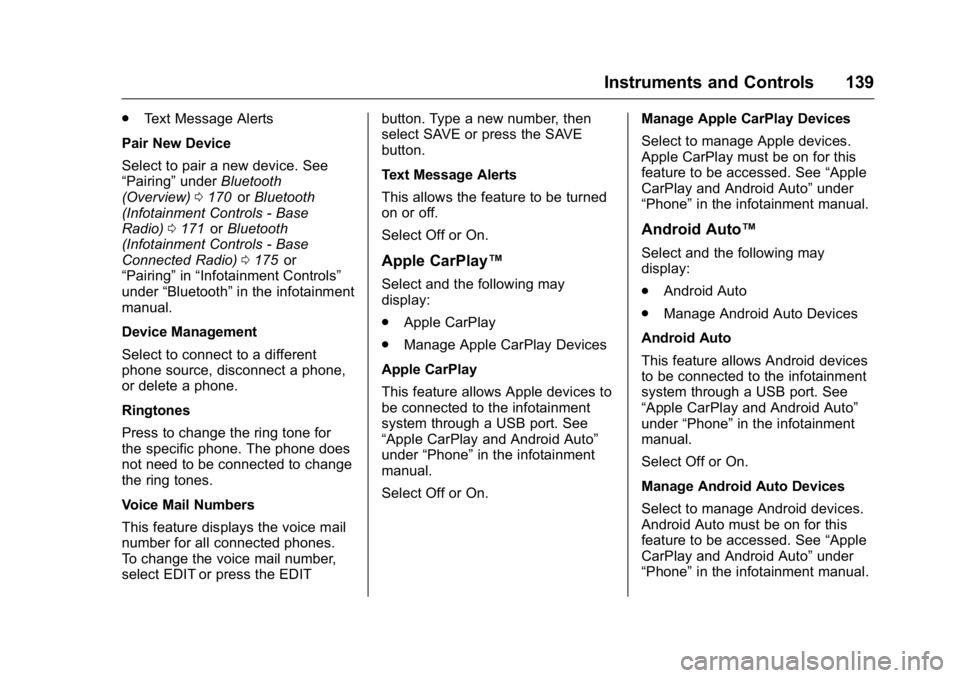
.Text Message Alerts
Pair New Device
Select to pair a new device. See
“Pairing” underBluetooth
(Overview) 0170
iior Bluetooth
(Infotainment Controls - Base
Radio) 0171
iior Bluetooth
(Infotainment Controls - Base
Connected Radio) 0175
iior
“Pairing” in“Infotainment Controls”
under “Bluetooth” in the infotainment
manual.
Device Management
Select to connect to a different
phone source, disconnect a phone,
or delete a phone.
Ringtones
Press to change the ring tone for
the specific phone. The phone does
not need to be connected to change
the ring tones.
Voice Mail Numbers
This feature displays the voice mail
number for all connected phones.
To change the voice mail number,
select EDIT or press the EDIT button. Type a new number, then
select SAVE or press the SAVE
button.
Text Message Alerts
This allows the feature to be turned
on or off.
Select Off or On.Apple CarPlay™
Select and the following may
display:
.
Apple CarPlay
. Manage Apple CarPlay Devices
Apple CarPlay
This feature allows Apple devices to
be connected to the infotainment
system through a USB port. See
“Apple CarPlay and Android Auto”
under “Phone” in the infotainment
manual.
Select Off or On. Manage Apple CarPlay Devices
Select to manage Apple devices.
Apple CarPlay must be on for this
feature to be accessed. See
“Apple
CarPlay and Android Auto” under
“Phone” in the infotainment manual.
Android Auto™
Select and the following may
display:
.
Android Auto
. Manage Android Auto Devices
Android Auto
This feature allows Android devices
to be connected to the infotainment
system through a USB port. See
“Apple CarPlay and Android Auto”
under “Phone” in the infotainment
manual.
Select Off or On.
Manage Android Auto Devices
Select to manage Android devices.
Android Auto must be on for this
feature to be accessed. See “Apple
CarPlay and Android Auto” under
“Phone” in the infotainment manual.
Page 141 of 392
GMC Canyon Owner Manual (GMNA-Localizing-U.S/Canada-9159361) -
2016 - crc - 8/25/15
140 Instruments and Controls
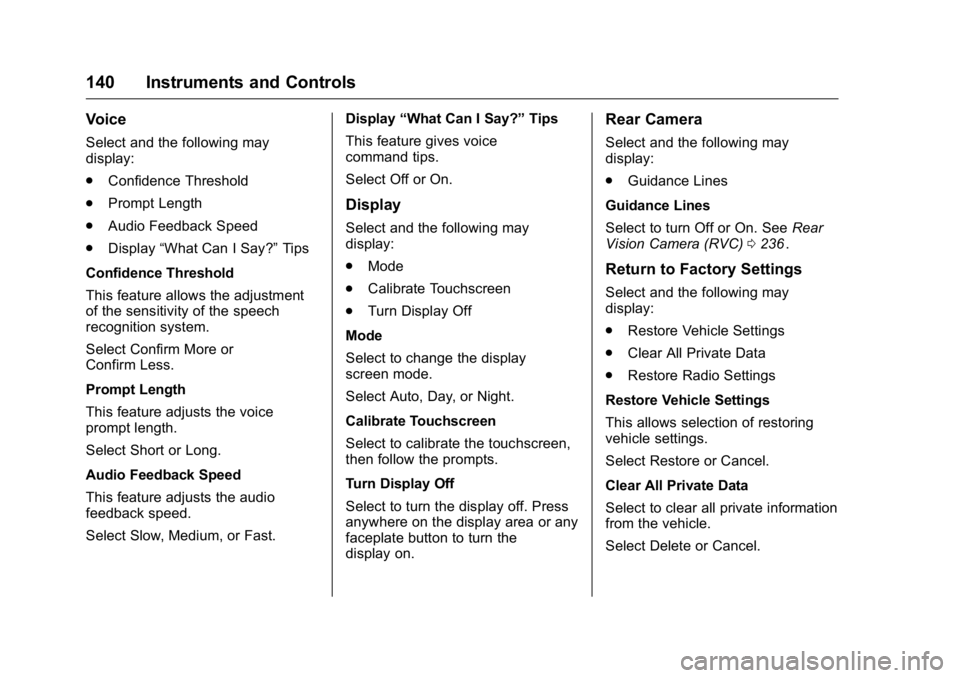
Voice
Select and the following may
display:
.Confidence Threshold
. Prompt Length
. Audio Feedback Speed
. Display “What Can I Say?” Tips
Confidence Threshold
This feature allows the adjustment
of the sensitivity of the speech
recognition system.
Select Confirm More or
Confirm Less.
Prompt Length
This feature adjusts the voice
prompt length.
Select Short or Long.
Audio Feedback Speed
This feature adjusts the audio
feedback speed.
Select Slow, Medium, or Fast. Display
“What Can I Say?” Tips
This feature gives voice
command tips.
Select Off or On.
Display
Select and the following may
display:
. Mode
. Calibrate Touchscreen
. Turn Display Off
Mode
Select to change the display
screen mode.
Select Auto, Day, or Night.
Calibrate Touchscreen
Select to calibrate the touchscreen,
then follow the prompts.
Turn Display Off
Select to turn the display off. Press
anywhere on the display area or any
faceplate button to turn the
display on.
Rear Camera
Select and the following may
display:
. Guidance Lines
Guidance Lines
Select to turn Off or On. See Rear
Vision Camera (RVC) 0236
ii.
Return to Factory Settings
Select and the following may
display:
.
Restore Vehicle Settings
. Clear All Private Data
. Restore Radio Settings
Restore Vehicle Settings
This allows selection of restoring
vehicle settings.
Select Restore or Cancel.
Clear All Private Data
Select to clear all private information
from the vehicle.
Select Delete or Cancel.
Page 142 of 392
GMC Canyon Owner Manual (GMNA-Localizing-U.S/Canada-9159361) -
2016 - crc - 8/25/15
Instruments and Controls 141
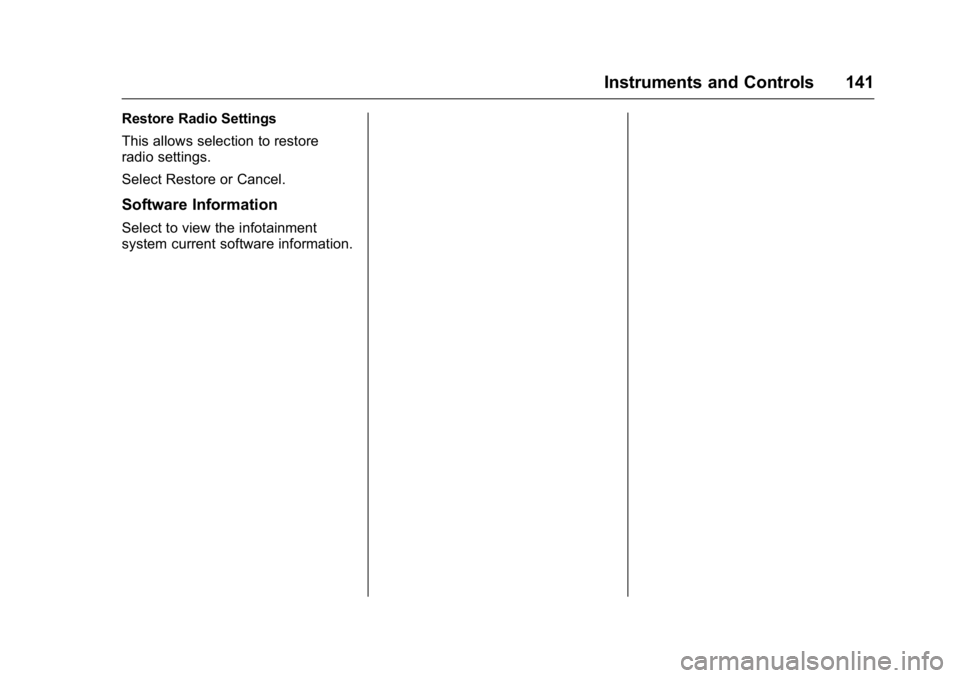
Restore Radio Settings
This allows selection to restore
radio settings.
Select Restore or Cancel.
Software Information
Select to view the infotainment
system current software information.
Page 150 of 392
GMC Canyon Owner Manual (GMNA-Localizing-U.S/Canada-9159361) -
2016 - crc - 8/25/15
Infotainment System 149
Infotainment
System
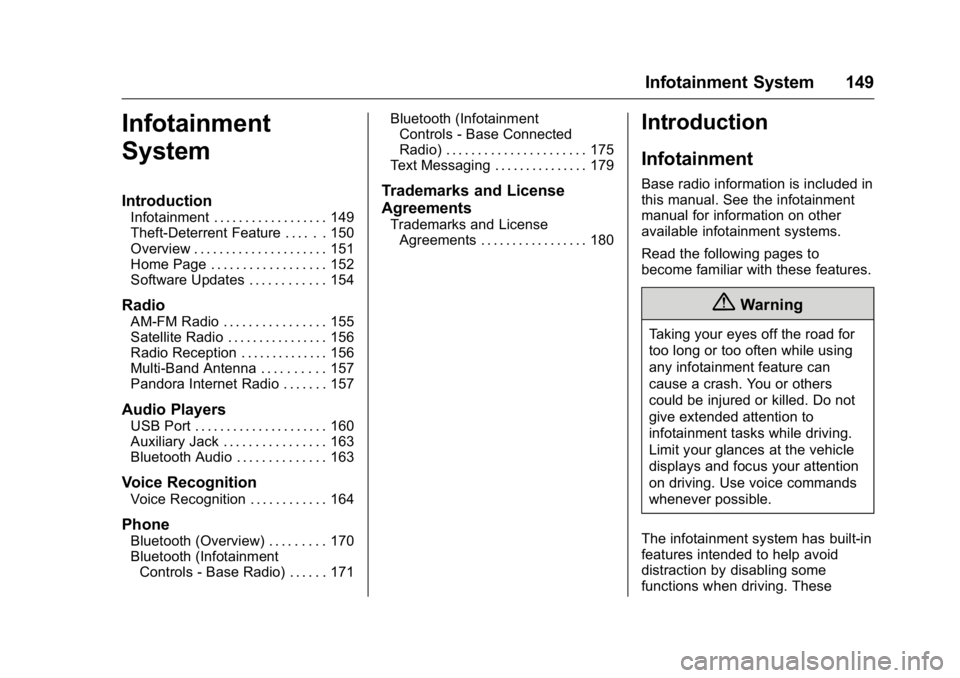
Introduction
Infotainment . . . . . . . . . . . . . . . . . . 149
Theft-Deterrent Feature . . . . . . 150
Overview . . . . . . . . . . . . . . . . . . . . . 151
Home Page . . . . . . . . . . . . . . . . . . 152
Software Updates . . . . . . . . . . . . 154
Radio
AM-FM Radio . . . . . . . . . . . . . . . . 155
Satellite Radio . . . . . . . . . . . . . . . . 156
Radio Reception . . . . . . . . . . . . . . 156
Multi-Band Antenna . . . . . . . . . . 157
Pandora Internet Radio . . . . . . . 157
Audio Players
USB Port . . . . . . . . . . . . . . . . . . . . . 160
Auxiliary Jack . . . . . . . . . . . . . . . . 163
Bluetooth Audio . . . . . . . . . . . . . . 163
Voice Recognition
Voice Recognition . . . . . . . . . . . . 164
Phone
Bluetooth (Overview) . . . . . . . . . 170
Bluetooth (InfotainmentControls - Base Radio) . . . . . . 171 Bluetooth (Infotainment
Controls - Base Connected
Radio) . . . . . . . . . . . . . . . . . . . . . . 175
Text Messaging . . . . . . . . . . . . . . . 179
Trademarks and License
Agreements
Trademarks and License Agreements . . . . . . . . . . . . . . . . . 180
Introduction
Infotainment
Base radio information is included in
this manual. See the infotainment
manual for information on other
available infotainment systems.
Read the following pages to
become familiar with these features.
{Warning
Taking your eyes off the road for
too long or too often while using
any infotainment feature can
cause a crash. You or others
could be injured or killed. Do not
give extended attention to
infotainment tasks while driving.
Limit your glances at the vehicle
displays and focus your attention
on driving. Use voice commands
whenever possible.
The infotainment system has built-in
features intended to help avoid
distraction by disabling some
functions when driving. These
Page 151 of 392
GMC Canyon Owner Manual (GMNA-Localizing-U.S/Canada-9159361) -
2016 - crc - 8/25/15
150 Infotainment System
functions may gray out when they
are unavailable. Many infotainment
features are also available through
the instrument cluster and steering
wheel controls.
Before driving:
.Become familiar with the
operation, faceplate buttons, and
screen buttons.
. Set up the audio by presetting
favorite stations, setting the
tone, and adjusting the
speakers.
. Set up phone numbers in
advance so they can be called
easily by pressing a single
button or by using a single voice
command if equipped with
Bluetooth phone capability.
See Defensive Driving 0193
ii.
To play the infotainment system with
the ignition off, see Retained
Accessory Power (RAP) 0213
ii.
Theft-Deterrent Feature
TheftLock®is designed to
discourage theft of the vehicle's
radio by learning a portion of the
Vehicle Identification Number (VIN).
The radio does not operate if it is
stolen or moved to a different
vehicle.
Page 153 of 392
GMC Canyon Owner Manual (GMNA-Localizing-U.S/Canada-9159361) -
2016 - crc - 8/25/15
152 Infotainment System
5.oBACK
. Press to return to the
previous screen in a menu.
6.
{(Home Page)
. Press to go to the Home
Page from any point in the
system. See “Home Page”
following.
7. TONE .Press TONE to open the
Tone Settings menu.
8.
gorl(Seek)
. AM, FM, or SiriusXM (If
Equipped): Press
gorl
to seek to the previous or
next strong station.
9. RADIO .Press to change the audio
source between AM, FM,
or SiriusXM, if equipped.
10. MEDIA .Press to change the audio
source between USB, AUX,
and Bluetooth Audio,
if equipped. 11.
O(Power/Volume)
. Press to turn the audio on.
. Press and hold to turn it off.
. When on, press to mute the
system. Press again to
unmute.
. Turn to increase or
decrease the volume.
Home Page
Home Page Features
The infotainment system displays a
Home Page that makes it easy to
access all of the applications. Turn
the MENU knob to highlight feature
icons. Press the MENU knob to
access the feature’s options.
Various functions are disabled when
the vehicle is moving.
AUDIO : Select the AUDIO screen
icon to display the active source
page. The sources available are
AM, FM, SiriusXM
®(if equipped),
USB/iPod, AUX Input, and Bluetooth
Audio (if equipped). See
AM-FM Radio 0155
ii,Satellite
Radio 0156ii,Auxiliary Jack 0163ii,
and Bluetooth Audio 0163ii.
PHONE : Select the PHONE screen
icon to display the Phone main
page. See Bluetooth (Overview)
0 170
iior Bluetooth (Infotainment
Controls - Base Radio) 0171iior
Bluetooth (Infotainment Controls -
Base Connected Radio) 0175
ii.
NAV (Navigation, If Equipped) :
Select the NAV screen icon to
display the OnStar Turn-by-Turn
Navigation. See OnStar Overview
0 371
ii, if equipped.
SETTINGS : Select the SETTINGS
screen icon to display the Settings
main page. See “Setting Radio
Preferences” following.
Pandora (If Equipped)
Select the PANDORA icon to begin
Pandora. See Pandora Internet
Radio 0157
ii.
Page 154 of 392
GMC Canyon Owner Manual (GMNA-Localizing-U.S/Canada-9159361) -
2016 - crc - 8/25/15
Infotainment System 153
Setting Radio Preferences
Select the SETTINGS screen icon
to display the Settings menu and
the following may display:
Time and Date :SeeClock 0103
ii.
Language (Current Language) :
This will set the display language in
the radio and instrument cluster.
Select to display a list of languages.
Select
oBACK to go back to the
previous menu.
Valet Mode:
Using the circular numeric keypad,
enter a four-digit code:
1. Turn the MENU knob to highlight a number.
2. Press the MENU knob to select it. Do this for each one of the
four digits. Select Enter to go to
the confirmation screen.
3. Re-enter the four-digit code. Select LOCK to lock the
system. 4. Enter the four-digit code to
unlock the system. Select
o
BACK to go back to the
previous menu.
Radio : See“Radio Setup” later in
this section.
Vehicle : SeeVehicle
Personalization 0135
ii.
Display : Press the MENU knob to
turn the display on or off.
Return to Factory Settings : See
“Return to Factory Settings” later in
this section.
Software Information (If
Equipped) : Press the MENU knob
to select Save Vehicle Info to USB.
Press the MENU knob again to start
downloading the vehicle information
to the USB.
Radio Setup
Press the RADIO button and the
following may display: Manage Favorites:
.
Turn the MENU knob and press
to select a favorite.
.
To delete a favorite, press
the button just below the
DELETE screen button.
. To move a favorite, press the
MOVE screen button. Turn
the MENU knob to select a
new location, then press the
DROP screen button to
select the new location.
. Select
oBACK to go back to
the previous menu.
Number of Favorites Shown :
Select Auto and the system will
automatically adjust the number of
favorite pages when favorites are
added and removed, or select a
number from 5–25 to manually
adjust the number of favorites
shown.
Audible Touch Feedback (If
Equipped) : Select Audible Touch
Feedback to turn feedback off or on.
Page 155 of 392
GMC Canyon Owner Manual (GMNA-Localizing-U.S/Canada-9159361) -
2016 - crc - 8/25/15
154 Infotainment System
Auto Volume (If Equipped) :This
feature adjusts the volume based on
vehicle speed. The options are Off,
Low, Medium-Low, Medium,
Medium-High, or High. Select the
desired volume.
Maximum Startup Volume : This
feature sets the maximum startup
volume. If the vehicle is started and
the volume is greater than this level,
the volume is adjusted to this level.
To set the maximum startup volume,
Turn the MENU knob to increase or
decrease startup volume.
Rear Camera (If Equipped)
From the Rear Camera screen
button, the following may display:
Guidance Lines : This feature may
assist the driver when backing into a
parking spot. Select Guidance
Lines, then select Off or On.
See Rear Vision Camera (RVC)
0 236
ii.
Return to Factory Settings
Select Return to Factory Settings
and the following may display: Restore Vehicle Settings :
This
option will restore factory vehicle
personalization settings. Select
Restore Vehicle Settings. A screen
displays stating all vehicle
customization settings will be
restored to the factory settings.
Select Cancel or Confirm.
Clear All Private Data (If
Equipped) : This option clears all
private information from the vehicle.
Select Clear All Private Data. Select
Cancel or Confirm.
Restore Radio Settings : This
option will restore factory radio
settings. Select Restore Radio
Settings. A screen displays stating
all personalized radio settings will
be restored back to the factory
settings. Select Cancel or Confirm.
English and Metric Unit
Conversion
To change the display units between
English and metric units, see Driver
Information Center (DIC) (Base
Level) 0122
iior Driver Information
Center (DIC) (Uplevel) 0125ii.
Software Updates
Website Information
In the U.S., see www.gmc.com
In Canada, see www.gmc.gm.ca
Page 156 of 392
GMC Canyon Owner Manual (GMNA-Localizing-U.S/Canada-9159361) -
2016 - crc - 8/25/15
Infotainment System 155
Radio
AM-FM Radio
Playing the Radio
While on the audio main page,
press the RADIO button repeatedly
to cycle through the available
sources AM, FM, and SiriusXM
®(if
equipped) or press the MEDIA
button repeatedly to cycle through
the available sources Bluetooth
®
Audio (if equipped), USB, and AUX.
AM, FM, or SiriusXM (If Equipped)
To select AM, FM, or SiriusXM (if
equipped), press the RADIO button
to toggle to the desired broadcast
source.
Press the MENU knob and the
following radio settings may display:
Tone Settings:
. Bass, Midrange, and Treble:
Turn the MENU knob to
highlight. Press the MENU knob
to select. Turn the MENU knob
to adjust. .
Balance: Turn the MENU knob
to highlight. Press the MENU
knob to select. Turn the MENU
knob left for more sound from
the left speakers or right for
more sound from the right
speakers. The middle position
balances the sound between the
left and right speakers.
. Fade: Turn the MENU knob to
highlight. Press the MENU knob
to select. Turn the MENU knob
to the left for more sound from
the front speakers and to the
right for more sound from the
rear speakers. The middle
position balances the sound
between the front and rear
speakers.
. EQ (Equalizer): Turn the MENU
knob to highlight. Turn the
MENU knob to scroll through the
options. Press the MENU knob
to select. Press the
oBACK
button to go to the
previous menu.
Station List : Select to display a list
of AM or FM stations. Press
o
BACK to go to the previous menu. Auto Volume :
If equipped, this
feature adjusts the volume based on
the vehicle speed. Select the level
between Off, Low, Medium-Low,
Medium, Medium-High, and High.
Press
oBACK to go to the
previous menu.
EQ (Equalizer) Settings : In certain
configurations, the available choices
are Custom and Talk.
Options for SiriusXM Only
XM View : XM view allows the
channel list to be viewed by channel
name, artist playing on channel,
or song playing on channel. Turn
the MENU knob to highlight and
press the MENU knob to select.
Press
oBACK to go to the
previous menu.
Channel List : Select to display a
list of SiriusXM channels. Turn the
MENU knob to highlight and press
the MENU knob to select. Press
o
BACK to go to the previous menu.
Also see the radio settings common
for all sources earlier in this section.
Page 157 of 392
GMC Canyon Owner Manual (GMNA-Localizing-U.S/Canada-9159361) -
2016 - crc - 8/25/15
156 Infotainment System
Finding a Station
Seeking a Station
Press
gorlto search for the
previous or next strongest station.
Tuning a Station
Turn the MENU knob to manually
find a station.
Storing Radio Station Presets
Up to 25 preset stations from all
bands can be stored in the favorite
lists in any order. Up to five stations
can be stored in each favorite page
and the number of favorites can
be set.
AM, FM, or SiriusXM (If
Equipped) : While on the active
source main page, such as AM, FM,
or SiriusXM (if equipped), press and
hold a favorites/soft key button on
the faceplate.
Mixed-Audio Favorites
Media (if equipped) and Broadcast
favorites can be stored.
To display the favorites page, press
qorron the radio faceplate. To manage favorites, see
“Manage
Favorites” underHome Page 0152
ii.
Satellite Radio
SiriusXM®Satellite Radio
Service
Vehicles with a SiriusXM satellite
radio tuner and a valid SiriusXM
satellite radio subscription can
receive SiriusXM programming.
SiriusXM is a satellite radio service
based in the 48 contiguous United
States and 10 Canadian provinces.
SiriusXM satellite radio has a wide
variety of programming and
commercial-free music, coast to
coast, and in digital-quality sound.
A service fee is required to receive
the SiriusXM service. See
www.siriusxmradio.com or call
1-866-635-2349 (U.S.); or see
www.xmradio.ca or call
1-877-209-0079 (Canada).
When SiriusXM is active, the
channel name and number,
category name, song title, and artist
display on the screen.
Browsing SiriusXM Channels
To browse the SiriusXM channels:
1. Press the MENU knob.
2. Turn the MENU knob to highlight XM Channel List.
3. Turn the MENU knob to highlight the desired XM
Channels.
Radio Reception
Frequency interference and static
can occur during normal radio
reception if items such as cell phone
chargers, vehicle convenience
accessories, and external electronic
devices are plugged into the
accessory power outlet. If there is
interference or static, unplug the
item from the accessory power
outlet.
FM
FM signals only reach about 16 to
65 km (10 to 40 mi). Although the
radio has a built-in electronic circuit
that automatically works to reduce
interference, some static can occur,