ECO GMC CANYON 2016 Workshop Manual
[x] Cancel search | Manufacturer: GMC, Model Year: 2016, Model line: CANYON, Model: GMC CANYON 2016Pages: 392, PDF Size: 5.31 MB
Page 148 of 392
GMC Canyon Owner Manual (GMNA-Localizing-U.S/Canada-9159361) -
2016 - crc - 8/25/15
Lighting 147
Dome Lamps
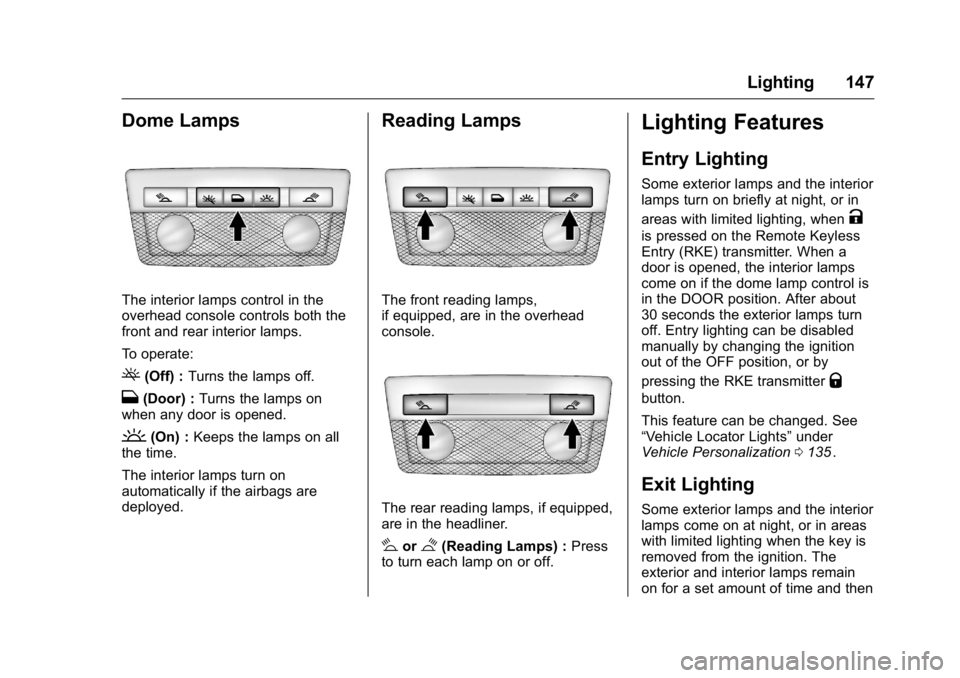
The interior lamps control in the
overhead console controls both the
front and rear interior lamps.
To operate:
((Off) :Turns the lamps off.
H(Door) : Turns the lamps on
when any door is opened.
'(On) : Keeps the lamps on all
the time.
The interior lamps turn on
automatically if the airbags are
deployed.
Reading Lamps
The front reading lamps,
if equipped, are in the overhead
console.
The rear reading lamps, if equipped,
are in the headliner.
#or$(Reading Lamps) : Press
to turn each lamp on or off.
Lighting Features
Entry Lighting
Some exterior lamps and the interior
lamps turn on briefly at night, or in
areas with limited lighting, when
K
is pressed on the Remote Keyless
Entry (RKE) transmitter. When a
door is opened, the interior lamps
come on if the dome lamp control is
in the DOOR position. After about
30 seconds the exterior lamps turn
off. Entry lighting can be disabled
manually by changing the ignition
out of the OFF position, or by
pressing the RKE transmitter
Q
button.
This feature can be changed. See
“Vehicle Locator Lights” under
Vehicle Personalization 0135
ii.
Exit Lighting
Some exterior lamps and the interior
lamps come on at night, or in areas
with limited lighting when the key is
removed from the ignition. The
exterior and interior lamps remain
on for a set amount of time and then
Page 149 of 392

GMC Canyon Owner Manual (GMNA-Localizing-U.S/Canada-9159361) -
2016 - crc - 8/25/15
148 Lighting
automatically turn off. The interior
lamps do not come on if the dome
lamp control is in the Off position.
The exterior lamps turn off
immediately by turning the exterior
lamps control off.
This feature can be changed. See
Vehicle Personalization0135
ii.
Battery Load
Management
The vehicle has Electric Power
Management (EPM), which
estimates the battery's temperature
and state of charge. It then adjusts
the voltage for best performance
and extended life of the battery.
When the battery's state of charge
is low, the voltage is raised slightly
to quickly bring the charge back up.
When the state of charge is high,
the voltage is lowered slightly to
prevent overcharging. The voltmeter
gauge or the voltage display on the
Driver Information Center (DIC),
if equipped, may show the voltage moving up or down. This is normal.
If there is a problem, an alert will be
displayed.
The battery can be discharged at
idle if the electrical loads are very
high. This is true for all vehicles.
This is because the generator
(alternator) may not be spinning fast
enough at idle to produce all the
power that is needed for very high
electrical loads.
A high electrical load occurs when
several of the following are on, such
as: headlamps, high beams, fog
lamps, rear window defogger,
climate control fan at high speed,
heated seats, engine cooling fans,
trailer loads, and loads plugged into
accessory power outlets.
EPM works to prevent excessive
discharge of the battery. It does this
by balancing the generator's output
and the vehicle's electrical needs.
It can increase engine idle speed to
generate more power, whenever
needed. It can temporarily reduce
the power demands of some
accessories.Normally, these actions occur in
steps or levels, without being
noticeable. In rare cases at the
highest levels of corrective action,
this action may be noticeable to the
driver. If so, a DIC message might
be displayed and it is recommended
that the driver reduce the electrical
loads as much as possible. See
Battery Voltage and Charging
Messages
0128
ii.
Battery Power Protection
This feature shuts off the dome and
reading lamps, if they are left on for
more than 10 minutes after the
ignition is turned off. The cargo
lamp shuts off after 20 minutes. This
prevents the battery from
running down.
Page 150 of 392
GMC Canyon Owner Manual (GMNA-Localizing-U.S/Canada-9159361) -
2016 - crc - 8/25/15
Infotainment System 149
Infotainment
System
Introduction
Infotainment . . . . . . . . . . . . . . . . . . 149
Theft-Deterrent Feature . . . . . . 150
Overview . . . . . . . . . . . . . . . . . . . . . 151
Home Page . . . . . . . . . . . . . . . . . . 152
Software Updates . . . . . . . . . . . . 154
Radio
AM-FM Radio . . . . . . . . . . . . . . . . 155
Satellite Radio . . . . . . . . . . . . . . . . 156
Radio Reception . . . . . . . . . . . . . . 156
Multi-Band Antenna . . . . . . . . . . 157
Pandora Internet Radio . . . . . . . 157
Audio Players
USB Port . . . . . . . . . . . . . . . . . . . . . 160
Auxiliary Jack . . . . . . . . . . . . . . . . 163
Bluetooth Audio . . . . . . . . . . . . . . 163
Voice Recognition
Voice Recognition . . . . . . . . . . . . 164
Phone
Bluetooth (Overview) . . . . . . . . . 170
Bluetooth (InfotainmentControls - Base Radio) . . . . . . 171 Bluetooth (Infotainment
Controls - Base Connected
Radio) . . . . . . . . . . . . . . . . . . . . . . 175
Text Messaging . . . . . . . . . . . . . . . 179
Trademarks and License
Agreements
Trademarks and License Agreements . . . . . . . . . . . . . . . . . 180
Introduction
Infotainment
Base radio information is included in
this manual. See the infotainment
manual for information on other
available infotainment systems.
Read the following pages to
become familiar with these features.
{Warning
Taking your eyes off the road for
too long or too often while using
any infotainment feature can
cause a crash. You or others
could be injured or killed. Do not
give extended attention to
infotainment tasks while driving.
Limit your glances at the vehicle
displays and focus your attention
on driving. Use voice commands
whenever possible.
The infotainment system has built-in
features intended to help avoid
distraction by disabling some
functions when driving. These
Page 151 of 392
GMC Canyon Owner Manual (GMNA-Localizing-U.S/Canada-9159361) -
2016 - crc - 8/25/15
150 Infotainment System
functions may gray out when they
are unavailable. Many infotainment
features are also available through
the instrument cluster and steering
wheel controls.
Before driving:
.Become familiar with the
operation, faceplate buttons, and
screen buttons.
. Set up the audio by presetting
favorite stations, setting the
tone, and adjusting the
speakers.
. Set up phone numbers in
advance so they can be called
easily by pressing a single
button or by using a single voice
command if equipped with
Bluetooth phone capability.
See Defensive Driving 0193
ii.
To play the infotainment system with
the ignition off, see Retained
Accessory Power (RAP) 0213
ii.
Theft-Deterrent Feature
TheftLock®is designed to
discourage theft of the vehicle's
radio by learning a portion of the
Vehicle Identification Number (VIN).
The radio does not operate if it is
stolen or moved to a different
vehicle.
Page 159 of 392
GMC Canyon Owner Manual (GMNA-Localizing-U.S/Canada-9159361) -
2016 - crc - 8/25/15
158 Infotainment System
Using the iPhone1. Plug the device into the USB port. The phone screen must
be unlocked.
2. Launch Pandora from the Home Page by selecting the
Pandora icon.
If nothing happens when the
available Pandora screen button is
pressed, download the latest
Pandora application and retry.
The login screen may display on the
device.
Using an Android or BlackBerry
Phone
The BlackBerry phone must be
unlocked to launch Pandora service.
1. Pair the phone using Bluetooth.
2. Launch Pandora by selecting Pandora on the Home Page.
If nothing happens when the
available Pandora screen button is
selected, download the latest
Pandora application and retry.
The login screen may display on the
device. Pandora Menus
Press MENU.
Pandora has a menu with the
following:
Tone Settings :
Select to adjust the
tone settings. See AM-FM Radio
0 155
ii.
Bookmark Artist : Select to
bookmark the artist.
Bookmark Song : Select to
bookmark the song.
Auto Volume : This feature sets the
auto volume based on the speed of
the vehicle and noise in the vehicle.
See AM-FM Radio 0155
ii.
Pandora Features
Pandora service has features to rate
tracks, skip tracks, or change
stations.
}: When selected during a track, a
choice displays to bookmark the
artist or track. This sends the
bookmark to the Pandora account.
,: When selected, Pandora stores
this information, changes to the next
track, and does not play this track on this station again. This helps
Pandora choose which tracks
should not play on this station. This
feature is only available on user
created stations.
-:
When selected, Pandora stores
this information and
-is
highlighted for the remainder of the
track. This helps Pandora choose
which tracks should play on this
station.
d: When selected, Pandora
changes to the next track.
rorj: Select to play or pause
playback.
Pandora Skip Limit
Pandora limits the number of skips
allowed on their service. When the
skip limit is reached,
,or next
arrow will not skip the currently
playing track, but the
,feedback
will be recorded.
Page 160 of 392
GMC Canyon Owner Manual (GMNA-Localizing-U.S/Canada-9159361) -
2016 - crc - 8/25/15
Infotainment System 159
Advertisement on Pandora
Pandora may display
advertisements. The artist name
and track title will not be displayed
and the skip track button will not be
available.
Pandora Troubleshooting
Unable to Connect Device to
Vehicle
If the device is unable to connect to
the USB or Bluetooth:1. Turn the vehicle off.
2. Take the Remote Keyless Entry (RKE) transmitter at least 6 m
(20 ft) away from the vehicle.
3. Wait about 30 seconds, and try to connect the device again.
See Bluetooth (Overview)
0 170
iior Bluetooth
(Infotainment Controls - Base
Radio) 0171
iior Bluetooth
(Infotainment Controls - Base
Connected Radio) 0175
ii. Unable to Start Pandora
If the device is unable to launch
Pandora:
.
Check that the latest version of
Pandora is installed.
. Check that there is an active
account logged into Pandora.
. Have at least one station
created.
. For Android and BlackBerry
devices, check that the device is
paired with the vehicle, and
whether the device displays in
the Connected phone sources
list under the Phone icon from
the Home Page.
. For an iPhone, check that the
USB cable is connected to the
USB port and the screen is
unlocked.
. Close Pandora on the device
and launch again. Devices that
allow multitasking may require
an extra step to quit the Pandora
application. See the cell phone
manufacturer's user guide. Thumbs Up or Thumbs Down
Error
If there is an error trying to rate a
track with the
,or-, the message
“Thumbs Down Error” or“Thumbs
Up Error” will display. Press OK to
dismiss.
Loss of Audio
Loss of Pandora audio can happen
in different ways:
. Weak or lost data connection.
. Device needs to be charged.
. Application needs to be
relaunched.
. Connection between phone and
radio lost.
. An iPhone is connected to both
Bluetooth and the USB port.
Playback can be resumed from
a loss of audio by double
tapping on the iPhone home
button then scrolling through the
icons to find an icon that allows
a change of flow between
Bluetooth and USB cable.
Page 165 of 392
GMC Canyon Owner Manual (GMNA-Localizing-U.S/Canada-9159361) -
2016 - crc - 8/25/15
164 Infotainment System
2. Once paired, go into the audioapplication from the Home
Page or via the application tray.
Select MEDIA until Bluetooth
displays.
Bluetooth Audio Menu
Press the MENU screen button to
display the Bluetooth Audio menu.
The following may be available:
Tone: Select + or −to adjust the
tone settings. See AM-FM Radio
0 155
ii.
Press
oBACK to go back to the
previous menu.
Manage Bluetooth Devices: Select
to go to the Bluetooth page to add
or delete devices.
When selecting Bluetooth Audio, the
radio may not be able to launch the
audio player on the connected
device to start playing. When the
vehicle is not moving, use the
phone to begin playback. All devices launch audio differently.
When selecting Bluetooth Audio as
a source, the radio may show as
paused on the screen. Press play
on the device or press
rto begin
playback.
Some phones support sending
Bluetooth music information to
display on the radio. When the radio
receives this information, it will
check to see if any is available and
display it. For more information
about supported Bluetooth features,
see www.gm.com/bluetooth.
Voice Recognition
If equipped, voice recognition allows
for hands-free operation within the
audio and phone applications. This
feature can be started by pressing
the button below
gon the
infotainment screen.
However, not all features within
these areas are supported by voice
commands. Generally, only complex
tasks that require multiple manual
interactions to complete are
supported by voice commands.
For example, tasks that take more
than one or two button presses such
as selecting a song or artist to play
from a media device would be
supported by voice commands.
Other tasks, like adjusting the
volume or seeking up or down are
audio features that are easily
performed by pressing one or two
buttons, and are not supported by
voice commands.
In general there are flexible ways to
speak commands for completing the
tasks. Most of them, except
destination entry and voice keypad,
Page 166 of 392
GMC Canyon Owner Manual (GMNA-Localizing-U.S/Canada-9159361) -
2016 - crc - 8/25/15
Infotainment System 165
can be completed in a single
command. If the task takes more
than one command to complete, the
first command would be to indicate
the kind of task that is to be
performed. The system replies with
prompts that lead through a dialog
to enter the necessary information.
Voice recognition can be used when
the ignition is on or when Retained
Accessory Power (RAP) is active.
SeeRetained Accessory Power
(RAP) 0213
ii.
Using Voice Recognition
Voice recognition becomes available
once the system has been
initialized. This begins when the
ignition is turned on. Initialization
may take a few moments.
1. Press the button below the
g
screen button.
When voice recognition is
started from the infotainment
screen, the selections and
visual dialog content are
displayed on both the center
stack display and the
instrument cluster display. 2. The audio system mutes and
the system plays a prompt
followed by a beep.
3. Wait until the beep stops, then clearly speak one of the
commands described in this
section.
Press the button below the
g
screen button to interrupt any
voice recognition system
prompt. For example, if the
prompt seems to be taking too
long to finish, press the button
below the
gscreen button
again and the beep should
happen right away.
There are two voice prompt modes
supported:
. Long verbal prompts: The longer
prompts provide more
information regarding the
supported actions.
. Short prompts: The short
prompts provide simple
instructions about what can be
stated. If a command is not spoken, the
voice recognition system says a
help prompt.
Prompts and Screen Displays
While a voice recognition session is
active, there will be corresponding
buttons on screens displayed.
Manual interaction in the voice
recognition session is permitted.
Interaction during a voice session
may be completed entirely using
voice commands, or some
selections may expedite a session.
If a selection is made using a
manual control, the dialog will
progress in the same way as if the
selection was made through a voice
command. Once the system is able
to complete the task, or the session
is terminated, the voice recognition
dialog stops.
An example of this type of manual
intervention is pressing on an entry
of a displayed number list instead of
speaking the number associated
with the entry desired.
Page 167 of 392
GMC Canyon Owner Manual (GMNA-Localizing-U.S/Canada-9159361) -
2016 - crc - 8/25/15
166 Infotainment System
Canceling Voice Recognition
.Select the Home screen button
to terminate the voice
recognition session which was
initiated by selecting
gon the
infotainment screen.
. Select or say “Cancel”or“Exit”
to terminate the voice
recognition session and display
the screen from which voice
recognition was initiated.
Helpful Hints for Speaking
Commands
Voice recognition can understand
commands that are either naturally
stated in sentence form (English
only), or direct commands that state
the application and the task.
For languages that do not support
natural language commands in
sentence form, use the direct
commands shown as examples on
the display screen.
For best results:
. Listen for the prompt and wait
for the beep before saying a
command or reply. .
Say “Help” or look at the screen
display for commands.
. Voice recognition system
prompts can be interrupted
during a prompt by selecting
g
again.
For example, if the prompt
seems to be taking too long to
finish, or if what is being
prompted causes a need for an
immediate reply, select
gagain
and wait for the beep.
. Speak the command naturally,
not too fast, not too slow. Use
direct commands without a lot of
extra words.
. Usually Phone and Audio
commands can be spoken in a
single command.
For example, “Call Dave Smith
at work,” “Play” followed by the
artist or song name, or “Tune”
followed by the radio station
number.
There is no need to memorize
specific command words. Direct
commands might be more clearly understood by the system. An
example of a direct command would
be
“Call 555-1212.” Examples of
these direct commands are
displayed on most of the screens
while a voice session is active.
If “Phone” or“Phone Commands” is
stated, the system understands that
a phone call is requested and will
respond with questions until enough
details are gathered.
If the phone number has been
saved with a name and a place, the
direct command should include
both, for example “Call Dave Smith
at work.”
Using Voice Recognition for
List Options
When a list is displayed, a voice
prompt will ask to confirm or select
an option from that list. A selection
can be made by manually selecting
the item, or by speaking the line
number for the item.
When a screen contains a list,
options may be available but not
displayed. The list on a voice
recognition screen functions the
Page 168 of 392
GMC Canyon Owner Manual (GMNA-Localizing-U.S/Canada-9159361) -
2016 - crc - 8/25/15
Infotainment System 167
same as a list on other screens.
Scrolling can be used to help
display other entries from the list.
Manually scrolling or paging the list
on a screen during a voice
recognition session suspends the
current voice recognition event and
plays the prompt“Make your
selection from the list using the
manual controls or press the
o
BACK button to try again.”
If manual selection takes more than
15 seconds, the session terminates
and prompts that it has timed out.
The screen returns to the screen
where voice recognition was
initiated.
The Back Command
Say “Back” or press the
oBACK
button to go to the previous screen.
If in voice recognition, and “Back”is
stated all the way through to the
initial screen, then “Back”is stated
one more time, the voice recognition
session will cancel. Help
Say
“Help” on any voice recognition
screen and the help prompt for the
screen is played. Additionally, a
pop-up displays a text version of the
help prompt. Depending on how
voice recognition was initiated, the
Help pop-up will either display on
the instrument cluster or the
infotainment screen. Press the
faceplate button below the Dismiss
screen button to make the pop-up
go away.
Selecting
gwhile the help prompt is
playing will terminate the prompt
and a beep will be heard. Doing this
will stop the help prompt so that a
voice command can be used.
Voice Recognition for the
Radio
Selectgfrom the infotainment
screen to launch audio voice
recognition. When selected, the
voice commands for radio and
media features are available. “Switch to AM”
:Switch bands to
AM and tune to the last AM radio
station.
“Switch to FM” :Switch bands to
FM and tune to the last FM radio
station.
“Switch to XM” :Switch bands to
SiriusXM and tune to the last
SiriusXM channel.
“Tune to
Tune to the radio station whose
frequency is identified in the
command (like “nine fifty”).
“Tune to
Tune to the radio station whose
frequency is identified in the
command (like “one o one
point one”).
“Tune to XM
radio station whose channel number
is identified in the command.
“Tune to XM
radio station whose channel name
is identified in the command.