center console GMC CANYON 2016 Owner's Manual
[x] Cancel search | Manufacturer: GMC, Model Year: 2016, Model line: CANYON, Model: GMC CANYON 2016Pages: 392, PDF Size: 5.31 MB
Page 14 of 392
GMC Canyon Owner Manual (GMNA-Localizing-U.S/Canada-9159361) -
2016 - crc - 8/25/15
In Brief 13
The passenger airbag status
indicator lights on the overhead
console are visible when the vehicle
is started. SeePassenger Airbag
Status Indicator 0113
ii.
Mirror Adjustment
Using hood-mounted air deflectors
and add-on convex mirror
attachments could decrease mirror
performance.
Exterior Mirrors
Manual Mirrors
If equipped, adjust the manual
mirror by moving it up and down or
left to right to see a little of the side
of the vehicle and to have a clear
view behind the vehicle.
See Manual Mirrors 036
ii. Power Mirrors
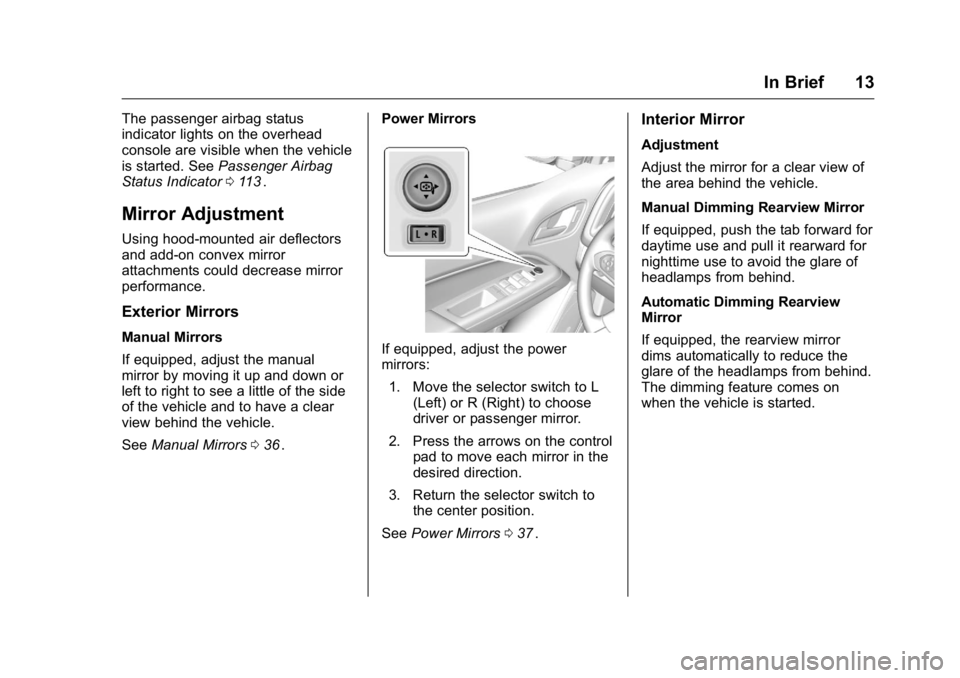
If equipped, adjust the power
mirrors:
1. Move the selector switch to L (Left) or R (Right) to choose
driver or passenger mirror.
2. Press the arrows on the control pad to move each mirror in the
desired direction.
3. Return the selector switch to the center position.
See Power Mirrors 037
ii.
Interior Mirror
Adjustment
Adjust the mirror for a clear view of
the area behind the vehicle.
Manual Dimming Rearview Mirror
If equipped, push the tab forward for
daytime use and pull it rearward for
nighttime use to avoid the glare of
headlamps from behind.
Automatic Dimming Rearview
Mirror
If equipped, the rearview mirror
dims automatically to reduce the
glare of the headlamps from behind.
The dimming feature comes on
when the vehicle is started.
Page 20 of 392
GMC Canyon Owner Manual (GMNA-Localizing-U.S/Canada-9159361) -
2016 - crc - 8/25/15
In Brief 19
g:Press to seek the previous
station.
l: Press to seek the next station.
See Overview 0151
iiabout these
and other radio features.
Storing Radio Station Presets
Up to 25 preset stations from all
bands can be stored in the favorite
lists in any order. Up to five stations
can be stored in each favorite page
and the number of favorite pages
can be set.
To store the station to a position in
the list, while on the active source
main page, such as AM, FM,
or SiriusXM (if equipped), press and
hold a favorites/soft key button on
the faceplate.
See “Storing Radio Station Presets”
under AM-FM Radio 0155
ii.
Setting the Clock
See Clock 0103ii.
Satellite Radio
Vehicles with a SiriusXM®satellite
radio tuner and a valid SiriusXM
satellite radio subscription can
receive SiriusXM programming.
SiriusXM Satellite Radio
Service
SiriusXM is a satellite radio service
based in the 48 contiguous United
States and 10 Canadian provinces.
SiriusXM satellite radio has a wide
variety of programming and
commercial-free music, coast to
coast, and in digital-quality sound.
A fee is required to receive the
SiriusXM service.
For more information refer to:
. www.siriusxm.com or call
1-866-635-2349 (U.S.).
. www.xmradio.ca or call
1-877-209-0079 (Canada).
See Satellite Radio 0156
ii.
Portable Audio Devices
This vehicle has a 3.5 mm (1/8 in)
auxiliary input jack and USB port on
the center console. External devices
such as iPods
®, laptop computers,
MP3 players, and USB storage
devices may be connected,
depending on the audio system.
See USB Port 0160
iiand Auxiliary
Jack 0163ii.
Bluetooth®
The Bluetooth®system allows users
with a Bluetooth-enabled cell phone
to make and receive hands-free
calls using the vehicle audio system
and controls.
The Bluetooth-enabled cell phone
must be paired with the in-vehicle
Bluetooth system before it can be
used in the vehicle. Not all phones
will support all functions.
See Bluetooth (Overview) 0170
iior
Bluetooth (Infotainment Controls -
Base Radio) 0171
iior Bluetooth
(Infotainment Controls - Base
Connected Radio) 0175
ii.
Page 23 of 392
GMC Canyon Owner Manual (GMNA-Localizing-U.S/Canada-9159361) -
2016 - crc - 8/25/15
22 In Brief
.On the center floor console,
if equipped.
. On the rear of the center storage
console.
Lift the cover to access and replace
when not in use.
See Power Outlets 0104
ii.
Performance and
Maintenance
Traction Control/
Electronic Stability
Control
The Traction Control System (TCS)
limits wheel spin. The system is on
when the vehicle is started.
The StabiliTrak system assists with
directional control of the vehicle in
difficult driving conditions. The
system is on when the vehicle is
started.
.
To turn off traction control, press
and release the TCS/StabiliTrak
button
gon the center stack.i
illuminates in the instrument
cluster.
. To turn off both traction control
and StabiliTrak, press and
hold
gon the center stack,
until
iandgilluminate in the
instrument cluster. .
Press and release
gto turn on
both systems.
iandgturn off
in instrument cluster.
StabiliTrak will automatically turn on
if the vehicle exceeds 56 km/h
(35 mph). Traction control will
remain off until the driver presses
the
gbutton or the ignition is cycled
from Off then On.
See Traction Control/Electronic
Stability Control 0231
ii.
Tire Pressure Monitor
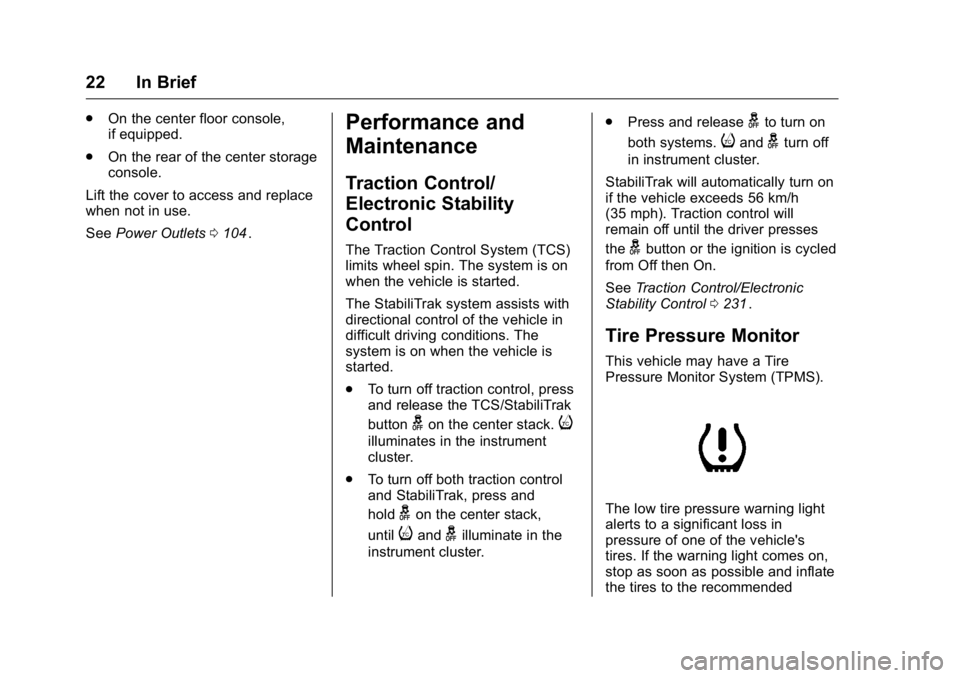
This vehicle may have a Tire
Pressure Monitor System (TPMS).
The low tire pressure warning light
alerts to a significant loss in
pressure of one of the vehicle's
tires. If the warning light comes on,
stop as soon as possible and inflate
the tires to the recommended
Page 99 of 392
GMC Canyon Owner Manual (GMNA-Localizing-U.S/Canada-9159361) -
2016 - crc - 8/25/15
98 Storage
Storage
Storage Compartments
Storage Compartments . . . . . . . . 98
Glove Box . . . . . . . . . . . . . . . . . . . . . 98
Cupholders . . . . . . . . . . . . . . . . . . . . 98
Sunglasses Storage . . . . . . . . . . . 99
Underseat Storage . . . . . . . . . . . . . 99
Center Console Storage . . . . . . . 99
Storage
Compartments
{Warning
Do not store heavy or sharp
objects in storage compartments.
In a crash, these objects may
cause the cover to open and
could result in injury.
Glove Box
Lift up on the glove box lever to
open it.
Cupholders
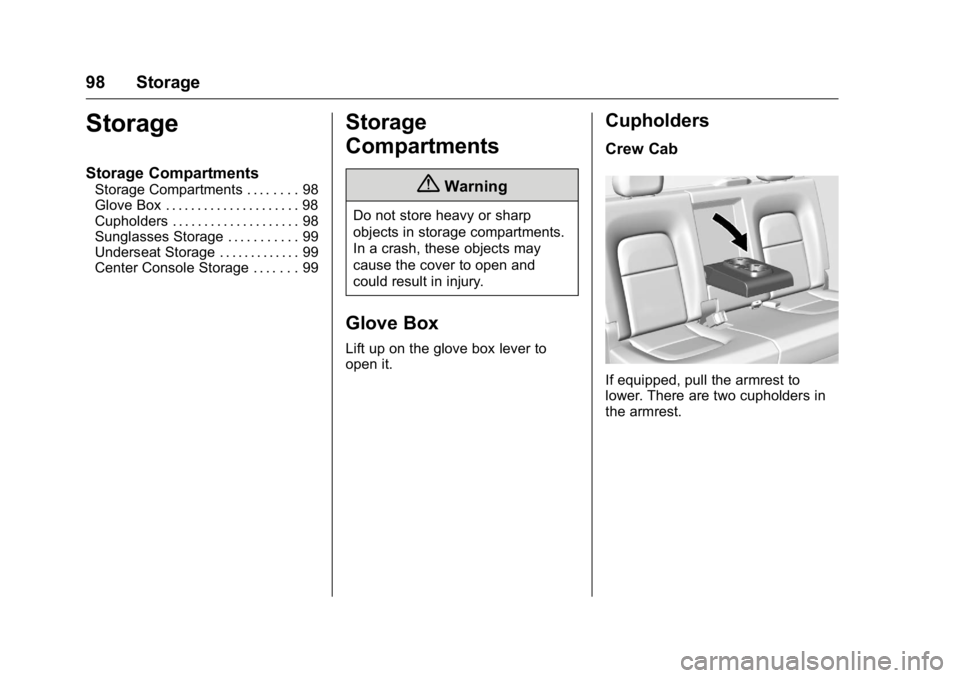
Crew Cab
If equipped, pull the armrest to
lower. There are two cupholders in
the armrest.
Page 100 of 392
GMC Canyon Owner Manual (GMNA-Localizing-U.S/Canada-9159361) -
2016 - crc - 8/25/15
Storage 99
Sunglasses Storage
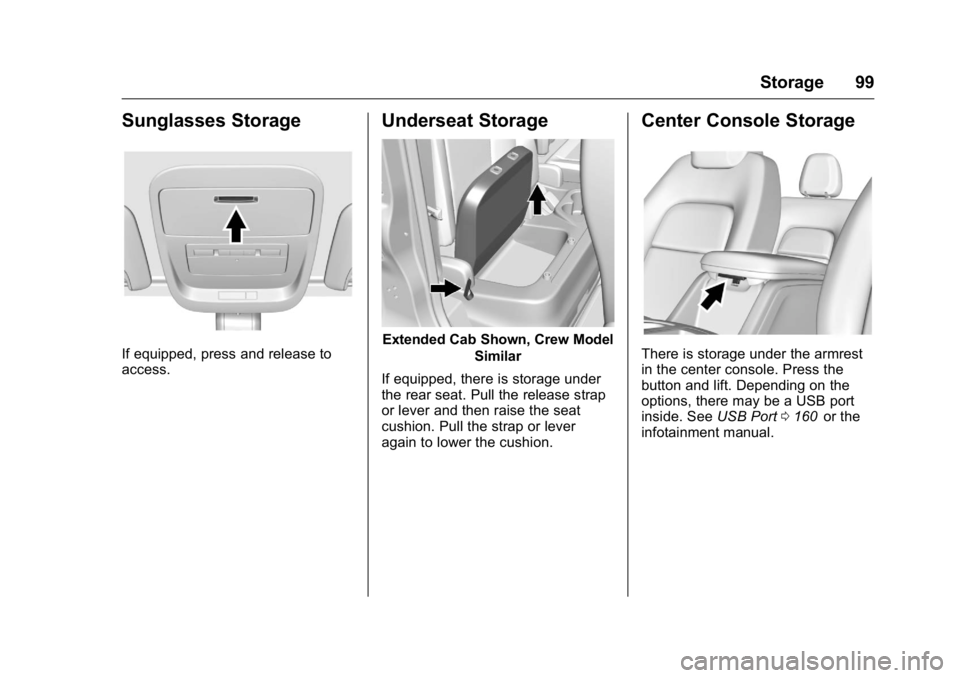
If equipped, press and release to
access.
Underseat Storage
Extended Cab Shown, Crew ModelSimilar
If equipped, there is storage under
the rear seat. Pull the release strap
or lever and then raise the seat
cushion. Pull the strap or lever
again to lower the cushion.
Center Console Storage
There is storage under the armrest
in the center console. Press the
button and lift. Depending on the
options, there may be a USB port
inside. See USB Port0160
iior the
infotainment manual.
Page 105 of 392
GMC Canyon Owner Manual (GMNA-Localizing-U.S/Canada-9159361) -
2016 - crc - 8/25/15
104 Instruments and Controls
2. Touch Set Time, then touch«
orªto increase or decrease
hours, minutes, and AM or PM.
Touch 12–24 Hr for 12 or
24 hour clock.
3. Touch
Sto go back to the
previous menu.
Auto Set requires an active
connection to OnStar.
If auto timing is set, the time
displayed on the clock may not
update immediately when driving
into a new time zone.
To set the date: 1. Touch SETTINGS on the Home Page, then touch Time
and Date.
2. Touch Set Date, then touch
«
orªto increase or decrease
month, day, or year.
3. Touch
Sto go back to the
previous menu.
To set the clock display: 1. Touch SETTINGS on the Home
Page, then touch Time
and Date.
2. Touch Clock Display, then touch Off or On to turn the
clock display off or on.
3. Touch
Sto go back to the
previous menu.
Power Outlets
Accessory power outlets can be
used to plug in electrical equipment,
such as a cell phone, MP3
player, etc.
The vehicle may have accessory
power outlets:
. On the center stack below the
climate control system,
if equipped.
. On the center floor console,
if equipped.
. On the rear of the center storage
console.
Lift the cover to access and replace
when not in use.
{Warning
Power is always supplied to the
outlets. Do not leave electrical
equipment plugged in when the
vehicle is not in use because the
vehicle could catch fire and cause
injury or death.
Caution
Leaving electrical equipment
plugged in for an extended period
of time while the vehicle is off will
drain the battery. Always unplug
electrical equipment when not in
use and do not plug in equipment
that exceeds the maximum
15 amp rating.
Certain power accessory plugs may
not be compatible with the
accessory power outlet and could
overload vehicle or adapter fuses.
If a problem is experienced, see
your dealer.
Page 114 of 392
GMC Canyon Owner Manual (GMNA-Localizing-U.S/Canada-9159361) -
2016 - crc - 8/25/15
Instruments and Controls 113
grocery bag, laptop, or other
electronic device. To turn off the
reminder light and/or chime, remove
the object from the seat or buckle
the safety belt.
Airbag Readiness Light
This light shows if there is an
electrical problem with the airbag
system. The system check includes
the airbag sensor(s), the passenger
sensing system, the pretensioners,
the airbag modules, the wiring, and
the crash sensing and diagnostic
module. For more information on the
airbag system, seeAirbag System
0 56
ii.
The airbag readiness light comes on
for several seconds when the
vehicle is started. If the light does
not come on then, have it fixed
immediately.
{Warning
If the airbag readiness light stays
on after the vehicle is started or
comes on while driving, it means
the airbag system might not be
working properly. The airbags in
the vehicle might not inflate in a
crash, or they could even inflate
without a crash. To help avoid
injury, have the vehicle serviced
right away.
If there is a problem with the airbag
system, a Driver Information Center
(DIC) message may also come on.
See Airbag System Messages
0 133
ii.
Passenger Airbag Status
Indicator
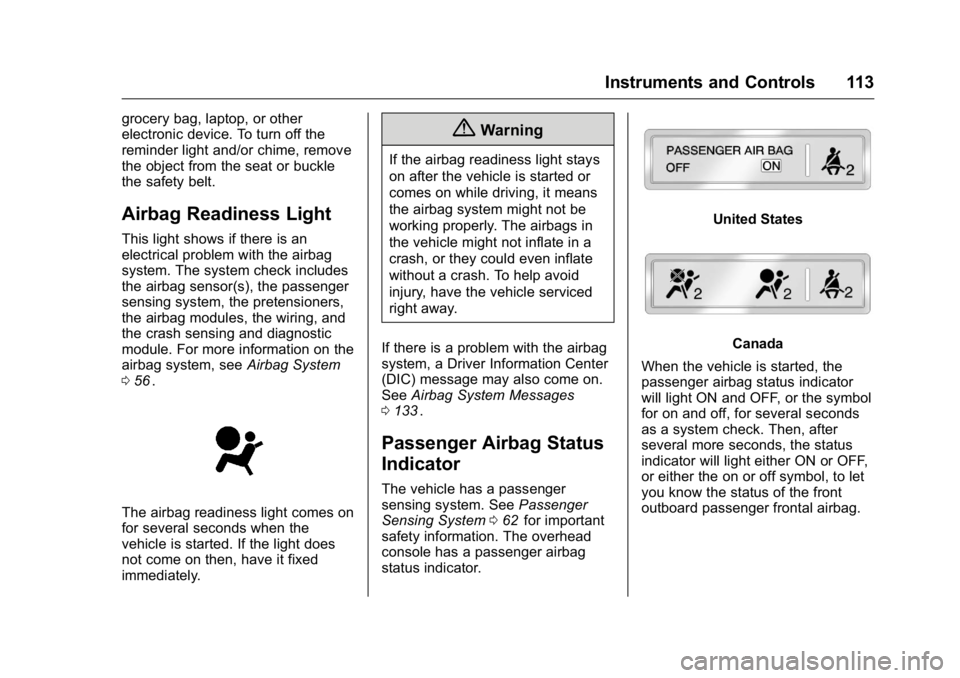
The vehicle has a passenger
sensing system. See Passenger
Sensing System 062
iifor important
safety information. The overhead
console has a passenger airbag
status indicator.
United States
Canada
When the vehicle is started, the
passenger airbag status indicator
will light ON and OFF, or the symbol
for on and off, for several seconds
as a system check. Then, after
several more seconds, the status
indicator will light either ON or OFF,
or either the on or off symbol, to let
you know the status of the front
outboard passenger frontal airbag.
Page 161 of 392
GMC Canyon Owner Manual (GMNA-Localizing-U.S/Canada-9159361) -
2016 - crc - 8/25/15
160 Infotainment System
Volume and song selection may
be controlled using the
Infotainment controls or on the
phone/device. If Pandora is
selected and nothing is heard,
check the volume setting on
both phone/device and the
Infotainment system.
Common Pandora Messages
Pandora Error/Please Check
Device : Not signed in or Pandora
is down for maintenance.
No Stations Available : No stations
are available on the Pandora server
through the connected device.
Action Unavailable. Please Check
Device Connection : A few
conditions for loss of Internet
connection are:
. The connected device loses its
cellular connection.
. The device does not support
Internet connectivity.
. The device is not in the vehicle.
. The Bluetooth signal is lost. No Skips Remaining For This
Station or Permitted During
Advertisements :
.
The maximum Pandora skip limit
has been reached according to
the plan that was obtained.
. Skipping an advertisement was
tried.
See www.pandora.com/help. If the
service will not work, see a dealer
for assistance.Audio Players
USB Port
Playing from a USB
A USB mass storage device can be
connected to the USB port.
There is a USB port on the center
console. See Center Console
Storage 099
ii.
USB MP3 Player and USB Drives
. The USB MP3 players and USB
drives connected must comply
with the USB Mass Storage
Class specification (USB MSC).
. Hard disk drives are not
supported.
To play a USB device:
. Connect the USB.
. Press the MEDIA button on the
faceplate until the connected
device is shown.
While the USB source is active,
press the corresponding faceplate
button for the icons on the screen to
operate USB function:
Page 162 of 392
GMC Canyon Owner Manual (GMNA-Localizing-U.S/Canada-9159361) -
2016 - crc - 8/25/15
Infotainment System 161
.t(Seek Previous/Fast
Reverse)
.
u(Seek Next/Fast Forward)
.
j/r(Play/Pause)
.
Z(Shuffle)
USB Menu
Press the MENU knob to display the
USB menu and the following may
display:
Browse : Select to display the files
and folders on the USB device.
Tone Settings : Select to adjust
Bass, Midrange, Treble, Balance,
Fade, and EQ (Equalizer).
Auto Volume : If equipped, this
feature adjusts the volume based on
vehicle speed and ambient noise.
EQ (Equalizer) : If equipped, this
feature adjusts the equalizer
settings. See “EQ (Equalizer)
Settings” inAM-FM Radio 0155
ii.
Playing from an iPod®/iPad®/
iPhone®
This feature supports the following
devices:
. iPod nano
®(1st, 2nd, 3rd, and
4th generation)
. iPod with video (5.0 and 5.5
generation)
. iPod classic
®(6th generation)
. iPod touch
®(1st and 2nd
generation)
. iPad
. iPhone 3G and newer
There may be problems with
operation and function in the
following situations:
. When connecting a device with
a more recent version of the
firmware installed than is
supported by the infotainment
system.
. When connecting a device on
which firmware from other
providers is installed.
To connect and control a device: 1. Connect one end of the
standard USB cable to the
device's dock connector.
2. Connect the other end to a USB port in the center console.
See Center Console Storage
0 99
ii.
3. Press the MEDIA button to select the source.
The music information displays on
the radio’s display and begins
playing through the vehicle’s audio
system.
The device battery recharges
automatically while the vehicle is on.
When the vehicle is off while a
device is connected using the USB
cable, the device battery stops
charging and the device will
automatically turn off.
If the device is an unsupported
model, it can still be listened to in
the vehicle by connecting to the
auxiliary input jack using a standard
3.5 mm (1/8 in) stereo cable.
Page 164 of 392
GMC Canyon Owner Manual (GMNA-Localizing-U.S/Canada-9159361) -
2016 - crc - 8/25/15
Infotainment System 163
5. Turn the MENU knob tohighlight and press to select
the song from the list to begin
playback.
Songs: 1. Turn the MENU knob to highlight and press to view a
list of all songs stored on the
device.
2. Turn the MENU knob to highlight and press to select
the song from the list to begin
playback.
Auxiliary Jack
There is an AUX jack on the center
console. See Center Console
Storage 099
ii.
Possible auxiliary audio sources
include:
. Laptop computer
. Audio music player
This jack is not an audio output. Do
not plug headphones into the
auxiliary input jack. Auxiliary
devices should be set up while the
vehicle is in P (Park). Connect a 3.5 mm (1/8 in) cable
from the auxiliary device to the
auxiliary input jack.
If an auxiliary device has already
been connected, but a different
source is currently active, press the
MEDIA faceplate button repeatedly
to scroll through all of the available
audio source screens, until the AUX
source screen is shown.
Playing from the AUX Jack
An auxiliary device is played
through the audio system and
controlled through the device itself.
AUX Menu
Press the MENU knob to display the
AUX menu and the following may
display:
Tone Settings :
Select to adjust
Bass, Midrange, Treble, Balance,
Fade, and EQ (Equalizer). See
“Tone Settings” underAM-FM Radio
0 155
ii.
Auto Volume : If equipped, this
feature adjusts the volume based on
vehicle speed and ambient noise. EQ (Equalizer) :
If equipped, this
feature adjusts the pre-defined
equalizer settings. See “EQ
(Equalizer)” inAM-FM Radio 0155
ii.
Bluetooth Audio
If equipped, music may be played
from a paired Bluetooth device. See
“Pairing” in“Information Controls”
under Bluetooth (Overview) 0170
iior Bluetooth (Infotainment Controls -
Base Radio) 0171iior Bluetooth
(Infotainment Controls - Base
Connected Radio) 0175
iifor help
pairing a device.
Volume and song selection may be
controlled using the Infotainment
controls or on the phone/device.
If Bluetooth Audio is selected and
nothing is heard, check the volume
setting on both the phone/device
and the infotainment system.
Music can be launched by pressing
the MEDIA screen button on the
Home Page.
To play music via Bluetooth:
1. Power on the device, and pair to connect the device.