manual radio set GMC CANYON 2016 Owner's Manual
[x] Cancel search | Manufacturer: GMC, Model Year: 2016, Model line: CANYON, Model: GMC CANYON 2016Pages: 392, PDF Size: 5.31 MB
Page 19 of 392
GMC Canyon Owner Manual (GMNA-Localizing-U.S/Canada-9159361) -
2016 - crc - 8/25/15
18 In Brief
when 5 (Fifth) gear is selected,
1 (First) through 5 (Fifth) gears
are available.
2. Press the plus/minus button on the shift lever to select the
desired range of gears for
current driving conditions. See
Manual Mode 0222
ii.
Four-Wheel Drive
If the vehicle has four-wheel drive,
the engine's driving power can be
sent to all four wheels for extra
traction.
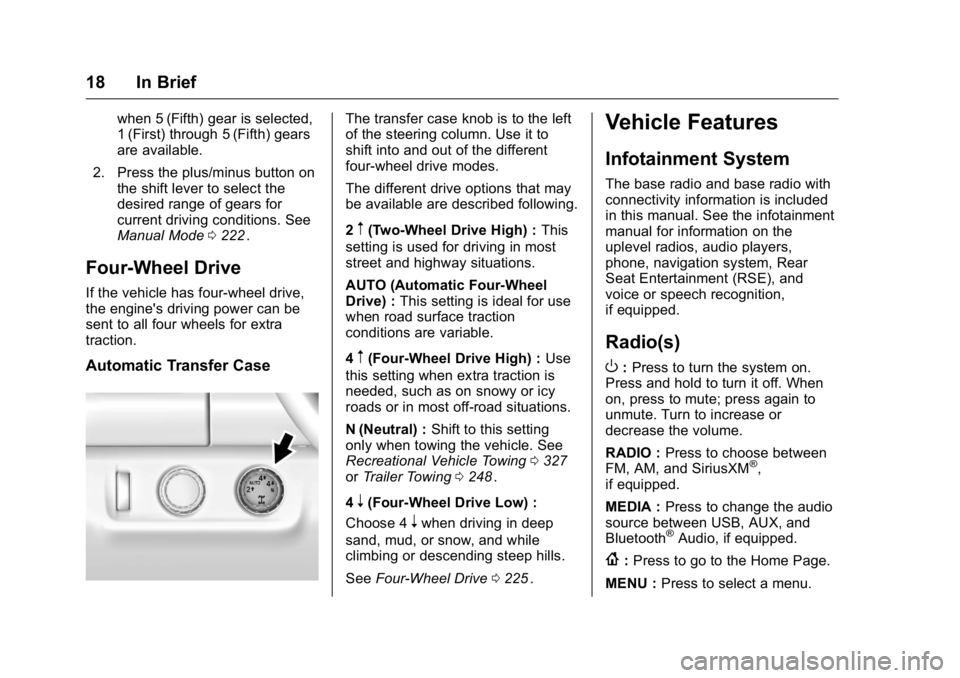
Automatic Transfer Case
The transfer case knob is to the left
of the steering column. Use it to
shift into and out of the different
four-wheel drive modes.
The different drive options that may
be available are described following.
2
m(Two-Wheel Drive High) : This
setting is used for driving in most
street and highway situations.
AUTO (Automatic Four-Wheel
Drive) : This setting is ideal for use
when road surface traction
conditions are variable.
4
m(Four-Wheel Drive High) : Use
this setting when extra traction is
needed, such as on snowy or icy
roads or in most off-road situations.
N (Neutral) : Shift to this setting
only when towing the vehicle. See
Recreational Vehicle Towing 0327
iior Trailer Towing 0248ii.
4
n(Four-Wheel Drive Low) :
Choose 4
nwhen driving in deep
sand, mud, or snow, and while
climbing or descending steep hills.
See Four-Wheel Drive 0225
ii.
Vehicle Features
Infotainment System
The base radio and base radio with
connectivity information is included
in this manual. See the infotainment
manual for information on the
uplevel radios, audio players,
phone, navigation system, Rear
Seat Entertainment (RSE), and
voice or speech recognition,
if equipped.
Radio(s)
O
:Press to turn the system on.
Press and hold to turn it off. When
on, press to mute; press again to
unmute. Turn to increase or
decrease the volume.
RADIO : Press to choose between
FM, AM, and SiriusXM
®,
if equipped.
MEDIA : Press to change the audio
source between USB, AUX, and
Bluetooth
®Audio, if equipped.
{: Press to go to the Home Page.
MENU : Press to select a menu.
Page 20 of 392
GMC Canyon Owner Manual (GMNA-Localizing-U.S/Canada-9159361) -
2016 - crc - 8/25/15
In Brief 19
g:Press to seek the previous
station.
l: Press to seek the next station.
See Overview 0151
iiabout these
and other radio features.
Storing Radio Station Presets
Up to 25 preset stations from all
bands can be stored in the favorite
lists in any order. Up to five stations
can be stored in each favorite page
and the number of favorite pages
can be set.
To store the station to a position in
the list, while on the active source
main page, such as AM, FM,
or SiriusXM (if equipped), press and
hold a favorites/soft key button on
the faceplate.
See “Storing Radio Station Presets”
under AM-FM Radio 0155
ii.
Setting the Clock
See Clock 0103ii.
Satellite Radio
Vehicles with a SiriusXM®satellite
radio tuner and a valid SiriusXM
satellite radio subscription can
receive SiriusXM programming.
SiriusXM Satellite Radio
Service
SiriusXM is a satellite radio service
based in the 48 contiguous United
States and 10 Canadian provinces.
SiriusXM satellite radio has a wide
variety of programming and
commercial-free music, coast to
coast, and in digital-quality sound.
A fee is required to receive the
SiriusXM service.
For more information refer to:
. www.siriusxm.com or call
1-866-635-2349 (U.S.).
. www.xmradio.ca or call
1-877-209-0079 (Canada).
See Satellite Radio 0156
ii.
Portable Audio Devices
This vehicle has a 3.5 mm (1/8 in)
auxiliary input jack and USB port on
the center console. External devices
such as iPods
®, laptop computers,
MP3 players, and USB storage
devices may be connected,
depending on the audio system.
See USB Port 0160
iiand Auxiliary
Jack 0163ii.
Bluetooth®
The Bluetooth®system allows users
with a Bluetooth-enabled cell phone
to make and receive hands-free
calls using the vehicle audio system
and controls.
The Bluetooth-enabled cell phone
must be paired with the in-vehicle
Bluetooth system before it can be
used in the vehicle. Not all phones
will support all functions.
See Bluetooth (Overview) 0170
iior
Bluetooth (Infotainment Controls -
Base Radio) 0171
iior Bluetooth
(Infotainment Controls - Base
Connected Radio) 0175
ii.
Page 36 of 392
GMC Canyon Owner Manual (GMNA-Localizing-U.S/Canada-9159361) -
2016 - crc - 8/25/15
Keys, Doors, and Windows 35
Fast Flash :Vehicle is unsecured.
A door or the hood is open.
Slow Flash : Alarm system is
armed.
Arming the Alarm System
1. Turn off the vehicle.
2. Lock the vehicle with one of the following:
.Use the Remote Keyless
Entry (RKE) transmitter.
. With a door open, press
Q
on the interior of the door.
3. After 30 seconds the alarm system will arm, and the
indicator light will begin to
slowly flash indicating the
alarm system is operating.
Pressing
Qon the RKE
transmitter a second time will
bypass the 30-second delay
and immediately arm the alarm
system.
The theft-deterrent alarm system will
not arm if the doors are locked with
the key. If the driver door is opened without
first unlocking with the RKE
transmitter, the horn will chirp and
the lights will flash to indicate
pre-alarm. If the vehicle is not
started, or the door is not unlocked
by pressing
Kon the RKE
transmitter during the 10-second
pre-alarm, the alarm will be
activated.
If a door or the hood is opened
without first disarming the system,
the turn signals will flash and the
horn will sound for about
30 seconds. The alarm system will
then re-arm to monitor for the next
unauthorized event.
Disarming the Alarm System
To disarm the alarm system or turn
off the alarm if it has been activated:
. Press
Kon the RKE transmitter.
. Start the vehicle.
To avoid setting off the alarm by
accident:
. Lock the vehicle after all
occupants have left the vehicle
and all doors are closed. .
Always unlock a door with the
RKE transmitter.
Unlocking the driver door with the
key will not disarm the system or
turn off the alarm.
Detecting a Tamper Condition
IfKis pressed on the RKE
transmitter and the horn chirps three
times, an alarm occurred previously
while the alarm system was armed.
Immobilizer
See Radio Frequency Statement
0 367ii.
Immobilizer Operation
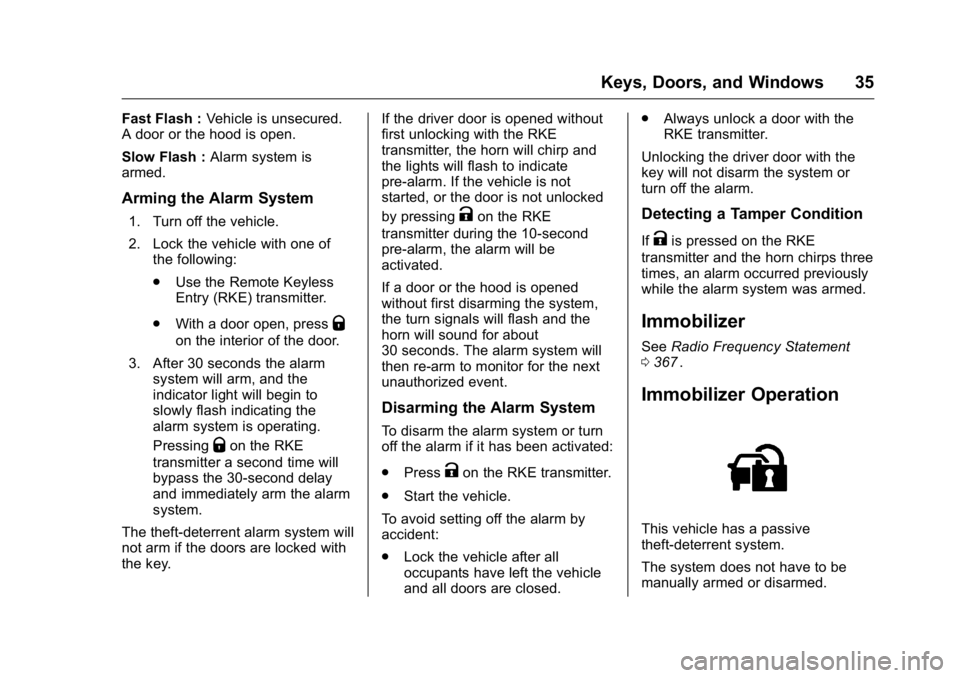
This vehicle has a passive
theft-deterrent system.
The system does not have to be
manually armed or disarmed.
Page 110 of 392
GMC Canyon Owner Manual (GMNA-Localizing-U.S/Canada-9159361) -
2016 - crc - 8/25/15
Instruments and Controls 109
If the vehicle has a diesel engine,
see the Duramax diesel supplement
for more information.
Cluster Menu
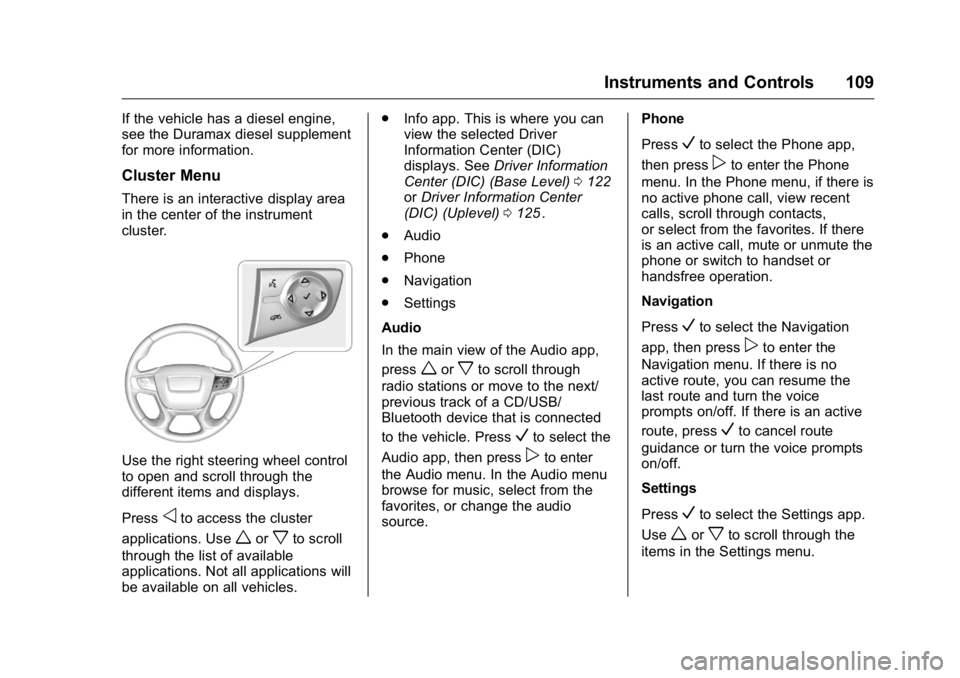
There is an interactive display area
in the center of the instrument
cluster.
Use the right steering wheel control
to open and scroll through the
different items and displays.
Press
oto access the cluster
applications. Use
worxto scroll
through the list of available
applications. Not all applications will
be available on all vehicles. .
Info app. This is where you can
view the selected Driver
Information Center (DIC)
displays. See Driver Information
Center (DIC) (Base Level) 0122
iior Driver Information Center
(DIC) (Uplevel) 0125ii.
. Audio
. Phone
. Navigation
. Settings
Audio
In the main view of the Audio app,
press
worxto scroll through
radio stations or move to the next/
previous track of a CD/USB/
Bluetooth device that is connected
to the vehicle. Press
Vto select the
Audio app, then press
pto enter
the Audio menu. In the Audio menu
browse for music, select from the
favorites, or change the audio
source. Phone
Press
Vto select the Phone app,
then press
pto enter the Phone
menu. In the Phone menu, if there is
no active phone call, view recent
calls, scroll through contacts,
or select from the favorites. If there
is an active call, mute or unmute the
phone or switch to handset or
handsfree operation.
Navigation
Press
Vto select the Navigation
app, then press
pto enter the
Navigation menu. If there is no
active route, you can resume the
last route and turn the voice
prompts on/off. If there is an active
route, press
Vto cancel route
guidance or turn the voice prompts
on/off.
Settings
Press
Vto select the Settings app.
Use
worxto scroll through the
items in the Settings menu.
Page 136 of 392
GMC Canyon Owner Manual (GMNA-Localizing-U.S/Canada-9159361) -
2016 - crc - 8/25/15
Instruments and Controls 135
TRANSMISSION HOT IDLE
ENGINE
This message displays and a chime
may sound if the transmission fluid
in the vehicle gets hot. Driving with
the transmission fluid temperature
high can cause damage to the
vehicle. Stop the vehicle and let it
idle to allow the transmission to
cool. This message clears and the
chime stops when the fluid
temperature reaches a safe level.
When towing, use Tow/Haul Mode
to prevent damage to the engine or
transmission. SeeTow/Haul Mode
0 223
ii.
VEHICLE IN 4WD LOW
This message will display if the
vehicle is driven in Four-Wheel
Drive Low for about 10 minutes
above 72 km/h (45 mph).
Vehicle Reminder
Messages
ICE POSSIBLE DRIVE
WITH CARE
This message is displayed when ice
conditions are possible.
Vehicle Speed Messages
REDUCE SPEED FOR HILL
DESCENT CONTROL
This message displays when
attempting to enable Hill Descent
Control (HDC) when the vehicle
speed is too high. See Hill Descent
Control (HDC) 0233
ii.
Vehicle
Personalization
Use the audio system controls to
access the personalization menus
for customizing vehicle features.
The following are all possible
personalization features. Depending
on the vehicle, some may not be
available.
Base Radio Audio System
Controls
MENU : Press the center of the
knob to enter menus and select
menu items. Turn the knob to scroll
through the menus.
oBACK : Press to return to the
previous menu or exit.
Uplevel Radio Audio System
Controls
1. Press the desired feature to display a list of available
options.
2. Press to select the desired feature setting.
Page 137 of 392
GMC Canyon Owner Manual (GMNA-Localizing-U.S/Canada-9159361) -
2016 - crc - 8/25/15
136 Instruments and Controls
3. PressoBACK on the
faceplate or the
0screen
button to return to the previous
menu or exit.
Turn the vehicle to ON/RUN to
access the Settings menu, then
select SETTINGS from the Home
page on the infotainment system
display.
Personalization Menus
The following list of menu items may
be available:
. Time and Date
. Language (Language)
. Valet Mode
. Radio
. Vehicle
. Bluetooth
. Apple CarPlay
. Android Auto
. Voice
. Display
. Rear Camera .
Return to Factory Settings
. Software Information
Detailed information for each menu
follows.
Time and Date
Manually set the time and date. See
Clock 0103ii.
Language (Language)
Select Language, then select from
the available language(s).
The selected language will display
on the system, and voice
recognition will reflect the selected
language.
Valet Mode (If Equipped)
This will lock the infotainment
system and steering wheel controls.
It may also limit access to vehicle
storage locations (if equipped).
To enable valet mode:
1. Enter a four-digit code on the keypad.
2. Select Enter to go to the confirmation screen. 3. Re-enter the four-digit code.
Press LOCK or UNLOCK to lock or
unlock the system. Press Back to go
back to the previous menu.
Radio
Press to display the Radio menu
and the following may display:
. Manage Favorites
. Number of Favorites Shown
. Audible Touch Feedback
. Auto Volume
. Maximum Startup Volume
Manage Favorites
This allows favorites to be edited.
See “Manage Favorites” in“Radio
Setup” underHome Page 0152
iior
“Manage Favorites” in“Settings”
under “Radio” in the infotainment
manual.
Number of Favorites Shown
Press to set the number of favorites
to display.
Page 141 of 392
GMC Canyon Owner Manual (GMNA-Localizing-U.S/Canada-9159361) -
2016 - crc - 8/25/15
140 Instruments and Controls
Voice
Select and the following may
display:
.Confidence Threshold
. Prompt Length
. Audio Feedback Speed
. Display “What Can I Say?” Tips
Confidence Threshold
This feature allows the adjustment
of the sensitivity of the speech
recognition system.
Select Confirm More or
Confirm Less.
Prompt Length
This feature adjusts the voice
prompt length.
Select Short or Long.
Audio Feedback Speed
This feature adjusts the audio
feedback speed.
Select Slow, Medium, or Fast. Display
“What Can I Say?” Tips
This feature gives voice
command tips.
Select Off or On.
Display
Select and the following may
display:
. Mode
. Calibrate Touchscreen
. Turn Display Off
Mode
Select to change the display
screen mode.
Select Auto, Day, or Night.
Calibrate Touchscreen
Select to calibrate the touchscreen,
then follow the prompts.
Turn Display Off
Select to turn the display off. Press
anywhere on the display area or any
faceplate button to turn the
display on.
Rear Camera
Select and the following may
display:
. Guidance Lines
Guidance Lines
Select to turn Off or On. See Rear
Vision Camera (RVC) 0236
ii.
Return to Factory Settings
Select and the following may
display:
.
Restore Vehicle Settings
. Clear All Private Data
. Restore Radio Settings
Restore Vehicle Settings
This allows selection of restoring
vehicle settings.
Select Restore or Cancel.
Clear All Private Data
Select to clear all private information
from the vehicle.
Select Delete or Cancel.
Page 142 of 392
GMC Canyon Owner Manual (GMNA-Localizing-U.S/Canada-9159361) -
2016 - crc - 8/25/15
Instruments and Controls 141
Restore Radio Settings
This allows selection to restore
radio settings.
Select Restore or Cancel.
Software Information
Select to view the infotainment
system current software information.
Page 151 of 392
GMC Canyon Owner Manual (GMNA-Localizing-U.S/Canada-9159361) -
2016 - crc - 8/25/15
150 Infotainment System
functions may gray out when they
are unavailable. Many infotainment
features are also available through
the instrument cluster and steering
wheel controls.
Before driving:
.Become familiar with the
operation, faceplate buttons, and
screen buttons.
. Set up the audio by presetting
favorite stations, setting the
tone, and adjusting the
speakers.
. Set up phone numbers in
advance so they can be called
easily by pressing a single
button or by using a single voice
command if equipped with
Bluetooth phone capability.
See Defensive Driving 0193
ii.
To play the infotainment system with
the ignition off, see Retained
Accessory Power (RAP) 0213
ii.
Theft-Deterrent Feature
TheftLock®is designed to
discourage theft of the vehicle's
radio by learning a portion of the
Vehicle Identification Number (VIN).
The radio does not operate if it is
stolen or moved to a different
vehicle.
Page 153 of 392
GMC Canyon Owner Manual (GMNA-Localizing-U.S/Canada-9159361) -
2016 - crc - 8/25/15
152 Infotainment System
5.oBACK
. Press to return to the
previous screen in a menu.
6.
{(Home Page)
. Press to go to the Home
Page from any point in the
system. See “Home Page”
following.
7. TONE .Press TONE to open the
Tone Settings menu.
8.
gorl(Seek)
. AM, FM, or SiriusXM (If
Equipped): Press
gorl
to seek to the previous or
next strong station.
9. RADIO .Press to change the audio
source between AM, FM,
or SiriusXM, if equipped.
10. MEDIA .Press to change the audio
source between USB, AUX,
and Bluetooth Audio,
if equipped. 11.
O(Power/Volume)
. Press to turn the audio on.
. Press and hold to turn it off.
. When on, press to mute the
system. Press again to
unmute.
. Turn to increase or
decrease the volume.
Home Page
Home Page Features
The infotainment system displays a
Home Page that makes it easy to
access all of the applications. Turn
the MENU knob to highlight feature
icons. Press the MENU knob to
access the feature’s options.
Various functions are disabled when
the vehicle is moving.
AUDIO : Select the AUDIO screen
icon to display the active source
page. The sources available are
AM, FM, SiriusXM
®(if equipped),
USB/iPod, AUX Input, and Bluetooth
Audio (if equipped). See
AM-FM Radio 0155
ii,Satellite
Radio 0156ii,Auxiliary Jack 0163ii,
and Bluetooth Audio 0163ii.
PHONE : Select the PHONE screen
icon to display the Phone main
page. See Bluetooth (Overview)
0 170
iior Bluetooth (Infotainment
Controls - Base Radio) 0171iior
Bluetooth (Infotainment Controls -
Base Connected Radio) 0175
ii.
NAV (Navigation, If Equipped) :
Select the NAV screen icon to
display the OnStar Turn-by-Turn
Navigation. See OnStar Overview
0 371
ii, if equipped.
SETTINGS : Select the SETTINGS
screen icon to display the Settings
main page. See “Setting Radio
Preferences” following.
Pandora (If Equipped)
Select the PANDORA icon to begin
Pandora. See Pandora Internet
Radio 0157
ii.