radio controls GMC CANYON 2017 Owner's Guide
[x] Cancel search | Manufacturer: GMC, Model Year: 2017, Model line: CANYON, Model: GMC CANYON 2017Pages: 417, PDF Size: 5.36 MB
Page 170 of 417
GMC Canyon Owner Manual (GMNA-Localizing-U.S./Canada-10122677) -
2017 - crc - 1/20/17
Infotainment System 169
Volume and song selection may
be controlled using the
infotainment controls or the
phone/device. If Pandora is
selected and nothing is heard,
check the volume setting on the
phone/device and the
infotainment system.
Common Pandora Messages
Pandora Error/Please Check
Device : Not signed in or Pandora
is down for maintenance.
No Stations Available : No stations
are available on the Pandora server
through the connected device.
Action Unavailable. Please Check
Device Connection : A few
conditions for loss of Internet
connection are:
. The connected device loses its
cellular connection.
. The device does not support
Internet connectivity.
. The device is not in the vehicle.
. The Bluetooth signal is lost. No Skips Remaining For This
Station or Permitted During
Advertisements :
.
The maximum Pandora skip limit
has been reached according to
the plan that was obtained.
. Skipping an advertisement was
tried.
See www.pandora.com/help. If the
service will not work, see your
dealer for assistance.Audio Players
Avoiding Untrusted Media
Devices
When using media devices such as
CDs, DVDs, Blu-ray Discs, SD
cards, USB devices, and mobile
devices, consider the source.
Untrusted media devices could
contain files that affect system
operation or performance. Avoid use
if the content or origin cannot be
trusted.
USB Port (Base Radio)
If equipped, there is a USB port for
data and charging in the center
stack, inside the center console,
and/or at the rear of the center
console. For uplevel radios, see the
infotainment manual.
Playing from a USB
A USB mass storage device or
Media Transfer Protocol (MTP)
device can be connected to the
USB port.
Page 180 of 417
GMC Canyon Owner Manual (GMNA-Localizing-U.S./Canada-10122677) -
2017 - crc - 1/20/17
Infotainment System 179
To adjust the auto volume settings,
see“Auto Volume” under“Base
Radio with Touchscreen” inAM-FM
Radio (Base Radio) 0160 or
AM-FM Radio (Base Radio with
Touchscreen) 0162.
Bluetooth Audio
If equipped, music may be played
from a paired Bluetooth device. See
“Pairing” under“Bluetooth
(Infotainment Controls - Base
Radio)” or“Bluetooth (Infotainment
Controls - Base Radio with
Touchscreen)” inBluetooth
(Overview) 0186 orBluetooth
(Infotainment Controls - Base
Radio) 0187 orBluetooth (Voice
Recognition) 0191 orBluetooth
(Infotainment Controls - Base Radio
with Touchscreen) 0196 for help
pairing a device.
Volume and song selection may be
controlled by using the infotainment
controls or the phone/device.
If Bluetooth Audio is selected and
nothing is heard, check the volume
setting on both the phone/device
and the infotainment system. Launch music by touching the
MEDIA screen button on the
Home Page.
To play music via Bluetooth:
1. Power on the device, and pair to connect the device.
2. Once paired, go into the audio application from the Home
Page or via the application tray.
Select MEDIA until Bluetooth
displays.
Bluetooth Audio Menu
Touch the MENU screen button to
display the Bluetooth Audio menu.
The following may be available:
Tone: Turn the MENU knob to
adjust the tone settings.
Touch
oBACK to go back to the
previous menu.
Manage Bluetooth Devices: Select
to go to the Bluetooth page to add
or delete devices.
When selecting Bluetooth Audio, the
radio may not be able to launch the
audio player on the connected device to start playing. When the
vehicle is not moving, use the
phone to begin playback.
All devices launch audio differently.
When selecting Bluetooth Audio as
a source, the radio may show as
paused on the screen. Press play
on the device or press
rto begin
playback.
Some phones support sending
Bluetooth music information to
display on the radio. When the radio
receives this information, it will
check to see if any is available and
display it. For more information
about supported Bluetooth features,
see www.gm.com/bluetooth in the
U.S. and Canada only.
Page 183 of 417
GMC Canyon Owner Manual (GMNA-Localizing-U.S./Canada-10122677) -
2017 - crc - 1/20/17
182 Infotainment System
.Speak the command naturally,
not too fast, not too slow. Use
direct commands without a lot of
extra words.
. Usually Phone and Audio
commands can be spoken in a
single command.
For example, “Call Dave Smith
at work,” “Play” followed by the
artist or song name, or “Tune”
followed by the radio station
number.
There is no need to memorize
specific command words. Direct
commands might be more clearly
understood by the system. An
example of a direct command would
be “Call 555-1212.” Examples of
these direct commands are
displayed on most of the screens
while a voice session is active.
If “Phone” or“Phone Commands,” is
stated, the system understands that
a phone call is requested and will
respond with questions until enough
details are gathered. If the phone number has been
saved with a name and a place, the
direct command should include
both, for example
“Call Dave Smith
at work.”
Using Voice Recognition for
List Options
When a list is displayed, a voice
prompt will ask to confirm or select
an option from that list. A selection
can be made by manually selecting
the item, or by speaking the line
number for the item to select.
When a screen contains a list,
options may be available but not
displayed. The list on a voice
recognition screen functions the
same as a list on other screens.
Scrolling can be used to help
display other entries from the list.
Manually scrolling or paging the list
on a screen during a voice
recognition session suspends the
current voice recognition event and
plays the prompt “Make your
selection from the list using the
manual controls or press the Back
button to try again.” If manual selection takes more than
15 seconds, the session terminates
and prompts that it has timed out.
The screen returns back to the
screen where voice recognition was
initiated.
The Back Command
Say
“Back” or press the Back button
to go to the previous screen.
If in voice recognition, and “Back”is
stated all the way through to the
initial screen, then “Back”is stated
one more time, the voice recognition
session will cancel.
Help
Say “Help” on any voice recognition
screen and the help prompt for the
screen is played. Additionally, a
pop-up displays a text version of the
help prompt. Depending on how
voice recognition was initiated, the
Help pop-up will appear either on
the instrument cluster or the
infotainment display. Press the
Dismiss button to make the pop-up
go away.
Page 186 of 417
GMC Canyon Owner Manual (GMNA-Localizing-U.S./Canada-10122677) -
2017 - crc - 1/20/17
Infotainment System 185
The access commands for playlists,
artists, and genres are prohibited
after the number of this type of
media exceeds 4,000.
The system will provide feedback
the first time voice recognition is
initiated if it has become apparent
that any of these limits are reached
during a device initializing process.
Voice Recognition for the
Phone
“Call
call to an entered contact. The
command may include location if
the contact has location numbers
stored.
“Call
“At Work,” “On Mobile,” or“On
Other” :Initiate a call to an entered
contact and location at home, at
work, on mobile device, or on
another phone.
“Call
call to a standard phone number
seven or 10 digits in length, and
also 911, 411, or 611. “Pair Phone”
:Begins the
Bluetooth pairing process. Follow
instructions on the radio display.
“Switch Phone” :Select a different
phone for outgoing calls.
“Voice Keypad” :Begins a dialog
to enter special numbers like
international numbers. The numbers
can be entered in groups of digits
with each group of digits being
repeated back by the system. If the
group of digits is not correct, the
command “Delete”will remove the
last group of digits and allow them
to be re-entered. Once the entire
number has been entered, the
command “Call”will start dialing the
number.
“Voice Mail” :Initiate a call to voice
mail numbers.
Voice Recognition for OnStar
(If Equipped)
“OnStar” :Begin OnStar Voice
Recognition.
Bluetooth Speech Recognition
(If Equipped)
Voice Pass-Thru allows access to
the speech recognition commands
on the cell phone. See your cell
phone manufacturer ’s user guide to
see if the cell phone supports this
feature.
Activating this function will start the
Bluetooth Speech Recognition on a
connected phone.
The steering wheel controls are
used to operate this function.
Press and hold
gto activate.
A voice session begins so that voice
commands can be given to Siri
®or
many other controls provided by the
cell phone.
Press
@to exit or pressito
close and return to the previous
application prior to the start of Voice
Pass-Thru.
Page 187 of 417
GMC Canyon Owner Manual (GMNA-Localizing-U.S./Canada-10122677) -
2017 - crc - 1/20/17
186 Infotainment System
Phone
Bluetooth (Overview)
Instructions for using the cell phone
may differ between infotainment
systems. The base radio and base
radio with touchscreen instructions
are included in this manual. See the
infotainment manual for instructions
on the uplevel radios.
Bluetooth-capable systems can
interact with many cell phones,
allowing:
.Placement and receipt of calls in
a hands-free mode.
. Sharing of the cell phone’s
address book or contact list with
the vehicle.
To minimize driver distraction,
before driving, and with the vehicle
parked:
. Become familiar with the
features of the cell phone.
Organize the phone book and
contact lists clearly and delete duplicate or rarely used entries.
If possible, program speed dial
or other shortcuts.
. Review the controls and
operation of the infotainment
system.
. Pair cell phone(s) to the vehicle.
The system may not work with
all cell phones. See “Pairing”in
this section.
. If the cell phone has voice
dialing capability, learn to use
that feature to access the
address book or contact list.
. See “Deleting a Paired Phone”
and/or “Deleting a Bluetooth
Device” in this section.
{Warning
When using a cell phone, it can
be distracting to look too long or
too often at the screen of the
phone or the infotainment system.
Taking your eyes off the road too
long or too often could cause a
crash resulting in injury or death.
Focus your attention on driving. Vehicles with a Bluetooth system
can use a Bluetooth-capable cell
phone with a Hands-Free Profile to
make and receive phone calls. The
infotainment system and voice
recognition are used to control the
system. The system can be used
while in ON/RUN or ACC/
ACCESSORY. The range of the
Bluetooth system can be up to 9.1 m
(30 ft). Not all phones support all
functions and not all phones work
with the Bluetooth system. See
www.gm.com/bluetooth or see your
dealer for more information about
compatible phones.
Bluetooth Controls
Use the controls on the infotainment
display, center stack, and the
steering wheel to operate the
Bluetooth system.
Steering Wheel Controls
See
Steering Wheel Controls 0103.
Page 188 of 417
GMC Canyon Owner Manual (GMNA-Localizing-U.S./Canada-10122677) -
2017 - crc - 1/20/17
Infotainment System 187
Infotainment System Controls
For information about how to
navigate the menu system using the
infotainment controls, seeOverview
(Base Radio) 0154 orOverview
(Base Radio with Touchscreen)
0 156.
MENU : Turn to scroll through a list.
Press to select the highlighted list
option.
{: Press to go to the Home Page.
See Home Page (Base Radio)
0 157 orHome Page (Base Radio
with Touchscreen) 0159.
#:Select to enter the phone main
menu.
See Bluetooth (Overview) 0186 or
Bluetooth (Infotainment Controls -
Base Radio) 0187 orBluetooth
(Voice Recognition) 0191 or
Bluetooth (Infotainment Controls -
Base Radio with Touchscreen)
0 196.
Voice Recognition
If equipped, the voice recognition
system uses commands to control
the system and dial phone numbers. Noise :
The system may not
recognize voice commands if there
is too much background noise, such
as noise from open windows or loud
talking inside the vehicle.
When to Speak : A tone sounds to
indicate that the system is ready for
a voice command. Wait for the tone
and then speak.
How to Speak : Speak clearly in a
calm and natural voice.
Audio System
When using the Bluetooth system,
sound comes through the vehicle's
front audio system speakers and
overrides the audio system. Use the
Oknob during a call to change the
volume level. The system maintains
a minimum volume level.
Bluetooth Audio Quality
Turn off the Echo and Noise
cancellation feature on your phone,
if supported, for the best hands-free
performance.
See www.gm.com/bluetooth or see
your dealer.
Bluetooth (Infotainment
Controls - Base Radio)
For information about how to
navigate the menu system using the
infotainment controls, see Overview
(Base Radio) 0154 orOverview
(Base Radio with Touchscreen)
0 156.
Switching to Handset or
Hands-Free Mode
To switch between handset mode
and hands-free mode, use the
OnStar command, “transfer call.”
Pairing
A Bluetooth-enabled cell phone
must be paired to the Bluetooth
system and then connected to the
vehicle before it can be used. See
your cell phone manufacturer's user
guide for Bluetooth functions before
pairing the cell phone. If a Bluetooth
phone is not connected, calls can
be made using OnStar Hands-Free
Calling, if available. See OnStar
Overview 0395, if equipped.
Page 197 of 417
GMC Canyon Owner Manual (GMNA-Localizing-U.S./Canada-10122677) -
2017 - crc - 1/20/17
196 Infotainment System
3. Say the number or name tagto send.
Clearing the System
Unless information is deleted out of
the in-vehicle Bluetooth system, it
will be retained indefinitely. This
includes all phone pairing
information. For information on how
to delete this information, see
“Deleting a Paired Phone.”
Bluetooth (Infotainment
Controls - Base Radio
with Touchscreen)
To use infotainment controls to
access the menu system, see
Overview (Base Radio) 0154 or
Overview (Base Radio with
Touchscreen) 0156.
Pairing
A Bluetooth-enabled cell phone
must be paired to the Bluetooth
system and then connected to the
vehicle before it can be used. See
your cell phone manufacturer's user
guide for Bluetooth functions before
pairing the cell phone. If a Bluetooth phone is not connected, calls will be
made using OnStar Hands-Free
Calling, if available. See
OnStar
Overview 0395.
Pairing Information
. A Bluetooth phone with MP3
capability cannot be paired to
the vehicle as a phone and an
MP3 player at the same time.
. Up to 10 cell phones can be
paired to the Bluetooth system.
. The pairing process is disabled
when the vehicle is moving.
. Pairing only needs to be
completed once, unless the
pairing information on the cell
phone changes or the cell phone
is deleted from the system.
. Only one paired cell phone can
be connected to the Bluetooth
system at a time.
. If multiple paired cell phones are
within range of the system, the
system connects to the first
available paired cell phone in the
order that they were first paired
to the system. When the Bluetooth device and
infotainment system are
successfully paired, the phone book
is downloaded automatically. This is
dependent on the type of the phone
paired. If the automatic download
does not occur, proceed with the
phone book download on the
phone.
Pairing a Phone - SSP and No
Paired Device
When there is no paired device on
the infotainment system and Simple
Secure Pairing (SSP) is supported:
1. Press
{.
2. Touch PHONE, press
#on the
center stack, or press
gon the
steering wheel without OnStar.
3. Touch Search Device.
4. Touch the desired device to pair on the searched list
screen.
5. Touch Yes on the pop-up screen of the Bluetooth device
and infotainment system.
Page 314 of 417
GMC Canyon Owner Manual (GMNA-Localizing-U.S./Canada-10122677) -
2017 - crc - 1/20/17
Vehicle Care 313
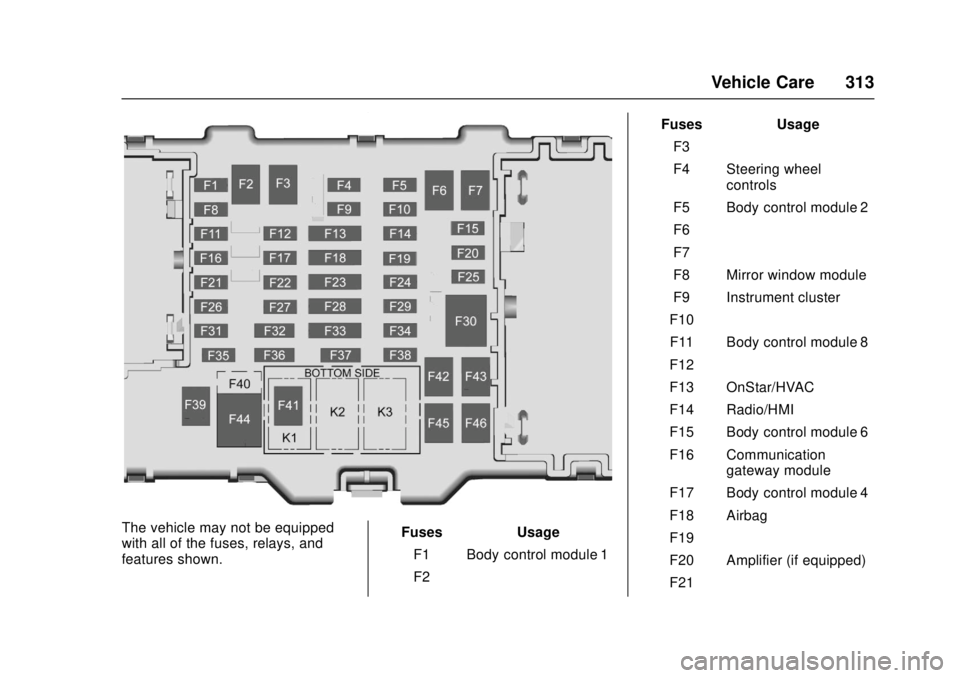
The vehicle may not be equipped
with all of the fuses, relays, and
features shown.Fuses Usage
F1 Body control module 1
F2 – Fuses Usage
F3 –
F4 Steering wheel controls
F5 Body control module 2
F6 –
F7 –
F8 Mirror window module
F9 Instrument cluster
F10 –
F11 Body control module 8
F12 –
F13 OnStar/HVAC
F14 Radio/HMI
F15 Body control module 6
F16 Communication gateway module
F17 Body control module 4
F18 Airbag
F19 –
F20 Amplifier (if equipped)
F21 –
Page 409 of 417

GMC Canyon Owner Manual (GMNA-Localizing-U.S./Canada-10122677) -
2017 - crc - 1/20/17
408 Index
DrivingCharacteristics and
Towing Tips . . . . . . . . . . . . . . . . . 267
Defensive . . . . . . . . . . . . . . . . . . . . . 214
Drunk . . . . . . . . . . . . . . . . . . . . . . . . . 214
For Better Fuel Economy . . . . . . . 25
Hill and Mountain Roads . . . . . . 222
If the Vehicle is Stuck . . . . . . . . . 224
Loss of Control . . . . . . . . . . . . . . . 216
Off-Road . . . . . . . . . . . . . . . . . . . . . 217
Off-Road Recovery . . . . . . . . . . . 216
Vehicle Load Limits . . . . . . . . . . . 225
Wet Roads . . . . . . . . . . . . . . . . . . . 221
Winter . . . . . . . . . . . . . . . . . . . . . . . . 223
E
Electrical Equipment, Add-On . . . . . . . . . . . . . . . . . . . . . . . 275
Electrical System Engine Compartment FuseBlock . . . . . . . . . . . . . . . . . . . . . . . . 308
Fuses . . . . . . . . . . . . . . . . . . . . . . . . 307
Instrument Panel Fuse Block . . . . . . . . . . . . . . . . . . . . . . . . 312
Overload . . . . . . . . . . . . . . . . . . . . . 307
Emergency
OnStar
®. . . . . . . . . . . . . . . . . . . . . . 396
Engine Air Cleaner/Filter . . . . . . . . . . . . . 289 Engine (cont'd)
Check Light (Malfunction
Indicator) . . . . . . . . . . . . . . . . . . . . .117
Compartment Overview . . . . . . . 281
Coolant . . . . . . . . . . . . . . . . . . . . . . . 292
Coolant Temperature
Gauge . . . . . . . . . . . . . . . . . . . . . . .114
Cooling System . . . . . . . . . . . . . . . 290
Cooling System Messages . . . 132
Drive Belt Routing . . . . . . . . . . . . 380
Exhaust . . . . . . . . . . . . . . . . . . . . . . 239
Fan . . . . . . . . . . . . . . . . . . . . . . . . . . . 295
Heater . . . . . . . . . . . . . . . . . . . . . . . . 234
Oil Life System . . . . . . . . . . . . . . . 286
Oil Messages . . . . . . . . . . . . . . . . . 133
Oil Pressure Light . . . . . . . . . . . . 123
Overheating . . . . . . . . . . . . . . . . . . 294
Power Messages . . . . . . . . . . . . . 133
Running While Parked . . . . . . . . 239
Starting . . . . . . . . . . . . . . . . . . . . . . . 233
Entry Lighting . . . . . . . . . . . . . . . . . . . 150
Equipment, Towing . . . . . . . . . . . . . 272
Event Data Recorders . . . . . . . . . . 393
Exit Lighting . . . . . . . . . . . . . . . . . . . . 150
Extender, Safety Belt . . . . . . . . . . . . 55
Exterior Lamp Controls . . . . . . . . . 145
Exterior Lamps Off Reminder . . . 146
F
Fan Engine . . . . . . . . . . . . . . . . . . . . . . . . 295
Filter, Engine Air Cleaner . . . . . . . . . . . 289
Flash-to-Pass . . . . . . . . . . . . . . . . . . . 146
Flashers, Hazard Warning . . . . . . 148
Flat Tire . . . . . . . . . . . . . . . . . . . . . . . . 334 Changing . . . . . . . . . . . . . . . . . . . . . 336
Floor Mats . . . . . . . . . . . . . . . . . . . . . . 362
Fluid
Automatic Transmission . . . . . . 288
Brakes . . . . . . . . . . . . . . . . . . . . . . . . 297
Four-Wheel DriveTransfer Case . . . . . . . . . . . . . . . 247
Washer . . . . . . . . . . . . . . . . . . . . . . . 296
Fog Lamps . . . . . . . . . . . . . . . . . . . . . 148
Folding Mirrors . . . . . . . . . . . . . . . . . . 38
Forward Collision Alert (FCA) System . . . . . . . . . . . . . . . . . 260
Four-Wheel Drive . . . . . . . . . . 247, 299
Frequency Statement Radio . . . . . . . . . . . . . . . . . . . . . . . . . 391
Front Axle . . . . . . . . . . . . . . . . . . . . . . 300
Front Fog Lamp
Light . . . . . . . . . . . . . . . . . . . . . . . . . . 124
Front Seats Adjustment . . . . . . . . . . . . . . . . . . . . . 45
Page 411 of 417

GMC Canyon Owner Manual (GMNA-Localizing-U.S./Canada-10122677) -
2017 - crc - 1/20/17
410 Index
Infants and Young Children,Restraints . . . . . . . . . . . . . . . . . . . . . . 70
Infotainment . . . . . . . . . . . . . . . . . . . . 152
Infotainment System . . . . . . . . . . . . 394
Instrument Cluster . . . . . . . . . 109, 111
Interior Rearview Mirrors . . . . . . . . . 39
Internet Radio Pandora . . . . . . . . . . . . . . . . . . . . . . 166
Introduction . . . . . . . . . . . . . . . . . . . . . . . 2
J
Jack Auxiliary . . . . . . . . . . . . . . . . . . . . . . 178
Jump Starting - North America . . . . . . . . . . . . . . . . . . . . . . . 346
K
Key and Lock Messages . . . . . . . . 134
Keyless EntryRemote (RKE) System . . . . . . . . . 29
Keys . . . . . . . . . . . . . . . . . . . . . . . . . . . . . 26
L
Labeling, Tire Sidewall . . . . . . . . . . 316
Lamps Cargo . . . . . . . . . . . . . . . . . . . . . . . . . 149
Daytime Running (DRL) . . . . . . 146
Dome . . . . . . . . . . . . . . . . . . . . . . . . . 150
Exterior Controls . . . . . . . . . . . . . . 145 Lamps (cont'd)
Exterior Lamps Off
Reminder . . . . . . . . . . . . . . . . . . . 146
Malfunction Indicator
(Check Engine) . . . . . . . . . . . . . .117
Messages . . . . . . . . . . . . . . . . . . . . 134
On Reminder . . . . . . . . . . . . . . . . . 124
Reading . . . . . . . . . . . . . . . . . . . . . . 150
Lane Departure
Warning (LDW) . . . . . . . . . . . . . . . . 261
Lane Departure Warning Light . . . . . . . . . . . . . . . . . . . . . . . . . . 121
Lap-Shoulder Belt . . . . . . . . . . . . . . . 52
LATCH System Replacing Parts after aCrash . . . . . . . . . . . . . . . . . . . . . . . . . 89
LATCH, Lower Anchors and Tethers for Children . . . . . . . . . . . . 76
Light Hill Descent Control . . . . . . . . . . 120
Lighting Entry . . . . . . . . . . . . . . . . . . . . . . . . . 150
Exit . . . . . . . . . . . . . . . . . . . . . . . . . . . 150
Illumination Control . . . . . . . . . . . 149
Lights . . . . . . . . . . . . . . . . . . . . . . . . . . . 121 Airbag Readiness . . . . . . . . . . . . . .116
Antilock Brake System(ABS) Warning . . . . . . . . . . . . . . 120 Lights (cont'd)
Brake System Warning . . . . . . . .119
Charging System . . . . . . . . . . . . . .117
Check Engine (Malfunction
Indicator) . . . . . . . . . . . . . . . . . . . . .117
Cruise Control . . . . . . . . . . . . . . . . 124
Door Ajar . . . . . . . . . . . . . . . . . . . . . 125
Engine Oil Pressure . . . . . . . . . . 123
Flash-to-Pass . . . . . . . . . . . . . . . . . 146
Front Fog Lamp . . . . . . . . . . . . . . 124
High-Beam On . . . . . . . . . . . . . . . . 124
High/Low Beam Changer . . . . . 146
Lane Departure Warning . . . . . . 121
Low Fuel Warning . . . . . . . . . . . . 123
Safety Belt Reminders . . . . . . . . .115
Security . . . . . . . . . . . . . . . . . . . . . . 124
StabiliTrak
®OFF . . . . . . . . . . . . . 121
Tire Pressure . . . . . . . . . . . . . . . . . 122
Tow/Haul Mode . . . . . . . . . . . . . . . 120
Traction Control System
(TCS)/StabiliTrak
®. . . . . . . . . . 122
Traction Off . . . . . . . . . . . . . . . . . . . 121
Up-Shift . . . . . . . . . . . . . . . . . . . . . . 120
Locks Automatic Door . . . . . . . . . . . . . . . . . 33
Delayed Locking . . . . . . . . . . . . . . . . 33
Door . . . . . . . . . . . . . . . . . . . . . . . . . . . . 32
Lockout Protection . . . . . . . . . . . . . . 33