steering GMC CANYON 2017 Owner's Guide
[x] Cancel search | Manufacturer: GMC, Model Year: 2017, Model line: CANYON, Model: GMC CANYON 2017Pages: 417, PDF Size: 5.36 MB
Page 120 of 417
GMC Canyon Owner Manual (GMNA-Localizing-U.S./Canada-10122677) -
2017 - crc - 1/20/17
Instruments and Controls 119
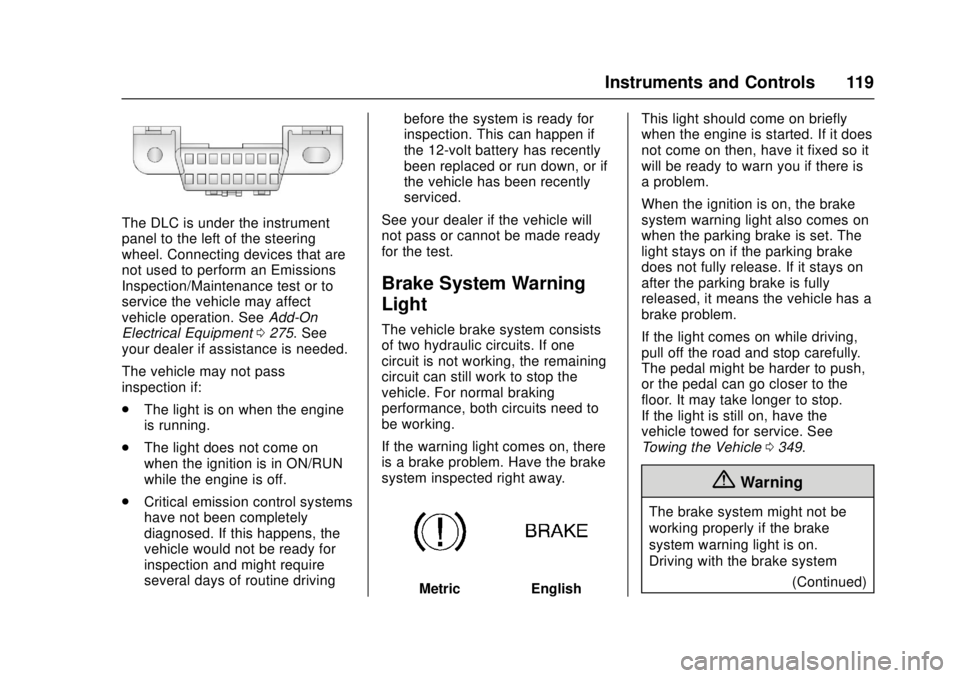
The DLC is under the instrument
panel to the left of the steering
wheel. Connecting devices that are
not used to perform an Emissions
Inspection/Maintenance test or to
service the vehicle may affect
vehicle operation. SeeAdd-On
Electrical Equipment 0275. See
your dealer if assistance is needed.
The vehicle may not pass
inspection if:
. The light is on when the engine
is running.
. The light does not come on
when the ignition is in ON/RUN
while the engine is off.
. Critical emission control systems
have not been completely
diagnosed. If this happens, the
vehicle would not be ready for
inspection and might require
several days of routine driving before the system is ready for
inspection. This can happen if
the 12-volt battery has recently
been replaced or run down, or if
the vehicle has been recently
serviced.
See your dealer if the vehicle will
not pass or cannot be made ready
for the test.
Brake System Warning
Light
The vehicle brake system consists
of two hydraulic circuits. If one
circuit is not working, the remaining
circuit can still work to stop the
vehicle. For normal braking
performance, both circuits need to
be working.
If the warning light comes on, there
is a brake problem. Have the brake
system inspected right away.
MetricEnglish This light should come on briefly
when the engine is started. If it does
not come on then, have it fixed so it
will be ready to warn you if there is
a problem.
When the ignition is on, the brake
system warning light also comes on
when the parking brake is set. The
light stays on if the parking brake
does not fully release. If it stays on
after the parking brake is fully
released, it means the vehicle has a
brake problem.
If the light comes on while driving,
pull off the road and stop carefully.
The pedal might be harder to push,
or the pedal can go closer to the
floor. It may take longer to stop.
If the light is still on, have the
vehicle towed for service. See
Towing the Vehicle
0349.
{Warning
The brake system might not be
working properly if the brake
system warning light is on.
Driving with the brake system
(Continued)
Page 129 of 417
GMC Canyon Owner Manual (GMNA-Localizing-U.S./Canada-10122677) -
2017 - crc - 1/20/17
128 Instruments and Controls
The display provides feedback on
how current driving behavior in the
bar graph affects the running
average in the top display and how
well recent driving compares to the
best that has been achieved.
Driver Information Center
(DIC) (Uplevel)
The DIC displays are shown in the
center of the instrument cluster in
the Info app.
SeeInstrument Cluster (Base Level)
0 109 orInstrument Cluster
(Uplevel) 0111. The displays show
the status of many vehicle systems.
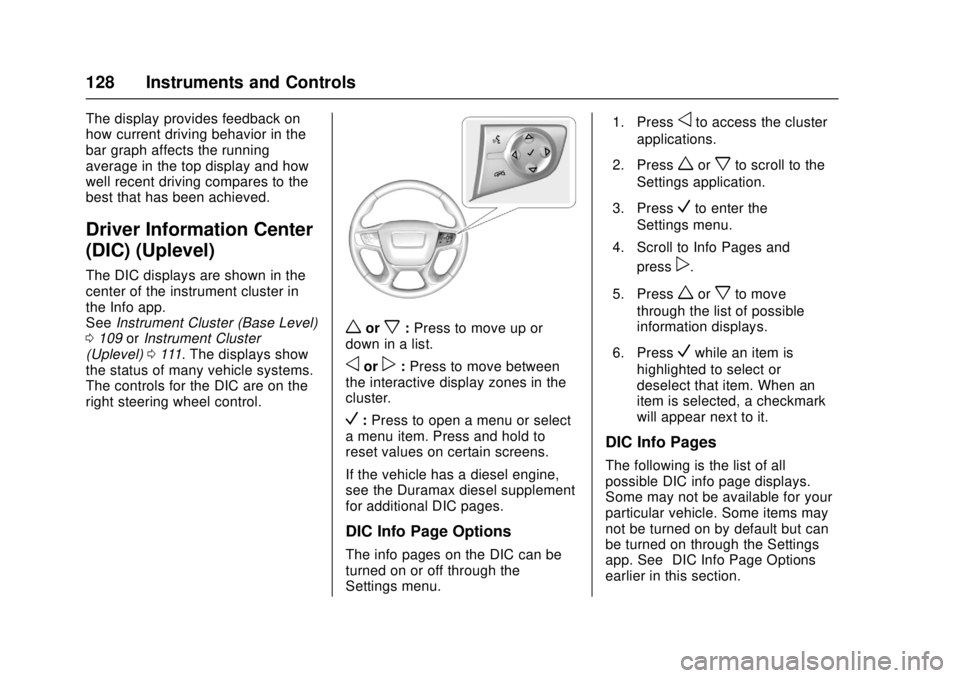
The controls for the DIC are on the
right steering wheel control.
worx: Press to move up or
down in a list.
oorp: Press to move between
the interactive display zones in the
cluster.
V: Press to open a menu or select
a menu item. Press and hold to
reset values on certain screens.
If the vehicle has a diesel engine,
see the Duramax diesel supplement
for additional DIC pages.
DIC Info Page Options
The info pages on the DIC can be
turned on or off through the
Settings menu. 1. Press
oto access the cluster
applications.
2. Press
worxto scroll to the
Settings application.
3. Press
Vto enter the
Settings menu.
4. Scroll to Info Pages and press
p.
5. Press
worxto move
through the list of possible
information displays.
6. Press
Vwhile an item is
highlighted to select or
deselect that item. When an
item is selected, a checkmark
will appear next to it.
DIC Info Pages
The following is the list of all
possible DIC info page displays.
Some may not be available for your
particular vehicle. Some items may
not be turned on by default but can
be turned on through the Settings
app. See “DIC Info Page Options”
earlier in this section.
Page 136 of 417
GMC Canyon Owner Manual (GMNA-Localizing-U.S./Canada-10122677) -
2017 - crc - 1/20/17
Instruments and Controls 135
Ride Control System
Messages
SERVICE STABILITRAK
If this message displays, it means
there may be a problem with the
StabiliTrak system. If you see this
message, try to reset the system.
Stop; turn off the engine for at least
15 seconds; then start the engine
again. If this message still comes
on, it means there is a problem. You
should see your dealer for service.
The vehicle is safe to drive;
however, you do not have the
benefit of StabiliTrak, so reduce
your speed and drive accordingly.
SERVICE TRACTION
CONTROL
This message displays when there
is a problem with the Traction
Control System (TCS). When this
message displays, the system will
not limit wheel spin. Adjust your
driving accordingly. See your dealer
for service. SeeTraction Control/
Electronic Stability Control 0253.
STABILITRAK INITIALIZING
This message may come on if the
StabiliTrak system has not fully
initialized because of road
conditions or the incorrect tire size.
When the StabiliTrak system is fully
initialized, the message will turn off.
See Traction Control/Electronic
Stability Control 0253. If this
message continues to be displayed
for multiple ignition cycles and on
different road surfaces, see your
dealer for service.
Airbag System Messages
SERVICE AIRBAG
This message displays if there is a
problem with the airbag system.
Take the vehicle to your dealer for
service.
Security Messages
SERVICE THEFT DETERRENT
SYSTEM
This message displays when there
is a problem with the theft-deterrent
system. The vehicle may or may not restart, so you may want to take the
vehicle to your dealer before turning
off the engine. See
Immobilizer
Operation 036.
Steering System
Messages
STEERING ASSIST IS
REDUCED DRIVE WITH CARE
This message may display if a
problem occurs with the electric
power steering system. If this
message appears, steering effort
may be slightly higher than normal.
The vehicle is still safe to drive. Use
caution while in reduced assist
mode. If this message is persistent
or appears repeatedly, take the
vehicle to your dealer for service.
See Steering 0215.
SERVICE POWER STEERING
This message displays when there
is a problem with electric power
steering. If this message displays
and a reduction in steering
performance or loss of power
steering assistance is noticed, see
your dealer. See Steering0215.
Page 140 of 417
GMC Canyon Owner Manual (GMNA-Localizing-U.S./Canada-10122677) -
2017 - crc - 1/20/17
Instruments and Controls 139
.Rear Camera
. Return to Factory Settings
. Software Information
. Wi-Fi
Detailed information for each menu
follows.
Time and Date
Manually set the time and date. See
Clock 0105.
Rear Seat Reminder
This allows for a chime and a
message when the rear door has
been opened before or during
operation of the vehicle.
Select Off or On.
Language
Select Language, then select from
the available language(s).
The selected language will display
on the system, and voice
recognition will reflect the selected
language.
Valet Mode (If Equipped)
This will lock the infotainment
system and steering wheel controls.
It may also limit access to vehicle
storage locations, if equipped.
To enable valet mode:
1. Enter a four-digit code on the keypad.
2. Select Enter to go to the confirmation screen.
3. Re-enter the four-digit code.
Touch LOCK or UNLOCK to lock or
unlock the system. Touch Back to
go back to the previous menu.
Teen Driver
See “Teen Driver” under“Settings”
in the infotainment manual.
Radio
Touch to display the Radio menu
and the following may display:
. Manage Favorites
. Number of Favorites Shown
. Audible Touch Feedback
. Auto Volume .
Maximum Startup Volume
Manage Favorites
This allows favorites to be edited.
See “Manage Favorites” in“Radio
Setup” underHome Page (Base
Radio) 0157 orHome Page (Base
Radio with Touchscreen) 0159 or
“Manage Favorites” in“Settings”
under “Radio” in the infotainment
manual.
Number of Favorites Shown
Touch to set the number of favorites
to display.
Select the desired number or select
Auto and the infotainment system
will automatically adjust the number
of favorites shown.
Audible Touch Feedback
This allows Audible Touch
Feedback to be turned on or off.
Select Off or On.
Auto Volume
This feature adjusts the volume
based on vehicle speed and
ambient noise.
Page 146 of 417
GMC Canyon Owner Manual (GMNA-Localizing-U.S./Canada-10122677) -
2017 - crc - 1/20/17
Lighting 145
Lighting
Exterior Lighting
Exterior Lamp Controls . . . . . . . 145
Exterior Lamps OffReminder . . . . . . . . . . . . . . . . . . . 146
Headlamp High/Low-Beam Changer . . . . . . . . . . . . . . . . . . . . 146
Flash-to-Pass . . . . . . . . . . . . . . . . 146
Daytime Running Lamps (DRL) . . . . . . . . . . . . . . . 146
Automatic Headlamp System . . . . . . . . . . . . . . . . . . . . . . 147
Hazard Warning Flashers . . . . . 148
Turn and Lane-Change Signals . . . . . . . . . . . . . . . . . . . . . . 148
Fog Lamps . . . . . . . . . . . . . . . . . . . 148
Interior Lighting
Instrument Panel Illumination Control . . . . . . . . . . . . . . . . . . . . . . 149
Cargo Lamp . . . . . . . . . . . . . . . . . . 149
Dome Lamps . . . . . . . . . . . . . . . . . 150
Reading Lamps . . . . . . . . . . . . . . 150
Lighting Features
Entry Lighting . . . . . . . . . . . . . . . . 150
Exit Lighting . . . . . . . . . . . . . . . . . . 150
Battery Load Management . . . 151
Battery Power Protection . . . . . 151
Exterior Lighting
Exterior Lamp Controls
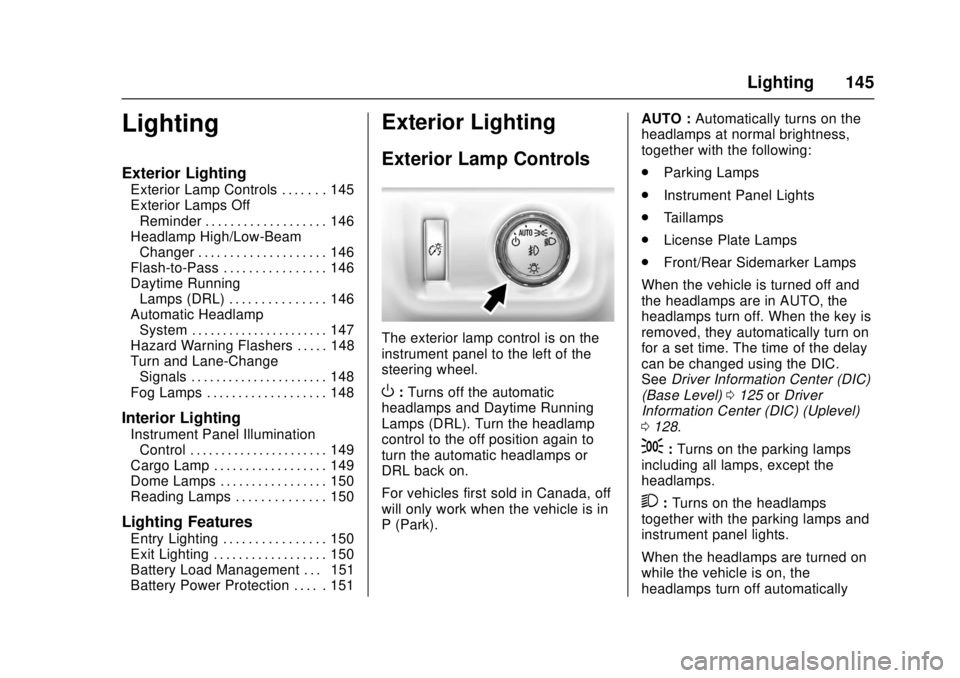
The exterior lamp control is on the
instrument panel to the left of the
steering wheel.
O: Turns off the automatic
headlamps and Daytime Running
Lamps (DRL). Turn the headlamp
control to the off position again to
turn the automatic headlamps or
DRL back on.
For vehicles first sold in Canada, off
will only work when the vehicle is in
P (Park). AUTO :
Automatically turns on the
headlamps at normal brightness,
together with the following:
. Parking Lamps
. Instrument Panel Lights
. Taillamps
. License Plate Lamps
. Front/Rear Sidemarker Lamps
When the vehicle is turned off and
the headlamps are in AUTO, the
headlamps turn off. When the key is
removed, they automatically turn on
for a set time. The time of the delay
can be changed using the DIC.
See Driver Information Center (DIC)
(Base Level) 0125 orDriver
Information Center (DIC) (Uplevel)
0 128.
;:Turns on the parking lamps
including all lamps, except the
headlamps.
2: Turns on the headlamps
together with the parking lamps and
instrument panel lights.
When the headlamps are turned on
while the vehicle is on, the
headlamps turn off automatically
Page 150 of 417
GMC Canyon Owner Manual (GMNA-Localizing-U.S./Canada-10122677) -
2017 - crc - 1/20/17
Lighting 149
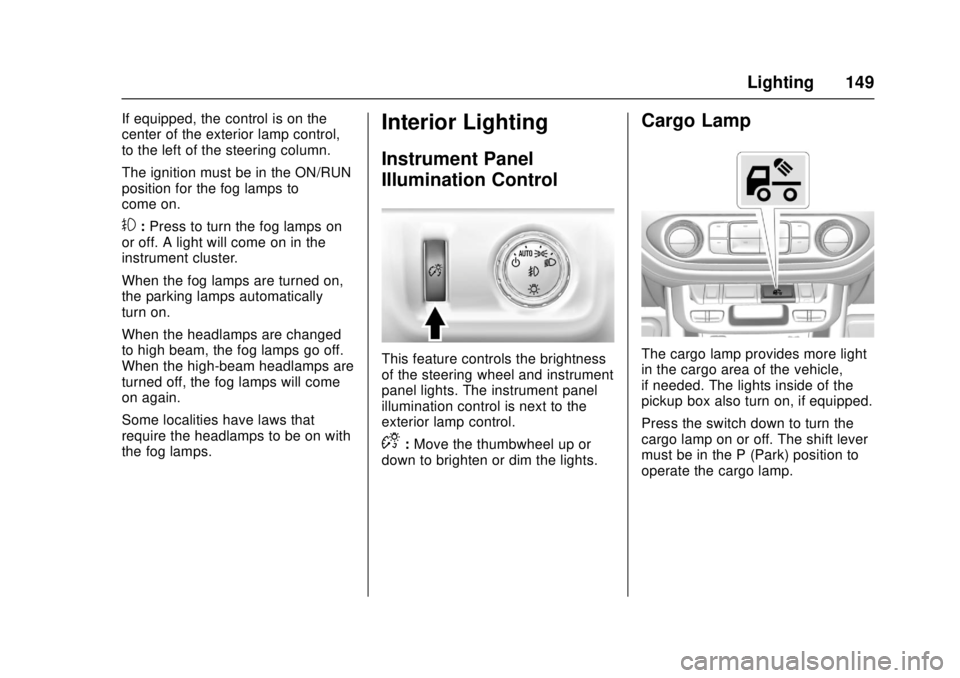
If equipped, the control is on the
center of the exterior lamp control,
to the left of the steering column.
The ignition must be in the ON/RUN
position for the fog lamps to
come on.
#:Press to turn the fog lamps on
or off. A light will come on in the
instrument cluster.
When the fog lamps are turned on,
the parking lamps automatically
turn on.
When the headlamps are changed
to high beam, the fog lamps go off.
When the high-beam headlamps are
turned off, the fog lamps will come
on again.
Some localities have laws that
require the headlamps to be on with
the fog lamps.
Interior Lighting
Instrument Panel
Illumination Control
This feature controls the brightness
of the steering wheel and instrument
panel lights. The instrument panel
illumination control is next to the
exterior lamp control.
D: Move the thumbwheel up or
down to brighten or dim the lights.
Cargo Lamp
The cargo lamp provides more light
in the cargo area of the vehicle,
if needed. The lights inside of the
pickup box also turn on, if equipped.
Press the switch down to turn the
cargo lamp on or off. The shift lever
must be in the P (Park) position to
operate the cargo lamp.
Page 154 of 417
GMC Canyon Owner Manual (GMNA-Localizing-U.S./Canada-10122677) -
2017 - crc - 1/20/17
Infotainment System 153
The infotainment system has built-in
features intended to help avoid
distraction by disabling some
functions when driving. These
functions may gray out when they
are unavailable. Many infotainment
features are also available through
the instrument cluster and steering
wheel controls.
Before driving:
.Become familiar with the
operation, center stack controls,
and infotainment display
controls.
. Set up the audio by presetting
favorite stations, setting the
tone, and adjusting the
speakers.
. Set up phone numbers in
advance so they can be called
easily by pressing a single
control or by using a single voice
command if equipped with
Bluetooth phone capability.
See Defensive Driving 0214.
To play the infotainment system with
the ignition off, see Retained
Accessory Power (RAP) 0236.Theft-Deterrent Feature
TheftLock is designed to discourage
theft of the vehicle's radio by
learning a portion of the Vehicle
Identification Number (VIN). The
radio does not operate if it is stolen
or moved to a different vehicle.
Page 161 of 417
GMC Canyon Owner Manual (GMNA-Localizing-U.S./Canada-10122677) -
2017 - crc - 1/20/17
160 Infotainment System
Projection :Touch to access
supported devices when connected.
See USB Port (Base Radio) 0169
or USB Port (Base Radio with
Touchscreen) 0172.
Settings : Touch to access the
Personalization menu. See Vehicle
Personalization 0138.
Climate : Touch to access the
Climate menu.
See Climate Control Systems 0207
or Automatic Climate Control
System 0209.
OnStar : If equipped, touch to
access the OnStar menu. See
OnStar Overview 0395.
Software Updates
See the website for more
information.
Website Information
In the U.S., see www.gmc.com
In Canada, see www.gmccanada.ca
Radio
AM-FM Radio (Base
Radio)
Playing the Radio
While on the audio main page,
press the RADIO button repeatedly
to cycle through the available
sources AM, FM, and SXM (if
equipped) or press the MEDIA
button repeatedly to cycle through
the available sources Bluetooth
®
Audio (if equipped), USB, and AUX.
The steering wheel controls can
also be used to adjust the volume.
See Steering Wheel Controls 0103.
AM, FM, or SXM (If Equipped)
To select AM, FM, or SXM (if
equipped), press the RADIO button
to toggle to the desired broadcast
source.
Press the MENU knob and the
following radio settings may display: Tone Settings:
.
Bass, Midrange, and Treble:
Turn the MENU knob and
highlight. Press the MENU knob
to select. Turn the MENU knob
to adjust.
. Balance: Turn the MENU knob
to highlight. Press the MENU
knob to select. Turn the MENU
knob left for more sound from
the left speakers or right for
more sound from the right
speakers. The middle position
balances the sound between the
left and right speakers.
. Fade: Turn the MENU knob to
highlight. Press the MENU knob
to select. Turn the MENU knob
to the left for more sound from
the front speakers and to the
right for more sound from the
rear speakers. The middle
position balances the sound
between the front and rear
speakers.
Page 181 of 417
GMC Canyon Owner Manual (GMNA-Localizing-U.S./Canada-10122677) -
2017 - crc - 1/20/17
180 Infotainment System
Voice Recognition
If equipped, voice recognition allows
for hands-free operation within the
audio and phone applications. This
feature can be started by pressing
gon the steering wheel or by
selecting
gon the infotainment
display.
However, not all features within
these areas are supported by voice
commands. Generally, only complex
tasks that require multiple manual
interactions to complete are
supported by voice commands.
For example, tasks that take more
than one or two button presses such
as selecting a song or artist to play
from a media device would be
supported by voice commands.
Other tasks, like adjusting the
volume or seeking up or down are
audio features that are easily
performed by pressing one or two
buttons, and are not supported by
voice commands.
In general there are flexible ways to
speak commands for completing the
tasks. Most of them, except destination entry and voice keypad,
can be completed in a single
command. If the task takes more
than one command to complete, the
first command would be to indicate
the kind of task that is to be
performed. The system replies with
prompts that lead through a dialog
to enter the necessary information.
Voice recognition can be used when
the ignition is on or when Retained
Accessory Power (RAP) is active.
See
Retained Accessory Power
(RAP) 0236.
Using Voice Recognition
Voice recognition becomes available
once the system has been
initialized. This begins when the
ignition is turned on. Initialization
may take a few moments.
1. Press
gon the steering wheel
to activate voice recognition,
or select
gon the infotainment
display.
. If voice recognition is
started from the steering
wheel control, the instrument cluster displays
the selections and visual
dialog content.
. If voice recognition is
started from the
infotainment display, the
selections and visual dialog
content appear on both the
infotainment display and
the instrument cluster
display.
2. The audio system mutes and the system plays a prompt
followed by a beep.
3. Wait until after the beep completes, then clearly speak
one of the commands
described in this section.
Press
gto interrupt any voice
recognition system prompt. For
example, if the prompt seems
to be taking too long to finish,
press
gagain and the beep
should happen right away.
Page 182 of 417
GMC Canyon Owner Manual (GMNA-Localizing-U.S./Canada-10122677) -
2017 - crc - 1/20/17
Infotainment System 181
There are two voice prompt modes
supported:
.Long verbal prompts: The longer
prompts provide more
information regarding the
supported actions.
. Short prompts: The short
prompts provide simple
instructions about what can be
stated.
If a command is not spoken, the
voice recognition system says a
help prompt.
Prompts and Screen Displays
While a voice recognition session is
active, there will be corresponding
buttons on screens displayed.
Manual interaction in the voice
recognition session is permitted.
Interaction during a voice session
may be completed entirely using
voice commands, or some
selections may expedite a session.
If a selection is made using a
manual control, the dialog will
progress in the same way as if the
selection was made through a voice
command. Once the system is able to complete the task, or the session
is terminated, the voice recognition
dialog stops.
An example of this type of manual
intervention is pressing displayed
number list entry instead of
speaking the number associated
with the entry desired.
Canceling Voice Recognition
.
Touch the Home screen button
to terminate the voice
recognition session which was
initiated by touching
gon the
infotainment display.
. Touch or say “Cancel”or“Exit”
to terminate the voice
recognition session and display
the screen from which voice
recognition was initiated.
. Press
ion the steering wheel
to terminate the voice session
and display the screen from
which voice recognition was
initiated.
Helpful Hints for Speaking
Commands
Voice recognition can understand
commands that are either naturally
stated in sentence form (English
only), or direct commands that state
the application and the task.
For languages that do not support
natural language commands in
sentence form, use the direct
commands shown as examples on
the display screen.
For best results:
. Listen for the prompt and wait
for the beep before saying a
command or reply.
. Say “Help” or look at the screen
display for commands.
. Voice recognition system prompt
can be interrupted during a
prompt by pressing
gagain.
For example, if the prompt
seems to be taking too long to
finish, or if what is being
prompted causes a need for an
immediate reply, press
gagain
and wait for the beep.