radio GMC CANYON 2017 Owner's Guide
[x] Cancel search | Manufacturer: GMC, Model Year: 2017, Model line: CANYON, Model: GMC CANYON 2017Pages: 417, PDF Size: 5.36 MB
Page 165 of 417
GMC Canyon Owner Manual (GMNA-Localizing-U.S./Canada-10122677) -
2017 - crc - 1/20/17
164 Infotainment System
1-888-601-6296 (U.S.); or see
www.siriusxm.ca or call
1-877-438-9677 (Canada).
When SiriusXM is active, the
channel name and number,
category name, song title, and artist
display on the screen.
Browsing SiriusXM Channels
To browse the SiriusXM channels:1. Press the MENU knob.
2. Turn the MENU knob to highlight SXM Channel List.
3. Turn the MENU knob to highlight the desired SXM
Channels.
Satellite Radio (Base
Radio with Touchscreen)
SiriusXM®Satellite Radio
Service
Vehicles with an SXM Satellite
Radio tuner and a valid SiriusXM®
Satellite Radio subscription can
receive SiriusXM programming. SiriusXM is a satellite radio service
based in the 48 contiguous United
States and 10 Canadian provinces.
SiriusXM Satellite Radio has a wide
variety of programming and
commercial-free music, coast to
coast, and in digital-quality sound.
A service fee is required to receive
the SiriusXM service. See
www.siriusxm.com or call
1-888-601-6296 (U.S.); or see
www.siriusxm.ca or call
1-877-438-9677 (Canada).
When SiriusXM is active, the
channel name and number,
category name, song title, and artist
display on the screen.
Listening to SiriusXM Radio
1. Press{.
2. Touch AUDIO.
3. Touch Source.
4. Touch SXM and the most recent listened to SiriusXM
channel will display.
Touch
0to return to the
HOME menu.
Selecting a Category
From Menu, touch Categories, then
touch the desired category or from
Categories, touch
QorRto find the
desired channel. Touch the channel
to select it.
Selecting a Channel
Touchuortand the previous or
next channel will be selected.
Touch and hold
uortto jump
four channels backward or forward,
then release the button at the
desired channel.
Using the Preset Buttons
Up to seven favorites pages can be
saved, and each page can store up
to five channels.
To change a preset button, tune to
the new desired channel and hold
the button.
Listening to Preset Channels
1. Continue touching
SorTto
select the desired
favorites page.
Page 166 of 417
GMC Canyon Owner Manual (GMNA-Localizing-U.S./Canada-10122677) -
2017 - crc - 1/20/17
Infotainment System 165
2. Touch the preset button tolisten to the channel saved to
that button.
Using the SiriusXM Menu
Operation
1. Touch MENU on the SXM infotainment display.
2. Touch the menu to select the desired item or to display the
detail menu item.
3. Touch
0to return to the
previous menu.
Channel List 1. Touch SXM Channel List from the SXM menu. The channel
list is displayed.
2. Touch
QorRto find the
desired channel. Tune to the
channel by selecting it.
Tone Settings
From the tone settings menu, the
sound features can be set up for
SiriusXM audio and each audio
player ’s functions. 1. Touch Tone Settings. The tone
settings screen is displayed.
See “Tone Settings” under
“Base Radio with Touchscreen”
in AM-FM Radio (Base Radio)
0 160 orAM-FM Radio (Base
Radio with Touchscreen)
0 162.
2. Touch OK.
Auto Volume 1. Touch Auto Volume. See “Auto
Volume” under“Base Radio
with Touchscreen” inAM-FM
Radio (Base Radio) 0160 or
AM-FM Radio (Base Radio with
Touchscreen) 0162.
2. Touch OK.
Categories 1. Touch Categories.
2. Touch
QorRto find the
desired category. Touch the
category to select it. Explicit Content Filter
When on, only a filtered list of
channels will be received. When off,
all regular SXM programming
subscribed to will be received.
1. Touch SXM Explicit Filter.
2. Select On or Off.
Radio Reception
Frequency interference and static
can occur during normal radio
reception if items such as cell phone
chargers, vehicle convenience
accessories, and external electronic
devices are plugged into the
accessory power outlet. If there is
interference or static, unplug the
item from the accessory power
outlet.
FM
FM signals only reach about 16 to
65 km (10 to 40 mi). Although the
radio has a built-in electronic circuit
that automatically works to reduce
interference, some static can occur,
especially around tall buildings or
hills, causing the sound to fade in
and out.
Page 167 of 417
GMC Canyon Owner Manual (GMNA-Localizing-U.S./Canada-10122677) -
2017 - crc - 1/20/17
166 Infotainment System
AM
The range for most AM stations is
greater than for FM, especially at
night. The longer range can cause
station frequencies to interfere with
each other. Static can occur when
things like storms and power lines
interfere with radio reception. When
this happens, try reducing the treble
on the radio.
SiriusXM Satellite Radio
Service
If equipped, SiriusXM Satellite
Radio Service provides digital radio
reception. Tall buildings or hills can
interfere with satellite radio signals,
causing the sound to fade in and
out. In addition, traveling or standing
under heavy foliage, bridges,
garages, or tunnels may cause loss
of the SiriusXM signal for a period
of time.
Cell Phone Usage
Cell phone usage, such as making
or receiving phone calls, charging,
or just having the phone on maycause static interference with the
radio. Unplug the phone or turn it off
if this happens.
Multi-Band Antenna
The multi-band antenna is on the
roof of the vehicle. The antenna is
used for OnStar, the SiriusXM
Satellite Radio Service System, and
GPS (Global Positioning System),
if the vehicle has these features.
Keep the antenna clear of
obstructions for clear reception.
Items on the roof of the vehicle can
interfere with the performance of the
radio system and OnStar (if
equipped). Make sure the
multi-band antenna is not
obstructed.
Pandora Internet Radio
If equipped, Pandora®is a free
Internet radio service that streams
personalized radio stations based
on artists, tracks, genres, and
comedians. Create stations using
the Pandora website or Smartphone
application, then use
-or,to
personalize stations. To set up an account, or for more information, go
to www.pandora.com. Pandora may
not be available in Canada or
Mexico.
A phone or tablet with Internet
connection and the Pandora
application installed is required.
Personal cell phone data plans are
used. Make sure the latest version
is installed on the device.
Launching Pandora
Connect an iPhone to the USB port,
or connect Android®or BlackBerry®
through Bluetooth.
See
Bluetooth (Overview) 0186 or
Bluetooth (Infotainment Controls -
Base Radio) 0187 orBluetooth
(Voice Recognition) 0191 or
Bluetooth (Infotainment Controls -
Base Radio with Touchscreen)
0 196. For first time use, set up the
stations before connecting to the
vehicle. The Pandora icon will be
available on the Home Page.
When Pandora is chosen, the
Pandora logo will populate on the
screen and the system will display
“Acquiring Pandora Radio Station.”
Launch times can be significant.
Page 168 of 417
GMC Canyon Owner Manual (GMNA-Localizing-U.S./Canada-10122677) -
2017 - crc - 1/20/17
Infotainment System 167
Using an iPhone1. Plug the device into the USB port. The phone screen must
be unlocked.
2. Launch Pandora from the Home Page by selecting the
Pandora icon.
If nothing happens when the
available Pandora screen button is
touched, download the latest
Pandora application and retry.
The login screen may display on the
device.
Using an Android or BlackBerry
Phone
The BlackBerry phone must be
unlocked to launch Pandora service.
1. Pair the phone using Bluetooth.
2. Launch Pandora by selecting Pandora on the Home Page.
If nothing happens when the
available Pandora screen button is
selected, download the latest
Pandora application and retry.
The login screen may display on the
device. Pandora Menus
Press MENU.
Pandora has a menu with the
following:
Tone Settings :
Select to adjust the
tone settings.
See AM-FM Radio (Base Radio)
0 160 orAM-FM Radio (Base Radio
with Touchscreen) 0162.
Bookmark Artist : Select to
bookmark the artist.
Bookmark Song : Select to
bookmark the song.
Auto Volume : This feature sets the
auto volume based on the speed of
the vehicle and noise in the vehicle.
See AM-FM Radio (Base Radio)
0 160 orAM-FM Radio (Base Radio
with Touchscreen) 0162.
Pandora Features
Pandora service has features to rate
tracks, skip tracks, or change
stations.
}: When selected during a track, a
choice displays to bookmark the
artist or track. This sends the
bookmark to the Pandora account.
,: When selected, Pandora stores
this information, changes to the next
track, and does not play this track
on this station again. This helps
Pandora choose which tracks
should not play on this station. This
feature is only available on user
created stations.
-: When selected, Pandora stores
this information and
-is
highlighted for the remainder of the
track. This helps Pandora choose
which tracks should play on this
station.
d: When selected, Pandora
changes to the next track.
rorj: Select to play or pause
playback.
Pandora Skip Limit
Pandora limits the number of skips
allowed on their service. When the
skip limit is reached,
,or the next
arrow will not skip the currently
playing track, but the
,feedback
will be recorded.
Page 169 of 417
GMC Canyon Owner Manual (GMNA-Localizing-U.S./Canada-10122677) -
2017 - crc - 1/20/17
168 Infotainment System
Advertisement on Pandora
Pandora may display
advertisements. The artist name
and track title will not be displayed
and the skip track button will not be
available.
Pandora Troubleshooting
Unable to Connect Device to
Vehicle
If the device is unable to connect to
the USB or Bluetooth:1. Turn the vehicle off.
2. Take the Remote Keyless Entry (RKE) transmitter at least 6 m
(20 ft) away from the vehicle.
3. Wait about 30 seconds, and try to connect the device again.
See Bluetooth (Overview)
0 186 orBluetooth
(Infotainment Controls - Base
Radio) 0187 orBluetooth
(Voice Recognition) 0191 or
Bluetooth (Infotainment
Controls - Base Radio with
Touchscreen) 0196. Unable to Start Pandora
If the device is unable to launch
Pandora:
.
Check that the latest version of
Pandora is installed.
. Check that there is an active
account logged into Pandora.
. Have at least one station
created.
. For Android and BlackBerry
devices, check that the device is
paired with the vehicle, and
whether the device displays in
the Connected phone sources
list under the Phone icon from
the Home Page.
. For an iPhone, check that the
USB cable is connected to the
USB port and the screen is
unlocked.
. Close Pandora on the device
and launch again. Devices that
allow multitasking may require
an extra step to quit the Pandora
application. See the cell phone
manufacturer's user guide. Thumbs Up or Thumbs Down
Error
If there is an error trying to rate a
track with
,or-, the message
“Thumbs Down Error” or“Thumbs
Up Error” will display. Touch OK to
dismiss.
Loss of Audio
Loss of Pandora audio can happen
in different ways:
. Weak or lost data connection.
. Device needs to be charged.
. Application needs to be
relaunched.
. Connection between phone and
radio lost.
. An iPhone is connected to both
Bluetooth and the USB port.
Playback can be resumed from
a loss of audio by double
tapping the iPhone home button
then scrolling through the icons
to find an icon that allows a
change of flow between
Bluetooth and USB cable.
Page 170 of 417
GMC Canyon Owner Manual (GMNA-Localizing-U.S./Canada-10122677) -
2017 - crc - 1/20/17
Infotainment System 169
Volume and song selection may
be controlled using the
infotainment controls or the
phone/device. If Pandora is
selected and nothing is heard,
check the volume setting on the
phone/device and the
infotainment system.
Common Pandora Messages
Pandora Error/Please Check
Device : Not signed in or Pandora
is down for maintenance.
No Stations Available : No stations
are available on the Pandora server
through the connected device.
Action Unavailable. Please Check
Device Connection : A few
conditions for loss of Internet
connection are:
. The connected device loses its
cellular connection.
. The device does not support
Internet connectivity.
. The device is not in the vehicle.
. The Bluetooth signal is lost. No Skips Remaining For This
Station or Permitted During
Advertisements :
.
The maximum Pandora skip limit
has been reached according to
the plan that was obtained.
. Skipping an advertisement was
tried.
See www.pandora.com/help. If the
service will not work, see your
dealer for assistance.Audio Players
Avoiding Untrusted Media
Devices
When using media devices such as
CDs, DVDs, Blu-ray Discs, SD
cards, USB devices, and mobile
devices, consider the source.
Untrusted media devices could
contain files that affect system
operation or performance. Avoid use
if the content or origin cannot be
trusted.
USB Port (Base Radio)
If equipped, there is a USB port for
data and charging in the center
stack, inside the center console,
and/or at the rear of the center
console. For uplevel radios, see the
infotainment manual.
Playing from a USB
A USB mass storage device or
Media Transfer Protocol (MTP)
device can be connected to the
USB port.
Page 171 of 417
GMC Canyon Owner Manual (GMNA-Localizing-U.S./Canada-10122677) -
2017 - crc - 1/20/17
170 Infotainment System
The USB port uses the USB 2.0
standard. External devices such as
iPhones/iPods
®and USB storage
devices may be connected.
USB MP3 Player and USB Drives
. The USB MP3 players and USB
drives connected must comply
with the USB Mass Storage
Class specification (USB MSC).
. Hard disk drives are not
supported.
. Supported file system is FAT32.
To play a USB device: 1. Connect the USB.
2. Press MEDIA on the faceplate until the connected device is
shown.
While the USB source is active,
press the corresponding faceplate
button for the icons on the screen to
operate USB function:
.
t
.u
.j/r
.Z
USB Menu
Press MENU to display the USB
menu and the following may display:
Browse : Select to display the files
and folders on the USB device.
Tone Settings : Select to adjust
Bass, Midrange, Treble, Balance,
Fade, and EQ (Equalizer). See
“Tone Settings” inAM-FM Radio
(Base Radio) 0160 orAM-FM
Radio (Base Radio with
Touchscreen) 0162.
Auto Volume : If equipped, see
“Auto Volume” inAM-FM Radio
(Base Radio) 0160 orAM-FM
Radio (Base Radio with
Touchscreen) 0162.
EQ : If equipped, this feature
adjusts the equalizer settings. See
“EQ (Equalizer) Settings” inAM-FM
Radio (Base Radio) 0160 or
AM-FM Radio (Base Radio with
Touchscreen) 0162.
Playing from an iPod®/iPad®/
iPhone®
For supported devices, see your
dealer.
There may be problems with
operation and function in the
following situations:
. When connecting a device with
a more recent version of the
firmware installed than is
supported by the infotainment
system.
. When connecting a device on
which firmware from other
providers is installed.
To connect and control a device: 1. Connect one end of the standard USB cable to the
device's dock connector.
2. Connect the other end to the USB port in the center stack.
3. Press MEDIA to select the source.
The music information displays on
the radio’s display and begins
playing through the vehicle’s audio
system.
Page 172 of 417
GMC Canyon Owner Manual (GMNA-Localizing-U.S./Canada-10122677) -
2017 - crc - 1/20/17
Infotainment System 171
The device battery recharges
automatically while the vehicle is on.
When the vehicle is off while a
device is connected using the USB
cable, the device battery stops
charging and the device will
automatically turn off.
If the device is an unsupported
model, it can still be listened to in
the vehicle by connecting to the
auxiliary input jack using a standard
3.5 mm (1/8 in) stereo cable.
Menu
Press MENU to display the device
Menu and the following may display:
Browse :Select to display the files
or songs on the device. See
“Browse Device Media” later in this
section.
Tone Settings : Select to adjust
Bass, Midrange, Treble, Balance,
Fade, and EQ (Equalizer). See
“Tone Settings” inAM-FM Radio
(Base Radio) 0160 orAM-FM
Radio (Base Radio with
Touchscreen) 0162. EQ :
If equipped, this feature
adjusts the Equalizer settings. See
“EQ (Equalizer)” inAM-FM Radio
(Base Radio) 0160 orAM-FM
Radio (Base Radio with
Touchscreen) 0162.
Browse Device Media
Use the following to browse:
Playlists: 1. Turn MENU to highlight and press to view the playlists
stored on the device.
2. Turn MENU to highlight and press to select a playlist name
to view a list of all songs in the
playlist.
3. Turn MENU to highlight and press to select the song from
the list to begin playback.
Artists: 1. Turn MENU to highlight and press to view the artists stored
on the device.
2. Turn MENU to highlight and press to select an artist name
to view a list of all albums by
the artist. 3. Turn MENU to highlight and
press to select an album name
to view a list of all songs on the
album.
4. Turn MENU to highlight and press to select the song from
the list to begin playback.
Albums: 1. Turn MENU to highlight and press to view the albums
stored on the device.
2. Turn MENU to highlight and press to select an album name
to view a list of all songs on the
album.
3. Turn MENU to highlight and press to select the song from
the list to begin playback.
Genres: 1. Turn MENU to highlight and press to view the genres stored
on the device.
2. Turn MENU to highlight and press to select a genre name
to view a list of artists of that
genre.
Page 173 of 417
GMC Canyon Owner Manual (GMNA-Localizing-U.S./Canada-10122677) -
2017 - crc - 1/20/17
172 Infotainment System
3. Turn MENU to highlight andpress to select to view albums
by that artist.
4. Turn MENU to highlight and press to select an album to
view songs.
5. Turn MENU to highlight and press to select the song from
the list to begin playback.
Songs: 1. Turn MENU to highlight and press to view a list of all songs
stored on the device.
2. Turn MENU to highlight and press to select the song from
the list to begin playback.
USB Port (Base Radio
with Touchscreen)
If equipped, there is a USB port for
data and charging in the center
stack, inside the center console,
and/or at the rear of the center
console. For uplevel radios, see the
infotainment manual.
Using the USB Port
The infotainment system can play
music by connecting an auxiliary
device to the USB port.
USB Support
The USB port uses the USB 2.0
standard. External devices such as
iPhones/iPods
®and USB storage
devices may be connected.
USB Supported Devices
. USB flash drives
. Portable USB hard drives
. iPod/iPhone devices
Not all iPods and USB drives are
compatible with the USB port.
Make sure the iPod has the latest
firmware from Apple
®for proper
operation. iPod firmware can be
updated using the latest iTunes
®
application. See www.apple.com/
itunes.
For help with identifying your iPod,
go to www.apple.com/support. The USB port can play both lower
and upper case .mp3, .wma, .ogg,
and .wav files stored on a USB
storage device.
Supported Apple
®Devices
To view supported devices in the
U.S., see www.my.gmc.com/
learned.
To view supported devices in
Canada, see www.gmcowner.ca.
USB Supported File and Folder
Structure
The infotainment system supports:
. FAT16.
. FAT32.
. exFAT.
Connecting a USB Storage
Device or iPod/iPhone
To connect a USB storage device,
connect the device to the USB port.
To connect an iPod/iPhone, connect
one end of the device’ s cable to the
iPod/iPhone and the other end to
the USB port.
Page 176 of 417
GMC Canyon Owner Manual (GMNA-Localizing-U.S./Canada-10122677) -
2017 - crc - 1/20/17
Infotainment System 175
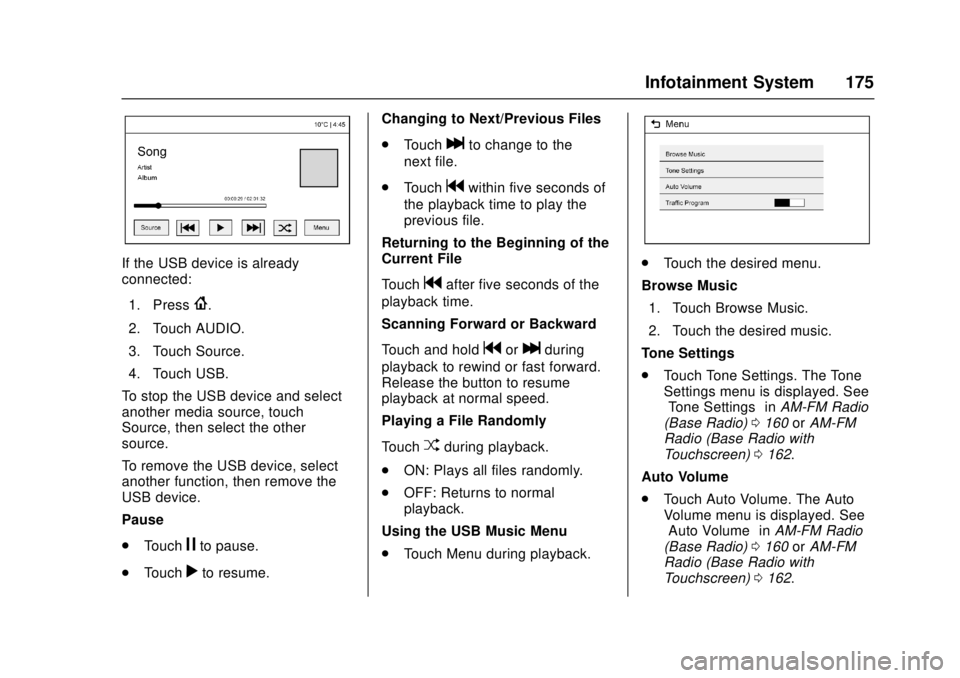
If the USB device is already
connected:1. Press
{.
2. Touch AUDIO.
3. Touch Source.
4. Touch USB.
To stop the USB device and select
another media source, touch
Source, then select the other
source.
To remove the USB device, select
another function, then remove the
USB device.
Pause
. Touch
jto pause.
. Touch
rto resume. Changing to Next/Previous Files
.
Touch
lto change to the
next file.
. Touch
gwithin five seconds of
the playback time to play the
previous file.
Returning to the Beginning of the
Current File
Touch
gafter five seconds of the
playback time.
Scanning Forward or Backward
Touch and hold
gorlduring
playback to rewind or fast forward.
Release the button to resume
playback at normal speed.
Playing a File Randomly
Touch
Zduring playback.
. ON: Plays all files randomly.
. OFF: Returns to normal
playback.
Using the USB Music Menu
. Touch Menu during playback.
.Touch the desired menu.
Browse Music 1. Touch Browse Music.
2. Touch the desired music.
Tone Settings
. Touch Tone Settings. The Tone
Settings menu is displayed. See
“Tone Settings” inAM-FM Radio
(Base Radio) 0160 orAM-FM
Radio (Base Radio with
Touchscreen) 0162.
Auto Volume
. Touch Auto Volume. The Auto
Volume menu is displayed. See
“Auto Volume” inAM-FM Radio
(Base Radio) 0160 orAM-FM
Radio (Base Radio with
Touchscreen) 0162.