light GMC CANYON 2017 Manual PDF
[x] Cancel search | Manufacturer: GMC, Model Year: 2017, Model line: CANYON, Model: GMC CANYON 2017Pages: 417, PDF Size: 5.36 MB
Page 188 of 417
GMC Canyon Owner Manual (GMNA-Localizing-U.S./Canada-10122677) -
2017 - crc - 1/20/17
Infotainment System 187
Infotainment System Controls
For information about how to
navigate the menu system using the
infotainment controls, seeOverview
(Base Radio) 0154 orOverview
(Base Radio with Touchscreen)
0 156.
MENU : Turn to scroll through a list.
Press to select the highlighted list
option.
{: Press to go to the Home Page.
See Home Page (Base Radio)
0 157 orHome Page (Base Radio
with Touchscreen) 0159.
#:Select to enter the phone main
menu.
See Bluetooth (Overview) 0186 or
Bluetooth (Infotainment Controls -
Base Radio) 0187 orBluetooth
(Voice Recognition) 0191 or
Bluetooth (Infotainment Controls -
Base Radio with Touchscreen)
0 196.
Voice Recognition
If equipped, the voice recognition
system uses commands to control
the system and dial phone numbers. Noise :
The system may not
recognize voice commands if there
is too much background noise, such
as noise from open windows or loud
talking inside the vehicle.
When to Speak : A tone sounds to
indicate that the system is ready for
a voice command. Wait for the tone
and then speak.
How to Speak : Speak clearly in a
calm and natural voice.
Audio System
When using the Bluetooth system,
sound comes through the vehicle's
front audio system speakers and
overrides the audio system. Use the
Oknob during a call to change the
volume level. The system maintains
a minimum volume level.
Bluetooth Audio Quality
Turn off the Echo and Noise
cancellation feature on your phone,
if supported, for the best hands-free
performance.
See www.gm.com/bluetooth or see
your dealer.
Bluetooth (Infotainment
Controls - Base Radio)
For information about how to
navigate the menu system using the
infotainment controls, see Overview
(Base Radio) 0154 orOverview
(Base Radio with Touchscreen)
0 156.
Switching to Handset or
Hands-Free Mode
To switch between handset mode
and hands-free mode, use the
OnStar command, “transfer call.”
Pairing
A Bluetooth-enabled cell phone
must be paired to the Bluetooth
system and then connected to the
vehicle before it can be used. See
your cell phone manufacturer's user
guide for Bluetooth functions before
pairing the cell phone. If a Bluetooth
phone is not connected, calls can
be made using OnStar Hands-Free
Calling, if available. See OnStar
Overview 0395, if equipped.
Page 190 of 417
GMC Canyon Owner Manual (GMNA-Localizing-U.S./Canada-10122677) -
2017 - crc - 1/20/17
Infotainment System 189
2. Turn the MENU knob andpress to select Manage
Phones.
3. Turn the MENU knob to highlight the phone to be
deleted.
4. Press the button below the DELETE screen button to
delete the highlighted device.
5. A confirmation screen is displayed. Press the button just
below the DELETE screen
button to confirm deletion.
Connecting to a Different Phone 1. From the Home Page, turn the MENU knob, then press to
select the PHONE screen
button.
2. Turn the MENU knob and press to select Manage
Phones.
3. Turn the MENU knob to highlight the phone to be
connected. 4. Press the button just below the
CONNECT screen button to
connect to the highlighted
device.
Phone Menu
Once a phone is connected and
selected, the following may display:
Recent Calls : Turn the MENU
knob to highlight Recent Calls and
press to select.
Contacts : Turn the MENU knob to
highlight Contacts and press to
select.
Keypad : Turn the MENU knob to
highlight Keypad and press to
select.
Active Call : Turn the MENU knob
to highlight Active Call and press to
select and display the active call
screen.
Manage Phones : Turn the MENU
knob to highlight Manage Phones
and press to select.
Making a Call Using Contacts
and Recent Calls
For cell phones that support the
Contacts and Recent Calls feature,
the Bluetooth system can use the
contacts stored on your cell phone
to make calls. See your cell phone
manufacturer ’s user guide or
contact your wireless provider to
find out if this feature is supported
by your phone.
If the phone prompts to allow phone
book download during the pairing
process, select Always Accept and
Allow. The phone book may not be
available if not accepted.
When a cell phone supports the
phone book feature, the Contacts
and Recent Calls menus are
automatically available.
The Contacts menu allows you to
access the phone book stored in the
cell phone to make a call.
The Recent Calls menu allows you
to access the phone numbers from
the Incoming Calls, Outgoing Calls,
and Missed Calls menus on the cell
phone to make a call.
Page 191 of 417
GMC Canyon Owner Manual (GMNA-Localizing-U.S./Canada-10122677) -
2017 - crc - 1/20/17
190 Infotainment System
To make a call using the
Contacts menu:1. From the Home Page, turn the MENU knob, then press to
select the PHONE screen
button.
2. Turn the MENU knob to highlight Contacts and press to
select.
3. Turn the MENU knob to highlight the letter group and
press to select.
4. Turn the MENU knob to highlight the contact and press
to select.
5. Turn the MENU knob to highlight the desired number,
then press the MENU knob to
call the contact.
To make a call using the Recent
Calls menu:
1. From the Home Page, turn the MENU knob, then press to
select the PHONE screen
button. 2. Turn the MENU knob to
highlight Recent Calls and
press to select.
If necessary, select between
Missed, Recent, and Sent calls
by pressing the button below
the appropriate screen button.
3. Turn the MENU knob to highlight the contact or the
phone number.
4. Press the MENU knob to call the contact.
Making a Call Using the
Keypad
To make a call:
1. From the Home Page, turn the MENU knob, then press to
select the PHONE screen
button.
2. Turn the MENU knob and press to select Keypad.
3. Turn the MENU knob to highlight the first digit and
press to select. Continue this
process through the number.
To call, press the button just
below the CALL screen button.
Accepting or Declining a Call
When an incoming call is received,
the infotainment system mutes and
a ring tone is heard in the vehicle.
Accepting a Call
To accept a call, do one of the
following:
.Press the button just below the
ANSWER screen button.
. Press
gon the steering wheel
controls.
Declining a Call
To decline a call, do one of the
following:
. Press the button just below the
IGNORE screen button.
. Press
ion the steering wheel
controls.
. Do nothing.
Call Waiting
Call waiting must be supported on
the Bluetooth phone and enabled by
the wireless service carrier to work.
Page 192 of 417
GMC Canyon Owner Manual (GMNA-Localizing-U.S./Canada-10122677) -
2017 - crc - 1/20/17
Infotainment System 191
Accepting a Call Waiting Call
To accept a call waiting call, do one
of the following:
.Press the button just below the
SWITCH screen button.
. Press
gon the steering wheel
controls.
Declining a Call Waiting Call
To decline a call waiting call, do one
of the following:
. Press the button just below the
IGNORE screen button.
. Press
ion the steering wheel
controls.
. Do nothing.
Ending a Call
To end a call, do one of the
following:
.Press the button just below the
END screen button.
. Press
ion the steering wheel
controls.
Dual Tone Multi-Frequency
(DTMF) Tones
The in-vehicle Bluetooth system can
send numbers during a call. This is
used when calling a menu-driven
phone system.
1. When a call is active, press the button just below the KEYPAD
screen button.
2. Turn the MENU knob to highlight the first digit and
press to select.
If not initially in the phone
application, from the Home Page,
turn the MENU knob, then press to
select the PHONE screen button.
From the PHONE main menu, turn
the MENU knob to highlight Active
Call and press to select.
Bluetooth (Voice
Recognition)
Using Voice Recognition
To use voice recognition, pressg
on the steering wheel. Use the
commands below for the various voice features. For additional
information, say
“Help”while you
are in a voice recognition menu.
Pairing
Pairing a Phone
1. Press
g. The system responds
“Ready,” followed by a tone.
2. Say “Bluetooth.”
3. Say “Pair.”The system
responds with instructions and
a four-digit Personal
Identification Number (PIN).
The PIN is used in Step 5.
4. Start the pairing process on the cell phone that you want to
pair. For help with this process,
see your cell phone
manufacturer's user guide.
5. Locate the device named “Your
Vehicle” in the list on the cell
phone. Follow the instructions
on the cell phone to enter the
PIN provided in Step 3. The
system may respond with a six
digit code to be confirmed on
the cell phone (instead of
entering a four digit code).
Page 198 of 417
GMC Canyon Owner Manual (GMNA-Localizing-U.S./Canada-10122677) -
2017 - crc - 1/20/17
Infotainment System 197
6. When the Bluetooth device andinfotainment system are
successfully paired, the phone
screen is displayed on the
infotainment system.
Pairing a Phone - SSP and Paired
Device
When a paired device is on the
infotainment system and SSP is
supported:
1. Press
{.
2. Touch Settings.
3. Touch Bluetooth, then Device Management.
4. Touch the desired device to pair. When the Bluetooth
device and infotainment system
are successfully paired,
Z/5
is displayed on the pair device
screen. If no desired device is
available go to Step 5.
5. Touch Search Device to search for the desired device.
6. Touch the desired device to pair on the searched list
screen. 7. Touch Yes on the pop-up
screen of the Bluetooth device
and infotainment system.
. The connected phone is
highlighted by
5.
.
Z/5indicates the hands-free
and phone music functions are
enabled.
.
5indicates only the hands-free
function is enabled.
.
Zindicates only Bluetooth
music is enabled.
Pairing a Phone - No SSP and No
Paired Device
When there is no paired device on
the infotainment system and SSP is
not supported:
1. Press
{.
2. Touch PHONE, press
#on the
center stack, or press
gon the
steering wheel without OnStar.
3. Touch Search Device. 4. Touch the desired device to
pair on the searched list
screen.
5. Input the Personal Identification Number (PIN)
code (default: 1234) to the
Bluetooth device. When the
Bluetooth device and
infotainment system are
successfully paired, the
PHONE screen is displayed on
the infotainment system.
When the connection fails, a failure
message is displayed on the
infotainment system.
If a Bluetooth device was previously
connected, the infotainment system
executes the auto connection.
However, if the Bluetooth setting on
the Bluetooth device is turned off, a
failure message is displayed on the
infotainment system.
Pairing a Phone - No SSP and
Paired Device
When a paired device is on the
infotainment system and SSP is not
supported:
1. Press
{.
Page 199 of 417
GMC Canyon Owner Manual (GMNA-Localizing-U.S./Canada-10122677) -
2017 - crc - 1/20/17
198 Infotainment System
2. Touch Settings.
3. Touch Bluetooth, then DeviceManagement.
4. Touch the desired device to pair. When the Bluetooth
device and infotainment system
are successfully paired,
Z/5
is displayed on the pair device
screen. If no desired device is
available go to Step 5.
5. Touch Search Device to search for the desired device.
6. Touch the desired device to pair on the searched list
screen.
7. Input the Personal Identification Number (PIN)
code (default: 1234) to the
Bluetooth device. When the
Bluetooth device and
infotainment system are
successfully paired,
Z/5is
displayed on the pair device
screen.
. The connected phone is
highlighted by
5. .
Z/5indicates the hands-free
and phone music functions are
enabled.
.
5indicates only the hands-free
function is enabled.
.
Zindicates only Bluetooth
music is enabled.
Connecting a Paired Bluetooth
Device
1. Press
{.
2. Touch Settings.
3. Touch Bluetooth, then Device Management.
4. Touch the device to be connected.
Checking the Bluetooth
Connection
1. Press
{.
2. Touch Settings.
3. Touch Bluetooth, then Device Management.
4. The paired device will show. Disconnecting a Bluetooth Device
1. Press
{.
2. Touch Settings.
3. Touch Bluetooth, then Device Management.
4. Touch the name of the device to be disconnected.
5. Touch Disconnect.
Deleting a Bluetooth Device
1. Press
{.
2. Touch Settings.
3. Touch Bluetooth, then Device Management.
4. Touch the device to delete.
5. Touch
Y.
6. Touch Delete.
Bluetooth Music
Before playing Bluetooth music,
read the following information.
. A cell phone or Bluetooth device
that supports Advanced Audio
Distribution Profile (A2DP)
Page 209 of 417
GMC Canyon Owner Manual (GMNA-Localizing-U.S./Canada-10122677) -
2017 - crc - 1/20/17
208 Climate Controls
Air Delivery Mode Control :PressY,\,[, or-to change the
direction of the airflow. An indicator
light comes on in the selected mode
button.
Y: Air is directed to the instrument
panel outlets.
\: Air is divided between the
instrument panel and floor outlets.
[: Air is directed to the floor
outlets, with some air directed to the
windshield, outboard instrument
panel, and side window outlets.
-: This mode clears the windows
of fog or moisture. Air is directed to
the windshield, with some air
directed to the floor, outboard
instrument panel outlets, and side
window outlets.
0: Press to clear the windshield
of fog or frost more quickly. Air is
directed to the windshield and side
window vents, with some air
directed to the outboard instrument
panel. The system automatically
forces outside air into the vehicle and the air conditioning compressor
will run, unless the outside
temperature is close to freezing.
Do not drive the vehicle until all the
windows are clear.
See
Air Vents 0211.
@:Press to turn on recirculation.
An indicator light comes on. Air is
recirculated to quickly cool the
inside of the vehicle. It can also be
used to help reduce outside air and
odors that enter the vehicle.
8: If equipped, press to turn on
outside air. An indicator light comes
on. Outside air is circulated
throughout the vehicle.
A/C : Press to turn the air
conditioning system on or off. An
indicator light comes on to show
that the air conditioning is enabled.
If the fan is turned off, the air
conditioner will not run. The A/C
light will stay on even if the outside
temperatures are below freezing.
Rear Window Defogger
K: If equipped, press to turn the
rear window defogger on or off. An
indicator light on the button comes
on to show that the rear window
defogger is on.
The rear window defogger only
works when the ignition is in ON/
RUN. The defogger also turns off if
the ignition is turned to ACC/
ACCESSORY or LOCK/OFF.
Caution
Using a razor blade or sharp
object to clear the inside rear
window can damage the rear
window defogger. Repairs would
not be covered by the vehicle
warranty. Do not clear the inside
rear window with sharp objects.
Heated Mirror : If equipped with
heated outside mirrors, the mirrors
heat to help clear fog or frost from
the surface of the mirror when the
rear window defog button is
pressed. See Heated Mirrors 038.
Page 210 of 417
GMC Canyon Owner Manual (GMNA-Localizing-U.S./Canada-10122677) -
2017 - crc - 1/20/17
Climate Controls 209
Automatic Climate Control System
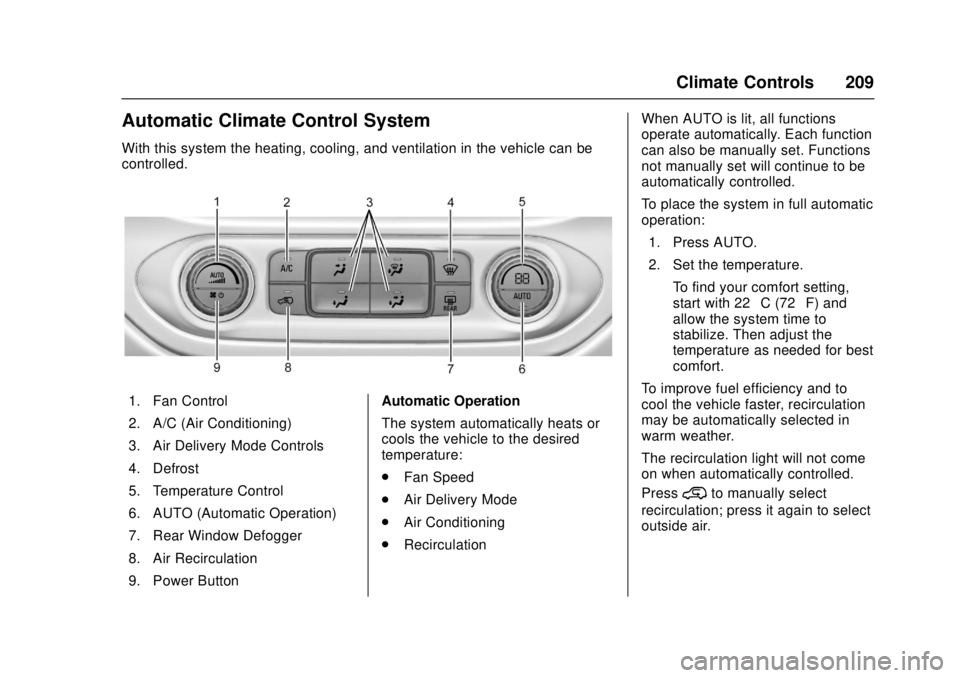
With this system the heating, cooling, and ventilation in the vehicle can be
controlled.
1. Fan Control
2. A/C (Air Conditioning)
3. Air Delivery Mode Controls
4. Defrost
5. Temperature Control
6. AUTO (Automatic Operation)
7. Rear Window Defogger
8. Air Recirculation
9. Power ButtonAutomatic Operation
The system automatically heats or
cools the vehicle to the desired
temperature:
.
Fan Speed
. Air Delivery Mode
. Air Conditioning
. Recirculation When AUTO is lit, all functions
operate automatically. Each function
can also be manually set. Functions
not manually set will continue to be
automatically controlled.
To place the system in full automatic
operation:
1. Press AUTO.
2. Set the temperature. To find your comfort setting,
start with 22 °C (72 °F) and
allow the system time to
stabilize. Then adjust the
temperature as needed for best
comfort.
To improve fuel efficiency and to
cool the vehicle faster, recirculation
may be automatically selected in
warm weather.
The recirculation light will not come
on when automatically controlled.
Press
@to manually select
recirculation; press it again to select
outside air.
Page 211 of 417
GMC Canyon Owner Manual (GMNA-Localizing-U.S./Canada-10122677) -
2017 - crc - 1/20/17
210 Climate Controls
Do not cover the solar sensor on the
top of the instrument panel near the
windshield. This sensor regulates
air temperature based on sun load.
See“Sensors” later in this section.
Manual Operation
O:Press to turn the climate control
system on or off. When the system
is turned off, air will stop flowing into
the cabin. Press
Oagain or adjust
any of the climate controls to turn
the system back on and the airflow
will continue based on the selected
climate control settings.
A: Turn clockwise or
counterclockwise to increase or
decrease the fan speed. There is
about a five second delay when the
fan is turned on. Press the knob to
turn the fan off. Press AUTO to
return to automatic operation.
Temperature Control : Turn the
knob clockwise or counterclockwise
to increase or decrease temperature
setting. Air Delivery Mode Controls :
Press
Y,\,[, or-to change
the direction of the airflow. An
indicator light comes on in the
selected mode button.
Changing the mode cancels the
automatic operation and the system
goes into manual mode.
Press AUTO to return to automatic
operation.
Y: Air is directed to the instrument
panel outlets.
\: Air is divided between the
instrument panel and floor outlets.
[: Air is directed to the floor
outlets, with some to the windshield,
outboard instrument panel outlets,
side window outlets, and second
row floor outlets.
-: This mode clears the windows
of fog or moisture. Air is directed to
the windshield, floor outlets,
outboard instrument panel outlets,
and side window outlets. The
system automatically forces outside
air into the vehicle and the air conditioning compressor will run,
unless the outside temperature is
close to freezing.
0:
Press to clear the windshield
of fog or frost more quickly. Air is
directed to the windshield and the
side window vents, with some air
directed to the outboard instrument
panel outlets. The system
automatically forces outside air into
the vehicle and the air conditioning
compressor will run, unless the
outside temperature is below
freezing.
Do not drive the vehicle until all
windows are clear.
See Air Vents 0211.
A/C : Press to turn the air
conditioning system on or off. An
indicator light comes on to show
that the air conditioning is enabled.
The A/C light will stay on even if the
outside temperatures are below
freezing. If the fan is turned off, the
air conditioner will not run. Press
AUTO to return to automatic
operation.
Page 212 of 417
GMC Canyon Owner Manual (GMNA-Localizing-U.S./Canada-10122677) -
2017 - crc - 1/20/17
Climate Controls 211
@:Press to turn on recirculation.
An indicator light comes on. Air is
recirculated to quickly cool the
inside of the vehicle. It can also be
used to help reduce outside air and
odors that enter the vehicle. The air
conditioning compressor also comes
on when this mode is activated.
Press AUTO to return to automatic
operation.
Auto Defog : The climate control
system may have a sensor to
automatically detect high humidity
inside the vehicle. When high
humidity is detected, the climate
control system may adjust air
delivery modes, outside air supply,
and turn on the air conditioner. If the
climate control system does not
detect possible window fogging, it
returns to normal operation. To turn
Auto Defog off or on, see “Climate
and Air Quality” underVehicle
Personalization 0138.
Rear Window Defogger
The rear window defogger uses a
warming grid to remove fog from the
rear window.
K:Press to turn the rear window
defogger on or off. An indicator light
on the button comes on to show that
the rear window defogger is on.
The rear window defogger only
works when the ignition is in ON/
RUN. The defogger also turns off if
the ignition is turned to ACC/
ACCESSORY or LOCK/OFF.
Caution
Using a razor blade or sharp
object to clear the inside rear
window can damage the rear
window defogger. Repairs would
not be covered by the vehicle
warranty. Do not clear the inside
rear window with sharp objects.
Heated Mirror : If equipped with
heated outside mirrors, the mirrors
heat to help clear fog or frost from
the surface of the mirror when the
rear window defog button is
pressed. See Heated Mirrors 038.
Air Vents
Adjustable air vents are in the
center and on the side of the
instrument panel. Use the sliding
knobs on the air vents to change
the direction of the airflow. Slide the
knob up or down to open or close
off the airflow.
Air vents blow warm air on the side
windows in cold weather. If Floor,
Defog, or Defrost modes are
selected, a small amount of air will
come from the vents close to the
window. If the airflow is shut off
using the sliding knobs, warm air
will be directed to the other
instrument panel vents. This is
normal operation.
Use the sliding knobs to turn vent
airflow on or off based on the mode
selected.
Operation Tips
.
Clear away any ice, snow,
or leaves from air inlets at the
base of the windshield that could
block the flow of air into the
vehicle.