page 3 GMC CANYON 2018 User Guide
[x] Cancel search | Manufacturer: GMC, Model Year: 2018, Model line: CANYON, Model: GMC CANYON 2018Pages: 417, PDF Size: 5.47 MB
Page 138 of 417
GMC Canyon/Canyon Denali Owner Manual (GMNA-Localizing-U.S./Canada-
11354423) - 2018 - crc - 10/12/17
Instruments and Controls 137
Valet Mode
This will lock the infotainment
system and steering wheel controls.
It may also limit access to vehicle
storage locations, if equipped.
To enable valet mode:1. Enter a four-digit code on the keypad.
2. Select Enter to go to the confirmation screen.
3. Re-enter the four-digit code.
Touch LOCK or UNLOCK to lock or
unlock the system. Touch Back to
go back to the previous menu.
Teen Driver
See “Teen Driver” under“Settings”
in the infotainment manual.
Radio
Touch to display the Radio menu
and the following may display:
. Manage Favorites
. Number of Favorites Shown
. Audible Touch Feedback .
Auto Volume
. Maximum Startup Volume
Manage Favorites
This allows favorites to be edited.
See “Manage Favorites” in“Radio
Setup” underHome Page 0154 or
“Manage Favorites” in“Settings”
under “Radio” in the infotainment
manual.
Number of Favorites Shown
Touch to set the number of favorites
to display.
Select the desired number or select
Auto and the infotainment system
will automatically adjust the number
of favorites shown.
Audible Touch Feedback
This allows Audible Touch
Feedback to be turned on or off.
Select Off or On.
Auto Volume
This feature adjusts the volume
based on vehicle speed and
ambient noise. Select Off, Low, Medium-Low,
Medium, Medium-High, or High.
Maximum Startup Volume
This feature sets the maximum
startup volume. If the vehicle is
started and the volume is greater
than this level, the volume is
adjusted to this level. To set the
maximum startup volume, touch +
or
−to increase or decrease.
Vehicle
Select and the following may
display:
.
Climate and Air Quality
. Comfort and Convenience
. Lighting
. Power Door Locks
. Remote Lock, Unlock, Start
Climate and Air Quality
Select and the following may
display:
.Auto Fan Speed
. Auto Defog
Page 152 of 417
GMC Canyon/Canyon Denali Owner Manual (GMNA-Localizing-U.S./Canada-
11354423) - 2018 - crc - 10/12/17
Infotainment System 151
Infotainment
System
Introduction
Infotainment . . . . . . . . . . . . . . . . . . 151
Theft-Deterrent Feature . . . . . . 152
Overview . . . . . . . . . . . . . . . . . . . . . 153
Home Page . . . . . . . . . . . . . . . . . . 154
Software Updates . . . . . . . . . . . . 154
Radio
AM-FM Radio . . . . . . . . . . . . . . . . 155
Satellite Radio . . . . . . . . . . . . . . . . 157
Radio Reception . . . . . . . . . . . . . . 159
Multi-Band Antenna . . . . . . . . . . 159
Audio Players
Avoiding Untrusted MediaDevices . . . . . . . . . . . . . . . . . . . . . 160
USB Port . . . . . . . . . . . . . . . . . . . . . 160
Auxiliary Jack . . . . . . . . . . . . . . . . 166
Bluetooth Audio . . . . . . . . . . . . . . 166
Voice Recognition
Voice Recognition . . . . . . . . . . . . 167
Phone
Bluetooth (Overview) . . . . . . . . . 173 Bluetooth (Voice
Recognition) . . . . . . . . . . . . . . . . 175
Bluetooth (Infotainment Controls) . . . . . . . . . . . . . . . . . . . . 179
Text Messaging . . . . . . . . . . . . . . . 184
Apple CarPlay and
Android Auto . . . . . . . . . . . . . . . . 185
Trademarks and License
Agreements
Trademarks and LicenseAgreements . . . . . . . . . . . . . . . . . 186
Introduction
Infotainment
Base radio information is included in
this manual. See the infotainment
manual for information on other
available infotainment systems.
Read the following pages to
become familiar with the features.
{Warning
Taking your eyes off the road for
too long or too often while using
any infotainment feature can
cause a crash. You or others
could be injured or killed. Do not
give extended attention to
infotainment tasks while driving.
Limit your glances at the vehicle
displays and focus your attention
on driving. Use voice commands
whenever possible.
The infotainment system has built-in
features intended to help avoid
distraction by disabling some
Page 154 of 417
GMC Canyon/Canyon Denali Owner Manual (GMNA-Localizing-U.S./Canada-
11354423) - 2018 - crc - 10/12/17
Infotainment System 153
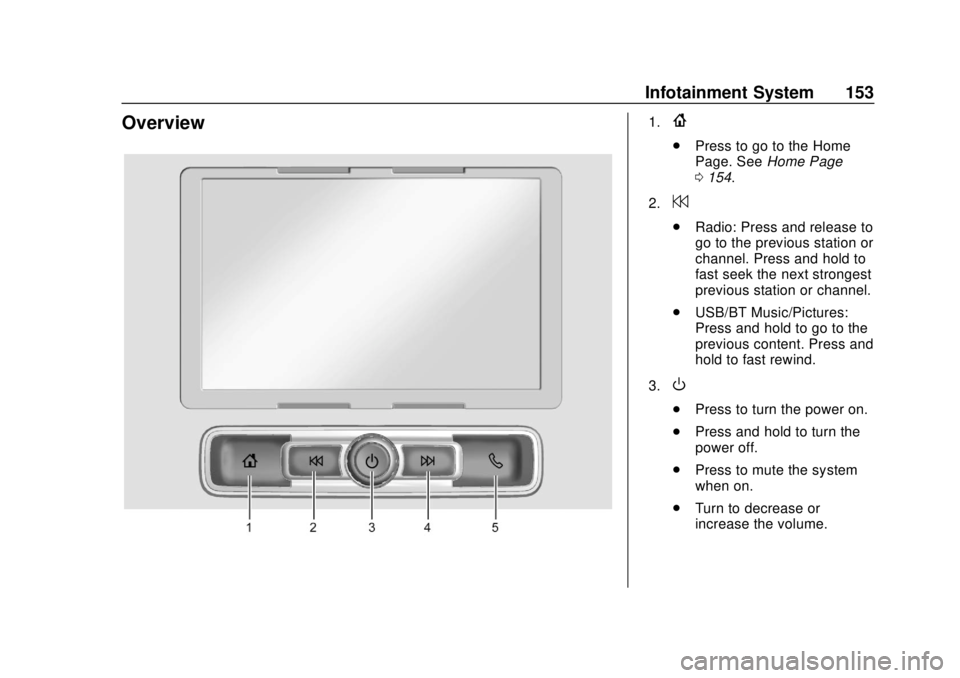
Overview1.{
.Press to go to the Home
Page. See Home Page
0 154.
2.
7
. Radio: Press and release to
go to the previous station or
channel. Press and hold to
fast seek the next strongest
previous station or channel.
. USB/BT Music/Pictures:
Press and hold to go to the
previous content. Press and
hold to fast rewind.
3.
O
. Press to turn the power on.
. Press and hold to turn the
power off.
. Press to mute the system
when on.
. Turn to decrease or
increase the volume.
Page 155 of 417
GMC Canyon/Canyon Denali Owner Manual (GMNA-Localizing-U.S./Canada-
11354423) - 2018 - crc - 10/12/17
154 Infotainment System
4.6
.Radio: Press and release to
go to the next station or
channel. Press and hold to
fast seek the next strongest
station or channel.
. USB/BT Music/Pictures:
Press and hold to go to the
next content. Press and
hold to fast forward.
5.
#
. Press and release to
access the phone screen,
answer an incoming call,
or access the device home
screen. Press and hold to
access Press to Talk.
Home Page
Infotainment Display Buttons
Infotainment display buttons show
on the screen when available. When
a function is unavailable, the button
may gray out. When a function is
selected, the button may highlight.
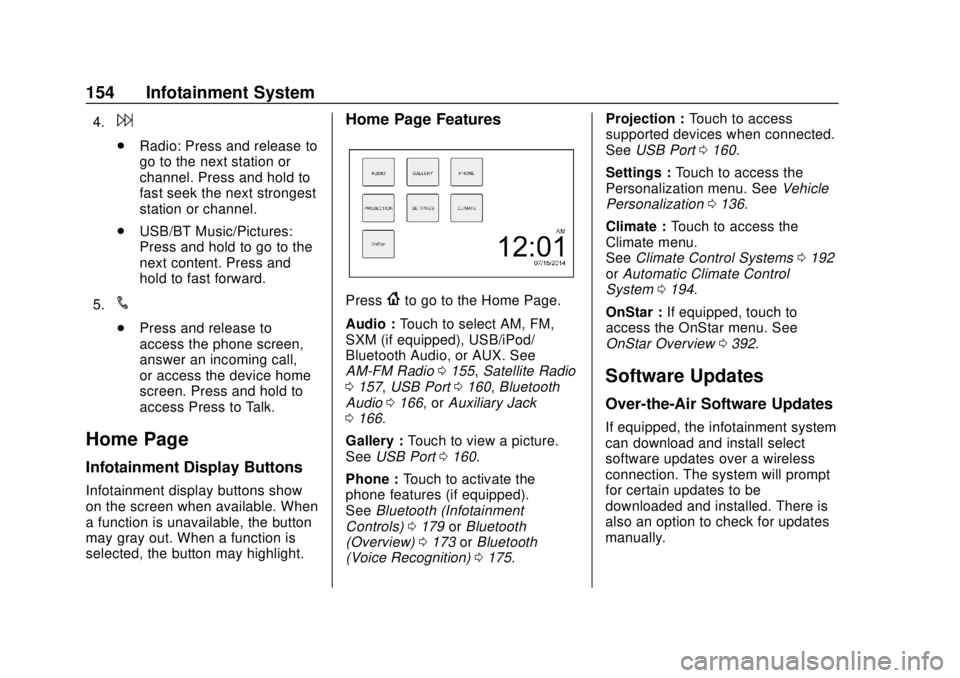
Home Page Features
Press{to go to the Home Page.
Audio : Touch to select AM, FM,
SXM (if equipped), USB/iPod/
Bluetooth Audio, or AUX. See
AM-FM Radio 0155, Satellite Radio
0 157, USB Port 0160, Bluetooth
Audio 0166, or Auxiliary Jack
0 166.
Gallery : Touch to view a picture.
See USB Port 0160.
Phone : Touch to activate the
phone features (if equipped).
See Bluetooth (Infotainment
Controls) 0179 orBluetooth
(Overview) 0173 orBluetooth
(Voice Recognition) 0175. Projection :
Touch to access
supported devices when connected.
See USB Port 0160.
Settings : Touch to access the
Personalization menu. See Vehicle
Personalization 0136.
Climate : Touch to access the
Climate menu.
See Climate Control Systems 0192
or Automatic Climate Control
System 0194.
OnStar : If equipped, touch to
access the OnStar menu. See
OnStar Overview 0392.
Software Updates
Over-the-Air Software Updates
If equipped, the infotainment system
can download and install select
software updates over a wireless
connection. The system will prompt
for certain updates to be
downloaded and installed. There is
also an option to check for updates
manually.
Page 156 of 417
GMC Canyon/Canyon Denali Owner Manual (GMNA-Localizing-U.S./Canada-
11354423) - 2018 - crc - 10/12/17
Infotainment System 155
To manually check for updates,
touch SETTINGS on the Home
Page, followed by Software
Information, and then System
Update. Follow the on-screen
prompts. Steps for downloading and
installing updates may vary by
vehicle.
Downloading Over-the-Air vehicle
software updates requires Internet
connectivity, which can be accessed
through the vehicle’s built-in OnStar
4G LTE connection, if equipped and
active. If required, data plans are
provided by a third party. Optionally,
a secure Wi-Fi hotspot such as a
compatible mobile device hotspot,
home hotspot or public hotspot can
be used. Applicable data rates may
apply.
To connect the infotainment system
to a secured mobile device hotspot,
home hotspot, or a public hotspot,
touch SETTINGS on the Home
Page, followed by Wi-Fi, and then
Manage Wi-Fi Networks. Select the
appropriate Wi-Fi network, and
follow the on-screen prompts.
Download speeds may vary. On most compatible mobile devices,
activation of the Wi-Fi hotspot is in
the Settings menu under Mobile
Network Sharing, Personal Hotspot,
Mobile Hotspot or similar.
Availability of Over-the-Air vehicle
software updates varies by vehicle
and country. For more information
on this feature, see my.gmc.com/
learn.Radio
AM-FM Radio
Playing the Radio
Audio Source Menu
{:
Press to go to the Home Page.
O:Press to turn on, mute,
or unmute the system. Press and
hold to turn off the system.
Selecting a Band
Press{, then touch AUDIO,
Source, then select AM, FM,
or SXM (if equipped). The last
station that was playing starts
playing again.
System Settings
Auto Volume
This feature automatically adjusts
the radio volume to compensate for
road and wind noise.
Page 158 of 417
GMC Canyon/Canyon Denali Owner Manual (GMNA-Localizing-U.S./Canada-
11354423) - 2018 - crc - 10/12/17
Infotainment System 157
2. Select Station List.
3. Touch
QorRto scroll through
the list. Touch the station to
select it.
Update Station List 1. From the AM or FM menu, touch MENU, then touch
Update Station List. The
broadcasting list updating will
begin.
2. During the AM or FM broadcasting list update, touch
Cancel to stop the updates.
Storing a Station as a Favorite
Stations from all bands can be
stored in any order in the favorite
pages.
Up to 25 stations can be stored.
Storing Stations
To store the station to a position in
the list, touch the corresponding
button 1−5 until a beep is heard.
1. Select the desired station. 2. Touch
SorTto select the
desired page of saved
favorites.
3. Touch and hold any of the preset buttons to save the
current radio station to that
button of the selected
favorites page.
To change a preset button, tune to
the new desired radio station and
touch and hold the preset button.
Satellite Radio
SiriusXM Satellite Radio
Service
Vehicles with an SXM Satellite
Radio tuner and a valid SiriusXM
Satellite Radio subscription can
receive SiriusXM programming.
SiriusXM is a satellite radio service
based in the 48 contiguous United
States and 10 Canadian provinces.
SiriusXM Satellite Radio has a wide
variety of programming and
commercial-free music, coast to
coast, and in digital-quality sound.
A service fee is required to receive the SiriusXM service. See
www.siriusxm.com or call
1-888-601-6296 (U.S.); or see
www.siriusxm.ca or call
1-877-438-9677 (Canada).
When SiriusXM is active, the
channel name and number,
category name, song title, and artist
display on the screen.
Listening to SiriusXM Radio
1. Press{.
2. Touch AUDIO.
3. Touch Source.
4. Touch SXM and the most recent listened to SiriusXM
channel will display.
Touch
0to return to the
HOME menu.
Selecting a Category
From Menu, touch Categories, then
touch the desired category or from
Categories, touch
QorRto find the
desired channel. Touch the channel
to select it.
Page 159 of 417
GMC Canyon/Canyon Denali Owner Manual (GMNA-Localizing-U.S./Canada-
11354423) - 2018 - crc - 10/12/17
158 Infotainment System
Selecting a Channel
Touchuortand the previous or
next channel will be selected.
Touch and hold
uortto jump
four channels backward or forward,
then release the button at the
desired channel.
Using the Preset Buttons
Up to seven favorites pages can be
saved, and each page can store up
to five channels.
To change a preset button, tune to
the new desired channel and hold
the button.
Listening to Preset Channels
1. Continue touching
SorTto
select the desired
favorites page.
2. Touch the preset button to listen to the channel saved to
that button.
Using the SiriusXM Menu
Operation
1. Touch MENU on the SXM infotainment display.
2. Touch the menu to select the desired item or to display the
detail menu item.
3. Touch
0to return to the
previous menu.
Channel List 1. Touch SXM Channel List from the SXM menu. The channel
list is displayed.
2. Touch
QorRto find the
desired channel. Tune to the
channel by selecting it.
Tone Settings
From the tone settings menu, the
sound features can be set up for
SiriusXM audio and each audio
player ’s functions.
1. Touch Tone Settings. The tone settings screen is displayed.
See “Tone Settings” inAM-FM
Radio 0155. 2. Touch OK.
Auto Volume 1. Touch Auto Volume. See “Auto
Volume” inAM-FM Radio
0 155.
2. Touch OK.
Categories 1. Touch Categories.
2. Touch
QorRto find the
desired category. Touch the
category to select it.
Explicit Content Filter
When on, only a filtered list of
channels will be received. When off,
all regular SXM programming
subscribed to will be received. 1. Touch SXM Explicit Filter.
2. Select On or Off.
Page 167 of 417
GMC Canyon/Canyon Denali Owner Manual (GMNA-Localizing-U.S./Canada-
11354423) - 2018 - crc - 10/12/17
166 Infotainment System
Auxiliary Jack
If equipped, an AUX jack is located
on the center stack or in the center
console storage. SeeCenter
Console Storage 0103.
Possible auxiliary audio sources
include:
. Laptop computer
. Audio music player
This jack is not an audio output. Do
not plug headphones into the
auxiliary input jack. Auxiliary
devices should be set up while the
vehicle is in P (Park).
Connect a 3.5 mm (1/8 in) cable
from the auxiliary device to the
auxiliary input jack.
Playing Music
Play will begin when the system has
finished reading the information on
the device.
To play the music from the device,
if the device is already connected:
1. Press
{. 2. Touch AUDIO.
3. Touch Source.
4. Touch AUX.
To adjust the tone settings, see
“Tone Settings” in“System Settings”
under AM-FM Radio 0155.
To adjust the auto volume settings,
see “Auto Volume” inAM-FM Radio
0 155.
Bluetooth Audio
If equipped, music may be played
from a paired Bluetooth device. See
“Pairing” inBluetooth (Infotainment
Controls) 0179 orBluetooth
(Overview) 0173 orBluetooth
(Voice Recognition) 0175 for help
pairing a device.
Volume and song selection may be
controlled by using the infotainment
controls or the phone/device.
If Bluetooth Audio is selected and
nothing is heard, check the volume
setting on both the phone/device
and the infotainment system.
Launch music by touching MEDIA
on the Home Page. To play music via Bluetooth:
1. Power on the device, and pair to connect the device.
2. Once paired, go into the audio application from the Home
Page or via the application tray.
Select MEDIA until Bluetooth
displays.
Bluetooth Audio Menu
Touch MENU to display the
Bluetooth Audio menu. The
following may be available:
Tone: Turn the MENU knob to
adjust the tone settings.
Touch
oBACK to go back to the
previous menu.
Manage Bluetooth Devices: Select
to go to the Bluetooth page to add
or delete devices.
When selecting Bluetooth Audio, the
radio may not be able to launch the
audio player on the connected
device to start playing. When the
vehicle is not moving, use the
phone to begin playback.
Page 175 of 417
GMC Canyon/Canyon Denali Owner Manual (GMNA-Localizing-U.S./Canada-
11354423) - 2018 - crc - 10/12/17
174 Infotainment System
Warning (Continued)
long or too often could cause a
crash resulting in injury or death.
Focus your attention on driving.
Vehicles with a Bluetooth system
can use a Bluetooth-capable cell
phone with a Hands-Free Profile to
make and receive phone calls. The
infotainment system and voice
recognition are used to control the
system. The system can be used
while the ignition is turned on or in
ACC/ACCESSORY. The range of
the Bluetooth system can be up to
9.1 m (30 ft). Not all phones support
all functions and not all phones work
with the Bluetooth system. See
www.gm.com/bluetooth or see your
dealer for more information about
compatible phones.
Bluetooth Controls
Use the controls on the infotainment
display, center stack, and the
steering wheel to operate the
Bluetooth system. Steering Wheel Controls
See
Steering Wheel Controls 0105.
Infotainment System Controls
For information about how to
navigate the menu system using the
infotainment controls, see Overview
0 153.
{:Press to go to the Home Page.
See Home Page 0154.
#:Select to enter the phone main
menu.
See Bluetooth (Infotainment
Controls) 0179 orBluetooth
(Overview) 0173 orBluetooth
(Voice Recognition) 0175.
Voice Recognition
If equipped, the voice recognition
system uses commands to control
the system and dial phone numbers.
Noise : The system may not
recognize voice commands if there
is too much background noise, such
as noise from open windows or loud
talking inside the vehicle. When to Speak :
A tone sounds to
indicate that the system is ready for
a voice command. Wait for the tone
and then speak.
How to Speak : Speak clearly in a
calm and natural voice.
Audio System
When using the Bluetooth system,
sound comes through the vehicle's
front audio system speakers and
overrides the audio system. Use the
Oknob during a call to change the
volume level. The system maintains
a minimum volume level.
Bluetooth Audio Quality
Turn off the Echo and Noise
cancellation feature on your phone,
if supported, for the best hands-free
performance.
See www.gm.com/bluetooth or see
your dealer.
Page 186 of 417
GMC Canyon/Canyon Denali Owner Manual (GMNA-Localizing-U.S./Canada-
11354423) - 2018 - crc - 10/12/17
Infotainment System 185
Apple CarPlay and
Android Auto
If equipped, Android Auto and/or
Apple CarPlay capability may be
available through a compatible
smartphone. If available,
PROJECTION will appear on the
Home Page of the infotainment
display.
To use Android Auto or Apple
CarPlay:1. Download the Android Auto app to your phone from the
Google Play store. No app is
required for Apple CarPlay.
2. Connect an Android phone or iPhone by using the compatible
phone USB cable and plugging
into a USB data port. For best
performance, use the device’ s
factory-provided USB cable.
Aftermarket or third-party
cables may not work. 3. When the phone is first
connected to activate Apple
CarPlay or Android Auto, the
message “Device Projection
Privacy Consent” will appear.
. Select Continue to launch
Apple CarPlay or
Android Auto.
. Select Disable to remove
Apple CarPlay and Android
Auto capability from the
vehicle Settings menu.
Other functions may
still work.
PROJECTION on the Home Page
will change to Android Auto or Apple
CarPlay depending on the phone.
Android Auto and/or Apple CarPlay
may automatically launch upon USB
connection. If not, touch the
ANDROID AUTO and/or APPLE
CARPLAY icon on the Home Page
to launch.
Press
{on the center stack to
return to the Home Page. For further information on how to set
up Android Auto and Apple CarPlay
in the vehicle, see my.gmc.com or
see
Customer Assistance Offices
0 380.
Android Auto is provided by Google
and is subject to Google’s terms
and privacy policy. Apple CarPlay is
provided by Apple and is subject to
Apple’ s terms and privacy policy.
Data plan rates apply. For Android
Auto support see https://
support.google.com/androidauto.
For Apple CarPlay support see
www.apple.com/ios/carplay/. Apple
or Google may change or suspend
availability at any time. Android
Auto, Android, Google, Google Play,
and other marks are trademarks of
Google Inc.; Apple CarPlay is a
trademark of Apple Inc.