ad blue GMC CANYON 2018 Owner's Guide
[x] Cancel search | Manufacturer: GMC, Model Year: 2018, Model line: CANYON, Model: GMC CANYON 2018Pages: 417, PDF Size: 5.47 MB
Page 181 of 417
GMC Canyon/Canyon Denali Owner Manual (GMNA-Localizing-U.S./Canada-
11354423) - 2018 - crc - 10/12/17
180 Infotainment System
.Up to 10 cell phones can be
paired to the Bluetooth system.
. The pairing process is disabled
when the vehicle is moving.
. Pairing only needs to be
completed once, unless the
pairing information on the cell
phone changes or the cell phone
is deleted from the system.
. Only one paired cell phone can
be connected to the Bluetooth
system at a time.
. If multiple paired cell phones are
within range of the system, the
system connects to the first
available paired cell phone in the
order that they were first paired
to the system.
When the Bluetooth device and
infotainment system are
successfully paired, the phone book
is downloaded automatically. This is
dependent on the type of the phone
paired. If the automatic download
does not occur, proceed with the
phone book download on the
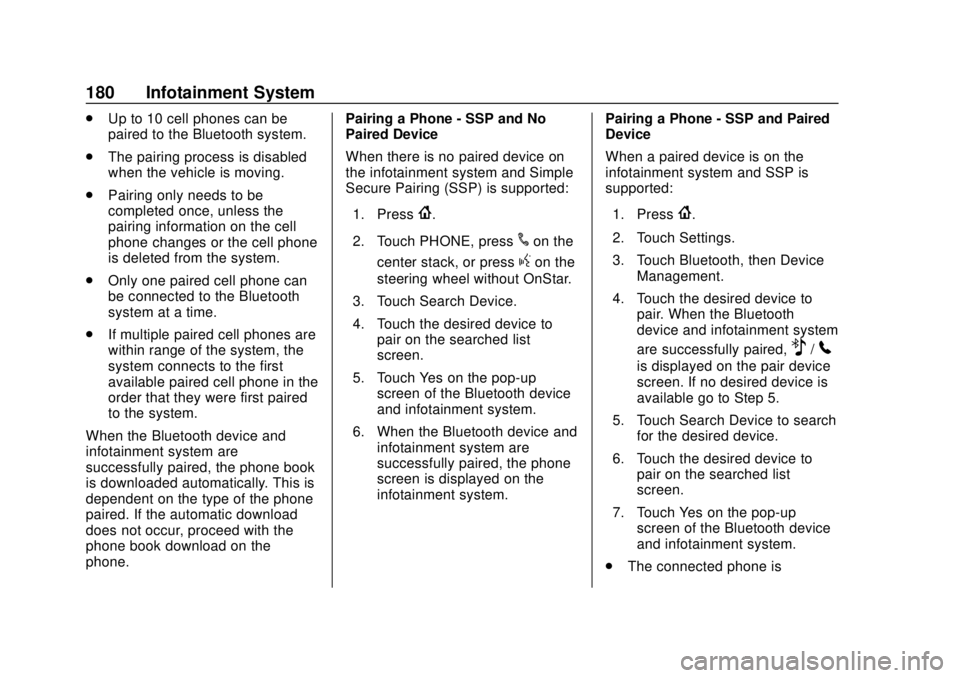
phone. Pairing a Phone - SSP and No
Paired Device
When there is no paired device on
the infotainment system and Simple
Secure Pairing (SSP) is supported:
1. Press
{.
2. Touch PHONE, press
#on the
center stack, or press
gon the
steering wheel without OnStar.
3. Touch Search Device.
4. Touch the desired device to pair on the searched list
screen.
5. Touch Yes on the pop-up screen of the Bluetooth device
and infotainment system.
6. When the Bluetooth device and infotainment system are
successfully paired, the phone
screen is displayed on the
infotainment system. Pairing a Phone - SSP and Paired
Device
When a paired device is on the
infotainment system and SSP is
supported:
1. Press
{.
2. Touch Settings.
3. Touch Bluetooth, then Device Management.
4. Touch the desired device to pair. When the Bluetooth
device and infotainment system
are successfully paired,
Z/5
is displayed on the pair device
screen. If no desired device is
available go to Step 5.
5. Touch Search Device to search for the desired device.
6. Touch the desired device to pair on the searched list
screen.
7. Touch Yes on the pop-up screen of the Bluetooth device
and infotainment system.
. The connected phone is
Page 182 of 417
GMC Canyon/Canyon Denali Owner Manual (GMNA-Localizing-U.S./Canada-
11354423) - 2018 - crc - 10/12/17
Infotainment System 181
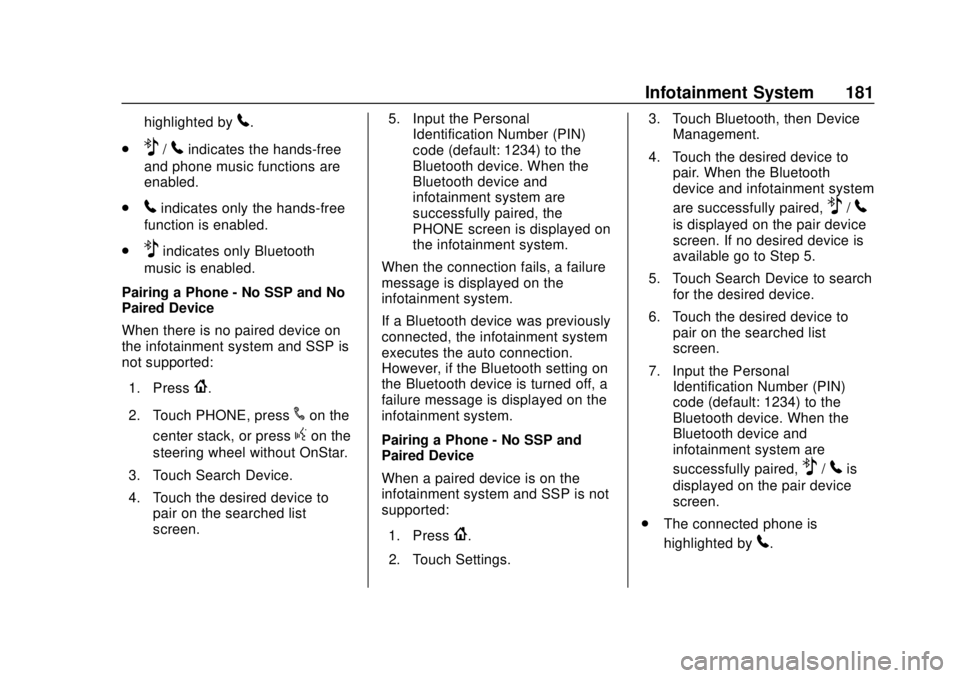
highlighted by5.
.
Z/5indicates the hands-free
and phone music functions are
enabled.
.
5indicates only the hands-free
function is enabled.
.
Zindicates only Bluetooth
music is enabled.
Pairing a Phone - No SSP and No
Paired Device
When there is no paired device on
the infotainment system and SSP is
not supported:
1. Press
{.
2. Touch PHONE, press
#on the
center stack, or press
gon the
steering wheel without OnStar.
3. Touch Search Device.
4. Touch the desired device to pair on the searched list
screen. 5. Input the Personal
Identification Number (PIN)
code (default: 1234) to the
Bluetooth device. When the
Bluetooth device and
infotainment system are
successfully paired, the
PHONE screen is displayed on
the infotainment system.
When the connection fails, a failure
message is displayed on the
infotainment system.
If a Bluetooth device was previously
connected, the infotainment system
executes the auto connection.
However, if the Bluetooth setting on
the Bluetooth device is turned off, a
failure message is displayed on the
infotainment system.
Pairing a Phone - No SSP and
Paired Device
When a paired device is on the
infotainment system and SSP is not
supported:
1. Press
{.
2. Touch Settings. 3. Touch Bluetooth, then Device
Management.
4. Touch the desired device to pair. When the Bluetooth
device and infotainment system
are successfully paired,
Z/5
is displayed on the pair device
screen. If no desired device is
available go to Step 5.
5. Touch Search Device to search for the desired device.
6. Touch the desired device to pair on the searched list
screen.
7. Input the Personal Identification Number (PIN)
code (default: 1234) to the
Bluetooth device. When the
Bluetooth device and
infotainment system are
successfully paired,
Z/5is
displayed on the pair device
screen.
. The connected phone is
highlighted by
5.
Page 183 of 417
GMC Canyon/Canyon Denali Owner Manual (GMNA-Localizing-U.S./Canada-
11354423) - 2018 - crc - 10/12/17
182 Infotainment System
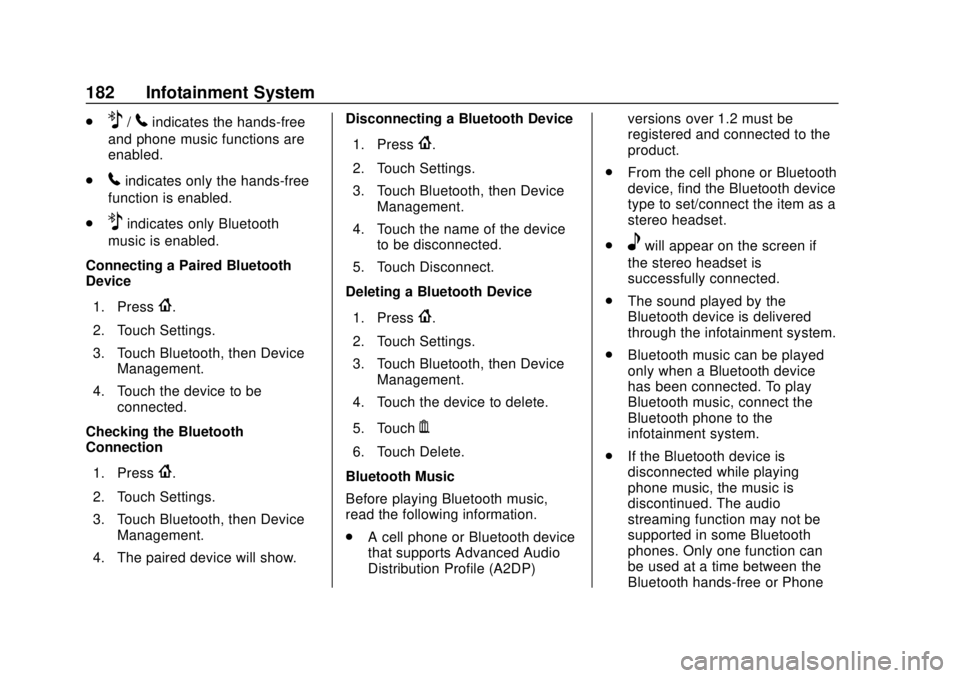
.Z/5indicates the hands-free
and phone music functions are
enabled.
.
5indicates only the hands-free
function is enabled.
.
Zindicates only Bluetooth
music is enabled.
Connecting a Paired Bluetooth
Device
1. Press
{.
2. Touch Settings.
3. Touch Bluetooth, then Device Management.
4. Touch the device to be connected.
Checking the Bluetooth
Connection
1. Press
{.
2. Touch Settings.
3. Touch Bluetooth, then Device Management.
4. The paired device will show. Disconnecting a Bluetooth Device
1. Press
{.
2. Touch Settings.
3. Touch Bluetooth, then Device Management.
4. Touch the name of the device to be disconnected.
5. Touch Disconnect.
Deleting a Bluetooth Device
1. Press
{.
2. Touch Settings.
3. Touch Bluetooth, then Device Management.
4. Touch the device to delete.
5. Touch
Y.
6. Touch Delete.
Bluetooth Music
Before playing Bluetooth music,
read the following information.
. A cell phone or Bluetooth device
that supports Advanced Audio
Distribution Profile (A2DP) versions over 1.2 must be
registered and connected to the
product.
. From the cell phone or Bluetooth
device, find the Bluetooth device
type to set/connect the item as a
stereo headset.
.
ewill appear on the screen if
the stereo headset is
successfully connected.
. The sound played by the
Bluetooth device is delivered
through the infotainment system.
. Bluetooth music can be played
only when a Bluetooth device
has been connected. To play
Bluetooth music, connect the
Bluetooth phone to the
infotainment system.
. If the Bluetooth device is
disconnected while playing
phone music, the music is
discontinued. The audio
streaming function may not be
supported in some Bluetooth
phones. Only one function can
be used at a time between the
Bluetooth hands-free or Phone
Page 184 of 417
GMC Canyon/Canyon Denali Owner Manual (GMNA-Localizing-U.S./Canada-
11354423) - 2018 - crc - 10/12/17
Infotainment System 183
music function. For example,
if you convert to Bluetooth
hands-free while playing Phone
music, the music is
discontinued. Playing music from
the car is not possible when
there are no music files stored in
the cell phone.
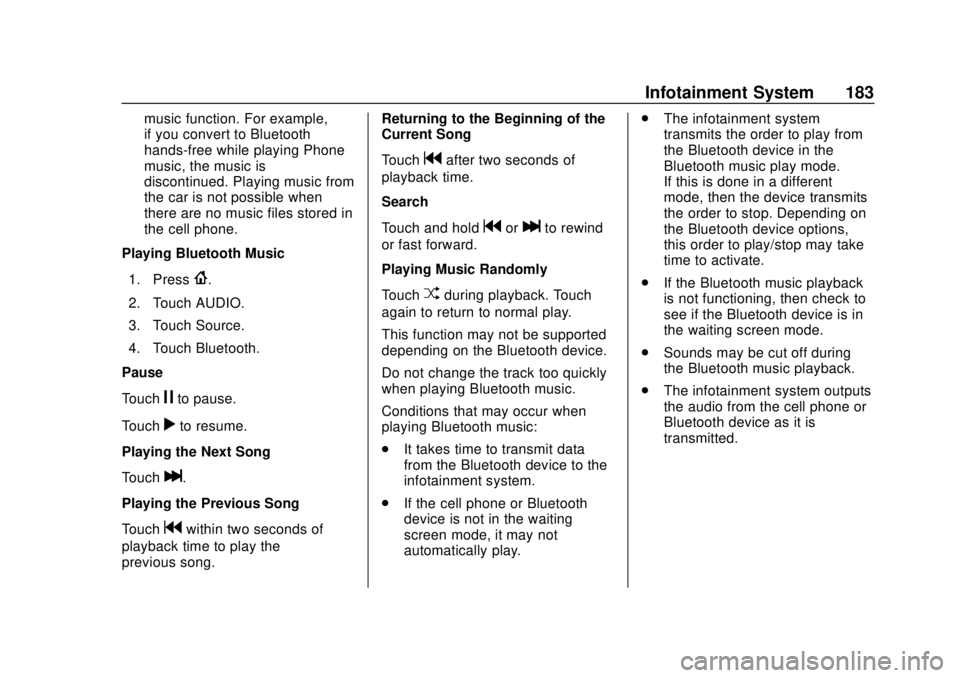
Playing Bluetooth Music
1. Press
{.
2. Touch AUDIO.
3. Touch Source.
4. Touch Bluetooth.
Pause
Touch
jto pause.
Touch
rto resume.
Playing the Next Song
Touch
l.
Playing the Previous Song
Touch
gwithin two seconds of
playback time to play the
previous song. Returning to the Beginning of the
Current Song
Touch
gafter two seconds of
playback time.
Search
Touch and hold
gorlto rewind
or fast forward.
Playing Music Randomly
Touch
Zduring playback. Touch
again to return to normal play.
This function may not be supported
depending on the Bluetooth device.
Do not change the track too quickly
when playing Bluetooth music.
Conditions that may occur when
playing Bluetooth music:
. It takes time to transmit data
from the Bluetooth device to the
infotainment system.
. If the cell phone or Bluetooth
device is not in the waiting
screen mode, it may not
automatically play. .
The infotainment system
transmits the order to play from
the Bluetooth device in the
Bluetooth music play mode.
If this is done in a different
mode, then the device transmits
the order to stop. Depending on
the Bluetooth device options,
this order to play/stop may take
time to activate.
. If the Bluetooth music playback
is not functioning, then check to
see if the Bluetooth device is in
the waiting screen mode.
. Sounds may be cut off during
the Bluetooth music playback.
. The infotainment system outputs
the audio from the cell phone or
Bluetooth device as it is
transmitted.
Page 188 of 417
GMC Canyon/Canyon Denali Owner Manual (GMNA-Localizing-U.S./Canada-
11354423) - 2018 - crc - 10/12/17
Infotainment System 187
General Requirements:1. A License Agreement from SiriusXM
®is required for any
product that incorporates
SiriusXM Technology and/or for
use of any of the SiriusXM
marks to be manufactured,
distributed, or marketed in the
SiriusXM Service Area.
2. For products to be distributed, marketed, and/or sold in
Canada, a separate agreement
is required with Canadian
Satellite Radio Inc. (operating
as SiriusXM Canada).
Other Information
The Bluetooth®word mark and
logos are owned by the Bluetooth®
SIG, Inc. and any use of such marks
by General Motors is under license.
Other trademarks and trade names
are those of their respective owners.
Schedule I: Gracenote EULA
Music recognition technology and
related data are provided by
Gracenote
®. Gracenote is the
industry standard in music
recognition technology and related
content delivery. For more
information visit
www.gracenote.com.
Music-related data from Gracenote,
Inc., copyright © 2000 to present
Gracenote. Gracenote Software,
copyright © 2000 to present
Gracenote. One or more patents
owned by Gracenote may apply to
this product and service. See the
Gracenote website for a
non-exhaustive list of applicable
Gracenote patents. Gracenote,
CDDB, MusicID, MediaVOCS, the
Gracenote logo and logotype, and
the "Powered by Gracenote" logo are either registered trademarks or
trademarks of Gracenote in the
United States and/or other
countries.
Gracenote Terms of Use
This application or device contains
software from Gracenote, Inc. of
Emeryville, California ("Gracenote").
The software from Gracenote (the
"Gracenote Software") enables this
application to do disc or file
identification and obtain
music-related information, including
name, artist, track, and title
information ("Gracenote Data") from
online servers or embedded
databases (collectively, "Gracenote
Servers") and to perform other
functions. You may use Gracenote
Data only by means of the intended
End-User functions of this
application or device.
This application or device may
contain content belonging to
Gracenote’s providers. If so, all of
the restrictions set forth herein with
respect to Gracenote Data shall
also apply to such content and such
content providers shall be entitled to
Page 263 of 417

GMC Canyon/Canyon Denali Owner Manual (GMNA-Localizing-U.S./Canada-
11354423) - 2018 - crc - 10/12/17
262 Driving and Operating
1. Front of Vehicle
2. Body to Ground Distance
When using a weight-distributing
hitch, measure distance (2) before
coupling the trailer to the hitch ball.
Measure the height again after the
trailer is coupled and adjust the
spring bars so the distance (2) is as
close as possible to halfway
between the two measurements.
Safety Chains
Always attach chains between the
vehicle and the trailer. Cross the
safety chains under the tongue of
the trailer to help prevent the tongue
from contacting the road if itbecomes separated from the hitch.
Instructions about safety chains
may be provided by the hitch
manufacturer or by the trailer
manufacturer. Always leave just
enough slack so the combination
can turn. Never allow safety chains
to drag on the ground.
Trailer Brakes
A loaded trailer that weighs more
than 900 kg (2,000 lb) must be
equipped with its own brake system,
with brakes working on all axles.
Trailer braking equipment
conforming to Canadian Standards
Association (CSA) requirement
CAN3-D313, or its equivalent, is
recommended.
State and local regulations may also
require the trailer to have its own
braking system if loaded above a
certain threshold. These
requirements vary from state to
state.
Read and follow the instructions for
the trailer brakes so they are
installed, adjusted, and maintained
properly.
Do not tap into the vehicle's
hydraulic brake system
Trailer Wiring Harness
For vehicles not equipped with
heavy-duty trailering, a harness is
secured underneath the left side of
the vehicle, next to the spare tire.
The harness requires the installation
of a trailer connector, which is
available through your dealer. The
seven-wire harness contains the
following trailer circuits:
.
Yellow: Left stop/turn signal
. Green: Right stop/turn signal
. Brown: Taillamps/parking lamps
. Black: Ground
. Gray: Back-up lamps
. Orange: Battery feed
. Blue: Trailer brake
To help charge a remote
(non-vehicle) battery, press the Tow/
Haul Mode button on the center
stack. If the trailer is too light for
Page 264 of 417
GMC Canyon/Canyon Denali Owner Manual (GMNA-Localizing-U.S./Canada-
11354423) - 2018 - crc - 10/12/17
Driving and Operating 263
Tow/Haul Mode, turn on the
headlamps to help charge the
battery.
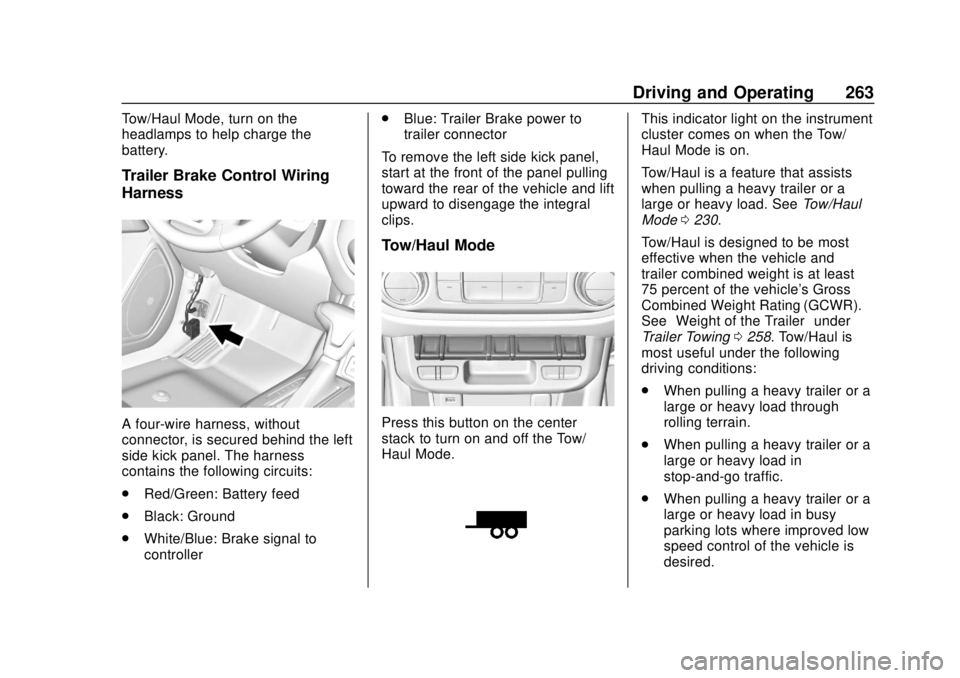
Trailer Brake Control Wiring
Harness
A four-wire harness, without
connector, is secured behind the left
side kick panel. The harness
contains the following circuits:
.Red/Green: Battery feed
. Black: Ground
. White/Blue: Brake signal to
controller .
Blue: Trailer Brake power to
trailer connector
To remove the left side kick panel,
start at the front of the panel pulling
toward the rear of the vehicle and lift
upward to disengage the integral
clips.
Tow/Haul Mode
Press this button on the center
stack to turn on and off the Tow/
Haul Mode.
This indicator light on the instrument
cluster comes on when the Tow/
Haul Mode is on.
Tow/Haul is a feature that assists
when pulling a heavy trailer or a
large or heavy load. See Tow/Haul
Mode 0230.
Tow/Haul is designed to be most
effective when the vehicle and
trailer combined weight is at least
75 percent of the vehicle's Gross
Combined Weight Rating (GCWR).
See “Weight of the Trailer” under
Trailer Towing 0258. Tow/Haul is
most useful under the following
driving conditions:
. When pulling a heavy trailer or a
large or heavy load through
rolling terrain.
. When pulling a heavy trailer or a
large or heavy load in
stop-and-go traffic.
. When pulling a heavy trailer or a
large or heavy load in busy
parking lots where improved low
speed control of the vehicle is
desired.
Page 393 of 417
GMC Canyon/Canyon Denali Owner Manual (GMNA-Localizing-U.S./Canada-
11354423) - 2018 - crc - 10/12/17
392 OnStar
OnStar
OnStar Overview
OnStar Overview . . . . . . . . . . . . . 392
OnStar Services
Emergency . . . . . . . . . . . . . . . . . . . 393
Security . . . . . . . . . . . . . . . . . . . . . . 394
Navigation . . . . . . . . . . . . . . . . . . . . 394
Connections . . . . . . . . . . . . . . . . . . 395
Diagnostics . . . . . . . . . . . . . . . . . . . 397
OnStar Additional Information
OnStar AdditionalInformation . . . . . . . . . . . . . . . . . . 398
OnStar Overview
=Voice Command Button
QBlue OnStar Button
>Red Emergency Button
This vehicle may be equipped with a
comprehensive, in-vehicle system
that can connect to an OnStar
Advisor for Emergency, Security,
Navigation, Connections, and
Diagnostics Services. OnStar
services may require a paid service
plan and data plan. OnStar requires
the vehicle battery and electrical
system, cellular service, and GPS
satellite signals to be available and
operating. OnStar acts as a link to
existing emergency service
providers. OnStar may collect
information about you and your
vehicle, including location
information. See OnStar User Terms, Privacy Statement, and
Software Terms for more details
including system limitations at
www.onstar.com (U.S.) or
www.onstar.ca (Canada).
The OnStar system status light is
next to the OnStar buttons. If the
status light is:
.
Solid Green: System is ready.
. Flashing Green: On a call.
. Red: Indicates a problem.
. Off: System is active. Press
Q
twice to speak with an OnStar
Advisor.
Press
Qor call 1-888-4ONSTAR
(1-888-466-7827) to speak to an
Advisor.
Functionality of the Voice Command
button may vary by vehicle and
region.
Page 406 of 417

GMC Canyon/Canyon Denali Owner Manual (GMNA-Localizing-U.S./Canada-
11354423) - 2018 - crc - 10/12/17
Index 405
AudioBluetooth . . . . . . . . . . . . . . . . . . . . . 166
Theft-Deterrent Feature . . . . . . . 152
Automatic Climate Control System . . . . . . . 194
Door Locks . . . . . . . . . . . . . . . . . . . . . 34
Headlamp System . . . . . . . . . . . . 145
Transmission . . . . . . . . . . . . . . . . . 225
Transmission Fluid . . . . . . . . . . . 282
Automatic Transmission Manual Mode . . . . . . . . . . . . . . . . . 228
Shift Lock Control Function
Check . . . . . . . . . . . . . . . . . . . . . . . 296
Auxiliary Jack . . . . . . . . . . . . . . . . . . . 166
Avoiding Untrusted Media Devices . . . . . . . . . . . . . . . . . . . . . . . 160
Axle, Front . . . . . . . . . . . . . . . . . . . . . . 294
Axle, Rear . . . . . . . . . . . . . . . . . . . . . . 294
B
Battery Exterior Lighting BatterySaver . . . . . . . . . . . . . . . . . . . . . . . 150
Load Management . . . . . . . . . . . . 149
Power Protection . . . . . . . . . . . . . 150
Battery - North America . . . . 292, 342
Blade Replacement, Wiper . . . . . 297
Blind Spot Mirrors . . . . . . . . . . . . . . . 38 Bluetooth
Overview . . . . . . . . . . . 173, 175, 179
Bluetooth Audio . . . . . . . . . . . . . . . . 166
Brake System Warning Light . . . . . . . . 122
Brakes . . . . . . . . . . . . . . . . . . . . . . . . . . 290 Antilock . . . . . . . . . . . . . . . . . . . . . . . 239
Assist . . . . . . . . . . . . . . . . . . . . . . . . . 240
Fluid . . . . . . . . . . . . . . . . . . . . . . . . . . 291
Parking . . . . . . . . . . . . . . . . . . . . . . . 240
Braking . . . . . . . . . . . . . . . . . . . . . . . . . 200
Break-In, New Vehicle . . . . . . . . . . 217
Bulb Replacement
Center High-MountedStoplamp (CHMSL) and
Cargo Lamp . . . . . . . . . . . . . . . . . 301
Halogen Bulbs . . . . . . . . . . . . . . . . 299
Headlamp Aiming . . . . . . . . . . . . . 299
Headlamps . . . . . . . . . . . . . . . . . . . 299
Headlamps, Front Turn Signal, Sidemarker, and
Parking Lamps . . . . . . . . . . . . . . 299
Taillamps, Turn Signal, Stoplamps, and Back-up
Lamps . . . . . . . . . . . . . . . . . . . . . . 300
Buying New Tires . . . . . . . . . . . . . . . 324
C
Calibration . . . . . . . . . . . . . . . . . . . . . . 107
California Fuel Requirements . . . . . . . . . . . 253
Perchlorate MaterialsRequirements . . . . . . . . . . . . . . . 273
California Proposition
65 Warning . . . . . . . . . .272, 292, 342, Back Cover
Camera Rear Vision (RVC) . . . . . . . . . . . . 247
Canadian Vehicle Owners . . . . . . . . 2
Capacities and Specifications . . . . . . . . . . . . . . . . . 375
Carbon Monoxide Engine Exhaust . . . . . . . . . . . . . . . 224
Tailgate . . . . . . . . . . . . . . . . . . . . . . . . . 35
Winter Driving . . . . . . . . . . . . . . . . 208
Cargo Lamp . . . . . . . . . . . . . . . . . . . . 148
Caution, Danger, and Warning . . . . 2
Center Console Storage . . . . . . . . 103
Center High-Mounted Stoplamp (CHMSL) and
Cargo Lamp . . . . . . . . . . . . . . . . . . . 301
Chains, Tire . . . . . . . . . . . . . . . . . . . . 329
Charging Wireless . . . . . . . . . . . . . . . . . . . . . . 109
Page 412 of 417

GMC Canyon/Canyon Denali Owner Manual (GMNA-Localizing-U.S./Canada-
11354423) - 2018 - crc - 10/12/17
Index 411
OnStar Security . . . . . . . . . . . . . . . . 394
OperationFog Lamps . . . . . . . . . . . . . . . . . . . 147
Ordering Service Publications . . . . . . . . . . 387
Outlets Power . . . . . . . . . . . . . . . . . . . . . . . . 108
Overheating, Engine . . . . . . . . . . . . 288
Overview . . . . . . . . . . . . . . . . . . . . . . . 153
P
Park Shifting Into . . . . . . . . . . . . . . . . . . . 222
Shifting Out of . . . . . . . . . . . . . . . . 223
Parking . . . . . . . . . . . . . . . . . . . . . . . . . 223 Brake . . . . . . . . . . . . . . . . . . . . . . . . . 240
Brake and P (Park)Mechanism Check . . . . . . . . . . 296
Over Things That Burn . . . . . . . 224
Passenger Airbag Status Indicator . . . . . . . . . . . . . . . . . . . . . . 119
Passenger Compartment Air Filter . . . . . . . . . . . . . . . . . . . . . . . . . . 197
Passenger Sensing System . . . . . 64
Perchlorate Materials Requirements, California . . . . . . 273
Personalization Vehicle . . . . . . . . . . . . . . . . . . . . . . . 136 Phone
Apple CarPlay and
Android Auto . . . . . . . . . . . . . . . . 185
Bluetooth . . . . . . . . . . . 173, 175, 179
Port USB . . . . . . . . . . . . . . . . . . . . . . . . . . 160
Power
Door Locks . . . . . . . . . . . . . . . . . . . . . 33
Mirrors . . . . . . . . . . . . . . . . . . . . . . . . . . 38
Outlets . . . . . . . . . . . . . . . . . . . . . . . 108
Protection, Battery . . . . . . . . . . . . 150
Retained Accessory (RAP) . . . 221
Seat Adjustment . . . . . . . . . . . . . . . . 47
Windows . . . . . . . . . . . . . . . . . . . . . . . 41
Pregnancy, Using Seat Belts . . . . 56
Privacy Vehicle Data Recording . . . . . . . 390
Program Courtesy Transportation . . . . . . 384
Proposition 65 Warning,
California . . . . . . . . . . . .272, 292, 342,
Back Cover
R
Radio Frequency Statement . . . . 388
Radio Reception . . . . . . . . . . . . . . . . 159 Radios
AM-FM Radio . . . . . . . . . . . . . . . . . 155
Satellite . . . . . . . . . . . . . . . . . . . . . . . 157
Reading Lamps . . . . . . . . . . . . . . . . . 149
Rear Axle . . . . . . . . . . . . . . . . . . . . . . . 294
Rear Seats . . . . . . . . . . . . . . . . . . . . . . 50
Rear Vision Camera (RVC) . . . . . 247
Rear Windows . . . . . . . . . . . . . . . . . . . 43
Rearview Mirrors . . . . . . . . . . . . . . . . 40 Automatic Dimming . . . . . . . . . . . . . 40
Reclining Seatbacks . . . . . . . . . . . . . 47
Recognition
Voice . . . . . . . . . . . . . . . . . . . . . . . . . 167
Recommended Fluids and Lubricants . . . . . . . . . . . . . . . . . . . . . 370
Records
Maintenance . . . . . . . . . . . . . . . . . . 373
Recreational Vehicle Towing . . . . 345
Reimbursement Program, GM Mobility . . . . . . . . . . . . . . . . . . . 382
Remote Keyless Entry (RKE)
System . . . . . . . . . . . . . . . . . . . . . . . . . 29
Remote Vehicle Start . . . . . . . . . . . . 31
Replacement Parts Airbags . . . . . . . . . . . . . . . . . . . . . . . . . 70
Maintenance . . . . . . . . . . . . . . . . . . 372
Replacing Airbag System . . . . . . . . 70