infotainment GMC CANYON 2023 User Guide
[x] Cancel search | Manufacturer: GMC, Model Year: 2023, Model line: CANYON, Model: GMC CANYON 2023Pages: 371, PDF Size: 7.41 MB
Page 78 of 371
GMC Canyon/Canyon Denali Owner Manual (GMNA-Localizing-U.S./Canada/
Mexico-16510661) - 2023 - CRC - 11/30/22
Instruments and Controls 77
The operating temperature is−40 °C (−40 °F)
to 85 °C (185 °F) for the charging system and
0 °C (32 °F) to 35 °C (95 °F) for the phone.
A charging stopped alert may be displayed
on the infotainment screen, if the wireless
charger or smartphone are outside of
normal operating temperature. Charging will
automatically resume when a normal
operating temperature is reached.
{Warning
Remove all objects from the charger
before charging your compatible
smartphone. Objects, such as coins, keys,
rings, paper clips, or cards, between the
smartphone and charger may become
very hot.
On the rare occasion that the charging
system does not detect an object, and
the object gets wedged between the
smartphone and charger, remove the
smartphone and allow the object to cool
before removing it from the charger, to
prevent burns.
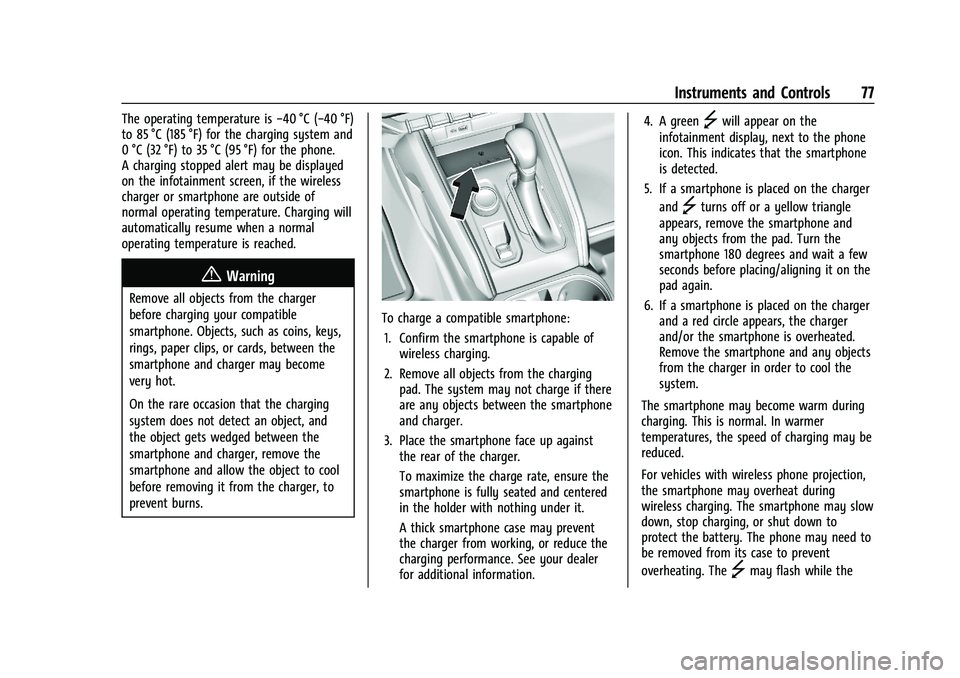
To charge a compatible smartphone:
1. Confirm the smartphone is capable of wireless charging.
2. Remove all objects from the charging pad. The system may not charge if there
are any objects between the smartphone
and charger.
3. Place the smartphone face up against the rear of the charger.
To maximize the charge rate, ensure the
smartphone is fully seated and centered
in the holder with nothing under it.
A thick smartphone case may prevent
the charger from working, or reduce the
charging performance. See your dealer
for additional information. 4. A green
]will appear on the
infotainment display, next to the phone
icon. This indicates that the smartphone
is detected.
5. If a smartphone is placed on the charger and
]turns off or a yellow triangle
appears, remove the smartphone and
any objects from the pad. Turn the
smartphone 180 degrees and wait a few
seconds before placing/aligning it on the
pad again.
6. If a smartphone is placed on the charger and a red circle appears, the charger
and/or the smartphone is overheated.
Remove the smartphone and any objects
from the charger in order to cool the
system.
The smartphone may become warm during
charging. This is normal. In warmer
temperatures, the speed of charging may be
reduced.
For vehicles with wireless phone projection,
the smartphone may overheat during
wireless charging. The smartphone may slow
down, stop charging, or shut down to
protect the battery. The phone may need to
be removed from its case to prevent
overheating. The
]may flash while the
Page 81 of 371
GMC Canyon/Canyon Denali Owner Manual (GMNA-Localizing-U.S./Canada/
Mexico-16510661) - 2023 - CRC - 11/30/22
80 Instruments and Controls
Reconfigurable Instrument Cluster
The cluster display layout can be changed.
Some of the selectable views may not be
available for your particular vehicle.
The following are selectable views:
Clean :Displays no information zones.
Info : Displays one information zone under
the speedometer.
Gauge : Displays no information zones and
the gauges are located to the left and right
of the speedometer.
Infotainment : Displays one information
zone under the speedometer.
Driver Assistance : If equipped, displays one
information zone under the speedometer.
Off Road : Displays one information zone
under the speedometer.
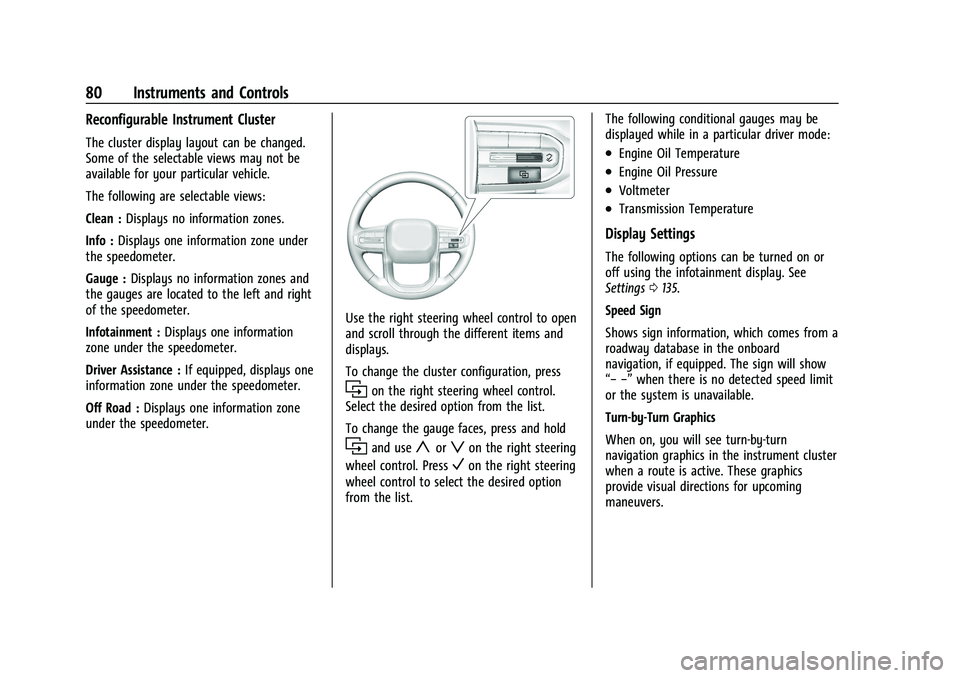
Use the right steering wheel control to open
and scroll through the different items and
displays.
To change the cluster configuration, press
ion the right steering wheel control.
Select the desired option from the list.
To change the gauge faces, press and hold
iand useyorzon the right steering
wheel control. Press
Von the right steering
wheel control to select the desired option
from the list. The following conditional gauges may be
displayed while in a particular driver mode:
.Engine Oil Temperature
.Engine Oil Pressure
.Voltmeter
.Transmission Temperature
Display Settings
The following options can be turned on or
off using the infotainment display. See
Settings
0135.
Speed Sign
Shows sign information, which comes from a
roadway database in the onboard
navigation, if equipped. The sign will show
“− −” when there is no detected speed limit
or the system is unavailable.
Turn-by-Turn Graphics
When on, you will see turn-by-turn
navigation graphics in the instrument cluster
when a route is active. These graphics
provide visual directions for upcoming
maneuvers.
Page 83 of 371
GMC Canyon/Canyon Denali Owner Manual (GMNA-Localizing-U.S./Canada/
Mexico-16510661) - 2023 - CRC - 11/30/22
82 Instruments and Controls
Baja :If equipped, displays one information
zone to the right of the speedometer. There
are four gauges on the left and right of the
display.
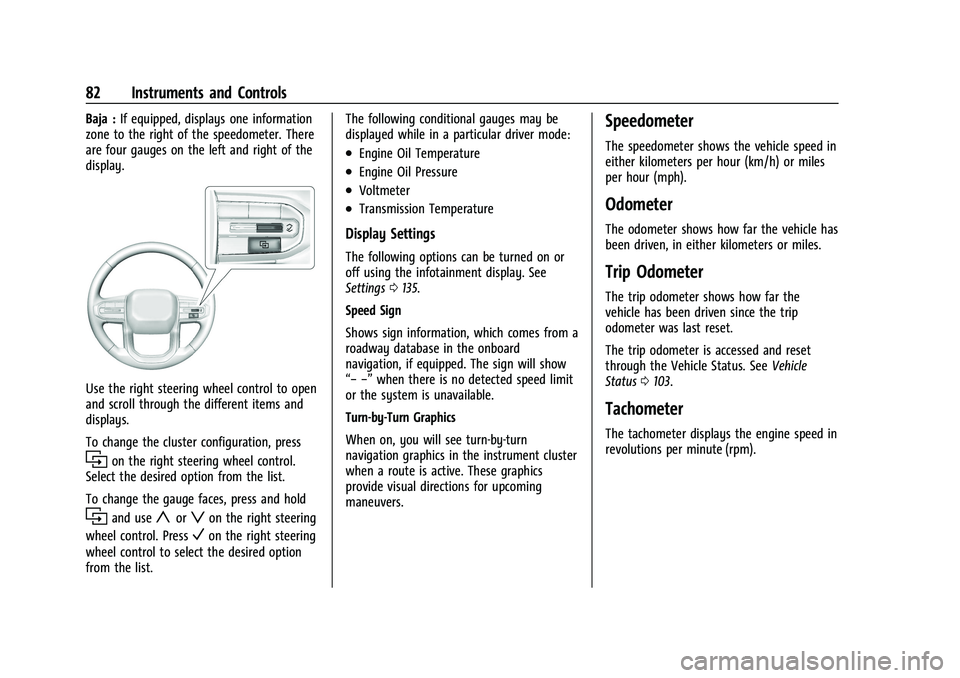
Use the right steering wheel control to open
and scroll through the different items and
displays.
To change the cluster configuration, press
ion the right steering wheel control.
Select the desired option from the list.
To change the gauge faces, press and hold
iand useyorzon the right steering
wheel control. Press
Von the right steering
wheel control to select the desired option
from the list. The following conditional gauges may be
displayed while in a particular driver mode:
.Engine Oil Temperature
.Engine Oil Pressure
.Voltmeter
.Transmission Temperature
Display Settings
The following options can be turned on or
off using the infotainment display. See
Settings
0135.
Speed Sign
Shows sign information, which comes from a
roadway database in the onboard
navigation, if equipped. The sign will show
“− −” when there is no detected speed limit
or the system is unavailable.
Turn-by-Turn Graphics
When on, you will see turn-by-turn
navigation graphics in the instrument cluster
when a route is active. These graphics
provide visual directions for upcoming
maneuvers.
Speedometer
The speedometer shows the vehicle speed in
either kilometers per hour (km/h) or miles
per hour (mph).
Odometer
The odometer shows how far the vehicle has
been driven, in either kilometers or miles.
Trip Odometer
The trip odometer shows how far the
vehicle has been driven since the trip
odometer was last reset.
The trip odometer is accessed and reset
through the Vehicle Status. See Vehicle
Status 0103.
Tachometer
The tachometer displays the engine speed in
revolutions per minute (rpm).
Page 100 of 371
GMC Canyon/Canyon Denali Owner Manual (GMNA-Localizing-U.S./Canada/
Mexico-16510661) - 2023 - CRC - 11/30/22
Instruments and Controls 99
DIC Information Display Options
Select which info display to view on the DIC
through the Settings menu, or by selecting
show in cluster in the Vehicle Status on the
infotainment display. SeeSettings0135 or
Vehicle Status 0103.
DIC Information Displays
The following is the list of all possible DIC
information displays and their locations.
Some of the information displays may not
be available for your particular vehicle.
Audio Now Playing : Displays the actively
playing audio.
Navigation : Displays a variety of navigation
information.
Audio and Navigation : Displays both audio
and navigation information together.
Trip 1 or Trip 2 and Average Fuel
Economy : The Trip display shows the
current distance traveled, in either
kilometers (km) or miles (mi), since the trip
odometer was last reset. To reset the
current trip, touch and hold the touchscreen
display when trip odometer is displayed on
the vehicle status screen. The Average Fuel Economy display shows
the approximate average liters per
100 kilometers (L/100 km), kilometers per
liter (km/L), or miles per gallon (mpg). This
number is calculated based on the number
of L/100 km (mpg) or km/L recorded since
the last time this menu item was reset. This
number reflects only the approximate
average fuel economy that the vehicle has
right now, and will change as driving
conditions change. The Average Fuel
Economy can be reset along with the trip
odometer by touching and holding the
touchscreen display when trip odometer is
displayed on the vehicle status screen.
Time/Date :
Displays current date and time
information.
Average Speed : Shows the average speed
of the vehicle in kilometers per hour (km/h)
or miles per hour (mph). This average is
calculated based on the various vehicle
speeds recorded since the last reset of this
value. The average speed can be reset by
touching reset in vehicle status screen.
Timer : This display can be used as a timer.
To start the timer, touch Start while this
display is active. The display will show the
amount of time that has passed since the
timer was last reset. To stop the timer, touch Stop briefly while this display is active
and the timer is running. To reset the timer
to zero, touch and hold Reset while this
display is active.
Off Road :
Displays vehicle pitch and roll
information, road wheel angle, and
four-wheel drive (4WD) status. See Off-Road
App 0158.
Battery Voltage : Shows the current battery
voltage.
Trailer Brake : On vehicles with the
Integrated Trailer Brake Control (ITBC)
system, the trailer brake display appears in
the DIC.
TRAILER GAIN shows the trailer gain setting.
This setting can be adjusted from 0.0 to 10.0
with either a trailer connected or
disconnected.
TRAILER OUTPUT shows the power output to
the trailer any time a trailer with electric
brakes is connected. Output is displayed as a
bar graph. Dotted lines may appear in the
OUTPUT display if a trailer is not connected.
Oil Life : Shows an estimate of the oil's
remaining useful life. If REMAINING OIL LIFE
99% is displayed, that means 99% of the
current oil life remains.
Page 102 of 371
GMC Canyon/Canyon Denali Owner Manual (GMNA-Localizing-U.S./Canada/
Mexico-16510661) - 2023 - CRC - 11/30/22
Instruments and Controls 101
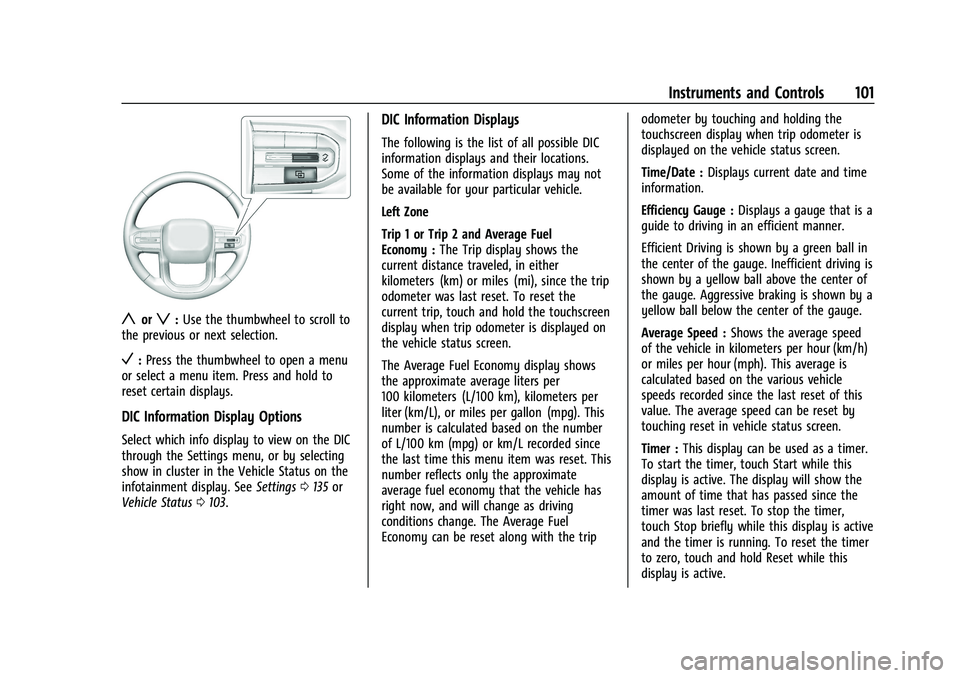
yorz:Use the thumbwheel to scroll to
the previous or next selection.
V: Press the thumbwheel to open a menu
or select a menu item. Press and hold to
reset certain displays.
DIC Information Display Options
Select which info display to view on the DIC
through the Settings menu, or by selecting
show in cluster in the Vehicle Status on the
infotainment display. See Settings0135 or
Vehicle Status 0103.
DIC Information Displays
The following is the list of all possible DIC
information displays and their locations.
Some of the information displays may not
be available for your particular vehicle.
Left Zone
Trip 1 or Trip 2 and Average Fuel
Economy : The Trip display shows the
current distance traveled, in either
kilometers (km) or miles (mi), since the trip
odometer was last reset. To reset the
current trip, touch and hold the touchscreen
display when trip odometer is displayed on
the vehicle status screen.
The Average Fuel Economy display shows
the approximate average liters per
100 kilometers (L/100 km), kilometers per
liter (km/L), or miles per gallon (mpg). This
number is calculated based on the number
of L/100 km (mpg) or km/L recorded since
the last time this menu item was reset. This
number reflects only the approximate
average fuel economy that the vehicle has
right now, and will change as driving
conditions change. The Average Fuel
Economy can be reset along with the trip odometer by touching and holding the
touchscreen display when trip odometer is
displayed on the vehicle status screen.
Time/Date :
Displays current date and time
information.
Efficiency Gauge : Displays a gauge that is a
guide to driving in an efficient manner.
Efficient Driving is shown by a green ball in
the center of the gauge. Inefficient driving is
shown by a yellow ball above the center of
the gauge. Aggressive braking is shown by a
yellow ball below the center of the gauge.
Average Speed : Shows the average speed
of the vehicle in kilometers per hour (km/h)
or miles per hour (mph). This average is
calculated based on the various vehicle
speeds recorded since the last reset of this
value. The average speed can be reset by
touching reset in vehicle status screen.
Timer : This display can be used as a timer.
To start the timer, touch Start while this
display is active. The display will show the
amount of time that has passed since the
timer was last reset. To stop the timer,
touch Stop briefly while this display is active
and the timer is running. To reset the timer
to zero, touch and hold Reset while this
display is active.
Page 104 of 371
GMC Canyon/Canyon Denali Owner Manual (GMNA-Localizing-U.S./Canada/
Mexico-16510661) - 2023 - CRC - 11/30/22
Instruments and Controls 103
Oil Temperature :Shows the current oil
temperature in either degrees Celsius (°C) or
degrees Fahrenheit (°F).
Driver Assistance : If equipped, shows
information for Adaptive Cruise Control
(ACC), Lane Keep Assist (LKA), and Forward
Collision Alert (FCA).
Off : Allows for no information to be
displayed in the cluster info display areas.
Right Zone
Audio Now Playing : Displays the actively
playing audio.
Navigation : Displays a variety of navigation
information.
Audio and Navigation : Displays both audio
and navigation information together.
Off : Allows for no information to be
displayed in the cluster info display areas.
Vehicle Status
The following are all possible vehicle status
features.
To access the vehicle status menu touch
A
from the list of home page icons displayed
on the left side of the infotainment display.
Vehicle status content is shown on cards that are grouped together in option tabs
that are displayed on the infotainment
display.
Touching a card on the infotainment display
opens up a dialog box for that card. To
select a desired option within a dialog box,
touch the option and follow any message or
alerts that may display. Some options may
be unavailable while driving.
Touch Show in Cluster to send the desired
card to the Driver Information Center (DIC)
on the instrument cluster. Touch Remove
from Cluster to remove the selected card
from the instrument cluster. See
Driver
Information Center (DIC) (Base Level) 098 or
Driver Information Center (DIC) (Uplevel)
0 100.
Options
The following is the list of all possible cards
and their locations. Some of the cards may
not be available for your particular vehicle.
Overview
Displays an interactive 3-D rendered image
of your vehicle that shows performance and
health information. Tires & Brakes
Tire Pressure :
Displays the approximate
pressures of all four tires. Tire pressure is
displayed in either kilopascal (kPa) or in
pounds per square inch (psi). If the pressure
is low, the value for that tire is shown in
amber. See Tire Pressure Monitor System
0 291 and
Tire Pressure Monitor Operation 0292.
When selected, the following options may
be chosen in the dialog: Relearn Tire
Pressure, Turn Off/On Leak Detection, Reset
Leak Detection, and Show in Cluster. When
enabled, you will receive alerts when a fast
and/or slow tire leak is detected. The Leak
Detection speeds shown are either Tire Leak
or Fast Leak. When disabled, you will still
receive low tire pressure alerts. However,
you will stop receiving additional alerts
when a tire is leaking air.
Brake Pad Life : Displays an estimate of the
remaining life of the front and rear brake
pads. Messages are displayed based on
brake pad wear and the state of the system.
When selected, the following options may
be chosen in the dialog: Turn Off/On, Reset
Front Brake Pads, Reset Rear Brake Pads, and
Page 106 of 371
GMC Canyon/Canyon Denali Owner Manual (GMNA-Localizing-U.S./Canada/
Mexico-16510661) - 2023 - CRC - 11/30/22
Instruments and Controls 105
of L/100 km (mpg) or km/L recorded since
the last time this menu item was reset. This
number reflects only the approximate
average fuel economy that the vehicle has
right now, and will change as driving
conditions change.
To reset these values, touch reset on the
touchscreen display when the Trip
Information dialog is selected.
When selected, the following options may
be chosen in the dialog: Reset Trip 1, Reset
Trip 2, and Show in Cluster.
Fuel Economy :Displays average fuel
economy, the best fuel economy over
the selected distance, and a bar graph
showing instantaneous fuel economy.
Values are displayed in liters per
100 kilometers (L/100 km), kilometers per
liter (km/L), or miles per gallon (mpg). This
number reflects only the approximate fuel
economy and changes frequently as driving
conditions change. Only the best score can
be reset.
If the vehicle is equipped with an Active Fuel
Management indicator, the engine operating
mode may be shown in the bottom corner
of this display. When selected, the following options may
be chosen in the dialog: Change Distance,
Reset Best Score, and Show in Cluster. The
distance for average fuel economy and the
best fuel economy can be changed to:
25 miles, 50 miles, and 300 miles.
Head-Up Display (HUD)
{Warning
If the HUD image is too bright or too
high in your field of view, it may take
you more time to see things you need to
see when it is dark outside. Be sure to
keep the HUD image dim and placed low
in your field of view.
If equipped, some vehicle information can be
projected as an image on the windshield via
the HUD lens on top of the instrument
panel.
Caution
If you try to use the HUD image as a
parking aid, you may misjudge the
distance and damage your vehicle. Do not
use the HUD image as a parking aid. HUD information can be displayed in various
languages. The speedometer reading and
other numerical values can be displayed in
either English or metric units.
The language selection is changed through
the radio, and the units of measurement are
changed through the infotainment display.
See
Settings 0135.
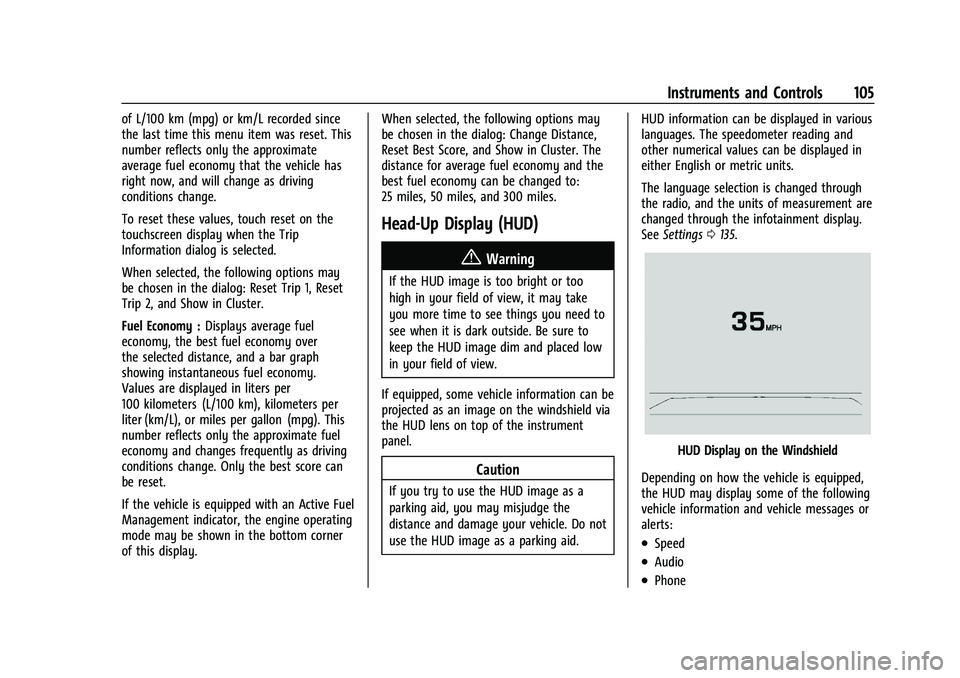
HUD Display on the Windshield
Depending on how the vehicle is equipped,
the HUD may display some of the following
vehicle information and vehicle messages or
alerts:
.Speed
.Audio
.Phone
Page 107 of 371
GMC Canyon/Canyon Denali Owner Manual (GMNA-Localizing-U.S./Canada/
Mexico-16510661) - 2023 - CRC - 11/30/22
106 Instruments and Controls
.Navigation
.Driver Assistance Features
.Vehicle Messages
Some vehicle messages or alerts displayed in
the HUD may be cleared by using the
steering wheel controls.
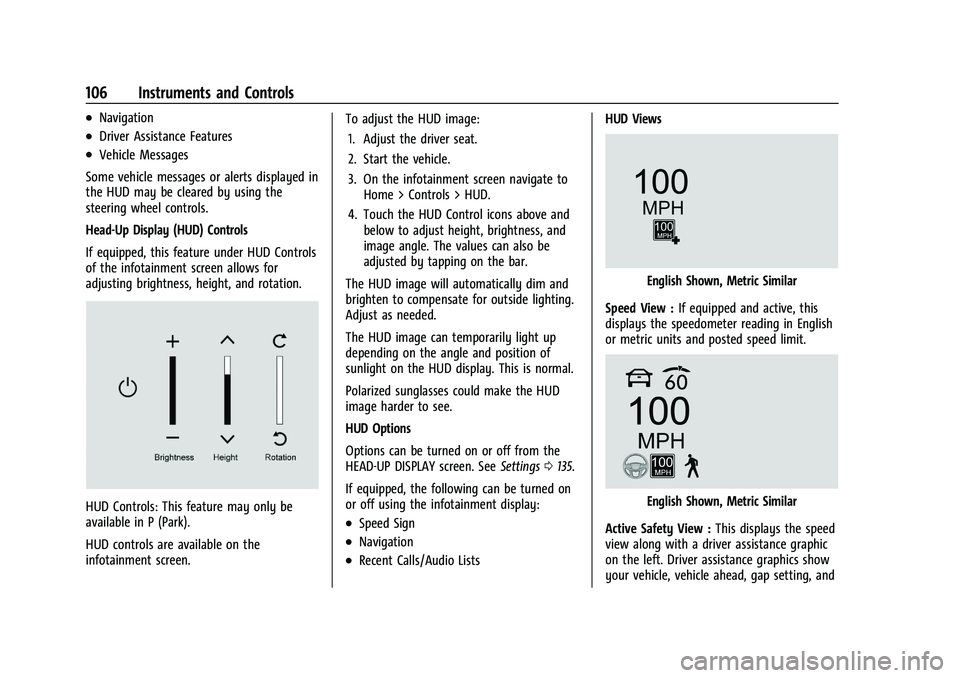
Head-Up Display (HUD) Controls
If equipped, this feature under HUD Controls
of the infotainment screen allows for
adjusting brightness, height, and rotation.
HUD Controls: This feature may only be
available in P (Park).
HUD controls are available on the
infotainment screen. To adjust the HUD image:
1. Adjust the driver seat.
2. Start the vehicle.
3. On the infotainment screen navigate to Home > Controls > HUD.
4. Touch the HUD Control icons above and below to adjust height, brightness, and
image angle. The values can also be
adjusted by tapping on the bar.
The HUD image will automatically dim and
brighten to compensate for outside lighting.
Adjust as needed.
The HUD image can temporarily light up
depending on the angle and position of
sunlight on the HUD display. This is normal.
Polarized sunglasses could make the HUD
image harder to see.
HUD Options
Options can be turned on or off from the
HEAD-UP DISPLAY screen. See Settings0135.
If equipped, the following can be turned on
or off using the infotainment display:.Speed Sign
.Navigation
.Recent Calls/Audio Lists HUD Views
English Shown, Metric Similar
Speed View : If equipped and active, this
displays the speedometer reading in English
or metric units and posted speed limit.
English Shown, Metric Similar
Active Safety View : This displays the speed
view along with a driver assistance graphic
on the left. Driver assistance graphics show
your vehicle, vehicle ahead, gap setting, and
Page 110 of 371
GMC Canyon/Canyon Denali Owner Manual (GMNA-Localizing-U.S./Canada/
Mexico-16510661) - 2023 - CRC - 12/6/22
Lighting 109
Lighting
Exterior Lighting
Exterior Lamp Controls . . . . . . . . . . . . . . . . 109
Exterior Lamps Off Reminder . . . . . . . . . . 110
Headlamp High/Low-Beam Changer . . . . 110
Flash-to-Pass . . . . . . . . . . . . . . . . . . . . . . . . . . . 110
Daytime Running Lamps (DRL) . . . . . . . . . 110
Automatic Headlamp System . . . . . . . . . . . 111
Hazard Warning Flashers . . . . . . . . . . . . . . . 111
Turn and Lane-Change Signals . . . . . . . . . . 112
Fog Lamps . . . . . . . . . . . . . . . . . . . . . . . . . . . . . 112
Off-Road Lamps (AT4X Only) . . . . . . . . . . . 112
Exterior Cargo Lamps . . . . . . . . . . . . . . . . . . 113
Interior Lighting
Instrument Panel IlluminationControl . . . . . . . . . . . . . . . . . . . . . . . . . . . . . . . 113
Dome Lamps . . . . . . . . . . . . . . . . . . . . . . . . . . . 113
Reading Lamps . . . . . . . . . . . . . . . . . . . . . . . . . 114
Lighting Features
Entry Lighting . . . . . . . . . . . . . . . . . . . . . . . . . . 114
Exit Lighting . . . . . . . . . . . . . . . . . . . . . . . . . . . 114
Battery Load Management . . . . . . . . . . . . . 114
Battery Power Protection . . . . . . . . . . . . . . 115
Exterior Lighting Battery Saver . . . . . . . . . 115
Exterior Lighting
Exterior Lamp Controls
The exterior lamp controls, also known as
headlights, are in the Controls App on the
infotainment home screen. Select Controls >
Lights > Headlights.
To operate, select the following options:
Off : Turns off the exterior lamps.
For vehicles first sold in Canada, the
headlamps will automatically reactivate
when the vehicle is shifted out of P (Park).
Auto : Automatically turns the exterior
lamps on and off, depending on outside
lighting.
Parking : Turns on the parking lamps.
On : Turns on the exterior lamps.
IntelliBeam System
If equipped, this system turns the high-beam
headlamps on and off according to
surrounding traffic conditions.
The system turns the high-beam headlamps
on when it is dark enough and there is no
other traffic present. This light
bappears on the instrument
cluster when the IntelliBeam system is
enabled.
Turning the IntelliBeam On and Off
To enable and disable the IntelliBeam
system on the infotainment home screen,
select Control > Lights >
bAuto High
Beams when the headlights are set in the
Auto position.
Driving with IntelliBeam
The system only activates the high beams
when driving over 40 km/h (25 mph).
The blue high-beam on light appears on the
instrument cluster when the high beams
are on.
There is a sensor near the top center of the
windshield that automatically controls the
system. Keep this area of the windshield
clear of debris to allow for best system
performance.
The high-beam headlamps remain on, under
the automatic control, until one of the
following situations occurs:
.The system detects an approaching
vehicle's headlamps.
Page 113 of 371
GMC Canyon/Canyon Denali Owner Manual (GMNA-Localizing-U.S./Canada/
Mexico-16510661) - 2023 - CRC - 12/6/22
112 Lighting
Turn and Lane-Change Signals
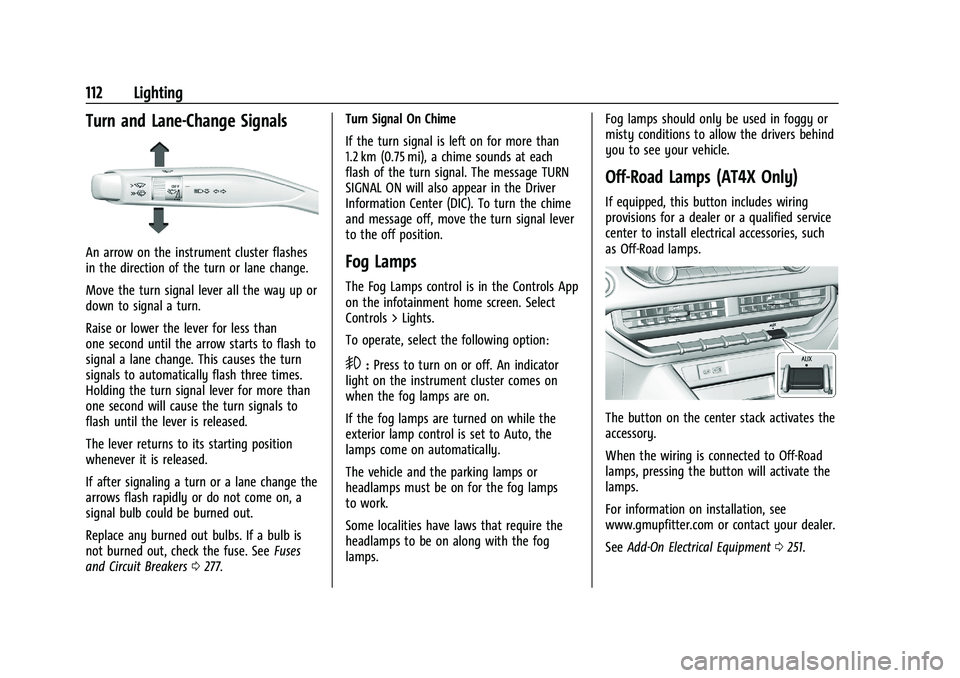
An arrow on the instrument cluster flashes
in the direction of the turn or lane change.
Move the turn signal lever all the way up or
down to signal a turn.
Raise or lower the lever for less than
one second until the arrow starts to flash to
signal a lane change. This causes the turn
signals to automatically flash three times.
Holding the turn signal lever for more than
one second will cause the turn signals to
flash until the lever is released.
The lever returns to its starting position
whenever it is released.
If after signaling a turn or a lane change the
arrows flash rapidly or do not come on, a
signal bulb could be burned out.
Replace any burned out bulbs. If a bulb is
not burned out, check the fuse. SeeFuses
and Circuit Breakers 0277. Turn Signal On Chime
If the turn signal is left on for more than
1.2 km (0.75 mi), a chime sounds at each
flash of the turn signal. The message TURN
SIGNAL ON will also appear in the Driver
Information Center (DIC). To turn the chime
and message off, move the turn signal lever
to the off position.Fog Lamps
The Fog Lamps control is in the Controls App
on the infotainment home screen. Select
Controls > Lights.
To operate, select the following option:
9:
Press to turn on or off. An indicator
light on the instrument cluster comes on
when the fog lamps are on.
If the fog lamps are turned on while the
exterior lamp control is set to Auto, the
lamps come on automatically.
The vehicle and the parking lamps or
headlamps must be on for the fog lamps
to work.
Some localities have laws that require the
headlamps to be on along with the fog
lamps. Fog lamps should only be used in foggy or
misty conditions to allow the drivers behind
you to see your vehicle.
Off-Road Lamps (AT4X Only)
If equipped, this button includes wiring
provisions for a dealer or a qualified service
center to install electrical accessories, such
as Off-Road lamps.
The button on the center stack activates the
accessory.
When the wiring is connected to Off-Road
lamps, pressing the button will activate the
lamps.
For information on installation, see
www.gmupfitter.com or contact your dealer.
See
Add-On Electrical Equipment 0251.