reset GMC CANYON 2023 User Guide
[x] Cancel search | Manufacturer: GMC, Model Year: 2023, Model line: CANYON, Model: GMC CANYON 2023Pages: 371, PDF Size: 7.41 MB
Page 106 of 371
GMC Canyon/Canyon Denali Owner Manual (GMNA-Localizing-U.S./Canada/
Mexico-16510661) - 2023 - CRC - 11/30/22
Instruments and Controls 105
of L/100 km (mpg) or km/L recorded since
the last time this menu item was reset. This
number reflects only the approximate
average fuel economy that the vehicle has
right now, and will change as driving
conditions change.
To reset these values, touch reset on the
touchscreen display when the Trip
Information dialog is selected.
When selected, the following options may
be chosen in the dialog: Reset Trip 1, Reset
Trip 2, and Show in Cluster.
Fuel Economy :Displays average fuel
economy, the best fuel economy over
the selected distance, and a bar graph
showing instantaneous fuel economy.
Values are displayed in liters per
100 kilometers (L/100 km), kilometers per
liter (km/L), or miles per gallon (mpg). This
number reflects only the approximate fuel
economy and changes frequently as driving
conditions change. Only the best score can
be reset.
If the vehicle is equipped with an Active Fuel
Management indicator, the engine operating
mode may be shown in the bottom corner
of this display. When selected, the following options may
be chosen in the dialog: Change Distance,
Reset Best Score, and Show in Cluster. The
distance for average fuel economy and the
best fuel economy can be changed to:
25 miles, 50 miles, and 300 miles.
Head-Up Display (HUD)
{Warning
If the HUD image is too bright or too
high in your field of view, it may take
you more time to see things you need to
see when it is dark outside. Be sure to
keep the HUD image dim and placed low
in your field of view.
If equipped, some vehicle information can be
projected as an image on the windshield via
the HUD lens on top of the instrument
panel.
Caution
If you try to use the HUD image as a
parking aid, you may misjudge the
distance and damage your vehicle. Do not
use the HUD image as a parking aid. HUD information can be displayed in various
languages. The speedometer reading and
other numerical values can be displayed in
either English or metric units.
The language selection is changed through
the radio, and the units of measurement are
changed through the infotainment display.
See
Settings 0135.
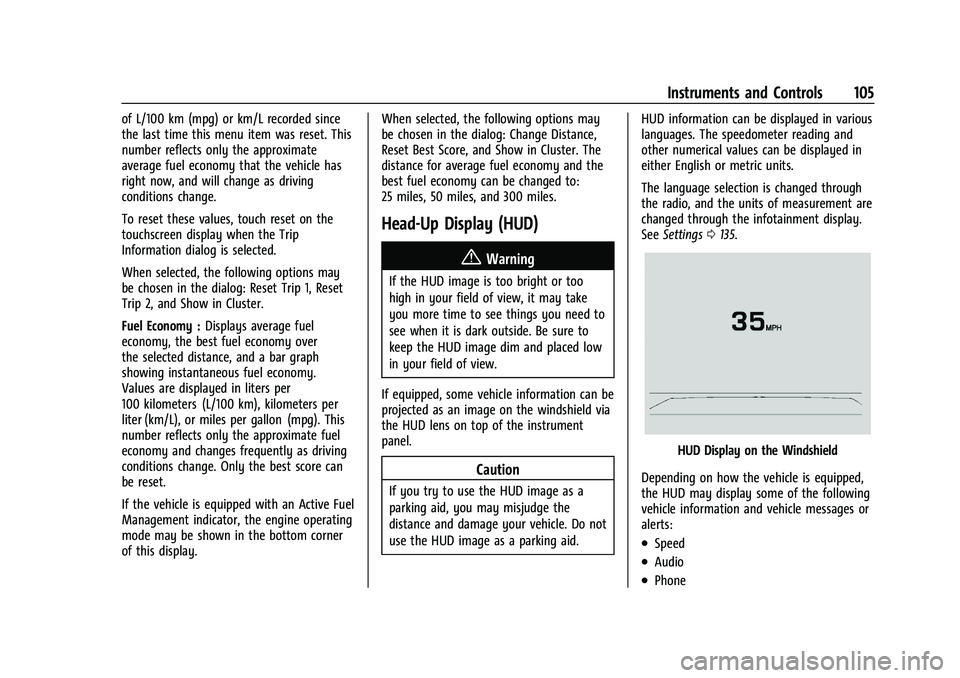
HUD Display on the Windshield
Depending on how the vehicle is equipped,
the HUD may display some of the following
vehicle information and vehicle messages or
alerts:
.Speed
.Audio
.Phone
Page 118 of 371
GMC Canyon/Canyon Denali Owner Manual (GMNA-Localizing-U.S./Canada/
Mexico-16510661) - 2023 - CRC - 11/29/22
Infotainment System 117
.Set up the audio by presetting favorite
stations, setting the tone, and adjusting
the speakers.
.Set up phone numbers in advance so they
can be called easily by pressing a single
control or by using a single voice
command.
See Distracted Driving 0150.
Active Noise Cancellation (ANC)
If equipped, ANC reduces engine noise in the
vehicle’s interior. ANC requires the
factory-installed audio system, radio,
speakers, amplifier (if equipped), induction
system, and exhaust system to work
properly. Deactivation is required by your
dealer if related aftermarket equipment is
installed.
Overview
Infotainment System
The infotainment system is controlled by
using the infotainment display, controls on
the center stack, steering wheel controls,
and voice recognition, if available.
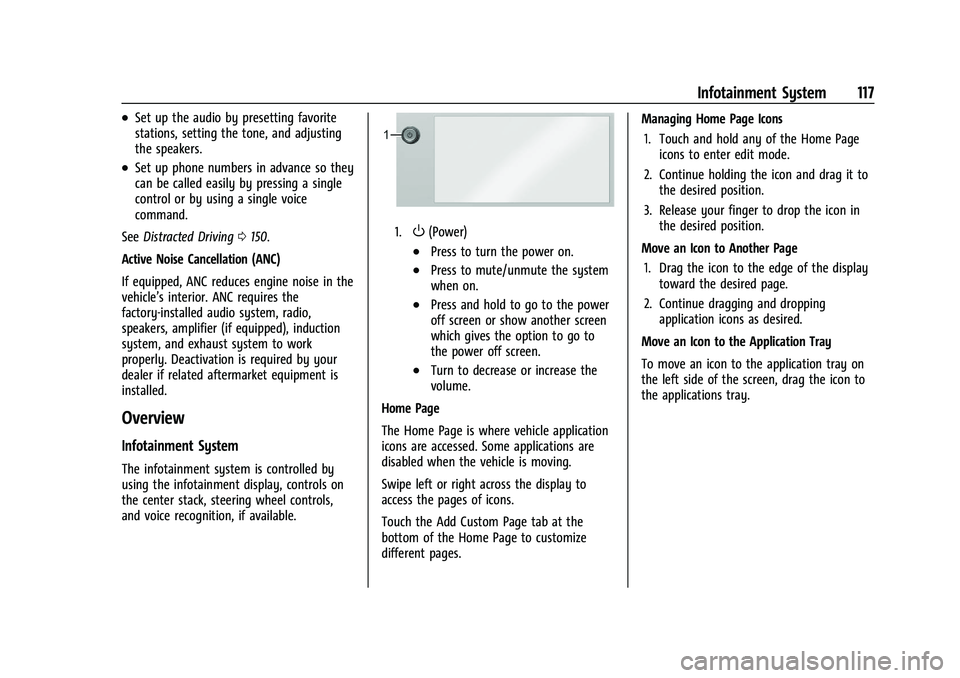
1.O(Power)
.Press to turn the power on.
.Press to mute/unmute the system
when on.
.Press and hold to go to the power
off screen or show another screen
which gives the option to go to
the power off screen.
.Turn to decrease or increase the
volume.
Home Page
The Home Page is where vehicle application
icons are accessed. Some applications are
disabled when the vehicle is moving.
Swipe left or right across the display to
access the pages of icons.
Touch the Add Custom Page tab at the
bottom of the Home Page to customize
different pages. Managing Home Page Icons
1. Touch and hold any of the Home Page icons to enter edit mode.
2. Continue holding the icon and drag it to the desired position.
3. Release your finger to drop the icon in the desired position.
Move an Icon to Another Page 1. Drag the icon to the edge of the display toward the desired page.
2. Continue dragging and dropping application icons as desired.
Move an Icon to the Application Tray
To move an icon to the application tray on
the left side of the screen, drag the icon to
the applications tray.
Page 132 of 371
GMC Canyon/Canyon Denali Owner Manual (GMNA-Localizing-U.S./Canada/
Mexico-16510661) - 2023 - CRC - 11/29/22
Infotainment System 131
for information on this process. Once the
cell phone is paired, it will show as
Connected.
8. If the vehicle name does not appear on your cell phone, there are a few ways to
start the pairing process over:
.Make sure there is not an entry for
the vehicle under the previously
connected list. If the vehicle and cell
phone were previously paired and
one still remembers the other, it will
not identify as a new device when
searching.
.Turn the Bluetooth off and on the
device.
.Go back to the beginning of the
Phone menus on the infotainment
display and restart the pairing
process.
.Turn the cell phone off and then
back on.
.Reset the cell phone, but this step
should be done as a last effort.
9. If the cell phone prompts to accept connection or allow phone book
download, touch Always Accept and
Allow. The phone book may not be
available if not accepted. 10. To pair additional cell phones, touch
Settings, Connections, and then Phones.
First to Connect Paired Phones
If multiple paired cell phones are within
range of the system, the system connects to
the paired cell phone that is set as First to
Connect. To enable a paired cell phone as
the First to Connect phone: 1. Make sure the cell phone is turned on.
2. Touch the Settings icon on the home page.
3. Touch Connections.
4. Touch Phone.
5. Touch Options under the connected phone.
6. Touch First to Connect from the cell phone’s settings menu. The settings will
be enabled for that device.
Cell phones and mobile devices can be
added, removed, connected, and
disconnected. A sub-menu will display
whenever a request is made to add or
manage cell phones and mobile devices. Accessing the Device List Screen
There are two ways to access the device list
screen:
Using the Settings Icon
1. Touch the Settings icon on the Home Page or the Settings icon on the shortcut
tray near the left of the display.
2. Touch Connections.
3. Touch Phones.
Using the Phone Icon 1. Touch the Phone icon on the Home Page or the Phone icon on the shortcut tray
near the left of the display.
2. Touch
*on the top right of the Phones
screen.
3. Touch Connected Phone.
Disconnecting a Connected Phone
To disconnect a phone: 1. Open the Device List Screen. See “Accessing the Device List Screen”
previously in this section.
2. Touch Option on the phone card to show the cell phone’s or mobile device’s
settings.
3. Touch Disconnect.
Page 137 of 371
GMC Canyon/Canyon Denali Owner Manual (GMNA-Localizing-U.S./Canada/
Mexico-16510661) - 2023 - CRC - 11/29/22
136 Infotainment System
Buckle to Drive
This feature can prevent shifting out of Park
when the driver, and if applicable the front
passenger, seat belt is not buckled.
Climate and Air Quality
Adjusts different climate settings.
Collision/Detection Systems
Adjusts different driver assistance system
settings.
Comfort and Convenience
Adjusts different comfort and convenience
settings.
Lighting
Adjusts different lighting settings.
Power Door Locks
Adjusts different door lock settings.
Remote Lock, Unlock, and Start
Adjusts different remote lock settings.
Seating Position
Adjusts different seating position settings.
Apps and Permissions
Shows a list of installed apps and the
permissions used.
Date / Time
Allows setting of the clock.
Display
Allows adjustment of the infotainment
display.
Sounds
Allows adjustment of the infotainment
system sounds.
Profiles and Accounts
Modifies the infotainment system’s profiles
and provides access to the accounts assigned
to the currently active profile.
Privacy
This menu allows adjustment of the
infotainment privacy settings.
Storage
This menu shows the storage info on the
infotainment system.
Security
This menu allows adjustment of the
infotainment security settings.
System
The menu may contain the following:
Language
This will set the display language used on
the infotainment display.
Keyboard & speech
Touch to change keyboard and speech
settings.
Units
Touch to change units settings.
Quick Startup
This allows your infotainment system to
quickly resume its last session.
Reset Options
Touch to change reset settings.
About
Touch to view the infotainment system
software information.
Legal Information
Touch to view legal and license information.
Updates
This menu allows adjustment of the vehicle
update settings.
Page 140 of 371

GMC Canyon/Canyon Denali Owner Manual (GMNA-Localizing-U.S./Canada/
Mexico-16510661) - 2023 - CRC - 11/29/22
Infotainment System 139
or the DIC will display a message
indicating that Teen Driver is active and
the action is not available.
.Super Cruise, if equipped, is not available.
.Enhanced Low Fuel Warning
(if equipped)–When the vehicle is low
on fuel, the low fuel light on the
instrument cluster flashes and the DIC
low fuel warning cannot be dismissed.
.Do not tow a trailer if equipped with
Automatic Emergency Braking.
Report Card
The vehicle owner must secure the driver’s
consent to record certain vehicle data when
the vehicle is driven with a registered Teen
Driver key. There is one Report Card per
vehicle. Data is only recorded when a
registered Teen Driver key is used to
operate the vehicle.
The Report Card data is collected from the
time Teen Driver is activated or the last
time the Report Card was reset. The
following items may be recorded:
.Distance Driven –the total distance
driven.
.Maximum Speed –the maximum vehicle
speed detected.
.Overspeed Warnings –the number of
times the speed warning setting was
exceeded.
.Wide Open Throttle –the number of
times the accelerator pedal was pressed
nearly all the way down.
.Forward Collision Alerts (if equipped) –
the number of times the driver was
notified when approaching a vehicle
ahead too quickly and at potential risk for
a crash.
.Forward Automatic Braking, also called
Automatic Emergency Braking (if
equipped) –the number of times the
vehicle detected that a forward collision
was imminent and applied the brakes.
.Reverse Automatic Braking (if equipped) –
the number of times the vehicle detected
that a rearward collision was imminent
and applied the brakes.
.Traction Control –the number of times
the Traction Control System activated to
reduce wheel spin or loss of traction.
.Stability Control –the number of events
which required the use of electronic
stability control.
.Antilock Braking System Active –The
number of Antilock Brake System
activations.
.Tailgating Alerts (if equipped)– the
number of times the driver was alerted
for following a vehicle ahead too closely.
Report Card Data
Cumulative Data is saved for all trips until
the Report Card is reset or until the
maximum count is exceeded. If the
maximum count is exceeded for a Report
Card line item, that item will no longer be
updated in the Report Card until it is reset.
Each item will report a maximum of
1,000 counts. The distance driven will report
a maximum of 64 374 km (40,000 mi).
To delete Report Card data, do one of the
following:
.From the Report Card display, touch
Reset.
.Touch Clear PIN and All Teen Driver Keys
from the Teen Driver menu. This will also
unregister any Teen Driver keys and
delete the PIN.
Forgotten PIN
See your dealer to reset the PIN.
Page 159 of 371
GMC Canyon/Canyon Denali Owner Manual (GMNA-Localizing-U.S./Canada/
Mexico-16510661) - 2023 - CRC - 11/29/22
158 Driving and Operating
Off-Road App
Overview
The vehicle is equipped with an Off-Road
App to assist in monitoring the motion and
status of your vehicle, which can be
beneficial in off-road environments. See
Off-Road Driving0153.
The Off-Road App displays data such as the
vehicle’s compass bearing, altitude, axle
locker status, pitch/roll angle, and more,
depending on how your vehicle is equipped.
Some gauges track of the maximum values
you have achieved, and you can reset the
values to start over.
{Warning
Taking your eyes off the road for too
long or too often while using any
infotainment feature can cause a crash.
You or others could be injured or killed.
Do not give extended attention to
infotainment tasks while driving. Limit
your glances at the vehicle displays and
focus your attention on driving. Use voice
commands whenever possible.
Getting Started
To open the app, select the OFF ROAD icon
from the infotainment home screen. The
available off-road tools are displayed
horizontally across the screen. Scroll left or
right to view more tools. Additionally, the
tools are grouped by labels Baja, Terrain,
and Overlanding at the top of the screen.
These labels are shortcuts to the tools that
may be helpful in those respective driving
conditions, although all tools are actively
collecting data at all times. Baja and Terrain
are also selectable as a driving mode. See
Driver Mode Control 0187.
.Baja –High-speed driving on low traction
surfaces
.Terrain –For rough terrain at low speeds
.Overlanding –For exploring without using
roads
Certain tools save minimum and maximum
values for the data they are collecting,
which you can reset as needed. Touch the
Reset symbol
jon the screen to reset the
values. Depending on how the vehicle is equipped,
the off-road tools in the app may include:
Altimeter :
Displays current elevation.
Maintains lowest and highest values, which
can be reset as needed.
Axle locker status : Identifies each axle as
locked or unlocked. A tire will be highlighted
if slip due to low traction is detected. See
Locking Front Axle 0192 and
Locking Rear Axle 0191.
Camera app shortcut : Launches the Camera
App for exterior camera views. See Surround
Vision System 0209.
Compass : Displays direction of travel. If the
vehicle navigation system is actively routing
to a destination, an indicator on the
compass shows the bearing to the
destination. See Compass075.
G-Force : Displays longitudinal and lateral
acceleration and max G-force.
Pitch and roll : Shows real-time vehicle pitch
and roll in a 3D gauge.
Steering angle : Displays degrees of steering
rotation for the front wheels.
Tire pressure : Displays real-time tire
pressure plus indicator for under-inflation.
See Tire Pressure Monitor System 0291.
Page 175 of 371
GMC Canyon/Canyon Denali Owner Manual (GMNA-Localizing-U.S./Canada/
Mexico-16510661) - 2023 - CRC - 11/29/22
174 Driving and Operating
achieve better fuel economy. When greater
power demands are required, such as
accelerating from a stop, passing,
or merging onto a freeway, the system will
maintain full-cylinder operation. If the
vehicle has an Active Fuel Management
indicator, see Driver Information Center (DIC)
for more information on using this display.
Extended Parking
It is best not to park with the vehicle
running. If the vehicle is left running, be
sure it will not move and there is adequate
ventilation.
SeeShifting Into Park 0172 and
Engine Exhaust 0174.
If the vehicle is left parked and running with
the remote key outside the vehicle, it will
continue to run for up to 15 minutes.
If the vehicle is left parked and running with
the remote key inside the vehicle, it will
continue to run for up to 30 minutes.
The vehicle could turn off sooner if it is
parked on a hill, due to lack of
available fuel.
The timer will reset if the vehicle is taken
out of P (Park) while it is running.
Engine Exhaust
{
Warning
Engine exhaust contains carbon monoxide
(CO), which cannot be seen or smelled.
Exposure to CO can cause
unconsciousness and even death.
Exhaust may enter the vehicle if:
.The vehicle idles in areas with poor
ventilation (parking garages, tunnels,
deep snow that may block underbody
airflow or tail pipes).
.The exhaust smells or sounds strange
or different.
.The exhaust system leaks due to
corrosion or damage.
.The vehicle exhaust system has been
modified, damaged, or improperly
repaired.
.There are holes or openings in the
vehicle body from damage or
aftermarket modifications that are not
completely sealed. (Continued)
Warning (Continued)
If unusual fumes are detected or if it is
suspected that exhaust is coming into the
vehicle:
.Drive it only with the windows
completely down.
.Have the vehicle repaired immediately.
Never park the vehicle with the engine
running in an enclosed area such as a
garage or a building that has no fresh air
ventilation.
Running the Vehicle While Parked
It is better not to park with the engine
running.
If the vehicle is left with the engine running,
follow the proper steps to be sure the
vehicle will not move. See Shifting Into Park
0 172 and
Engine Exhaust 0174.
If parking on a hill and pulling a trailer, see
Driving Characteristics and Towing Tips
0 227.
Page 248 of 371
GMC Canyon/Canyon Denali Owner Manual (GMNA-Localizing-U.S./Canada/
Mexico-16510661) - 2023 - CRC - 11/29/22
Driving and Operating 247
Maintenance
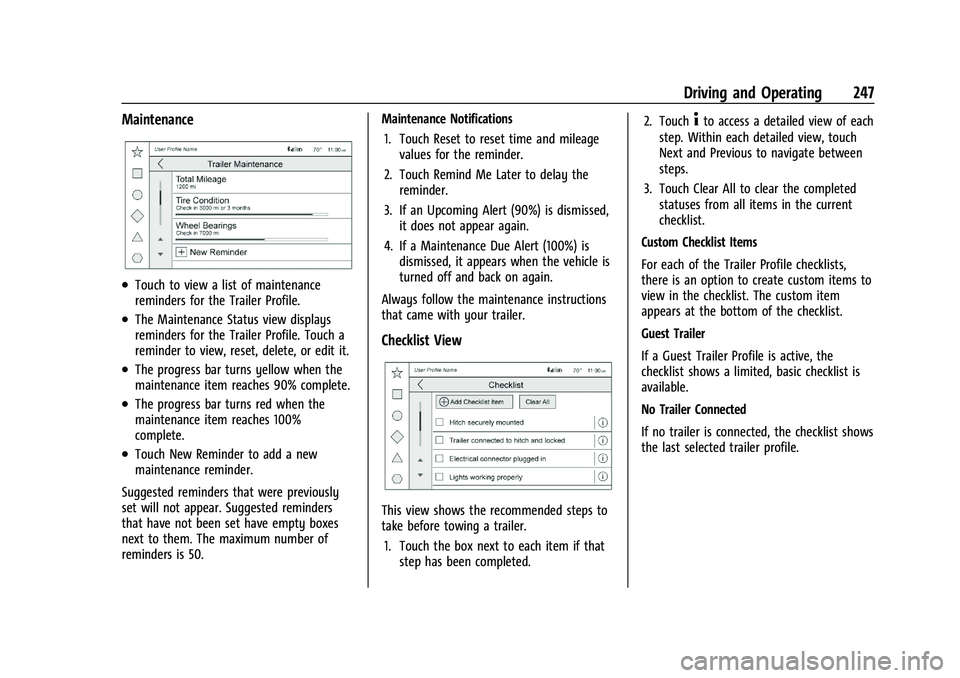
.Touch to view a list of maintenance
reminders for the Trailer Profile.
.The Maintenance Status view displays
reminders for the Trailer Profile. Touch a
reminder to view, reset, delete, or edit it.
.The progress bar turns yellow when the
maintenance item reaches 90% complete.
.The progress bar turns red when the
maintenance item reaches 100%
complete.
.Touch New Reminder to add a new
maintenance reminder.
Suggested reminders that were previously
set will not appear. Suggested reminders
that have not been set have empty boxes
next to them. The maximum number of
reminders is 50. Maintenance Notifications
1. Touch Reset to reset time and mileage values for the reminder.
2. Touch Remind Me Later to delay the reminder.
3. If an Upcoming Alert (90%) is dismissed, it does not appear again.
4. If a Maintenance Due Alert (100%) is dismissed, it appears when the vehicle is
turned off and back on again.
Always follow the maintenance instructions
that came with your trailer.
Checklist View
This view shows the recommended steps to
take before towing a trailer. 1. Touch the box next to each item if that step has been completed. 2. Touch
4to access a detailed view of each
step. Within each detailed view, touch
Next and Previous to navigate between
steps.
3. Touch Clear All to clear the completed statuses from all items in the current
checklist.
Custom Checklist Items
For each of the Trailer Profile checklists,
there is an option to create custom items to
view in the checklist. The custom item
appears at the bottom of the checklist.
Guest Trailer
If a Guest Trailer Profile is active, the
checklist shows a limited, basic checklist is
available.
No Trailer Connected
If no trailer is connected, the checklist shows
the last selected trailer profile.
Page 249 of 371
GMC Canyon/Canyon Denali Owner Manual (GMNA-Localizing-U.S./Canada/
Mexico-16510661) - 2023 - CRC - 11/29/22
248 Driving and Operating
Brakes
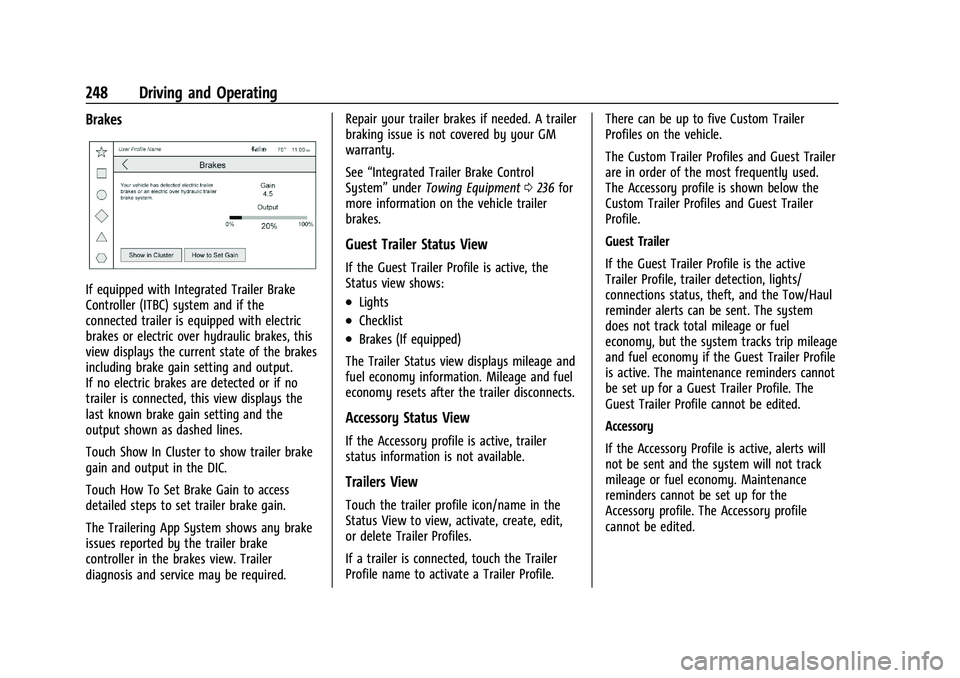
If equipped with Integrated Trailer Brake
Controller (ITBC) system and if the
connected trailer is equipped with electric
brakes or electric over hydraulic brakes, this
view displays the current state of the brakes
including brake gain setting and output.
If no electric brakes are detected or if no
trailer is connected, this view displays the
last known brake gain setting and the
output shown as dashed lines.
Touch Show In Cluster to show trailer brake
gain and output in the DIC.
Touch How To Set Brake Gain to access
detailed steps to set trailer brake gain.
The Trailering App System shows any brake
issues reported by the trailer brake
controller in the brakes view. Trailer
diagnosis and service may be required.Repair your trailer brakes if needed. A trailer
braking issue is not covered by your GM
warranty.
See
“Integrated Trailer Brake Control
System” underTowing Equipment 0236 for
more information on the vehicle trailer
brakes.
Guest Trailer Status View
If the Guest Trailer Profile is active, the
Status view shows:
.Lights
.Checklist
.Brakes (If equipped)
The Trailer Status view displays mileage and
fuel economy information. Mileage and fuel
economy resets after the trailer disconnects.
Accessory Status View
If the Accessory profile is active, trailer
status information is not available.
Trailers View
Touch the trailer profile icon/name in the
Status View to view, activate, create, edit,
or delete Trailer Profiles.
If a trailer is connected, touch the Trailer
Profile name to activate a Trailer Profile. There can be up to five Custom Trailer
Profiles on the vehicle.
The Custom Trailer Profiles and Guest Trailer
are in order of the most frequently used.
The Accessory profile is shown below the
Custom Trailer Profiles and Guest Trailer
Profile.
Guest Trailer
If the Guest Trailer Profile is the active
Trailer Profile, trailer detection, lights/
connections status, theft, and the Tow/Haul
reminder alerts can be sent. The system
does not track total mileage or fuel
economy, but the system tracks trip mileage
and fuel economy if the Guest Trailer Profile
is active. The maintenance reminders cannot
be set up for a Guest Trailer Profile. The
Guest Trailer Profile cannot be edited.
Accessory
If the Accessory Profile is active, alerts will
not be sent and the system will not track
mileage or fuel economy. Maintenance
reminders cannot be set up for the
Accessory profile. The Accessory profile
cannot be edited.
Page 250 of 371
GMC Canyon/Canyon Denali Owner Manual (GMNA-Localizing-U.S./Canada/
Mexico-16510661) - 2023 - CRC - 11/29/22
Driving and Operating 249
Trailer Brake Gain Memory
The system can store the brake gain setting
of a Trailer Profile or a Guest Trailer Profile.
When a Trailer Profile or Guest Trailer Profile
is selected, and a brake gain setting is set
for that Trailer Profile, the system will recall
the stored brake gain value.
If a Trailer Profile is already active and the
brake gain setting has been set for that
Trailer Profile, the system will recall the
brake gain value whenever the vehicle is
turned on.
If there is an error in setting the brake gain
for a Trailer Profile, a pop-up displays. If the
Guest Trailer Profile is active or there is no
trailer connected, the pop-up does not
appear.
Trailer brake gain should be set for a specific
trailering condition and must be adjusted
anytime vehicle loading, trailer loading,
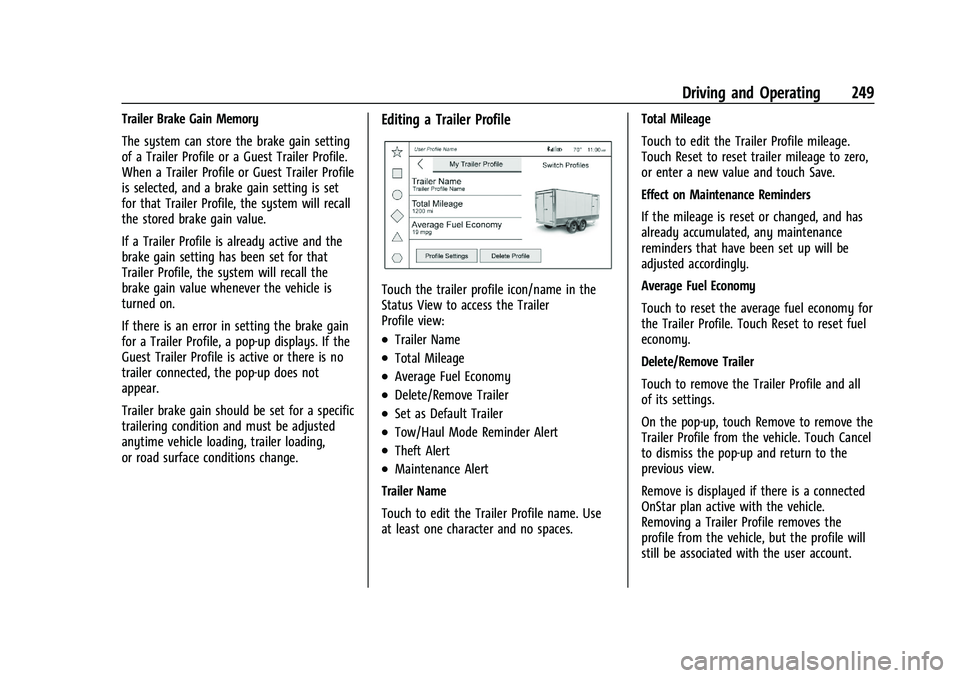
or road surface conditions change.Editing a Trailer Profile
Touch the trailer profile icon/name in the
Status View to access the Trailer
Profile view:
.Trailer Name
.Total Mileage
.Average Fuel Economy
.Delete/Remove Trailer
.Set as Default Trailer
.Tow/Haul Mode Reminder Alert
.Theft Alert
.Maintenance Alert
Trailer Name
Touch to edit the Trailer Profile name. Use
at least one character and no spaces. Total Mileage
Touch to edit the Trailer Profile mileage.
Touch Reset to reset trailer mileage to zero,
or enter a new value and touch Save.
Effect on Maintenance Reminders
If the mileage is reset or changed, and has
already accumulated, any maintenance
reminders that have been set up will be
adjusted accordingly.
Average Fuel Economy
Touch to reset the average fuel economy for
the Trailer Profile. Touch Reset to reset fuel
economy.
Delete/Remove Trailer
Touch to remove the Trailer Profile and all
of its settings.
On the pop-up, touch Remove to remove the
Trailer Profile from the vehicle. Touch Cancel
to dismiss the pop-up and return to the
previous view.
Remove is displayed if there is a connected
OnStar plan active with the vehicle.
Removing a Trailer Profile removes the
profile from the vehicle, but the profile will
still be associated with the user account.