ignition GMC ENVOY 2003 Workshop Manual
[x] Cancel search | Manufacturer: GMC, Model Year: 2003, Model line: ENVOY, Model: GMC ENVOY 2003Pages: 442, PDF Size: 3.1 MB
Page 191 of 442
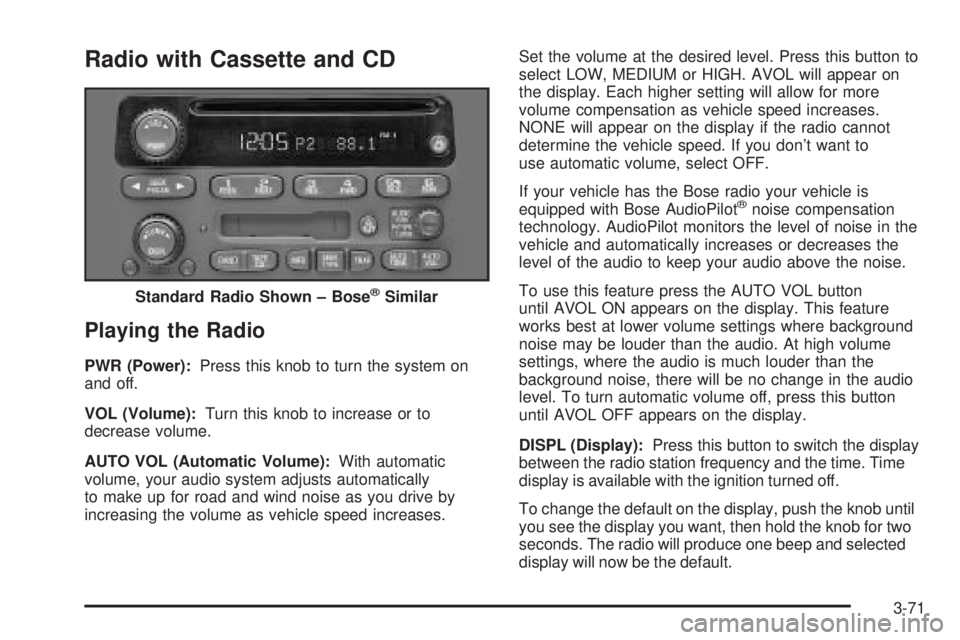
Radio with Cassette and CD
Playing the Radio
PWR (Power):Press this knob to turn the system on
and off.
VOL (Volume):Turn this knob to increase or to
decrease volume.
AUTO VOL (Automatic Volume):With automatic
volume, your audio system adjusts automatically
to make up for road and wind noise as you drive by
increasing the volume as vehicle speed increases.Set the volume at the desired level. Press this button to
select LOW, MEDIUM or HIGH. AVOL will appear on
the display. Each higher setting will allow for more
volume compensation as vehicle speed increases.
NONE will appear on the display if the radio cannot
determine the vehicle speed. If you don't want to
use automatic volume, select OFF.
If your vehicle has the Bose radio your vehicle is
equipped with Bose AudioPilot
žnoise compensation
technology. AudioPilot monitors the level of noise in the
vehicle and automatically increases or decreases the
level of the audio to keep your audio above the noise.
To use this feature press the AUTO VOL button
until AVOL ON appears on the display. This feature
works best at lower volume settings where background
noise may be louder than the audio. At high volume
settings, where the audio is much louder than the
background noise, there will be no change in the audio
level. To turn automatic volume off, press this button
until AVOL OFF appears on the display.
DISPL (Display):Press this button to switch the display
between the radio station frequency and the time. Time
display is available with the ignition turned off.
To change the default on the display, push the knob until
you see the display you want, then hold the knob for two
seconds. The radio will produce one beep and selected
display will now be the default. Standard Radio Shown ± Bose
žSimilar
3-71
Page 195 of 442
DISPL (Display):Press this knob to change what
appears on the display while using RDS. The display
options are station name, RDS station frequency,
PTY and the name of the program (if available).
To change the default on the display, push the knob
until you see the display you want, then hold the knob
for two seconds. The radio will produce one beep
and selected display will now be the default.
Finding a PTY Station
To select and ®nd a desired PTY perform the following:
1. Press the P-TYPE knob. TYPE and a PTY will
appear on the display.
2. Select a category by turning the P-TYPE knob.
3. Once the desired category is displayed, press the
SEEK TYPE button to take you to the category's
®rst station.
4. If you want to go to another station within that
category and the category is displayed, press
the SEEK TYPE button once. If the category is not
displayed, press the SEEK TYPE button twice
to display the category and then to go to another
station.If the radio cannot ®nd the desired program type, NONE
will appear on the display and the radio will return to
the last station you were listening to.
AM FM (Alternate Frequency):Alternate frequency
allows the radio to switch to a stronger station with the
same program type. Press and hold AM FM for two
seconds to turn alternate frequency on. AF ON
will appear on the display. The radio may switch to
stronger stations. Press and hold AM FM again for two
seconds to turn alternate frequency off. AF OFF will
appear on the display. The radio will not switch to other
stations. When you turn the ignition off and then on
again, the alternate frequency feature will automatically
be turned on.
RDS Messages
ALERT!:Alert warns of local or national emergencies.
When an alert announcement comes on the current
radio station, ALERT! will appear on the display. You will
hear the announcement, even if the volume is muted
or a cassette tape or compact disc is playing. If the
cassette tape or compact disc player is playing, play will
stop during the announcement. You will not be able
to turn off alert announcements.
ALERT! will not be affected by tests of the emergency
broadcast system. This feature is not supported by
all RDS stations.
3-75
Page 197 of 442
Playing a Cassette Tape
Your tape player is built to work best with tapes that are
up to 30 to 45 minutes long on each side. Tapes
longer than that are so thin they may not work well in
this player. The longer side with the tape visible should
face to the right. If the ignition is on, but the radio is
off, the tape can be inserted and will begin playing. A
tape symbol is shown on the display whenever a tape is
inserted. If you hear nothing but a garbled sound, the
tape may not be in squarely. Press EJT to remove
the tape and start over.
While the tape is playing, use the VOL, AUDIO and
SEEK controls just as you do for the radio. The display
will show TAPE and an arrow showing which side of
the tape is playing.
If you want to insert a tape while the ignition is off, ®rst
press EJT or DISPL.
If an error appears on the display, see ªCassette Tape
Messagesº later in this section.
1 PREV (Previous):Your tape must have at least three
seconds of silence between each selection for previous
to work. Press this pushbutton to go to the previous
selection on the tape if the current selection has been
playing for less than three seconds. If pressed when thecurrent selection has been playing from 3 to 13 seconds,
it will go to the beginning of the previous selection or
the beginning of the current selection, depending upon
the position on the tape. If pressed when the current
selection has been playing for more than 13 seconds, it
will go to the beginning of the current selection.
SEEK and a negative number will appear on the display
while the cassette player is in the previous mode.
Pressing this pushbutton multiple times will increase the
number of selections to be searched back, up to -9.
2 NEXT:Your tape must have at least three seconds of
silence between each selection for next to work.
Press this pushbutton to go to the next selection on the
tape. If you press the pushbutton more than once,
the player will continue moving forward through the tape.
SEEK and a positive number will appear on the
display.
3 REV (Reverse):Press this pushbutton to reverse the
tape rapidly. Press it again to return to playing speed.
The radio will play while the tape reverses. The
station frequency and REV will appear on the display.
You may select stations during reverse operation
by using the TUNE and SEEK.
3-77
Page 199 of 442
Playing a Compact Disc
Insert a disc partway into the slot, label side up. The
player will pull it in and the disc should begin playing.
The display will show the CD symbol. If you want
to insert a compact disc with the ignition off, ®rst press
DISPL or EJT.
The integral CD player can play the smaller 8 cm single
discs with an adapter ring. Full-size compact discs
and the smaller discs are loaded in the same manner.
If playing a CD-R the sound quality may be reduced due
to CD-R quality, the method of recording, the quality
of the music that has been recorded and the way
the CD-R has been handled. You may experience an
increase in skipping, difficulty in ®nding tracks and/or
difficulty in loading and ejecting. If these problems occur
try a known good CD.
Do not add paper labels to discs, they could get caught
in the CD player.
Do not play 3 inch discs without a standard
adapter disc.
If an error appears on the display, see ªCompact Disc
Messagesº later in this section.
1 PREV (Previous):Press this pushbutton to go to the
previous track if the current track has been playing
for less than eight seconds. If pressed when the currenttrack has been playing for more than eight seconds, it
will go to the beginning of the current track. TRACK and
the track number will appear on the display. If you
hold this pushbutton or press it more than once, the
player will continue moving back through the disc.
2 NEXT:Press this pushbutton to go to the next track.
TRACK and the track number will appear on the
display. If you hold this pushbutton or press it more than
once, the player will continue moving forward through
the disc.
3 REV (Reverse):Press and hold this pushbutton to
reverse quickly within a track. Press and hold this
pushbutton for less than two seconds to reverse at six
times the normal playing speed. Press and hold it
for more than two seconds to reverse at 17 times the
normal playing speed. Release it to play the passage.
The display will show ET and the elapsed time.
4 FWD (Forward):Press and hold this pushbutton to
advance quickly within a track. Press and hold this
pushbutton for less than two seconds to advance at six
times the normal playing speed. Press and hold it for
more than two seconds to advance at 17 times the
normal playing speed. Release it to play the passage.
The display will show ET and the elapsed time.
3-79
Page 200 of 442
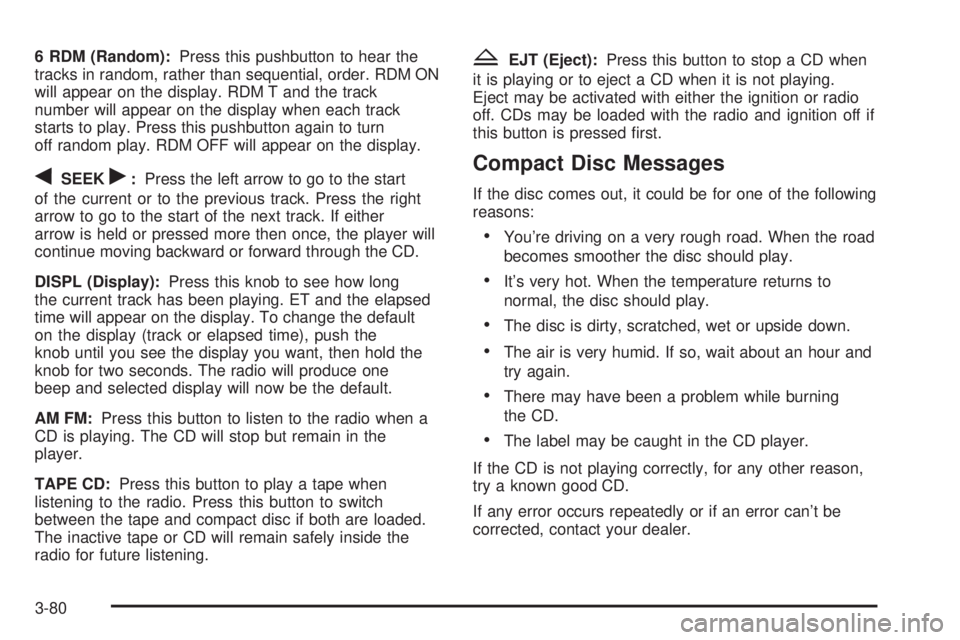
6 RDM (Random):Press this pushbutton to hear the
tracks in random, rather than sequential, order. RDM ON
will appear on the display. RDM T and the track
number will appear on the display when each track
starts to play. Press this pushbutton again to turn
off random play. RDM OFF will appear on the display.
qSEEKr:Press the left arrow to go to the start
of the current or to the previous track. Press the right
arrow to go to the start of the next track. If either
arrow is held or pressed more then once, the player will
continue moving backward or forward through the CD.
DISPL (Display):Press this knob to see how long
the current track has been playing. ET and the elapsed
time will appear on the display. To change the default
on the display (track or elapsed time), push the
knob until you see the display you want, then hold the
knob for two seconds. The radio will produce one
beep and selected display will now be the default.
AM FM:Press this button to listen to the radio when a
CD is playing. The CD will stop but remain in the
player.
TAPE CD:Press this button to play a tape when
listening to the radio. Press this button to switch
between the tape and compact disc if both are loaded.
The inactive tape or CD will remain safely inside the
radio for future listening.
ZEJT (Eject):Press this button to stop a CD when
it is playing or to eject a CD when it is not playing.
Eject may be activated with either the ignition or radio
off. CDs may be loaded with the radio and ignition off if
this button is pressed ®rst.
Compact Disc Messages
If the disc comes out, it could be for one of the following
reasons:
·You're driving on a very rough road. When the road
becomes smoother the disc should play.
·It's very hot. When the temperature returns to
normal, the disc should play.
·The disc is dirty, scratched, wet or upside down.
·The air is very humid. If so, wait about an hour and
try again.
·There may have been a problem while burning
the CD.
·The label may be caught in the CD player.
If the CD is not playing correctly, for any other reason,
try a known good CD.
If any error occurs repeatedly or if an error can't be
corrected, contact your dealer.
3-80
Page 201 of 442
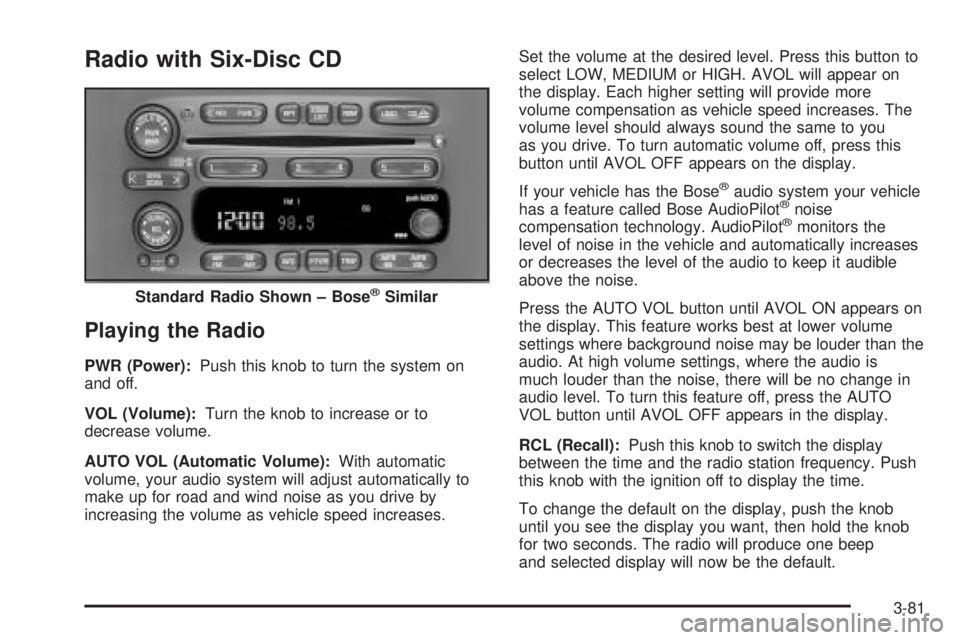
Radio with Six-Disc CD
Playing the Radio
PWR (Power):Push this knob to turn the system on
and off.
VOL (Volume):Turn the knob to increase or to
decrease volume.
AUTO VOL (Automatic Volume):With automatic
volume, your audio system will adjust automatically to
make up for road and wind noise as you drive by
increasing the volume as vehicle speed increases.Set the volume at the desired level. Press this button to
select LOW, MEDIUM or HIGH. AVOL will appear on
the display. Each higher setting will provide more
volume compensation as vehicle speed increases. The
volume level should always sound the same to you
as you drive. To turn automatic volume off, press this
button until AVOL OFF appears on the display.
If your vehicle has the Bose
žaudio system your vehicle
has a feature called Bose AudioPilotžnoise
compensation technology. AudioPilotžmonitors the
level of noise in the vehicle and automatically increases
or decreases the level of the audio to keep it audible
above the noise.
Press the AUTO VOL button until AVOL ON appears on
the display. This feature works best at lower volume
settings where background noise may be louder than the
audio. At high volume settings, where the audio is
much louder than the noise, there will be no change in
audio level. To turn this feature off, press the AUTO
VOL button until AVOL OFF appears in the display.
RCL (Recall):Push this knob to switch the display
between the time and the radio station frequency. Push
this knob with the ignition off to display the time.
To change the default on the display, push the knob
until you see the display you want, then hold the knob
for two seconds. The radio will produce one beep
and selected display will now be the default. Standard Radio Shown ± Bose
žSimilar
3-81
Page 205 of 442
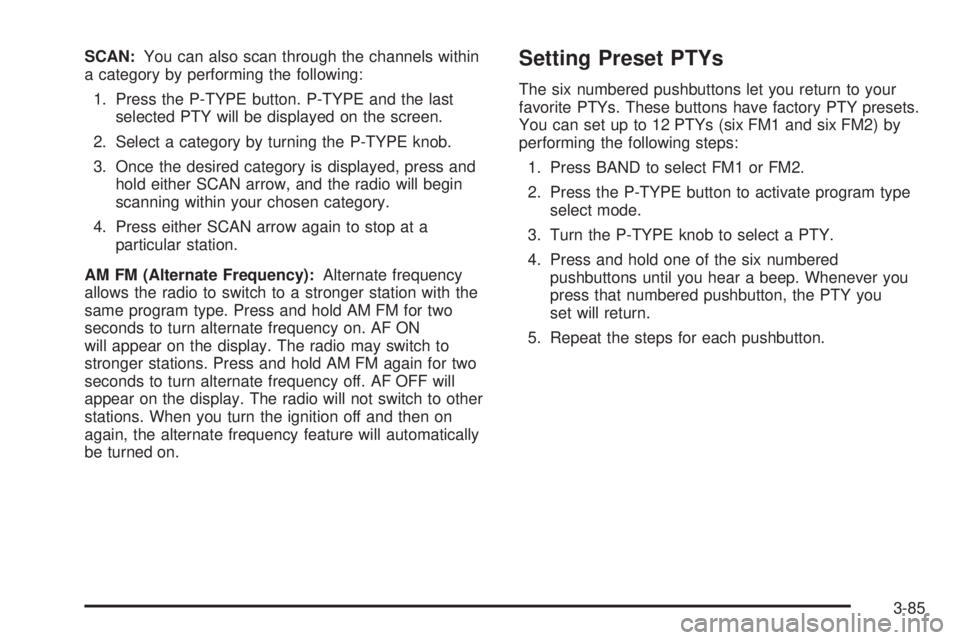
SCAN:You can also scan through the channels within
a category by performing the following:
1. Press the P-TYPE button. P-TYPE and the last
selected PTY will be displayed on the screen.
2. Select a category by turning the P-TYPE knob.
3. Once the desired category is displayed, press and
hold either SCAN arrow, and the radio will begin
scanning within your chosen category.
4. Press either SCAN arrow again to stop at a
particular station.
AM FM (Alternate Frequency):Alternate frequency
allows the radio to switch to a stronger station with the
same program type. Press and hold AM FM for two
seconds to turn alternate frequency on. AF ON
will appear on the display. The radio may switch to
stronger stations. Press and hold AM FM again for two
seconds to turn alternate frequency off. AF OFF will
appear on the display. The radio will not switch to other
stations. When you turn the ignition off and then on
again, the alternate frequency feature will automatically
be turned on.Setting Preset PTYs
The six numbered pushbuttons let you return to your
favorite PTYs. These buttons have factory PTY presets.
You can set up to 12 PTYs (six FM1 and six FM2) by
performing the following steps:
1. Press BAND to select FM1 or FM2.
2. Press the P-TYPE button to activate program type
select mode.
3. Turn the P-TYPE knob to select a PTY.
4. Press and hold one of the six numbered
pushbuttons until you hear a beep. Whenever you
press that numbered pushbutton, the PTY you
set will return.
5. Repeat the steps for each pushbutton.
3-85
Page 207 of 442
Playing a Compact Disc
The integral CD player can play the smaller 8 cm single
discs with an adapter ring. Full-size compact discs
and the smaller discs are loaded in the same manner.
If playing a CD-R the sound quality may be reduced due
to CD-R quality, the method of recording, the quality
of the music that has been recorded and the way
the CD-R has been handled. You may experience an
increase in skipping, difficulty in ®nding tracks and/or
difficulty in loading and ejecting. If these problems occur
try a known good CD.
Do not add paper labels to discs, they could get caught
in the CD player.
Do not play 3 inch discs without a standard
adapter disc.
If an error appears on the display, see ªCompact Disc
Messagesº later in this section.
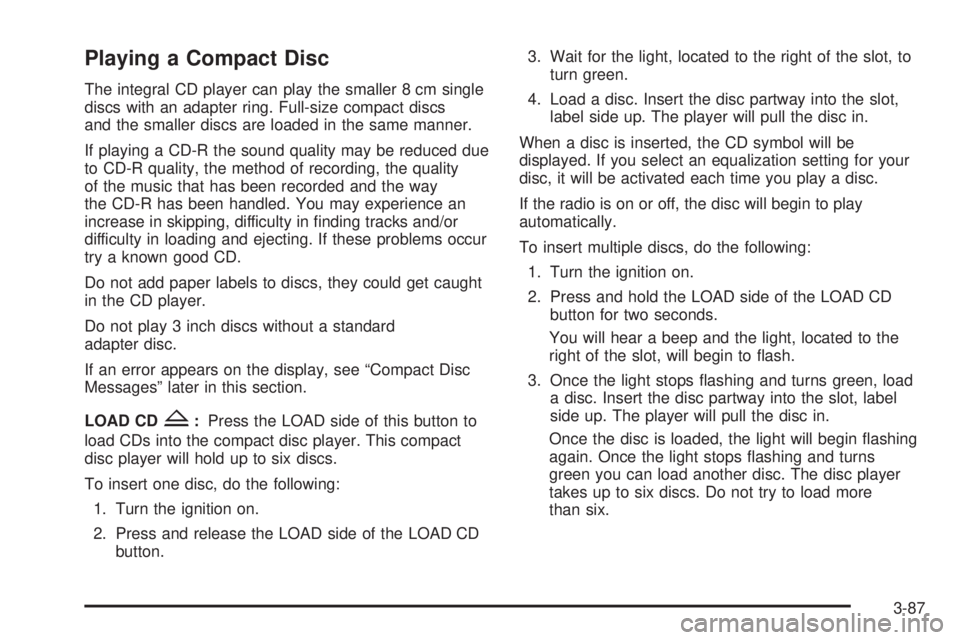
LOAD CD
Z:Press the LOAD side of this button to
load CDs into the compact disc player. This compact
disc player will hold up to six discs.
To insert one disc, do the following:
1. Turn the ignition on.
2. Press and release the LOAD side of the LOAD CD
button.3. Wait for the light, located to the right of the slot, to
turn green.
4. Load a disc. Insert the disc partway into the slot,
label side up. The player will pull the disc in.
When a disc is inserted, the CD symbol will be
displayed. If you select an equalization setting for your
disc, it will be activated each time you play a disc.
If the radio is on or off, the disc will begin to play
automatically.
To insert multiple discs, do the following:
1. Turn the ignition on.
2. Press and hold the LOAD side of the LOAD CD
button for two seconds.
You will hear a beep and the light, located to the
right of the slot, will begin to ¯ash.
3. Once the light stops ¯ashing and turns green, load
a disc. Insert the disc partway into the slot, label
side up. The player will pull the disc in.
Once the disc is loaded, the light will begin ¯ashing
again. Once the light stops ¯ashing and turns
green you can load another disc. The disc player
takes up to six discs. Do not try to load more
than six.
3-87
Page 215 of 442
DVD Player
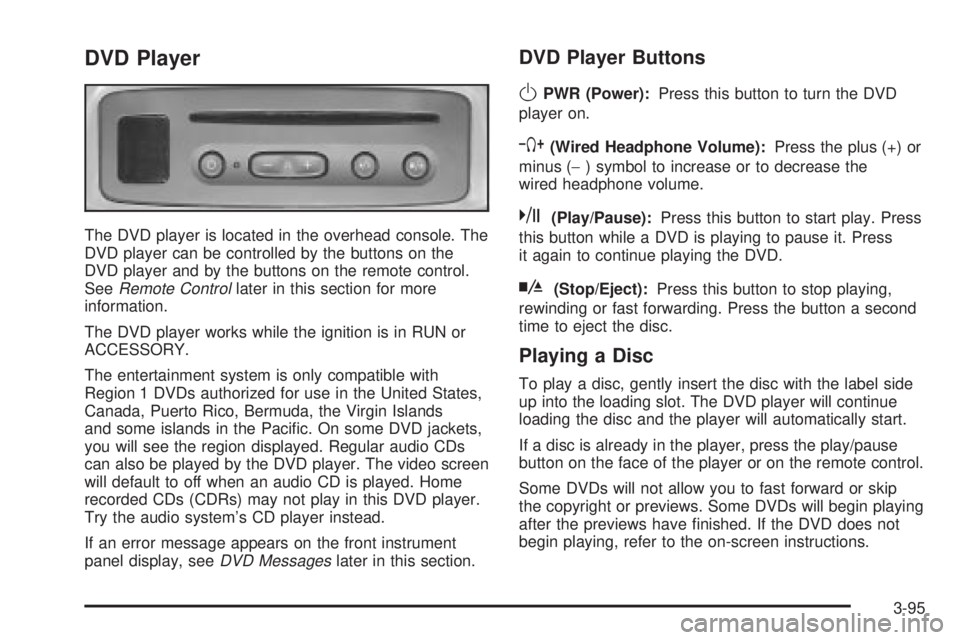
The DVD player is located in the overhead console. The
DVD player can be controlled by the buttons on the
DVD player and by the buttons on the remote control.
See
Remote Controllater in this section for more
information.
The DVD player works while the ignition is in RUN or
ACCESSORY.
The entertainment system is only compatible with
Region 1 DVDs authorized for use in the United States,
Canada, Puerto Rico, Bermuda, the Virgin Islands
and some islands in the Paci®c. On some DVD jackets,
you will see the region displayed. Regular audio CDs
can also be played by the DVD player. The video screen
will default to off when an audio CD is played. Home
recorded CDs (CDRs) may not play in this DVD player.
Try the audio system's CD player instead.
If an error message appears on the front instrument
panel display, see
DVD Messageslater in this section.
DVD Player Buttons
OPWR (Power):Press this button to turn the DVD
player on.
`(Wired Headphone Volume):Press the plus (+) or
minus (-) symbol to increase or to decrease the
wired headphone volume.
k(Play/Pause):Press this button to start play. Press
this button while a DVD is playing to pause it. Press
it again to continue playing the DVD.
h(Stop/Eject):Press this button to stop playing,
rewinding or fast forwarding. Press the button a second
time to eject the disc.
Playing a Disc
To play a disc, gently insert the disc with the label side
up into the loading slot. The DVD player will continue
loading the disc and the player will automatically start.
If a disc is already in the player, press the play/pause
button on the face of the player or on the remote control.
Some DVDs will not allow you to fast forward or skip
the copyright or previews. Some DVDs will begin playing
after the previews have ®nished. If the DVD does not
begin playing, refer to the on-screen instructions.
3-95
Page 220 of 442
Battery Replacement
To change the batteries, do the following:
1. Unclip the battery door located on the back of the
remote control.
2. Replace the two AAA batteries in the compartment.
Make sure that they are installed correctly.
3. Close the battery door securely.
If the remote control is to be stored for a long period of
time, remove the batteries and keep them in a cool,
dry place.
Problem Recommended Action
No power. The ignition might be off.
The parental control
button might have been
pressed. (The power LED
will ¯ash.)
Disc will not play. The Input/Title on the
remote might be set for
auxiliary.
The disc is upside down
or is not compatible.
Problem Recommended Action
No sound. The volume on the
headphones could be too
low. Adjust it on the wired
headphones on the front
panel or the remote. For
the wireless headphones,
adjust the dial on the right
earpiece on the
headphones.
The picture is distorted
during fast forward or fast
reverse.This is normal for this
operation.
The picture does not ®ll
the screen. There are
black borders on the top
and bottom or on both
sides or it looks stretched
out.Quickly press and release
the SIZE/ANGLE button
on the remote. This will ®ll
the screen. If the screen
looks stretched out, press
and release the SIZE/
ANGLE button again. If
there are borders on the
top and bottom, the movie
may have been made that
way for a standard screen.
Pressing the SIZE/
ANGLE button should ®ll
the sides.
3-100