turn signal GMC ENVOY 2007 User Guide
[x] Cancel search | Manufacturer: GMC, Model Year: 2007, Model line: ENVOY, Model: GMC ENVOY 2007Pages: 562, PDF Size: 3 MB
Page 176 of 562
Cruise Control
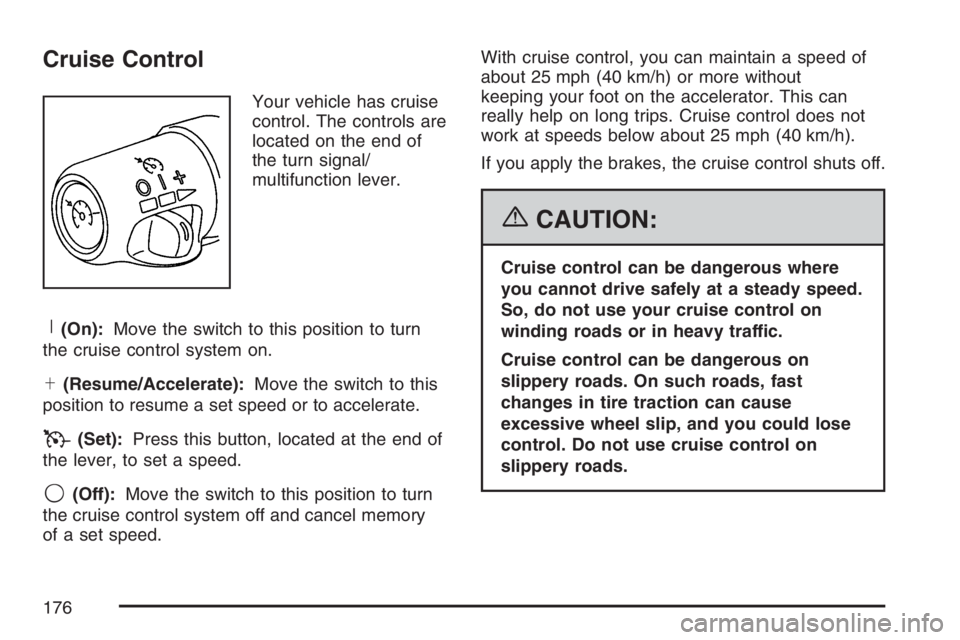
Your vehicle has cruise
control. The controls are
located on the end of
the turn signal/
multifunction lever.
R(On):Move the switch to this position to turn
the cruise control system on.
S(Resume/Accelerate):Move the switch to this
position to resume a set speed or to accelerate.
T(Set):Press this button, located at the end of
the lever, to set a speed.
9(Off):Move the switch to this position to turn
the cruise control system off and cancel memory
of a set speed.With cruise control, you can maintain a speed of
about 25 mph (40 km/h) or more without
keeping your foot on the accelerator. This can
really help on long trips. Cruise control does not
work at speeds below about 25 mph (40 km/h).
If you apply the brakes, the cruise control shuts off.
{CAUTION:
Cruise control can be dangerous where
you cannot drive safely at a steady speed.
So, do not use your cruise control on
winding roads or in heavy traffic.
Cruise control can be dangerous on
slippery roads. On such roads, fast
changes in tire traction can cause
excessive wheel slip, and you could lose
control. Do not use cruise control on
slippery roads.
176
Page 228 of 562

There are several conditions that can cause this
message to appear.
The message may display if the brake system
warning light is on. SeeBrake System
Warning Light on page 206.
The message displays if the vehicle is shifted
into 4LO.
The message turns off as soon as the conditions
that caused the message to be displayed are
no longer present.
TIGHTEN FUEL CAP
This message may display and a chime may sound
if the vehicle’s fuel cap is not tightened properly.
Fully reinstall the fuel cap. SeeFilling the Tank on
page 385. The diagnostic system can determine if
the fuel cap has been left off or improperly installed.
A loose or missing fuel cap allows fuel to evaporate
into the atmosphere. This message remains on until
it is acknowledged and cleared from the DIC display
by pressing any of the DIC buttons or the trip stem.
The DIC message is also cancelled if the ignition is
turned off.The DIC message and the Service Engine Soon
light may come on again during a second trip if the
fuel cap is still not tightened properly. See
Malfunction Indicator Lamp on page 210for
more information.
TRACTION CONTROL OFF
This message displays when you momentarily
press the StabiliTrak®button located on the
transmission shift handle. In this mode, stability
control and the brake-traction control are
functional. Engine speed management will be
modied and the driven wheels can spin more
freely. For more details on this mode, see
StabiliTrak
®System on page 309.
TURN SIGNAL ON
This message displays and a chime sounds if a
turn signal is left on for 3/4 of a mile (1.2 km).
Move the turn signal/multifunction lever to the off
position. Press any of the DIC buttons, or the
trip stem, to acknowledge this message and clear
it from the DIC display.
228
Page 240 of 562
For RDS, press the INFO knob to change what
appears on the display while using RDS. The
display options are station name, RDS station
frequency, PTY (program type), and the name of
the program (if available).
For XM™ (if equipped), press the INFO knob
while in XM™ mode to retrieve four different
categories of information related to the current
song or channel: Artist, Song Title, Category
or PTY, Channel Number/Channel Name.
To change the default on the display, press the
INFO knob until you see the desired display, then
press and hold the knob until a beep sounds.
The selected display becomes the default.
AUTO VOL (Automatic Volume):With automatic
volume, the audio system adjusts automatically
to make up for road and wind noise as you drive
by increasing the volume as vehicle speed
increases.
Set the volume at the desired level. Press this
button to select LOW, MEDIUM, or HIGH. AVOL
displays. Each higher setting provides more
volume compensation at faster vehicle speeds.
To turn automatic volume off, press this button
until AVOL OFF displays.Finding a Station
BAND:Press this button to switch between FM1,
FM2, AM, or XM1 or XM2 (if equipped). The
display shows the selection.
TUNE:Turn this knob to select radio stations.
©SEEK¨:Press either the SEEK or the TYPE
arrows to go to the next or to the previous
station and stay there.
The radio only seeks stations with a strong signal
that are in the selected band.
©SCAN¨:Press and hold either the SCAN or
the TYPE arrows for two seconds until SCAN
displays and a beep sounds. The radio goes to a
station, plays for a few seconds, then goes to
the next station. Press either the SCAN or
the TYPE arrows again to stop scanning.
To scan preset stations, press and hold either the
SCAN or the TYPE arrows for more than
four seconds. PSCN displays and a double beep
sounds. The radio goes to a preset station,
plays for a few seconds, then goes to the next
preset station. Press either the SCAN or the TYPE
arrows again to stop scanning presets.
The radio only scans stations with a strong signal
that are in the selected band.
240
Page 250 of 562

Set the volume at the desired level. Press this
button to select LOW, MEDIUM, or HIGH. AVOL
displays. Each higher setting allows for more
volume compensation at faster vehicle speeds.
Then as you drive, automatic volume increases the
volume, as necessary, to overcome noise at any
speed. The volume level should always sound
the same to you as you drive. NONE displays if the
radio cannot determine the vehicle speed. To
turn automatic volume off, press this button until
OFF displays.
Finding a Station
BAND:Press this button to switch between FM1,
FM2, AM, or XM1 or XM2 (if equipped). The
display shows the selection.
oTUNEp:Turn this knob to select
radio stations.
oSEEKp:Press the right or the left arrow to
go to the next or to the previous station and
stay there.
The radio only seeks stations with a strong signal
that are in the selected band.
oSCANp:Press and hold either arrow for
more than two seconds. SCAN displays and the
radio produces one beep. The radio goes to a
station, plays for a few seconds, then goes to the
next station. Press either arrow again or one of
the pushbuttons to stop scanning presets.
To scan preset stations, press and hold either
arrow for more than four seconds. PSCN displays
and the radio produces two beeps. The radio
goes to a preset station, plays for a few seconds,
then goes to the next preset station. Press
either arrow again or one of the pushbuttons to
stop scanning presets.
The radio only scans stations with a strong signal
that are in the selected band.
250
Page 260 of 562

AUTO VOL (Automatic Volume):With automatic
volume, the audio system adjusts automatically
to make up for road and wind noise as you drive
by increasing the volume as vehicle speed
increases.
Set the volume at the desired level. Press this
button to select MIN (minimum), MED (medium),
or MAX (maximum). AUTO VOL displays.
Each higher setting provides more volume
compensation at faster vehicle speeds. To turn
automatic volume off, press this button until AUTO
VOL OFF displays.
Finding a Station
BAND:Press this button to switch between FM1,
FM2, AM, or XM1 or XM2 (if equipped). The
display shows the selection.
oTUNEp:Turn this knob to select
radio stations.
©SEEK¨:Press either the SEEK or the TYPE
arrows to go to the next or to the previous
station and stay there.
The radio only seeks stations with a strong signal
that are in the selected band.
©SCAN¨:Press and hold either the SCAN or
the TYPE arrows for two seconds until SCN
displays and a beep sounds. The radio goes to a
station, plays for a few seconds, then goes to
the next station. Press either the SCAN or
the TYPE arrows again to stop scanning.
To scan preset stations, press and hold either
the SCAN or the TYPE arrows for more than
four seconds. PSC displays and a double beep
sounds. The radio goes to a preset station, plays
for a few seconds, then goes to the next preset
station. Press either the SCAN or the TYPE arrows
again to stop scanning presets.
The radio only scans stations with a strong signal
that are in the selected band.
260
Page 277 of 562

XM Radio Messages
If you have a Radio with CD or Radio with Six-Disc CD, you can receive these radio display messages.
Radio Display Message Condition Action Required
XL (Explicit Language
Channels)XL on the radio display,
after the channel name,
indicates content with
explicit language.These channels, or any others, can be blocked at a
customer’s request, by calling 1-800-852-XMXM (9696).
Updating Updating encryption code The encryption code in the receiver is being updated, and
no action is required. This process should take no longer
than 30 seconds.
No Signal Loss of signal The system is functioning correctly, but the vehicle is in a
location that is blocking the XM™ signal. When you move
into an open area, the signal should return.
Loading XM Acquiring channel audio
(after 4 second delay)The audio system is acquiring and processing audio and
text data. No action is needed. This message should
disappear shortly.
CH Off Air Channel not in service This channel is not currently in service. Tune to another
channel.
CH Unavail Channel no longer
availableThis previously assigned channel is no longer assigned.
Tune to another station. If this station was one of the
presets, choose another station for that preset button.
No Info Artist Name/Feature
not availableNo artist information is available at this time on this channel.
The system is working properly.
277
Page 279 of 562
If you have a Radio with CD (MP3), you can receive these radio display messages.
Radio Display Message Condition Action Required
XL (Explicit Language
Channels)XL on the radio display,
after the channel name,
indicates content with
explicit language.These channels, or any others, can be blocked at a
customer’s request, by calling 1-800-852-XMXM (9696).
Updating Updating encryption code The encryption code in the receiver is being updated, and
no action is required. This process should take no longer
than 30 seconds.
No Signl Loss of signal The system is functioning correctly, but the vehicle is in a
location that is blocking the XM™ signal. When the vehicle
is moved into an open area, the signal should return.
Loading Acquiring channel audio
(after 4 second delay)The radio system is acquiring and processing audio and
text data. No action is needed. This message should
disappear shortly.
Off Air Channel not in service This channel is not currently in service. Tune to another
channel.
CH Unavl Channel no longer
availableThis previously assigned channel is no longer assigned.
Tune to another station. If this station was one of the
presets, choose another station for that preset button.
No Info Artist Name/Feature
not availableNo artist information is available at this time on this channel.
The system is working properly.
No Info Song/Program Title
not availableNo song title information is available at this time on this
channel. The system is working properly.
No Info Category Name
not availableNo category information is available at this time on this
channel. The system is working properly.
No Info No Text/Informational
message availableNo text or informational messages are available at this time
on this channel. The system is working properly.
279
Page 281 of 562
Parental Control
This button is located behind the video screen.
Press this button while a DVD or CD is playing to
freeze the video and mute the audio. The video
screen will display Parental Control ON and the
power indicator light on the DVD player will ash. It
will also disable all other button operations from the
remote control and the DVD player, with the
exception of the eject button. Press this button
again to restore operation of the DVD player.
This button may also be used to turn the DVD
player power on and automatically resume play if
the ignition is in RUN, ACCESSORY, or if RAP
is active.
Before You Drive
The RSE system is for rear seat passengers only.
The driver cannot safely view the video screen
while driving and should not try to do so.
Headphones
The RSE system includes two sets of wireless
headphones.
Each set of headphones has an ON/OFF control.
An indicator light will illuminate on the headphones
when they are on. If the light does not illuminate,
the batteries may need to be replaced. See
“Battery Replacement” following for more
information.
Each set of headphones has a volume knob.
To adjust the volume, adjust this knob.
The transmitters are located below the video
display screen. The headphones will shut
off automatically if they lose the signal from the
system after about four minutes to save battery
power. The signal may be lost if the system
is turned off or if the headphones are out of range
of the transmitters.
281
Page 283 of 562
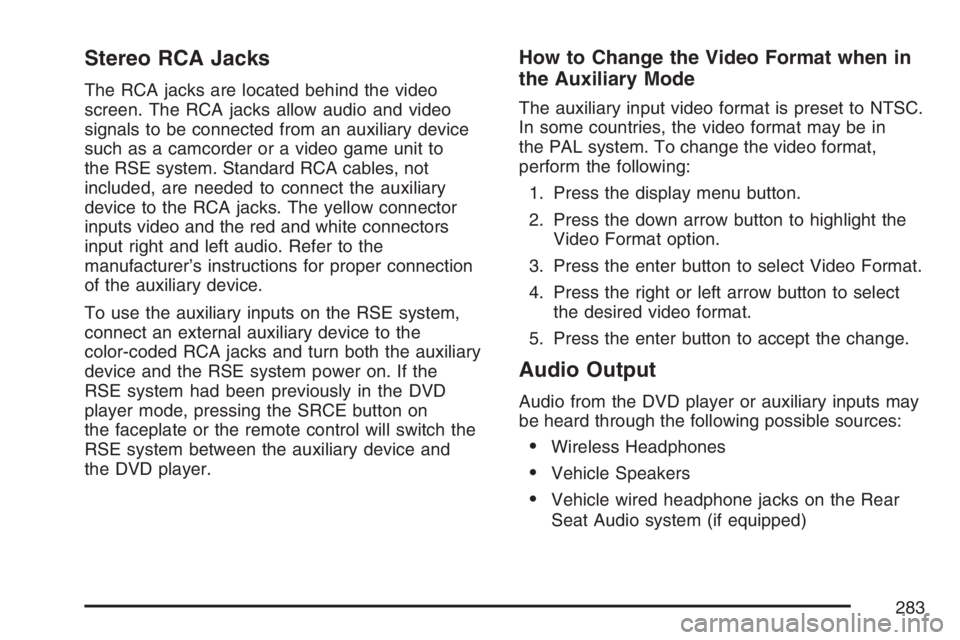
Stereo RCA Jacks
The RCA jacks are located behind the video
screen. The RCA jacks allow audio and video
signals to be connected from an auxiliary device
such as a camcorder or a video game unit to
the RSE system. Standard RCA cables, not
included, are needed to connect the auxiliary
device to the RCA jacks. The yellow connector
inputs video and the red and white connectors
input right and left audio. Refer to the
manufacturer’s instructions for proper connection
of the auxiliary device.
To use the auxiliary inputs on the RSE system,
connect an external auxiliary device to the
color-coded RCA jacks and turn both the auxiliary
device and the RSE system power on. If the
RSE system had been previously in the DVD
player mode, pressing the SRCE button on
the faceplate or the remote control will switch the
RSE system between the auxiliary device and
the DVD player.
How to Change the Video Format when in
the Auxiliary Mode
The auxiliary input video format is preset to NTSC.
In some countries, the video format may be in
the PAL system. To change the video format,
perform the following:
1. Press the display menu button.
2. Press the down arrow button to highlight the
Video Format option.
3. Press the enter button to select Video Format.
4. Press the right or left arrow button to select
the desired video format.
5. Press the enter button to accept the change.
Audio Output
Audio from the DVD player or auxiliary inputs may
be heard through the following possible sources:
Wireless Headphones
Vehicle Speakers
Vehicle wired headphone jacks on the Rear
Seat Audio system (if equipped)
283
Page 297 of 562
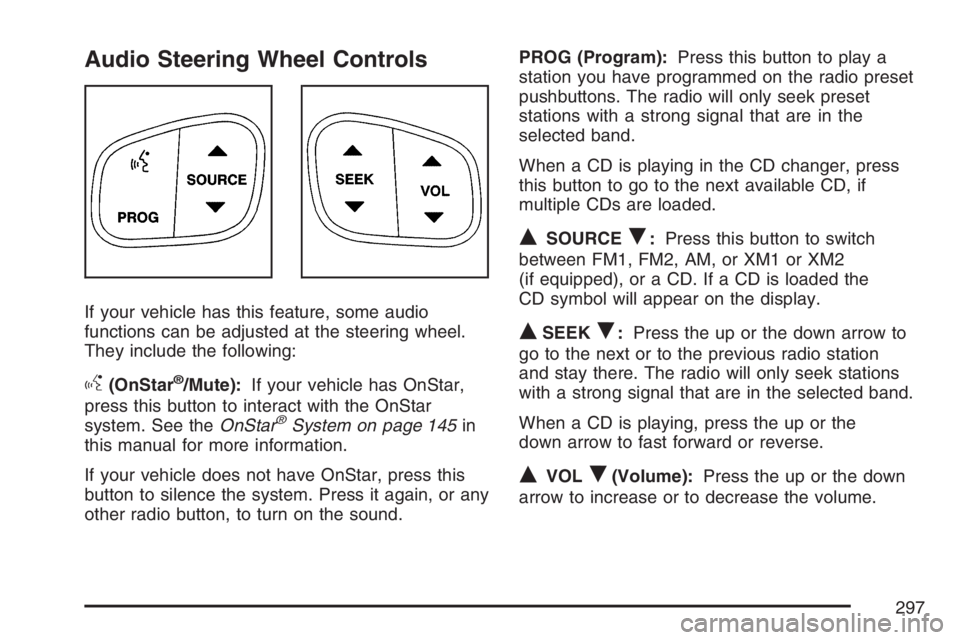
Audio Steering Wheel Controls
If your vehicle has this feature, some audio
functions can be adjusted at the steering wheel.
They include the following:
g(OnStar®/Mute):If your vehicle has OnStar,
press this button to interact with the OnStar
system. See theOnStar
®System on page 145in
this manual for more information.
If your vehicle does not have OnStar, press this
button to silence the system. Press it again, or any
other radio button, to turn on the sound.PROG (Program):Press this button to play a
station you have programmed on the radio preset
pushbuttons. The radio will only seek preset
stations with a strong signal that are in the
selected band.
When a CD is playing in the CD changer, press
this button to go to the next available CD, if
multiple CDs are loaded.
QSOURCER:Press this button to switch
between FM1, FM2, AM, or XM1 or XM2
(if equipped), or a CD. If a CD is loaded the
CD symbol will appear on the display.
QSEEKR:Press the up or the down arrow to
go to the next or to the previous radio station
and stay there. The radio will only seek stations
with a strong signal that are in the selected band.
When a CD is playing, press the up or the
down arrow to fast forward or reverse.
QVOLR(Volume):Press the up or the down
arrow to increase or to decrease the volume.
297