instrument panel GMC ENVOY DENALI 2006 Owner's Guide
[x] Cancel search | Manufacturer: GMC, Model Year: 2006, Model line: ENVOY DENALI, Model: GMC ENVOY DENALI 2006Pages: 524, PDF Size: 2.88 MB
Page 169 of 524
Manual Operation
To change the current setting, select one of the
following:
w9x(Fan):This button allows you to manually
adjust the fan speed. Press the up arrow to increase fan
speed and the down arrow to decrease fan speed.
The display will change to show you the selected fan
speed and the driver’s side temperature setting for
ve seconds.
C(Mode):Press this button to manually change the
direction of the airow in your vehicle. Keep pressing the
button until the desired mode appears on the display.
The display will change to show you the selected
air delivery mode and the driver’s temperature setting
for ve seconds.
H(Vent):This mode directs air to the instrument
panel outlets.
)(Bi-Level):This mode directs approximately half of
the air to the instrument panel outlets, then directs
the remaining air to the oor outlets. A little air is
directed toward the windshield and the side window
outlets. Cooler air is directed to the upper outlets and
warmer air to the oor outlets.
6(Floor):This mode directs most of the air to the
oor outlets. Some air also comes out of the defroster
and side window outlets. The recirculation button
cannot be selected in oor mode.
@(Recirculation):Press this button to turn
recirculation mode on or off. When this button is
pressed, an indicator light in the button will also come
on to let you know that it is activated. Recirculation
mode is used to recirculate the air inside of your vehicle.
Use this mode to help prevent outside odors and/or
dust from entering your vehicle or to help cool the air
inside of your vehicle more quickly. Recirculation
mode can be used with vent and bi-level modes, but it
cannot be used with oor, defog or defrost modes.
See “Defogging and Defrosting” later in this section.
You may also notice that the air conditioning compressor
will run while in recirculation mode. This is normal
and will help to prevent fogging.
If the weather is cold and damp, the system may cause
the windows to fog while using recirculation mode. If the
windows do start to fog, select defog or defrost mode.
Recirculation mode, if selected, will be cleared when the
engine is turned off.
3-25
Page 171 of 524
Rear Window Defogger
The rear window defogger uses a warming grid to
remove fog from the rear window.
<(Rear):Press this button to turn the rear window
defogger on or off.
An indicator light in the button will come on to let you
know that the rear window defogger is activated.
The rear window defogger will turn off approximately 10
minutes after the button is pressed. If you need
additional warming time, press the button again.
If equipped, your heated mirrors will also come on when
you press this button.
Notice:Do not use a razor blade or sharp object to
clear the inside rear window. Do not adhere
anything to the defogger grid lines in the rear glass.
These actions may damage the rear defogger.
Repairs would not be covered by your warranty.
Outlet Adjustment
Use the air outlets located in the center and on the side
of your instrument panel to direct the airow.
Operation Tips
Keep the hood and front air inlets free of ice, snow,
or any other obstruction (such as leaves). The
heater and defroster will work better, reducing the
chance of fogging the inside of your windows.
When you enter a vehicle in cold weather, turn the
fan knob all the way to the right for a few moments
before driving. This helps clear the intake ducts
of snow and moisture, and reduces the chance of
fogging the inside of your window.
Keep the air path under the front seats clear of
objects. This helps air to circulate throughout
your vehicle.
Adding outside equipment to the front of your
vehicle, such as hood-air deectors, may affect the
performance of the heating and air conditioning
system. Check with your dealer before adding
equipment to the outside of your vehicle.
3-27
Page 176 of 524
Instrument Panel Cluster
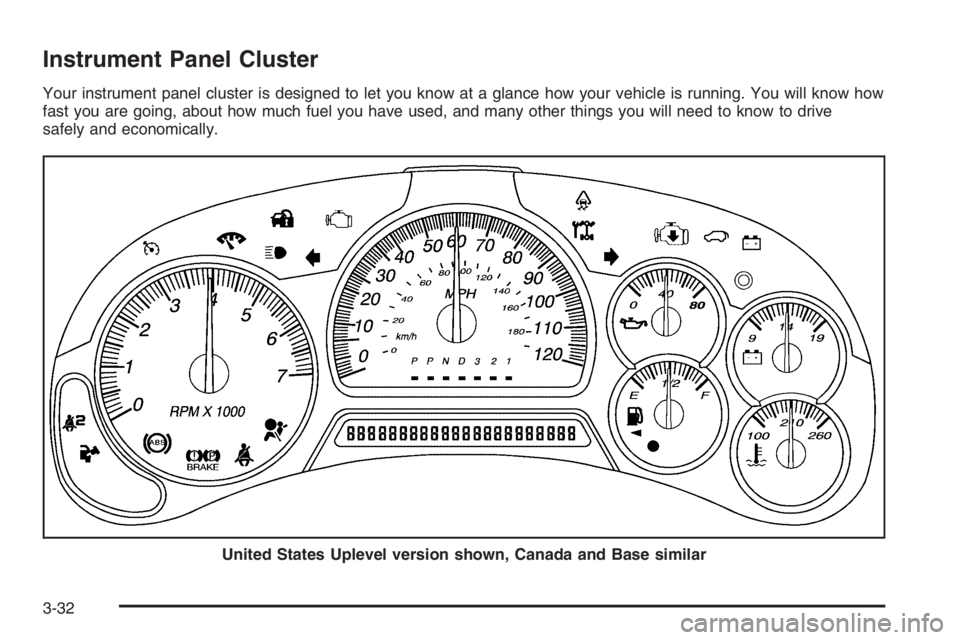
Your instrument panel cluster is designed to let you know at a glance how your vehicle is running. You will know how
fast you are going, about how much fuel you have used, and many other things you will need to know to drive
safely and economically.
United States Uplevel version shown, Canada and Base similar
3-32
Page 177 of 524
Speedometer and Odometer
Your speedometer lets you see your speed in both
miles per hour (mph) and kilometers per hour (km/h).
Your odometer shows how far your vehicle has
been driven, in either miles (used in the United States)
or kilometers (used in Canada).
The odometer mileage can be checked without the
vehicle running. Simply press the trip stem located on
the instrument panel cluster.
You may wonder what happens if your vehicle needs a
new odometer installed. The new one will be set to
the correct mileage total of the old odometer.
Trip Odometer
The trip odometer can tell you how far your vehicle has
been driven since you last set the trip odometer to zero.
Your vehicle’s odometer works together with the Driver
Information Center (DIC). You can set a Trip A and
Trip B odometer. See “Trip Information” underDIC
Operation and Displays on page 3-51.The odometer mileage can be checked without the
vehicle running. Simply press the trip stem on the
instrument panel cluster.
If your vehicle ever needs a new odometer installed, the
new one will be set to the correct mileage total of the
old odometer.
Tachometer
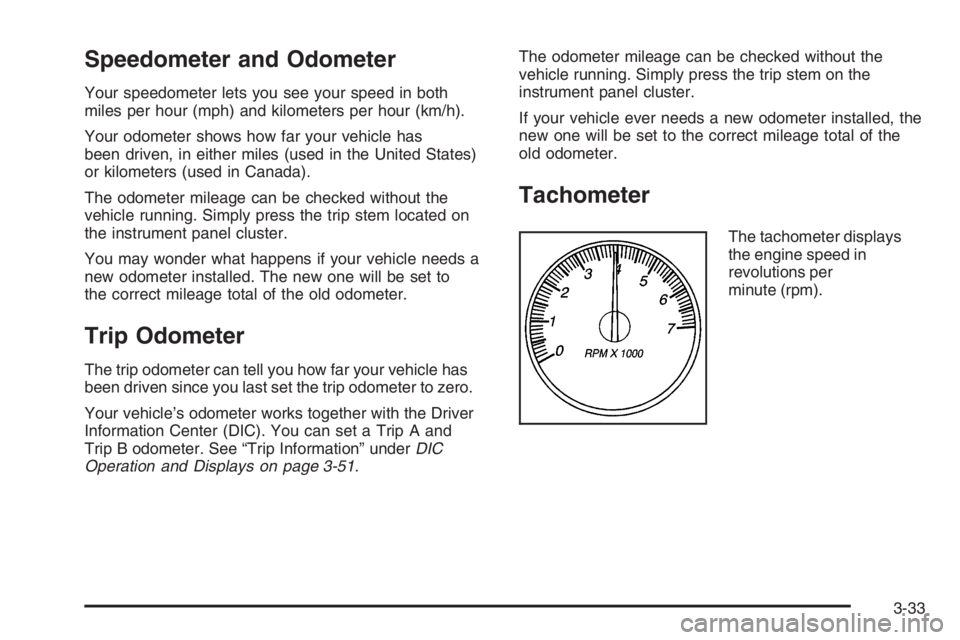
The tachometer displays
the engine speed in
revolutions per
minute (rpm).
3-33
Page 179 of 524
Airbag Readiness Light
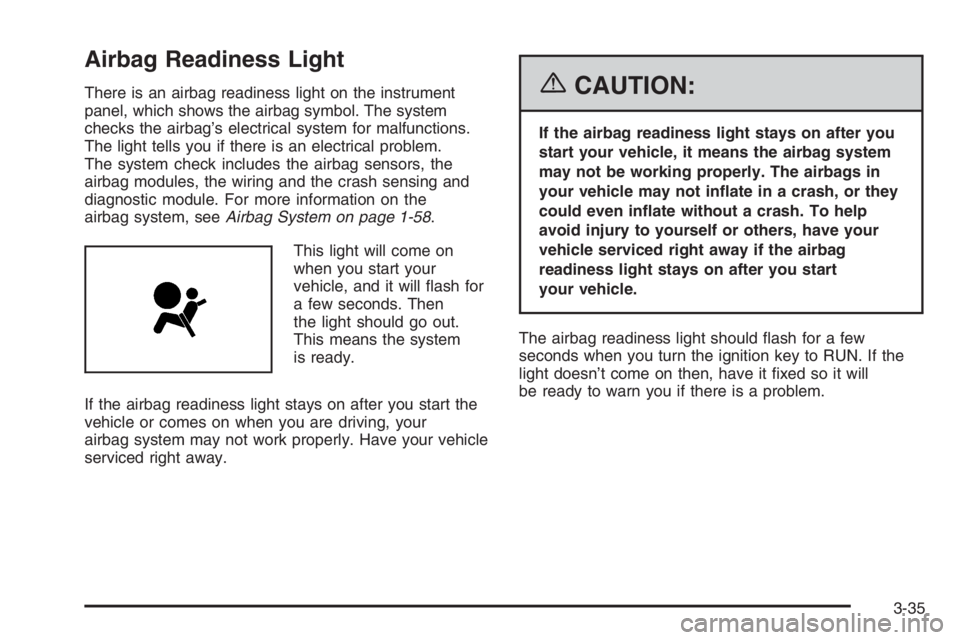
There is an airbag readiness light on the instrument
panel, which shows the airbag symbol. The system
checks the airbag’s electrical system for malfunctions.
The light tells you if there is an electrical problem.
The system check includes the airbag sensors, the
airbag modules, the wiring and the crash sensing and
diagnostic module. For more information on the
airbag system, seeAirbag System on page 1-58.
This light will come on
when you start your
vehicle, and it will ash for
a few seconds. Then
the light should go out.
This means the system
is ready.
If the airbag readiness light stays on after you start the
vehicle or comes on when you are driving, your
airbag system may not work properly. Have your vehicle
serviced right away.{CAUTION:
If the airbag readiness light stays on after you
start your vehicle, it means the airbag system
may not be working properly. The airbags in
your vehicle may not inate in a crash, or they
could even inate without a crash. To help
avoid injury to yourself or others, have your
vehicle serviced right away if the airbag
readiness light stays on after you start
your vehicle.
The airbag readiness light should ash for a few
seconds when you turn the ignition key to RUN. If the
light doesn’t come on then, have it xed so it will
be ready to warn you if there is a problem.
3-35
Page 194 of 524
Driver Information Center (DIC)
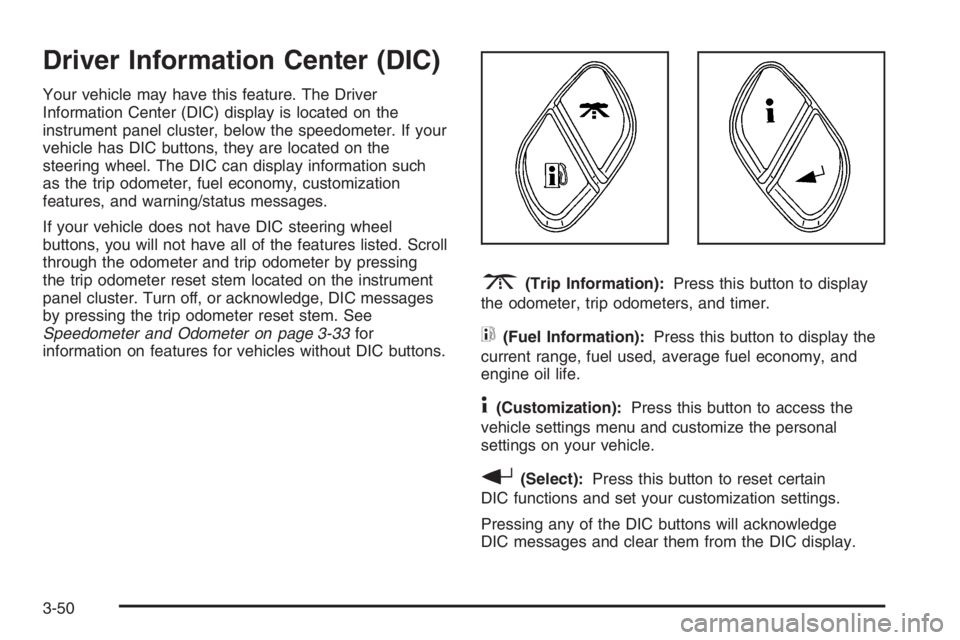
Your vehicle may have this feature. The Driver
Information Center (DIC) display is located on the
instrument panel cluster, below the speedometer. If your
vehicle has DIC buttons, they are located on the
steering wheel. The DIC can display information such
as the trip odometer, fuel economy, customization
features, and warning/status messages.
If your vehicle does not have DIC steering wheel
buttons, you will not have all of the features listed. Scroll
through the odometer and trip odometer by pressing
the trip odometer reset stem located on the instrument
panel cluster. Turn off, or acknowledge, DIC messages
by pressing the trip odometer reset stem. See
Speedometer and Odometer on page 3-33for
information on features for vehicles without DIC buttons.
3(Trip Information):Press this button to display
the odometer, trip odometers, and timer.
t(Fuel Information):Press this button to display the
current range, fuel used, average fuel economy, and
engine oil life.
4(Customization):Press this button to access the
vehicle settings menu and customize the personal
settings on your vehicle.
r(Select):Press this button to reset certain
DIC functions and set your customization settings.
Pressing any of the DIC buttons will acknowledge
DIC messages and clear them from the DIC display.
3-50
Page 198 of 524
DIC Warnings and Messages
Messages are displayed on the DIC to notify the driver
that the status of the vehicle has changed and that
some action may be needed by the driver to correct the
condition. More than one message may appear at
one time. They will appear one after the other. Some
messages may not require immediate action, but
you should press the trip stem on the instrument panel
cluster to acknowledge that you received the message
and to clear it from the display. Pressing any of the DIC
steering wheel buttons — trip information, fuel
information, customization, or select button — will also
acknowledge any warnings or service messages.
Some messages cannot be cleared from the display
because they are more urgent. These messages require
action before they can be removed from the DIC
display. The following are the possible messages that
can be displayed and some information about them.
BATTERY NOT CHARGING
If the battery is not charging during operation, this
message will appear on the DIC. Driving with this
problem could drain your battery. Have the electrical
system checked by your GM dealer as soon as possible.
SeeVoltmeter Gage on page 3-38. Press the select
button to acknowledge this message and clear it from
the DIC display.
CHANGE ENGINE OIL
This message is displayed when the engine oil needs to
be changed and service is required for your vehicle.
SeeScheduled Maintenance on page 6-4andEngine
Oil on page 5-16for more information. Also seeEngine
Oil Life System on page 5-20for information on how
to reset the message. This message will clear itself after
10 seconds until the next ignition cycle.
3-54
Page 199 of 524
CHECK WASHER FLUID
If the washer uid level is low, this message will appear
on the DIC. Adding washer uid to the windshield
washer uid reservoir will clear the message. See
Windshield Washer Fluid on page 5-37. Press the select
button to acknowledge this message and clear it from
the DIC display.
CURB VIEW ACTIVATED
The CURB VIEW ACTIVATED message is displayed
when the passenger outside rearview mirror moves into
the curb view position. SeeOutside Curb View Assist
Mirror on page 2-48for more information.
DRIVER DOOR AJAR
If the driver’s door is not fully closed, this message will
appear on the display and you will hear a chime.
Stop and turn off the vehicle, check the door for
obstacles, and close the door again. Check to see if the
message still appears on the DIC. Press the select
button to acknowledge this message and clear it from
the DIC display.
ENGINE COOLANT HOT/ENGINE
OVERHEATED
Notice:If you drive your vehicle while the engine is
overheating, severe engine damage may occur. If
an overheat warning appears on the instrument
panel cluster and/or DIC, stop the vehicle as soon
as possible. Do not increase the engine speed above
normal idling speed. SeeEngine Overheating on
page 5-28for more information.
If the cooling system temperature gets hot, this message
will appear in the DIC and you will hear a chime. See
Engine Overheating on page 5-28for the proper course
of action. This message will clear when the coolant
temperature drops to a safe operating temperature.
FUEL LEVEL LOW
If the fuel level is low in the vehicle’s gas tank this
message will appear on the DIC and you will hear a
chime. Refuel as soon as possible. Press the select
button to acknowledge this message and clear it from
the DIC display. SeeLow Fuel Warning Light on
page 3-49,Filling the Tank on page 5-8andFuel on
page 5-5for more information.
3-55
Page 300 of 524
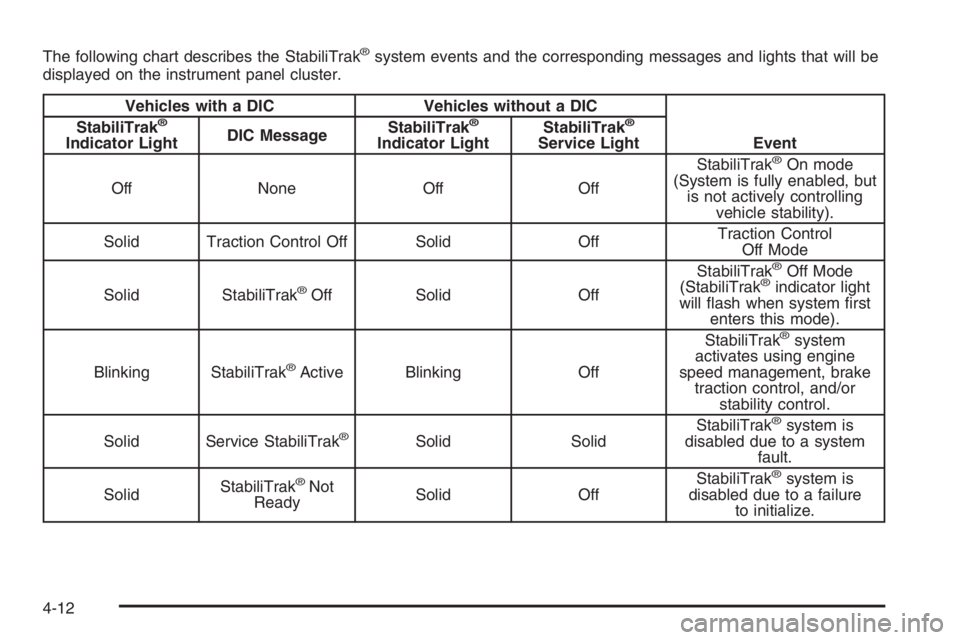
The following chart describes the StabiliTrak®system events and the corresponding messages and lights that will be
displayed on the instrument panel cluster.
Vehicles with a DIC Vehicles without a DIC
Event StabiliTrak®
Indicator LightDIC MessageStabiliTrak
®
Indicator LightStabiliTrak
®
Service Light
Off None Off OffStabiliTrak®On mode
(System is fully enabled, but
is not actively controlling
vehicle stability).
Solid Traction Control Off Solid OffTraction Control
Off Mode
Solid StabiliTrak
®Off Solid OffStabiliTrak
®Off Mode
(StabiliTrak®indicator light
will ash when system rst
enters this mode).
Blinking StabiliTrak
®Active Blinking OffStabiliTrak
®system
activates using engine
speed management, brake
traction control, and/or
stability control.
Solid Service StabiliTrak
®Solid SolidStabiliTrak
®system is
disabled due to a system
fault.
SolidStabiliTrak
®Not
ReadySolid OffStabiliTrak®system is
disabled due to a failure
to initialize.
4-12
Page 353 of 524
Following Distance
Stay at least twice as far behind the vehicle ahead as
you would when driving your vehicle without a trailer.
This can help you avoid situations that require
heavy braking and sudden turns.
Passing
You’ll need more passing distance up ahead when
you’re towing a trailer. And, because you’re a good deal
longer, you’ll need to go much farther beyond the
passed vehicle before you can return to your lane.
Backing Up
Hold the bottom of the steering wheel with one hand.
Then, to move the trailer to the left, just move that hand
to the left. To move the trailer to the right, move your
hand to the right. Always back up slowly and, if possible,
have someone guide you.
Making Turns
Notice:Making very sharp turns while trailering
could cause the trailer to come in contact with the
vehicle. Your vehicle could be damaged. Avoid
making very sharp turns while trailering.
When you’re turning with a trailer, make wider turns than
normal. Do this so your trailer won’t strike soft shoulders,
curbs, road signs, trees or other objects. Avoid jerky or
sudden maneuvers. Signal well in advance.
Turn Signals When Towing a Trailer
The arrows on your instrument panel will ash whenever
you signal a turn or lane change. Properly hooked up,
the trailer lamps will also ash, telling other drivers
you’re about to turn, change lanes or stop.
When towing a trailer, the arrows on your instrument
panel will ash for turns even if the bulbs on the trailer
are burned out. Thus, you may think drivers behind
you are seeing your signal when they are not. It’s
important to check occasionally to be sure the trailer
bulbs are still working.
4-65