radio controls GMC ENVOY XL 2005 Owners Manual
[x] Cancel search | Manufacturer: GMC, Model Year: 2005, Model line: ENVOY XL, Model: GMC ENVOY XL 2005Pages: 480, PDF Size: 11.77 MB
Page 138 of 480
Oil Pressure Gage........................................3-44
Change Engine Oil Light................................3-45
Security Light...............................................3-45
Cruise Control Light......................................3-46
Reduced Engine Power Light.........................3-46
Highbeam On Light.......................................3-46
Service Four-Wheel Drive
Warning Light...........................................3-47
Check Gages Warning Light...........................3-47
Gate Ajar Light.............................................3-47
Fuel Gage...................................................3-48
Low Fuel Warning Light.................................3-48
Check Gas Cap Light....................................3-48
Driver Information Center (DIC).......................3-49
DIC Operation and Displays...........................3-50
DIC Warnings and Messages.........................3-53
DIC Vehicle Customization.............................3-56Audio System(s).............................................3-62
Setting the Time...........................................3-62
Radio with CD (Base Level)...........................3-63
Radio with CD (MP3)....................................3-73
Radio with Cassette and CD..........................3-87
Radio with Six-Disc CD................................3-100
Navigation/Radio System..............................3-113
Rear Seat Entertainment System...................3-113
Rear Seat Audio (RSA)................................3-124
Theft-Deterrent Feature................................3-125
Audio Steering Wheel Controls......................3-126
Radio Reception.........................................3-127
Care of the Cassette Tape Player.................3-127
Care of Your CDs and DVDs........................3-128
Care of the CD and DVD Player...................3-128
Fixed Mast Antenna....................................3-129
XM™ Satellite Radio Antenna System............3-129
Chime Level Adjustment...............................3-129
Section 3 Instrument Panel
3-2
Page 198 of 480

Audio System(s)
Notice:Before adding any sound equipment to
your vehicle, such as an audio system, CD player,
CB radio, mobile telephone, or two-way radio,
make sure that it can be added by checking with
your dealer. Also, check federal rules covering
mobile radio and telephone units. If sound
equipment can be added, it is very important to do
it properly. Added sound equipment may interfere
with the operation of your vehicle’s engine, radio,
or other systems, and even damage them. Your
vehicle’s systems may interfere with the operation
of sound equipment that has been added.
Notice:The chime signals related to seat belts,
parking brake, and other functions of your vehicle
operate through the GM radio/entertainment
system. If that equipment is replaced or additional
equipment is added to your vehicle, the chimes may
not work. Make sure that replacement or additional
equipment is compatible with your vehicle before
installing it.
Figure out which audio system is in your vehicle, nd
out what your audio system can do, and how to operate
all of its controls.Your vehicle has a feature called Retained Accessory
Power (RAP). With RAP, the audio system can be
played even after the ignition is turned off. SeeRetained
Accessory Power (RAP) on page 2-21for more
information.
Setting the Time
The radio may have a button marked with an H or HR to
represent hours and an M or MN to represent minutes.
Press and hold the hour button until the correct hour
appears on the display. AM or PM will appear on
the display for morning or evening hours. Press and
hold the minute button until the correct minute appears
on the display. The time can be set with the ignition
on or off.
To synchronize the time with an FM station broadcasting
Radio Data System (RDS) information, press and
hold the hour and minute buttons at the same time for
two seconds until UPDATED and the clock symbol
appear on the display. If the time is not available from
the station, NO UPDAT will appear on the display.
RDS time is broadcast once a minute. After tuning to an
RDS broadcast station, it may take a few minutes for
the time to update.
3-62
Page 202 of 480

Setting the Tone (Bass/Treble)
AUDIO:Push and release the AUDIO knob until BASS,
MID (without Bose®), or TREB appears on the display.
Turn the knob to increase or to decrease. The display will
show the bass, midrange (without Bose
®), or treble level.
If a station is weak or noisy, decrease the treble.
To adjust the bass, midrange (without Bose
®), or treble to
the middle position while it is displayed, push and hold
the AUDIO knob. The radio will produce one beep and
adjust the display level to the middle position.
To adjust all tone and speaker controls to the middle
position, push and hold the AUDIO knob when no tone or
speaker control is displayed. ALL CENTERED will appear
on the display, you will hear a beep, and the display level
will be adjusted to the middle position.
AUTO EQ (Automatic Equalization):Press this button
to select customized equalization settings designed for
country/western, jazz, talk, pop, rock, and classical.
Selecting CUSTOM or changing bass or treble, returns
the EQ to the manual bass and treble settings.
The radio will save separate AUTO EQ settings for each
preset and source.
If the radio is equipped with the Bose audio system, the
AUTO EQ settings are either CUSTOM or TALK.
Adjusting the Speakers (Balance/Fade)
AUDIO:To adjust the balance between the right
and the left speakers, push and release the AUDIO
knob until BAL appears on the display. Turn the knob to
move the sound toward the right or the left speakers.
To adjust the fade between the front and the rear
speakers, push and release the AUDIO knob until FADE
appears on the display. Turn the knob to move the
sound toward the front or the rear speakers.
To adjust the balance or fade to the middle position
while it is displayed, push the AUDIO knob, then push it
again and hold it until the radio produces one beep.
The balance and fade will be adjusted to the middle
position and the display will show the speaker balance.
To adjust all tone and speaker controls to the middle
position, push and hold the AUDIO knob when no tone
or speaker control is displayed. ALL CENTERED will
appear on the display, you will hear a beep, and
the display level will be adjusted to the middle position.
3-66
Page 212 of 480

Setting the Tone (Bass/Treble)
AUDIO:Push and release the AUDIO knob until BASS,
MID (without Bose®), or TREB appears on the display.
Turn the knob to increase or to decrease. The
display will show the bass, midrange (without Bose
®),
or the treble level. If a station is weak or noisy, decrease
the treble.
To adjust the bass, midrange (without Bose
®), or the
treble to the middle position while it is displayed,
push and hold the AUDIO knob. The radio will produce
one beep.
To adjust all tone and speaker controls to the middle
position, push and hold the AUDIO knob when no tone
or speaker control is displayed. ALL CENTERED will
appear on the display and you will hear a beep.
AUTO EQ (Automatic Equalization):Press this button
to select customized equalization settings designed
for country/western, jazz, talk, pop, rock, and classical.
To return the bass and treble to the manual mode,
push and release the AUTO EQ button until CUSTOM
appears on the display.
If the radio is equipped with the Bose audio system, the
equalization settings are either CUSTOM or TALK.
Adjusting the Speakers (Balance/Fade)
AUDIO:To adjust the balance between the right
and the left speakers, push and release the AUDIO
knob until BAL appears on the display. Turn the knob to
move the sound toward the right or the left speakers.
To adjust the fade between the front and the rear
speakers, push and release the AUDIO knob until FADE
appears on the display. Turn the knob to move the
sound toward the front or the rear speakers.
To adjust the balance or the fade to the middle position
while it is displayed, push the AUDIO knob, and hold
it until you hear one beep.
To adjust all tone and speaker controls to the middle
position, push and hold the AUDIO knob when no tone
or speaker control is displayed. ALL CENTERED will
appear on the display and you will hear a beep.
3-76
Page 226 of 480
Setting Preset Stations
Up to 30 stations (six FM1, six FM2, and six AM,
six XM1 and six XM2 (if equipped)), can be programed
on the six numbered pushbuttons, by performing the
following steps:
1. Turn the radio on.
2. Press BAND to select FM1, FM2, AM, or XM1
or XM2.
3. Tune in the desired station.
4. Press and hold one of the six numbered
pushbuttons until you hear a beep. Whenever
that numbered pushbutton is pressed, the station
that was set will return for that pushbutton.
5. Repeat the steps for each pushbutton.
To store an equalization setting to a preset station
perform the following:
1. Tune to the preset station.
2. Press and release the AUTO EQ button to select
the equalization setting.
Once the equalization no longer appears on the
display, the equalization will be set for that preset
station.
Setting the Tone (Bass/Treble)
AUDIO:Push and release the AUDIO knob until BASS,
MID (without Bose®), or TREB appears on the display.
Turn the knob to increase or to decrease. The
display will show the bass, midrange (without Bose
®),
or treble level. If a station is weak or noisy, decrease
the treble.
To adjust the bass, midrange (without Bose
®), or treble
to the middle position while it is displayed, while it is
displayed, push and hold the AUDIO knob. The radio will
produce one beep and adjust the display level to the
middle position.
To adjust all tone and speaker controls to the middle
position, push and hold the AUDIO knob when no tone
or speaker control is displayed. ALL CENTERED will
appear on the display, you will hear a beep, and
the display level will be adjusted to the middle position.
AUTO EQ (Automatic Equalization):Press this button
to select customized equalization settings designed for
country/western, jazz, talk, pop, rock, and classical.
Selecting CUSTOM or changing bass or treble, returns
the EQ to the manual bass and treble settings.
The radio will save separate AUTO EQ settings for each
preset and source.
If the radio is equipped with the Bose
®audio system, the
AUTO EQ settings are either CUSTOM or TALK.
3-90
Page 227 of 480

Adjusting the Speakers (Balance/Fade)
AUDIO:To adjust the balance between the right
and the left speakers, push and release the AUDIO
knob until BAL appears on the display. Turn the knob to
move the sound toward the right or the left speakers.
To adjust the fade between the front and the rear
speakers, push and release the AUDIO knob until FADE
appears on the display. Turn the knob to move the
sound toward the front or the rear speakers.
To adjust the balance or fade to the middle position while
it is displayed, push the AUDIO knob, then push it again
and hold it until the radio produces one beep. The
balance or fade will be adjusted to the middle position.
To adjust all tone and speaker controls to the middle
position, push and hold the AUDIO knob when no tone or
speaker control is displayed. ALL CENTERED will appear
on the display, you will hear a beep, and the display level
will be adjusted to the middle position.
Finding a Program Type (PTY) Station
(RDS and XM™)
To select and nd a desired PTY perform the following:
1. Press the TYPE button to activate program type
select mode. TYPE and a PTY will appear on the
display.2. Turn the TYPE knob or press and release the
TYPE button to select a PTY.
3. Once the desired PTY is displayed, press and
release either the TYPE or the SEEK arrows to
select and to take you to the PTY’s rst station.
4. To go to another station within that PTY, press the
TYPE button then, press either the TYPE or the
SEEK arrows once.
5. Press either the TYPE or the SEEK arrows twice to
exit program type select mode.
If the radio cannot nd the desired program type, NONE
will appear on the display and the radio will return to
the last station you were listening to.
SCAN:Scan the stations within a PTY by performing
the following:
1. Press the TYPE button to activate program type
select mode. TYPE and the last selected PTY will
appear on the display.
2. Turn the TYPE knob or press and release the
TYPE button to select a PTY.
3. Once the desired PTY is displayed, press and hold
either the TYPE or the SCAN arrows for two
seconds, and the radio will begin scanning the
stations in the PTY.
4. Press either the TYPE or the SCAN arrows to
stop scanning.
3-91
Page 231 of 480
Playing a Cassette Tape
The tape player is built to work best with tapes that are
up to 30 to 45 minutes long on each side. Tapes
longer than that are so thin they may not work well in
this player. The longer side with the tape visible should
face to the right. If you hear nothing or hear a garbled
sound, the tape may not be in squarely. Press the eject
button to remove the tape and start over.
If the ignition and radio are off, the tape can be inserted,
but will not play until ignition and radio are on. If the
ignition is on and the radio is off, the tape can be
inserted and will begin playing.
While the tape is playing, use the VOL, AUDIO, and
SEEK controls just as you do for the radio. The cassette
tape symbol will appear on the display and an arrow
showing which side of the tape is playing. The tape
player will play the other side of the tape when it
reaches the end.
Cassette tape adapter kits for portable CD players will
work in the cassette tape player. See “CD Adapter Kits”
later for more information.
The tape bias is set automatically when a metal or
chrome tape is inserted.
If an error appears on the display, see “Cassette Tape
Messages” later in this section.1 PREV (Previous):The tape must have at least
three seconds of silence between each selection for
previous to work. Press this pushbutton to go to the
previous selection on the tape if the current selection has
been playing for less than three seconds. If pressed when
the current selection has been playing from three to
13 seconds, it will go to the beginning of the previous
selection or the beginning of the current selection,
depending on the position on the tape. If pressed when
the current selection has been playing for more than
13 seconds, it will go to the beginning of the current
selection.
SEEK and a negative number will appear on the display
while the cassette player is in the previous mode.
Pressing this pushbutton multiple times will increase the
number of selections to be searched back, up to−9.
2 NEXT:The tape must have at least three seconds
of silence between each selection for next to work.
Press this pushbutton to go to the next selection on the
tape. Pressing this pushbutton multiple times, in next
mode, will increase the number of selections to be
searched forward. SEEK and a positive number
will appear on the display.
3 REV (Reverse):Press this pushbutton to quickly
reverse the tape. The radio will play while the tape
reverses. Press it again to return to playing speed.
The station frequency and REV will appear on the
display. Select stations during reverse operation by
using TUNE and SEEK.
3-95
Page 239 of 480

Setting the Tone (Bass/Treble)
AUDIO:Push and release the AUDIO knob until
BASS, MID (without Bose®), or TREB appears on the
display. Turn the knob to increase or to decrease.
The display will show the bass, midrange (without
Bose
®), or treble level. If a station is weak or noisy,
decrease the treble.
To adjust the bass, midrange (without Bose
®), or treble
to the middle position while it is displayed, push and
hold the AUDIO knob. The radio will produce one beep
and adjust the display level to the middle position.
To adjust all tone and speaker controls to the middle
position, push and hold the AUDIO knob when no tone
or speaker controls are displayed. ALL CENTERED
will appear on the display and you will hear a beep.
AUTO EQ (Automatic Equalization):Press this button
to select customized equalization settings designed
for country/western, jazz, talk, pop, rock, and classical.
The radio will save separate AUTO EQ settings for
each preset and source.
If the radio is equipped with the Bose
®audio system,
the equalization settings are either CUSTOM or TALK.
Adjusting the Speakers (Balance/Fade)
AUDIO:To adjust the balance between the right
and the left speakers, push and release the AUDIO
knob until BAL appears on the display. Turn the knob to
move the sound toward the right or the left speakers.
To adjust the fade between the front and rear speakers,
push and release the AUDIO knob until FAD appears
on the display. Turn the knob to move the sound toward
the front or the rear speakers.
To adjust the balance or fade to the middle position
while it is displayed, push and hold the AUDIO knob.
The radio will produce one beep and adjust the display
level to the middle position.
To adjust all tone and speaker controls to the middle
position, push and hold the AUDIO knob when no tone
or speaker controls are displayed. ALL CENTERED
will appear on the display and you will hear a beep.
3-103
Page 260 of 480
Cleaning the Video Screen
Pour some isopropyl or rubbing alcohol on a clean
cloth and gently wipe the video screen. Do not spray
directly onto the screen and do not press too hard or
too long on the video screen.
Rear Seat Audio (RSA)
This feature allows rear seat passengers to listen to any
of the sources: radio, cassette tapes, CDs, or DVDs.
However, the rear seat passengers can only control
the sources that the front seat passengers are not
listening to. For example, rear seat passengers may
listen to and control cassette tapes, CDs, or DVDs
through the headphones while the driver listens to
the radio through the front speakers. The rear seat
passengers have control of the volume for each set
of headphones.
The front seat audio controls always have priority
over the RSA controls. If the front seat passengers
switch the source for the main radio to a remote source,
the RSA will not be able to control the source. You
can operate the rear seat audio when the main radio
is off.
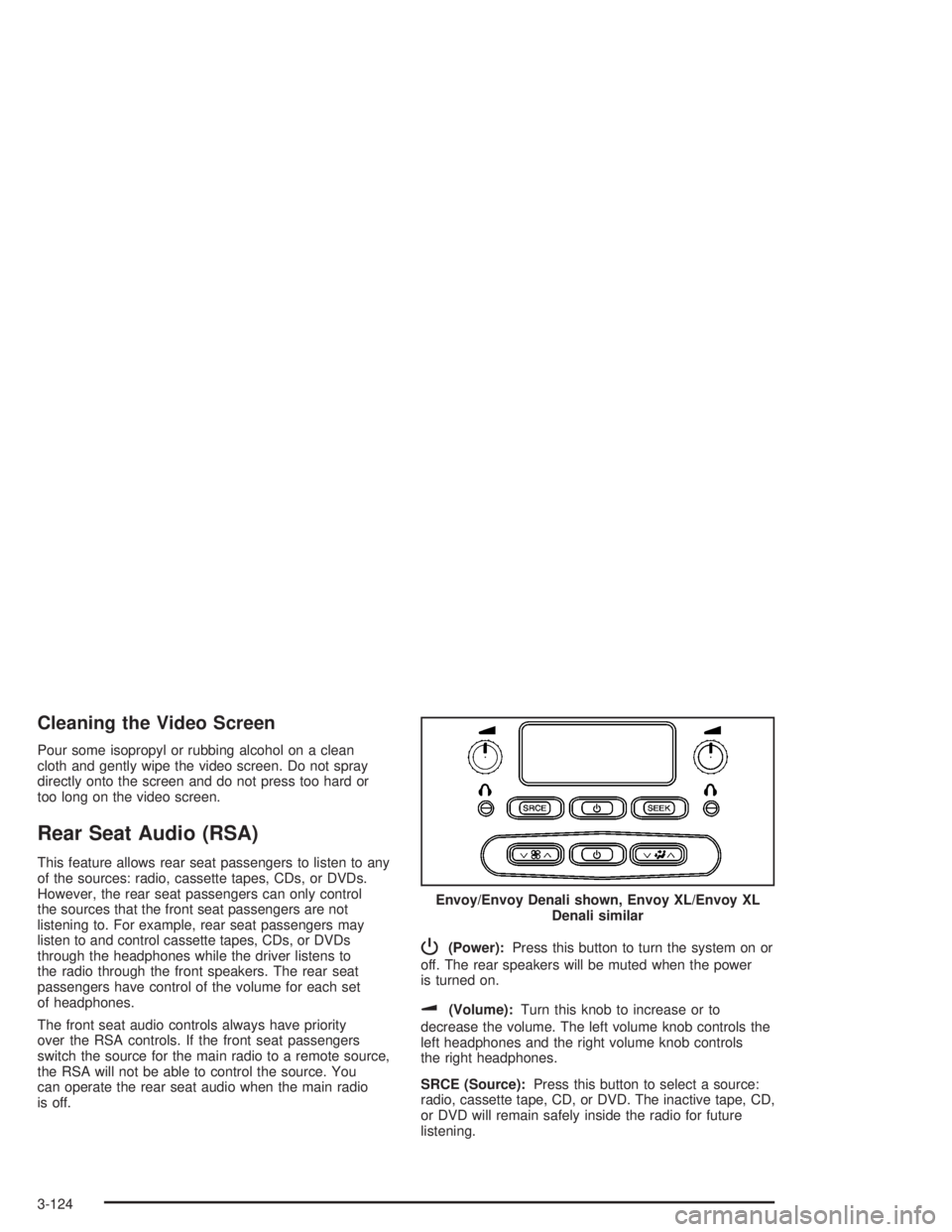
P(Power):Press this button to turn the system on or
off. The rear speakers will be muted when the power
is turned on.
u(Volume):Turn this knob to increase or to
decrease the volume. The left volume knob controls the
left headphones and the right volume knob controls
the right headphones.
SRCE (Source):Press this button to select a source:
radio, cassette tape, CD, or DVD. The inactive tape, CD,
or DVD will remain safely inside the radio for future
listening.Envoy/Envoy Denali shown, Envoy XL/Envoy XL
Denali similar
3-124
Page 262 of 480
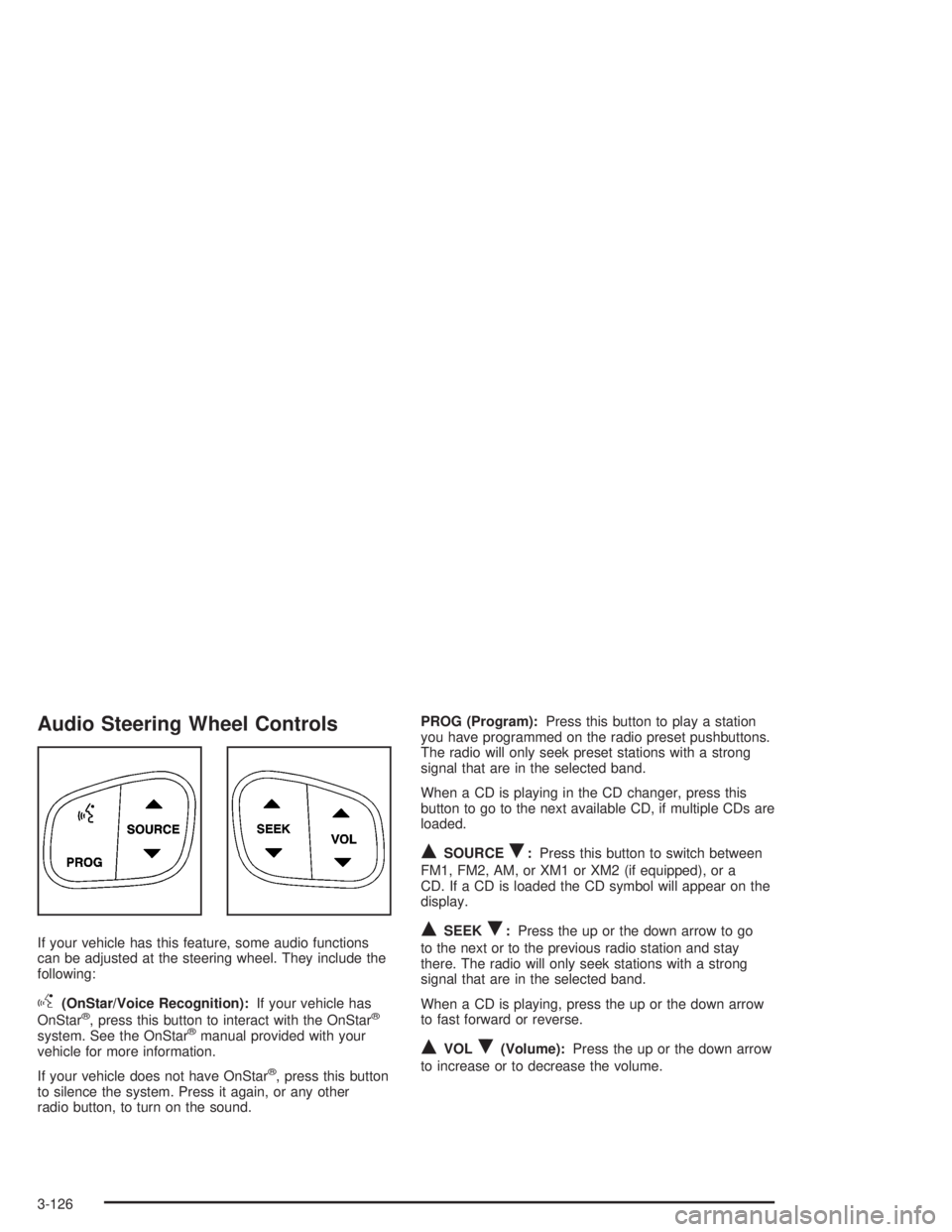
Audio Steering Wheel Controls
If your vehicle has this feature, some audio functions
can be adjusted at the steering wheel. They include the
following:
g(OnStar/Voice Recognition):If your vehicle has
OnStar®, press this button to interact with the OnStar®
system. See the OnStar®manual provided with your
vehicle for more information.
If your vehicle does not have OnStar
®, press this button
to silence the system. Press it again, or any other
radio button, to turn on the sound.PROG (Program):Press this button to play a station
you have programmed on the radio preset pushbuttons.
The radio will only seek preset stations with a strong
signal that are in the selected band.
When a CD is playing in the CD changer, press this
button to go to the next available CD, if multiple CDs are
loaded.
QSOURCER:Press this button to switch between
FM1, FM2, AM, or XM1 or XM2 (if equipped), or a
CD. If a CD is loaded the CD symbol will appear on the
display.
QSEEKR:Press the up or the down arrow to go
to the next or to the previous radio station and stay
there. The radio will only seek stations with a strong
signal that are in the selected band.
When a CD is playing, press the up or the down arrow
to fast forward or reverse.
QVOLR(Volume):Press the up or the down arrow
to increase or to decrease the volume.
3-126