audio GMC ENVOY XL 2006 Owner's Manual
[x] Cancel search | Manufacturer: GMC, Model Year: 2006, Model line: ENVOY XL, Model: GMC ENVOY XL 2006Pages: 524, PDF Size: 2.88 MB
Page 227 of 524
Setting the Tone
(Bass/Midrange/Treble)
AUDIO:Push and release the AUDIO knob until BASS,
MID (without Bose®), or TREB appears on the display.
Turn the knob to increase or to decrease. The
display will show the bass, midrange (without Bose
®), or
the treble level. If a station is weak or noisy, decrease
the treble.
To adjust the bass, midrange (without Bose
®), or the
treble to the middle position while it is displayed,
push and hold the AUDIO knob. The radio will produce
one beep.
To adjust all tone and speaker controls to the middle
position, push and hold the AUDIO knob when no tone
or speaker control is displayed. ALL CENTERED will
appear on the display and you will hear a beep.
AUTO EQ (Automatic Equalization):Press this button
to select customized equalization settings designed
for country/western, jazz, talk, pop, rock, and classical.
To return the bass and treble to the manual mode,
push and release the AUTO EQ button until CUSTOM
appears on the display.
If the radio is equipped with the Bose audio system, the
equalization settings are either CUSTOM or TALK.
Adjusting the Speakers (Balance/Fade)
AUDIO:To adjust the balance between the right
and the left speakers, push and release the AUDIO
knob until BAL appears on the display. Turn the knob to
move the sound toward the right or the left speakers.
To adjust the fade between the front and the rear
speakers, push and release the AUDIO knob until FADE
appears on the display. Turn the knob to move the
sound toward the front or the rear speakers.
To adjust the balance or the fade to the middle position
while it is displayed, push the AUDIO knob, then
push it again and hold it until you hear one beep.
To adjust all tone and speaker controls to the middle
position, push and hold the AUDIO knob when no tone
or speaker control is displayed. ALL CENTERED will
appear on the display and you will hear a beep.
3-83
Page 229 of 524
INFO (Information):If the current station has a
message, the information symbol will appear on the
display. Press this button to see the message. The
message may display the artist, song title, call in phone
numbers, etc.
If the entire message is not displayed, parts of the
message will appear every three seconds. To scroll
through the message, press and release the INFO
button. A new group of words will appear on the display
after every press of this button. Once the complete
message has been displayed, the information symbol
will disappear from the display until another new
message is received. The last message can be
displayed by pressing the INFO button. You can view
the last message until a new message is received
or a different station is tuned to.
When a message is not available from a station, No Info
will appear on the display.
TRAF (Traffic):If TRAF appears on the display, the
tuned station broadcasts traffic announcements
and when a traffic announcement comes on the tuned
radio station you will hear it.
If the station does not broadcast traffic announcements,
press the TRAF button and the radio will seek to a
station that does. When a station that broadcasts trafficannouncements is found, the radio will stop seeking and
TRAF will appear on the display. If no station is found
that broadcasts traffic announcements, No Traf will
appear on the display.
If TRAF is on the display, press the TRAF button to turn
off the traffic announcements.
The radio will play the traffic announcement if the
volume is low. The radio will interrupt the play of a CD if
the last tuned station broadcasts traffic announcements.
This function does not apply to XM™ Satellite
Radio Service.
Radio Messages
CAL ERR (Calibration Error):The audio system has
been calibrated for your vehicle from the factory. If
CAL ERR appears on the display it means that the radio
has not been congured properly for your vehicle and
it must be returned to your GM dealer for service.
LOCKED:This message is displayed when the
THEFTLOCK
®system has locked up. Take your vehicle
to your GM dealer for service.
If any error occurs repeatedly or if an error cannot be
corrected, contact your GM dealer.
3-85
Page 230 of 524
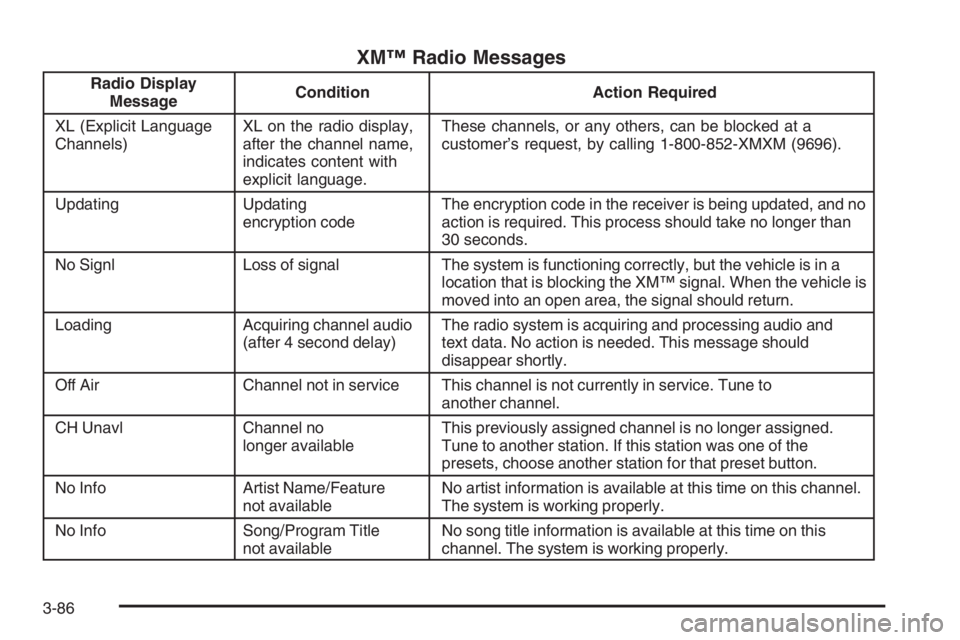
XM™ Radio Messages
Radio Display
MessageCondition Action Required
XL (Explicit Language
Channels)XL on the radio display,
after the channel name,
indicates content with
explicit language.These channels, or any others, can be blocked at a
customer’s request, by calling 1-800-852-XMXM (9696).
Updating Updating
encryption codeThe encryption code in the receiver is being updated, and no
action is required. This process should take no longer than
30 seconds.
No Signl Loss of signal The system is functioning correctly, but the vehicle is in a
location that is blocking the XM™ signal. When the vehicle is
moved into an open area, the signal should return.
Loading Acquiring channel audio
(after 4 second delay)The radio system is acquiring and processing audio and
text data. No action is needed. This message should
disappear shortly.
Off Air Channel not in service This channel is not currently in service. Tune to
another channel.
CH Unavl Channel no
longer availableThis previously assigned channel is no longer assigned.
Tune to another station. If this station was one of the
presets, choose another station for that preset button.
No Info Artist Name/Feature
not availableNo artist information is available at this time on this channel.
The system is working properly.
No Info Song/Program Title
not availableNo song title information is available at this time on this
channel. The system is working properly.
3-86
Page 232 of 524

Playing a CD
Insert a CD partway into the slot, label side up. The
player will pull it in, and READING will appear on
the display. The CD should begin playing. If you want to
insert a CD with the ignition off, rst press the eject
button or the DISPL knob.
If the ignition or radio is turned off with a CD in the
player it will stay in the player. When the ignition or radio
is turned on, the CD will start to play where it stopped,
if it was the last selected audio source.
When the CD is inserted, the CD symbol will appear on
the display. As each new track starts to play, the
track number will appear on the display.
The CD player can play the smaller 3 inch (8 cm) single
CDs with an adapter ring. Full-size CDs and the
smaller CDs are loaded in the same manner.
If playing a CD-R, the sound quality may be reduced
due to CD-R quality, the method of recording, the quality
of the music that has been recorded, and the way the
CD-R has been handled. There may be an increase
in skipping, difficulty in nding tracks, and/or difficulty in
loading and ejecting. If these problems occur, check
the bottom surface of the CD. If the surface of the CD is
damaged, such as cracked, broken, or scratched, the
CD will not play properly. If the surface of the CD
is soiled, seeCare of Your CDs and DVDs on
page 3-142for more information.If there is no apparent damage, try a known good CD.
Do not add any label to a CD, it could get caught in the
CD player. If a CD is recorded on a personal computer
and a description label is needed, try labeling the top of
the recorded CD with a marking pen instead.
Notice:If you add any label to a CD, insert more
than one CD into the slot at a time, or attempt
to play scratched or damaged CDs, you could
damage the CD player. When using the CD player,
use only CDs in good condition without any
label, load one CD at a time, and keep the CD player
and the loading slot free of foreign materials,
liquids, and debris.
If an error appears on the display, see “CD Messages”
later in this section.
1 FLD
x(Previous):This pushbutton is inoperable
when using a non-MP3 CD.
2 FLD
w(Next):This pushbutton is inoperable when
using a non-MP3 CD.
3 REV (Reverse):Press and hold this pushbutton to
reverse quickly within a track. Press and hold this
pushbutton for less than two seconds to reverse at 10
times the normal playing speed. Press and hold it
for more than two seconds to reverse at 20 times the
normal playing speed. Release this pushbutton to
play the passage. ET and the elapsed time of the track
will appear on the display.
3-88
Page 234 of 524

Using an MP3 CD
MP3 Format
If you burn your own MP3 disc on a personal computer:
Make sure the MP3 les are recorded on a
CD-R disc.
Do not mix standard audio and MP3 les on
one disc.
Make sure playlists have a.m3u or .wpl extension,
other le extensions may not work.
Files can be recorded with a variety of xed or
variable bit rates. Song title, artist name, and album
will be available for display by the radio when
recorded using ID3 tags version 1 and 2.
Create a folder structure that makes it easy to nd
songs while driving. Organize songs by albums
using one folder for each album. Each folder
or album should contain 18 songs or less.
Make sure to nalize the disc when burning an MP3
disc, using multiple sessions. It is usually better to
burn the disc all at once.The player will be able to read and play a maximum of
50 folders, 50 playlists, 10 sessions, and 255 les.
Long le names, folder names, or playlist names may
use more disc memory space than necessary. To
conserve space on the disc, minimize the length of the
le, folder or playlist names. You can also play an
MP3 CD that was recorded using no le folders. The
system can support up to 11 folders in depth, though,
keep the depth of the folders to a minimum in order
to keep down the complexity and confusion in trying to
locate a particular folder during playback. If a CD
contains more than the maximum of 50 folders,
50 playlists, 10 sessions, and 255 les the player will let
you access and navigate up to the maximum, but all
items over the maximum will be ignored.
Root Directory
The root directory will be treated as a folder. If the root
directory has compressed audio les, the directory
will be displayed as F1 ROOT. All les contained directly
under the root directory will be accessed prior to any
root directory folders. However, playlists (Px) will always
be accessed before root folders or les.
3-90
Page 235 of 524

Empty Directory or Folder
If a root directory or a folder exists somewhere in the
le structure that contains only folders/subfolders and no
compressed les directly beneath them, the player will
advance to the next folder in the le structure that
contains compressed audio les and the empty folder
will not be displayed or numbered.
No Folder
When the CD contains only compressed les, the les
will be located under the root folder. The next and
previous folder functions will have no function on a CD
that was recorded without folders or playlists. When
displaying the name of the folder the radio will
display ROOT.
When the CD contains only playlists and compressed
audio les, but no folders, all les will be located under
the root folder. The folder down and the folder up
buttons will search playlists (Px) rst and then go to the
root folder. When the radio displays the name of the
folder the radio will display ROOT.
Order of Play
Tracks will be played in the following order:
Play will begin from the rst track in the rst playlist
and will continue sequentially through all tracks in
each playlist. When the last track of the last playlist
has been played, play will continue from the rst
track of the rst playlist.
If the CD does not contain any playlists, then play
will begin from the rst track under the root
directory. When all tracks from the root directory
have been played, play will continue from les
according to their numerical listing. After playing the
last track from the last folder, play will begin
again at the rst track of the rst folder or root
directory.
When play enters a new folder, the display will not
automatically show the new folder name unless
you have chosen the folder mode as the default display.
See DISPL later in this section for more information.
The new track name will appear on the display.
3-91
Page 236 of 524

File System and Naming
The song name that will be displayed will be the song
name that is contained in the ID3 tag. If the song name
is not present in the ID3 tag, then the radio will
display the le name without the extension (such as
.mp3) as the track name.
Track names longer than 32 characters or four pages
will be shortened. The display will not show parts
of words on the last page of text and the extension of
the lename will not be displayed.
Preprogrammed Playlists
You can access preprogrammed playlists which were
created by WinAmp™, MusicMatch™, or Real
Jukebox™ software, however, you will not have editing
capability. These playlists will be treated as special
folders containing compressed audio song les.
Playing an MP3
Insert a CD partway into the slot, label side up. The
player will pull it in, and READING will appear on
the display. The CD should begin playing and the CD
symbol will appear on the display. If you want to insert a
CD with the ignition off, rst press the eject button or
the DISPL knob.If the ignition or radio is turned off with a CD in the
player it will stay in the player. When the ignition or radio
is turned on, the CD will start to play where it stopped,
if it was the last selected audio source.
As each new track starts to play, the track number will
appear on the display.
The CD player can play the smaller 3 inch (8 cm) single
CDs with an adapter ring. Full-size CDs and the
smaller CDs are loaded in the same manner.
If playing a CD-R, the sound quality may be reduced
due to CD-R quality, the method of recording, the quality
of the music that has been recorded, and the way the
CD-R has been handled. There may be an increase
in skipping, difficulty in nding tracks, and/or difficulty in
loading and ejecting. If these problems occur, check
the bottom surface of the CD. If the surface of the CD is
damaged, such as cracked, broken, or scratched, the
CD will not play properly. If the surface of the CD
is soiled, seeCare of Your CDs and DVDs on
page 3-142for more information.
If there is no apparent damage, try a known good CD.
3-92
Page 240 of 524
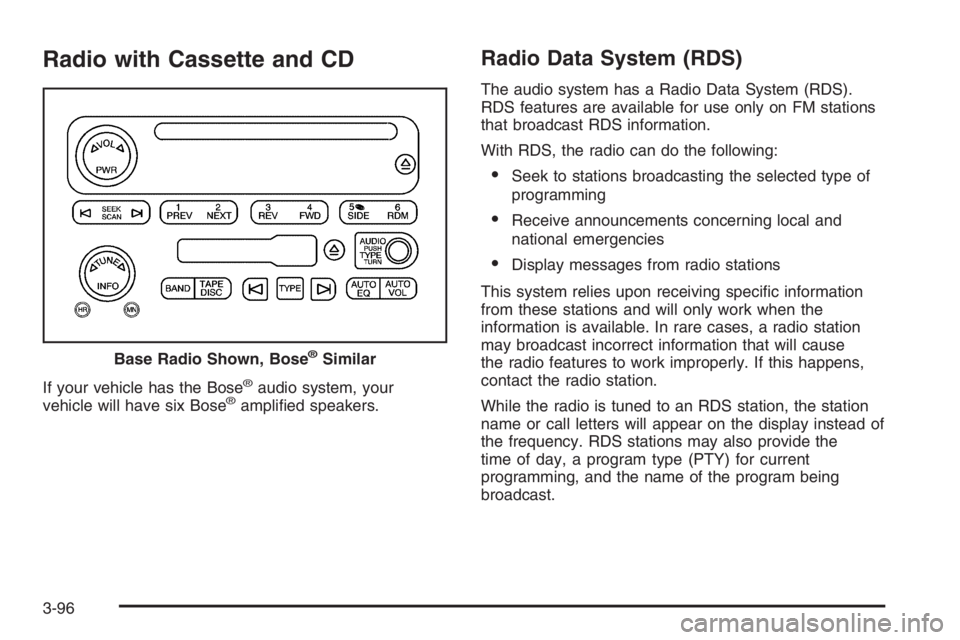
Radio with Cassette and CD
If your vehicle has the Bose®audio system, your
vehicle will have six Bose®amplied speakers.
Radio Data System (RDS)
The audio system has a Radio Data System (RDS).
RDS features are available for use only on FM stations
that broadcast RDS information.
With RDS, the radio can do the following:
Seek to stations broadcasting the selected type of
programming
Receive announcements concerning local and
national emergencies
Display messages from radio stations
This system relies upon receiving specic information
from these stations and will only work when the
information is available. In rare cases, a radio station
may broadcast incorrect information that will cause
the radio features to work improperly. If this happens,
contact the radio station.
While the radio is tuned to an RDS station, the station
name or call letters will appear on the display instead of
the frequency. RDS stations may also provide the
time of day, a program type (PTY) for current
programming, and the name of the program being
broadcast. Base Radio Shown, Bose
®Similar
3-96
Page 241 of 524
XM™ Satellite Radio Service
XM™ is a satellite radio service that is based in the 48
contiguous United States and in Canada (if available).
XM™ offers over 100 coast-to-coast channels including
music, news, sports, talk, and children’s programming.
XM™ provides digital quality audio and text information
that includes song title and artist name. A service
fee is required in order to receive the XM™ service. For
more information, contact XM™ at www.xmradio.com
or call 1-800-852-XMXM (9696).
Playing the Radio
PWR (Power):Press this knob to turn the system on
and off.
oVOLp(Volume):Turn this knob to increase or to
decrease the volume.
INFO (Information):When the ignition is off, press this
knob to display the time.
For RDS, press the INFO knob to change what appears
on the display while using RDS. The display options
are station name, RDS station frequency, PTY, and the
name of the program (if available).For XM™ (if equipped), press the INFO knob while in
XM™ mode to retrieve four different categories of
information related to the current song or channel:
Artist, Song Title, Category or PTY, Channel
Number/Channel Name.
To change the default on the display, press the INFO
knob until you see the display you want, then press and
hold the knob until the display ashes. The selected
display will now be the default.
AUTO VOL (Automatic Volume):With automatic
volume, the audio system will adjust automatically to
make up for road and wind noise as you drive by
increasing the volume as vehicle speed increases.
Set the volume at the desired level. Press this button to
select LOW, MEDIUM, or HIGH. AVOL will appear
on the display. Each higher setting will provide more
volume compensation at faster vehicle speeds. To turn
automatic volume off, press this button until AVOL
OFF appears on the display.
3-97
Page 243 of 524
Setting the Tone
(Bass/Midrange/Treble)
AUDIO:Push and release the AUDIO knob until BASS,
MID (without Bose®), or TREB appears on the display.
Turn the knob to increase or to decrease. The
display will show the bass, midrange (without Bose
®),
or treble level. If a station is weak or noisy, decrease
the treble.
To adjust the bass, midrange (without Bose
®), or treble
to the middle position while it is displayed, push and
hold the AUDIO knob. The radio will produce one beep
and adjust the display level to the middle position.
To adjust all tone and speaker controls to the middle
position, push and hold the AUDIO knob when no tone
or speaker control is displayed. ALL CENTERED will
appear on the display, you will hear a beep, and
the display level will be adjusted to the middle position.
AUTO EQ (Automatic Equalization):Press this
button to select customized equalization settings
designed for country/western, jazz, talk, pop, rock, and
classical. Selecting CUSTOM or changing manual
tone controls, returns the EQ to the manual tone control.
The radio will save separate AUTO EQ settings for
each preset and source.
If the radio is equipped with the Bose
®audio system,
the equalization settings are either CUSTOM or TALK.
Adjusting the Speakers (Balance/Fade)
AUDIO:To adjust the balance between the right
and the left speakers, push and release the AUDIO
knob until BAL appears on the display. Turn the knob to
move the sound toward the right or the left speakers.
To adjust the fade between the front and the rear
speakers, push and release the AUDIO knob until FADE
appears on the display. Turn the knob to move the
sound toward the front or the rear speakers.
To adjust the balance or fade to the middle position
while it is displayed, push the AUDIO knob and hold it
until the radio produces one beep. The balance or
fade will be adjusted to the middle position.
To adjust all tone and speaker controls to the middle
position, push and hold the AUDIO knob when no tone
or speaker control is displayed. ALL CENTERED will
appear on the display, you will hear a beep, and
the display level will be adjusted to the middle position.
3-99