audio GMC SAVANA 2005 Owner's Guide
[x] Cancel search | Manufacturer: GMC, Model Year: 2005, Model line: SAVANA, Model: GMC SAVANA 2005Pages: 384, PDF Size: 2.41 MB
Page 176 of 384
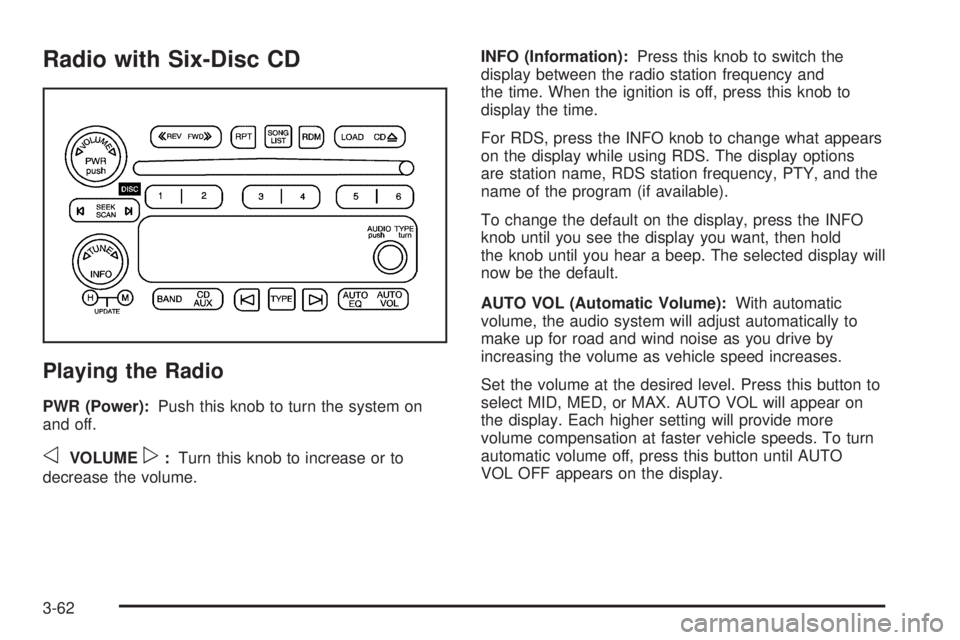
Radio with Six-Disc CD
Playing the Radio
PWR (Power):Push this knob to turn the system on
and off.
oVOLUMEp:Turn this knob to increase or to
decrease the volume.INFO (Information):Press this knob to switch the
display between the radio station frequency and
the time. When the ignition is off, press this knob to
display the time.
For RDS, press the INFO knob to change what appears
on the display while using RDS. The display options
are station name, RDS station frequency, PTY, and the
name of the program (if available).
To change the default on the display, press the INFO
knob until you see the display you want, then hold
the knob until you hear a beep. The selected display will
now be the default.
AUTO VOL (Automatic Volume):With automatic
volume, the audio system will adjust automatically to
make up for road and wind noise as you drive by
increasing the volume as vehicle speed increases.
Set the volume at the desired level. Press this button to
select MID, MED, or MAX. AUTO VOL will appear on
the display. Each higher setting will provide more
volume compensation at faster vehicle speeds. To turn
automatic volume off, press this button until AUTO
VOL OFF appears on the display.
3-62
Page 178 of 384
Setting the Tone (Bass/Treble)
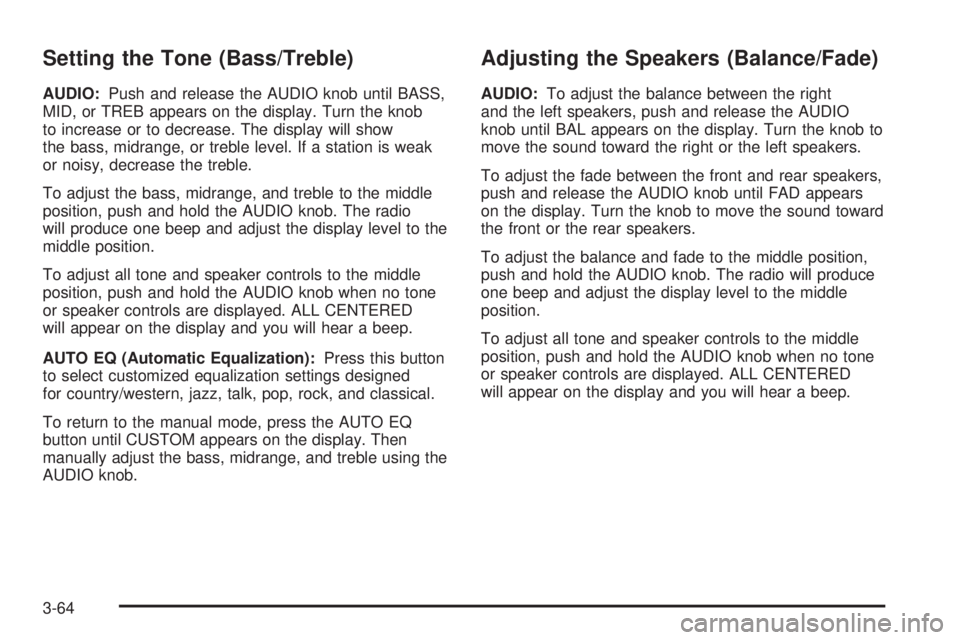
AUDIO:Push and release the AUDIO knob until BASS,
MID, or TREB appears on the display. Turn the knob
to increase or to decrease. The display will show
the bass, midrange, or treble level. If a station is weak
or noisy, decrease the treble.
To adjust the bass, midrange, and treble to the middle
position, push and hold the AUDIO knob. The radio
will produce one beep and adjust the display level to the
middle position.
To adjust all tone and speaker controls to the middle
position, push and hold the AUDIO knob when no tone
or speaker controls are displayed. ALL CENTERED
will appear on the display and you will hear a beep.
AUTO EQ (Automatic Equalization):Press this button
to select customized equalization settings designed
for country/western, jazz, talk, pop, rock, and classical.
To return to the manual mode, press the AUTO EQ
button until CUSTOM appears on the display. Then
manually adjust the bass, midrange, and treble using the
AUDIO knob.
Adjusting the Speakers (Balance/Fade)
AUDIO:To adjust the balance between the right
and the left speakers, push and release the AUDIO
knob until BAL appears on the display. Turn the knob to
move the sound toward the right or the left speakers.
To adjust the fade between the front and rear speakers,
push and release the AUDIO knob until FAD appears
on the display. Turn the knob to move the sound toward
the front or the rear speakers.
To adjust the balance and fade to the middle position,
push and hold the AUDIO knob. The radio will produce
one beep and adjust the display level to the middle
position.
To adjust all tone and speaker controls to the middle
position, push and hold the AUDIO knob when no tone
or speaker controls are displayed. ALL CENTERED
will appear on the display and you will hear a beep.
3-64
Page 179 of 384
Radio Data System (RDS)
The audio system has a Radio Data System (RDS).
RDS features are available for use only on FM stations
that broadcast RDS information.
With RDS, the radio can do the following:
Seek to stations broadcasting the selected type of
programming
Receive announcements concerning local and
national emergencies
Display messages from radio stations
This system relies upon receiving specic information
from these stations and will only work when the
information is available. In rare cases, a radio station
may broadcast incorrect information that will cause
the radio features to work improperly. If this happens,
contact the radio station.
While the radio is tuned to an RDS station, the station
name or call letters will appear on the display instead of
the frequency. RDS stations may also provide the
time of day, a program type (PTY) for current
programming, and the name of the program being
broadcast.
Finding a Program Type (PTY) Station
To select and nd a desired PTY perform the
following:
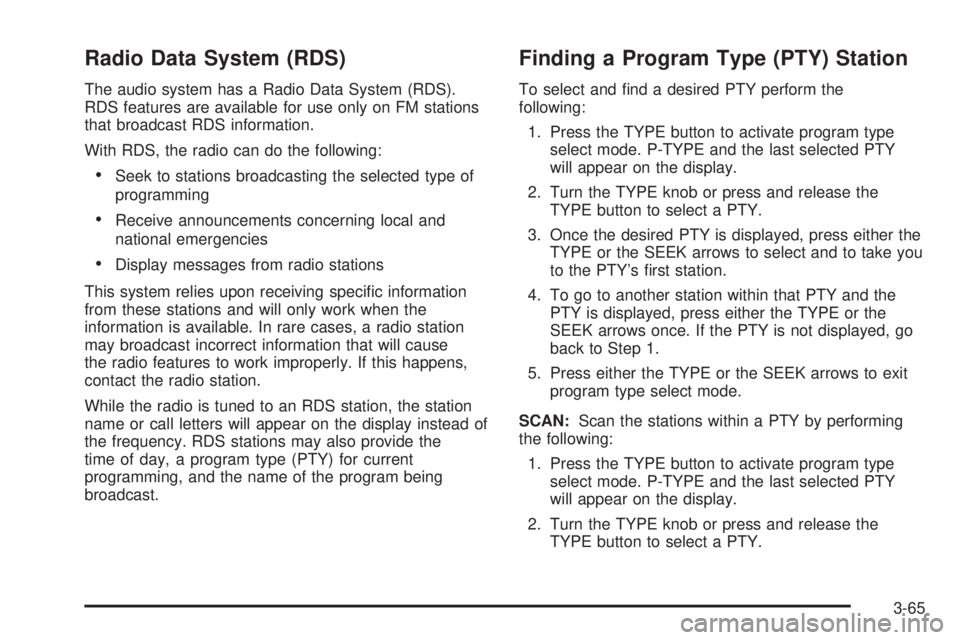
1. Press the TYPE button to activate program type
select mode. P-TYPE and the last selected PTY
will appear on the display.
2. Turn the TYPE knob or press and release the
TYPE button to select a PTY.
3. Once the desired PTY is displayed, press either the
TYPE or the SEEK arrows to select and to take you
to the PTY’s rst station.
4. To go to another station within that PTY and the
PTY is displayed, press either the TYPE or the
SEEK arrows once. If the PTY is not displayed, go
back to Step 1.
5. Press either the TYPE or the SEEK arrows to exit
program type select mode.
SCAN:Scan the stations within a PTY by performing
the following:
1. Press the TYPE button to activate program type
select mode. P-TYPE and the last selected PTY
will appear on the display.
2. Turn the TYPE knob or press and release the
TYPE button to select a PTY.
3-65
Page 181 of 384
Radio Messages
CAL ERR (Calibration Error):The audio system has
been calibrated for your vehicle from the factory. If
CAL ERR appears on the display, it means that the radio
has not been congured properly for the vehicle and
must be returned to your GM dealer for service.
LOCKED:This message is displayed when the
THEFTLOCK
®system has locked up. Take the vehicle
to your GM dealer for service.
If any error occurs repeatedly, or if an error cannot be
corrected, contact your GM dealer.
Playing a CD
If the ignition or radio is turned off, with a CD in the
player, it will stay in the player. When the ignition
or radio is turned on, the CD will start playing where it
stopped, if it was the last selected audio source.
When a CD is inserted, the CD symbol will appear on
the display. As each new track starts to play, the
track number will appear on the display.
The CD player can play the smaller 3 inch (8 cm)
single CDs with an adapter ring. Full-size CDs and the
smaller CDs are loaded in the same manner.If playing a CD-R the sound quality may be reduced
due to CD-R quality, the method of recording, the quality
of the music that has been recorded, and the way the
CD-R has been handled. There may be an increase
in skipping, difficulty in nding tracks, and/or difficulty in
loading and ejecting. If these problems occur try a
known good CD.
Do not add paper labels to CDs, they could get caught
in the CD player.
If an error appears on the display, see “CD Messages”
later in this section.
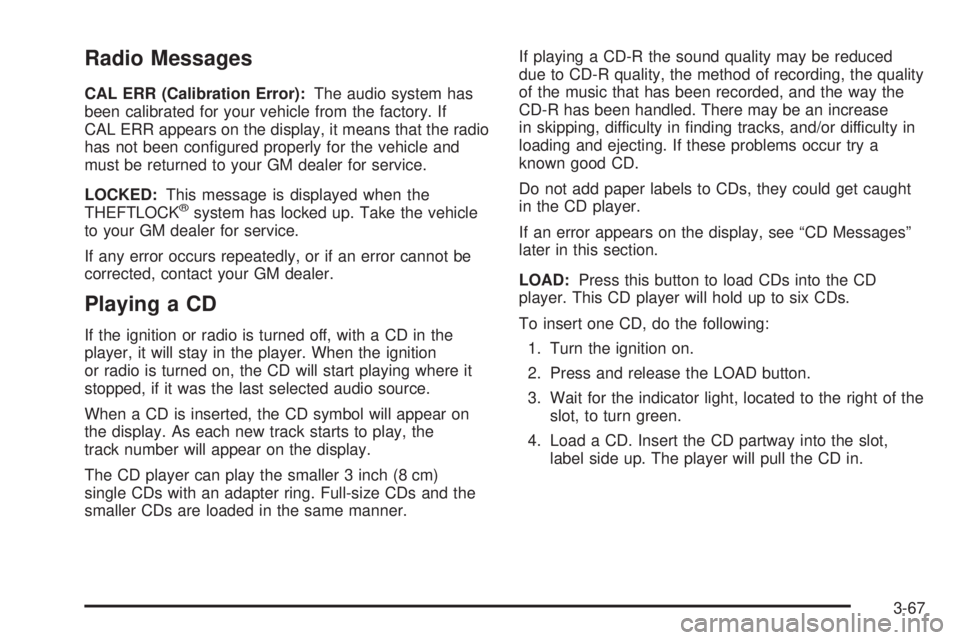
LOAD:Press this button to load CDs into the CD
player. This CD player will hold up to six CDs.
To insert one CD, do the following:
1. Turn the ignition on.
2. Press and release the LOAD button.
3. Wait for the indicator light, located to the right of the
slot, to turn green.
4. Load a CD. Insert the CD partway into the slot,
label side up. The player will pull the CD in.
3-67
Page 276 of 384
Replacing Brake System Parts
The braking system on a vehicle is complex. Its many
parts have to be of top quality and work well together if
the vehicle is to have really good braking. Your
vehicle was designed and tested with top-quality GM
brake parts. When you replace parts of your braking
system — for example, when your brake linings
wear down and you need new ones put in — be sure
you get new approved GM replacement parts. If you do
not, your brakes may no longer work properly. For
example, if someone puts in brake linings that are wrong
for your vehicle, the balance between your front and
rear brakes can change — for the worse. The braking
performance you have come to expect can change
in many other ways if someone puts in the wrong
replacement brake parts.
Battery
Your vehicle has a maintenance free battery. When it is
time for a new battery, get one that has the replacement
number shown on the original battery’s label. We
recommend an ACDelco
®replacement battery. See
Engine Compartment Overview on page 5-12for battery
location.Warning:Battery posts, terminals and related
accessories contain lead and lead compounds,
chemicals known to the State of California to cause
cancer and reproductive harm. Wash hands after
handling.
Vehicle Storage
If you are not going to drive your vehicle for 25 days
or more, remove the black, negative (−) cable from
the battery. This will help keep your battery from
running down.
{CAUTION:
Batteries have acid that can burn you and gas
that can explode. You can be badly hurt if you
are not careful. SeeJump Starting on
page 5-39for tips on working around a battery
without getting hurt.
Also, for your audio system, seeTheft-Deterrent
Feature (Non-RDS Radios) on page 3-72or
Theft-Deterrent Feature (RDS Radios) on page 3-72.
5-38
Page 372 of 384
Audio System(s).............................................3-41
AM-FM Radio.............................................3-42
Care of Your Cassette Tape Player................3-73
Care of Your CD Player...............................3-74
Care of Your CDs........................................3-74
Chime Level Adjustment...............................3-74
Fixed Mast Antenna.....................................3-74
Radio with Cassette and CD.........................3-49
Radio with CD............................................3-44
Radio with Six-Disc CD................................3-62
Setting the Time for Radios with Radio
Data Systems (RDS)................................3-41
Setting the Time for Radios without Radio
Data Systems (RDS)................................3-41
Theft-Deterrent Feature................................3-72
Understanding Radio Reception.....................3-72
Automatic Transmission
Fluid..........................................................5-19
Operation...................................................2-23B
Battery..........................................................5-38
Run-Down Protection...................................3-16
Before Leaving on a Long Trip.........................4-23
Brake
Anti-Lock Brake System (ABS)........................ 4-7
Emergencies................................................ 4-8
Parking......................................................2-25
System Warning Light..................................3-29
Brakes..........................................................5-35
Braking........................................................... 4-6
Braking in Emergencies..................................... 4-8
Break-In, New Vehicle.....................................2-19
Bulb Replacement...........................................5-47
Center High-Mounted Stoplamp (CHMSL)........5-49
Front Turn Signal, Sidemarker and Parking
Lamps....................................................5-49
Halogen Bulbs............................................5-47
Headlamps.................................................5-47
Replacement Bulbs......................................5-51
Taillamps....................................................5-50
Buying New Tires...........................................5-63
2