steering wheel GMC SAVANA 2008 User Guide
[x] Cancel search | Manufacturer: GMC, Model Year: 2008, Model line: SAVANA, Model: GMC SAVANA 2008Pages: 402, PDF Size: 2.45 MB
Page 121 of 402
Tilt Wheel
For vehicles with a tilt steering wheel, it allows you to
lower or raise the steering wheel to give your legs more
room when entering or exiting the vehicle. Do not adjust
the steering wheel while driving.
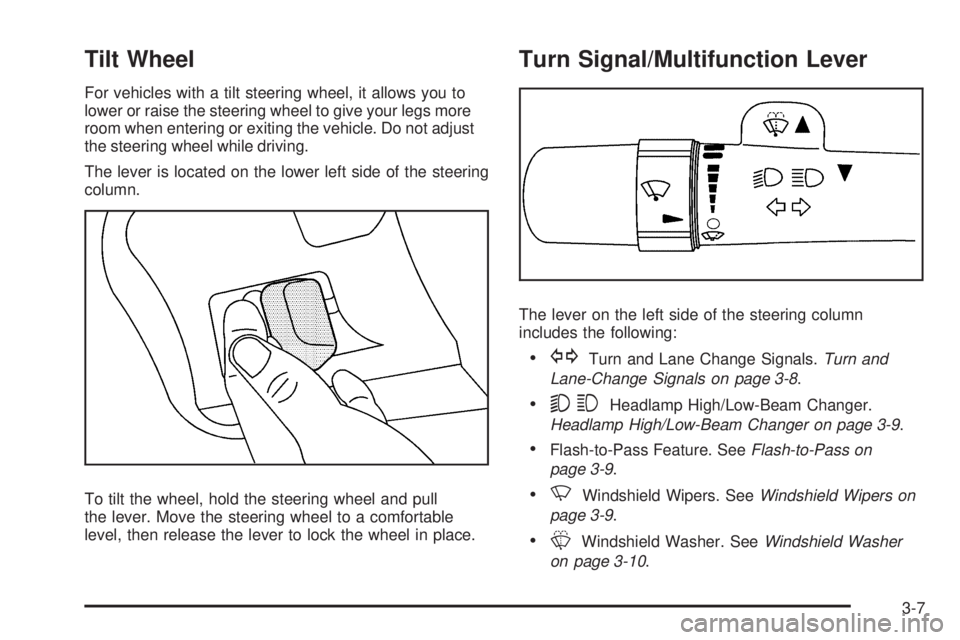
The lever is located on the lower left side of the steering
column.
To tilt the wheel, hold the steering wheel and pull
the lever. Move the steering wheel to a comfortable
level, then release the lever to lock the wheel in place.
Turn Signal/Multifunction Lever
The lever on the left side of the steering column
includes the following:
•GTurn and Lane Change Signals.Turn and
Lane-Change Signals on page 3-8.
•53Headlamp High/Low-Beam Changer.
Headlamp High/Low-Beam Changer on page 3-9.
•Flash-to-Pass Feature. SeeFlash-to-Pass on
page 3-9.
•NWindshield Wipers. SeeWindshield Wipers on
page 3-9.
•LWindshield Washer. SeeWindshield Washer
on page 3-10.
3-7
Page 125 of 402
SeeStabiliTrak®System on page 4-5. When road
conditions allow you to safely use it again, you may turn
the cruise control back on.
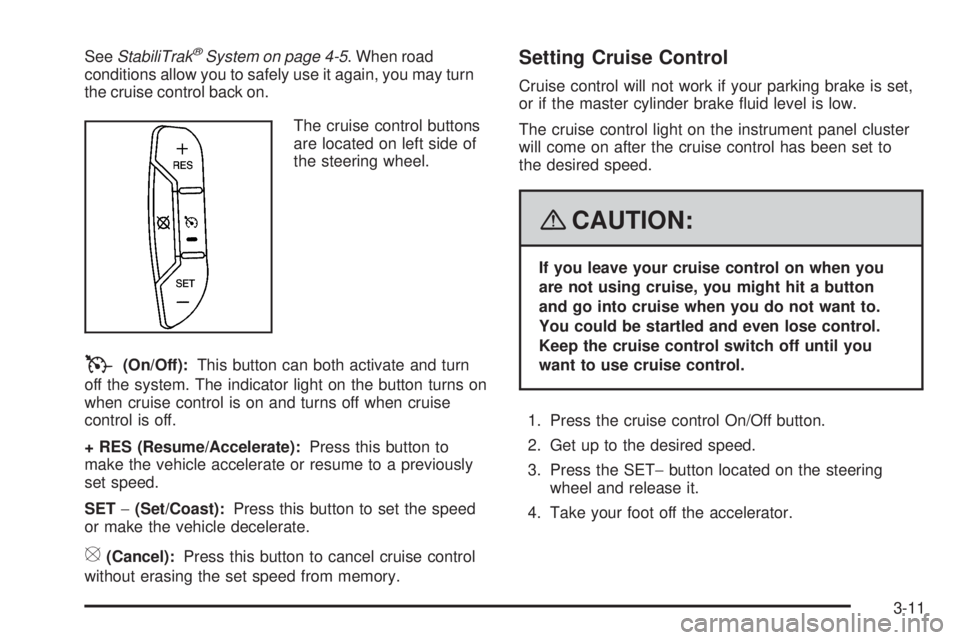
The cruise control buttons
are located on left side of
the steering wheel.
T(On/Off):This button can both activate and turn
off the system. The indicator light on the button turns on
when cruise control is on and turns off when cruise
control is off.
+ RES (Resume/Accelerate):Press this button to
make the vehicle accelerate or resume to a previously
set speed.
SET−(Set/Coast):Press this button to set the speed
or make the vehicle decelerate.
[(Cancel):Press this button to cancel cruise control
without erasing the set speed from memory.
Setting Cruise Control
Cruise control will not work if your parking brake is set,
or if the master cylinder brake fluid level is low.
The cruise control light on the instrument panel cluster
will come on after the cruise control has been set to
the desired speed.
{CAUTION:
If you leave your cruise control on when you
are not using cruise, you might hit a button
and go into cruise when you do not want to.
You could be startled and even lose control.
Keep the cruise control switch off until you
want to use cruise control.
1. Press the cruise control On/Off button.
2. Get up to the desired speed.
3. Press the SET−button located on the steering
wheel and release it.
4. Take your foot off the accelerator.
3-11
Page 126 of 402
Resuming a Set Speed
Suppose you set your cruise control at a desired speed
and then you apply the brake. This shuts off the cruise
control. But you do not need to reset it.
Once you are driving about 25 mph (40 km/h) or more,
press the +RES button on your steering wheel.
The vehicle will go back to the previous set speed
and stay there.
Increasing Speed While Using Cruise
Control
To increase the cruise speed while using cruise control:
•Press and hold the +RES button on the steering
wheel until you reach your new desired speed,
then release it.
•To increase vehicle speed in small increments,
press the +RES button. Each time you do this,
you will go about 1 mph (1.6 km/h) faster.
Reducing Speed While Using Cruise
Control
To reduce your speed while using cruise control:
•Press and hold the SET– button on the steering
wheel until the desired lower speed is reached,
then release it.
•To slow down in very small amounts, press
the SET– button on the steering wheel briefly.
Each time you do this, the vehicle will go about
1 mph (1.6 km/h) slower.
Passing Another Vehicle While Using
Cruise Control
Use the accelerator pedal to increase your speed.
When you take your foot off the pedal, your vehicle
will slow down to the previous set cruise speed.
3-12
Page 127 of 402
Using Cruise Control on Hills
How well your cruise control will work on hills depends
upon your speed, load, and the steepness of the
hills. When going up steep hills, you may have to step
on the accelerator pedal to maintain the vehicle’s speed.
When going downhill, you may have to brake or shift
to a lower gear to keep the vehicle’s speed down.
Of course, applying the brake takes you out of cruise
control. Many drivers find this to be too much trouble
and do not use cruise control on steep hills.
Ending Cruise Control
There are three ways to end cruise control:
•Step lightly on the brake pedal.
•Press the cancel button on the steering wheel.
•Press the On/Off button on the steering wheel.
Erasing Speed Memory
When you turn off the cruise control or the ignition,
the cruise control set speed memory is erased.
Exterior Lamps
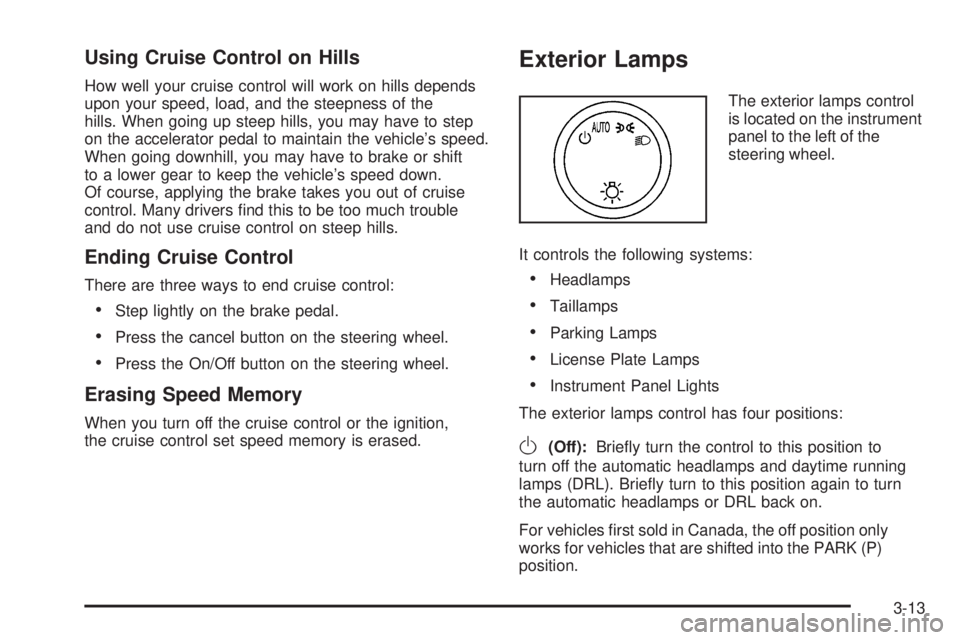
The exterior lamps control
is located on the instrument
panel to the left of the
steering wheel.
It controls the following systems:
•Headlamps
•Taillamps
•Parking Lamps
•License Plate Lamps
•Instrument Panel Lights
The exterior lamps control has four positions:
O(Off):Briefly turn the control to this position to
turn off the automatic headlamps and daytime running
lamps (DRL). Briefly turn to this position again to turn
the automatic headlamps or DRL back on.
For vehicles first sold in Canada, the off position only
works for vehicles that are shifted into the PARK (P)
position.
3-13
Page 178 of 402
While your vehicle is parked:
•Familiarize yourself with all of its controls.
•Familiarize yourself with its operation.
•Set up your audio system by presetting your
favorite radio stations, setting the tone, and
adjusting the speakers. Then, when driving
conditions permit, you can tune to your favorite
radio stations using the presets and steering wheel
controls if the vehicle has them.
Notice:Before adding any sound equipment to
your vehicle, such as an audio system, CD player,
CB radio, mobile telephone, or two-way radio, make
sure that it can be added by checking with your
dealer/retailer. Also, check federal rules covering
mobile radio and telephone units. If sound equipment
can be added, it is very important to do it properly.
Added sound equipment may interfere with the
operation of your vehicle’s engine, radio, or other
systems, and even damage them. Your vehicle’s
systems may interfere with the operation of sound
equipment that has been added.Notice:The chime signals related to safety belts,
parking brake, and other functions of your vehicle
operate through the radio/entertainment system.
If that equipment is replaced or additional equipment
is added to your vehicle, the chimes may not
work. Make sure that replacement or additional
equipment is compatible with your vehicle before
installing it. SeeAccessories and Modifications
on page 5-3.
Your vehicle may have a feature called Retained
Accessory Power (RAP). With RAP, the audio system
can be played even after the ignition is turned off.
SeeRetained Accessory Power (RAP) on page 2-20
for more information.
3-64
Page 184 of 402
Setting Preset Stations
If your radio does not have XM™, up to 18 stations
(six FM1, six FM2, and six AM), can be programmed
on the six numbered pushbuttons, by performing
the following steps:
1. Turn the radio on.
2. Press BAND to select FM1, FM2, or AM.
3. Tune in the desired station.
4. Press and hold one of the six numbered
pushbuttons for three seconds until a beep sounds.
When that pushbutton is pressed and released,
the station that was set, returns.
5. Repeat the Steps 2 through 4 for each pushbutton.
Storing a Radio Station as a Favorite
Drivers are encouraged to set up their radio station
favorites while the vehicle is parked. Tune to your
favorite stations using the presets, favorites button,
and steering wheel controls, if the vehicle has this
feature. SeeDefensive Driving on page 4-2.FAV (Favorites):If your vehicle has XM™ and
has a FAV button, a maximum of 36 stations can be
programmed as favorites using the six pushbuttons
positioned below the radio station frequency labels and
by using the radio favorites page button (FAV button).
Press the FAV button to go through up to six pages
of favorites, each having six favorite stations available
per page. Each page of favorites can contain any
combination of AM and FM stations.
The balance/fade and tone settings that were previously
adjusted, are stored with the favorite stations.
To store a station as a favorite, perform the
following steps:
1. Tune to the desired radio station.
2. Press the FAV button to display the page where
you want the station stored.
3. Press and hold one of the six pushbuttons until a
beep sounds. When that pushbutton is pressed
and released, the station that was set, returns.
4. Repeat the steps for each pushbutton radio station
you want stored as a favorite.
3-70
Page 196 of 402
Press this button again and the system automatically
searches for an auxiliary input device such as a portable
audio player. If a portable audio player is not connected,
“No Input Device Found” displays.
Theft-Deterrent Feature
Non-RDS Radios
THEFTLOCK®is designed to discourage theft of
your vehicle’s radio. The feature works automatically
by learning a portion of the Vehicle Identification
Number (VIN). If the radio is moved to a different
vehicle, it does not operate and LOC displays.
With THEFTLOCK
®activated, the radio does not
operate if stolen.
RDS Radios
THEFTLOCK®is designed to discourage theft of your
vehicle’s radio. The feature works automatically by
learning a portion of the Vehicle Identification Number
(VIN). If the radio is moved to a different vehicle, it does
not operate and LOCKED displays.
When the radio and vehicle are turned off, the blinking
red light indicates that THEFTLOCK
®is armed.
With THEFTLOCK
®activated, the radio does not
operate if stolen.
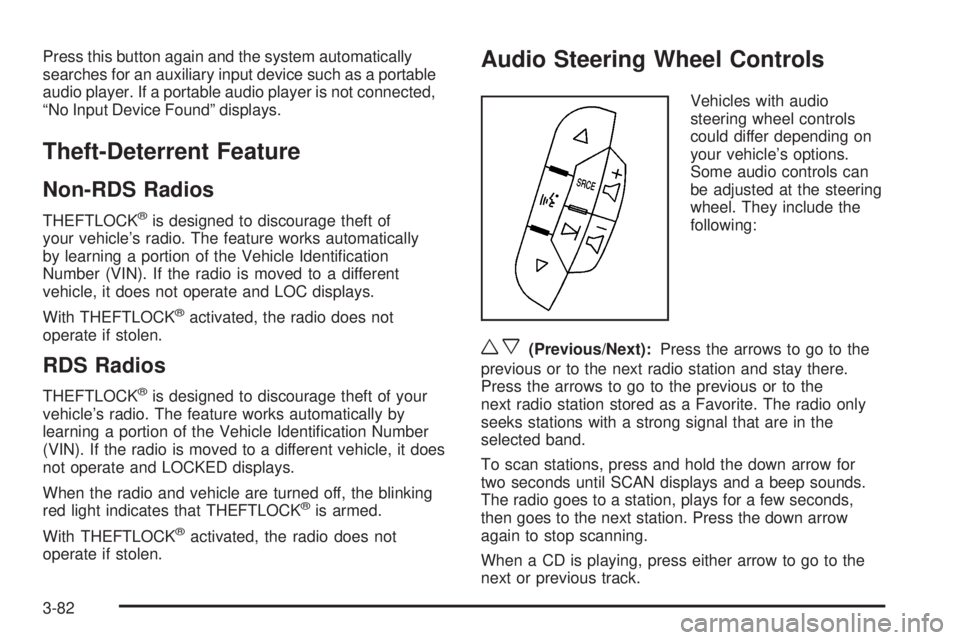
Audio Steering Wheel Controls
Vehicles with audio
steering wheel controls
could differ depending on
your vehicle’s options.
Some audio controls can
be adjusted at the steering
wheel. They include the
following:
wx(Previous/Next):Press the arrows to go to the
previous or to the next radio station and stay there.
Press the arrows to go to the previous or to the
next radio station stored as a Favorite. The radio only
seeks stations with a strong signal that are in the
selected band.
To scan stations, press and hold the down arrow for
two seconds until SCAN displays and a beep sounds.
The radio goes to a station, plays for a few seconds,
then goes to the next station. Press the down arrow
again to stop scanning.
When a CD is playing, press either arrow to go to the
next or previous track.
3-82
Page 199 of 402
Your Driving, the Road, and Your Vehicle..........4-2
Defensive Driving...........................................4-2
Drunk Driving.................................................4-2
Control of a Vehicle........................................4-3
Braking.........................................................4-3
Antilock Brake System (ABS)...........................4-4
Braking in Emergencies...................................4-5
Locking Rear Axle..........................................4-5
StabiliTrak
®System........................................4-5
All-Wheel Drive (AWD) System.........................4-7
Steering........................................................4-7
Off-Road Recovery.......................................4-10
Passing.......................................................4-10
Loss of Control.............................................4-10Driving at Night............................................4-12
Driving in Rain and on Wet Roads..................4-13
Before Leaving on a Long Trip.......................4-14
Highway Hypnosis........................................4-14
Hill and Mountain Roads................................4-15
Winter Driving..............................................4-16
If Your Vehicle is Stuck in Sand, Mud,
Ice, or Snow.............................................4-19
Rocking Your Vehicle to Get It Out.................4-20
Loading Your Vehicle....................................4-20
Towing..........................................................4-25
Towing Your Vehicle.....................................4-25
Recreational Vehicle Towing...........................4-26
Towing a Trailer...........................................4-28
Section 4 Driving Your Vehicle
4-1
Page 203 of 402
ABS can change the brake pressure faster than any
driver could. The computer is programmed to make the
most of available tire and road conditions. This can
help you steer around the obstacle while braking hard.
As you brake, the computer keeps receiving updates
on wheel speed and controls braking pressure
accordingly.
Remember: ABS does not change the time you need to
get your foot up to the brake pedal or always decrease
stopping distance. If you get too close to the vehicle
in front of you, you will not have time to apply the brakes
if that vehicle suddenly slows or stops. Always leave
enough room up ahead to stop, even though you
have ABS.
Using ABS
Do not pump the brakes. Just hold the brake pedal down
firmly and let antilock work for you. You might feel the
brakes vibrate or notice some noise, but this is normal.
Braking in Emergencies
With ABS, you can steer and brake at the same time.
In many emergencies, steering can help you more than
even the very best braking.
Locking Rear Axle
If your vehicle has this feature, your locking rear axle
can give you additional traction on snow, mud, ice, sand
or gravel. It works like a standard axle most of the
time, but when one of the rear wheels has no traction
and the other does, this feature will allow the wheel with
traction to move the vehicle.
StabiliTrak®System
If your vehicle has StabiliTrak®, it combines anti-lock
brake, traction and stability control systems and
helps the driver maintain directional control of the
vehicle in most driving conditions.
When you first start your vehicle and begin to drive away,
the system performs several diagnostic checks to ensure
that it is working properly. You may hear or feel the
system working. This is normal and does not mean there
is a problem with your vehicle. The system should
initialize before the vehicle reaches 20 mph (32 km/h). In
some cases, it may take approximately 2 miles (3.2 km)
of driving before the system initializes.
4-5
Page 205 of 402
Traction Control Operation
The traction control system is part of the StabiliTrak®
system. Traction control limits wheel spin by reducing
engine power to the wheels (engine speed management)
and by applying brakes to each individual wheel
(brake-traction control) as necessary.
If the brake-traction control system activates constantly
or if the brakes have heated up due to high speed
braking, the brake-traction control will be automatically
disabled. The system will come back on after the
brakes have cooled. This can take up to two minutes or
longer depending on brake usage.
The traction control system may activate on dry or
rough roads or under conditions such as heavy
acceleration while turning or abrupt upshifts/downshifts
of the transmission. When this happens you may
notice a reduction in acceleration, or may hear a noise
or vibration. This is normal.
Adding non-dealer/non-retailer accessories can affect
your vehicle’s performance. SeeAccessories and
Modifications on page 5-3for more information.
All-Wheel Drive (AWD) System
If your vehicle has all-wheel drive, your engine’s driving
power is sent to all four wheels for extra traction
when needed.
This is like four-wheel drive, but there is no separate
lever or switch to engage or disengage the front axle.
It is fully automatic, and adjusts itself as needed for road
conditions.
You may experience a brief vehicle vibration upon
acceleration when driving in slippery conditions. This is
normal and is an indication that the all-wheel drive
system is functioning properly.
Steering
Power Steering
If you lose power steering assist because the engine
stops or the system is not functioning, you can steer but
it will take much more effort.
4-7