buttons GMC SAVANA 2011 Owner's Manual
[x] Cancel search | Manufacturer: GMC, Model Year: 2011, Model line: SAVANA, Model: GMC SAVANA 2011Pages: 414, PDF Size: 5.27 MB
Page 9 of 414
Black plate (3,1)GMC Savana Owner Manual - 2011
In Brief 1-3
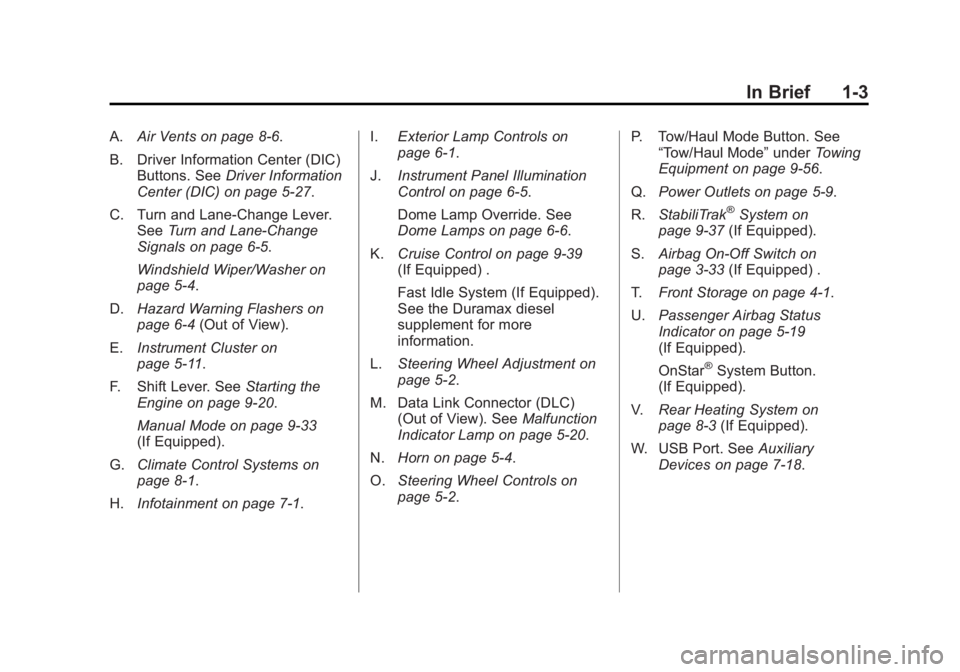
A.Air Vents on page 8‑6.
B. Driver Information Center (DIC) Buttons. See Driver Information
Center (DIC) on page 5‑27.
C. Turn and Lane‐Change Lever. See Turn and Lane-Change
Signals on page 6‑5.
Windshield Wiper/Washer on
page 5‑4.
D. Hazard Warning Flashers on
page 6‑4 (Out of View).
E. Instrument Cluster on
page 5‑11.
F. Shift Lever. See Starting the
Engine on page 9‑20.
Manual Mode on page 9‑33
(If Equipped).
G. Climate Control Systems on
page 8‑1.
H. Infotainment on page 7‑1. I.
Exterior Lamp Controls on
page 6‑1.
J. Instrument Panel Illumination
Control on page 6‑5.
Dome Lamp Override. See
Dome Lamps on page 6‑6.
K. Cruise Control on page 9‑39
(If Equipped) .
Fast Idle System (If Equipped).
See the Duramax diesel
supplement for more
information.
L. Steering Wheel Adjustment on
page 5‑2.
M. Data Link Connector (DLC) (Out of View). See Malfunction
Indicator Lamp on page 5‑20.
N. Horn on page 5‑4.
O. Steering Wheel Controls on
page 5‑2. P. Tow/Haul Mode Button. See
“Tow/Haul Mode” underTowing
Equipment on page 9‑56.
Q. Power Outlets on page 5‑9.
R. StabiliTrak
®System on
page 9‑37 (If Equipped).
S. Airbag On-Off Switch on
page 3‑33 (If Equipped) .
T. Front Storage on page 4‑1.
U. Passenger Airbag Status
Indicator on page 5‑19
(If Equipped).
OnStar
®System Button.
(If Equipped).
V. Rear Heating System on
page 8‑3 (If Equipped).
W. USB Port. See Auxiliary
Devices on page 7‑18.
Page 21 of 414
Black plate (15,1)GMC Savana Owner Manual - 2011
In Brief 1-15
To use this feature, do the following:
1. Move the shift lever toM (Manual Mode).
2. Press the plus/minus buttons, located on the steering column
shift lever, to select the desired
range of gears for current driving
conditions.
When M (Manual Mode) is selected
a number displays in the DIC next to
the M indicating the current gear.
Grade Braking is not available when
Range Selection Mode is active.
See Tow/Haul Mode on page 9‑34.
While using Range Selection Mode,
Cruise Control and the Tow/Haul
Mode can be used.Vehicle Features
Radio(s)
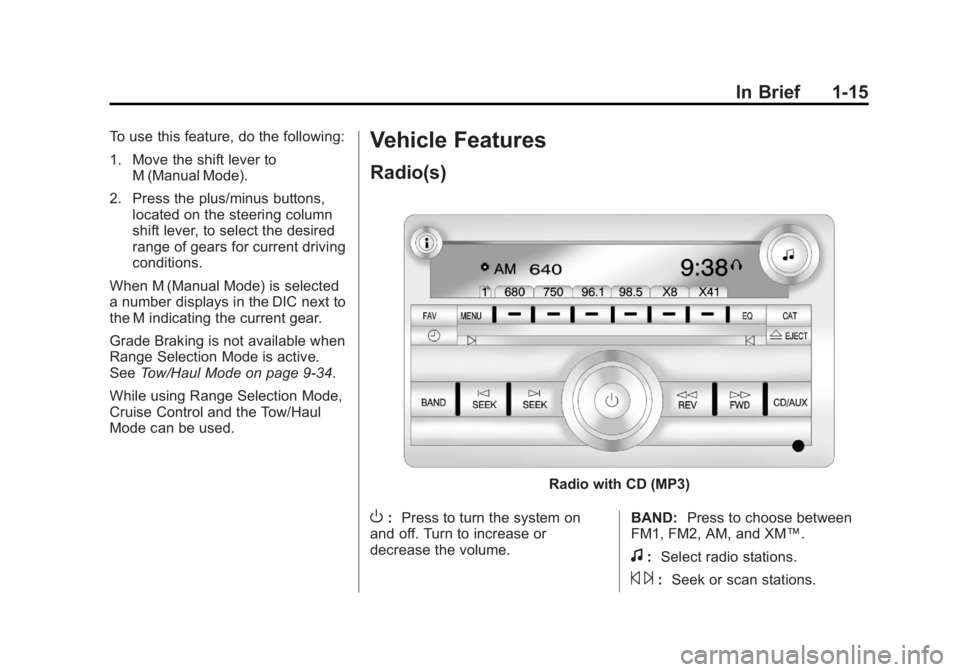
Radio with CD (MP3)
O: Press to turn the system on
and off. Turn to increase or
decrease the volume. BAND:
Press to choose between
FM1, FM2, AM, and XM™.
f: Select radio stations.
© ¨:Seek or scan stations.
Page 22 of 414
Black plate (16,1)GMC Savana Owner Manual - 2011
1-16 In Brief
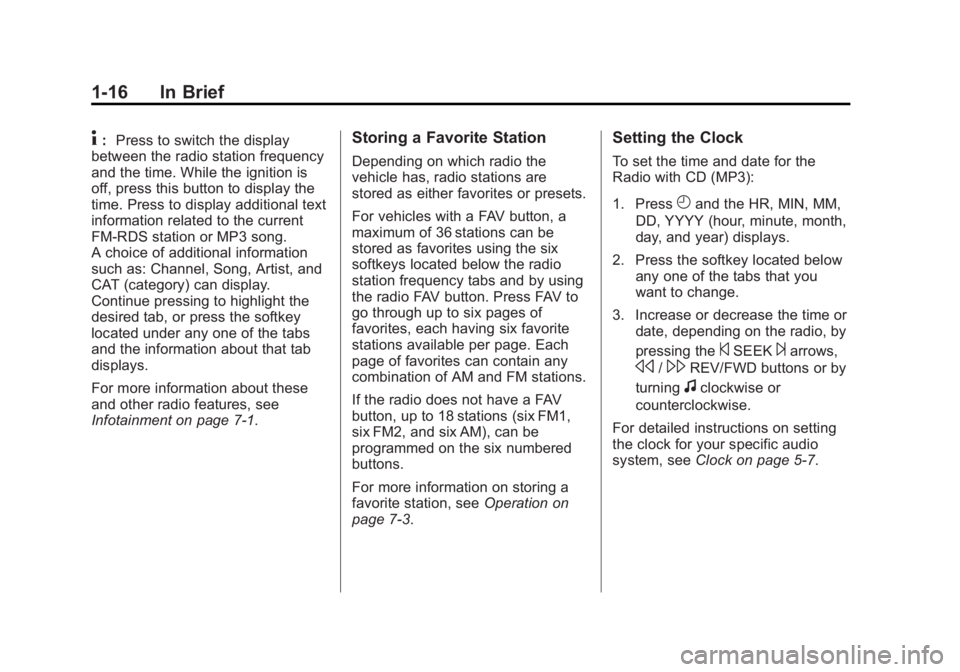
4:Press to switch the display
between the radio station frequency
and the time. While the ignition is
off, press this button to display the
time. Press to display additional text
information related to the current
FM-RDS station or MP3 song.
A choice of additional information
such as: Channel, Song, Artist, and
CAT (category) can display.
Continue pressing to highlight the
desired tab, or press the softkey
located under any one of the tabs
and the information about that tab
displays.
For more information about these
and other radio features, see
Infotainment on page 7‑1.Storing a Favorite Station
Depending on which radio the
vehicle has, radio stations are
stored as either favorites or presets.
For vehicles with a FAV button, a
maximum of 36 stations can be
stored as favorites using the six
softkeys located below the radio
station frequency tabs and by using
the radio FAV button. Press FAV to
go through up to six pages of
favorites, each having six favorite
stations available per page. Each
page of favorites can contain any
combination of AM and FM stations.
If the radio does not have a FAV
button, up to 18 stations (six FM1,
six FM2, and six AM), can be
programmed on the six numbered
buttons.
For more information on storing a
favorite station, see Operation on
page 7‑3.
Setting the Clock
To set the time and date for the
Radio with CD (MP3):
1. Press
Hand the HR, MIN, MM,
DD, YYYY (hour, minute, month,
day, and year) displays.
2. Press the softkey located below any one of the tabs that you
want to change.
3. Increase or decrease the time or date, depending on the radio, by
pressing the
©SEEK¨arrows,
s/\REV/FWD buttons or by
turning
fclockwise or
counterclockwise.
For detailed instructions on setting
the clock for your specific audio
system, see Clock on page 5‑7.
Page 24 of 414
Black plate (18,1)GMC Savana Owner Manual - 2011
1-18 In Brief
Steering Wheel Controls
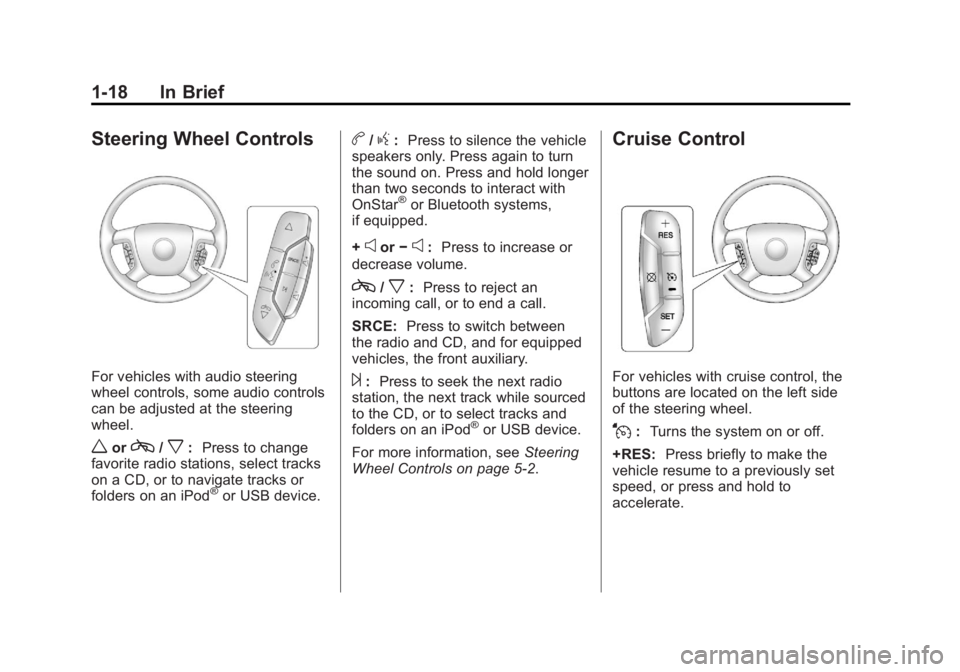
For vehicles with audio steering
wheel controls, some audio controls
can be adjusted at the steering
wheel.
worc/x:Press to change
favorite radio stations, select tracks
on a CD, or to navigate tracks or
folders on an iPod
®or USB device.
b/g: Press to silence the vehicle
speakers only. Press again to turn
the sound on. Press and hold longer
than two seconds to interact with
OnStar
®or Bluetooth systems,
if equipped.
+
eor −e:Press to increase or
decrease volume.
c/x: Press to reject an
incoming call, or to end a call.
SRCE: Press to switch between
the radio and CD, and for equipped
vehicles, the front auxiliary.
¨: Press to seek the next radio
station, the next track while sourced
to the CD, or to select tracks and
folders on an iPod
®or USB device.
For more information, see Steering
Wheel Controls on page 5‑2.
Cruise Control
For vehicles with cruise control, the
buttons are located on the left side
of the steering wheel.
J: Turns the system on or off.
+RES: Press briefly to make the
vehicle resume to a previously set
speed, or press and hold to
accelerate.
Page 29 of 414
Black plate (23,1)GMC Savana Owner Manual - 2011
In Brief 1-23
SeeRadio Frequency Statement on
page 13‑16 for information
regarding Part 15 of the Federal
Communications Commission (FCC)
rules and Industry Canada
Standards RSS-210/220/310.
OnStar Steering Wheel
Controls
This vehicle may have a Talk/Mute
button that can be used to interact
with OnStar Hands-Free calling.
See Steering Wheel Controls on
page 5‑2 for more information.
On some vehicles, the Talk button
can be used to dial numbers into
voice mail systems, or to dial phone
extensions. See the OnStar Owner's
Guide for more information.
Your Responsibility
Increase the volume of the radio if
the OnStar Advisor cannot be
heard.
If the light next to the OnStar
buttons is red, the system may not
be functioning properly. Push the
Q
button and request a vehicle
diagnostic check. If the light
appears clear (no light appears),
your OnStar subscription has
expired and all services have been
deactivated. Push the
Qbutton to
confirm that the OnStar equipment
is active.
Page 149 of 414
Black plate (27,1)GMC Savana Owner Manual - 2011
Instruments and Controls 5-27
Information Displays
Driver Information
Center (DIC)
This vehicle has a Driver
Information Center (DIC).
All messages will appear in the DIC
display located at the bottom of the
instrument panel cluster. The DIC
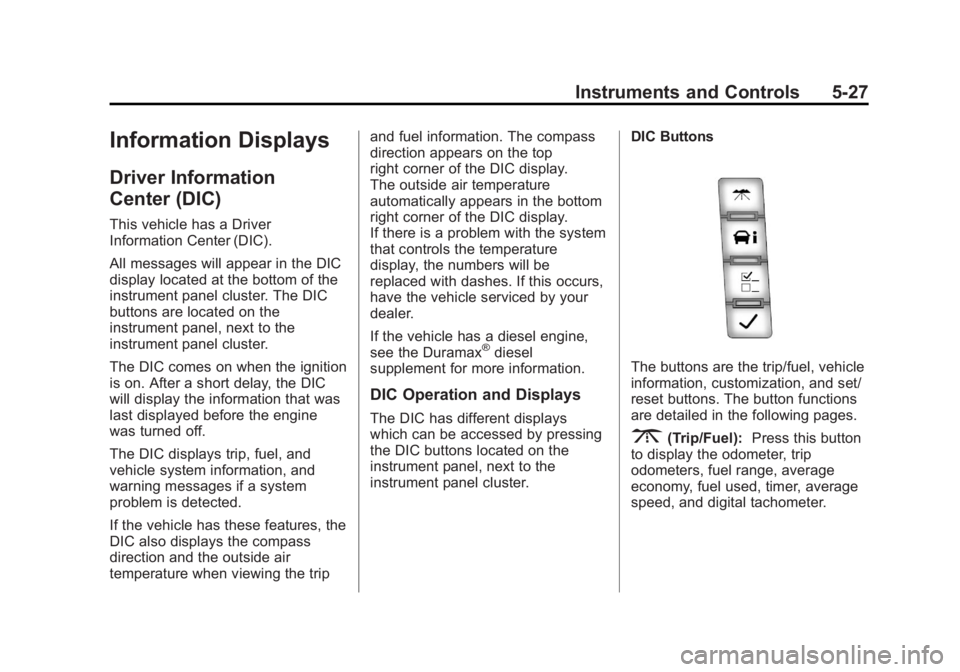
buttons are located on the
instrument panel, next to the
instrument panel cluster.
The DIC comes on when the ignition
is on. After a short delay, the DIC
will display the information that was
last displayed before the engine
was turned off.
The DIC displays trip, fuel, and
vehicle system information, and
warning messages if a system
problem is detected.
If the vehicle has these features, the
DIC also displays the compass
direction and the outside air
temperature when viewing the tripand fuel information. The compass
direction appears on the top
right corner of the DIC display.
The outside air temperature
automatically appears in the bottom
right corner of the DIC display.
If there is a problem with the system
that controls the temperature
display, the numbers will be
replaced with dashes. If this occurs,
have the vehicle serviced by your
dealer.
If the vehicle has a diesel engine,
see the Duramax
®diesel
supplement for more information.
DIC Operation and Displays
The DIC has different displays
which can be accessed by pressing
the DIC buttons located on the
instrument panel, next to the
instrument panel cluster. DIC Buttons
The buttons are the trip/fuel, vehicle
information, customization, and set/
reset buttons. The button functions
are detailed in the following pages.
3(Trip/Fuel):
Press this button
to display the odometer, trip
odometers, fuel range, average
economy, fuel used, timer, average
speed, and digital tachometer.
Page 168 of 414

Black plate (46,1)GMC Savana Owner Manual - 2011
5-46 Instruments and Controls
EXIT FEATURE SETTINGS
This feature allows you to exit the
feature settings menu.
Press
Uuntil FEATURE SETTINGS
PRESS
VTO EXIT appears in the
DIC display. Press
Vonce to exit
the menu.
If you do not exit, pressing
Uwill
return you to the beginning of the
feature settings menu.
Exiting the Feature
Settings Menu
The feature settings menu will be
exited when any of the following
occurs:
.The vehicle is no longer in
ON/RUN.
.The3orTDIC buttons are
pressed.
.The end of the feature settings
menu is reached and exited.
.A 40 second time period has
elapsed with no selection made.
Page 195 of 414
Black plate (19,1)GMC Savana Owner Manual - 2011
Infotainment System 7-19
CD/AUX (CD/Auxiliary):Press to
play a CD when a portable audio
device is playing. Press again and
the system begins playing audio
from the connected portable audio
player. If a portable audio player is
not connected, “No Input Device
Found” displays.
Using the USB Port
Radios with a USB port can control
a USB storage device or an iPod®
using the radio buttons and knobs.
See“Playing an MP3” inCD Player
on page 7‑12 for information about
how to connect and control a USB
storage device or an iPod. USB Support
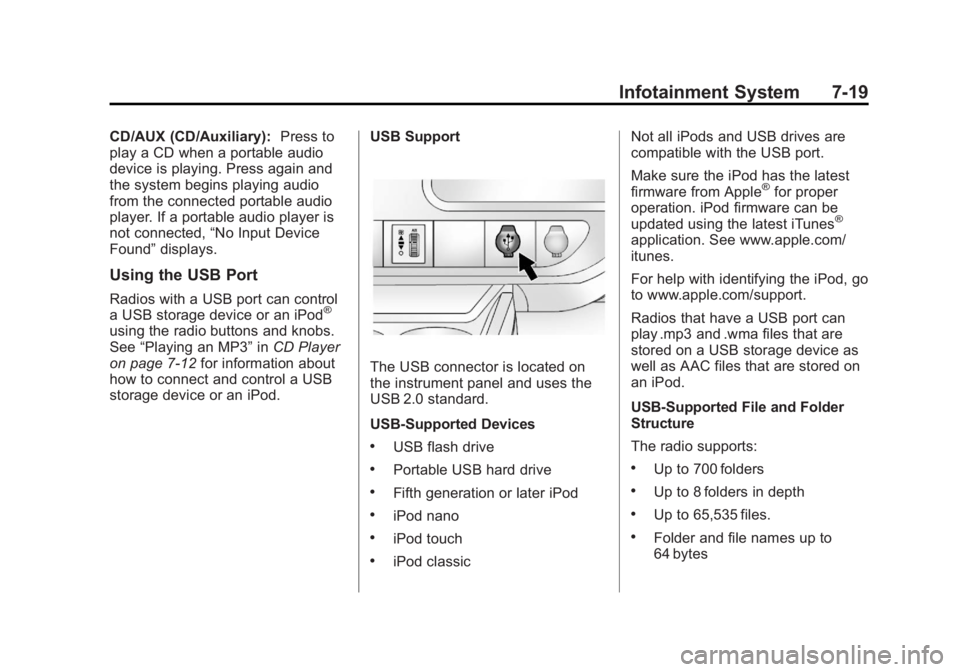
The USB connector is located on
the instrument panel and uses the
USB 2.0 standard.
USB‐Supported Devices
.USB flash drive
.Portable USB hard drive
.Fifth generation or later iPod
.iPod nano
.iPod touch
.iPod classicNot all iPods and USB drives are
compatible with the USB port.
Make sure the iPod has the latest
firmware from Apple
®for proper
operation. iPod firmware can be
updated using the latest iTunes
®
application. See www.apple.com/
itunes.
For help with identifying the iPod, go
to www.apple.com/support.
Radios that have a USB port can
play .mp3 and .wma files that are
stored on a USB storage device as
well as AAC files that are stored on
an iPod.
USB‐Supported File and Folder
Structure
The radio supports:
.Up to 700 folders
.Up to 8 folders in depth
.Up to 65,535 files.
.Folder and file names up to
64 bytes
Page 196 of 414
Black plate (20,1)GMC Savana Owner Manual - 2011
7-20 Infotainment System
.Files with an .mp3 or .wma file
extension
.AAC files stored on an iPod
.FAT16
.FAT32
Connecting a USB Storage
Device or iPod®
The USB port can be used to
control an iPod or a USB storage
device.
To connect a USB storage device,
connect the device to the USB port
located in the center console or on
the instrument panel.
To connect an iPod, connect one
end of the USB cable that came
with the iPod to the iPod’s dock
connector and connect the other
end to the USB port located in the
center console or on the instrument
panel. If the vehicle is on and the
USB connection works,“OK to
disconnect” and a GM logo may
appear on the iPod, and iPod appears on the radio display. The
iPod music appears on the radio’s
display and begins playing.
The iPod charges while it is
connected to the vehicle if the
vehicle is in the ACC/ACCESSORY
or ON/RUN position. When the
vehicle is turned off, the iPod
automatically powers off and will not
charge or draw power from the
vehicle's battery.
If you have an older iPod model that
is not supported, it can still be used
by connecting it to the auxiliary
input jack using a standard 3.5 mm
(1/8 in) stereo cable. See
“Using the
Auxiliary Input Jack” earlier for more
information.
Using the Radio to Control a
USB Storage Device or iPod
The radio can control a USB
storage device or an iPod using the
radio buttons and knobs, and
display song information on the
radio’s display.
f(Tune): Turn to select files.
©SEEK:Press to go to the start of
the track, if more than 10 seconds
have played. Press and hold or
press multiple times to continue
moving backward through tracks.
¨SEEK: Press to go to the next
track. Press and hold or press
multiple times to continue moving
forward through tracks.
sREV (Reverse): Press and hold
to reverse playback quickly. Sound
is heard at a reduced volume.
Release
sREV to resume playing.
The elapsed time of the file
displays.
Page 200 of 414
Black plate (24,1)GMC Savana Owner Manual - 2011
7-24 Infotainment System
.See“Storing and Deleting Phone
Numbers” in this section for
more information.
{WARNING
When using a cell phone, it can
be distracting to look too long or
too often at the screen of the
phone or the infotainment
(navigation) system. Taking your
eyes off the road too long or too
often could cause a crash
resulting in injury or death. Focus
your attention on driving.
A Bluetooth system can use a
Bluetooth‐capable cell phone with a
Hands‐Free Profile to make and
receive phone calls. The system
can be used while the key is in the
ON/RUN or ACC/ACCESSORY
position. The range of the Bluetooth
system can be up to 9.1 m (30 ft).
Not all phones support all functions,
and not all phones are guaranteed
to work with the in-vehicle Bluetooth system. See www.gm.com/bluetooth
for more information on compatible
phones.
Voice Recognition
The Bluetooth system uses voice
recognition to interpret voice
commands to dial phone numbers
and name tags.
For additional information, say
“Help”
while you are in a voice
recognition menu.
Noise: Keep interior noise levels to
a minimum. The system may not
recognize voice commands if there
is too much background noise.
When to Speak: A short tone
sounds after the system responds
indicating when it is waiting for a
voice command. Wait until the tone
and then speak.
How to Speak: Speak clearly in a
calm and natural voice.
Audio System
When using the in‐vehicle Bluetooth
system, sound comes through the
vehicle's front audio system
speakers and overrides the audio
system. Use the audio system
volume knob, during a call, to
change the volume level. The
adjusted volume level remains in
memory for later calls. To prevent
missed calls, a minimum volume
level is used if the volume is turned
down too low.
Bluetooth Controls
Use the buttons located on the
steering wheel to operate the
in‐vehicle Bluetooth system. See
Steering Wheel Controls on
page 5‑2 for more information.
b/g(Push To Talk): Press to
answer incoming calls, confirm
system information, and start
speech recognition.
c/x(Phone On Hook): Press
to end a call, reject a call, or cancel
an operation.