audio GMC SAVANA 2016 User Guide
[x] Cancel search | Manufacturer: GMC, Model Year: 2016, Model line: SAVANA, Model: GMC SAVANA 2016Pages: 343, PDF Size: 4.89 MB
Page 141 of 343
GMC Savana Owner Manual (GMNA-Localizing-U.S./Canada-9159232) -
2016 - crc - 11/11/15
140 Infotainment System
Caution (Continued)
load one CD at a time, and keep
the CD player and the loading slot
free of foreign materials, liquids,
and debris.
If an error displays, see “CD Player
Messages” later in this section.
Care of CDs
If playing a CD-R, the sound quality
can be reduced due to CD-R or
CD-RW quality, the method of
recording, the quality of the music
that has been recorded, and the
way the CD-R or CD-RW has been
handled. Handle them carefully.
Store CD-Rs or CD-RWs in their
original cases or other protective
cases and away from direct sunlight
and dust. The CD player scans the
bottom surface of the disc. If the
surface of a CD is damaged, such
as cracked, broken, or scratched,
the CD does not play properly or not
at all. Do not touch the bottom side
of a CD while handling it; this could damage the surface. Pick up CDs
by the outer edges or the edge of
the hole and the outer edge.
If the surface of a CD is soiled,
clean it with a soft, lint-free cloth or
dampen a clean, soft cloth in a mild,
neutral detergent solution mixed
with water. Make sure the wiping
process starts from the center to
the edge.
Inserting a CD
Insert a CD partway into the slot,
label side up. The player pulls it in
and the CD should begin playing.
Ejecting a CD
ZEJECT :
Press and release to
eject the disc. Remove the CD
when Remove Disc displays. If the
disc is not removed, after several
seconds the disc is automatically
pulled back into the player.
Playing a CD
If the ignition or radio is turned off
with a CD in the player, it stays in
the player. When the ignition or radio is turned on, the CD starts
playing where it stopped, if it was
the last selected audio source.
When a CD is inserted, the CD
symbol displays on the left side of
the radio display. As each new track
starts to play, the track number
displays.
The CD player can play the smaller
8 cm (3 in) single CDs with an
adapter ring. Full-size CDs and the
smaller CDs are loaded in the same
manner.
CD/AUX (CD/Auxiliary) :
Press to
cycle between CD or Auxiliary when
listening to the radio. The CD icon
and a message showing the disc
and/or track number will display
when a CD is in the player. Press
again and the system automatically
searches for an auxiliary input
device; see Auxiliary Devices 0144.
If a portable audio player is not
connected, “No Input Device Found”
displays.4(Information) : Press to display
additional text information related to
the current song. If information is
available, the song title information
Page 142 of 343
GMC Savana Owner Manual (GMNA-Localizing-U.S./Canada-9159232) -
2016 - crc - 11/11/15
Infotainment System 141
displays on the top line of the
display and artist information
displays on the bottom line. When
information is not available, NO
INFO displays.
f(Tune) :Turn to select tracks on
the CD that is currently playing.
©SEEK : Press to go to the start of
the current track if more than
10 seconds on the CD have played.
Press to go to the previous track if
less than 10 seconds on the CD
have played.
Press and hold, or press multiple
times, to continue moving backward
through the tracks on the CD.
¨SEEK : Press to go to the next
track.
Press and hold, or press multiple
times, to continue moving forward
through the tracks on the CD.
sREV (Fast Reverse) : Press
and hold to reverse playback quickly
within a track.
\FWD (Fast Forward) : Press
and hold to advance playback
quickly within a track. RDM (Random) :
Press to listen to
tracks in random, rather than
sequential order. To use random, do
one of the following:
For the AM-FM Radio with CD/MP3:
1. Press the RDM button until the random icon displays.
2. Press the RDM button again until the random icon
disappears from the display.
For the Radio with CD/MP3: 1. Press the softkey positioned under the RDM tab until
Random Current Disc displays.
2. Press the softkey again to turn off random play.
MP3-Supported Files
The Radio with CD/MP3 have the
capability of playing an MP3 CD-R
or CD-RW disc.
Format
Radios that have the capability of
playing MP3s can play .mp3 or .wma
files that were recorded onto a
CD-R or CD-RW disc. The files can
be recorded with the following fixed bit rates: 32 kbps, 40 kbps, 56 kbps,
64 kbps, 80 kbps, 96 kbps, 112 kbps,
128 kbps, 160 kbps, 192 kbps,
224 kbps, 256 kbps, and 320 kbps or
a variable bit rate.
Compressed Audio or Mixed Mode
Discs
The radio can play discs that
contain both uncompressed CD
audio and MP3 files. If both formats
are on the disc, the radio reads all
MP3 files first, then the
uncompressed CD audio files.
CD-R- or CD-RW-Supported File
and Folder Structure
The radio supports:
.
Up to 50 folders.
. Up to eight folders in depth.
. Up to 50 playlists.
. Up to 255 files.
. Playlists with an .m3u or .wpl
extension.
. Files with an .mp3, .wma, or .cda
file extension.
Page 143 of 343
GMC Savana Owner Manual (GMNA-Localizing-U.S./Canada-9159232) -
2016 - crc - 11/11/15
142 Infotainment System
Root Directory
The root directory is treated as a
folder. Files are stored in the root
directory when the disc or storage
device does not contain folders.
Files accessed from the root
directory of a CD display as
F1 ROOT.
Empty Folder
Folders that do not contain files are
skipped, and the player advances to
the next folder that contains files.
Order of Play
Compressed audio files are
accessed in the following order:
.Playlists (Px).
. Files stored in the root directory.
. Files stored in folders in the root
directory.
Tracks are played in the following
order:
. Play begins from the first track in
the first playlist and continues
sequentially through all tracks in
each playlist. When the last track of the last playlist has
played, play continues from the
first track of the first playlist.
. Play begins from the first track in
the first folder and continues
sequentially through all tracks in
each folder. When the last track
of the last folder has played,
play continues from the first
track of the first folder.
File System and Naming
The song name that displays is the
song name contained in the ID3 tag.
If the song name is not present in
the ID3 tag, then the radio displays
the file name without the extension
(such as .mp3) as the track name.
Track names longer than 32
characters or four pages are
shortened. The display does not
show parts of words on the last
page of text, and the extension of
the file name is not displayed.
Preprogrammed Playlists
CDs that have preprogrammed
playlists created using WinAmp™,
MusicMatch™, or Real Jukebox™
software can be accessed; however, there is no playlist-editing capability
using the radio. These playlists are
treated as special folders containing
compressed audio song files.
Playlists that have an .m3u or .pls
file extension and are stored on a
USB device may be supported by
the radio with a USB port.
Playlists can be changed by using
the softkeys below the
S
cand
c Ttabs, thefknob, the©SEEK
button, or the
¨SEEK button. An
MP3 CD-R or CD-RW that has been
recorded without using file folders
can be played. If a CD-R or CD-RW
contains more than the maximum of
50 folders, 15 playlists, and
512 folders and files, the player
allows access and navigates up to
the maximum, but all items over the
maximum are not accessible.
Playing an MP3
4(Information) : Press to display
additional text information related to
the current song. If information is
available, the song title information
displays on the top line of the
display and artist information
Page 145 of 343
GMC Savana Owner Manual (GMNA-Localizing-U.S./Canada-9159232) -
2016 - crc - 11/11/15
144 Infotainment System
The album name displays on the
second line between the arrows,
and songs from the current album
begin to play. Once all songs from
that album have played, the player
moves to the next album in
alphabetical order on the CD and
begins playing MP3s from that
album.
To exit music navigator mode, press
the softkey below the Back tab to
return to normal MP3 playback.
CD Player Messages
CHECK DISC :If this message
displays and/or the CD ejects, it
could be for one of the following
reasons:
. It is very hot. When the
temperature returns to normal,
the CD should play.
. The road is very rough. When
the road becomes smoother, the
CD should play.
. The CD is dirty, scratched, wet,
or upside down.
. The air is very humid. If so, wait
about an hour and try again. .
There was a problem while
burning the CD.
. The label is caught in the CD
player.
If the CD is not playing correctly, for
any other reason, try a known
good CD.
If any error occurs repeatedly or if
an error cannot be corrected,
contact your dealer. If the radio
displays an error message, write it
down and provide it to your dealer
when reporting the problem.Auxiliary Devices
Using the Auxiliary Input Jack
Radios with an auxiliary input jack
on the lower right side of the
faceplate can connect to an external
audio device such as an iPod
®,
MP3 player, or CD player, for use as
another source for audio listening.
This input jack is not an audio
output; do not plug headphones into
the front auxiliary input jack. Drivers are encouraged to set up
any auxiliary device while the
vehicle is in P (Park). See
Defensive Driving
0164 for more
information on driver distraction.
To use a portable audio player,
connect a 3.5 mm (1/8 in) cable to
the radio's front auxiliary input jack.
When a device is connected, press
the radio CD/AUX button to begin
playing audio from the device over
the vehicle speakers.
For optimal sound quality, increase
the portable audio device's volume
to the loudest level.
It is always best to power the
portable audio device through its
own battery while playing.
O(Power/Volume) : Turn clockwise
or counterclockwise to increase or
decrease the volume of the portable
player. Additional volume
adjustments might have to be made
from the portable device if the
volume is not loud or soft enough.
Page 146 of 343
GMC Savana Owner Manual (GMNA-Localizing-U.S./Canada-9159232) -
2016 - crc - 11/11/15
Infotainment System 145
BAND :If equipped, press to listen
to the radio when a portable audio
device is playing. The portable
audio device continues playing.
CD/AUX (CD/Auxiliary) :
If equipped, press to play a CD
when a portable audio device is
playing. Press again and the system
begins playing audio from the
connected portable audio player. If a
portable audio player is not
connected, “No Input Device Found”
displays.
SRCE (Source) : If equipped, press
to listen to the radio when a portable
audio device is playing. The
portable audio device continues
playing.
Press to play a CD when a portable
audio device is playing. Press again
and the system begins playing
audio from the connected portable
audio player. If a portable audio
player is not connected, “No Input
Device Found” displays.Using the USB Port
Radios with a USB port can control
a USB storage device or an iPod®
using the radio buttons and knobs.
See“Playing an MP3” inCD Player
0 139 for information about how to
connect and control a USB storage
device or an iPod.
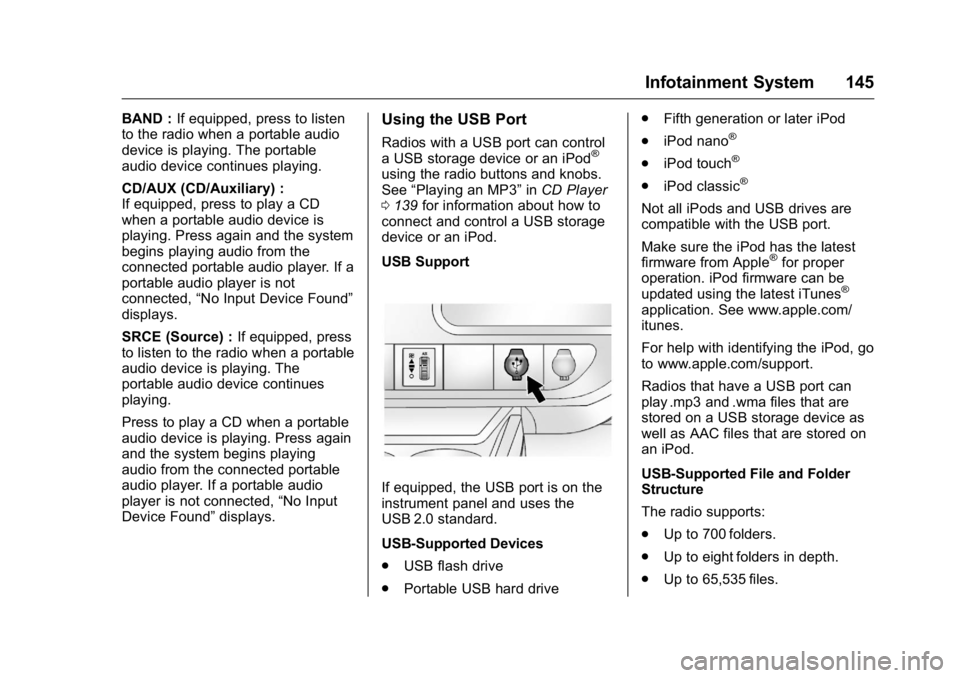
USB Support
If equipped, the USB port is on the
instrument panel and uses the
USB 2.0 standard.
USB-Supported Devices
. USB flash drive
. Portable USB hard drive .
Fifth generation or later iPod
. iPod nano
®
.
iPod touch®
.iPod classic®
Not all iPods and USB drives are
compatible with the USB port.
Make sure the iPod has the latest
firmware from Apple
®for proper
operation. iPod firmware can be
updated using the latest iTunes
®
application. See www.apple.com/
itunes.
For help with identifying the iPod, go
to www.apple.com/support.
Radios that have a USB port can
play .mp3 and .wma files that are
stored on a USB storage device as
well as AAC files that are stored on
an iPod.
USB-Supported File and Folder
Structure
The radio supports:
. Up to 700 folders.
. Up to eight folders in depth.
. Up to 65,535 files.
Page 151 of 343
GMC Savana Owner Manual (GMNA-Localizing-U.S./Canada-9159232) -
2016 - crc - 11/11/15
150 Infotainment System
.Pair cell phone(s) to the vehicle.
The system may not work with
all cell phones. See “Pairing”in
this section for more information.
. If the cell phone has voice
dialing capability, learn to use
that feature to access the
address book or contact list. See
“Voice Pass-Thru” in this section
for more information.
. See “Storing and Deleting Phone
Numbers” in this section for
more information.
{Warning
When using a cell phone, it can
be distracting to look too long or
too often at the screen of the
phone or the infotainment system.
Taking your eyes off the road too
long or too often could cause a
crash resulting in injury or death.
Focus your attention on driving.
A Bluetooth system can use a
Bluetooth-capable cell phone with a
Hands-Free Profile to make and
receive phone calls. The system can be used while the key is in the
ON/RUN or ACC/ACCESSORY
position. The range of the Bluetooth
system can be up to 9.1 m (30 ft).
Not all phones support all functions,
and not all phones work with the
in-vehicle Bluetooth system. See
www.gm.com/bluetooth for more
information on compatible phones.
Voice Recognition
The Bluetooth system uses voice
recognition to interpret voice
commands to dial phone numbers
and name tags.
For additional information, say
“Help”
while you are in a voice
recognition menu.
Noise : Keep interior noise levels to
a minimum. The system may not
recognize voice commands if there
is too much background noise.
When to Speak : A short tone
sounds after the system responds
indicating when it is waiting for a
voice command. Wait until the tone
and then speak.
How to Speak : Speak clearly in a
calm and natural voice.
Audio System
When using the in-vehicle Bluetooth
system, sound comes through the
vehicle's front audio system
speakers and overrides the audio
system. Use the audio system
volume knob, during a call, to
change the volume level. The
adjusted volume level remains in
memory for later calls. To prevent
missed calls, a minimum volume
level is used if the volume is turned
down too low.
Bluetooth Controls
Use the buttons on the steering
wheel to operate the in-vehicle
Bluetooth system. See Steering
Wheel Controls 087.
b/g(Push to Talk) : Press to
answer incoming calls, confirm
system information, and start
speech recognition.
c/x(End) : Press to end a call,
reject a call, or cancel an operation.
Page 154 of 343
GMC Savana Owner Manual (GMNA-Localizing-U.S./Canada-9159232) -
2016 - crc - 11/11/15
Infotainment System 153
1. Press and holdb/gfor
two seconds.
2. Say “Digit Store.”
3. Say each digit, one at a time, that you want to store. After
each digit is entered, the
system repeats back the digit it
heard followed by a tone. After
the last digit has been entered,
say “Store,” and then follow the
directions given by the system
to save a name tag for this
number.
Using the “Delete”Command
1. Press and hold
b/gfor
two seconds.
2. Say “Delete.”
3. Say the name tag you want to delete.
Using the “Delete All Name Tags”
Command
This command deletes all stored
name tags in the Hands-Free
Calling Directory and the OnStar
Turn-by-Turn Destinations Directory,
if equipped. To delete all name tags:
1. Press and hold
b/gfor
two seconds.
2. Say “Delete all name tags.”
Listing Stored Numbers
The list command will list all stored
numbers and name tags.
Using the “List”Command
1. Press and hold
b/gfor
two seconds.
2. Say “Directory.”
3. Say “Hands-Free Calling.”
4. Say “List.”
Making a Call
Calls can be made using the
following commands.
Dial or Call : The dial or call
command can be used
interchangeably to dial a phone
number or a stored name tag.
Digit Dial : This command allows a
phone number to be dialed by
entering the digits one at a time. Re-dial :
This command is used to
dial the last number used on the cell
phone.
Using the “Dial”or“Call”
Command
1. Press and hold
b/gfor
two seconds.
2. Say “Dial”or“Call.”
3. Say the entire number without pausing, or say the name tag.
Once connected, the person called
will be heard through the audio
speakers.
Calling 911 Emergency
1. Press and hold
b/gfor
two seconds.
2. Say “Dial”or“Call.”
3. Say “911.”
4. Say “Dial”or“Call.”
Once connected, the person called
will be heard through the audio
speakers.
Page 155 of 343
GMC Savana Owner Manual (GMNA-Localizing-U.S./Canada-9159232) -
2016 - crc - 11/11/15
154 Infotainment System
Using the“Digit Dial” Command
The digit dial command allows a
phone number to be dialed by
entering the digits one at a time.
After each digit is entered, the
system repeats back the digit it
heard followed by a tone.
If an unwanted number is
recognized by the system, say
“Clear” at any time to clear the last
number.
To hear all of the numbers
recognized by the system, say
“Verify” at any time.
1. Press and hold
b/gfor
two seconds.
2. Say “Digit Dial.”
3. Say each digit, one at a time, that you want to dial. After
each digit is entered, the
system repeats back the digit it
heard followed by a tone. After
the last digit has been entered,
say “Dial.”
Once connected, the person called
will be heard through the audio
speakers. Using the
“Re-dial”Command
1. Press and hold
b/gfor
two seconds.
2. After the tone, say “Re-dial.”
Once connected, the person called
will be heard through the audio
speakers.
Receiving a Call
When an incoming call is received,
the audio system mutes and a ring
tone is heard in the vehicle.
. Press
b/gto answer the call.
. Press
c/xto ignore a call.
Call Waiting
Call waiting must be supported on
the cell phone and enabled by the
wireless service carrier.
.Press
b/gto answer an
incoming call when another call
is active. The original call is
placed on hold.
. Press
b/gagain to return to
the original call. .
To ignore the incoming call, no
action is required.
. Press
c/xto disconnect the
current call and switch to the call
on hold.
Three-Way Calling
Three-way calling must be
supported on the cell phone and
enabled by the wireless service
carrier.
1. While on a call, press
b/g.
2. Say “Three-way call.”
3. Use the dial or call command to dial the number of the third
party to be called.
4. Once the call is connected, press
b/gto link all callers
together.
Ending a Call
Pressc/xto end a call.
Page 156 of 343
GMC Savana Owner Manual (GMNA-Localizing-U.S./Canada-9159232) -
2016 - crc - 11/11/15
Infotainment System 155
Muting a Call
During a call, all sounds from inside
the vehicle can be muted so that the
person on the other end of the call
cannot hear them.
.To mute a call, press
b/g, and
then say “Mute call.”
. To cancel mute, press
b/g,
and then say “Un-mute call.”
Transferring a Call
Audio can be transferred between
the Bluetooth system and the cell
phone.
The cell phone must be paired and
connected with the Bluetooth
system before a call can be
transferred. The connection process
can take up to two minutes after the
ignition is turned to ON/RUN.
Transferring Audio from the
Bluetooth System to a Cell Phone
During a call with the audio in the
vehicle:
1. Press
b/g.
2. Say “Transfer Call.” Transferring Audio to the
Bluetooth System from a Cell
Phone
During a call with the audio on the
cell phone, press
b/g. The audio
transfers to the vehicle. If the audio
does not transfer to the vehicle, use
the audio transfer feature on the cell
phone. See your cell phone
manufacturer's user guide for more
information.
Voice Pass-Thru
Voice pass-thru allows access to the
voice recognition commands on the
cell phone. See your cell phone
manufacturer's user guide to see if
the cell phone supports this feature.
To access contacts stored in the cell
phone:
1. Press and hold
b/gfor
two seconds.
2. Say “Bluetooth.” This command
can be skipped.
3. Say “Voice.”The system
responds “OK, accessing
messages will go through their cycle
according to the phone's operating
instructions.
Dual Tone Multi-Frequency
(DTMF) Tones
The Bluetooth system can send
numbers and the numbers stored as
name tags during a call. You can
use this feature when calling a
menu-driven phone system.
Account numbers can also be
stored for use.
Sending a Number or Name Tag
During a Call
1. Press
b/g. The system
responds “Ready,”followed by
a tone.
2. Say “Dial.”
3. Say the number or name tag to send.
Page 160 of 343
GMC Savana Owner Manual (GMNA-Localizing-U.S./Canada-9159232) -
2016 - crc - 11/11/15
Climate Controls 159
The defogger only works when the
ignition is in ON/RUN. The defogger
turns off if the ignition is in the ACC/
ACCESSORY or LOCK/OFF
position.
Do not drive the vehicle until all the
windows are clear.
Caution
Do not use a razor blade or sharp
object to clear the inside rear
window. Do not adhere anything
to the defogger grid lines in the
rear glass. These actions may
damage the rear defogger.
Repairs would not be covered by
the vehicle warranty.
Rear Heating System
If equipped, the rear heating system
lets you adjust the amount of air
flowing into the rear of the vehicle,
from the front seating area. This
feature works with the main climate
control system in the vehicle.
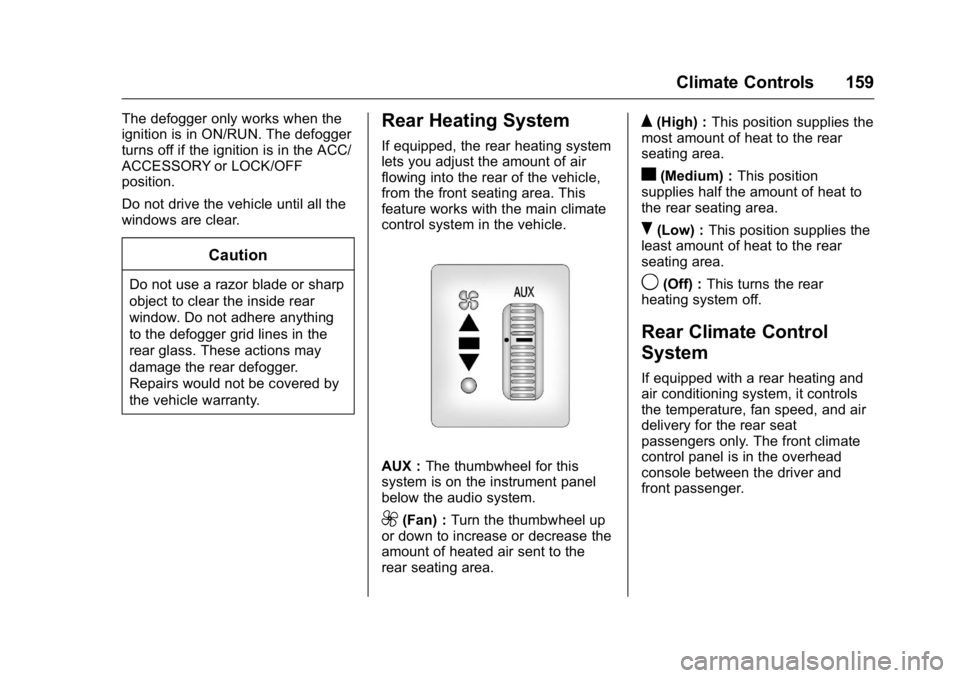
AUX :The thumbwheel for this
system is on the instrument panel
below the audio system.
9(Fan) : Turn the thumbwheel up
or down to increase or decrease the
amount of heated air sent to the
rear seating area.
Q(High) : This position supplies the
most amount of heat to the rear
seating area.
c(Medium) : This position
supplies half the amount of heat to
the rear seating area.
R(Low) : This position supplies the
least amount of heat to the rear
seating area.
9(Off) : This turns the rear
heating system off.
Rear Climate Control
System
If equipped with a rear heating and
air conditioning system, it controls
the temperature, fan speed, and air
delivery for the rear seat
passengers only. The front climate
control panel is in the overhead
console between the driver and
front passenger.