radio GMC SAVANA 2017 User Guide
[x] Cancel search | Manufacturer: GMC, Model Year: 2017, Model line: SAVANA, Model: GMC SAVANA 2017Pages: 350, PDF Size: 4.84 MB
Page 129 of 350
GMC Savana Owner Manual (GMNA-Localizing-U.S./Canada-9967828) -
2017 - crc - 6/29/17
128 Lighting
Automatic Headlamp
System
When it is dark enough outside and
the headlamp switch is in AUTO,
the automatic headlamp system
turns on the headlamps, along with
the taillamps, sidemarker lamps,
parking lamps, and the instrument
panel lights. The radio lights will
also be dim.
To turn off the automatic headlamp
system, turn the exterior lamp
control to the off position and then
release. For vehicles first sold in
Canada, the transmission must be
in the P (Park) position, before the
automatic headlamp system can be
turned off.
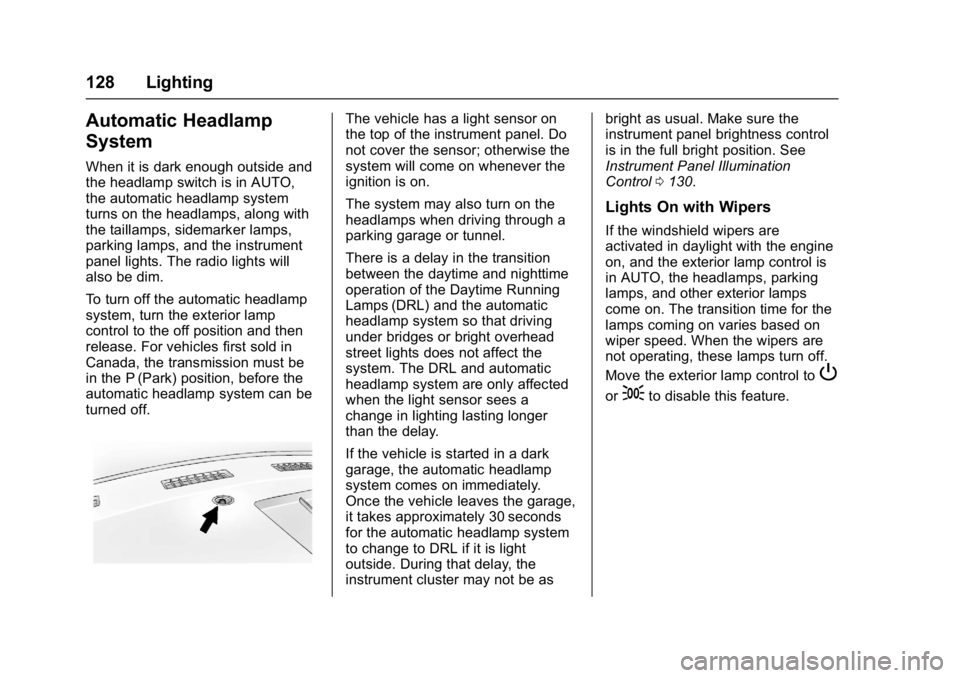
The vehicle has a light sensor on
the top of the instrument panel. Do
not cover the sensor; otherwise the
system will come on whenever the
ignition is on.
The system may also turn on the
headlamps when driving through a
parking garage or tunnel.
There is a delay in the transition
between the daytime and nighttime
operation of the Daytime Running
Lamps (DRL) and the automatic
headlamp system so that driving
under bridges or bright overhead
street lights does not affect the
system. The DRL and automatic
headlamp system are only affected
when the light sensor sees a
change in lighting lasting longer
than the delay.
If the vehicle is started in a dark
garage, the automatic headlamp
system comes on immediately.
Once the vehicle leaves the garage,
it takes approximately 30 seconds
for the automatic headlamp system
to change to DRL if it is light
outside. During that delay, the
instrument cluster may not be asbright as usual. Make sure the
instrument panel brightness control
is in the full bright position. See
Instrument Panel Illumination
Control
0130.
Lights On with Wipers
If the windshield wipers are
activated in daylight with the engine
on, and the exterior lamp control is
in AUTO, the headlamps, parking
lamps, and other exterior lamps
come on. The transition time for the
lamps coming on varies based on
wiper speed. When the wipers are
not operating, these lamps turn off.
Move the exterior lamp control to
P
or;to disable this feature.
Page 131 of 350
GMC Savana Owner Manual (GMNA-Localizing-U.S./Canada-9967828) -
2017 - crc - 6/29/17
130 Lighting
Interior Lighting
Instrument Panel
Illumination Control
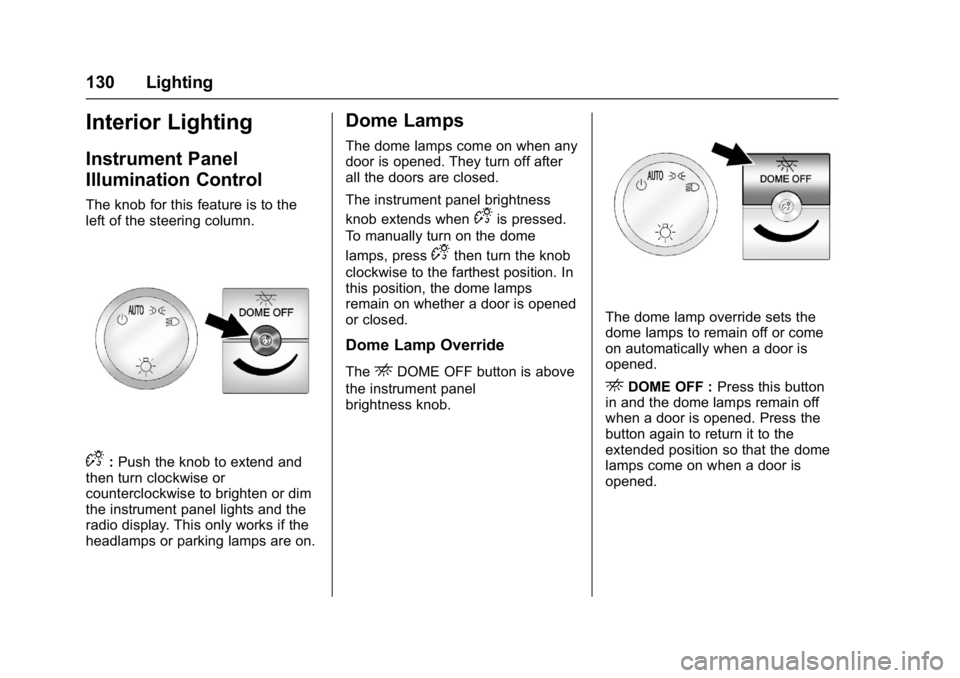
The knob for this feature is to the
left of the steering column.
D:Push the knob to extend and
then turn clockwise or
counterclockwise to brighten or dim
the instrument panel lights and the
radio display. This only works if the
headlamps or parking lamps are on.
Dome Lamps
The dome lamps come on when any
door is opened. They turn off after
all the doors are closed.
The instrument panel brightness
knob extends when
Dis pressed.
To manually turn on the dome
lamps, press
Dthen turn the knob
clockwise to the farthest position. In
this position, the dome lamps
remain on whether a door is opened
or closed.
Dome Lamp Override
TheEDOME OFF button is above
the instrument panel
brightness knob.
The dome lamp override sets the
dome lamps to remain off or come
on automatically when a door is
opened.
EDOME OFF : Press this button
in and the dome lamps remain off
when a door is opened. Press the
button again to return it to the
extended position so that the dome
lamps come on when a door is
opened.
Page 134 of 350
GMC Savana Owner Manual (GMNA-Localizing-U.S./Canada-9967828) -
2017 - crc - 6/29/17
Infotainment System 133
Infotainment
System
Introduction
Infotainment . . . . . . . . . . . . . . . . . . 133
Theft-Deterrent Feature . . . . . . 134
Overview (AM-FM Radio) . . . . . 134
Overview (Radio withCD/MP3) . . . . . . . . . . . . . . . . . . . . 136
Operation . . . . . . . . . . . . . . . . . . . . . 137
Radio
AM-FM Radio . . . . . . . . . . . . . . . . 139
Satellite Radio . . . . . . . . . . . . . . . . 140
Radio Reception . . . . . . . . . . . . . . 141
Fixed Mast Antenna . . . . . . . . . . 142
Multi-Band Antenna . . . . . . . . . . 142
Audio Players
Avoiding Untrusted Media Devices . . . . . . . . . . . . . . . . . . . . . 142
CD Player . . . . . . . . . . . . . . . . . . . . 142
Auxiliary Devices . . . . . . . . . . . . . 147
OnStar System
OnStar System . . . . . . . . . . . . . . . 152
Phone
Bluetooth . . . . . . . . . . . . . . . . . . . . . 152
Introduction
Infotainment
Base radio information is included in
this manual. See the infotainment
manual for information on other
available infotainment systems.
Read the following pages to
become familiar with the features.
{Warning
Taking your eyes off the road for
too long or too often while using
any infotainment feature can
cause a crash. You or others
could be injured or killed. Do not
give extended attention to
infotainment tasks while driving.
Limit your glances at the vehicle
displays and focus your attention
on driving. Use voice commands
whenever possible.
The infotainment system has built-in
features intended to help avoid
distraction by disabling some
functions when driving. These functions may gray out when they
are unavailable. Many infotainment
features are also available through
the instrument cluster and steering
wheel controls.
Before driving:
.
Become familiar with the
operation, faceplate buttons, and
screen buttons.
. Set up the audio by presetting
favorite stations, setting the
tone, and adjusting the
speakers.
. Set up phone numbers in
advance so they can be called
easily by pressing a single
button or by using a single voice
command if equipped with
Bluetooth phone capability.
See Defensive Driving 0167.
To play the infotainment system with
the ignition off, see Retained
Accessory Power (RAP) 0181.
Page 135 of 350
GMC Savana Owner Manual (GMNA-Localizing-U.S./Canada-9967828) -
2017 - crc - 6/29/17
134 Infotainment System
Theft-Deterrent Feature
The theft-deterrent feature works by
learning a portion of the Vehicle
Identification Number (VIN) to the
infotainment system. The
infotainment system does not
operate if it is stolen or moved to a
different vehicle.
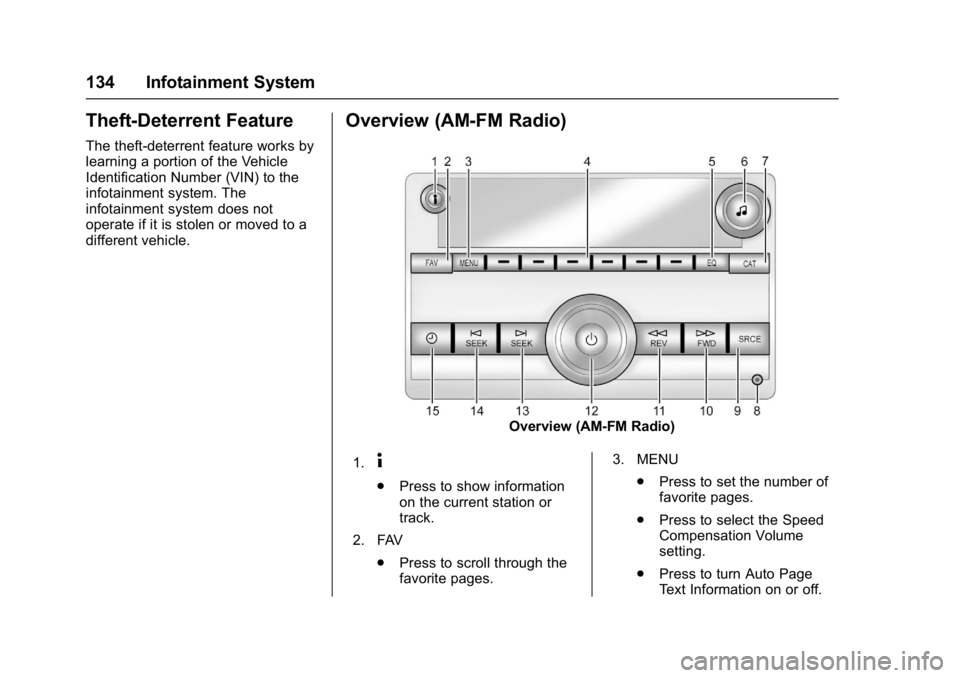
Overview (AM-FM Radio)
Overview (AM-FM Radio)
1.
4
. Press to show information
on the current station or
track.
2. FAV .Press to scroll through the
favorite pages. 3. MENU
.Press to set the number of
favorite pages.
. Press to select the Speed
Compensation Volume
setting.
. Press to turn Auto Page
Text Information on or off.
Page 136 of 350

GMC Savana Owner Manual (GMNA-Localizing-U.S./Canada-9967828) -
2017 - crc - 6/29/17
Infotainment System 135
4. Buttons 1 - 6.Press to save and select
favorite stations.
5. EQ .Press to adjust the
equalizer.
6.
f
. Press to set the bass,
midrange, treble, fade, and
balance.
. Turn to manually select
radio stations.
7. CAT .Press to display a list of
SXM categories,
if equipped. 8. Auxiliary Input Jack
(If Equipped)
.Use to connect external
audio devices.
9. SRCE .Press to scroll through
auxiliary devices, AM, FM,
or SXM if equipped.
10.\FWD
. Press and hold to fast
forward through a track.
11.
sREV
. Press and hold to go
backward fast through a
track. 12.
P
.
Press to turn the
infotainment system on
or off.
. Turn to adjust the volume.
13.
¨SEEK
. Seeks or scans to the next
station.
14.
©SEEK
. Seeks or scans to the
previous station.
15.
H
. Press to set the clock
and date.
Page 137 of 350
GMC Savana Owner Manual (GMNA-Localizing-U.S./Canada-9967828) -
2017 - crc - 6/29/17
136 Infotainment System
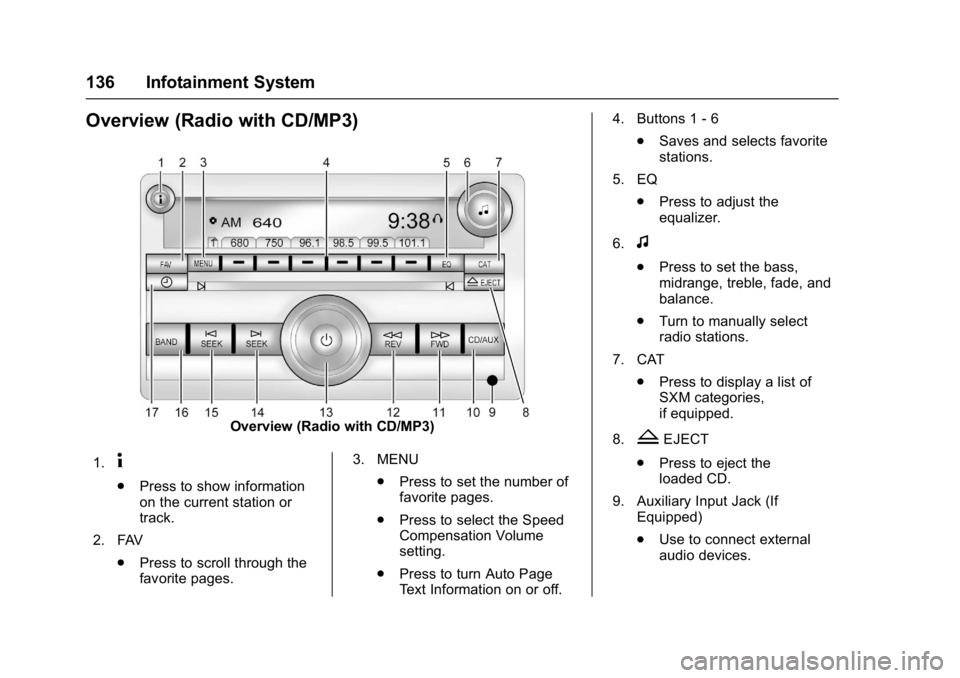
Overview (Radio with CD/MP3)
Overview (Radio with CD/MP3)
1.
4
. Press to show information
on the current station or
track.
2. FAV .Press to scroll through the
favorite pages. 3. MENU
.Press to set the number of
favorite pages.
. Press to select the Speed
Compensation Volume
setting.
. Press to turn Auto Page
Text Information on or off. 4. Buttons 1 - 6
.Saves and selects favorite
stations.
5. EQ .Press to adjust the
equalizer.
6.
f
. Press to set the bass,
midrange, treble, fade, and
balance.
. Turn to manually select
radio stations.
7. CAT .Press to display a list of
SXM categories,
if equipped.
8.
ZEJECT
. Press to eject the
loaded CD.
9. Auxiliary Input Jack (If Equipped)
.Use to connect external
audio devices.
Page 138 of 350
GMC Savana Owner Manual (GMNA-Localizing-U.S./Canada-9967828) -
2017 - crc - 6/29/17
Infotainment System 137
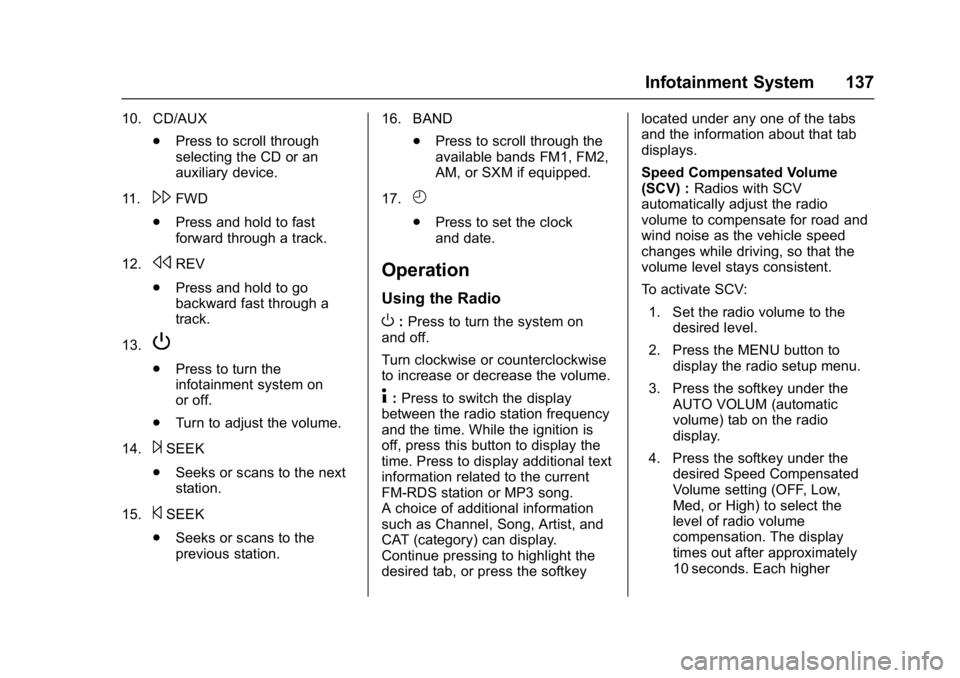
10. CD/AUX.Press to scroll through
selecting the CD or an
auxiliary device.
11.
\FWD
. Press and hold to fast
forward through a track.
12.
sREV
. Press and hold to go
backward fast through a
track.
13.
P
. Press to turn the
infotainment system on
or off.
. Turn to adjust the volume.
14.
¨SEEK
. Seeks or scans to the next
station.
15.
©SEEK
. Seeks or scans to the
previous station. 16. BAND
.Press to scroll through the
available bands FM1, FM2,
AM, or SXM if equipped.
17.
H
. Press to set the clock
and date.
Operation
Using the Radio
O:Press to turn the system on
and off.
Turn clockwise or counterclockwise
to increase or decrease the volume.
4: Press to switch the display
between the radio station frequency
and the time. While the ignition is
off, press this button to display the
time. Press to display additional text
information related to the current
FM-RDS station or MP3 song.
A choice of additional information
such as Channel, Song, Artist, and
CAT (category) can display.
Continue pressing to highlight the
desired tab, or press the softkey located under any one of the tabs
and the information about that tab
displays.
Speed Compensated Volume
(SCV) :
Radios with SCV
automatically adjust the radio
volume to compensate for road and
wind noise as the vehicle speed
changes while driving, so that the
volume level stays consistent.
To activate SCV:
1. Set the radio volume to the desired level.
2. Press the MENU button to display the radio setup menu.
3. Press the softkey under the AUTO VOLUM (automatic
volume) tab on the radio
display.
4. Press the softkey under the desired Speed Compensated
Volume setting (OFF, Low,
Med, or High) to select the
level of radio volume
compensation. The display
times out after approximately
10 seconds. Each higher
Page 139 of 350
GMC Savana Owner Manual (GMNA-Localizing-U.S./Canada-9967828) -
2017 - crc - 6/29/17
138 Infotainment System
setting allows for more radio
volume compensation at faster
vehicle speeds.
Setting the Tone (Bass/Treble)
To adjust the bass or treble:1. Press the
fknob until Bass or
Treble displays.
2. To adjust the setting, do one of the following:
.Turn the
fknob.
. Press either
¨SEEK,
or
©SEEK.
EQ : Press this button to choose
bass and treble equalization
settings designed for different types
of music. Selecting MANUAL,
or changing bass or treble, returns
the EQ to the manual bass and
treble settings.
Unique EQ settings can be saved
for each source.
Adjusting the Speakers
(Balance/Fade)
BAL/FADE : To adjust the balance
or fade:
1. Press the
fknob until the
speaker control tabs display.
2. Highlight the desired speaker control tab by doing one of the
following:
.Press the
fknob.
. Press the softkey under the
desired tab.
3. Adjust the setting by doing one of the following:
.Turn the
fknob clockwise
or counterclockwise.
. Press
¨SEEK or©SEEK.
. Press
\FWD orsREV.
To quickly adjust all speaker and
tone controls to the middle position,
press the
fknob for more than
two seconds. If the Rear Seat Audio (RSA) is
turned on, the radio disables FADE
and mutes the rear speakers.
Radio Messages
Calibration Error :
The audio
system has been calibrated for the
vehicle from the factory.
If Calibration Error displays, it
means that the radio has not been
configured properly for the vehicle
and it must be returned to your
dealer for service.
VIN or NO VIN : One of these
messages will display when the
TheftLock system has locked up the
radio. Take the vehicle to your
dealer for service.
If any error occurs repeatedly or if
an error cannot be corrected,
contact your dealer.
Page 140 of 350
GMC Savana Owner Manual (GMNA-Localizing-U.S./Canada-9967828) -
2017 - crc - 6/29/17
Infotainment System 139
Radio
AM-FM Radio
Radio Data System (RDS)
The radio may have an RDS. The
RDS feature is available for use
only on FM stations that broadcast
RDS information. This system relies
upon receiving specific information
from these stations and only works
when the information is available.
While the radio is tuned to an
FM-RDS station, the station name
or call letters display. In rare cases,
a radio station could broadcast
incorrect information that causes the
radio features to work improperly.
If this happens, contact the radio
station.
Finding a Station
BAND or SRCE :Press to switch
between FM1, FM2, AM, and SXM.
The selection displays.
f: Turn clockwise or
counterclockwise to increase or
decrease the station frequency.
©SEEK or¨SEEK : Press©
SEEK to go to the previous or¨
SEEK to go to the next station and
stay there.
To scan stations, press and hold
either button for two seconds until a
beep sounds. The radio goes to a
station, plays for a few seconds,
then goes to the next station. For
AM-FM Radio and Radio with CD,
the station frequency flashes while
the radio is in the scan mode. Press
either button again to stop scanning.
The radio seeks and scans stations
only with a strong signal that are in
the selected band.
Scan presets within the current
selected band by pressing and
holding either SEEK button for
four seconds until a double beep
sounds. The radio goes to a stored
preset, plays for a few seconds if a
strong signal is present, then goes
to the next stored preset. The
station frequency flashes while the
radio is in the scan mode.
Storing a Radio Station as a
Favorite
You are encouraged to set up radio
station favorites while the vehicle is
parked. Tune to favorite stations
using the presets, favorites button,
and steering wheel controls,
if equipped. See Defensive Driving
0 167.
FAV : If the vehicle has a FAV
button, a maximum of 36 stations
can be programmed as favorites
using the six softkeys below the
radio station frequency tabs and by
using the radio favorites page
button (FAV button). Press FAV to
go through up to six pages of
favorites, each having six favorite
stations available per page. Each
page of favorites can contain any
combination of AM and FM stations.
The balance/fade and tone settings
that were previously adjusted, are
stored with the favorite stations.
To store a station as a favorite:
1. Tune to the desired radio station.
Page 141 of 350
GMC Savana Owner Manual (GMNA-Localizing-U.S./Canada-9967828) -
2017 - crc - 6/29/17
140 Infotainment System
2. Press FAV to display the pagewhere the station is to be
stored.
3. Press and hold one of the six softkeys until a beep
sounds. When that softkey is
pressed and released, the
station that was set, returns.
4. Repeat the steps for each softkey radio station to be
stored as a favorite.
The number of favorites pages can
be set up using the MENU button.
To set up the number of favorites
pages: 1. Press MENU to display the radio setup menu.
2. Press the softkey below the FAV 1-6 tab.
3. Select the desired number of favorites pages by pressing the
softkey below the displayed
page numbers.
4. Press FAV, or let the menu time out, to return to the original
main radio screen showing the
radio station frequency tabs
and to begin the process of programming favorites for the
chosen number of numbered
pages.
Satellite Radio
SiriusXM®, if equipped, is a satellite
radio service based in the United
States and Canada only.
Finding a Category (CAT)
Station
CAT : The CAT button is used to
find SXM channels (if equipped)
while the radio is in the SXM mode.
Finding a Channel
BAND or SRCE : Press to switch
between FM1, FM2, AM, and SXM if
equipped. The selection displays.
f: Turn clockwise or
counterclockwise to increase or
decrease the station frequency.
©SEEK or¨SEEK : Press©
SEEK to go to the previous or¨
SEEK to go to the next station and
stay there. To scan stations, press and hold
either button for two seconds until a
beep sounds. The radio goes to a
station, plays for a few seconds,
then goes to the next station. The
station frequency flashes while the
radio is in the scan mode. Press
either button again to stop scanning.
The radio seeks and scans stations
only with a strong signal that are in
the selected band.
To scan presets within the current
selected band by pressing and
holding either SEEK button for
four seconds until a double beep
sounds. The radio goes to a stored
preset, plays for a few seconds if a
strong signal is present, then goes
to the next stored preset. The
station frequency flashes while the
radio is in the scan mode.
Storing a Radio Station as a
Favorite
Drivers are encouraged to set up
radio station favorites while the
vehicle is parked. Tune to favorite
stations using the presets, favorites