light GMC SAVANA PASSENGER 2008 Workshop Manual
[x] Cancel search | Manufacturer: GMC, Model Year: 2008, Model line: SAVANA PASSENGER, Model: GMC SAVANA PASSENGER 2008Pages: 402, PDF Size: 2.34 MB
Page 170 of 402
STABILITRAK OFF
If your vehicle has StabiliTrak®, this message displays
when you turn off StabiliTrak®, or when the stability
control has been automatically disabled. To limit
wheel spin and realize the full benefits of the stability
enhancement system, you should normally leave
StabiliTrak
®on. However, you should turn StabiliTrak®off
if your vehicle gets stuck in sand, mud, ice, or snow and
you want to rock your vehicle to attempt to free it, or if you
are driving in extreme off-road conditions and require
more wheel spin. SeeIf Your Vehicle is Stuck in Sand,
Mud, Ice, or Snow on page 4-19. To turn the StabiliTrak
®
system on or off, seeStabiliTrak®System on page 4-5.
There are several conditions that can cause this
message to appear.
•One condition is overheating, which could occur if
StabiliTrak®activates continuously for an extended
period of time.
•The message also displays if the brake system
warning light is on. SeeBrake System Warning
Light on page 3-33.
•The message could display if the stability system
takes longer than usual to complete its diagnostic
checks due to driving conditions.
•The message displays if an engine or vehicle
related problem has been detected and the vehicle
needs service. See your dealer/retailer.
•The message also displays if the vehicle is shifted
into 4LO.The message turns off as soon as the conditions that
caused the message to be displayed are no longer
present.
STARTING DISABLED SERVICE
THROTTLE
This message displays if the starting of the engine is
disabled due to the electronic throttle control system.
Have your vehicle serviced by your dealer/retailer
immediately.
This message only appears while the ignition is in
ON/RUN, and will not disappear until the problem is
resolved.
This message cannot be acknowledged.
TIGHTEN GAS CAP
This message may display along with the check engine
light on the instrument panel cluster if the vehicle’s fuel
cap is not tightened properly. SeeMalfunction Indicator
Lamp on page 3-36. Reinstall the fuel cap fully. See
Filling the Tank on page 5-10. The diagnostic system can
determine if the fuel cap has been left off or improperly
installed. A loose or missing fuel cap allows fuel to
evaporate into the atmosphere. A few driving trips with
the cap properly installed should turn this light and
message off.
3-56
Page 174 of 402
REMOTE DOOR LOCK
This feature allows you to select the type of feedback
you will receive when locking the vehicle with the
Remote Keyless Entry (RKE) transmitter. You will not
receive feedback when locking the vehicle with the RKE
transmitter if the doors are open. SeeRemote Keyless
Entry (RKE) System Operation on page 2-4for more
information.
Press the customization button until REMOTE DOOR
LOCK appears on the DIC display. Press the set/reset
button once to access the settings for this feature.
Then press the customization button to scroll through
the following settings:
OFF:There will be no feedback when you press the
lock button on the RKE transmitter.
LIGHTS ONLY:The exterior lamps will flash when you
press the lock button on the RKE transmitter.
HORN ONLY:The horn will sound on the second press
of the lock button on the RKE transmitter.
HORN & LIGHTS (default):The exterior lamps will
flash when you press the lock button on the RKE
transmitter, and the horn will sound when the lock button
is pressed again within five seconds of the previous
command.
NO CHANGE:No change will be made to this feature.
The current setting will remain.To select a setting, press the set/reset button while the
desired setting is displayed on the DIC.
REMOTE DOOR UNLOCK
This feature allows you to select the type of feedback
you will receive when unlocking the vehicle with the
Remote Keyless Entry (RKE) transmitter. You will not
receive feedback when unlocking the vehicle with the
RKE transmitter if the doors are open. SeeRemote
Keyless Entry (RKE) System Operation on page 2-4
for more information.
Press the customization button until REMOTE DOOR
UNLOCK appears on the DIC display. Press the
set/reset button once to access the settings for this
feature. Then press the customization button to scroll
through the following settings:
LIGHTS OFF:The exterior lamps will not flash when
you press the unlock button on the RKE transmitter.
LIGHTS ON (default):The exterior lamps will
flash when you press the unlock button on the RKE
transmitter.
NO CHANGE:No change will be made to this feature.
The current setting will remain.
To select a setting, press the set/reset button while the
desired setting is displayed on the DIC.
3-60
Page 175 of 402
DELAY DOOR LOCK
This feature allows you to select whether or not the
locking of the vehicle’s doors will be delayed. When
locking the doors with the power door lock switch and a
door is open, this feature will delay locking the doors
until five seconds after the last door is closed. You will
hear three chimes to signal that the delayed locking
feature is in use. The key must be out of the ignition
for this feature to work. You can temporarily override
delayed locking by pressing the power door lock switch
twice or the lock button on the RKE transmitter twice.
SeeDelayed Locking on page 2-7for more information.
Press the customization button until DELAY DOOR
LOCK appears on the DIC display. Press the set/reset
button once to access the settings for this feature.
Then press the customization button to scroll through
the following settings:
OFF:There will be no delayed locking of the vehicle’s
doors.
ON (default):The doors will not lock until five seconds
after the last door is closed.
NO CHANGE:No change will be made to this feature.
The current setting will remain.
To select a setting, press the set/reset button while the
desired setting is displayed on the DIC.
EXIT LIGHTING
This feature allows you to select the amount of time you
want the exterior lamps to remain on when it is dark
enough outside. This happens after the key is turned
from ON/RUN to LOCK/OFF.
Press the customization button until EXIT LIGHTING
appears on the DIC display. Press the set/reset button
once to access the settings for this feature. Then press
the customization button to scroll through the following
settings:
OFF:The exterior lamps will not turn on.
30 SECONDS (default):The exterior lamps will stay on
for 30 seconds.
1 MINUTE:The exterior lamps will stay on for
one minute.
2 MINUTES:The exterior lamps will stay on for
two minutes.
NO CHANGE:No change will be made to this feature.
The current setting will remain.
To select a setting, press the set/reset button while the
desired setting is displayed on the DIC.
3-61
Page 182 of 402
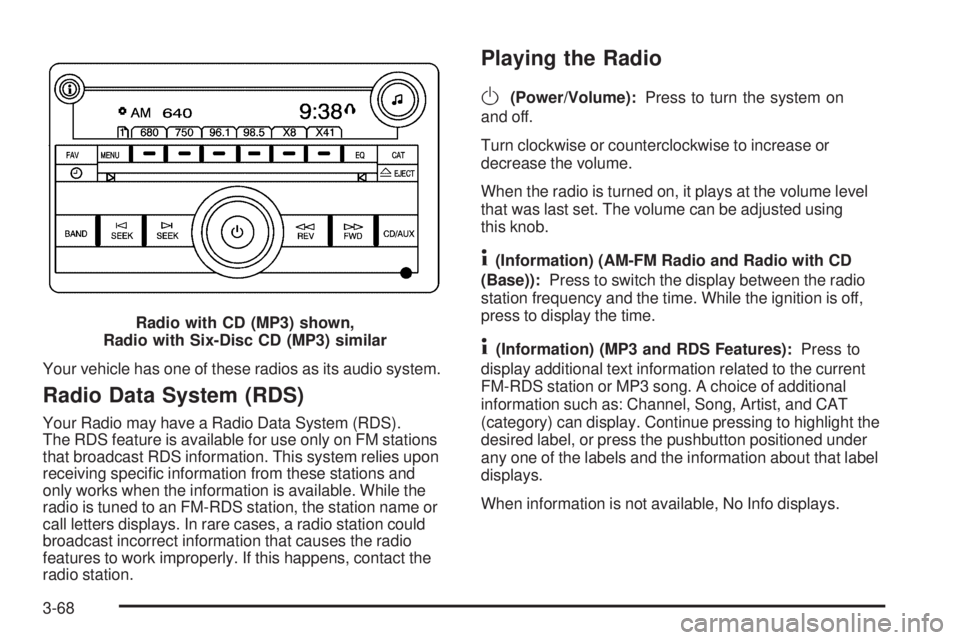
Your vehicle has one of these radios as its audio system.
Radio Data System (RDS)
Your Radio may have a Radio Data System (RDS).
The RDS feature is available for use only on FM stations
that broadcast RDS information. This system relies upon
receiving specific information from these stations and
only works when the information is available. While the
radio is tuned to an FM-RDS station, the station name or
call letters displays. In rare cases, a radio station could
broadcast incorrect information that causes the radio
features to work improperly. If this happens, contact the
radio station.
Playing the Radio
O
(Power/Volume):Press to turn the system on
and off.
Turn clockwise or counterclockwise to increase or
decrease the volume.
When the radio is turned on, it plays at the volume level
that was last set. The volume can be adjusted using
this knob.
4(Information) (AM-FM Radio and Radio with CD
(Base)):Press to switch the display between the radio
station frequency and the time. While the ignition is off,
press to display the time.
4(Information) (MP3 and RDS Features):Press to
display additional text information related to the current
FM-RDS station or MP3 song. A choice of additional
information such as: Channel, Song, Artist, and CAT
(category) can display. Continue pressing to highlight the
desired label, or press the pushbutton positioned under
any one of the labels and the information about that label
displays.
When information is not available, No Info displays. Radio with CD (MP3) shown,
Radio with Six-Disc CD (MP3) similar
3-68
Page 185 of 402
The number of favorites pages can be setup using
the MENU button. To setup the number of favorites
pages, perform the following steps:
1. Press the MENU button to display the radio
setup menu.
2. Press the pushbutton located below the
FAV 1-6 label.
3. Select the desired number of favorites pages
by pressing the pushbutton located below the
displayed page numbers.
4. Press the FAV button, or let the menu time out,
to return to the original main radio screen showing
the radio station frequency labels and to begin
the process of programming your favorites for
the chosen amount of numbered pages.
Setting the Tone (Bass/Treble) (AM-FM
Radio and Radio with CD (Base))
BASS/TREB Bass/Treble:To adjust the bass or treble,
press the
fknob or the EQ button until the desired tone
control label displays. Turn the
fknob clockwise or
counterclockwise to increase or decrease the setting.
The display shows the current bass or treble level. If a
station’s frequency is weak, or if there is static, decrease
the treble.
Unique BASS/TREB settings can be saved for each
source.
Setting the Tone
(Bass/Midrange/Treble)
BASS/MID/TREB (Bass, Midrange, or Treble):
To adjust bass, midrange, or treble, press the
fknob
until the tone control labels display. Continue pressing
to highlight the desired label, or press the pushbutton
positioned under the desired label. Turn the
fknob
clockwise or counterclockwise to adjust the highlighted
setting. You can also adjust the highlighted setting by
pressing either SEEK arrow,
\FWD (forward),
or
sREV (reverse) button until the desired levels
are obtained. If a station’s frequency is weak or if there
is static, decrease the treble.
To quickly adjust bass, midrange, or treble to the middle
position, press the pushbutton positioned under the
BASS, MID, or TREB label for more than two seconds
and the level adjusts to the middle position.
To quickly adjust all tone and speaker controls to
the middle position, press the
fknob for more than
two seconds until a beep sounds.
3-71
Page 186 of 402
EQ (Equalization):Press this button to choose bass
and treble equalization settings designed for different
types of music. The choices are pop, rock, country, talk,
jazz, and classical. Selecting MANUAL or changing
bass or treble, returns the EQ to the manual bass and
treble settings.
Unique EQ settings can be saved for each source.
Adjusting the Speakers
(Balance/Fade) (AM-FM Radio
and Radio with CD (Base))
`
(Balance/Fade):To adjust the balance or fade,
press the
`button or thefknob until the desired
speaker control label displays. Turn the
fknob
clockwise or counterclockwise to adjust the setting.
Adjusting the Speakers (Balance/Fade)
BAL/FADE (Balance/Fade):To adjust balance or
fade, press the
fknob until the speaker control labels
display. Continue pressing to highlight the desired
label, or press the pushbutton positioned under
the desired label. Turn the
fknob clockwise or
counterclockwise to adjust the highlighted setting.
To quickly adjust balance or fade to the middle position,
press the pushbutton positioned under the BAL or
FADE label for more than two seconds. A beep sounds
and the level adjusts to the middle position.
To quickly adjust all speaker and tone controls to the
middle position, press the
fknob for more than
two seconds until a beep sounds.
3-72
Page 188 of 402
When the CD is inserted, the CD symbol displays. As
each new track starts to play, the track number displays.
The CD player can play the smaller 3 inch (8 cm)
single CDs with an adapter ring. Full-size CDs and
the smaller CDs are loaded in the same manner.
Care of Your CDs and DVDs
If playing a CD-R, the sound quality can be reduced due
to CD-R or CD-RW quality, the method of recording, the
quality of the music that has been recorded, and the way
the CD-R or CD-RW has been handled. Handle them
carefully. Store CD-R(s) or CD-RW(s) in their original
cases or other protective cases and away from direct
sunlight and dust. The CD or DVD player scans the
bottom surface of the disc. If the surface of a CD is
damaged, such as cracked, broken, or scratched, the
CD does not play properly or not at all. Do not touch the
bottom side of a CD while handling it; this could damage
the surface. Pick up CDs by grasping the outer edges or
the edge of the hole and the outer edge.
If the surface of a CD is soiled, take a soft, lint free
cloth or dampen a clean, soft cloth in a mild, neutral
detergent solution mixed with water, and clean it.
Make sure the wiping process starts from the center
to the edge.
Care of Your CD and DVD Player
Do not add any label to a CD, it could get caught in the
CD or DVD player. If a CD is recorded on a personal
computer and a description label is needed, try labeling
the top of the recorded CD with a marking pen.
The use of CD lens cleaners for CDs is not advised,
due to the risk of contaminating the lens of the CD optics
with lubricants internal to the CD and DVD player
mechanism.
Notice:If a label is added to a CD, or more than
one CD is inserted into the slot at a time, or an
attempt is made to play scratched or damaged CDs,
the CD player could be damaged. While using the
CD player, use only CDs in good condition without
any label, load one CD at a time, and keep the
CD player and the loading slot free of foreign
materials, liquids, and debris.
If an error displays, see “CD Messages” later in this
section.
ZEJECT:Press to eject the CD. If the CD is not
removed, after several seconds, the CD automatically
pulls back into the player.
For the Six-Disc CD player, press and hold for
two seconds to eject all discs.
3-74
Page 196 of 402
Press this button again and the system automatically
searches for an auxiliary input device such as a portable
audio player. If a portable audio player is not connected,
“No Input Device Found” displays.
Theft-Deterrent Feature
Non-RDS Radios
THEFTLOCK®is designed to discourage theft of
your vehicle’s radio. The feature works automatically
by learning a portion of the Vehicle Identification
Number (VIN). If the radio is moved to a different
vehicle, it does not operate and LOC displays.
With THEFTLOCK
®activated, the radio does not
operate if stolen.
RDS Radios
THEFTLOCK®is designed to discourage theft of your
vehicle’s radio. The feature works automatically by
learning a portion of the Vehicle Identification Number
(VIN). If the radio is moved to a different vehicle, it does
not operate and LOCKED displays.
When the radio and vehicle are turned off, the blinking
red light indicates that THEFTLOCK
®is armed.
With THEFTLOCK
®activated, the radio does not
operate if stolen.
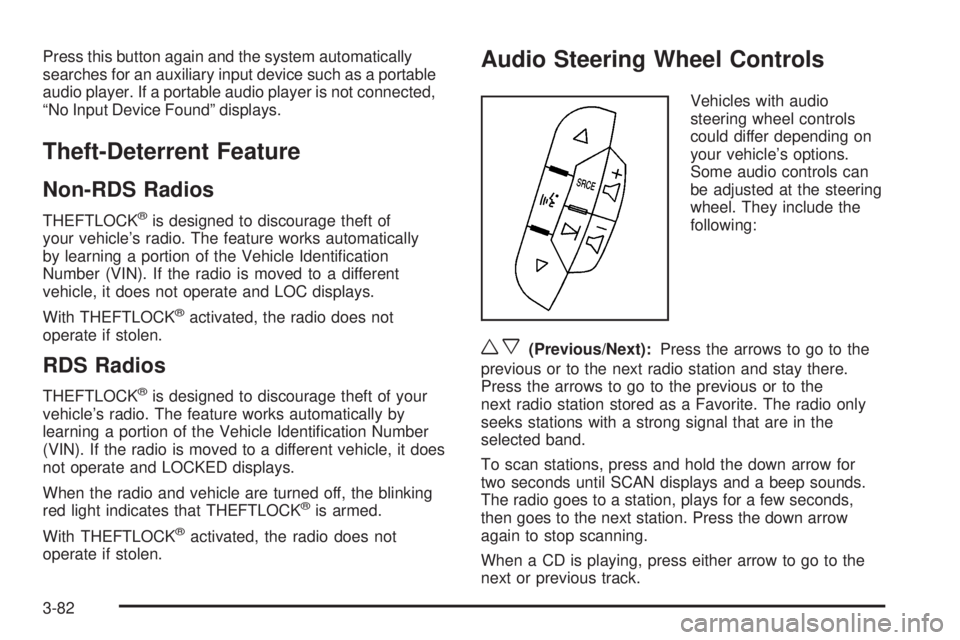
Audio Steering Wheel Controls
Vehicles with audio
steering wheel controls
could differ depending on
your vehicle’s options.
Some audio controls can
be adjusted at the steering
wheel. They include the
following:
wx(Previous/Next):Press the arrows to go to the
previous or to the next radio station and stay there.
Press the arrows to go to the previous or to the
next radio station stored as a Favorite. The radio only
seeks stations with a strong signal that are in the
selected band.
To scan stations, press and hold the down arrow for
two seconds until SCAN displays and a beep sounds.
The radio goes to a station, plays for a few seconds,
then goes to the next station. Press the down arrow
again to stop scanning.
When a CD is playing, press either arrow to go to the
next or previous track.
3-82
Page 197 of 402
g(Mute):Press this button to silence the system.
Press this button again, to turn the sound on.
SRCE (Source):Press this button to switch between
the radio AM, FM, XM™ (if equipped), CD, and auxiliary
input jack.
+
e−e(Volume):Press the plus or minus volume
button to increase or to decrease the volume.
¨(Seek):Press the seek arrow to go to the next
radio station while in AM, FM, or XM™ (if equipped).
Press the seek arrow to go to the next track while
sourced to the CD.
Radio Reception
Frequency interference and static can occur during
normal radio reception if items such as cell phone
chargers, vehicle convenience accessories, and external
electronic devices are plugged into the accessory power
outlet. If there is interference or static, unplug the item
from the accessory power outlet.
AM
The range for most AM stations is greater than for FM,
especially at night. The longer range can cause station
frequencies to interfere with each other. For better radio
reception, most AM radio stations boost the power levels
during the day, and then reduce these levels during the
night. Static can also occur when things like storms and
power lines interfere with radio reception. When this
happens, try reducing the treble on your radio.
FM Stereo
FM stereo gives the best sound, but FM signals reach
only about 10 to 40 miles (16 to 65 km). Tall buildings or
hills can interfere with FM signals, causing the sound
to fade in and out.
Fixed Mast Antenna
The fixed mast antenna can withstand most car washes
without being damaged. If the mast should ever become
slightly bent, straighten it out by hand. If the mast is badly
bent, replace it.
Check occasionally to make sure the mast is still
tightened to its base. If tightening is required, tighten
by hand, then with a wrench one quarter turn.
3-83
Page 201 of 402
Police records show that almost 40 percent of all motor
vehicle-related deaths involve alcohol. In most cases,
these deaths are the result of someone who was
drinking and driving. In recent years, more than
17,000 annual motor vehicle-related deaths have
been associated with the use of alcohol, with about
250,000 people injured.
For persons under 21, it is against the law in every
U.S. state to drink alcohol. There are good medical,
psychological, and developmental reasons for
these laws.
The obvious way to eliminate the leading highway
safety problem is for people never to drink alcohol and
then drive.
Medical research shows that alcohol in a person’s
system can make crash injuries worse, especially
injuries to the brain, spinal cord, or heart. This means
that when anyone who has been drinking — driver
or passenger — is in a crash, that person’s chance of
being killed or permanently disabled is higher than if the
person had not been drinking.Control of a Vehicle
The following three systems help to control your vehicle
while driving — brakes, steering, and accelerator. At
times, as when driving on snow or ice, it is easy to ask
more of those control systems than the tires and road can
provide. Meaning, you can lose control of your vehicle.
Adding non-dealer/non-retailer accessories can affect
your vehicle’s performance. SeeAccessories and
Modifications on page 5-3.
Braking
SeeBrake System Warning Light on page 3-33.
Braking action involves perception time and reaction
time. First, you have to decide to push on the brake
pedal. That is perception time. Then you have to bring
up your foot and do it. That is reaction time.
Average reaction time is about three-fourths of a
second. But that is only an average. It might be less
with one driver and as long as two or three seconds or
more with another. Age, physical condition, alertness,
coordination, and eyesight all play a part. So do alcohol,
drugs, and frustration. But even in three-fourths of a
second, a vehicle moving at 60 mph (100 km/h) travels
66 feet (20 m). That could be a lot of distance in an
emergency, so keeping enough space between
your vehicle and others is important.
4-3