audio GMC SAVANA PASSENGER 2009 User Guide
[x] Cancel search | Manufacturer: GMC, Model Year: 2009, Model line: SAVANA PASSENGER, Model: GMC SAVANA PASSENGER 2009Pages: 406, PDF Size: 2.34 MB
Page 194 of 406
RDM (Random):Tracks can be listened to in random,
rather than sequential order, on one CD or all CDs
in a six-disc CD player.
To use random on the Base Radio with Single CD
player, do the following:
•Press the RDM button to play tracks from a CD in
random order. The random icon displays. Press
again to turn off random play. The random
icon disappears from the display.
To use random on an Uplevel Radio with a Single CD
player, do the following:
1. Press the CD/AUX button, insert a disc partway into
the slot of the CD player. A RDM label displays.
2. To play the tracks in random order, press the
pushbutton positioned under the RDM label
until Random Current Disc displays. Press the
pushbutton again to turn off random play.
To use random on a Radio with a Six-Disc CD player,
do the following:
1. Press the CD/AUX button, press and hold
^.
A beep sounds and Load All Discs displays.
Insert one or more discs partway into the slot
of the CD player.2. To play tracks from all CDs loaded in random order,
press the pushbutton positioned under the RDM
label until Randomize All Discs displays. Press the
same pushbutton again to turn off random play.
RPT (Repeat (Base Radio with CD):With the repeat
setting, one track can be repeated. To repeat the
track you are listening to, press and release the RPT
button. An arrow symbol displays. Press RPT again
to turn off repeat play.
4(Information) (Base Radio with CD):Press to switch
the display between the track number, elapsed time
of the track, and the time. When the ignition is off, press
to display the time.
BAND:Press to listen to the radio when a CD is
playing. The CD remains inside the radio for future
listening.
CD/AUX (CD/Auxiliary):Press to play a CD when
listening to the radio. The CD icon and a message
showing the disc and/or track number displays when a
CD is in the player. Press again and the system
automatically searches for an auxiliary input device,
such as a portable audio player. If a portable audio
player is not connected, “No Input Device Found” may
display.
3-76
Page 195 of 406
Playing an MP3 CD-R or CD-RW Disc
The radio with a Single CD player or a Six-Disc CD
player has the capability of playing an MP3 CD-R or
CD-RW disc. For more information on how to play
an MP3 CD-R or CD-RW disc, see “Using an MP3” in
the index.
CD Messages
REMOVE/CHECK DISC:Radios with a Single CD
player or radios with a Six-Disc player displays CHECK
DISC and/or ejects the CD if an error occurs.
ERR (Error):If this message displays and/or the CD
comes out, it could be for one of the following reasons:
•It is very hot. When the temperature returns to
normal, the CD should play.
•You are driving on a very rough road. When the
road becomes smoother, the CD should play.
•The CD is dirty, scratched, wet, or upside down.
•The air is very humid. If so, wait about an hour and
try again.
•There could have been a problem while burning the
CD-R or CD-RW.
•The label could be caught in the CD player.NO:This message displays if the EJECT or CD/AUX
buttons are pressed and a CD has not been inserted into
the player.
If the CD is not playing correctly, for any other reason,
try a known good CD.
If any error occurs repeatedly or if an error cannot be
corrected, contact your dealer/retailer. If the radio
displays an error message, write it down and provide it
to your dealer/retailer while reporting the problem.
Using the Auxiliary Input Jack
Your radio system has an auxiliary input jack located on
the lower right side of the faceplate. This is not an
audio output; do not plug the headphone set into the
front auxiliary input jack. An external audio device such
as an iPod, laptop computer, MP3 player, CD changer,
etc. can be connected to the auxiliary input jack for
use as another source for audio listening.
Drivers are encouraged to set up any auxiliary device
while the vehicle is in P (Park). SeeDefensive
Driving on page 4-2for more information on driver
distraction.
To use a portable audio player, connect a 3.5 mm
(1/8 inch) cable to the radio’s front auxiliary input jack.
When a device is connected, press the radio CD/AUX
button to begin playing audio from the device over
the vehicle speakers.
3-77
Page 196 of 406
O(Power/Volume):Turn clockwise or
counterclockwise to increase or decrease the volume of
the portable player. You might need to do additional
volume adjustments from the portable device if the
volume is not loud or soft enough.
BAND:Press to listen to the radio while a portable
audio device is playing. The portable audio device
continues playing, so you might want to stop it or
turn it off.
CD/AUX (CD/Auxiliary):Press to play a CD while a
portable audio device is playing. Press again and
the system begins playing audio from the connected
portable audio player. If a portable audio player is
not connected, the message No Aux Input Device
displays.
Using an MP3
MP3 CD-R or CD-RW Disc
The radio plays MP3 files that were recorded on a CD-R
or CD-RW disc. The files can be recorded with the
following fixed bit rates: 32 kbps, 40 kbps, 56 kbps,
64 kbps, 80 kbps, 96 kbps, 112 kbps, 128 kbps,
160 kbps, 192 kbps, 224 kbps, 256 kbps, and 320 kbps or
a variable bit rate. Song title, artist name, and album are
available for display by the radio when recorded using
ID3 tags version 1 and 2.
Compressed Audio
The radio also plays discs that contain both
uncompressed CD audio (.CDA files) and MP3 files. By
default the radio shows the MP3 label on the left side of
the screen but plays both file formats in the order in which
they were recorded to the disc.
MP3 Format
If you burn your own MP3 disc on a personal computer:
•Make sure the MP3 files are recorded on a CD-R
or CD-RW disc.
•Do not mix standard audio and MP3 files on
one disc.
•The CD player is able to read and play a maximum
of 50 folders, 15 playlists, and 512 folders and files.
•Create a folder structure that makes it easy to find
songs while driving. Organize songs by albums
using one folder for each album. Each folder
or album should contain 18 songs or less.
•Avoid subfolders. The system can support up to
eight subfolders deep, however, keep the total
number of folders to a minimum in order to reduce
the complexity and confusion in trying to locate
a particular folder during playback.
3-78
Page 197 of 406
•Make sure playlists have a .mp3 or .wpl extension
(other file extensions might not work).
•Minimize the length of the file, folder, or playlist
names. Long file, folder, or playlist names, or a
combination of a large number of files and folders,
or playlists could cause the player to be unable
to play up to the maximum number of files, folders,
playlists, or sessions. If you wish to play a large
number of files, folders, playlists or sessions,
minimize the length of the file, folder, or playlist
name. Long names also take up more space on the
display, potentially getting cut off.
•Finalize the audio disc before you burn it. Trying to
add music to an existing disc could cause the disc
not to function in the player.
Playlists can be changed by using the
Sc(previous)
and
cT(next) folder buttons, thefknob, or the
©SEEK¨arrows. You can also play an MP3 CD-R
or CD-RW that was recorded using no file folders. If
a CD-R or CD-RW contains more than the maximum of
50 folders, 15 playlists, and 512 folders and files, the
player lets you access and navigate up to the maximum,
but all items over the maximum are not accessible.
Root Directory
The root directory of the CD-R or CD-RW is treated as a
folder. If the root directory has compressed audio files,
the directory displays as the CD label. All files contained
directly under the root directory are accessed prior to any
root directory folders. However, playlists (Px) are always
accessed before root folders or files.
If a disc contains both uncompressed CD audio (.CDA)
and MP3 files, a folder under the root directory called
CD accesses all of the CD audio tracks on the disc.
Empty Directory or Folder
If a root directory or a folder exists somewhere in the file
structure that contains only folders/subfolders and no
compressed files directly beneath them, the player
advances to the next folder in the file structure that
contains compressed audio files. The empty folder does
not display.
No Folder
When the CD contains only compressed files, the files
are located under the root folder. The next and previous
folder function does not display on a CD that was
recorded without folders or playlists.
When the CD contains only playlists and compressed
audio files, but no folders, all files are located under the
root folder. The folder down and up buttons search
playlists (Px) first and then goes to the root folder.
3-79
Page 198 of 406
Order of Play
Tracks recorded to the CD-R or CD-RW are played in
the following order:
•Play begins from the first track in the first playlist
and continues sequentially through all tracks in
each playlist. When the last track of the last playlist
has played, play continues from the first track of
the first playlist.
•Play begins from the first track in the first folder and
continues sequentially through all tracks in each
folder. When the last track of the last folder
has played, play continues from the first track of the
first folder.
When play enters a new folder, the display does not
automatically show the new folder name unless
you have chosen the folder mode as the default display.
The new track name displays.
File System and Naming
The song name that displays is the song name that is
contained in the ID3 tag. If the song name is not present
in the ID3 tag, then the radio displays the file name
without the extension (such as .mp3) as the track name.
Track names longer than 32 characters or four pages
are shortened. Parts of words on the last page of
text and the extension of the filename does not display.
Preprogrammed Playlists
Preprogrammed playlists that were created using
WinAmp™, MusicMatch™, or Real Jukebox™ software
can be accessed, however, they cannot be edited
using the radio. These playlists are treated as special
folders containing compressed audio song files.
Playing an MP3
Insert a CD-R or CD-RW partway into the slot (Single
CD Player), or press the load button and wait for
the message to insert disc (Six-Disc CD Player), label
side up. The player pulls it in, and the CD-R or CD-RW
should begin playing.
If the ignition or radio is turned off with a CD-R or
CD-RW in the player, it stays in the player. When the
ignition or radio is turned on, the CD-R or CD-RW starts
to play where it stopped, if it was the last selected
audio source.
As each new track starts to play, the track number and
song title displays.
ZEJECT:Press this button to eject CD-R(s) or
CD-RW(s). To eject the CD-R or CD-RW that is currently
playing, press and release this button. A beep sounds
and Ejecting Disc displays. Once the disc is ejected,
Remove Disc displays. The CD-R or CD-RW can be
removed. If the CD-R or CD-RW is not removed, after
several seconds, the CD-R or CD-RW automatically pulls
back into the player and begins playing.
3-80
Page 200 of 406
Once the disc has scanned, the player defaults to
playing MP3 files in order by artist. The current artist
playing is shown on the second line of the display
between the arrows. Once all songs by that artist
are played, the player moves to the next artist in
alphabetical order on the CD-R/CD-RW and begins
playing MP3 files by that artist. If you want to listen to
MP3 files by another artist, press the pushbutton located
below either arrow button. You will go to the next or
previous artist in alphabetical order. Continue pressing
either button until the desired artist is displayed.
To change from playback by artist to playback by album,
press the pushbutton located below the Sort By label.
From the sort screen, push one of the buttons below the
album button. Press the pushbutton below the back
label to return to the main music navigator screen.
Now the album name is displayed on the second line
between the arrows and songs from the current
album begins to play. Once all songs from that album
are played, the player moves to the next album in
alphabetical order on the CD-R/CD-RW and begins
playing MP3 files from that album.
To exit music navigator mode, press the pushbutton
below the Back label to return to normal MP3 playback.
BAND:Press this button to listen to the radio when
a CD is playing. The inactive CD remains inside
the radio for future listening.CD/AUX (CD/Auxiliary):Press this button to play a CD
when listening to the radio. The CD icon and a message
showing disc and/or track number displays when a CD is
in the player. Press this button again and the system
automatically searches for an auxiliary input device such
as a portable audio player. If a portable audio player is
not connected, “No Input Device Found” displays.
Theft-Deterrent Feature
Non-RDS Radios
THEFTLOCK®is designed to discourage theft of your
vehicle’s radio. The feature works automatically by
learning a portion of the Vehicle Identification Number
(VIN). If the radio is moved to a different vehicle, it does
not operate and LOC displays.
With THEFTLOCK
®activated, the radio does not
operate if stolen.
RDS Radios
THEFTLOCK®is designed to discourage theft of your
vehicle’s radio. The feature works automatically by
learning a portion of the Vehicle Identification Number
(VIN). If the radio is moved to a different vehicle, it does
not operate and LOCKED displays.
When the radio and vehicle are turned off, the blinking
red light indicates that THEFTLOCK
®is armed.
With THEFTLOCK®activated, the radio does not operate
if stolen.
3-82
Page 201 of 406
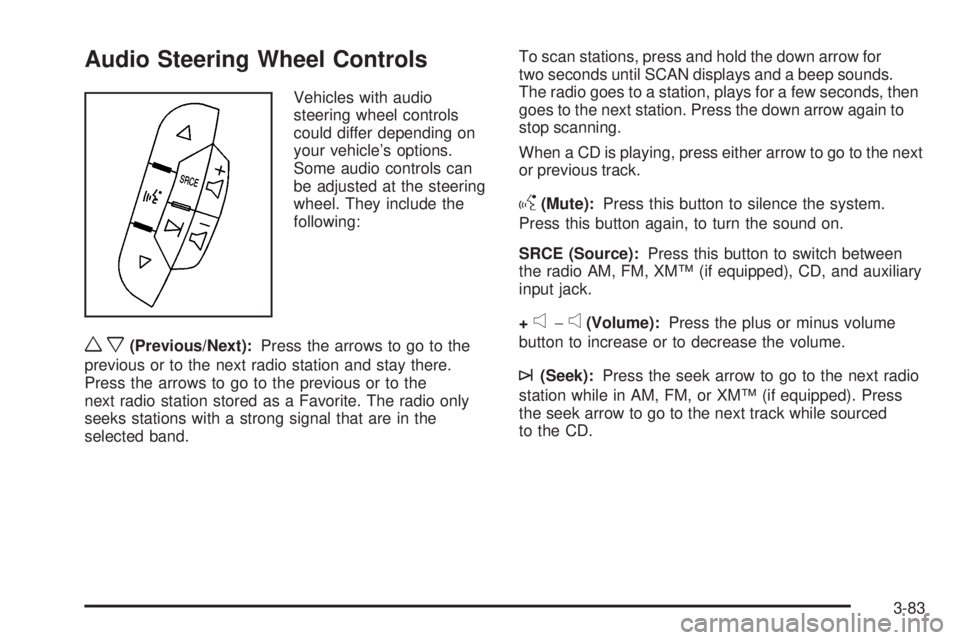
Audio Steering Wheel Controls
Vehicles with audio
steering wheel controls
could differ depending on
your vehicle’s options.
Some audio controls can
be adjusted at the steering
wheel. They include the
following:
wx(Previous/Next):Press the arrows to go to the
previous or to the next radio station and stay there.
Press the arrows to go to the previous or to the
next radio station stored as a Favorite. The radio only
seeks stations with a strong signal that are in the
selected band.To scan stations, press and hold the down arrow for
two seconds until SCAN displays and a beep sounds.
The radio goes to a station, plays for a few seconds, then
goes to the next station. Press the down arrow again to
stop scanning.
When a CD is playing, press either arrow to go to the next
or previous track.
g(Mute):Press this button to silence the system.
Press this button again, to turn the sound on.
SRCE (Source):Press this button to switch between
the radio AM, FM, XM™ (if equipped), CD, and auxiliary
input jack.
+
e−e(Volume):Press the plus or minus volume
button to increase or to decrease the volume.
¨(Seek):Press the seek arrow to go to the next radio
station while in AM, FM, or XM™ (if equipped). Press
the seek arrow to go to the next track while sourced
to the CD.
3-83
Page 347 of 406
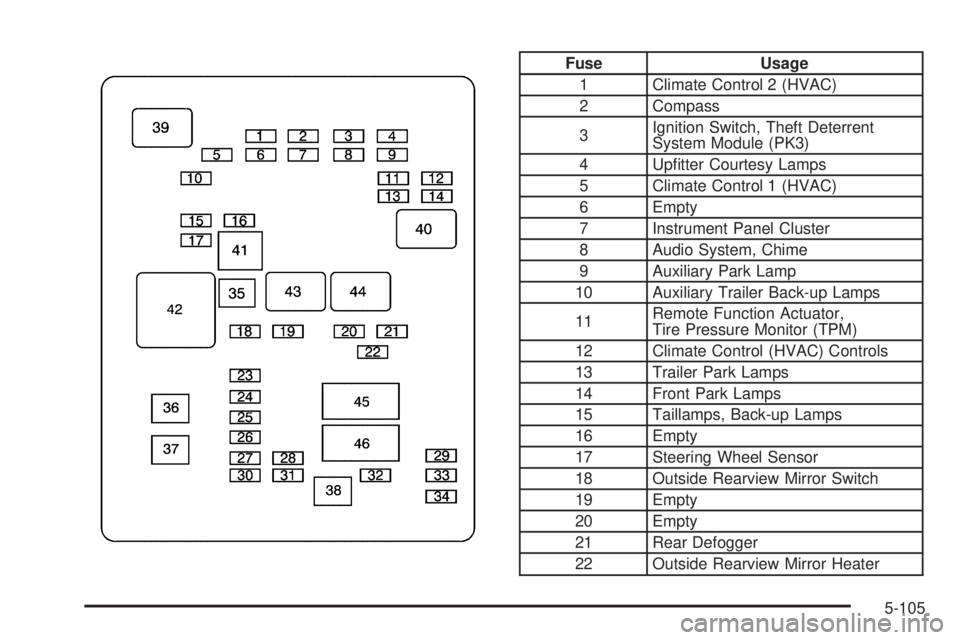
Fuse Usage
1 Climate Control 2 (HVAC)
2 Compass
3Ignition Switch, Theft Deterrent
System Module (PK3)
4 Upfitter Courtesy Lamps
5 Climate Control 1 (HVAC)
6 Empty
7 Instrument Panel Cluster
8 Audio System, Chime
9 Auxiliary Park Lamp
10 Auxiliary Trailer Back-up Lamps
11Remote Function Actuator,
Tire Pressure Monitor (TPM)
12 Climate Control (HVAC) Controls
13 Trailer Park Lamps
14 Front Park Lamps
15 Taillamps, Back-up Lamps
16 Empty
17 Steering Wheel Sensor
18 Outside Rearview Mirror Switch
19 Empty
20 Empty
21 Rear Defogger
22 Outside Rearview Mirror Heater
5-105
Page 395 of 406
A
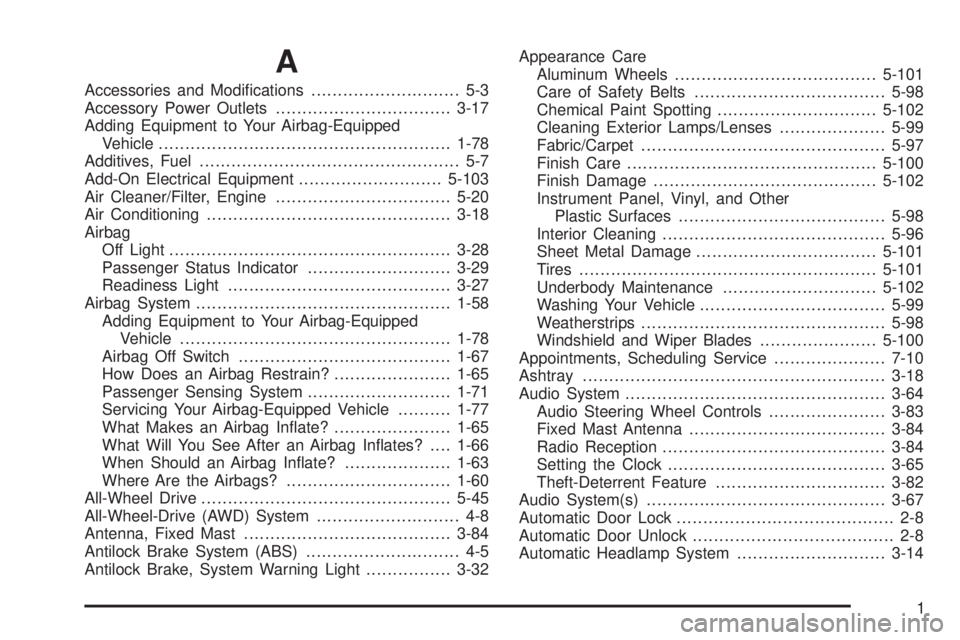
Accessories and Modifications............................ 5-3
Accessory Power Outlets.................................3-17
Adding Equipment to Your Airbag-Equipped
Vehicle.......................................................1-78
Additives, Fuel................................................. 5-7
Add-On Electrical Equipment...........................5-103
Air Cleaner/Filter, Engine.................................5-20
Air Conditioning..............................................3-18
Airbag
Off Light.....................................................3-28
Passenger Status Indicator...........................3-29
Readiness Light..........................................3-27
Airbag System................................................1-58
Adding Equipment to Your Airbag-Equipped
Vehicle...................................................1-78
Airbag Off Switch........................................1-67
How Does an Airbag Restrain?......................1-65
Passenger Sensing System...........................1-71
Servicing Your Airbag-Equipped Vehicle..........1-77
What Makes an Airbag Inflate?......................1-65
What Will You See After an Airbag Inflates?....1-66
When Should an Airbag Inflate?....................1-63
Where Are the Airbags?...............................1-60
All-Wheel Drive...............................................5-45
All-Wheel-Drive (AWD) System........................... 4-8
Antenna, Fixed Mast.......................................3-84
Antilock Brake System (ABS)............................. 4-5
Antilock Brake, System Warning Light................3-32Appearance Care
Aluminum Wheels......................................5-101
Care of Safety Belts....................................5-98
Chemical Paint Spotting..............................5-102
Cleaning Exterior Lamps/Lenses....................5-99
Fabric/Carpet..............................................5-97
Finish Care...............................................5-100
Finish Damage..........................................5-102
Instrument Panel, Vinyl, and Other
Plastic Surfaces.......................................5-98
Interior Cleaning
..........................................5-96
Sheet Metal Damage..................................5-101
Tires........................................................5-101
Underbody Maintenance.............................5-102
Washing Your Vehicle...................................5-99
Weatherstrips..............................................5-98
Windshield and Wiper Blades......................5-100
Appointments, Scheduling Service.....................7-10
Ashtray.........................................................3-18
Audio System.................................................3-64
Audio Steering Wheel Controls......................3-83
Fixed Mast Antenna.....................................3-84
Radio Reception..........................................3-84
Setting the Clock.........................................3-65
Theft-Deterrent Feature................................3-82
Audio System(s).............................................3-67
Automatic Door Lock......................................... 2-8
Automatic Door Unlock...................................... 2-8
Automatic Headlamp System............................3-14
1
Page 405 of 406
Spare Tire.....................................................5-95
Installing....................................................5-84
Removing...................................................5-81
Storing.......................................................5-94
Specifications, Capacities...............................5-110
Speedometer..................................................3-25
StabiliTrak
®Indicator Light...............................3-33
StabiliTrak®System.......................................... 4-6
Starting the Engine.........................................2-20
Steering.......................................................... 4-8
Steering Wheel Controls, Audio.........................3-83
Steering Wheel, Tilt Wheel................................. 3-6
Storage Areas................................................2-33
Stuck in Sand, Mud, Ice, or Snow.....................4-17
Sun Visors.....................................................2-16
Swing-Out Side Door, 60/40.............................2-10
Swing-Out Windows........................................2-15
T
Taillamps.......................................................5-52
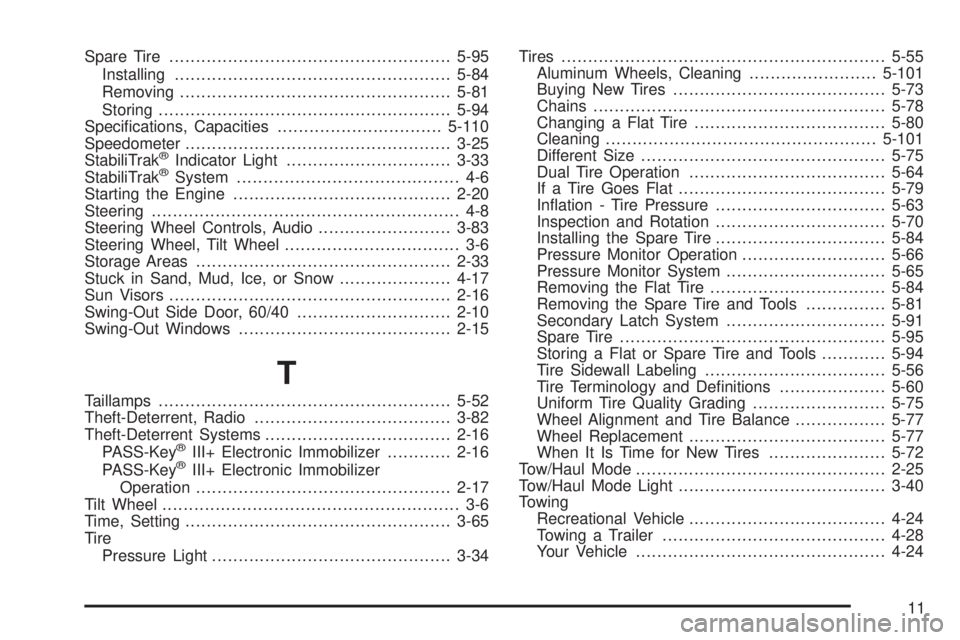
Theft-Deterrent, Radio.....................................3-82
Theft-Deterrent Systems...................................2-16
PASS-Key
®III+ Electronic Immobilizer............2-16
PASS-Key®III+ Electronic Immobilizer
Operation................................................2-17
Tilt Wheel........................................................ 3-6
Time, Setting..................................................3-65
Tire
Pressure Light.............................................3-34Tires.............................................................5-55
Aluminum Wheels, Cleaning........................5-101
Buying New Tires........................................5-73
Chains.......................................................5-78
Changing a Flat Tire....................................5-80
Cleaning...................................................5-101
Different Size..............................................5-75
Dual Tire Operation.....................................5-64
If a Tire Goes Flat.......................................5-79
Inflation - Tire Pressure................................5-63
Inspection and Rotation................................5-70
Installing the Spare Tire................................5-84
Pressure Monitor Operation...........................5-66
Pressure Monitor System..............................5-65
Removing the Flat Tire.................................5-84
Removing the Spare Tire and Tools...............5-81
Secondary Latch System..............................5-91
Spare Tire..................................................5-95
Storing a Flat or Spare Tire and Tools............5-94
Tire Sidewall Labeling..................................5-56
Tire Terminology and Definitions....................5-60
Uniform Tire Quality Grading.........................5-75
Wheel Alignment and Tire Balance.................5-77
Wheel Replacement.....................................5-77
When It Is Time for New Tires......................5-72
Tow/Haul Mode ...............................................2-25
Tow/Haul Mode Light.......................................3-40
Towing
Recreational Vehicle.....................................4-24
Towing a Trailer..........................................4-28
Your Vehicle
...............................................4-24
11