reset GMC SAVANA PASSENGER 2009 Owners Manual
[x] Cancel search | Manufacturer: GMC, Model Year: 2009, Model line: SAVANA PASSENGER, Model: GMC SAVANA PASSENGER 2009Pages: 406, PDF Size: 2.34 MB
Page 105 of 406
2. If the engine does not start after 5-10 seconds,
especially in very cold weather (below 0°F or−18°C),
it could be flooded with too much gasoline. Try
pushing the accelerator pedal all the way to the floor
and holding it there as you hold the key in START for
up to 15 seconds. Wait at least 15 seconds between
each try, to allow the cranking motor to cool down.
When the engine starts, let go of the key and
accelerator. If the vehicle starts briefly but then stops
again, do the same thing. This clears the extra
gasoline from the engine. Do not race the engine
immediately after starting it. Operate the engine and
transmission gently until the oil warms up and
lubricates all moving parts.
Notice:The engine is designed to work with the
electronics in the vehicle. If you add electrical parts
or accessories, you could change the way the
engine operates. Before adding electrical equipment,
check with your dealer/retailer. If you do not, the
engine might not perform properly. Any resulting
damage would not be covered by the vehicle
warranty.Fast Idle System
Fast Idle System with Switch
If the vehicle has this feature it is available only with
cruise control. The manual fast idle switch is operated
using the cruise control buttons located on the left
hand side of the steering wheel.
This system can be used to increase engine idle speed
whenever the following conditions are met:
•The park brake is set.
•The brake pedal is not pressed.
•The vehicle must not be moving and the accelerator
must not be pressed.
To control the fast idle:
•To Enable the Fast idle, press and release the
Cruise Control On/Off button and ensure that
the LED is lit.
•For the preset Fast Idle, press and release the
cruise set switch. This will set the preset fast
idle speed.
•For the variable fast idle, press and hold the
accelerator at the desired RPM, then press
and release the cruise control cruise set switch to
set the desired idle speed.
2-21
Page 127 of 406
Windshield Washer
The windshield wiper paddle is located on top of the
multifunction lever.
L(Washer Fluid):Push the paddle to spray washer
fluid on the windshield. The wipers will clear the window
and then either stop or return to the preset speed.
{CAUTION:
In freezing weather, do not use your washer until
the windshield is warmed. Otherwise the washer
fluid can form ice on the windshield, blocking your
vision.
Cruise Control
{CAUTION:
Cruise control can be dangerous where you cannot
drive safely at a steady speed. So, do not use the
cruise control on winding roads or in heavy traffic.
Cruise control can be dangerous on slippery roads.
On such roads, fast changes in tire traction can
cause excessive wheel slip, and you could lose
control. Do not use cruise control on slippery roads.
With cruise control, a speed of about 25 mph (40 km/h)
or more can be maintained without keeping your foot
on the accelerator. Cruise control does not work
at speeds below about 25 mph (40 km/h).
When the brakes are applied, cruise control is
turned off.
If the vehicle has StabiliTrak
®, and the system begins to
limit wheel spin, cruise control will automatically
disengage. SeeStabiliTrak
®System on page 4-6. When
road conditions allow the cruise control to be safely used
again, it can be turned back on.
3-9
Page 129 of 406
Resuming a Set Speed
If the cruise control is set at a desired speed and then
the brakes are applied, this shuts off the cruise
control. But it does not need to be reset.
Once the vehicle speed reaches about 25 mph
(40 km/h) or more, press the +RES button on the
steering wheel. The vehicle returns to the previously set
speed and stays there.
Increasing Speed While Using Cruise
Control
To increase the cruise speed while using cruise control:
•Press and hold the +RES button on the steering
wheel until the desired speed is reached, then
release it.
•To increase vehicle speed in small increments,
press the +RES button. Each time this is done,
the vehicle goes about 1 mph (1.6 km/h) faster.
Reducing Speed While Using Cruise
Control
To reduce the vehicle speed while using cruise control:
•Press and hold the SET– button on the steering
wheel until the desired lower speed is reached,
then release it.
•To slow down in very small amounts, press the
SET– button on the steering wheel briefly. Each
time this is done, the vehicle goes about 1 mph
(1.6 km/h) slower.
Passing Another Vehicle While Using
Cruise Control
Use the accelerator pedal to increase the vehicle speed.
When you take your foot off the pedal, the vehicle will
slow down to the previous set cruise speed.
3-11
Page 143 of 406
Speedometer and Odometer
The speedometer shows the vehicle speed in both miles
per hour (mph) and kilometers per hour (km/h).
The odometer shows how far the vehicle has been
driven, in either miles (used in the United States)
or kilometers (used in Canada).
This vehicle has a tamper resistant odometer. The
digital odometer will read 999,999 if it is turned back.
If the vehicle needs a new odometer installed, it must be
set to the mileage total of the old odometer. If that is
not possible, then it must be set at zero and a label must
be put on the driver door to show the old mileage
reading when the new odometer was installed.
Trip Odometer
The trip odometer can show how far the vehicle has
been driven since the trip odometer was last set to zero.
Press the Trip/Fuel button on the Driver Information
Center (DIC) switch to display the trip odometer and the
regular odometer information.
SeeDIC Operation and Displays on page 3-41for more
information on resetting the trip odometer.
To display the odometer reading with the ignition off,
press the Trip/Fuel button on the Driver Information
Center switch.
3-25
Page 150 of 406
When the ignition is on, the brake system warning light
also comes on when the parking brake is set. See
Parking Brake on page 2-26for more information. The
light stays on if the parking brake does not fully release.
If it stays on after the parking brake is fully released,
it means the vehicle has a brake problem.
If the light comes on while driving, pull off the road and
stop carefully. The pedal might be harder to push, or
the pedal might go closer to the floor. It could take
longer to stop. If the light is still on, have the vehicle
towed for service. SeeTowing Your Vehicle on
page 4-24.
{CAUTION:
The brake system might not be working properly if
the brake system warning light is on. Driving with
the brake system warning light on can lead to a
crash. If the light is still on after the vehicle has
been pulled off the road and carefully stopped,
have the vehicle towed for service.
Antilock Brake System (ABS)
Warning Light
For vehicles with the
Antilock Brake System
(ABS), this light comes on
briefly when the engine is
started.
If it does not, have the vehicle serviced by your dealer/
retailer. If the system is working normally the indicator
light then goes off.
If the ABS light stays on, turn the ignition off. If the light
comes on while driving, stop as soon as it is safely
possible and turn the ignition off. Then start the engine
again to reset the system. If the ABS light stays on, or
comes on again while driving, the vehicle needs service.
If the regular brake system warning light is not on, the
vehicle still has brakes, but not antilock brakes. If the
regular brake system warning light is also on, the vehicle
does not have antilock brakes and there is a problem with
the regular brakes. SeeBrake System Warning Light on
page 3-31.
For vehicles with a Driver Information Center (DIC), see
DIC Warnings and Messages on page 3-48for all brake
related DIC messages.
3-32
Page 159 of 406
Driver Information Center (DIC)
Your vehicle has a Driver Information Center (DIC).
All messages will appear in the DIC display located at
the bottom of the instrument panel cluster. The DIC
buttons are located on the instrument panel, next to the
instrument panel cluster.
The DIC comes on when the ignition is on. After a short
delay, the DIC will display the information that was
last displayed before the engine was turned off.
The DIC displays trip, fuel, and vehicle system
information, and warning messages if a system problem
is detected.
If your vehicle has these features, the DIC also displays
the compass direction and the outside air temperature
when viewing the trip and fuel information. The compass
direction appears on the top right corner of the DIC
display. The outside air temperature automatically
appears in the bottom right corner of the DIC display.
If there is a problem with the system that controls
the temperature display, the numbers will be replaced
with dashes. If this occurs, have the vehicle serviced by
your dealer/retailer.
The DIC also allows some features to be customized.
SeeDIC Vehicle Customization on page 3-57for
more information.
DIC Operation and Displays
The DIC has different displays which can be accessed
by pressing the DIC buttons located on the instrument
panel, next to the instrument panel cluster.
DIC Buttons
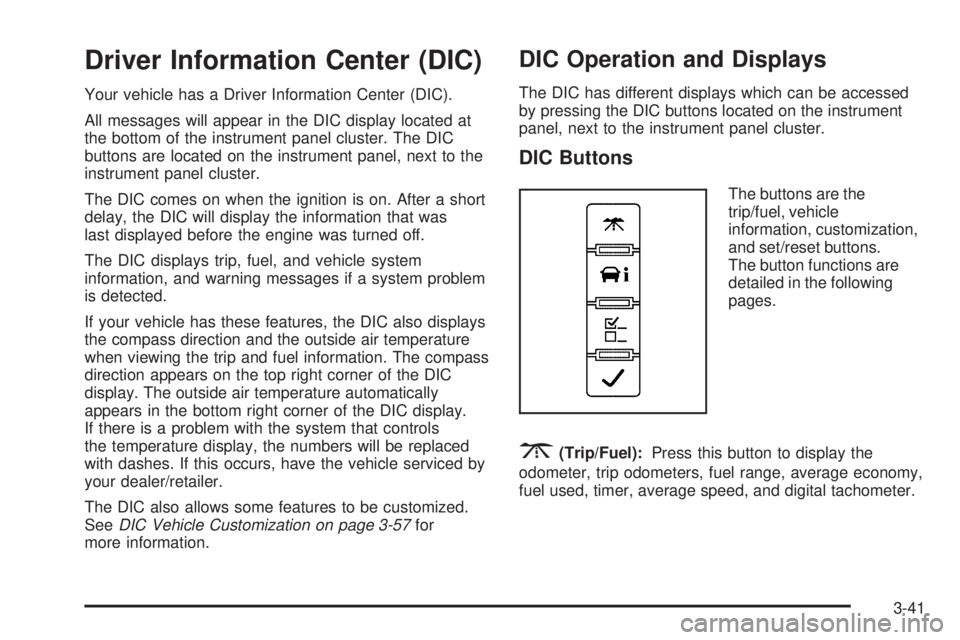
The buttons are the
trip/fuel, vehicle
information, customization,
and set/reset buttons.
The button functions are
detailed in the following
pages.
3(Trip/Fuel):Press this button to display the
odometer, trip odometers, fuel range, average economy,
fuel used, timer, average speed, and digital tachometer.
3-41
Page 160 of 406
T(Vehicle Information):Press this button to display
the oil life, units, tire pressure readings for vehicles
with the Tire Pressure Monitor System (TPMS), engine
hours, Tire Pressure Monitor System (TPMS)
programming for vehicles with the TPMS and without a
Remote Keyless Entry (RKE) transmitter, compass
zone and compass calibration on vehicles with
this feature, and RKE transmitter programming.
U(Customization):Press this button to customize the
feature settings on your vehicle. SeeDIC Vehicle
Customization on page 3-57for more information.
V(Set/Reset):Press this button to set or reset certain
functions and to turn off or acknowledge messages
on the DIC.
Trip/Fuel Menu Items
3
(Trip/Fuel):Press this button to scroll through the
following menu items:
Odometer
Press the trip/fuel button until XX mi (Km) displays.
This display shows the distance the vehicle has been
driven in either miles (mi) or kilometers (km).
Trip Odometers
Press the trip/fuel button until A or B displays. This
display shows the current distance traveled in either
miles (mi) or kilometers (km) since the last reset for each
trip odometer. Both trip odometers can be used at the
same time.
Each trip odometer can be reset to zero separately by
pressing the set/reset button while the desired trip
odometer is displayed.
The trip odometer has a feature called the retro-active
reset. This can be used to set the trip odometer to
the number of miles (kilometers) driven since the ignition
was last turned on. This can be used if the trip
odometer is not reset at the beginning of the trip.
To use the retro-active reset feature, press and hold the
set/reset button for at least four seconds. The trip
odometer will display the number of miles (mi) or
kilometers (km) driven since the ignition was last turned
on and the vehicle was moving. Once the vehicle begins
moving, the trip odometer will accumulate mileage. For
example, if the vehicle was driven 5 miles (8 km) before it
is started again, and then the retro-active reset feature is
activated, the display will show 5 miles (8 km). As the
vehicle begins moving, the display will then increase to
5.1 miles (8.2 km), 5.2 miles (8.4 km), etc.
3-42
Page 161 of 406
If the retro-active reset feature is activated after the
vehicle is started, but before it begins moving, the display
will show the number of miles (mi) or kilometers (km) that
were driven during the last ignition cycle.
Fuel Range
Press the trip/fuel button until FUEL RANGE displays.
This display shows the approximate number of
remaining miles (mi) or kilometers (km) the vehicle can
be driven without refueling. The display will show
LOW if the fuel level is low.
The fuel range estimate is based on an average of the
vehicle’s fuel economy over recent driving history
and the amount of fuel remaining in the fuel tank.
This estimate will change if driving conditions change.
For example, if driving in traffic and making frequent
stops, this display may read one number, but if
the vehicle is driven on a freeway, the number may
change even though the same amount of fuel is in the
fuel tank. This is because different driving conditions
produce different fuel economies. Generally, freeway
driving produces better fuel economy than city driving.
If your vehicle is low on fuel, the FUEL LEVEL LOW
message will be displayed. See “FUEL LEVEL LOW”
underDIC Warnings and Messages on page 3-48
for more information.
Average Economy
Press the trip/fuel button until AVG ECONOMY displays.
This display shows the approximate average miles per
gallon (mpg) or liters per 100 kilometers (L/100 km).
This number is calculated based on the number of mpg
(L/100 km) recorded since the last time this menu item
was reset. To reset AVG ECONOMY, press and hold the
set/reset button. The display will return to zero.
Fuel Used
Press the trip/fuel button until FUEL USED displays.
This display shows the number of gallons (gal) or
liters (L) of fuel used since the last reset of this menu
item. To reset the fuel used information, press and hold
the set/reset button while FUEL USED is displayed.
Timer
Press the trip/fuel button until TIMER displays.
This display can be used as a timer.
To start the timer, press the set/reset button while TIMER
is displayed. The display will show the amount of time
that has passed since the timer was last reset, not
including time the ignition is off. Time will continue to be
counted as long as the ignition is on, even if another
display is being shown on the DIC. The timer will record
up to 99 hours, 59 minutes and 59 seconds (99:59:59)
after which the display will return to zero.
3-43
Page 162 of 406
To stop the timer, press the set/reset button briefly while
TIMER is displayed.
To reset the timer to zero, press and hold the set/reset
button while TIMER is displayed.
Average Speed
Press the trip/fuel button until AVERAGE SPEED
displays. This display shows the average speed
of the vehicle in miles per hour (mph) or kilometers
per hour (km/h). This average is calculated based on the
various vehicle speeds recorded since the last reset of
this value. To reset the value, press and hold the
set/reset button. The display will return to zero.
Digital Tachometer
Press the trip/fuel button until Tachometer ##00 RPM
displays. This display shows the engine speed in
revolutions per minute (RPM).
Blank Display
This display shows no information.
Vehicle Information Menu Items
T
(Vehicle Information):Press this button to scroll
through the following menu items:
Oil Life
Press the vehicle information button until OIL LIFE
REMAINING displays. This display shows an estimate
of the oil’s remaining useful life. If you see 99% OIL LIFE
REMAINING on the display, that means 99% of the
current oil life remains. The engine oil life system
will alert you to change the oil on a schedule consistent
with your driving conditions.
When the remaining oil life is low, the CHANGE
ENGINE OIL SOON message will appear on the display.
See “CHANGE ENGINE OIL SOON” underDIC
Warnings and Messages on page 3-48. You should
change the oil as soon as possible. SeeEngine Oil on
page 5-15. In addition to the engine oil life system
monitoring the oil life, additional maintenance is
recommended in the Maintenance Schedule in this
manual. SeeScheduled Maintenance on page 6-4for
more information.
Remember, you must reset the OIL LIFE yourself after
each oil change. It will not reset itself. Also, be careful not
to reset the OIL LIFE accidentally at any time other than
when the oil has just been changed. It cannot be reset
accurately until the next oil change. To reset the engine
oil life system, seeEngine Oil Life System on page 5-18.
3-44
Page 163 of 406
Units
Press the vehicle information button until UNITS
displays. This display allows you to select between
English or Metric units of measurement. Once in this
display, press the set/reset button to select between
ENGLISH or METRIC units.
Tire Pressure
If your vehicle has the Tire Pressure Monitor System
(TPMS), the pressure for each tire can be viewed in the
DIC. The tire pressure will be shown in either pounds
per square inch (psi) or kilopascals (kPa). Press
the vehicle information button until the DIC displays
FRONT TIRES PSI (kPa) LEFT ## RIGHT ##. Press the
vehicle information button again until the DIC displays
REAR TIRES PSI (kPa) LEFT ## RIGHT ##.
If a low or high tire pressure condition is detected by
the system while driving, a message advising you
to check the pressure in a specific tire will appear in
the display. SeeInflation - Tire Pressure on page 5-63
andDIC Warnings and Messages on page 3-48for
more information.
If the tire pressure display shows dashes instead of
a value, there may be a problem with your vehicle. If this
consistently occurs, see your dealer/retailer for service.
Engine Hours
Press the vehicle information button until ENGINE
HOURS displays. This display shows the total number
of hours the engine has run.
Relearn Tire Positions
Your vehicle may have this display. To access this
display, the vehicle must be in P (Park). If your vehicle
has the Tire Pressure Monitor System (TPMS), after
rotating the tires or after replacing a tire or sensor, the
system must re-learn the tire positions. To re-learn
the tire positions, seeTire Pressure Monitor System on
page 5-65. SeeTire Inspection and Rotation on
page 5-70andDIC Warnings and Messages on
page 3-48for more information.
Change Compass Zone
Your vehicle may have this feature. To change the
compass zone through the DIC, seeDIC Compass on
page 3-46.
Calibrate Compass
Your vehicle may have this feature. The compass can
be manually calibrated. To calibrate the compass
through the DIC, seeDIC Compass on page 3-46.
3-45