radio GMC SAVANA PASSENGER 2011 Owner's Guide
[x] Cancel search | Manufacturer: GMC, Model Year: 2011, Model line: SAVANA PASSENGER, Model: GMC SAVANA PASSENGER 2011Pages: 414, PDF Size: 6.32 MB
Page 191 of 414
Black plate (15,1)GMC Savana Owner Manual - 2011
Infotainment System 7-15
MP3‐Supported Files
The Radio with CD (MP3) and
Radio with USB and CD (MP3) have
the capability of playing an MP3
CD-R or CD-RW disc.
Format
Radios that have the capability of
playing MP3s can play .mp3 or .wma
files that were recorded onto a
CD-R or CD-RW disc. The files can
be recorded with the following fixed
bit rates: 32 kbps, 40 kbps, 56 kbps,
64 kbps, 80 kbps, 96 kbps, 112 kbps,
128 kbps, 160 kbps, 192 kbps,
224 kbps, 256 kbps, and 320 kbps or
a variable bit rate.
Compressed Audio or Mixed Mode
Discs
The radio can play discs that
contain both uncompressed CD
audio and MP3 files. If both
formats are on the disc, the radio
reads all MP3 files first, then the
uncompressed CD audio files.CD‐R‐
or CD‐RW‐Supported File
and Folder Structure
The radio supports:
.Up to 50 folders.
.Up to 8 folders in depth.
.Up to 50 playlists.
.Up to 255 files.
.Playlists with an .m3u or .wpl
extension.
.Files with an .mp3, .wma, or .cda
file extension.
Root Directory
The root directory is treated as a
folder. Files are stored in the root
directory when the disc or storage
device does not contain folders.
Files accessed from the root
directory of a CD display as
F1 ROOT.
Empty Folder
Folders that do not contain files are
skipped, and the player advances to
the next folder that contains files. Order of Play
Compressed audio files are
accessed in the following order:
.Playlists (Px).
.Files stored in the root directory.
.Files stored in folders in the root
directory.
Tracks are played in the following
order:
.Play begins from the first track in
the first playlist and continues
sequentially through all tracks in
each playlist. When the last
track of the last playlist has
played, play continues from the
first track of the first playlist.
.Play begins from the first track in
the first folder and continues
sequentially through all tracks in
each folder. When the last track
of the last folder has played,
play continues from the first
track of the first folder.
Page 192 of 414
Black plate (16,1)GMC Savana Owner Manual - 2011
7-16 Infotainment System
File System and Naming
The song name that displays is the
song name that is contained in the
ID3 tag. If the song name is not
present in the ID3 tag, then the
radio displays the file name without
the extension (such as .mp3) as the
track name.
Track names longer than 32
characters or four pages are
shortened. The display does not
show parts of words on the last
page of text and the extension of
the file name is not displayed.
Preprogrammed Playlists
CDs that have preprogrammed
playlists reated using WinAmp™,
MusicMatch™, or Real Jukebox™
software can be accessed; however,
there is no playlist‐editing capability
using the radio. These playlists are
treated as special folders containing
compressed audio song files.Playlists that have an .m3u or .pls
file extension and are stored on a
USB device may be supported by
the radio with a USB port.
Playlists can be changed by using
the softkeys below the
S
cand
c Ttabs, thefknob, the©SEEK button, or the¨SEEK
button. An MP3 CD-R or CD-RW
that has been recorded without
using file folders can be played. If a
CD-R or CD-RW contains more than
the maximum of 50 folders,
15 playlists, and 512 folders and
files, the player allows access and
navigates up to the maximum, but
all items over the maximum are not
accessible.
Playing an MP3
4(Information): Press to display
additional text information related to
the current song. If information is
available, the song title information
displays on the top line of the
display and artist information displays on the bottom line. When
information is not available, NO
INFO displays.
f(Tune):
Turn to select MP3's on
the CD currently playing.
©SEEK: Press to go to the start of
the track, if more than 10 seconds
have played. Press and hold or
press multiple times to continue
moving backward through tracks.
¨SEEK: Press to go to the next
track. Press and hold or press
multiple times to continue moving
forward through tracks.
sREV (Reverse): Press and hold
to reverse playback quickly. Sound
is heard at a reduced volume and
the elapsed time of the file displays.
Release
sREV to resume playing.
Page 193 of 414
Black plate (17,1)GMC Savana Owner Manual - 2011
Infotainment System 7-17
\FWD (Fast Forward):Press
and hold to advance playback
quickly. Sound is heard at a reduced
volume and the elapsed time of the
file displays. Release
\FWD to
resume playing. The elapsed time of
the file displays.
S c(Previous Folder): Press
the softkey below the
S ctab to
go to the first track in the previous
folder.
c T(Next Folder): Press the
softkey below the
c Ttab to go to
the first track in the next folder.
RDM (Random): Press to listen to
tracks in random, rather than
sequential order. To use random, do
one of the following:
For the Radio with CD (MP3) and
Radio with USB and CD (MP3):
1. Press the softkey positioned
under the RDM tab until Random
Current Disc displays.
2. Press the softkey again to turn off random play.
h(Music Navigator): Press the
softkey below the
htab to play
the files in order by artist or album.
The player scans the disc to sort the
files by artist and album ID3 tag
information. It can take several
minutes to scan the disc depending
on the number of files on the disc.
The radio may begin playing while it
is scanning in the background.
When the scan is finished, the disc
begins playing files in order by
artist. The current artist playing is
shown on the second line of the
display. Once all songs by that artist
are played, the player moves to the
next artist in alphabetical order and
begins playing files by that artist.
To listen to files by another artist,
press the softkey located below
either arrow tab. The disc goes to
the next or previous artist in
alphabetical order. Continue
pressing either softkey below the
arrow tab until the desired artist
displays. To change from playback by artist to
playback by album:
1. Press the softkey located below
the Sort By tab.
2. Press one of the softkeys below the Album tab from the sort
screen.
3. Press the softkey below the Back tab to return to the main
music navigator screen.
The album name displays on the
second line between the arrows,
and songs from the current album
begin to play. Once all songs from
that album have played, the player
moves to the next album in
alphabetical order on the CD and
begins playing MP3's from that
album.
To exit music navigator mode, press
the softkey below the Back tab to
return to normal MP3 playback.
Page 194 of 414
Black plate (18,1)GMC Savana Owner Manual - 2011
7-18 Infotainment System
CD Player Messages
CHECK DISC:If this message
displays and/or the CD ejects, it
could be for one of the following
reasons:
.It is very hot. When the
temperature returns to normal,
the CD should play.
.The road is very rough. When
the road becomes smoother, the
CD should play.
.The CD is dirty, scratched, wet,
or upside down.
.The air is very humid. If so, wait
about an hour and try again.
.There was a problem while
burning the CD.
.The label is caught in the CD
player.
If the CD is not playing correctly, for
any other reason, try a known
good CD. If any error occurs repeatedly or if
an error cannot be corrected,
contact your dealer. If the radio
displays an error message, write it
down and provide it to your dealer
when reporting the problem.
Auxiliary Devices
Using the Auxiliary Input Jack
Radios with an auxiliary input jack
located on the lower right side of the
faceplate can connect to an external
audio device such as an iPod
®,
MP3 player, or CD player, for use as
another source for audio listening.
This input jack is not an audio
output; do not plug headphones into
the front auxiliary input jack.
Drivers are encouraged to set up
any auxiliary device while the
vehicle is in P (Park). See
Defensive Driving on page 9‑2 for
more information on driver
distraction. To use a portable audio player,
connect a 3.5 mm (1/8 in) cable to
the radio's front auxiliary input jack.
When a device is connected, press
the radio CD/AUX button to begin
playing audio from the device over
the vehicle speakers.
For optimal sound quality, increase
the portable audio device's volume
to the loudest level.
It is always best to power the
portable audio device through its
own battery while playing.O(Power/Volume):
Turn clockwise
or counterclockwise to increase
or decrease the volume of the
portable player. Additional volume
adjustments might have to be made
from the portable device if the
volume is not loud or soft enough.
BAND: Press to listen to the radio
when a portable audio device is
playing. The portable audio device
continues playing.
Page 195 of 414
Black plate (19,1)GMC Savana Owner Manual - 2011
Infotainment System 7-19
CD/AUX (CD/Auxiliary):Press to
play a CD when a portable audio
device is playing. Press again and
the system begins playing audio
from the connected portable audio
player. If a portable audio player is
not connected, “No Input Device
Found” displays.
Using the USB Port
Radios with a USB port can control
a USB storage device or an iPod®
using the radio buttons and knobs.
See“Playing an MP3” inCD Player
on page 7‑12 for information about
how to connect and control a USB
storage device or an iPod. USB Support
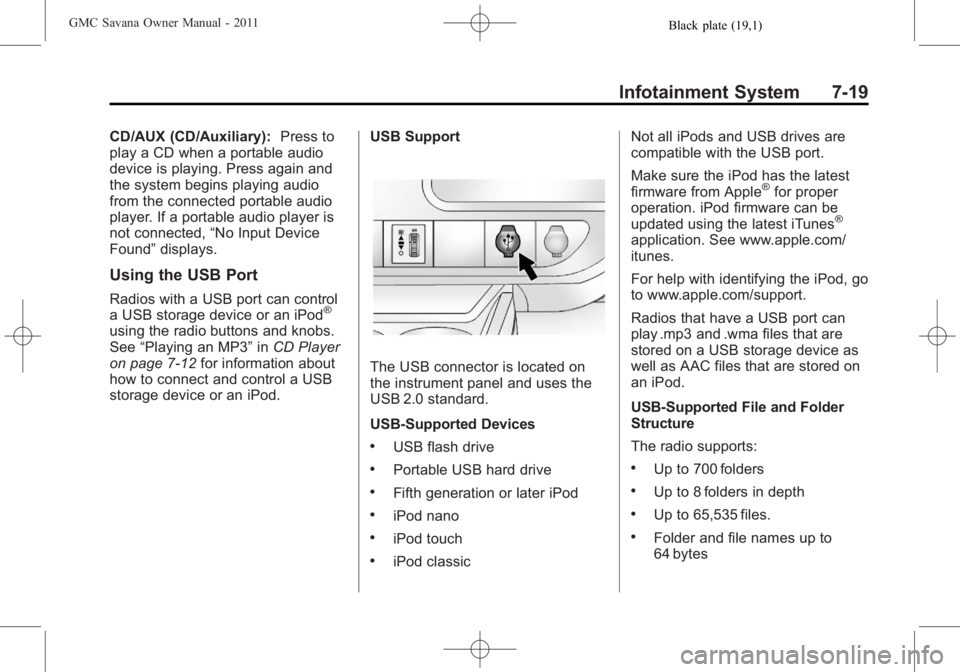
The USB connector is located on
the instrument panel and uses the
USB 2.0 standard.
USB‐Supported Devices
.USB flash drive
.Portable USB hard drive
.Fifth generation or later iPod
.iPod nano
.iPod touch
.iPod classicNot all iPods and USB drives are
compatible with the USB port.
Make sure the iPod has the latest
firmware from Apple
®for proper
operation. iPod firmware can be
updated using the latest iTunes
®
application. See www.apple.com/
itunes.
For help with identifying the iPod, go
to www.apple.com/support.
Radios that have a USB port can
play .mp3 and .wma files that are
stored on a USB storage device as
well as AAC files that are stored on
an iPod.
USB‐Supported File and Folder
Structure
The radio supports:
.Up to 700 folders
.Up to 8 folders in depth
.Up to 65,535 files.
.Folder and file names up to
64 bytes
Page 196 of 414
Black plate (20,1)GMC Savana Owner Manual - 2011
7-20 Infotainment System
.Files with an .mp3 or .wma file
extension
.AAC files stored on an iPod
.FAT16
.FAT32
Connecting a USB Storage
Device or iPod®
The USB port can be used to
control an iPod or a USB storage
device.
To connect a USB storage device,
connect the device to the USB port
located in the center console or on
the instrument panel.
To connect an iPod, connect one
end of the USB cable that came
with the iPod to the iPod’s dock
connector and connect the other
end to the USB port located in the
center console or on the instrument
panel. If the vehicle is on and the
USB connection works,“OK to
disconnect” and a GM logo may
appear on the iPod, and iPod appears on the radio display. The
iPod music appears on the radio’s
display and begins playing.
The iPod charges while it is
connected to the vehicle if the
vehicle is in the ACC/ACCESSORY
or ON/RUN position. When the
vehicle is turned off, the iPod
automatically powers off and will not
charge or draw power from the
vehicle's battery.
If you have an older iPod model that
is not supported, it can still be used
by connecting it to the auxiliary
input jack using a standard 3.5 mm
(1/8 in) stereo cable. See
“Using the
Auxiliary Input Jack” earlier for more
information.
Using the Radio to Control a
USB Storage Device or iPod
The radio can control a USB
storage device or an iPod using the
radio buttons and knobs, and
display song information on the
radio’s display.
f(Tune): Turn to select files.
©SEEK:Press to go to the start of
the track, if more than 10 seconds
have played. Press and hold or
press multiple times to continue
moving backward through tracks.
¨SEEK: Press to go to the next
track. Press and hold or press
multiple times to continue moving
forward through tracks.
sREV (Reverse): Press and hold
to reverse playback quickly. Sound
is heard at a reduced volume.
Release
sREV to resume playing.
The elapsed time of the file
displays.
Page 197 of 414
Black plate (21,1)GMC Savana Owner Manual - 2011
Infotainment System 7-21
\FWD (Fast Forward):Press
and hold to advance playback
quickly. Sound is heard at a reduced
volume. Release
\FWD to
resume playing. The elapsed time of
the file displays.
4(Information): Press to display
additional information about the
selected track.
Using Softkeys to Control a
USB Storage Device or iPod
The five softkeys below the radio
display are used to control the
functions listed below.
To use the softkeys:
1. Press the first or fifth softkey below the radio display to
display the functions listed
below, or press the softkey
below the function if it is
currently displayed.
2. Press the softkey below the tab with the function on it to use that
function.
j(Pause): Press the softkey belowjto pause the track. The tab
appears raised when pause is being
used. Press the softkey below
j
again to resume playback.
Back: Press the softkey below the
back tab to go back to the main
display screen on an iPod, or the
root directory on a USB storage
device.
c(Folder View): Press the
softkey below
cto view the
contents of the current folder on the
USB drive. To browse and select
files:
1. Press the softkey below
c.
2. Turn
fto scroll through the list
of folders.
3. Press
fto select the desired
folder. If there is more then one
folder, repeat Steps 1 and 2 until
the desired folder is reached. 4. Turn
fto scroll through the files
in the selected folder.
5. Press
fto select the desired file
to be played.
To skip through large lists, the five
softkeys can be used to navigate in
the following order:
.First softkey, first item in the list.
.Second softkey, 1% through the
list each time the softkey is
pressed.
.Third softkey, 5% through the list
each time the softkey is pressed.
.Fourth softkey, 10% through the
list each time the softkey is
pressed.
.Fifth softkey, end of the list.
Page 231 of 414
Black plate (19,1)GMC Savana Owner Manual - 2011
Driving and Operating 9-19
2. Shift the vehicle to N (Neutral).This can be done while the
vehicle is moving. After shifting
to N (Neutral), firmly apply the
brakes and steer the vehicle to a
safe location.
3. Come to a complete stop, shift to P (Park), and turn the ignition
to LOCK/OFF. On vehicles with
an automatic transmission, the
shift lever must be in P (Park) to
turn the ignition switch to the
LOCK/OFF position.
4. Set the parking brake. See Parking Brake on page 9‑36.
{WARNING
Turning off the vehicle while
moving may cause loss of power
assist in the brake and steering
systems and disable the airbags.
While driving, only shut the
vehicle off in an emergency. 5. If the vehicle must be shut off
while driving, turn the ignition to
ACC/ACCESSORY.
Notice: Using a tool to force the
key to turn in the ignition could
cause damage to the switch or
break the key. Use the correct
key, make sure it is all the way in,
and turn it only with your hand.
If the key cannot be turned by
hand, see your dealer.
B (ACC/ACCESSORY): This is the
position in which you can operate
things like the radio and the
windshield wipers when the engine
is off.
C (ON/RUN): This position can be
used to operate the electrical
accessories and to display some
instrument panel cluster warning
and indicator lights. The switch
stays in this position when the
engine is running. If you leave the key in the ACC/
ACCESSORY or ON/RUN position
with the engine off, the battery could
be drained. You may not be able to
start the vehicle if the battery is
allowed to drain for an extended
period of time.
D (START):
This is the position that
starts the engine. When the engine
starts, release the key. The ignition
switch returns to ON/RUN for
driving.
A warning tone will sound when the
driver door is opened, the ignition is
in ACC/ACCESSORY or LOCK/OFF
and the key is in the ignition.
Page 235 of 414
Black plate (23,1)GMC Savana Owner Manual - 2011
Driving and Operating 9-23
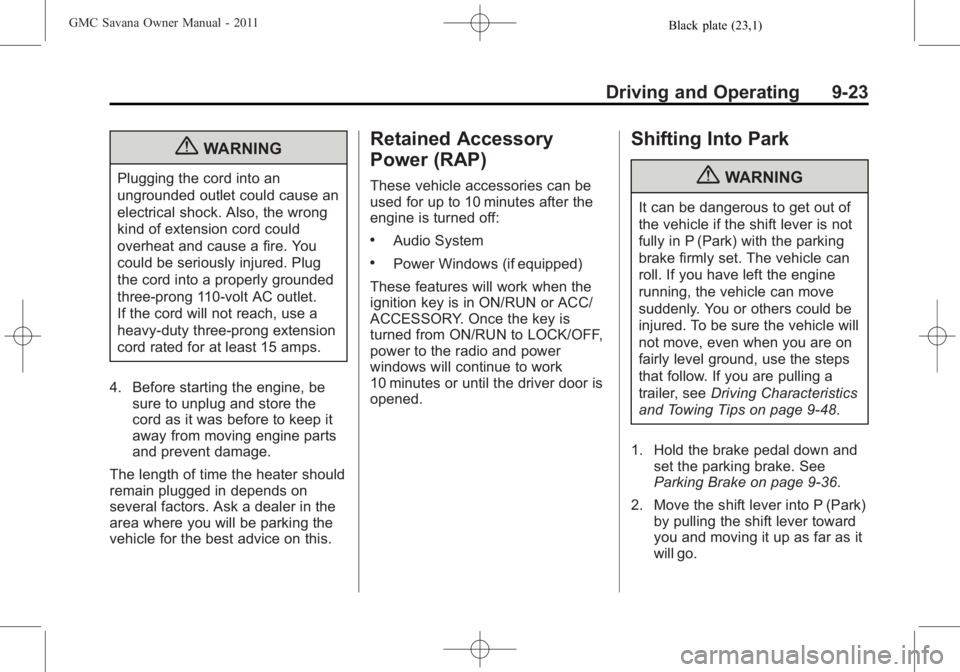
{WARNING
Plugging the cord into an
ungrounded outlet could cause an
electrical shock. Also, the wrong
kind of extension cord could
overheat and cause a fire. You
could be seriously injured. Plug
the cord into a properly grounded
three-prong 110-volt AC outlet.
If the cord will not reach, use a
heavy-duty three-prong extension
cord rated for at least 15 amps.
4. Before starting the engine, be sure to unplug and store the
cord as it was before to keep it
away from moving engine parts
and prevent damage.
The length of time the heater should
remain plugged in depends on
several factors. Ask a dealer in the
area where you will be parking the
vehicle for the best advice on this.
Retained Accessory
Power (RAP)
These vehicle accessories can be
used for up to 10 minutes after the
engine is turned off:
.Audio System
.Power Windows (if equipped)
These features will work when the
ignition key is in ON/RUN or ACC/
ACCESSORY. Once the key is
turned from ON/RUN to LOCK/OFF,
power to the radio and power
windows will continue to work
10 minutes or until the driver door is
opened.
Shifting Into Park
{WARNING
It can be dangerous to get out of
the vehicle if the shift lever is not
fully in P (Park) with the parking
brake firmly set. The vehicle can
roll. If you have left the engine
running, the vehicle can move
suddenly. You or others could be
injured. To be sure the vehicle will
not move, even when you are on
fairly level ground, use the steps
that follow. If you are pulling a
trailer, see Driving Characteristics
and Towing Tips on page 9‑48.
1. Hold the brake pedal down and set the parking brake. See
Parking Brake on page 9‑36.
2. Move the shift lever into P (Park) by pulling the shift lever toward
you and moving it up as far as it
will go.
Page 321 of 414
Black plate (49,1)GMC Savana Owner Manual - 2011
Vehicle Care 10-49
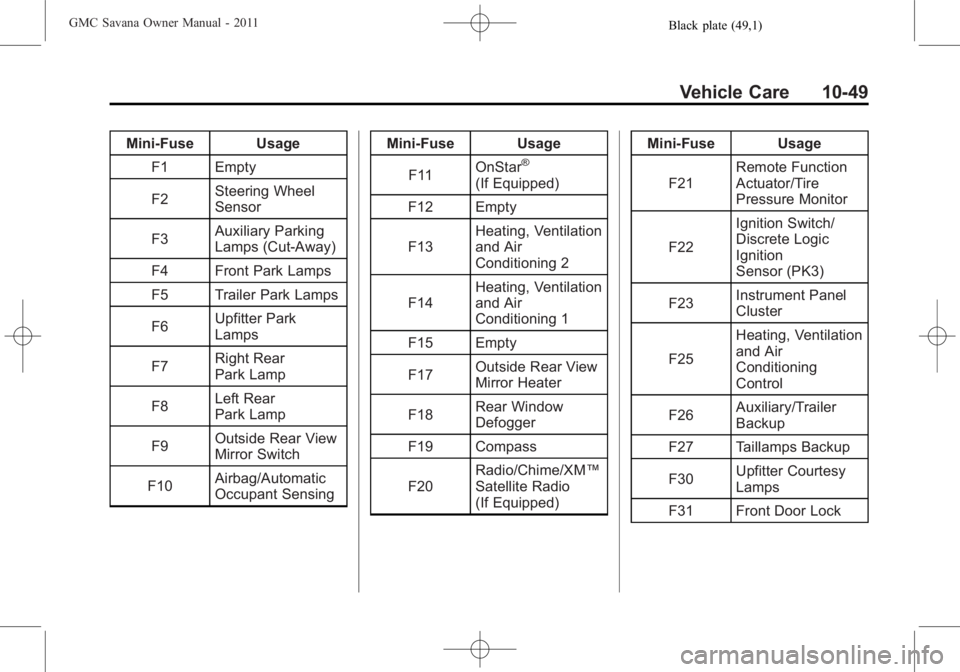
Mini‐Fuse UsageF1 Empty
F2 Steering Wheel
Sensor
F3 Auxiliary Parking
Lamps (Cut‐Away)
F4 Front Park Lamps
F5 Trailer Park Lamps
F6 Upfitter Park
Lamps
F7 Right Rear
Park Lamp
F8 Left Rear
Park Lamp
F9 Outside Rear View
Mirror Switch
F10 Airbag/Automatic
Occupant Sensing Mini‐Fuse Usage
F11 OnStar
®
(If Equipped)
F12 Empty
F13 Heating, Ventilation
and Air
Conditioning 2
F14 Heating, Ventilation
and Air
Conditioning 1
F15 Empty
F17 Outside Rear View
Mirror Heater
F18 Rear Window
Defogger
F19 Compass
F20 Radio/Chime/XM™
Satellite Radio
(If Equipped) Mini‐Fuse Usage
F21 Remote Function
Actuator/Tire
Pressure Monitor
F22 Ignition Switch/
Discrete Logic
Ignition
Sensor (PK3)
F23 Instrument Panel
Cluster
F25 Heating, Ventilation
and Air
Conditioning
Control
F26 Auxiliary/Trailer
Backup
F27 Taillamps Backup
F30 Upfitter Courtesy
Lamps
F31 Front Door Lock