stop start GMC SIERRA 1500 2013 Owner's Manual
[x] Cancel search | Manufacturer: GMC, Model Year: 2013, Model line: SIERRA 1500, Model: GMC SIERRA 1500 2013Pages: 534, PDF Size: 7.85 MB
Page 238 of 534
Black plate (38,1)GMC Sierra Owner Manual - 2013 - crc - 8/14/12
7-38 Infotainment System
Rear Seat
Infotainment
Rear Seat Entertainment
(RSE) System
The vehicle may have a DVD Rear
Seat Entertainment (RSE) system.
The RSE system works with the
vehicle's audio system. The DVD
player is part of the front radio. The
RSE system includes a radio with a
DVD player, a video display screen,
audio/video jacks, two wireless
headphones, and a remote control.
SeeCD/DVD Player on page 7‑23
for more information on the vehicle's
CD/DVD player.
Before Driving
The RSE is designed for rear seat
passengers only. The driver cannot
safely view the video screen while
driving and should not try to do so.
In severe or extreme weather
conditions, the RSE system might
not work until the temperature is within the operating range. The
operating range for the RSE system
is above
−20°C (−4°F) or below
60°C (140°F). If the temperature of
the vehicle is outside this range,
heat or cool the vehicle until the
temperature is within the operating
range of the RSE system.
Parental Control
The RSE system may have a
Parental Control feature, depending
on which radio the vehicle has. To
start Parental Control, press and
hold the radio power button for more
than two seconds to stop all system
features such as: radio, video
screen, Rear Seat Audio (RSA),
DVD, and/or CD. While Parental
Control is on, a padlock icon
displays.
The radio can be turned back on
with a single press of the power
button, but the RSE system will
remain under Parental Control.
To turn Parental Control off, press
and hold the radio power button for
more than two seconds. The RSE returns from where it was previously
left and the padlock icon disappears
from the radio display.
Parental Control can also be turned
off by inserting or ejecting any disc,
pressing the play icon on the radio
DVD display menu, or changing an
ignition position.
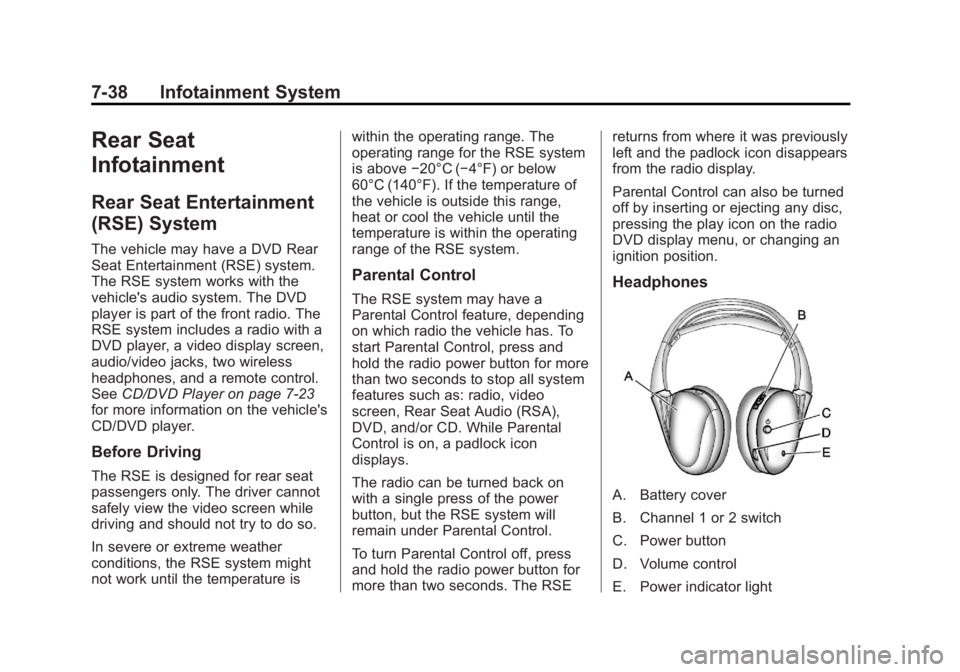
Headphones
A. Battery cover
B. Channel 1 or 2 switch
C. Power button
D. Volume control
E. Power indicator light
Page 243 of 534
Black plate (43,1)GMC Sierra Owner Manual - 2013 - crc - 8/14/12
Infotainment System 7-43
r(Enter):Press this button to
select the choice that is highlighted
in any menu.
z(Display Menu): Press this
button to adjust the brightness,
screen display mode (normal, full,
or zoom), and display the
language menu.
q(Return): Press this button to
exit the current active menu and
return to the previous menu. This
button operates only when the
display menu or a DVD menu is
active.
c(Stop): Press this button to stop
playing, fast reversing, or fast
forwarding a DVD. Press this button
twice to return to the beginning of
the DVD.
s(Play/Pause): Press this
button to start playing a DVD. Press
this button while a DVD is playing to
pause it. Press it again to continue
playing the DVD. While the DVD is playing, the DVD
can be played slowly by pressing
the play/pause button then pressing
the fast forward button. The DVD
continues playing in a slow play
mode. Also, reverse can be played
slowly by pressing the play/pause
button and then pressing the fast
reverse button. To cancel slow play
mode, press the play/pause button.
t(Previous Track/Chapter):
Press this button to return to the
start of the current track or chapter.
Press this button again to go to the
previous track or chapter. This
button might not work when the
DVD is playing the copyright
information or the previews.
u(Next Track/Chapter): Press
this button to go to the beginning of
the next chapter or track. This
button might not work while the
DVD is playing the copyright
information or the previews.
r(Fast Reverse): Press this
button to quickly reverse the DVD or
CD. To stop fast reversing a DVD
video, press the play/pause button.
To stop fast reversing a DVD audio
or CD, release the fast reverse
button. This button might not work
when the DVD is playing the
copyright information or the
previews.
[(Fast Forward): Press this
button to fast forward the DVD or
CD. To stop fast forwarding a DVD
video, press the play/pause button.
To stop fast forwarding a DVD audio
or CD, release the fast forward
button. This button might not work
while the DVD is playing the
copyright information or the
previews.
e(Audio): Press this button to
change audio tracks on DVDs that
have this feature when the DVD is
playing. The format and content of
this function vary for each disc.
Page 245 of 534
Black plate (45,1)GMC Sierra Owner Manual - 2013 - crc - 8/14/12
Infotainment System 7-45
Tips and Troubleshooting Chart
ProblemRecommended Action
There is no power. The ignition might not be turned to ON/RUN or ACC/
ACCESSORY.
The picture does not fill the screen. There are black
borders on the top and bottom or on both sides, or the
picture looks stretched out. Check the display mode settings in the setup menu by
pressing the display menu button on the remote control.
In auxiliary mode, the picture moves or scrolls. Check the auxiliary input connections at both devices.
The remote control does not work. Check to make sure there is no obstruction between the
remote control and the transmitter window.
Check the batteries to make sure they are not dead or
installed incorrectly.
After stopping the player, and pushing Play, sometimes
the DVD starts where it left off and sometimes at the
beginning. If the stop button was pressed one time, the DVD player
resumes playing where the DVD was stopped. If the
stop button was pressed two times, the DVD player
begins to play from the beginning of the DVD.
The auxiliary source is running, but there is no picture or
sound. Check that the RSE video screen is in the auxiliary
source mode.
Check the auxiliary input connections at both devices.
Page 248 of 534
Black plate (48,1)GMC Sierra Owner Manual - 2013 - crc - 8/14/12
7-48 Infotainment System
SRCE (Source):Press this button
to switch between the radio (AM‐
FM), XM™ (if equipped), CD, and if
the vehicle has these features,
DVD, front auxiliary, and rear
auxiliary.
© ¨(Seek): When listening to FM,
AM, or XM™ (if equipped), press
the seek arrows to go to the
previous or to the next station or
channels and stay there. This
function is inactive, with some
radios, if the front seat passengers
are listening to the radio.
Press and hold either seek arrow
until the display flashes, to tune to
an individual station. The display
stops flashing after the buttons have
not been pushed for more than
two seconds. This function is
inactive, with some radios, if the
front seat passengers are listening
to the radio. While listening to a disc, press the
left seek arrow to go back to the
start of the current track or chapter
(if more than 10 seconds have
played). Press the right seek arrow
to go the next track or chapter on
the disc. This function is inactive,
with some radios, if the front seat
passengers are listening to the disc.
While a DVD video menu is being
displayed, press either seek arrow
to perform a cursor up or down on
the menu. Hold either seek arrow to
perform a cursor left or right on
the menu.
PROG (Program):
Press this
button to go to the next preset radio
station or channel set on the main
radio. This function is inactive, with
some radios, if the front seat
passengers are listening to the
radio. While a CD or DVD‐A disc is
playing, press this button to go to
the beginning of the CD or DVD‐A.
This function is inactive, with some
radios, if the front seat passengers
are listening to the CD or DVD‐A.
While a disc is playing in the CD or
DVD changer, press this button to
select the next disc, if multiple discs
are loaded. This function is inactive,
with some radios, if the front seat
passengers are listening to the disc.
While a DVD video menu is being
displayed, press the PROG button
to perform the menu function, Enter.
Page 271 of 534
Black plate (5,1)GMC Sierra Owner Manual - 2013 - crc - 8/14/12
Driving and Operating 9-5
The vehicle's right wheels can drop
off the edge of a road onto the
shoulder while driving. Follow
these tips:
1. Ease off the accelerator andthen, if there is nothing in the
way, steer the vehicle so that it
straddles the edge of the
pavement.
2. Turn the steering wheel about one-eighth of a turn, until the
right front tire contacts the
pavement edge.
3. Turn the steering wheel to go straight down the roadway.
Loss of Control
Skidding
There are three types of skids that
correspond to the vehicle's three
control systems:
.Braking Skid —wheels are not
rolling.
.Steering or Cornering Skid —
too much speed or steering in a
curve causes tires to slip and
lose cornering force.
.Acceleration Skid —too much
throttle causes the driving
wheels to spin.
Defensive drivers avoid most skids
by taking reasonable care suited to
existing conditions, and by not
overdriving those conditions. But
skids are always possible.
If the vehicle starts to slide, follow
these suggestions:
.Ease your foot off the
accelerator pedal and steer the
way you want the vehicle to go.
The vehicle may straighten out.
Be ready for a second skid if it
occurs.
.Slow down and adjust your
driving according to weather
conditions. Stopping distance
can be longer and vehicle
control can be affected when
traction is reduced by water,
snow, ice, gravel, or other material on the road. Learn to
recognize warning clues
—such
as enough water, ice, or packed
snow on the road to make a
mirrored surface —and slow
down when you have any doubt.
.Try to avoid sudden steering,
acceleration, or braking,
including reducing vehicle speed
by shifting to a lower gear. Any
sudden changes could cause
the tires to slide.
Remember: Antilock brakes help
avoid only the braking skid.
Off-Road Driving
Four-wheel-drive vehicles can be
used for off-road driving. Vehicles
without four-wheel drive and
vehicles not equipped with All
Terrain (AT) or On-Off Road (OOR)
tires must not be driven off-road
except on a level, solid surface. To
contact the tire manufacturer for
more information about the original
Page 274 of 534
Black plate (8,1)GMC Sierra Owner Manual - 2013 - crc - 8/14/12
9-8 Driving and Operating
{WARNING
If the vehicle has the two‐speed
automatic transfer case, shifting
the transfer case to N (Neutral)
can cause your vehicle to roll
even if the transmission is in
P (Park). This is because the
N (Neutral) position on the
transfer case overrides the
transmission. You or someone
else could be injured. If leaving
the vehicle, set the parking brake
and shift the transmission to
P (Park). Shift the transfer case to
any position but N (Neutral).
.When driving down a hill, keep
the vehicle headed straight
down. Use a low gear because
the engine will work with the
brakes to slow the vehicle and
help keep the vehicle under
control.
{WARNING
Heavy braking when going down
a hill can cause your brakes to
overheat and fade. This could
cause loss of control and you or
others could be injured or killed.
Apply the brakes lightly when
descending a hill and use a low
gear to keep vehicle speed under
control.
If the vehicle stalls on a hill:
1. Apply the brakes to stop the vehicle, and then apply the
parking brake.
2. Shift into P (Park) and then restart the engine.
.If driving uphill when the
vehicle stalls, shift to
R (Reverse), release the
parking brake, and back
straight down.
.Never try to turn the vehicle
around. If the hill is steep
enough to stall the vehicle,
it is steep enough to cause
it to roll over.
.If you cannot make it up the
hill, back straight down
the hill.
.Never back down a hill in
N (Neutral) using only the
brake.
.The vehicle can roll
backward quickly and you
could lose control.
.If driving downhill when the
vehicle stalls, shift to a
lower gear, release the
parking brake, and drive
straight down the hill.
3. If the vehicle cannot be restarted after stalling, set the parking
brake, shift an automatic
transmission into P (Park), and
turn the vehicle off.
3.1. Leave the vehicle and seek help.
Page 275 of 534
Black plate (9,1)GMC Sierra Owner Manual - 2013 - crc - 8/14/12
Driving and Operating 9-9
3.2. Stay clear of the path thevehicle would take if it
rolled downhill.
.Avoid turns that take the vehicle
across the incline of the hill.
A hill that can be driven straight
up or down might be too steep to
drive across. Driving across an
incline puts more weight on the
downhill wheels which could
cause a downhill slide or a
rollover.
.Surface conditions can be a
problem. Loose gravel, muddy
spots, or even wet grass can
cause the tires to slip sideways,
downhill. If the vehicle slips
sideways, it can hit something
that will trip it –a rock, a rut, etc.
– and roll over.
.Hidden obstacles can make the
steepness of the incline more
severe. If a rock is driven across
with the uphill wheels, or if the
downhill wheels drop into a rut
or depression, the vehicle can tilt
even more.
.If an incline must be driven
across, and the vehicle starts to
slide, turn downhill. This should
help straighten out the vehicle
and prevent the side slipping.
{WARNING
Getting out of the vehicle on the
downhill side when stopped
across an incline is dangerous.
If the vehicle rolls over, you could
be crushed or killed. Always get
out on the uphill side of the
vehicle and stay well clear of the
rollover path.
Driving in Mud, Sand, Snow,
or Ice
Use a low gear when driving in mud
–the deeper the mud, the lower the
gear. Keep the vehicle moving to
avoid getting stuck. Traction changes when driving on
sand. On loose sand, such as on
beaches or sand dunes, the tires
tend to sink into the sand. This
affects steering, accelerating, and
braking. Drive at a reduced speed
and avoid sharp turns or abrupt
maneuvers.
Traction is reduced on hard packed
snow and ice and it is easy to lose
control. Reduce vehicle speed when
driving on hard packed snow
and ice.
{WARNING
Driving on frozen lakes, ponds,
or rivers can be dangerous. Ice
conditions vary greatly and the
vehicle could fall through the ice;
you and your passengers could
drown. Drive your vehicle on safe
surfaces only.
Page 276 of 534
Black plate (10,1)GMC Sierra Owner Manual - 2013 - crc - 8/14/12
9-10 Driving and Operating
Driving in Water
{WARNING
Driving through rushing water can
be dangerous. Deep water can
sweep your vehicle downstream
and you and your passengers
could drown. If it is only shallow
water, it can still wash away the
ground from under your tires.
Traction could be lost, and the
vehicle could roll over. Do not
drive through rushing water.
Notice: Do not drive through
standing water if it is deep
enough to cover the wheel hubs,
axles or exhaust pipe. Deep water
can damage the axle and other
vehicle parts.
If the standing water is not too deep,
drive slowly through it. At faster
speeds, water splashes on the
ignition system and the vehicle can
stall. Stalling can also occur if you
get the tailpipe under water. While the tailpipe is under water, you will
not be able to start the engine.
When going through water, the
brakes get wet, and it might take
longer to stop. See Driving on Wet
Roads.
After Off-Road Driving
Remove any brush or debris that
has collected on the underbody,
or chassis, or under the hood.
These accumulations can be a fire
hazard.
After operation in mud or sand,
have the brake linings cleaned and
checked. These substances can
cause glazing and uneven braking.
Check the body structure, steering,
suspension, wheels, tires, and
exhaust system for damage and
check the fuel lines and cooling
system for any leakage.
More frequent maintenance service
is required. Refer to the
Maintenance Schedule for more
information.
Driving on Wet Roads
Rain and wet roads can reduce
vehicle traction and affect your
ability to stop and accelerate.
Always drive slower in these types
of driving conditions and avoid
driving through large puddles and
deep‐standing or flowing water.
{WARNING
Wet brakes can cause crashes.
They might not work as well in a
quick stop and could cause
pulling to one side. You could
lose control of the vehicle.
After driving through a large
puddle of water or a car/vehicle
wash, lightly apply the brake
pedal until the brakes work
normally.
Flowing or rushing water creates
strong forces. Driving through
flowing water could cause the
vehicle to be carried away. If this
(Continued)
Page 289 of 534
Black plate (23,1)GMC Sierra Owner Manual - 2013 - crc - 8/14/12
Driving and Operating 9-23
Starting and
Operating
New Vehicle Break-In
Notice:The vehicle does not
need an elaborate break-in. But it
will perform better in the long run
if you follow these guidelines:
.Keep the vehicle speed at
88 km/h (55 mph) or less for
the first 805 km (500 miles).
.Do not drive at any one
constant speed, fast or slow,
for the first 805 km
(500 miles). Do not make
full-throttle starts. Avoid
downshifting to brake or
slow the vehicle.
.Avoid making hard stops for
the first 322 km (200 miles) or
so. During this time the new
brake linings are not yet
broken in. Hard stops with
new linings can mean
premature wear and earlier
replacement. Follow this breaking-in guideline every
time you get new brake
linings.
.Do not tow a trailer during
break-in. See
Trailer Towing
on page 9‑73 for the trailer
towing capabilities of the
vehicle and more
information.
Following break‐in, engine speed
and load can be gradually
increased.
Adjustable Throttle and
Brake Pedal
On vehicles with this feature, you
can change the position of the
throttle and brake pedals.
No adjustment to the pedals can be
made when the vehicle is in
R (Reverse) or while using cruise
control.
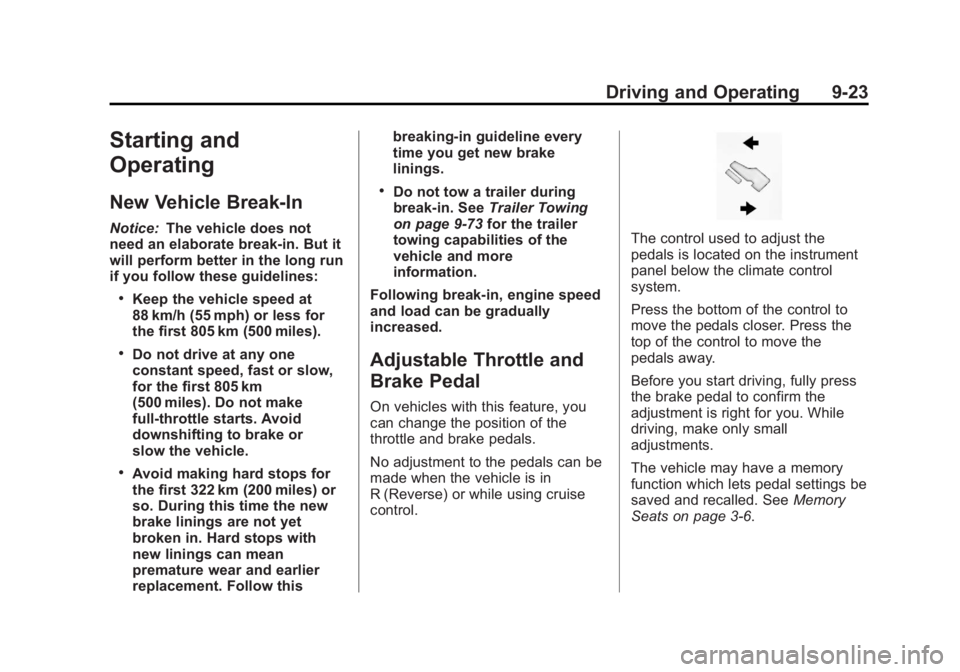
The control used to adjust the
pedals is located on the instrument
panel below the climate control
system.
Press the bottom of the control to
move the pedals closer. Press the
top of the control to move the
pedals away.
Before you start driving, fully press
the brake pedal to confirm the
adjustment is right for you. While
driving, make only small
adjustments.
The vehicle may have a memory
function which lets pedal settings be
saved and recalled. See Memory
Seats on page 3‑6.
Page 291 of 534
Black plate (25,1)GMC Sierra Owner Manual - 2013 - crc - 8/14/12
Driving and Operating 9-25
{WARNING
Turning off the vehicle while
moving may cause loss of power
assist in the brake and steering
systems and disable the airbags.
While driving, only shut the
vehicle off in an emergency.
If the vehicle cannot be pulled over,
and must be shut off while driving,
turn the ignition to ACC/
ACCESSORY.
Notice: Using a tool to force the
key to turn in the ignition could
cause damage to the switch or
break the key. Use the correct
key, make sure it is all the way in,
and turn it only with your hand.
If the key cannot be turned by
hand, see your dealer.
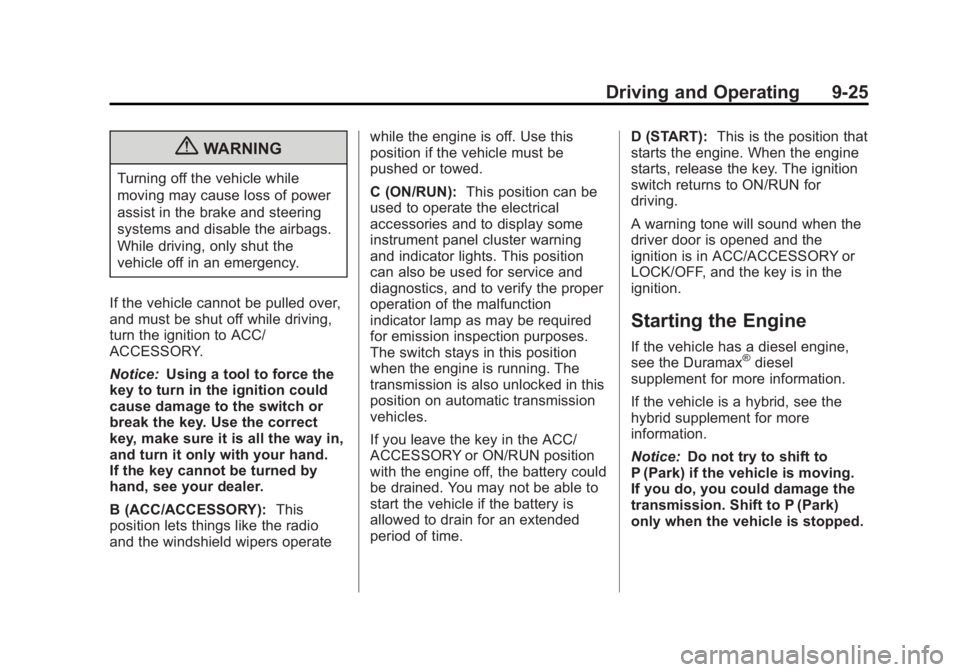
B (ACC/ACCESSORY): This
position lets things like the radio
and the windshield wipers operate while the engine is off. Use this
position if the vehicle must be
pushed or towed.
C (ON/RUN):
This position can be
used to operate the electrical
accessories and to display some
instrument panel cluster warning
and indicator lights. This position
can also be used for service and
diagnostics, and to verify the proper
operation of the malfunction
indicator lamp as may be required
for emission inspection purposes.
The switch stays in this position
when the engine is running. The
transmission is also unlocked in this
position on automatic transmission
vehicles.
If you leave the key in the ACC/
ACCESSORY or ON/RUN position
with the engine off, the battery could
be drained. You may not be able to
start the vehicle if the battery is
allowed to drain for an extended
period of time. D (START):
This is the position that
starts the engine. When the engine
starts, release the key. The ignition
switch returns to ON/RUN for
driving.
A warning tone will sound when the
driver door is opened and the
ignition is in ACC/ACCESSORY or
LOCK/OFF, and the key is in the
ignition.
Starting the Engine
If the vehicle has a diesel engine,
see the Duramax®diesel
supplement for more information.
If the vehicle is a hybrid, see the
hybrid supplement for more
information.
Notice: Do not try to shift to
P (Park) if the vehicle is moving.
If you do, you could damage the
transmission. Shift to P (Park)
only when the vehicle is stopped.