instrument cluster GMC SIERRA 1500 2014 Owner's Manual
[x] Cancel search | Manufacturer: GMC, Model Year: 2014, Model line: SIERRA 1500, Model: GMC SIERRA 1500 2014Pages: 542, PDF Size: 6.77 MB
Page 197 of 542
Black plate (5,1)GMC Sierra Owner Manual (GMNA-Localizing-U.S./Canada/Mexico-
5853626) - 2014 - 3rd crc - 8/15/13
Lighting 6-5
Turn and Lane-Change
Signals
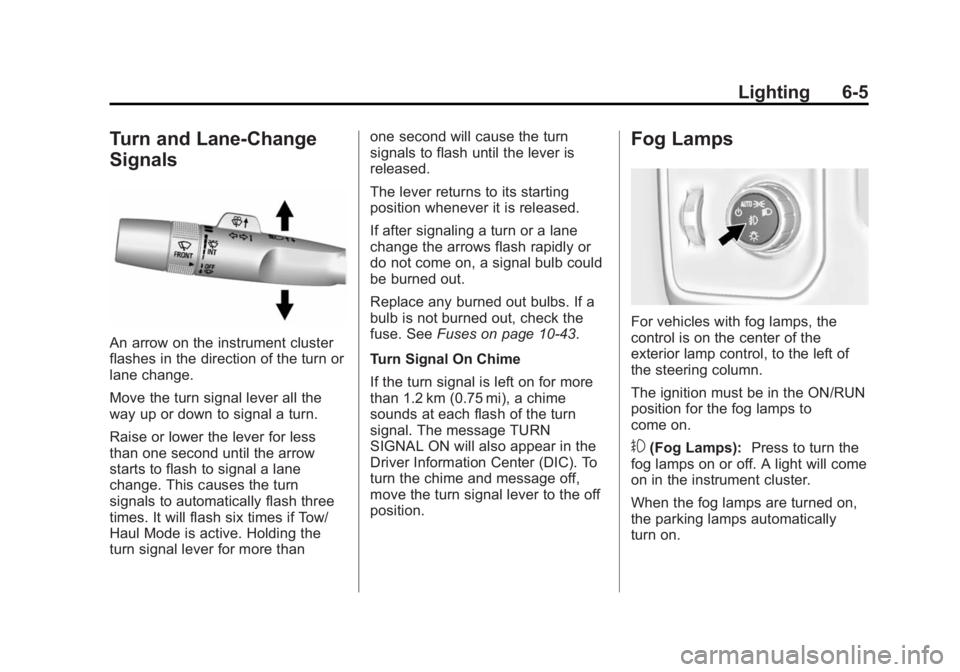
An arrow on the instrument cluster
flashes in the direction of the turn or
lane change.
Move the turn signal lever all the
way up or down to signal a turn.
Raise or lower the lever for less
than one second until the arrow
starts to flash to signal a lane
change. This causes the turn
signals to automatically flash three
times. It will flash six times if Tow/
Haul Mode is active. Holding the
turn signal lever for more thanone second will cause the turn
signals to flash until the lever is
released.
The lever returns to its starting
position whenever it is released.
If after signaling a turn or a lane
change the arrows flash rapidly or
do not come on, a signal bulb could
be burned out.
Replace any burned out bulbs. If a
bulb is not burned out, check the
fuse. See
Fuses on page 10-43.
Turn Signal On Chime
If the turn signal is left on for more
than 1.2 km (0.75 mi), a chime
sounds at each flash of the turn
signal. The message TURN
SIGNAL ON will also appear in the
Driver Information Center (DIC). To
turn the chime and message off,
move the turn signal lever to the off
position.
Fog Lamps
For vehicles with fog lamps, the
control is on the center of the
exterior lamp control, to the left of
the steering column.
The ignition must be in the ON/RUN
position for the fog lamps to
come on.
#(Fog Lamps): Press to turn the
fog lamps on or off. A light will come
on in the instrument cluster.
When the fog lamps are turned on,
the parking lamps automatically
turn on.
Page 203 of 542
Black plate (1,1)GMC Sierra Owner Manual (GMNA-Localizing-U.S./Canada/Mexico-
5853626) - 2014 - 3rd crc - 8/15/13
Infotainment System 7-1
Infotainment
System
Introduction
Infotainment . . . . . . . . . . . . . . . . . . . 7-1
Theft-Deterrent Feature . . . . . . . 7-2
Overview . . . . . . . . . . . . . . . . . . . . . . 7-2
Home Page . . . . . . . . . . . . . . . . . . . 7-6
Software Updates . . . . . . . . . . . . . 7-8
Radio
AM-FM Radio . . . . . . . . . . . . . . . . . 7-9
Satellite Radio . . . . . . . . . . . . . . . 7-10
Radio Reception . . . . . . . . . . . . . 7-11
Fixed Mast Antenna . . . . . . . . . 7-12
Multi-Band Antenna . . . . . . . . . . 7-12
Pandora Internet Radio . . . . . . 7-12
Audio Players
CD Player . . . . . . . . . . . . . . . . . . . 7-16
USB Port . . . . . . . . . . . . . . . . . . . . 7-19
SD Card Reader . . . . . . . . . . . . . 7-21
Auxiliary Jack . . . . . . . . . . . . . . . . 7-22
Bluetooth Audio . . . . . . . . . . . . . . 7-22
Navigation
OnStar®System . . . . . . . . . . . . . 7-23
Voice Recognition
Voice Recognition . . . . . . . . . . . 7-26
Phone
Bluetooth (Overview) . . . . . . . . 7-32
Bluetooth (InfotainmentControls - Base Radio) . . . . . 7-34
Bluetooth (Voice Recognition - Base Radio) . . . . . . . . . . . . . . . . 7-39
Bluetooth (Infotainment Controls - Base Connected
Radio) . . . . . . . . . . . . . . . . . . . . . . 7-44
Bluetooth (Voice Recognition - Base Connected Radio) . . . . 7-48
Trademarks and License
Agreements
Trademarks and LicenseAgreements . . . . . . . . . . . . . . . . 7-50
Introduction
Infotainment
Read the following pages to
become familiar with the
infotainment system featured in this
owner manual.
{Warning
Taking your eyes off the road for
too long or too often while using
any infotainment features can
cause a crash resulting in injury
or death. Do not give extended
attention to infotainment tasks
while driving. Focus your attention
on driving and limit glances to the
instrument cluster or center stack
screens. Use voice guidance
whenever possible.
The infotainment system has built-in
features intended to help with this
by disabling some functions when
Page 208 of 542
Black plate (6,1)GMC Sierra Owner Manual (GMNA-Localizing-U.S./Canada/Mexico-
5853626) - 2014 - 3rd crc - 8/15/13
7-6 Infotainment System
Home Page
Home Page Features
The infotainment system displays a
Home Page that makes it easy to
access all of the applications. Turn
the MENU knob to highlight feature
icons. Press the MENU knob to
access the feature’s options.
Various functions are disabled when
the vehicle is moving.
AUDIO:Select the AUDIO screen
icon to display the active source
page. The sources available are
AM, FM, SiriusXM
®(if equipped),
CD (if equipped), USB/iPod, AUX
Input, SD card reader (if equipped),
and Bluetooth Audio (if equipped).
See AM-FM Radio on page 7-9,
Satellite Radio on page 7-10, CD
Player on page 7-16, Auxiliary Jack
on page 7-22, and Bluetooth Audio
on page 7-22. PHONE:
Select the PHONE screen
icon to display the Phone main
page. See Bluetooth (Infotainment
Controls - Base Radio) on
page 7-34 orBluetooth (Voice
Recognition - Base Radio) on
page 7-39 orBluetooth (Voice
Recognition - Base Connected
Radio) on page 7-48 orBluetooth
(Overview) on page 7-32 or
Bluetooth (Infotainment Controls -
Base Connected Radio) on
page 7-44.
NAV (Navigation, If Equipped):
Select the NAV screen icon to
display the OnStar Turn-by-Turn
Navigation. See “OnStar Overview”
in OnStar, if equipped.
SETTINGS: Select the SETTINGS
screen icon to display the Settings
main page. See “Setting Radio
Preferences” following.
Pandora (If Equipped)
Select the PANDORA icon to begin
Pandora. See Pandora Internet
Radio on page 7-12.
Setting Radio Preferences
Select the SETTINGS screen icon
to display the Settings menu and
the following may display:
Time and Date: SeeClock on
page 5-5.
Language (Current Language):
This will set the display language in
the radio and instrument cluster.
Select to display a list of languages.
Select
oBACK to go back to the
previous menu.
Valet Mode:
Using the circular numeric keypad,
enter a four-digit code:
1. Turn the MENU knob to highlight a number.
2. Press the MENU knob to select it. Do this for each one of the
four digits. Select Enter to go to
the confirmation screen.
3. Re-enter the four-digit code. Select LOCK to lock the system.
Page 228 of 542
Black plate (26,1)GMC Sierra Owner Manual (GMNA-Localizing-U.S./Canada/Mexico-
5853626) - 2014 - 3rd crc - 8/15/13
7-26 Infotainment System
Voice Recognition
If equipped, voice recognition allows
for hands-free operation within the
audio and phone applications. This
feature can be started by pressing
either the
gbutton on the steering
wheel or select the
gon the screen
display.
However, not all features within
these areas are supported by voice
commands. Generally, only complex
tasks that require multiple manual
interactions to complete are
supported by voice commands.
For example, tasks that take more
than one or two button presses such
as selecting a song or artist to play
from a media device would be
supported by voice commands.
Other tasks, like adjusting the
volume or seeking up or down are
audio features that are easily
performed by pressing one or two
buttons, and are not supported by
voice commands. In general there are flexible ways to
speak commands for completing the
tasks. Most of them, except
destination entry and voice keypad,
can be completed in a single
command. If the task takes more
than one command to complete, the
first command would be to indicate
the kind of task that is to be
performed. The system replies with
prompts that lead through a dialog
to enter the necessary information.
Voice recognition can be used when
the ignition is on or when Retained
Accessory Power (RAP) is active.
See
Retained Accessory Power
(RAP) on page 9-29.
Using Voice Recognition
Voice recognition becomes available
once the system has been
initialized. This begins when the
ignition is turned on. Initialization
may take a few moments. 1. Press
gon the steering wheel
control to activate voice
recognition, or select the
gon
the infotainment screen on the
center stack.
.If voice recognition is
started from the steering
wheel control, the
instrument cluster displays
the selections and visual
dialog content.
.If voice recognition is
started from the
infotainment screen on the
center stack, the selections
and visual dialog content
are displayed on both the
center stack display and the
instrument cluster display.
2. The audio system mutes and the system plays a prompt followed
by a beep.
Page 231 of 542
Black plate (29,1)GMC Sierra Owner Manual (GMNA-Localizing-U.S./Canada/Mexico-
5853626) - 2014 - 3rd crc - 8/15/13
Infotainment System 7-29
The screen returns back to the
screen where voice recognition was
initiated.
The Back Command
Say“Back” or press the Back button
to go to the previous screen.
If in voice recognition, and “Back”is
stated all the way through to the
initial screen, then “Back”is stated
one more time, the voice recognition
session will cancel.
Help
Say “Help” on any voice recognition
screen and the help prompt for the
screen is played. Additionally, a
pop-up displays a text version of the
help prompt. Depending on how
voice recognition was initiated, the
Help pop-up will either display on
the instrument cluster or the
infotainment screen. Press the
Dismiss button to make the pop-up
go away. Pressinggwhile the help prompt is
playing will terminate the prompt
and a beep will be heard. Doing this
will stop the help prompt so that a
voice command can be used.
Voice Recognition for the
Radio
Select thegscreen button to
launch audio voice recognition.
If the voice button is pressed in a
radio screen, the voice commands
for radio and media features are
available
“Switch to AM”: Switch bands to
AM and tune to the last AM radio
station.
“Switch to FM”: Switch bands to
FM and tune to the last FM radio
station.
“Switch to XM”: Switch bands to
XM and tune to the last XM channel.
“Tune to
Tune to the radio station whose
frequency is identified in the
command (like “nine fifty”). “Tune to
Tune to the radio station whose
frequency is identified in the
command (like
“one o one
point one”).
“Tune to
HD”: Tune to the HD Radio station
whose frequency is identified in the
command.
“Tune to
HD”: Tune to the HD Radio station
whose frequency is identified in the
command.
“Tune to
the HD Radio station whose
frequency and HD channel is
identified in the command.
“Tune to XM
station whose channel number is
identified in the command.
“Tune to XM
station whose channel name is
identified in the command.
Page 294 of 542
Black plate (26,1)GMC Sierra Owner Manual (GMNA-Localizing-U.S./Canada/Mexico-
5853626) - 2014 - 3rd crc - 8/15/13
9-26 Driving and Operating
2. Shift the vehicle to N (Neutral).This can be done while the
vehicle is moving. After shifting
to N (Neutral), firmly apply the
brakes and steer the vehicle to a
safe location.
3. Come to a complete stop, shift to P (Park), and turn the ignition
to LOCK/OFF. On vehicles with
an automatic transmission, the
shift lever must be in P (Park) to
turn the ignition switch to the
LOCK/OFF position.
4. Set the parking brake. See Parking Brake on page 9-53.
{Warning
Turning off the vehicle while
moving may cause loss of power
assist in the brake and steering
systems and disable the airbags.
While driving, only shut the
vehicle off in an emergency. If the vehicle cannot be pulled over,
and must be shut off while driving,
turn the ignition to ACC/
ACCESSORY.
{Caution
Using a tool to force the key to
turn in the ignition could cause
damage to the switch or break the
key. Use the correct key, make
sure it is all the way in, and turn it
only with your hand. If the key
cannot be turned by hand, see
your dealer.
2 (ACC/ACCESSORY): This
position lets things like the radio
and the windshield wipers operate
while the engine is off. It also
unlocks the steering wheel. Use this
position if the vehicle must be
pushed or towed.
3 (ON/RUN): This position can be
used to operate the electrical
accessories and to display some
instrument cluster warning and indicator lights. This position can
also be used for service and
diagnostics, and to verify the proper
operation of the malfunction
indicator lamp as may be required
for emission inspection purposes.
The switch stays in this position
when the engine is running. The
transmission is also unlocked in this
position on automatic transmission
vehicles.
If the key is left in the ACC/
ACCESSORY or ON/RUN position
with the engine off, the battery could
be drained. The vehicle may not
start if the battery is allowed to drain
for an extended period of time.
4 (START):
This is the position that
starts the engine. When the engine
starts, release the key. The ignition
switch returns to ON/RUN for
driving.
A warning tone will sound when the
driver door is opened and the
ignition is in ACC/ACCESSORY or
LOCK/OFF, and the key is in the
ignition.
Page 302 of 542
Black plate (34,1)GMC Sierra Owner Manual (GMNA-Localizing-U.S./Canada/Mexico-
5853626) - 2014 - 3rd crc - 8/15/13
9-34 Driving and Operating
Running the Vehicle
While Parked
It is better not to park with the
engine running.
If the vehicle is left with the engine
running, follow the proper steps to
be sure the vehicle will not move.
SeeShifting Into Park on page 9-30
and Engine Exhaust on page 9-33.
If parking on a hill and pulling a
trailer, see Driving Characteristics
and Towing Tips on page 9-74.
Automatic
Transmission
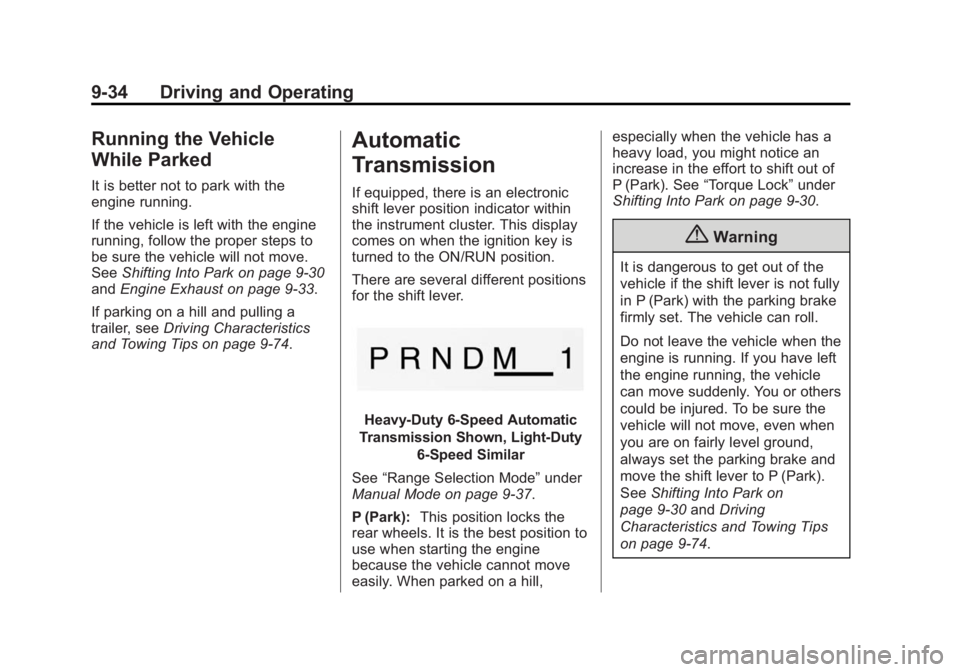
If equipped, there is an electronic
shift lever position indicator within
the instrument cluster. This display
comes on when the ignition key is
turned to the ON/RUN position.
There are several different positions
for the shift lever.
Heavy-Duty 6-Speed Automatic
Transmission Shown, Light-Duty
6-Speed Similar
See “Range Selection Mode” under
Manual Mode on page 9-37.
P (Park): This position locks the
rear wheels. It is the best position to
use when starting the engine
because the vehicle cannot move
easily. When parked on a hill, especially when the vehicle has a
heavy load, you might notice an
increase in the effort to shift out of
P (Park). See
“Torque Lock” under
Shifting Into Park on page 9-30.
{Warning
It is dangerous to get out of the
vehicle if the shift lever is not fully
in P (Park) with the parking brake
firmly set. The vehicle can roll.
Do not leave the vehicle when the
engine is running. If you have left
the engine running, the vehicle
can move suddenly. You or others
could be injured. To be sure the
vehicle will not move, even when
you are on fairly level ground,
always set the parking brake and
move the shift lever to P (Park).
See Shifting Into Park on
page 9-30 andDriving
Characteristics and Towing Tips
on page 9-74.
Page 306 of 542
Black plate (38,1)GMC Sierra Owner Manual (GMNA-Localizing-U.S./Canada/Mexico-
5853626) - 2014 - 3rd crc - 8/15/13
9-38 Driving and Operating
Gear before shifting from D
(Drive) to M (Manual Mode)6th 5th 4th 3rd 2nd 1st
Range after shifting from D
(Drive) to M (Manual Mode) M4 M4 M3 M2 M2 M1
Grade Braking is not available when
Range Selection Mode is active.
See Tow/Haul Mode on page 9-38.
While using Range Selection Mode,
cruise control and the Tow/Haul
Mode can be used.
If the vehicle has an exhaust brake,
it can also be used, but will not
automatically downshift the
transmission. See “Exhaust Brake”
in the Duramax diesel supplement.
{Caution
Spinning the tires or holding the
vehicle in one place on a hill
using only the accelerator pedal
may damage the transmission.
The repair will not be covered by
(Continued)
Caution (Continued)
the vehicle warranty. If you are
stuck, do not spin the tires. When
stopping on a hill, use the brakes
to hold the vehicle in place.
Low Traction Mode
Low Traction Mode assists in
vehicle acceleration when road
conditions are slippery, such as with
ice or snow. While the vehicle is at a
stop, select M2 using Range
Selection Mode. This will limit
torque to the wheels and help to
prevent the tires from spinning.
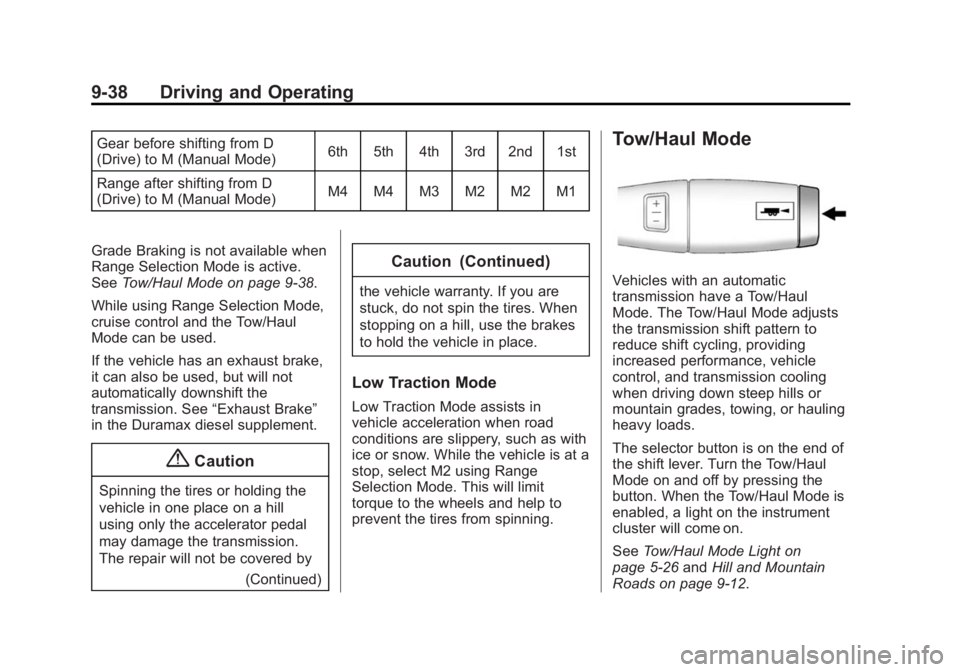
Tow/Haul Mode
Vehicles with an automatic
transmission have a Tow/Haul
Mode. The Tow/Haul Mode adjusts
the transmission shift pattern to
reduce shift cycling, providing
increased performance, vehicle
control, and transmission cooling
when driving down steep hills or
mountain grades, towing, or hauling
heavy loads.
The selector button is on the end of
the shift lever. Turn the Tow/Haul
Mode on and off by pressing the
button. When the Tow/Haul Mode is
enabled, a light on the instrument
cluster will come on.
SeeTow/Haul Mode Light on
page 5-26 andHill and Mountain
Roads on page 9-12.
Page 323 of 542
Black plate (55,1)GMC Sierra Owner Manual (GMNA-Localizing-U.S./Canada/Mexico-
5853626) - 2014 - 3rd crc - 8/15/13
Driving and Operating 9-55
vehicle wheel brakes to assist the
driver in keeping the vehicle on the
intended path. Trailer Sway Control
(TSC) is also on automatically when
the vehicle is started. SeeTrailer
Sway Control (TSC) on page 9-98.
If cruise control is being used and
traction control or StabiliTrak begins
to limit wheel spin, cruise control will
disengage. Cruise control may be
turned back on when road
conditions allow.
Both systems come on
automatically when the vehicle is
started and begins to move. The
systems may be heard or felt while
they are operating or while
performing diagnostic checks. This
is normal and does not mean there
is a problem with the vehicle.
It is recommended to leave both
systems on for normal driving
conditions, but it may be necessary
to turn TCS off if the vehicle gets
stuck in sand, mud, ice, or snow. See
If the Vehicle Is Stuck on
page 9-14 and“Turning the
Systems Off and On” later in this
section.
When the transfer case is in
Four-Wheel Drive Low, the stability
system is automatically disabled,
the StabiliTrak OFF light comes on,
and the appropriate message will
appear on the DIC. Both traction
control and StabiliTrak are
automatically disabled in this
condition.
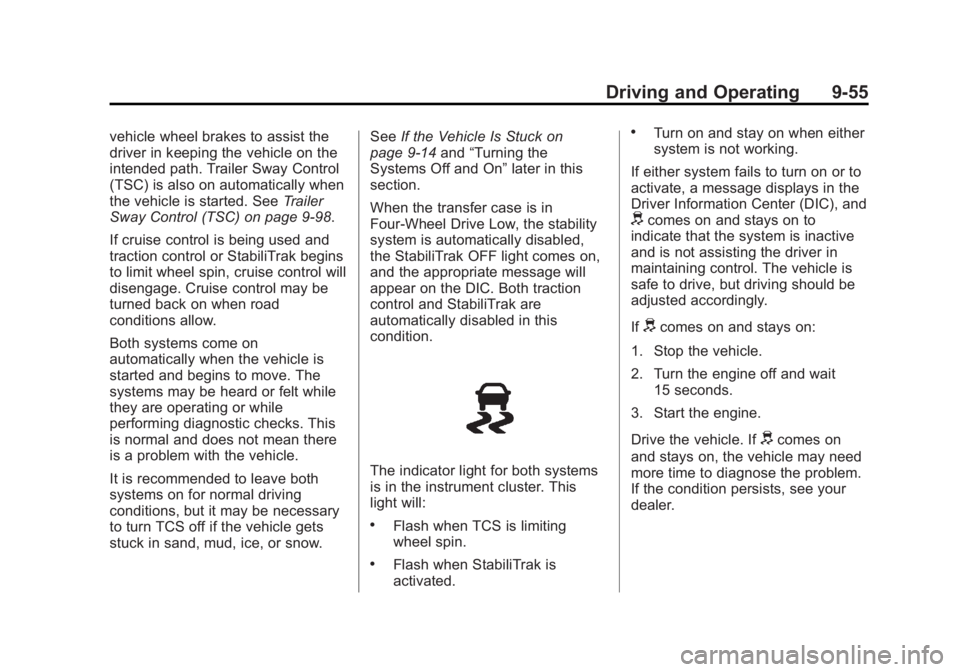
The indicator light for both systems
is in the instrument cluster. This
light will:
.Flash when TCS is limiting
wheel spin.
.Flash when StabiliTrak is
activated.
.Turn on and stay on when either
system is not working.
If either system fails to turn on or to
activate, a message displays in the
Driver Information Center (DIC), and
dcomes on and stays on to
indicate that the system is inactive
and is not assisting the driver in
maintaining control. The vehicle is
safe to drive, but driving should be
adjusted accordingly.
If
dcomes on and stays on:
1. Stop the vehicle.
2. Turn the engine off and wait 15 seconds.
3. Start the engine.
Drive the vehicle. If
dcomes on
and stays on, the vehicle may need
more time to diagnose the problem.
If the condition persists, see your
dealer.
Page 324 of 542
Black plate (56,1)GMC Sierra Owner Manual (GMNA-Localizing-U.S./Canada/Mexico-
5853626) - 2014 - 3rd crc - 8/15/13
9-56 Driving and Operating
Turning the Systems Off
and On
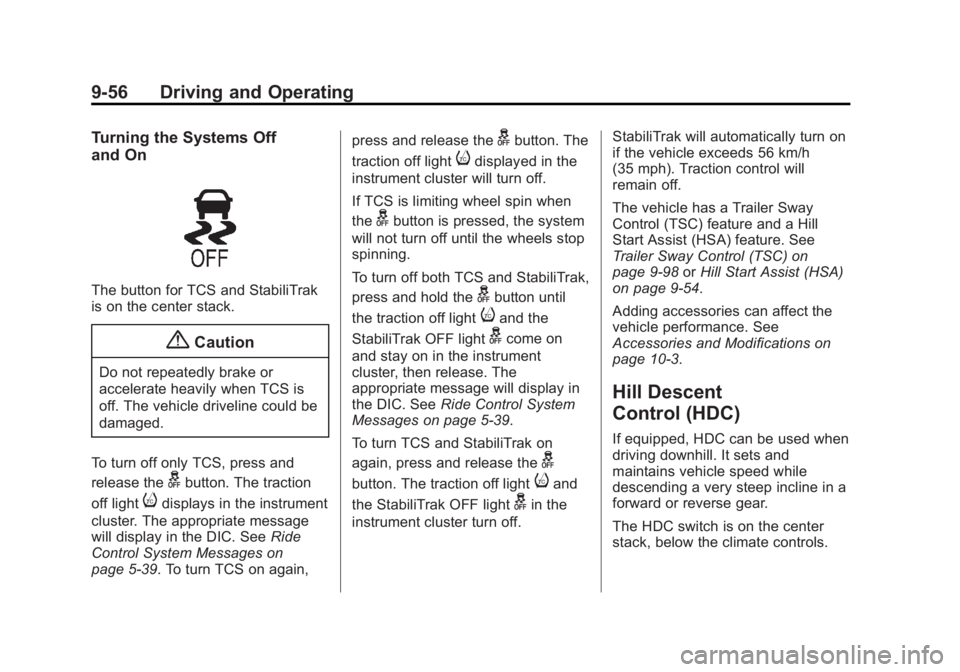
The button for TCS and StabiliTrak
is on the center stack.
{Caution
Do not repeatedly brake or
accelerate heavily when TCS is
off. The vehicle driveline could be
damaged.
To turn off only TCS, press and
release the
gbutton. The traction
off light
idisplays in the instrument
cluster. The appropriate message
will display in the DIC. See Ride
Control System Messages on
page 5-39. To turn TCS on again, press and release the
gbutton. The
traction off light
idisplayed in the
instrument cluster will turn off.
If TCS is limiting wheel spin when
the
gbutton is pressed, the system
will not turn off until the wheels stop
spinning.
To turn off both TCS and StabiliTrak,
press and hold the
gbutton until
the traction off light
iand the
StabiliTrak OFF light
gcome on
and stay on in the instrument
cluster, then release. The
appropriate message will display in
the DIC. See Ride Control System
Messages on page 5-39.
To turn TCS and StabiliTrak on
again, press and release the
g
button. The traction off lightiand
the StabiliTrak OFF light
gin the
instrument cluster turn off. StabiliTrak will automatically turn on
if the vehicle exceeds 56 km/h
(35 mph). Traction control will
remain off.
The vehicle has a Trailer Sway
Control (TSC) feature and a Hill
Start Assist (HSA) feature. See
Trailer Sway Control (TSC) on
page 9-98
orHill Start Assist (HSA)
on page 9-54.
Adding accessories can affect the
vehicle performance. See
Accessories and Modifications on
page 10-3.
Hill Descent
Control (HDC)
If equipped, HDC can be used when
driving downhill. It sets and
maintains vehicle speed while
descending a very steep incline in a
forward or reverse gear.
The HDC switch is on the center
stack, below the climate controls.