ad blue GMC SIERRA 1500 2015 Owners Manual
[x] Cancel search | Manufacturer: GMC, Model Year: 2015, Model line: SIERRA 1500, Model: GMC SIERRA 1500 2015Pages: 539, PDF Size: 6.81 MB
Page 8 of 539
Black plate (1,1)GMC Sierra Owner Manual (GMNA Localizing-U.S/Canada/Mexico-
7299746) - 2015 - crc - 11/11/13
In Brief 1-1
In Brief
Instrument Panel
Instrument Panel . . . . . . . . . . . . . . 1-2
Initial Drive Information
Initial Drive Information . . . . . . . . 1-4
Remote Keyless Entry (RKE)System . . . . . . . . . . . . . . . . . . . . . . 1-4
Remote Vehicle Start . . . . . . . . . 1-5
Door Locks . . . . . . . . . . . . . . . . . . . 1-5
Windows . . . . . . . . . . . . . . . . . . . . . . 1-6
Seat Adjustment . . . . . . . . . . . . . . 1-7
Memory Features . . . . . . . . . . . . 1-10
Heated and Cooled Front Seats . . . . . . . . . . . . . . . . . . . . . . . 1-10
Head Restraint Adjustment . . . . . . . . . . . . . . . . . 1-10
Safety Belts . . . . . . . . . . . . . . . . . . 1-11
Passenger Sensing System . . . . . . . . . . . . . . . . . . . . . 1-11 Mirror Adjustment . . . . . . . . . . . . 1-11
Steering Wheel
Adjustment . . . . . . . . . . . . . . . . . 1-13
Throttle and Brake Pedal Adjustment . . . . . . . . . . . . . . . . . 1-14
Interior Lighting . . . . . . . . . . . . . . 1-14
Exterior Lighting . . . . . . . . . . . . . 1-15
Windshield Wiper/Washer . . . . 1-16
Climate Controls . . . . . . . . . . . . . 1-17
Transmission . . . . . . . . . . . . . . . . 1-19
Four-Wheel Drive . . . . . . . . . . . . 1-20
Vehicle Features
Infotainment System . . . . . . . . . 1-21
Radio(s) . . . . . . . . . . . . . . . . . . . . . 1-21
Satellite Radio . . . . . . . . . . . . . . . 1-22
Portable Audio Devices . . . . . . 1-22
Bluetooth
®. . . . . . . . . . . . . . . . . . . 1-23
Steering Wheel Controls . . . . . 1-23
Cruise Control . . . . . . . . . . . . . . . 1-24
Driver Information Center (DIC) . . . . . . . . . . . . . . . 1-24 Forward Collision Alert (FCA)
System . . . . . . . . . . . . . . . . . . . . . 1-25
Lane Departure Warning (LDW) . . . . . . . . . . . . . 1-25
Rear Vision
Camera (RVC) . . . . . . . . . . . . . 1-25
Parking Assist . . . . . . . . . . . . . . . 1-25
Power Outlets . . . . . . . . . . . . . . . 1-26
Universal Remote System . . . 1-26
Sunroof . . . . . . . . . . . . . . . . . . . . . . 1-26
Performance and Maintenance
Traction Control/Electronic Stability Control . . . . . . . . . . . . 1-27
Tire Pressure Monitor . . . . . . . . 1-28
Engine Oil Life System . . . . . . 1-28
E85 or FlexFuel . . . . . . . . . . . . . . 1-29
Driving for Better Fuel Economy . . . . . . . . . . . . . . . . . . . 1-29
Roadside Assistance Program . . . . . . . . . . . . . . . . . . . . 1-29
OnStar
®. . . . . . . . . . . . . . . . . . . . . 1-30
Page 28 of 539
Black plate (21,1)GMC Sierra Owner Manual (GMNA Localizing-U.S/Canada/Mexico-
7299746) - 2015 - crc - 11/11/13
In Brief 1-21
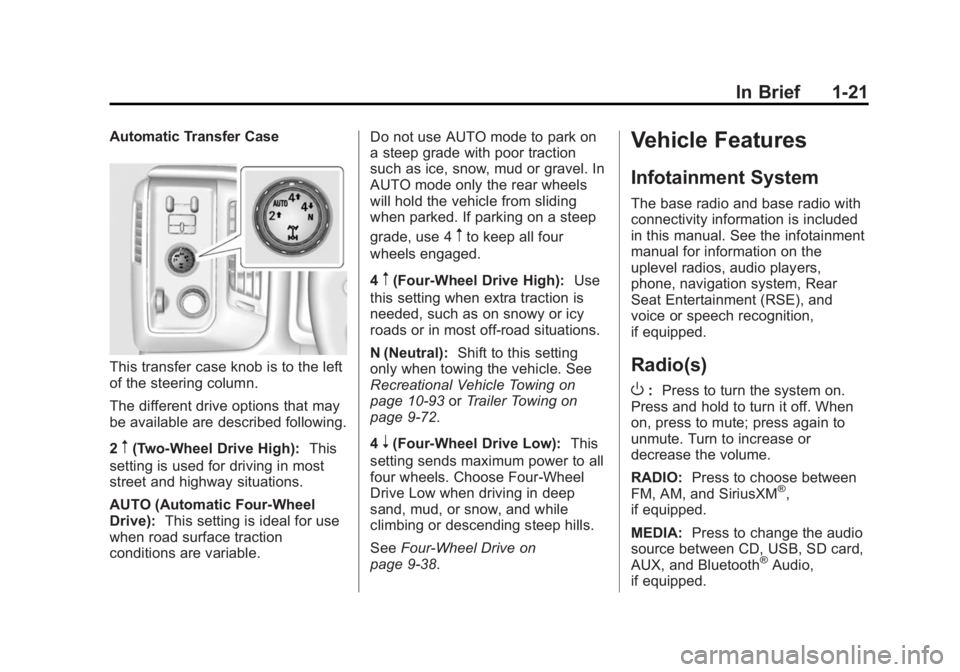
Automatic Transfer Case
This transfer case knob is to the left
of the steering column.
The different drive options that may
be available are described following.
2
m(Two-Wheel Drive High):This
setting is used for driving in most
street and highway situations.
AUTO (Automatic Four-Wheel
Drive): This setting is ideal for use
when road surface traction
conditions are variable. Do not use AUTO mode to park on
a steep grade with poor traction
such as ice, snow, mud or gravel. In
AUTO mode only the rear wheels
will hold the vehicle from sliding
when parked. If parking on a steep
grade, use 4
mto keep all four
wheels engaged.
4
m(Four-Wheel Drive High): Use
this setting when extra traction is
needed, such as on snowy or icy
roads or in most off-road situations.
N (Neutral): Shift to this setting
only when towing the vehicle. See
Recreational Vehicle Towing on
page 10-93 orTrailer Towing on
page 9-72.
4
n(Four-Wheel Drive Low): This
setting sends maximum power to all
four wheels. Choose Four-Wheel
Drive Low when driving in deep
sand, mud, or snow, and while
climbing or descending steep hills.
See Four-Wheel Drive on
page 9-38.
Vehicle Features
Infotainment System
The base radio and base radio with
connectivity information is included
in this manual. See the infotainment
manual for information on the
uplevel radios, audio players,
phone, navigation system, Rear
Seat Entertainment (RSE), and
voice or speech recognition,
if equipped.
Radio(s)
O
: Press to turn the system on.
Press and hold to turn it off. When
on, press to mute; press again to
unmute. Turn to increase or
decrease the volume.
RADIO: Press to choose between
FM, AM, and SiriusXM
®,
if equipped.
MEDIA: Press to change the audio
source between CD, USB, SD card,
AUX, and Bluetooth
®Audio,
if equipped.
Page 30 of 539
Black plate (23,1)GMC Sierra Owner Manual (GMNA Localizing-U.S/Canada/Mexico-
7299746) - 2015 - crc - 11/11/13
In Brief 1-23
Bluetooth®
The Bluetooth®system allows users
with a Bluetooth-enabled cell phone
to make and receive hands-free
calls using the vehicle audio system
and controls.
The Bluetooth-enabled cell phone
must be paired with the in-vehicle
Bluetooth system before it can be
used in the vehicle. Not all phones
will support all functions.
See Bluetooth (Voice Recognition -
Base Radio) on page 7-35 or
Bluetooth (Voice Recognition - Base
Connected Radio) on page 7-44 or
Bluetooth (Overview) on page 7-29
or Bluetooth (Infotainment Controls -
Base Connected Radio) on
page 7-40 orBluetooth
(Infotainment Controls - Base
Radio) on page 7-31.
Steering Wheel Controls
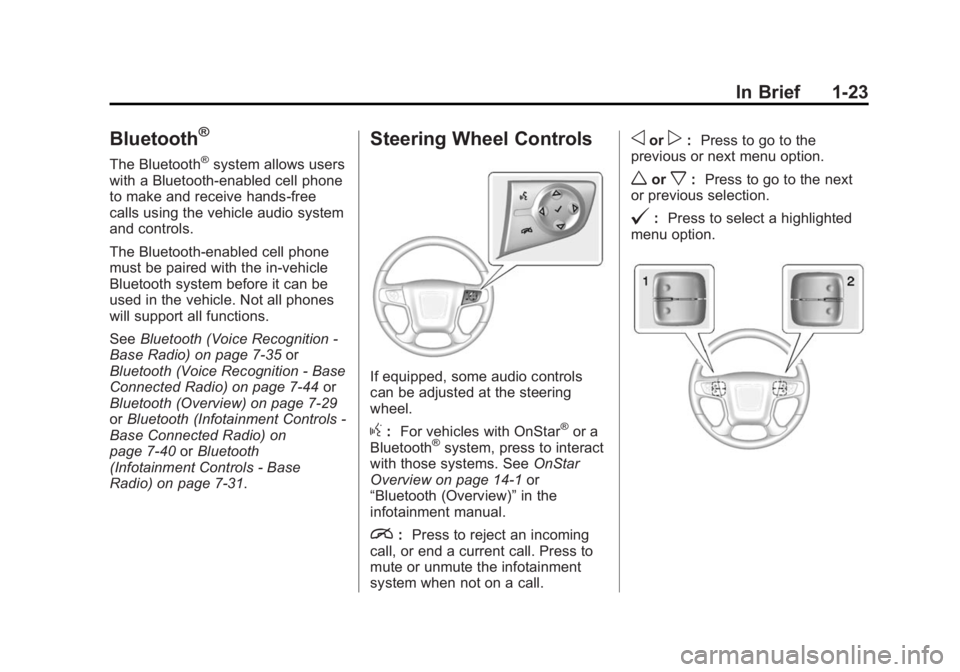
If equipped, some audio controls
can be adjusted at the steering
wheel.
g: For vehicles with OnStar®or a
Bluetooth®system, press to interact
with those systems. See OnStar
Overview on page 14-1 or
“Bluetooth (Overview)” in the
infotainment manual.
i: Press to reject an incoming
call, or end a current call. Press to
mute or unmute the infotainment
system when not on a call.
oorp: Press to go to the
previous or next menu option.
worx: Press to go to the next
or previous selection.
@: Press to select a highlighted
menu option.
Page 140 of 539
Black plate (3,1)GMC Sierra Owner Manual (GMNA Localizing-U.S/Canada/Mexico-
7299746) - 2015 - crc - 11/11/13
Instruments and Controls 5-3
2. Pull the lever (2) toward you tomove the steering wheel up or
down, then release the lever to
lock the wheel in place.
Do not adjust the steering wheel
while driving.
Steering Wheel Controls
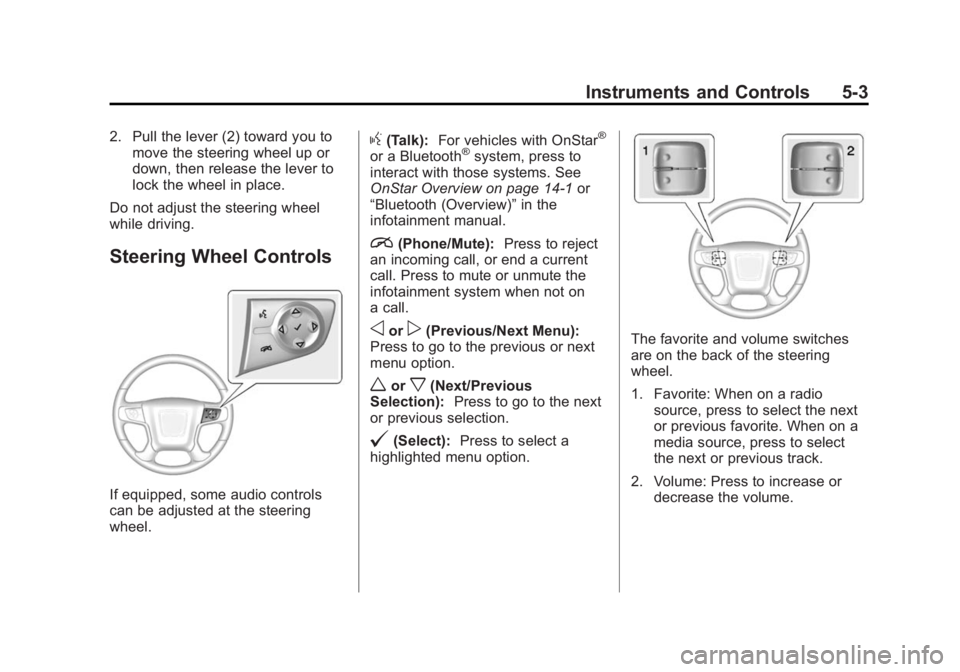
If equipped, some audio controls
can be adjusted at the steering
wheel.
g(Talk): For vehicles with OnStar®
or a Bluetooth®system, press to
interact with those systems. See
OnStar Overview on page 14-1 or
“Bluetooth (Overview)” in the
infotainment manual.
i(Phone/Mute): Press to reject
an incoming call, or end a current
call. Press to mute or unmute the
infotainment system when not on
a call.
oorp(Previous/Next Menu):
Press to go to the previous or next
menu option.
worx(Next/Previous
Selection): Press to go to the next
or previous selection.
@(Select): Press to select a
highlighted menu option.
The favorite and volume switches
are on the back of the steering
wheel.
1. Favorite: When on a radio
source, press to select the next
or previous favorite. When on a
media source, press to select
the next or previous track.
2. Volume: Press to increase or decrease the volume.
Page 183 of 539
Black plate (46,1)GMC Sierra Owner Manual (GMNA Localizing-U.S/Canada/Mexico-
7299746) - 2015 - crc - 11/11/13
5-46 Instruments and Controls
3. PressoBACK on the faceplate
or the
0screen button to return
to the previous menu or exit.
Turn the vehicle to ON/RUN to
access the Settings menu, then
select SETTINGS from the Home
page on the infotainment system
display.
Personalization Menus
The following list of menu items may
be available:
.Time and Date
.Language [Language]
.Valet Mode
.Radio
.Vehicle
.Bluetooth
.Voice
.Display
.Rear Camera
.Return to Factory Settings
.Software Information Detailed information for each menu
follows.
Time and Date
Manually set the time and date. See
Clock on page 5-5.
Language [Language]
Select Language, then select from
the available language(s).
The selected language will display
on the system, and voice
recognition will reflect the selected
language.
Valet Mode
This will lock the infotainment
system, the infotainment controls,
and screen storage location.
To turn Valet Mode on and off, enter
a four-digit code on the keypad.
Press Enter to go to the
confirmation screen. Re-enter the
four-digit code. Press LOCK to lock
the system. Enter the four-digit code
to unlock the system. Press the
Back screen button to go back to
the previous menu.
Radio
Press to display the Radio menu
and the following may display:
.Manage Favorites
.Number of Favorites Shown
.Audible Touch Feedback
.Auto Volume
.Maximum Startup Volume
.Audio Cue Volume
Manage Favorites
This allows favorites to be edited.
See “Manage Favorites” in“Radio
Setup” underHome Page on
page 7-5 or“Manage Favorites” in
“Settings” under“Radio” in the
infotainment manual.
Page 187 of 539
Black plate (50,1)GMC Sierra Owner Manual (GMNA Localizing-U.S/Canada/Mexico-
7299746) - 2015 - crc - 11/11/13
5-50 Instruments and Controls
Passive Door Unlock
This allows the selection of what
doors will unlock when using the
button on the driver door to unlock
the vehicle.
Select All Doors or Driver
Door Only.
Passive Door Lock
This feature can be turned on or off,
or can be used to select feedback
when using the button on the driver
door to lock the vehicle. See
Remote Keyless Entry (RKE)
System Operation on page 2-3.
Select Off, On with Horn
Chirp, or On.
Remote Left in Vehicle Alert
This feature sounds an alert when
the RKE transmitter is left in the
vehicle.
Select Off or On.Bluetooth
Select and the following may
display:
.Pair New Device
.Device Management
.Ringtones
.Voice Mail Numbers
Pair New Device
Select to pair a new device. See
“Pairing” in“Infotainment Controls”
under Bluetooth (Voice Recognition
- Base Radio) on page 7-35 or
Bluetooth (Voice Recognition - Base
Connected Radio) on page 7-44 or
Bluetooth (Overview) on page 7-29
or Bluetooth (Infotainment Controls -
Base Connected Radio) on
page 7-40 orBluetooth
(Infotainment Controls - Base
Radio) on page 7-31 or“Pairing” in
“Infotainment Controls” under
Bluetooth in the infotainment
manual. Device Management
Select to connect to a different
phone source, disconnect a phone,
or delete a phone.
Ringtones
Press to change the ring tone for
the specific phone. The phone does
not need to be connected to change
the ring tones.
Voice Mail Numbers
This feature displays the voice mail
number for all connected phones.
To change the voice mail number,
select EDIT or press the EDIT
button. Type a new number, then
select SAVE or press the SAVE
button.
Voice
Select and the following may
display:
.Prompt Length
.Audio Feedback Speed
Page 199 of 539
Black plate (6,1)GMC Sierra Owner Manual (GMNA Localizing-U.S/Canada/Mexico-
7299746) - 2015 - crc - 11/11/13
6-6 Lighting
When the wiring is connected to an
auxiliary roof-mounted lamp,
pressing the bottom of the button
will activate the lamp and illuminate
an indicator light at the bottom of
this button. Pressing the top of the
button will turn off the roof-mounted
lamp and indicator.
The emergency roof lamp circuit is
fused at 30 amps, so the total
current draw of the attached lamps
should be less than this value. The
attachment points for the roof lamp
circuits are two blunt cut wires
above the overhead console: a dark
green with blue stripe switched
power wire and a black ground wire.
For information on roof-mounted
emergency lamp installation, see
www.gmupfitter.com or contact your
dealer.
If the vehicle has this button, the
vehicle may have the snow plow
prep package. SeeAdd-On
Electrical Equipment on page 9-97.Interior Lighting
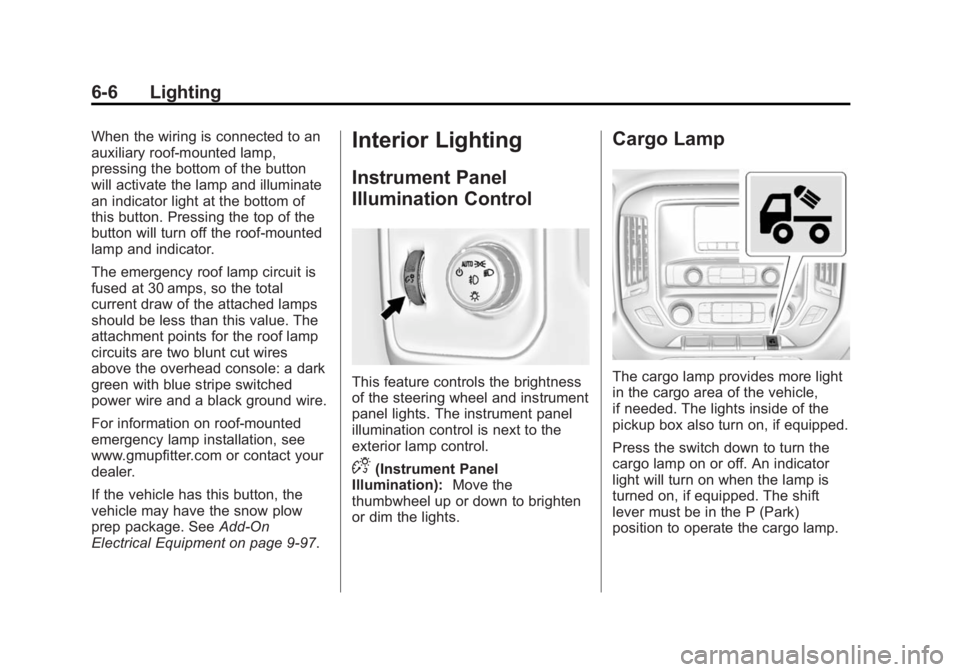
Instrument Panel
Illumination Control
This feature controls the brightness
of the steering wheel and instrument
panel lights. The instrument panel
illumination control is next to the
exterior lamp control.
D(Instrument Panel
Illumination): Move the
thumbwheel up or down to brighten
or dim the lights.
Cargo Lamp
The cargo lamp provides more light
in the cargo area of the vehicle,
if needed. The lights inside of the
pickup box also turn on, if equipped.
Press the switch down to turn the
cargo lamp on or off. An indicator
light will turn on when the lamp is
turned on, if equipped. The shift
lever must be in the P (Park)
position to operate the cargo lamp.
Page 204 of 539
Black plate (1,1)GMC Sierra Owner Manual (GMNA Localizing-U.S/Canada/Mexico-
7299746) - 2015 - crc - 11/11/13
Infotainment System 7-1
Infotainment
System
Introduction
Infotainment . . . . . . . . . . . . . . . . . . . 7-1
Theft-Deterrent Feature . . . . . . . 7-2
Overview . . . . . . . . . . . . . . . . . . . . . . 7-2
Home Page . . . . . . . . . . . . . . . . . . . 7-5
Software Updates . . . . . . . . . . . . . 7-8
Radio
AM-FM Radio . . . . . . . . . . . . . . . . . 7-8
Satellite Radio . . . . . . . . . . . . . . . 7-10
Radio Reception . . . . . . . . . . . . . 7-11
Fixed Mast Antenna . . . . . . . . . 7-11
Multi-Band Antenna . . . . . . . . . . 7-11
Pandora Internet Radio . . . . . . 7-12
Audio Players
CD Player . . . . . . . . . . . . . . . . . . . 7-15
USB Port . . . . . . . . . . . . . . . . . . . . 7-18
SD Card Reader . . . . . . . . . . . . . 7-20
Auxiliary Jack . . . . . . . . . . . . . . . . 7-21
Bluetooth Audio . . . . . . . . . . . . . . 7-21
Voice Recognition
Voice Recognition . . . . . . . . . . . 7-22
Phone
Bluetooth (Overview) . . . . . . . . 7-29
Bluetooth (InfotainmentControls - Base Radio) . . . . . 7-31
Bluetooth (Voice Recognition - Base Radio) . . . . . . . . . . . . . . . . 7-35
Bluetooth (Infotainment Controls - Base Connected
Radio) . . . . . . . . . . . . . . . . . . . . . . 7-40
Bluetooth (Voice Recognition - Base Connected Radio) . . . . 7-44
Trademarks and License
Agreements
Trademarks and LicenseAgreements . . . . . . . . . . . . . . . . 7-46
Introduction
Infotainment
Base radio information is included in
this manual. See the infotainment
manual for information on other
available infotainment systems.
Read the following pages to
become familiar with the
infotainment system featured in this
owner manual.
{Warning
Taking your eyes off the road for
too long or too often while using
any infotainment features can
cause a crash. You or others
could be injured or killed. Do not
give extended attention to
infotainment tasks while driving.
Limit your glances at the vehicle
displays and focus your attention
on driving. Use voice commands
whenever possible.
Page 207 of 539
Black plate (4,1)GMC Sierra Owner Manual (GMNA Localizing-U.S/Canada/Mexico-
7299746) - 2015 - crc - 11/11/13
7-4 Infotainment System
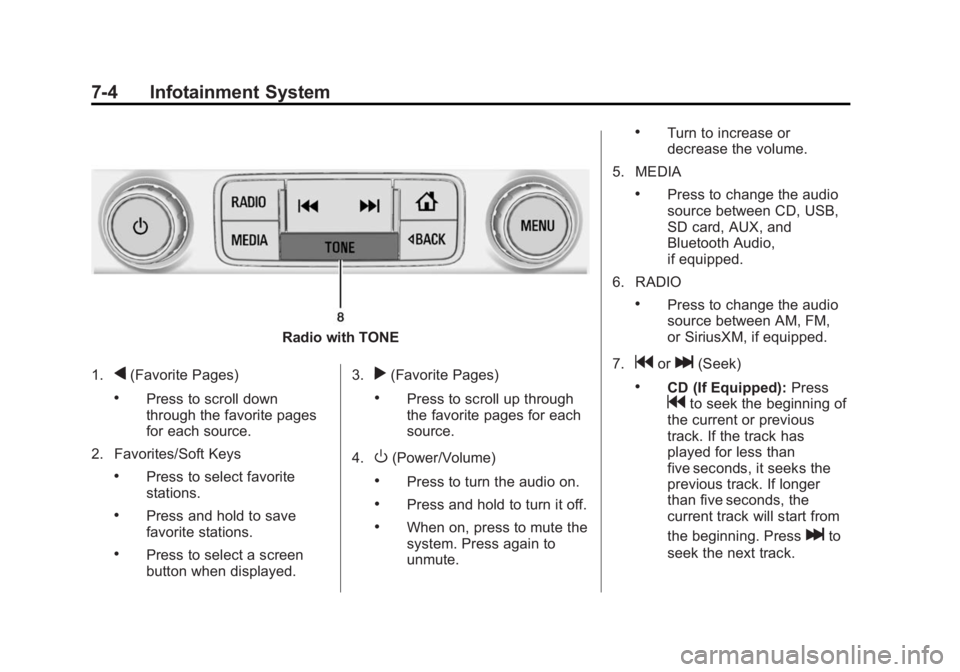
Radio with TONE
1.
q(Favorite Pages)
.Press to scroll down
through the favorite pages
for each source.
2. Favorites/Soft Keys
.Press to select favorite
stations.
.Press and hold to save
favorite stations.
.Press to select a screen
button when displayed. 3.
r(Favorite Pages)
.Press to scroll up through
the favorite pages for each
source.
4.
O(Power/Volume)
.Press to turn the audio on.
.Press and hold to turn it off.
.When on, press to mute the
system. Press again to
unmute.
.Turn to increase or
decrease the volume.
5. MEDIA
.Press to change the audio
source between CD, USB,
SD card, AUX, and
Bluetooth Audio,
if equipped.
6. RADIO
.Press to change the audio
source between AM, FM,
or SiriusXM, if equipped.
7.
gorl(Seek)
.CD (If Equipped): Pressgto seek the beginning of
the current or previous
track. If the track has
played for less than
five seconds, it seeks the
previous track. If longer
than five seconds, the
current track will start from
the beginning. Press
lto
seek the next track.
Page 208 of 539
Black plate (5,1)GMC Sierra Owner Manual (GMNA Localizing-U.S/Canada/Mexico-
7299746) - 2015 - crc - 11/11/13
Infotainment System 7-5
.AM, FM, or SiriusXM (If
Equipped):Press
gorl
to seek to the previous or
next strong station.
.CD (If Equipped): Press
and hold
gto quickly
reverse through a track.
Release the button to return
to playing speed. Press and
hold
lto fast forward
through a track. Release
the button to return to
playing speed.
8.
X(Eject) (If Equipped) or
TONE (If Equipped)
.PressXto eject the CD (if
equipped).
.Press TONE to open the
Tone Settings menu (if
equipped). 9.
{(Home Page)
.Press to go to the Home
Page from any point in the
system. See
“Home Page”
following.
10.
oBACK
.Press to return to the
previous screen in
a menu.
11. CD Slot (If Equipped)
12. MENU
.Press to access the menu
for the current audio
source.
.Press to select the
highlighted menu option.
.Turn to scroll through
a list.
.Turn to manually select a
station.
Home Page
Home Page Features
The infotainment system displays a
Home Page that makes it easy to
access all of the applications. Turn
the MENU knob to highlight feature
icons. Press the MENU knob to
access the feature’s options.
Various functions are disabled when
the vehicle is moving.
AUDIO: Select the AUDIO screen
icon to display the active source
page. The sources available are
AM, FM, SiriusXM
®(if equipped),
CD (if equipped), USB/iPod, AUX
Input, SD card reader (if equipped),
and Bluetooth Audio (if equipped).
See AM-FM Radio on page 7-8,
Satellite Radio on page 7-10, CD
Player on page 7-15, Auxiliary Jack
on page 7-21, and Bluetooth Audio
on page 7-21.