ad blue GMC SIERRA 1500 2017 User Guide
[x] Cancel search | Manufacturer: GMC, Model Year: 2017, Model line: SIERRA 1500, Model: GMC SIERRA 1500 2017Pages: 494, PDF Size: 7.66 MB
Page 178 of 494
GMC Sierra/Sierra Denali Owner Manual (GMNA-Localizing-U.S./Canada/
Mexico-9955992) - 2017 - crc - 5/3/16
Infotainment System 177
functions when driving. These
functions may gray out when they
are unavailable. Many infotainment
features are also available through
the instrument cluster and steering
wheel controls.
Before driving:
.Become familiar with the
operation, faceplate buttons, and
screen buttons.
. Set up the audio by presetting
favorite stations, setting the
tone, and adjusting the
speakers.
. Set up phone numbers in
advance so they can be called
easily by pressing a single
button or by using a single voice
command if equipped with
Bluetooth phone capability.
See Defensive Driving 0239.
To play the infotainment system with
the ignition off, see Retained
Accessory Power (RAP) 0262.Theft-Deterrent Feature
TheftLock®is designed to
discourage theft of the vehicle's
radio by learning a portion of the
Vehicle Identification Number (VIN).
The radio does not operate if it is
stolen or moved to a different
vehicle.
Page 179 of 494
GMC Sierra/Sierra Denali Owner Manual (GMNA-Localizing-U.S./Canada/
Mexico-9955992) - 2017 - crc - 5/3/16
178 Infotainment System
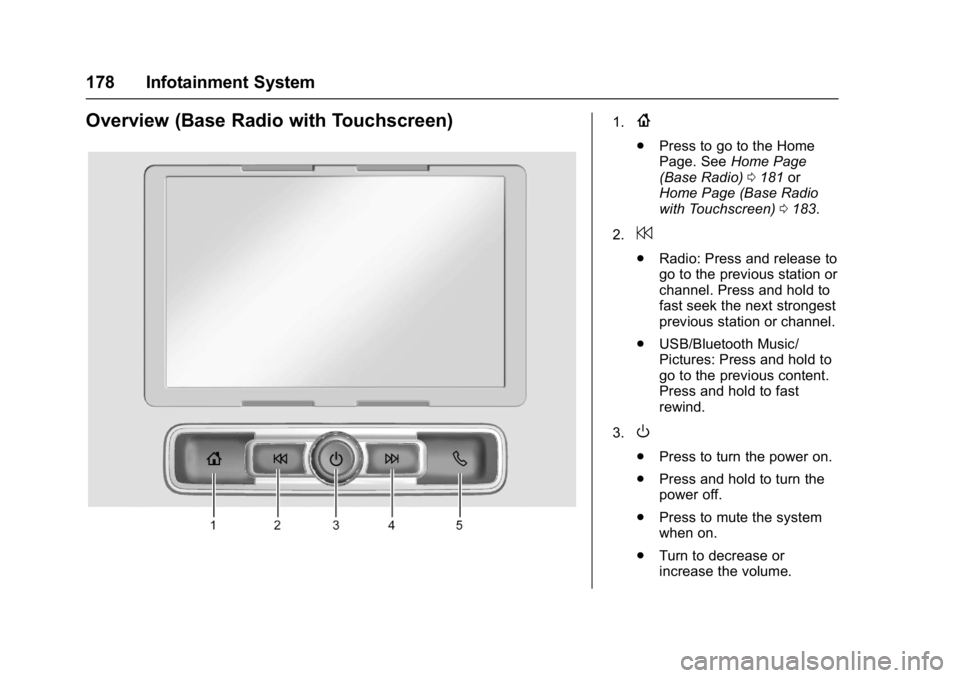
Overview (Base Radio with Touchscreen)1.{
.Press to go to the Home
Page. See Home Page
(Base Radio) 0181 or
Home Page (Base Radio
with Touchscreen) 0183.
2.
7
. Radio: Press and release to
go to the previous station or
channel. Press and hold to
fast seek the next strongest
previous station or channel.
. USB/Bluetooth Music/
Pictures: Press and hold to
go to the previous content.
Press and hold to fast
rewind.
3.
O
. Press to turn the power on.
. Press and hold to turn the
power off.
. Press to mute the system
when on.
. Turn to decrease or
increase the volume.
Page 180 of 494
GMC Sierra/Sierra Denali Owner Manual (GMNA-Localizing-U.S./Canada/
Mexico-9955992) - 2017 - crc - 5/3/16
Infotainment System 179
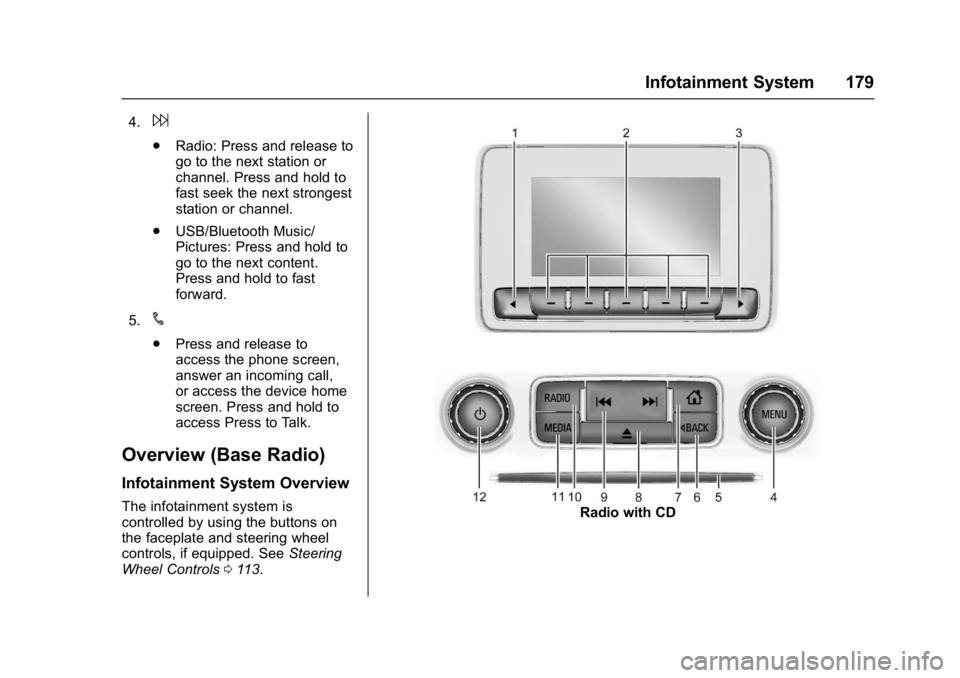
4.6
.Radio: Press and release to
go to the next station or
channel. Press and hold to
fast seek the next strongest
station or channel.
. USB/Bluetooth Music/
Pictures: Press and hold to
go to the next content.
Press and hold to fast
forward.
5.
#
. Press and release to
access the phone screen,
answer an incoming call,
or access the device home
screen. Press and hold to
access Press to Talk.
Overview (Base Radio)
Infotainment System Overview
The infotainment system is
controlled by using the buttons on
the faceplate and steering wheel
controls, if equipped. See Steering
Wheel Controls 0113.Radio with CD
Page 182 of 494
GMC Sierra/Sierra Denali Owner Manual (GMNA-Localizing-U.S./Canada/
Mexico-9955992) - 2017 - crc - 5/3/16
Infotainment System 181
current track will start from
the beginning. Press
lto
seek the next track.
. AM, FM, or SiriusXM (If
Equipped): Press
gorl
to seek to the previous or
next strong station.
. CD (If Equipped): Press
and hold
gto quickly
reverse through a track.
Release the button to return
to playing speed. Press and
hold
lto fast forward
through a track. Release
the button to return to
playing speed.
10. RADIO .Press to change the audio
source between AM, FM,
or SiriusXM, if equipped.
11. MEDIA .Press to change the audio
source between CD, USB,
AUX, and Bluetooth Audio,
if equipped. 12.
O
.
Press to turn the audio on.
. Press and hold to turn it off.
. When on, press to mute the
system. Press again to
unmute.
. Turn to increase or
decrease the volume.
Home Page (Base Radio)
Home Page Features
The infotainment system displays a
Home Page that makes it easy to
access all of the applications. Turn
the MENU knob to highlight feature
icons. Press the MENU knob to
access the feature’s options.
Various functions are disabled when
the vehicle is moving.
AUDIO : Select the AUDIO screen
icon to display the active source
page. The sources available are
AM, FM, SiriusXM
®(if equipped),
USB/iPod, AUX Input, and Bluetooth Audio (if equipped). See
AM-FM
Radio (Base Radio with
Touchscreen) 0186 orAM-FM
Radio (Base Radio) 0184, Satellite
Radio (Base Radio) 0188 or
Satellite Radio (Base Radio with
Touchscreen) 0188, Auxiliary Jack
0 202, and Bluetooth Audio 0203.
PHONE : Select the PHONE screen
icon to display the Phone main
page. See Bluetooth (Voice
Recognition - Base Radio) 0216 or
Bluetooth (Infotainment Controls -
Base Radio) 0212 orBluetooth
(Overview) 0210 orBluetooth
(Infotainment Controls - Base Radio
with Touchscreen) 0220.
NAV (Navigation, If Equipped) :
Select the NAV screen icon to
display the OnStar Turn-by-Turn
Navigation. See OnStar Overview
0 471, if equipped.
SETTINGS : Select the SETTINGS
screen icon to display the Settings
main page. See “Setting Radio
Preferences” following.
Page 184 of 494
GMC Sierra/Sierra Denali Owner Manual (GMNA-Localizing-U.S./Canada/
Mexico-9955992) - 2017 - crc - 5/3/16
Infotainment System 183
Audible Touch Feedback (If
Equipped) :Select Audible Touch
Feedback to turn feedback off or on.
Auto Volume (If Equipped) : This
feature adjusts the volume based on
vehicle speed. The options are Off,
Low, Medium-Low, Medium,
Medium-High, or High. Select the
desired volume.
Maximum Startup Volume : This
feature sets the maximum startup
volume. If the vehicle is started and
the volume is greater than this level,
the volume is adjusted to this level.
To set the maximum startup volume,
Turn the MENU knob to increase or
decrease startup volume.
Rear Camera (If Equipped)
From the Rear Camera screen
button, the following may display:
Return to Factory Settings
Select Return to Factory Settings
and the following may display:
Restore Vehicle Settings : This
option will restore factory vehicle
personalization settings. Select
Restore Vehicle Settings. A screen displays stating all vehicle
customization settings will be
restored to the factory settings.
Select Cancel or Confirm.
Clear All Private Data (If
Equipped) :
This option clears all
private information from the vehicle.
Select Clear All Private Data. Select
Cancel or Confirm.
Restore Radio Settings : This
option will restore factory radio
settings. Select Restore Radio
Settings. A screen displays stating
all personalized radio settings will
be restored back to the factory
settings. Select Cancel or Confirm.
English and Metric Unit
Conversion
To change the display units between
English and metric units, see Driver
Information Center (DIC) 0141 or
Instrument Cluster 0121.
Home Page (Base Radio
with Touchscreen)
Touchscreen Buttons
Touchscreen buttons show on the
screen when available. When a
function is unavailable, the button
may gray out. When a function is
selected, the button may highlight.
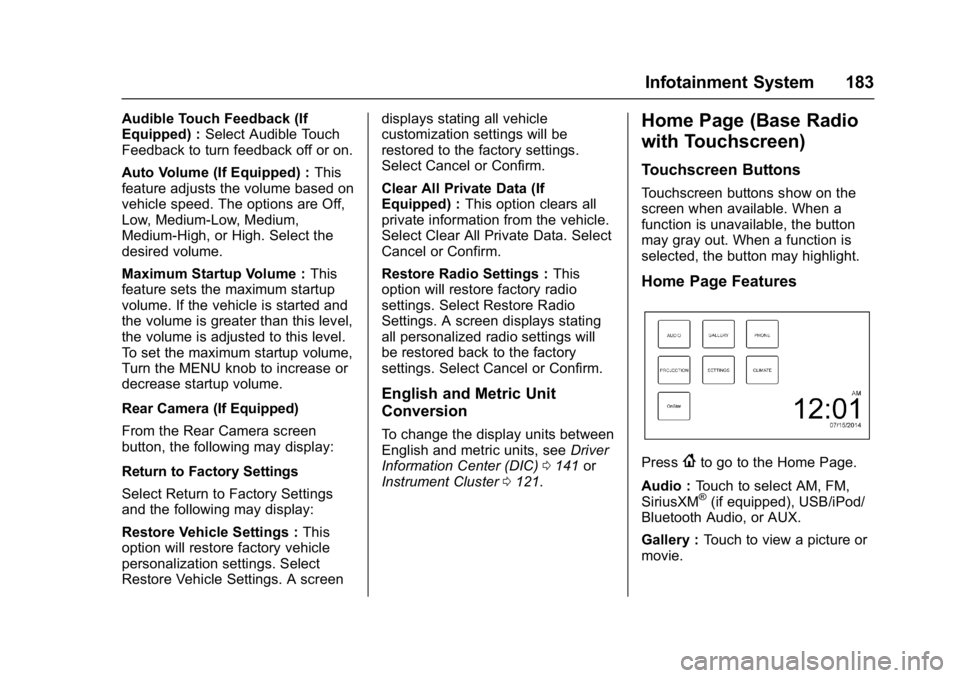
Home Page Features
Press{to go to the Home Page.
Audio : Touch to select AM, FM,
SiriusXM
®(if equipped), USB/iPod/
Bluetooth Audio, or AUX.
Gallery : Touch to view a picture or
movie.
Page 185 of 494
GMC Sierra/Sierra Denali Owner Manual (GMNA-Localizing-U.S./Canada/
Mexico-9955992) - 2017 - crc - 5/3/16
184 Infotainment System
Phone :Touch to activate the
phone features (if equipped). See
Bluetooth (Voice Recognition - Base
Radio) 0216 orBluetooth
(Infotainment Controls - Base
Radio) 0212 orBluetooth
(Overview) 0210 orBluetooth
(Infotainment Controls - Base Radio
with Touchscreen) 0220.
Projection : Touch to access
supported devices when connected.
See USB Port (Base Radio) 0193
or USB Port (Base Radio with
Touchscreen) 0196.
Settings : Touch to access the
Personalization menu. See Vehicle
Personalization 0155.
Climate : Touch to access the
Climate menu. See Dual Automatic
Climate Control System 0231.
OnStar : If equipped, touch to
access the OnStar menu. See
OnStar Overview 0471.Software Updates
See the websites for more
information.
Website Information
In the U.S., see www.gmc.com
In Canada, see www.gmc.gm.ca
In Mexico, www.gmc.com.mx
Radio
AM-FM Radio (Base
Radio)
Playing the Radio
While on the audio main page,
press the RADIO button repeatedly
to cycle through the available
sources AM, FM, and SiriusXM
®(if
equipped) or press the MEDIA
button repeatedly to cycle through
the available sources Bluetooth
®
Audio (if equipped), USB, and AUX.
The steering wheel controls can
also be used to adjust the volume.
See Steering Wheel Controls 0113.
AM, FM, or SiriusXM (If Equipped)
To select AM, FM, or SiriusXM (if
equipped), press the RADIO button
to toggle to the desired broadcast
source.
Page 199 of 494

GMC Sierra/Sierra Denali Owner Manual (GMNA-Localizing-U.S./Canada/
Mexico-9955992) - 2017 - crc - 5/3/16
198 Infotainment System
.Some USB storage device files
may not be compatible.
. Up to two USB devices and one
iPod can be played through a
USB hub. All devices may not be
supported, depending on the
performance of the USB hub.
If there is not enough power
supply, it may not operate
normally.
. Do not disconnect the USB
storage device while it is playing.
This may cause damage to the
product or affect the
performance of the USB device.
. Disconnect the USB storage
device when the ignition is
turned off. If the ignition is turned
on while the USB device is
connected, the USB device may
be damaged or may not operate
normally.
. USB storage devices can only
be connected for playing music,
viewing photo files,
or upgrading. .
Do not use the USB terminal to
charge USB accessory
equipment. The heat generated
may cause performance issues
or damage.
. Music files to which Digital Right
Management (DRM) is applied
cannot be played.
. USB storage device that are in
capacity with a limit of 5,000
files, such as music, photo,
video, 15 stages of folder
structure. Normal usage cannot
be guaranteed for a storage
device that exceeds this limit.
The iPod/iPhone can play all
music files that are supported.
The music file lists will only
display up to 5,000 files on the
screen. These files are sorted in
alphabetical order.
. Some iPod/iPhone product
models may not support the
connectivity or functionality of
this product. .
Only connect the iPod/iPhone
with connection cables
supported by iPod/iPhone
products. Other connection
cables cannot be used.
. The iPod/iPhone may be
damaged if it is connected to the
vehicle with the ignition on.
When not in use, disconnect the
iPod/iPhone.
. When the iPod/iPhone is
connected to the USB port by
using the iPod/iPhone cable, the
Bluetooth music is not
supported.
. The iPod/iPhone playback
functions and the information
displayed may be different when
played on the infotainment
system.
Page 204 of 494
GMC Sierra/Sierra Denali Owner Manual (GMNA-Localizing-U.S./Canada/
Mexico-9955992) - 2017 - crc - 5/3/16
Infotainment System 203
EQ (Equalizer) :If equipped, this
feature adjusts the pre-defined
equalizer settings. See “EQ
(Equalizer)” inAM-FM Radio (Base
Radio with Touchscreen) 0186 or
AM-FM Radio (Base Radio) 0184.
Base Radio with Touchscreen
Play will begin when the system has
finished reading the information on
the device.
Playing Music
To play the music from the device,
if the device is already connected:
1. Press
{.
2. Touch AUDIO.
3. Touch Source.
4. Touch AUX.
To adjust the tone settings. See
“Audio Settings” in“System
Settings” underAM-FM Radio (Base
Radio with Touchscreen) 0186 or
AM-FM Radio (Base Radio) 0184.
Bluetooth Audio
If equipped, music may be played
from a paired Bluetooth device. See
“Pairing” underBluetooth (Voice
Recognition - Base Radio) 0216 or
Bluetooth (Infotainment Controls -
Base Radio) 0212 orBluetooth
(Overview) 0210 orBluetooth
(Infotainment Controls - Base Radio
with Touchscreen) 0220 for help
pairing a device.
Volume and song selection may be
controlled by using the infotainment
controls or the phone/device.
If Bluetooth Audio is selected and
nothing is heard, check the volume
setting on both the phone/device
and the infotainment system.
Launch music by pressing the
MEDIA screen button on the
Home Page.
To play music via Bluetooth:
1. Power on the device, and pair to connect the device. 2. Once paired, go into the audio
application from the Home
Page or via the application tray.
Select MEDIA until Bluetooth
displays.
Bluetooth Audio Menu
Press the MENU screen button to
display the Bluetooth Audio menu.
The following may be available:
Tone: Turn the MENU knob to
adjust the tone settings.
Press
oBACK to go back to the
previous menu.
Manage Bluetooth Devices: Select
to go to the Bluetooth page to add
or delete devices.
When selecting Bluetooth Audio, the
radio may not be able to launch the
audio player on the connected
device to start playing. When the
vehicle is not moving, use the
phone to begin playback.
All devices launch audio differently.
When selecting Bluetooth Audio as
a source, the radio may show as
Page 205 of 494

GMC Sierra/Sierra Denali Owner Manual (GMNA-Localizing-U.S./Canada/
Mexico-9955992) - 2017 - crc - 5/3/16
204 Infotainment System
paused on the screen. Press play
on the device or press
rto begin
playback.
Some phones support sending
Bluetooth music information to
display on the radio. When the radio
receives this information, it will
check to see if any is available and
display it. For more information
about supported Bluetooth features,
see www.gm.com/bluetooth for U.S.
and Canada only.Voice Recognition
If equipped, voice recognition allows
for hands-free operation within the
audio and phone applications. This
feature can be started by pressing
either the
gbutton on the steering
wheel or by selecting the
gon the
screen display.
However, not all features within
these areas are supported by voice
commands. Generally, only complex
tasks that require multiple manual
interactions to complete are
supported by voice commands.
For example, tasks that take more
than one or two button presses such
as selecting a song or artist to play
from a media device would be
supported by voice commands.
Other tasks, like adjusting the
volume or seeking up or down are
audio features that are easily
performed by pressing one or two
buttons, and are not supported by
voice commands.
In general there are flexible ways to
speak commands for completing the
tasks. Most of them, except destination entry and voice keypad,
can be completed in a single
command. If the task takes more
than one command to complete, the
first command would be to indicate
the kind of task that is to be
performed. The system replies with
prompts that lead through a dialog
to enter the necessary information.
Voice recognition can be used when
the ignition is on or when Retained
Accessory Power (RAP) is active.
See
Retained Accessory Power
(RAP) 0262.
Using Voice Recognition
Voice recognition becomes available
once the system has been
initialized. This begins when the
ignition is turned on. Initialization
may take a few moments.
1. Press
gon the steering wheel
control to activate voice
recognition, or select
gon the
infotainment screen on the
center stack.
. If voice recognition is
started from the steering
wheel control, the
Page 210 of 494

GMC Sierra/Sierra Denali Owner Manual (GMNA-Localizing-U.S./Canada/
Mexico-9955992) - 2017 - crc - 5/3/16
Infotainment System 209
.Album type folders including
types such as albums and
audiobooks.
There are no restrictions if the
number of song files and albums is
less than 4,000. When the number
of song files connected to the
system is between 4,000 and 8,000,
the content cannot be accessed
directly with one command like
“Play
The restriction is that the command
“Play Song” must be spoken first;
the system will then ask for the song
name. The reply command would be
to say the name of the song to play.
Similar limits exist for album
content. If there are more than
4,000 albums, but less than 8,000,
the content cannot be accessed
directly with one command like,
“Play
command “Play Album” must first be
spoken; the system will then ask for
the album name. The reply would
be to say the name of the album
to play. Once the number of songs has
exceeded approximately 8,000,
there is no support for accessing the
songs directly through voice
commands. There will still be
access to the media content by
using commands for playlists,
artists, and genres.
The access commands for playlists,
artists, and genres are prohibited
after the number of this type of
media exceeds 4,000.
The system will provide feedback
the first time voice recognition is
initiated if it has become apparent
that any of these limits are reached
during a device initializing process.
Voice Recognition for the
Phone
“Call
:Initiate a
call to an entered contact. The
command may include location if
the contact has location numbers
stored.
“Call
“At Work,” “On Mobile,” or“On
Other” :Initiate a call to an entered contact and location at home, at
work, on mobile device, or on
another phone.
“Call
:Initiate a
call to a standard phone number
seven or 10 digits in length, and
also 911, 411, or 611.
“Pair Phone” :Begins the
Bluetooth pairing process. Follow
instructions on the radio display.
“Switch Phone” :Select a different
phone for outgoing calls.
“Voice Keypad” :Begins a dialog
to enter special numbers like
international numbers. The numbers
can be entered in groups of digits
with each group of digits being
repeated back by the system. If the
group of digits is not correct, the
command “Delete”will remove the
last group of digits and allow them
to be re-entered. Once the entire
number has been entered, the
command “Call”will start dialing the
number.
“Voice Mail” :Initiate a call to voice
mail numbers.