reset GMC SIERRA 2005 Owner's Manual
[x] Cancel search | Manufacturer: GMC, Model Year: 2005, Model line: SIERRA, Model: GMC SIERRA 2005Pages: 574, PDF Size: 2.95 MB
Page 153 of 574
The mirrors may also include a memory function which
works together with the memory seats. See “Memory
Seats” underMemory Seat on page 2-74for more
information.
To fold or unfold the mirrors, move the selector switch,
located above the mirror control, to the middle
position. The mirror control will illuminate. Press the
right or left side of the mirror control to fold or unfold the
mirrors. You may notice the mirror glass adjust as the
mirrors fold in; this is normal. The mirror glass will
reposition itself once the mirrors are unfolded.
If the mirrors are accidentally folded/unfolded manually,
they may shake or utter at normal driving speeds
and may not stay in the unfolded position. If this
happens, you will need to reset the mirrors. See
“Resetting the Power Foldaway Mirrors” next.
Resetting the Power Foldaway Mirrors
You will need to reset the power foldaway mirrors if the
following occurs:
They are accidentally manually folded/unfolded.
The mirrors will not stay in the unfolded position.
The mirrors shake and utter at normal driving
speeds.
To reset the power foldaway mirrors, fold and unfold
them at least three times using the mirror controls. This
will reset them to their normal position.
Outside Automatic Dimming Mirror
If your vehicle is equipped with this feature, the
driver’s outside mirror will adjust for the glare of
headlamps behind you. This feature is controlled by the
on and off settings found on the electrochromic
mirror. SeeAutomatic Dimming Rearview Mirror with
Compass and Temperature Display on page 2-58.
Outside Curb View Assist Mirrors
If the vehicle has the memory package, the outside
mirrors are able to perform the curb view assist mirror
function. This feature will cause the passenger’s
and/or driver’s mirror to tilt to a preselected position
when the vehicle is in REVERSE (R). This feature may
be useful in allowing the driver to view the curb when
parallel parking. When the vehicle is shifted out of
REVERSE (R) and a short delay has occurred,
the passenger’s and/or driver’s mirror will return to its
original position.
To change the preselected tilt position, adjust the
mirrors to the desired position while the vehicle is in
REVERSE (R). When the vehicle is shifted out of
REVERSE (R), this new position is saved in memory as
the tilt position.
This feature can be turned on or off through the Driver
Information Center (DIC).
2-63
Page 160 of 574
Reprogramming a Single HomeLink®
Button
To program a device to HomeLink®using a HomeLink®
button previously trained, follow these steps:
1. Press and hold the desired HomeLink
®button. Do
not release the button.
2. The indicator light will begin to ash after
20 seconds. While still holding the HomeLink
®
button, proceed with Step 2 under “Programming
HomeLink®” shown earlier in this section.
Resetting Defaults
To reset HomeLink®to default settings do the following:
1. Hold down the two outside buttons for about
20 seconds until the indicator light begins to ash.
2. Continue to hold both buttons until the HomeLink
®
indicator light turns off.
3. Release both buttons.
For questions or comments, contact HomeLink
®at
1-800-355-3515, or on the internet at
www.homelink.com.
Storage Areas
Glove Box
Open the glove box by pulling the bottom of the handle
upward.
Cupholder(s)
Your vehicle may have cupholders located in the front
console, or in the fold-down armrest.
Coinholder(s)
Your vehicle may have a coin holder inside the center
console storage area.
2-70
Page 176 of 574
1(High Speed):For high-speed wiping, turn the
band further, to the second solid band past the
delay settings.
9(Off):To stop the wipers, move the band to off.
Be sure to clear ice and snow from the wiper blades
before using them. If they’re frozen to the windshield,
carefully loosen or thaw them. If your blades do become
worn or damaged, get new blades or blade inserts.
Windshield Washer
LQ(Washer Fluid):There is a paddle marked
with the windshield washer symbol at the top of
the multifunction lever. To spray washer uid on
the windshield, push the paddle. The wipers will
clear the window and then either stop or return to
your preset speed.
{CAUTION:
In freezing weather, do not use your washer
until the windshield is warmed. Otherwise the
washer uid can form ice on the windshield,
blocking your vision.
Cruise Control
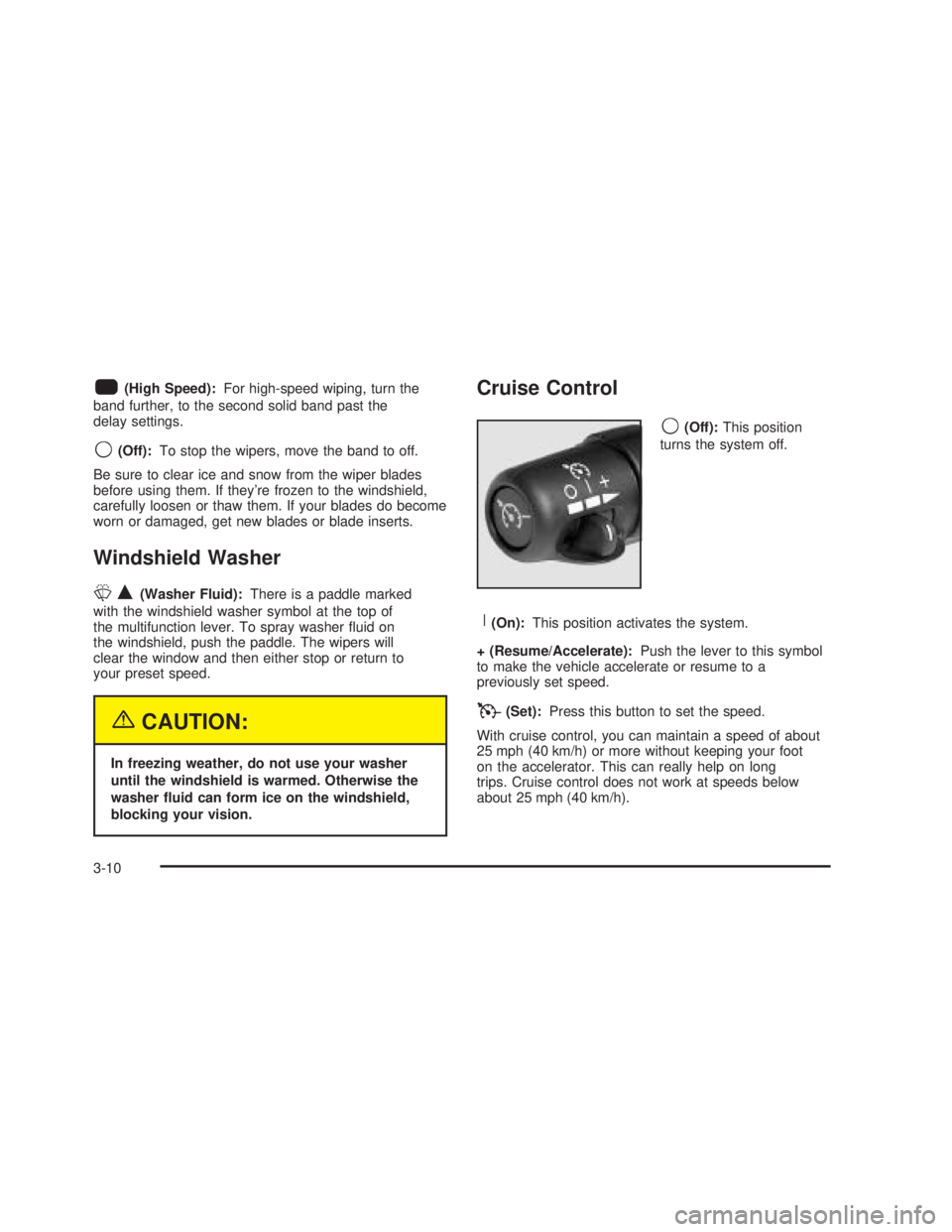
9(Off):This position
turns the system off.
R(On):This position activates the system.
+ (Resume/Accelerate):Push the lever to this symbol
to make the vehicle accelerate or resume to a
previously set speed.
T(Set):Press this button to set the speed.
With cruise control, you can maintain a speed of about
25 mph (40 km/h) or more without keeping your foot
on the accelerator. This can really help on long
trips. Cruise control does not work at speeds below
about 25 mph (40 km/h).
3-10
Page 178 of 574
Resuming a Set Speed
Suppose you set your cruise control at a desired speed
and then you apply the brake. This, of course,
disengages the cruise control. But you don’t need to
reset it.
Once you’re going about 25 mph (40 km/h) or more, you
can move the cruise control switch briey from on to
resume/accelerate.
You’ll go right back up to your chosen speed and
stay there.
If you hold the switch at resume/accelerate the vehicle
will keep going faster until you release the switch or
apply the brake. So unless you want to go faster, don’t
hold the switch at resume/accelerate.
Increasing Speed While Using
Cruise Control
There are two ways to go to a higher speed:
Use the accelerator pedal to get to the higher
speed. Press the set button at the end of the lever,
then release the button and the accelerator
pedal. You’ll now cruise at the higher speed. If the
accelerator pedal is held longer than 60 seconds,
cruise control will turn off.
Move the cruise switch from on to
resume/accelerate. Hold it there until you get up to
the speed you want, and then release the switch.
To increase your speed in very small amounts,
move the switch briey to resume/accelerate. Each
time you do this, your vehicle will go about
1 mph (1.6 km/h) faster.
Reducing Speed While Using
Cruise Control
Press in the button at the end of the lever until you
reach the lower speed you want, then release it.
To slow down in very small amounts, briey press
the set button. Each time you do this, you’ll go
about 1 mph (1.6 km/h) slower.
Passing Another Vehicle While Using
Cruise Control
Use the accelerator pedal to increase your speed.
When you take your foot off the pedal, your vehicle will
slow down to the cruise control speed you set earlier.
3-12
Page 199 of 574
Speedometer and Odometer
Your speedometer lets you see your speed in both
miles per hour (mph) and kilometers per hour (km/h).
Your odometer shows how far your vehicle has
been driven, in either miles (used in the United States)
or kilometers (used in Canada).
Engine Hour Meter Display
If equipped, the Driver Information Center (DIC) can
also display the number of hours the engine has run.
To display the hour meter, turn the ignition off, press and
hold the reset button for at least four seconds. The
hour meter will be displayed for up to 30 seconds, or
until the ignition is turned on. SeeDIC Operation
and Displays on page 3-51for more information.
Trip Odometer
The trip odometer can tell you how far your vehicle has
been driven since you last set the trip odometer to zero.
Press the reset button, located on the instrument panel
cluster next to the trip odometer display, to toggle
between the trip odometer and the regular odometer.
Holding the reset button for approximately one second
while the trip odometer is displayed will reset it.
To display the odometer reading with the ignition off,
press the reset button.
Tachometer
Your tachometer displays the engine speed in
revolutions per minute (rpm). See “Grade Braking”
underTow/Haul Mode on page 2-29for more
information.
Notice:If you operate your vehicle with the
tachometer above 6,000 rpm, your vehicle could be
damaged. The repairs would not be covered by
your warranty. Do not operate the engine with the
tachometer above 6,000 rpm.
Safety Belt Reminder Light
When the key is turned to RUN or START, a chime will
be provided for several seconds to remind people to
buckle their safety belts. The driver safety belt light will
also be provided and stay on for several seconds,
then it will ash for several more. You should buckle
your seat belt.
If your vehicle is not
equipped with the
passenger sensing system,
this chime and light will be
repeated if the driver
remains unbuckled and the
vehicle is in motion.
3-33
Page 216 of 574
Here are some situations you may experience with your
fuel gage. None of these indicate a problem with the
fuel gage.
At the gas station, the fuel pump shuts off before
the gage reads full.
It takes a little more or less fuel to ll up than the
fuel gage indicated. For example, the gage may
have indicated the tank was half full, but it actually
took a little more or less than half the tank’s
capacity to ll the tank.
The gage goes back to empty when you turn off the
ignition.
If you have a diesel engine, see “Fuel Gage” in the
Diesel Engine Supplement.
Low Fuel Warning Light
The light next to the fuel gage will come on briey when
you are starting the engine.
This light comes on when the fuel tank is low on fuel.
To turn it off, add fuel to the fuel tank. SeeFuel on
page 5-6.
Driver Information Center (DIC)
The Driver Information Center (DIC) display is located
on the instrument panel cluster, below the speedometer.
The DIC buttons, if equipped, are located on the
steering wheel. The DIC can display information such
as the trip odometer, fuel economy, customization
features and warning/status messages.
If your vehicle is not equipped with the DIC steering
wheel buttons, you will not have all of the features listed.
You will scroll through the odometer, trip odometer
and engine hours by pressing the trip odometer reset
stem located on the instrument panel cluster. You
will also turn off, or acknowledge, DIC messages by
pressing the trip odometer reset stem. SeeSpeedometer
and Odometer on page 3-33for information on
features for vehicles without DIC buttons.
3-50
Page 217 of 574
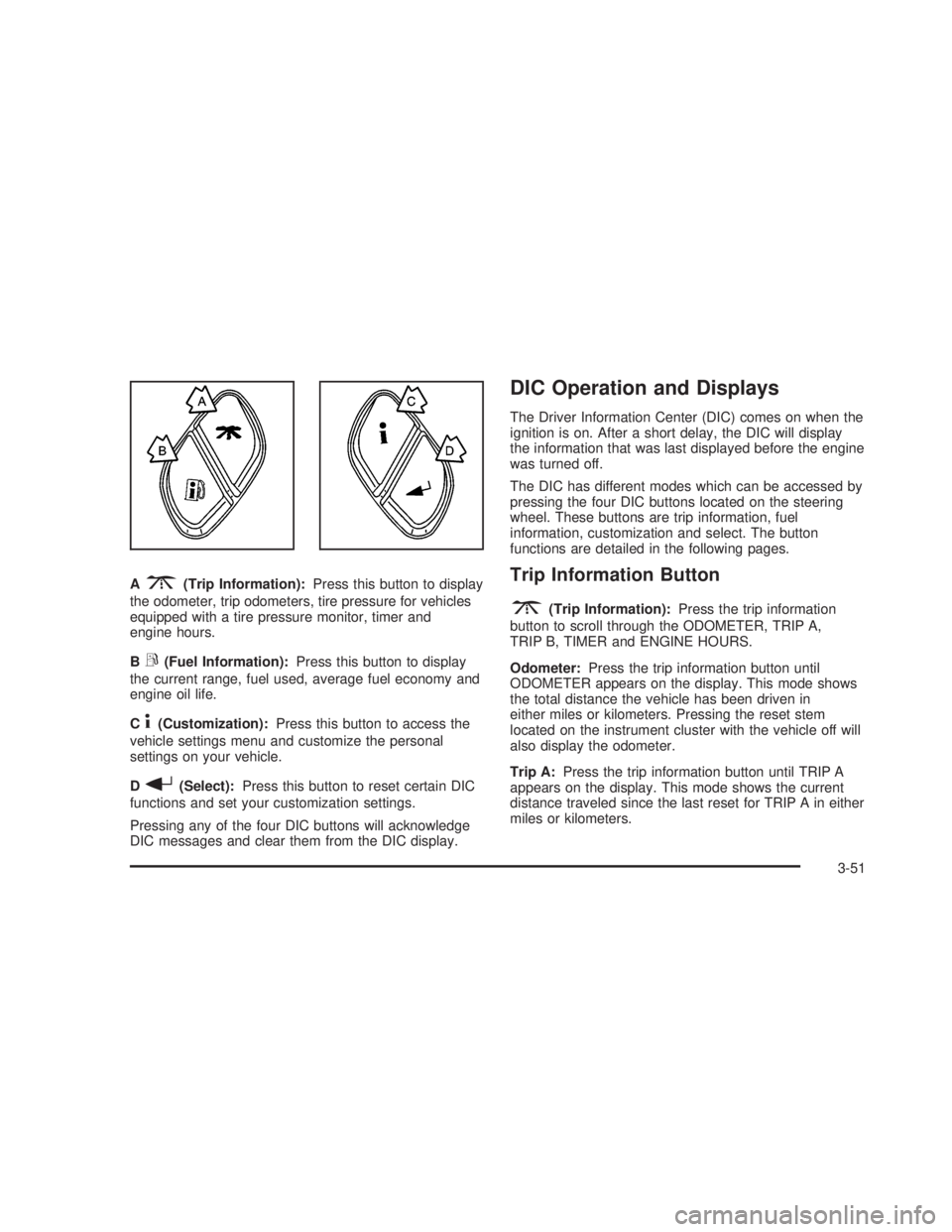
A3(Trip Information):Press this button to display
the odometer, trip odometers, tire pressure for vehicles
equipped with a tire pressure monitor, timer and
engine hours.
B
r(Fuel Information):Press this button to display
the current range, fuel used, average fuel economy and
engine oil life.
C
4(Customization):Press this button to access the
vehicle settings menu and customize the personal
settings on your vehicle.
D
r(Select):Press this button to reset certain DIC
functions and set your customization settings.
Pressing any of the four DIC buttons will acknowledge
DIC messages and clear them from the DIC display.
DIC Operation and Displays
The Driver Information Center (DIC) comes on when the
ignition is on. After a short delay, the DIC will display
the information that was last displayed before the engine
was turned off.
The DIC has different modes which can be accessed by
pressing the four DIC buttons located on the steering
wheel. These buttons are trip information, fuel
information, customization and select. The button
functions are detailed in the following pages.
Trip Information Button
3
(Trip Information):Press the trip information
button to scroll through the ODOMETER, TRIP A,
TRIP B, TIMER and ENGINE HOURS.
Odometer:Press the trip information button until
ODOMETER appears on the display. This mode shows
the total distance the vehicle has been driven in
either miles or kilometers. Pressing the reset stem
located on the instrument cluster with the vehicle off will
also display the odometer.
Trip A:Press the trip information button until TRIP A
appears on the display. This mode shows the current
distance traveled since the last reset for TRIP A in either
miles or kilometers.
3-51
Page 218 of 574
Trip B:Press the trip information button until TRIP B
appears on the display. This mode shows the current
distance traveled since the last reset for TRIP B in either
miles or kilometers.
To reset TRIP A or TRIP B information, press and hold
the select button for one second while in one of the
trip modes. This will reset the information for TRIP A or
TRIP B.
You can also reset TRIP A or TRIP B while they are
displayed by pressing the reset stem on the cluster. If
you press and hold the reset stem or the select
button for four seconds, the display will show the
distance traveled since the last ignition cycle for TRIP A
or TRIP B.
Timer:The DIC can be used as a timer. Press the
select button while TIMER is displayed to start the timer.
The display will show the amount of time that has
passed since the timer was last reset, not including time
the ignition is off. Time will continue to be counted as
long as the ignition is on, even if another display is being
shown on the DIC. The timer will record up to 99 hours,
59 minutes and 59 seconds (99:59:59) after which
the display will roll back to zero.
To stop the counting of time, press the select button
briey while TIMER is displayed.To reset the timer to zero, press and hold the select
button while TIMER is displayed.
Engine Hours:Press the trip information button until
ENGINE HOURS appears on the display. This
mode shows the total number of hours the engine has
run. Pressing and holding the reset stem located on
the instrument cluster for about four seconds will also
display the engine hour information after the odometer is
displayed when the vehicle is off.
Fuel Information Button
t
(Fuel Information):Press the fuel information
button to scroll through the range, fuel used, average
fuel economy and the engine oil life system.
Fuel Range:Press the fuel information button until
RANGE appears on the display. This mode shows the
remaining distance you can drive without refueling.
It is based on fuel economy and the fuel remaining in
the tank. The display will show LOW if the fuel level
is low.
The fuel economy data used to determine fuel range is
an average of recent driving conditions. As your
driving conditions change, this data is gradually updated.
Fuel range cannot be reset.
3-52
Page 219 of 574
Fuel Used:Press the fuel information button until
FUEL USED appears on the display. This mode shows
the number of gallons or liters of fuel used since the
last reset of this menu item. To reset the fuel used
information, press and hold the select button for
one second while FUEL USED is displayed.
Average Fuel Economy:Press the fuel information
button until AVG ECON appears on the display.
This mode shows how many miles per gallon (MPG) or
liters per 100 kilometers (L/100 km) your vehicle is
getting based on current and past driving conditions.
Press and hold the select button for one second while
AVG ECON is displayed to reset the average fuel
economy. Average fuel economy will then be calculated
starting from that point. If the average fuel economy is not
reset, it will be continually updated each time you drive.
Engine Oil Life System:Press the fuel information
button until ENGINE OIL LIFE appears on the display.
The engine oil life system shows an estimate of the oil’s
remaining useful life. It will show 100% when the
system is reset after an oil change. It will alert you to
change your oil on a schedule consistent with your
driving conditions.Always reset the engine oil life system after an oil
change. To reset the engine oil life system, use the fuel
button to reach the ENGINE OIL LIFE screen and
then press and hold the select button for ve seconds
while ENGINE OIL LIFE is displayed. OIL LIFE
RESET will appear on the display for 10 seconds to let
you know the system is reset. SeeEngine Oil Life
System (Gasoline Engine) on page 5-23for more
information.
In addition to the engine oil life system monitoring the
oil life, additional maintenance is recommended in
the Maintenance Schedule in this manual. SeeEngine
Oil (Gasoline Engine) on page 5-20andScheduled
Maintenance on page 6-4.
Customization Button
4
(Customization):Press the customization button to
access the VEHICLE SETTINGS menu and customize
the settings to your vehicle. SeeDIC Vehicle
Customization on page 3-63for more information.
Select Button
r
(Select):Press the select button to reset certain
DIC functions and set your customization settings.
For example, this button will reset the trip odometers
and scroll through the languages in which you can select
the DIC to display information.
3-53
Page 220 of 574
DIC Warnings and Messages
Warning messages are displayed on the Driver
Information Center (DIC) to notify the driver that the
status of the vehicle has changed and that some action
may be needed by the driver to correct the condition.
If there is more than one message that needs to
be displayed, they will appear one after another. Some
messages may not require immediate action, but
you should press any of the four DIC buttons on the
steering wheel, if equipped, to acknowledge that
you received the messages and clear them from the
display. If your vehicle is not equipped with DIC buttons
on the steering wheel, press the trip odometer reset
stem located on the instrument panel cluster to
acknowledge messages and clear them from the display.
Some messages cannot be cleared from the display
because they are more urgent. These messages require
action before they can be removed from the DIC
display. You should take any messages that appear on
the display seriously and remember that clearing the
messages will only make the messages disappear, not
correct the problem.
The following are the possible messages that can be
displayed and some information about them.
BATTERY NOT CHARGING
On some vehicles, if the battery is not charging during
operation, this message will appear on the DIC.
Driving with this problem could drain your battery. Have
the electrical system checked by your GM dealer as
soon as possible. Pressing any of the four DIC buttons,
if equipped, will acknowledge the message and clear
it from the DIC display. If your vehicle is not equipped
with the four DIC buttons, pressing the trip odometer
reset stem will acknowledge the message and clear it
from the DIC display. SeeBattery Warning Light
on page 3-38andVoltmeter Gage on page 3-38.
BUCKLE PASSENGER
If your vehicle is equipped with the passenger sensing
system, this message reminds you to buckle the
passenger’s seat belt. SeePassenger Sensing System
on page 1-76.
This message will display and a chime will sound when
the ignition is on, the driver’s seat belt is buckled, the
passenger’s seat belt is unbuckled with the passenger
airbag enabled and the vehicle is in motion. You should
have the passenger buckle their seat belt.
3-54