AUX GMC SIERRA 2006 User Guide
[x] Cancel search | Manufacturer: GMC, Model Year: 2006, Model line: SIERRA, Model: GMC SIERRA 2006Pages: 600, PDF Size: 3.49 MB
Page 295 of 600
Stereo RCA Jacks
The RCA jacks are located behind the video screen. The
RCA jacks allow audio and video signals to be connected
from an auxiliary device such as a camcorder or a video
game unit to the RSE system. Standard RCA cables, not
included, are needed to connect the auxiliary device to
the RCA jacks. The yellow connector inputs video and the
red and white connectors input right and left audio. Refer
to the manufacturer’s instructions for proper connection
of the auxiliary device.
To use the auxiliary inputs on the RSE system, connect
an external auxiliary device to the color-coded RCA jacks
and turn both the auxiliary device and the RSE system
power on. If the RSE system had been previously in the
DVD player mode, pressing the SRCE button on the
faceplate or the remote control will switch the RSE
system between the auxiliary device and the DVD player.
How to Change the Video Format when in
the Auxiliary Mode
The auxiliary input video format is preset to NTSC. In
some countries, the video format may be in the PAL
system. To change the video format, perform the
following:
1. Press the display menu button.
2. Press the down arrow button to highlight the Video
Format option.
3. Press the enter button to select Video Format.
4. Press the right or left arrow button to select
the desired video format.
5. Press the enter button to accept the change.
3-117
Page 296 of 600
Audio Output
Audio from the DVD player or auxiliary inputs may be
heard through the following possible sources:
Wireless Headphones
Vehicle Speakers
Vehicle wired headphone jacks on the Rear Seat
Audio system (if equipped)
The RSE system will always transmit the audio signal
by infrared to the wireless headphones, if there is audio
available. See “Headphones” previously for more
information.
The RSE system is capable of outputting audio to the
vehicle speakers by using the radio. The RSE system
may be selected as an audio source on the radio if the
RSE system power is on. Once the RSE system is
selected as an audio source on the radio, adjust the
speaker volume on the radio, if necessary. If the RSE
system power is not on, the RSE system will not be
an available source on the radio. Refer to the radio
information for the radio that your vehicle has for more
information.
The RSE system is capable of outputting audio to the
wired headphone jacks on the rear seat audio system
(if equipped). The RSE system may be selected as an
audio source on the rear seat audio system if the RSE
system power is on. Refer toRear Seat Audio (RSA)
on page 3-127for more information.
Video Screen
The video screen is located in the overhead console. To
use the video screen, push forward on the release latch
and the screen will fold down. Adjust the screen’s position
as desired. When the video screen is not in use, push it
up into its latched position.
The DVD player and display will continue to operate
when the screen is in the up or the down position. The
video screen contains the transmitters for the wireless
headphones and the remote control. If the screen is in
the closed position, the signals will not be available for
the operation of the headphones or the remote control.
Notice:Avoid directly touching the video screen,
as damage may occur. See “Cleaning the Video
Screen” later in this section for more information.
DVD Player
The DVD player is located in the overhead console. The
DVD player can be controlled by the buttons on the DVD
player and/or by the buttons on the remote control.
See “Remote Control” later in this section for more
information.
The DVD player power may be turned on when the
ignition is in RUN, ACCESSORY, or when Retained
Accessory Power (RAP) is active.
3-118
Page 297 of 600
The RSE system DVD player is only compatible with
DVDs of the appropriate region code for the country that
the vehicle was sold in. The DVD region code is printed
on the jacket of most DVDs.
Standard audio CDs, CD-R, CD-RW, Video CD and
Photo CD/CD-R media are fully supported by this DVD
player. DVD-R and DVD-RW media is supported if
formatted as DVD-Video. DVD+R and DVD+RW media
may or may not be supported by the DVD player. The
DVD player does not support DVD-RAM, DVD-ROM, and
DVD Audio media. An error message will appear on the
display if this type of media is inserted into the DVD
player.
When using the wired headphones, not included, if
the front seat passengers play a CD in the Radio with
Six-Disc CD (if equipped) or use XM™ Satellite Radio
Service (if equipped), you will hear the audio for these
sources, instead of the DVD or CD that is currently
playing through the RSE.
If an error message appears on the video screen,
see “DVD Messages” later in this section.
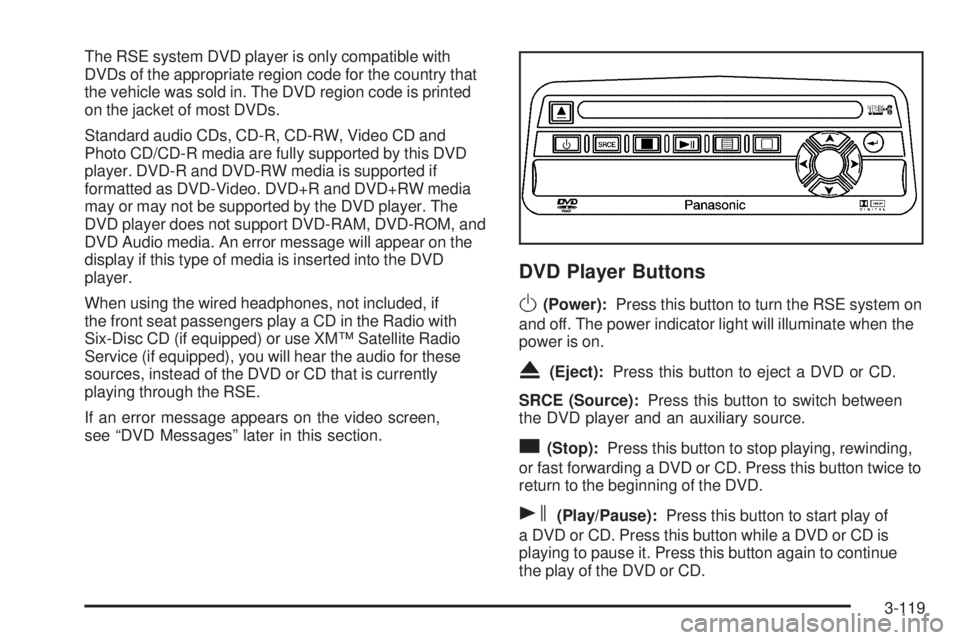
DVD Player Buttons
O(Power):Press this button to turn the RSE system on
and off. The power indicator light will illuminate when the
power is on.
X(Eject):Press this button to eject a DVD or CD.
SRCE (Source):Press this button to switch between
the DVD player and an auxiliary source.
c(Stop):Press this button to stop playing, rewinding,
or fast forwarding a DVD or CD. Press this button twice to
return to the beginning of the DVD.
s(Play/Pause):Press this button to start play of
a DVD or CD. Press this button while a DVD or CD is
playing to pause it. Press this button again to continue
the play of the DVD or CD.
3-119
Page 300 of 600
z(Set-up Menu):Press this button to adjust the color,
tint, brightness, contrast, display mode, and dynamic
range compression. The dynamic range compression
feature can be used to reduce loud audio and increase
low audio produced by some DVDs.
e(Audio):Press this button to display a menu that
will only appear when a DVD is being played. The format
and content of this function will vary for each disc.
r(Fast Reverse):Press this button to fast reverse
the DVD or CD. To stop fast reversing, press this button
again. This button may not work when the DVD is playing
the copyright information or the previews.
SRCE (Source):Press this button to switch between
the DVD player and an auxiliary source.
c(Stop):Press this button to stop playing, rewinding,
or fast forwarding a DVD or CD. Press this button twice to
return to the beginning of the DVD.
t(Previous Track/Chapter):Press this button to
return to the start of the current track or chapter. Press
this button again to return to the previous track or
chapter. This button may not work when the DVD is
playing the copyright information or the previews.1 through 0 (Numeric Keypad):The numeric keypad
provides you with the capability of direct chapter, title,
and track number selection.
}10 (Double Digit Entries):Press this button to select
chapter, title, and track numbers greater than 9. Press
this button before inputting the number.
\(Clear):Press this button within three seconds after
inputting a number to clear the number(s).
P(Illumination):Press this button to turn the remote
control backlight on. The backlight will time out after
about 7 to 10 seconds if no other button is pressed while
the backlight is on.
y(Main DVD Menu):Press this button to access the
DVD menu. The DVD menu is different on every DVD.
Use the up, down, left, and right arrow buttons to move
the cursor around the DVD menu. After making a
selection press the enter button. This button only
operates when playing a DVD.
r(Enter):Press this button to select the choices
that are highlighted in any menu.
3-122
Page 302 of 600
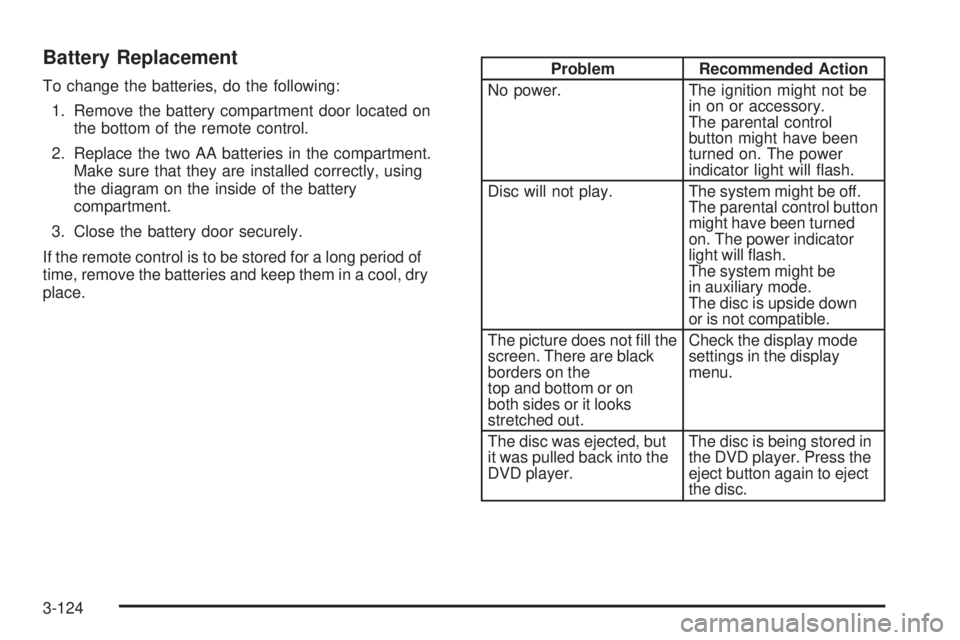
Battery Replacement
To change the batteries, do the following:
1. Remove the battery compartment door located on
the bottom of the remote control.
2. Replace the two AA batteries in the compartment.
Make sure that they are installed correctly, using
the diagram on the inside of the battery
compartment.
3. Close the battery door securely.
If the remote control is to be stored for a long period of
time, remove the batteries and keep them in a cool, dry
place.Problem Recommended Action
No power. The ignition might not be
in on or accessory.
The parental control
button might have been
turned on. The power
indicator light will ash.
Disc will not play. The system might be off.
The parental control button
might have been turned
on. The power indicator
light will ash.
The system might be
in auxiliary mode.
The disc is upside down
or is not compatible.
The picture does not ll the
screen. There are black
borders on the
top and bottom or on
both sides or it looks
stretched out.Check the display mode
settings in the display
menu.
The disc was ejected, but
it was pulled back into the
DVD player.The disc is being stored in
the DVD player. Press the
eject button again to eject
the disc.
3-124
Page 303 of 600
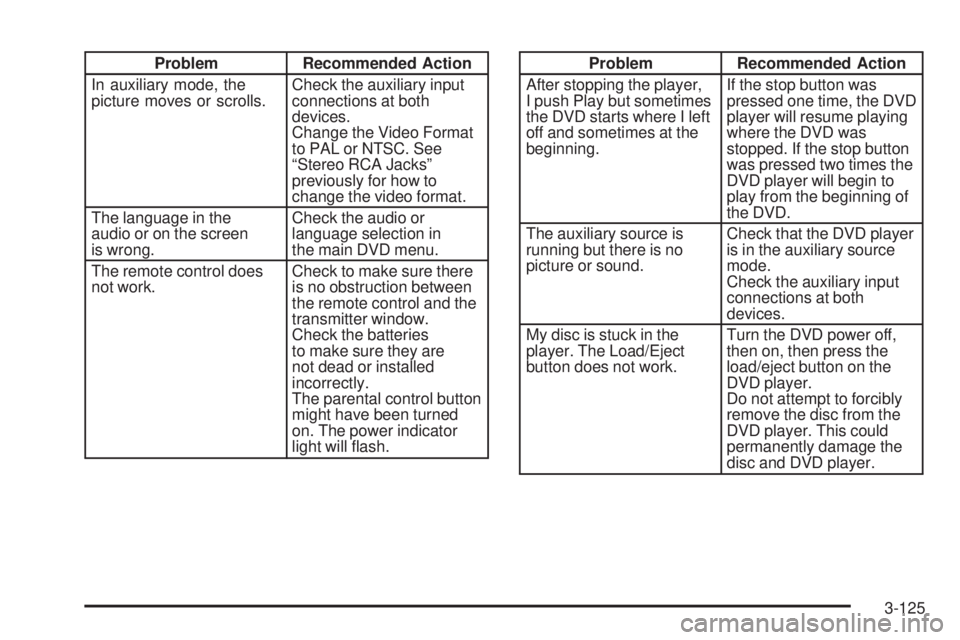
Problem Recommended Action
In auxiliary mode, the
picture moves or scrolls.Check the auxiliary input
connections at both
devices.
Change the Video Format
to PAL or NTSC. See
“Stereo RCA Jacks”
previously for how to
change the video format.
The language in the
audio or on the screen
is wrong.Check the audio or
language selection in
the main DVD menu.
The remote control does
not work.Check to make sure there
is no obstruction between
the remote control and the
transmitter window.
Check the batteries
to make sure they are
not dead or installed
incorrectly.
The parental control button
might have been turned
on. The power indicator
light will ash.Problem Recommended Action
After stopping the player,
I push Play but sometimes
the DVD starts where I left
off and sometimes at the
beginning.If the stop button was
pressed one time, the DVD
player will resume playing
where the DVD was
stopped. If the stop button
was pressed two times the
DVD player will begin to
play from the beginning of
the DVD.
The auxiliary source is
running but there is no
picture or sound.Check that the DVD player
is in the auxiliary source
mode.
Check the auxiliary input
connections at both
devices.
My disc is stuck in the
player. The Load/Eject
button does not work.Turn the DVD power off,
then on, then press the
load/eject button on the
DVD player.
Do not attempt to forcibly
remove the disc from the
DVD player. This could
permanently damage the
disc and DVD player.
3-125
Page 370 of 600
Q:What is total vehicle reserve capacity?
A:This is the difference between your GVWR and the
weight of your truck with full fuel and passengers.
It is the amount of weight you can add to your vehicle
before reaching your GVWR. Keep in mind that
reserve capacity numbers are intended as a guide
when selecting the amount of equipment or cargo
your truck can carry. If you are unsure of your
vehicle’s front, rear, or total weight, go to a weigh
station and weigh your vehicle. Your dealer can also
help you with this.
The total vehicle reserve capacity for your vehicle
can be found in the lower right corner of the
Certication/Tire label as shown previously.
See your dealer for additional advice and information
about using a snow plow on your vehicle. Also, see
Loading Your Vehicle on page 4-48.
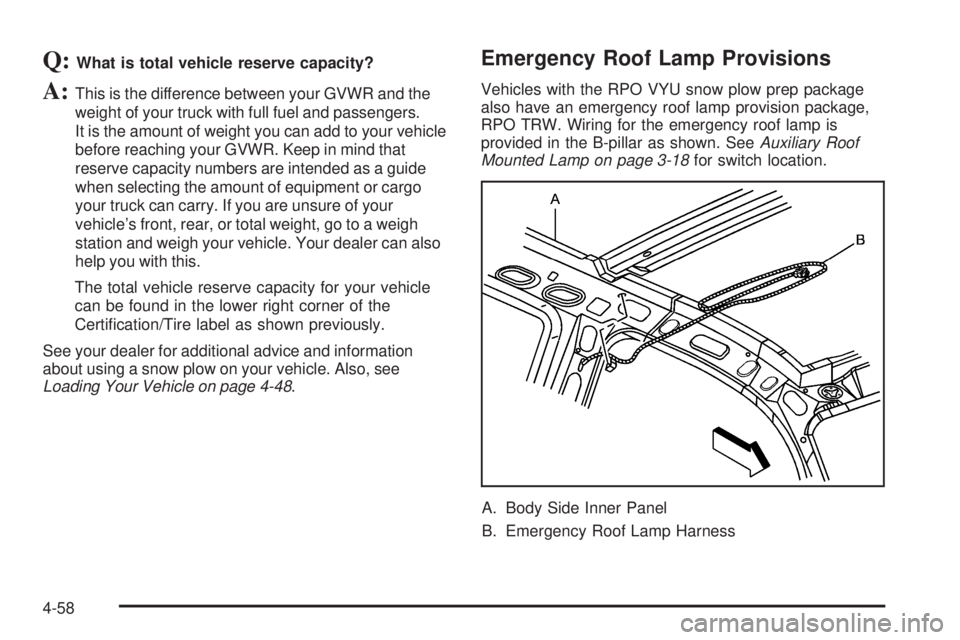
Emergency Roof Lamp Provisions
Vehicles with the RPO VYU snow plow prep package
also have an emergency roof lamp provision package,
RPO TRW. Wiring for the emergency roof lamp is
provided in the B-pillar as shown. SeeAuxiliary Roof
Mounted Lamp on page 3-18for switch location.
A. Body Side Inner Panel
B. Emergency Roof Lamp Harness
4-58
Page 408 of 600

Auxiliary Battery
The auxiliary battery provision can be used to supply
electrical power to additional equipment that you
may choose to add, such as a slide-in camper.
If your vehicle has this
provision, this relay will be
located on the passenger’s
side of the vehicle, next
to the auxiliary battery.
When using this provision, connection should only be
made to the upper stud (A) of the relay. Do not make
connections to the lower stud (B) of the relay.
The auxiliary battery circuit is protected by a megafuse
located behind the auxiliary battery.
Be sure to follow the proper installation instructions that
are included with any electrical equipment that you install.Notice:Leaving electrical equipment on for
extended periods will drain the battery. Always turn
off electrical equipment when not in use and do not
use equipment that exceeds the maximum amperage
rating for the auxiliary battery provision.
Power Winches
If you wish to use a power winch on your vehicle, only
use it when your vehicle is stationary or anchored.
Trailer Recommendations
You must subtract your hitch loads from the CWR for your
vehicle. Weigh your vehicle with the trailer attached, so
that you won’t go over the GVWR or GAWR. If you are
using a weight-distributing hitch, weigh the vehicle
without the spring bars in place.
You’ll get the best performance if you spread out the
weight of your load the right way, and if you choose
the correct hitch and trailer brakes.
For more information, seeTowing a Trailer on
page 4-67.
4-96
Page 537 of 600
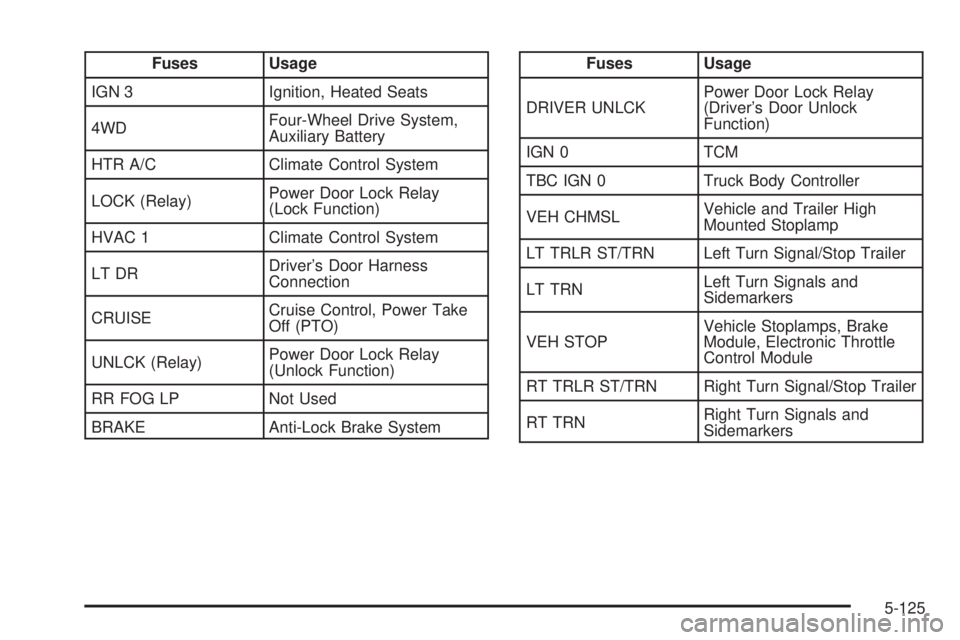
Fuses Usage
IGN 3 Ignition, Heated Seats
4WDFour-Wheel Drive System,
Auxiliary Battery
HTR A/C Climate Control System
LOCK (Relay)Power Door Lock Relay
(Lock Function)
HVAC 1 Climate Control System
LT DRDriver’s Door Harness
Connection
CRUISECruise Control, Power Take
Off (PTO)
UNLCK (Relay)Power Door Lock Relay
(Unlock Function)
RR FOG LP Not Used
BRAKE Anti-Lock Brake SystemFuses Usage
DRIVER UNLCKPower Door Lock Relay
(Driver’s Door Unlock
Function)
IGN 0 TCM
TBC IGN 0 Truck Body Controller
VEH CHMSLVehicle and Trailer High
Mounted Stoplamp
LT TRLR ST/TRN Left Turn Signal/Stop Trailer
LT TRNLeft Turn Signals and
Sidemarkers
VEH STOPVehicle Stoplamps, Brake
Module, Electronic Throttle
Control Module
RT TRLR ST/TRN Right Turn Signal/Stop Trailer
RT TRNRight Turn Signals and
Sidemarkers
5-125
Page 538 of 600
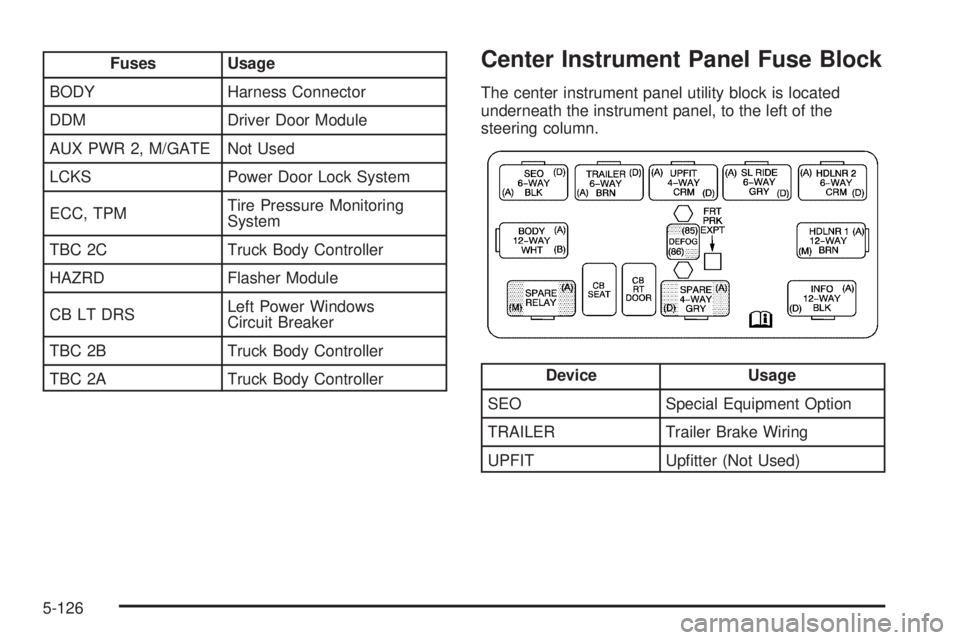
Fuses Usage
BODY Harness Connector
DDM Driver Door Module
AUX PWR 2, M/GATE Not Used
LCKS Power Door Lock System
ECC, TPMTire Pressure Monitoring
System
TBC 2C Truck Body Controller
HAZRD Flasher Module
CB LT DRSLeft Power Windows
Circuit Breaker
TBC 2B Truck Body Controller
TBC 2A Truck Body ControllerCenter Instrument Panel Fuse Block
The center instrument panel utility block is located
underneath the instrument panel, to the left of the
steering column.
Device Usage
SEO Special Equipment Option
TRAILER Trailer Brake Wiring
UPFIT Uptter (Not Used)
5-126