steering GMC SIERRA 2006 User Guide
[x] Cancel search | Manufacturer: GMC, Model Year: 2006, Model line: SIERRA, Model: GMC SIERRA 2006Pages: 600, PDF Size: 3.49 MB
Page 185 of 600
To tilt the wheel, hold the steering wheel and pull the
lever. Then move the steering wheel to a comfortable
position and release the lever to lock the wheel in place.
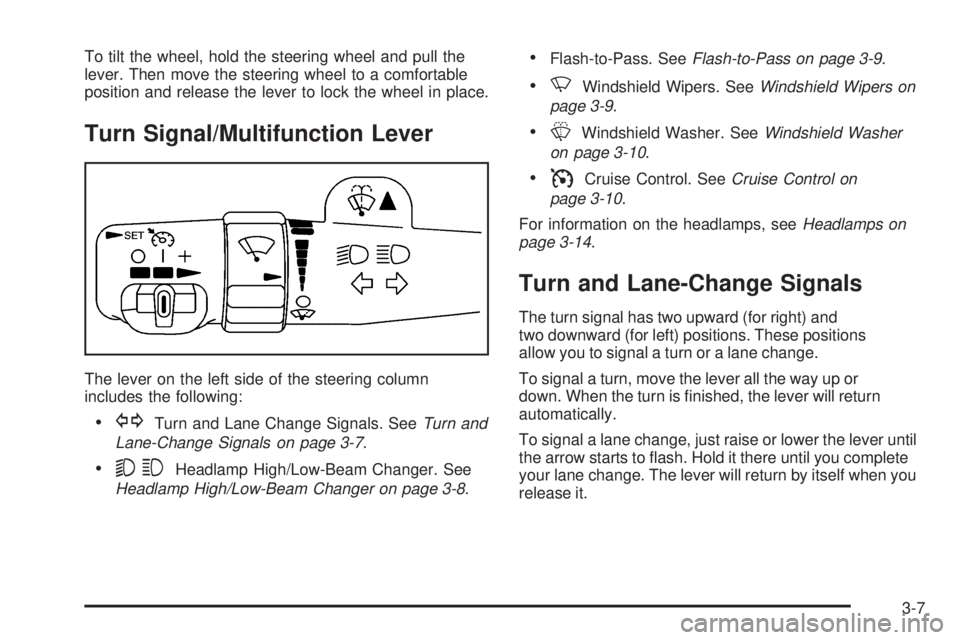
Turn Signal/Multifunction Lever
The lever on the left side of the steering column
includes the following:
GTurn and Lane Change Signals. SeeTurn and
Lane-Change Signals on page 3-7.
53Headlamp High/Low-Beam Changer. See
Headlamp High/Low-Beam Changer on page 3-8.
Flash-to-Pass. SeeFlash-to-Pass on page 3-9.
NWindshield Wipers. SeeWindshield Wipers on
page 3-9.
LWindshield Washer. SeeWindshield Washer
on page 3-10.
ICruise Control. SeeCruise Control on
page 3-10.
For information on the headlamps, seeHeadlamps on
page 3-14.
Turn and Lane-Change Signals
The turn signal has two upward (for right) and
two downward (for left) positions. These positions
allow you to signal a turn or a lane change.
To signal a turn, move the lever all the way up or
down. When the turn is nished, the lever will return
automatically.
To signal a lane change, just raise or lower the lever until
the arrow starts to ash. Hold it there until you complete
your lane change. The lever will return by itself when you
release it.
3-7
Page 230 of 600
Driver Information Center (DIC)
The Driver Information Center (DIC) display is located on
the instrument panel cluster, below the speedometer. If
your vehicle has DIC buttons, they are located on the
steering wheel. The DIC can display information such as
the trip odometer, fuel economy, customization features,
and warning/status messages.
If your vehicle does not have DIC steering wheel buttons,
you will not have all of the features listed. Scroll through
the odometer, trip odometer, engine hours, and selected
range if your vehicle has an Allison Transmission
®by
pressing the trip odometer reset stem located on the
instrument panel cluster. Turn off, or acknowledge, DIC
messages by pressing the trip odometer reset stem. See
Speedometer and Odometer on page 3-33for information
on features for vehicles without DIC buttons.
If your vehicle has an Allison Transmission
®and the shift
lever is in the MANUAL MODE (M) position, the DIC will
display the current gear range. The DIC will also display
the gear range as it is shifted up or down. For example,
if the gear range is currently set to 6, the DIC will display
(6)54321.When the gear range is shifted down one
time, the DIC will display 6 (5)4321.SeeAutomatic
Transmission Operation on page 2-26for more
information.
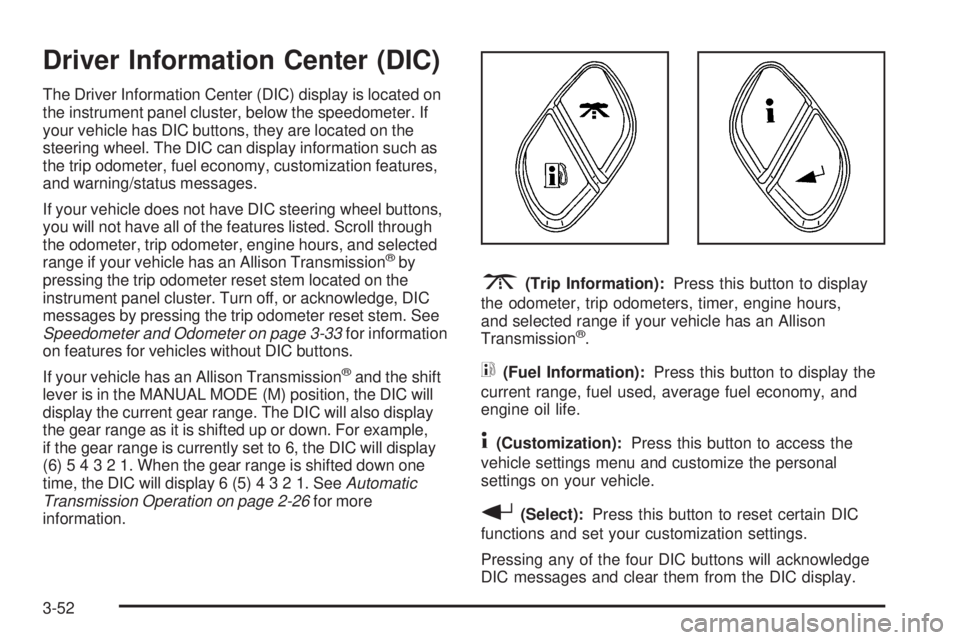
3(Trip Information):Press this button to display
the odometer, trip odometers, timer, engine hours,
and selected range if your vehicle has an Allison
Transmission
®.
t(Fuel Information):Press this button to display the
current range, fuel used, average fuel economy, and
engine oil life.
4(Customization):Press this button to access the
vehicle settings menu and customize the personal
settings on your vehicle.
r(Select):Press this button to reset certain DIC
functions and set your customization settings.
Pressing any of the four DIC buttons will acknowledge
DIC messages and clear them from the DIC display.
3-52
Page 231 of 600
DIC Operation and Displays
The Driver Information Center (DIC) comes on when the
ignition is on. After a short delay, the DIC will display the
information that was last displayed before the engine was
turned off.
The DIC has different modes which can be accessed by
pressing the four DIC buttons located on the steering
wheel. These buttons are trip information, fuel
information, customization, and select. The button
functions are detailed in the following pages.
Trip Information Button
3
(Trip Information):Press the trip information
button to scroll through the ODOMETER, TRIP A,
TRIP B, TIMER, ENGINE HOURS, and SELECTED
RANGE.
Odometer:Press the trip information button until
ODOMETER appears on the display. This mode shows
the total distance the vehicle has been driven in either
miles or kilometers. Pressing the reset stem located on
the instrument cluster with the vehicle off will also display
the odometer.
Trip A:Press the trip information button until TRIP A
appears on the display. This mode shows the current
distance traveled since the last reset for TRIP A in either
miles or kilometers.Trip B:Press the trip information button until TRIP B
appears on the display. This mode shows the current
distance traveled since the last reset for TRIP B in either
miles or kilometers.
To reset TRIP A or TRIP B information, press and hold
the select button for one second while in one of the
trip modes. This will reset the information for TRIP A or
TRIP B.
You can also reset TRIP A or TRIP B while they are
displayed by pressing the reset stem on the cluster. If you
press and hold the reset stem or the select button for
four seconds, the display will show the distance traveled
since the last ignition cycle for TRIP A or TRIP B.
SeeTrip Odometer on page 3-33for more information.
Timer:The DIC can be used as a timer. Press the select
button while TIMER is displayed to start the timer. The
display will show the amount of time that has passed
since the timer was last reset, not including time the
ignition is off. Time will continue to be counted as long as
the ignition is on, even if another display is being shown
on the DIC. The timer will record up to 99 hours,
59 minutes and 59 seconds (99:59:59) after which the
display will roll back to zero.
To stop the counting of time, press the select button
briey while TIMER is displayed.
To reset the timer to zero, press and hold the select
button while TIMER is displayed.
3-53
Page 233 of 600
Always reset the engine oil life system after an oil
change. To reset the engine oil life system, seeEngine
Oil Life System (Gasoline Engine) on page 5-23.
In addition to the engine oil life system monitoring the
oil life, additional maintenance is recommended in the
Maintenance Schedule in this manual. SeeEngine Oil
(Gasoline Engine) on page 5-20andScheduled
Maintenance (Gasoline Engine) on page 6-4.
Customization Button
4
(Customization):Press the customization button to
access the VEHICLE SETTINGS menu and customize
the settings to your vehicle. SeeDIC Vehicle
Customization on page 3-64for more information.
Select Button
r
(Select):Press the select button to reset certain
DIC functions and set your customization settings. For
example, this button will reset the trip odometers and
enables you to scroll through and select the language in
which the DIC information will appear.
DIC Warnings and Messages
Warning messages are displayed on the Driver
Information Center (DIC) to notify the driver that the
status of the vehicle has changed and that some action
may be needed by the driver to correct the condition.
If there is more than one message that needs to be
displayed, they will appear one after another. Some
messages may not require immediate action, but you
should press any of the four DIC buttons on the steering
wheel to acknowledge that you received the messages
and to clear them from the display. If your vehicle does
not have DIC buttons on the steering wheel, press the trip
odometer reset stem, located on the instrument panel
cluster, to acknowledge messages and clear them from
the display.
Some messages cannot be cleared from the display
because they are more urgent. These messages require
action before they can be removed from the DIC display.
You should take any messages that appear on the
display seriously and remember that clearing the
messages will only make the messages disappear,
not correct the problem.
The following are the possible messages that can be
displayed and some information about them.
3-55
Page 248 of 600
Audio System(s)
Determine which radio your vehicle has and then read the
pages following to familiarize yourself with its features.
Driving without distraction is a necessity for a safer
driving experience. SeeDefensive Driving on page 4-2.
By taking a few moments to read this manual and get
familiar with your vehicle’s audio system, you can use it
with less effort, as well as take advantage of its features.
While your vehicle is parked, set up your audio system
by presetting your favorite radio stations, setting the
tone and adjusting the speakers. Then, when driving
conditions permit, you can tune to your favorite
stations using the presets and steering wheel controls
(if equipped).
{CAUTION:
This system provides you with a far greater
access to audio stations and song listings.
Giving extended attention to entertainment
tasks while driving can cause a crash and you
or others can be injured or killed. Always keep
your eyes on the road and your mind on the
drive — avoid engaging in extended searching
while driving.Keeping your mind on the drive is important for safe
driving. For more information, seeDefensive Driving
on page 4-2
Here are some ways in which you can help avoid
distraction while driving.
While your vehicle is parked:
Familiarize yourself with all of its controls.
Familiarize yourself with its operation.
Set up your audio system by presetting your favorite
radio stations, setting the tone, and adjusting the
speakers. Then, when driving conditions permit, you
can tune to your favorite radio stations using the
presets and steering wheel controls (if equipped).
Notice:Before adding any sound equipment to your
vehicle, such as an audio system, CD player, CB
radio, mobile telephone, or two-way radio, make sure
that it can be added by checking with your dealer.
Also, check federal rules covering mobile radio and
telephone units. If sound equipment can be added,
it is very important to do it properly. Added sound
equipment may interfere with the operation of your
vehicle’s engine, radio, or other systems, and even
damage them. Your vehicle’s systems may interfere
with the operation of sound equipment that has been
added.
3-70
Page 307 of 600
Theft-Deterrent Feature
THEFTLOCK®is designed to discourage theft of
your vehicle’s radio. The feature works automatically
by learning a portion of the Vehicle Identication
Number (VIN). If the radio is moved to a different vehicle,
it will not operate and LOCKED will appear on the display.
When the radio and vehicle are turned off, the blinking
red light indicates that THEFTLOCK
®is armed.
With THEFTLOCK
®activated, the radio will not operate
if stolen.
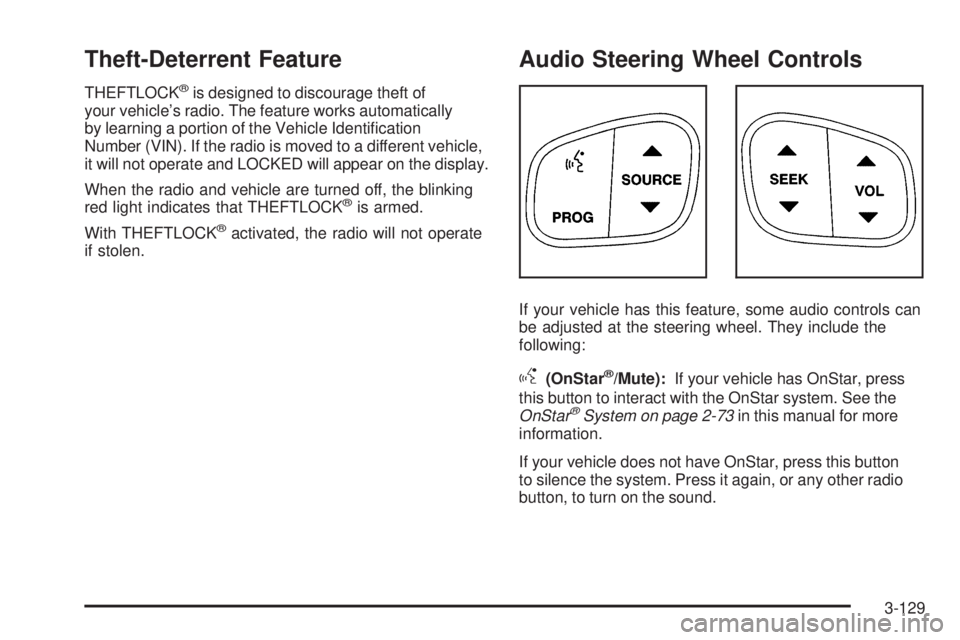
Audio Steering Wheel Controls
If your vehicle has this feature, some audio controls can
be adjusted at the steering wheel. They include the
following:
g(OnStar®/Mute):If your vehicle has OnStar, press
this button to interact with the OnStar system. See the
OnStar
®System on page 2-73in this manual for more
information.
If your vehicle does not have OnStar, press this button
to silence the system. Press it again, or any other radio
button, to turn on the sound.
3-129
Page 313 of 600
Your Driving, the Road, and Your Vehicle..........4-2
Defensive Driving...........................................4-2
Drunken Driving.............................................4-3
Control of a Vehicle........................................4-5
Braking.........................................................4-5
Anti-Lock Brake System (ABS).........................4-6
Braking in Emergencies...................................4-8
Traction Assist System (TAS)...........................4-8
Manual Selectable Ride.................................4-10
Locking Rear Axle........................................4-11
Steering......................................................4-11
Off-Road Recovery.......................................4-13
Passing.......................................................4-14
Loss of Control.............................................4-15
Off-Road Driving...........................................4-16
Driving at Night............................................4-32
Driving in Rain and on Wet Roads..................4-33
City Driving..................................................4-36
Freeway Driving...........................................4-37Before Leaving on a Long Trip.......................4-38
Highway Hypnosis........................................4-39
Hill and Mountain Roads................................4-40
Winter Driving..............................................4-42
If Your Vehicle is Stuck in Sand, Mud,
Ice or Snow..............................................4-46
Rocking Your Vehicle to Get It Out.................4-46
Recovery Hooks...........................................4-47
Loading Your Vehicle....................................4-48
Adding a Snow Plow or Similar Equipment.......4-54
Truck-Camper Loading Information..................4-59
Pickup Conversion to Chassis Cab..................4-61
Towing..........................................................4-62
Towing Your Vehicle.....................................4-62
Recreational Vehicle Towing...........................4-62
Towing a Trailer...........................................4-67
Trailer Recommendations...............................4-96
Power Take-Off (PTO)...................................4-97
Section 4 Driving Your Vehicle
4-1
Page 317 of 600
There is something else about drinking and driving that
many people do not know. Medical research shows
that alcohol in a person’s system can make crash
injuries worse, especially injuries to the brain, spinal
cord, or heart. This means that when anyone who has
been drinking — driver or passenger — is in a crash,
that person’s chance of being killed or permanently
disabled is higher than if the person had not been
drinking.
{CAUTION:
Drinking and then driving is very dangerous.
Your reexes, perceptions, attentiveness,
and judgment can be affected by even a small
amount of alcohol. You can have a serious — or
even fatal — collision if you drive after drinking.
Please do not drink and drive or ride with a
driver who has been drinking. Ride home in a
cab; or if you are with a group, designate a
driver who will not drink.
Control of a Vehicle
You have three systems that make your vehicle go where
you want it to go. They are the brakes, the steering, and
the accelerator. All three systems have to do their work at
the places where the tires meet the road.
Sometimes, as when you are driving on snow or ice, it is
easy to ask more of those control systems than the tires
and road can provide. That means you can lose control
of your vehicle. SeeTraction Assist System (TAS) on
page 4-8.
Adding non-GM accessories can affect your vehicle’s
performance. SeeAccessories and Modications
on page 5-4.
Braking
SeeBrake System Warning Light on page 3-41.
Braking action involves perception time and
reaction time.
First, you have to decide to push on the brake pedal.
That is perception time. Then you have to bring up
your foot and do it. That is reaction time.
4-5
Page 320 of 600
Remember: Anti-lock does not change the time you need
to get your foot up to the brake pedal or always decrease
stopping distance. If you get too close to the vehicle in
front of you, you will not have time to apply your brakes
if that vehicle suddenly slows or stops. Always leave
enough room up ahead to stop, even though you have
anti-lock brakes.
Using Anti-Lock
Do not pump the brakes. Just hold the brake pedal down
rmly and let anti-lock work for you. You may feel the
brakes vibrate, or you may notice some noise, but this
is normal.
Braking in Emergencies
With anti-lock brakes, you can steer and brake at the
same time. In many emergencies, steering can help
you more than even the very best braking.
Traction Assist System (TAS)
Your vehicle may have a Traction Assist System (TAS)
that limits wheel spin. This is especially useful in slippery
road conditions. The system operates only if it senses
that one or both of the rear wheels are spinning or
beginning to lose traction. When this happens, the
system reduces engine power to limit wheel spin.
The traction control system is enabled every time your
vehicle is started. The system will activate if it senses
that any of the wheels are spinning or beginning to lose
traction.
You may hear or feel the system working or notice
a lack of accelerator response, but this is normal.
The Traction Assist System may operate on dry roads
under some conditions. When this happens, you may
notice a reduction in acceleration. This is normal
and doesn’t mean there’s a problem with your vehicle.
Examples of these conditions include a hard acceleration
in a turn, an abrupt upshift or downshift of the
transmission or driving on rough roads.
If your vehicle is in cruise control when the TAS begins
to limit wheel spin, the cruise control will automatically
disengage. When road conditions allow you to safely
use it again, you may re-engage the cruise control.
SeeCruise Control on page 3-10.
4-8
Page 323 of 600
It is recommended to use this system as follows:
For optimum ride comfort in an unloaded vehicle
the button should be out. The indicator light will
not be lit. This button position indicates NORMAL
levels of ride control or damping.
For optimum ride comfort when trailering, fully
loaded, driving off-road, or when personal
preferences demand more control, the button should
be pressed in with the indicator light lit. This switch
position indicates FIRM levels of ride control or
damping.
The following guide can also be used to help determine
the best setting.
NORMAL:The indicator light will not be lit when the
system is in this setting. Use for normal city and highway
driving. This setting provides a smooth, soft ride when
the vehicle is unloaded.
FIRM (Unloaded):Press the button to activate this
setting, the indicator light will be lit. Use this setting
when road conditions or personal preference demand
more control. This setting provides more “feel” or
response to the road conditions.FIRM (Loaded):Press the button to activate this setting,
the indicator light will be lit. Use this setting to minimize
trailer inputs to the vehicle or when the vehicle is fully
loaded. This setting is also appropriate for off-road
driving.
You can select a setting at any time based on road
and trailering conditions to provide the best ride and
handling. Select a new setting whenever driving
conditions change.
Locking Rear Axle
If your vehicle has this feature, your locking rear axle can
give you additional traction on snow, mud, ice, sand or
gravel. It works like a standard axle most of the time, but
when one of the rear wheels has no traction and the other
does, this feature will allow the wheel with traction to
move the vehicle.
Steering
Power Steering
If you lose power steering assist because the engine
stops or the system is not functioning, you can steer
but it will take much more effort.
4-11