start stop button GMC SIERRA 2011 Owner's Manual
[x] Cancel search | Manufacturer: GMC, Model Year: 2011, Model line: SIERRA, Model: GMC SIERRA 2011Pages: 594, PDF Size: 6.55 MB
Page 40 of 594

Black plate (34,1)GMC Sierra Owner Manual - 2011
1-34 In Brief
.To turn off both traction control
and StabiliTrak, press and
hold
5untilFilluminates and
the appropriate DIC message
displays. See Ride Control
System Messages on page 5‑47.
.Press and release5again to
turn on both systems.
For more information, see
StabiliTrak
®System on page 9‑70.
Tire Pressure Monitor
This vehicle may have a Tire
Pressure Monitor System (TPMS).
The TPMS warning light alerts
you to a significant loss in pressure
of one of the vehicle's tires. If the warning light comes on, stop
as soon as possible and inflate the
tires to the recommended pressure
shown on the Tire and Loading
Information label. See
Vehicle Load
Limits on page 9‑25. The warning
light will remain on until the tire
pressure is corrected.
During cooler conditions, the low tire
pressure warning light may appear
when the vehicle is first started and
then turn off. This may be an early
indicator that the tire pressures are
getting low and the tires need to be
inflated to the proper pressure.
The TPMS does not replace normal
monthly tire maintenance. It is the
driver ’s responsibility to maintain
correct tire pressures.
See Tire Pressure Monitor System
on page 10‑68.
Engine Oil Life System
The engine oil life system calculates
engine oil life based on vehicle use
and, on most vehicles, displays a
DIC message when it is necessary
to change the engine oil and filter.
The oil life system should be reset
to 100% only following an oil
change.
Resetting the Oil Life System
To reset the Engine Oil Life System
on most vehicles:
1. Display OIL LIFE REMAINING on the DIC. If the vehicle does
not have DIC buttons, the
vehicle must be in P (Park)
to access this display.
2. Press and hold the SET/RESET button on the DIC, or the trip
odometer reset stem if the
vehicle does not have DIC
buttons, for more than
five seconds. The oil life
will change to 100%.
Page 56 of 594
Black plate (12,1)GMC Sierra Owner Manual - 2011
2-12 Keys, Doors and Windows
Vehicle Security
This vehicle has theft-deterrent
features; however, they do not make
it impossible to steal.
Anti-Theft Alarm System
This vehicle may have a content
theft-deterrent alarm system.
This is the security light.
To arm the theft-deterrent system:
1. Open the door.
2. Lock the door with the RemoteKeyless Entry (RKE) transmitter.
The security light should flash. If the delayed locking feature
is active, the alarm will not be
activated until all doors are
closed and the security light
goes off.
3. Close all doors. The security light will stop flashing and go off
after approximately 30 seconds.
The system is armed when the
security light goes off.
If a locked driver door is opened
without using the RKE transmitter,
a 10 second pre-alarm will occur.
The horn will chirp and the lights
will flash. If the key is not placed
in the ignition and turned to START
or the door is not unlocked by
pressing the unlock button on
the RKE transmitter during the
10 second pre-alarm, the alarm
will go off. The vehicle's headlamps
will flash and the horn will sound
for about 30 seconds, then will turn
off to save the battery power. The theft-deterrent system will not
activate if the doors are locked
with the key or the manual door
lock. It activates only if you use
the power door lock switch or the
RKE transmitter. The vehicle can
be started with the correct key if
the alarm is set off.
To avoid setting off the alarm by
accident:
.If you do not want to activate
the theft-deterrent system, the
vehicle should be locked with
the door key after the doors are
closed.
.Always unlock a door with the
RKE transmitter.
If the alarm is set off, press unlock
on the RKE transmitter or place
the key in the ignition and turn it
to START.
Page 183 of 594
Black plate (35,1)GMC Sierra Owner Manual - 2011
Instruments and Controls 5-35
For example, if the vehicle was
driven 8 km (5 miles) before it
is started again, and then the
retro-active reset feature is
activated, the display will show
8 km (5 miles). As the vehicle
begins moving, the display will
then increase to 8.2 km (5.1 miles),
8.4 km (5.2 miles), etc.
Fuel Range
Press the trip/fuel button until
FUEL RANGE displays. This display
shows the approximate number of
remaining kilometers (km) or miles
the vehicle can be driven without
refueling. The display will show
LOW if the fuel level is low.
The fuel range estimate is based
on an average of the vehicle's fuel
economy over recent driving history
and the amount of fuel remaining
in the fuel tank. This estimate will
change if driving conditions change.For example, if driving in traffic and
making frequent stops, this display
may read one number, but if the
vehicle is driven on a freeway,
the number may change even
though the same amount of fuel
is in the fuel tank. This is because
different driving conditions produce
different fuel economies. Generally,
freeway driving produces better
fuel economy than city driving.
Fuel range cannot be reset.
Average Economy
Press the trip/fuel button
until AVG ECONOMY displays.
This display shows the
approximate average liters per
100 kilometers (L/100 km) or miles
per gallon (mpg). This number is
calculated based on the number of
L/100 km (mpg) recorded since the
last time this menu item was reset.
To reset AVG ECONOMY, press
and hold the set/reset button.Fuel Used
Press the trip/fuel button until
FUEL USED displays. This display
shows the number of liters (L) or
gallons (gal) of fuel used since the
last reset of this menu item. To reset
the fuel used information, press
and hold the set/reset button while
FUEL USED is displayed.
Timer
Press the trip/fuel button until
TIMER displays. This display can
be used as a timer.
To start the timer, press the
set/reset button while TIMER is
displayed. The display will show
the amount of time that has passed
since the timer was last reset, not
including time the ignition is off.
Time will continue to be counted as
long as the ignition is on, even if
another display is being shown
on the DIC. The timer will record
up to 99 hours, 59 minutes, and
59 seconds (99:59:59) after which
the display will return to zero.
Page 243 of 594
Black plate (17,1)GMC Sierra Owner Manual - 2011
Infotainment System 7-17
Ejecting a CD
(Six-Disc CD Player)
ZEJECT :Press and release
to eject the disc that is currently
playing. Remove the CD when
Remove Disc displays. If the disc is
not removed, after several seconds
the disc is automatically pulled back
into the player.
To eject all CDs, press and hold the
ZEJECT button for two seconds.
Playing a CD
If the ignition or radio is turned off
with a CD in the player, it stays in
the player. When the ignition or
radio is turned on, the CD starts
playing where it stopped, if it was
the last selected audio source.
The CD is controlled by the buttons
on the radio faceplate or by the RSA
unit. See Rear Seat Audio (RSA)
System on page 7‑48 for more
information. When a CD is inserted, the CD
symbol displays on the left side
of the radio display. As each new
track starts to play, the track number
displays.
The CD player can play the smaller
8 cm (3 in) single CDs with an
adapter ring. Full-size CDs and the
smaller CDs are loaded in the same
manner.
CD/AUX (CD/Auxiliary):
Press to
cycle between CD or Auxiliary when
listening to the radio. The CD icon
and a message showing the disc
and/or track number will display
when a CD is in the player. Press
again and the system automatically
searches for an auxiliary input
device; see Auxiliary Devices on
page 7‑34 for more information.
If a portable audio player is not
connected, “No Input Device Found”
displays.
4(Information): Press to display
additional text information related
to the current song. If information is
available, the song title information
displays on the top line of the
display and artist information
displays on the bottom line.
When information is not available,
“NO INFO” displays.
f(Tune):Turn to select tracks on
the CD that is currently playing.
©SEEK: Press to go to the start
of the current track if more than
10 seconds on the CD have played.
Press to go to the previous track if
less than 10 seconds on the CD
have played.
Press and hold, or press multiple
times, to continue moving backward
through the tracks on the CD.
¨SEEK: Press to go to the next
track.
Press and hold, or press multiple
times, to continue moving forward
through the tracks on the CD.
Page 250 of 594
Black plate (24,1)GMC Sierra Owner Manual - 2011
7-24 Infotainment System
Front seat passengers can listen
to the radio (AM, FM, or XM if
equipped) by pressing the BAND
button or the DVD/CD AUX button
to select CD slot, DVD slot, front
auxiliary input, USB port, or rear
auxiliary input (if available).
If a playback device is plugged
into the radio’s front auxiliary input
jack, USB port, or the rear auxiliary
jack, the front seat passengers
are able to listen to playback
from this source through the
vehicle speakers. See“Using the
Auxiliary Input Jack” inAuxiliary
Devices on page 7‑34, or “Audio/
Video (A/V) Jacks” underRear
Seat Entertainment (RSE) System
on page 7‑39 for more information.
In some vehicles, depending on
audio options, the rear speakers
can be muted when the RSA power
is turned on. See Rear Seat Audio
(RSA) System on page 7‑48 for
more information.Inserting a Disc
Insert a disc partway into either slot,
label side up. The player pulls it in
and the disc should begin playing.
(Loading a disc into the system,
depending on media type and
format, ranges from 5 to 20 seconds
for a CD, and up to 30 seconds for
a DVD to begin playing.)
Ejecting a Disc
ZCD (Eject): Press and
release to eject the disc that is
currently playing. The CD ejects
from the bottom slot. A beep
sounds and Ejecting Disc displays.
Once the disc is ejected, Remove
Disc displays. The disc can be
removed. If the disc is not removed,
after several seconds the disc
automatically pulls back into
the player.
ZDVD (Eject): Press and
release to eject the disc that is
currently playing in the top slot.
A beep sounds and Ejecting Disc
displays. If loading and reading of a disc
cannot be completed, due to
unknown format, etc., and the disc
fails to eject, press and hold for
more than five seconds to force
the disc to eject.
Playing a CD (in Either the
DVD or CD Slot)
If the ignition or radio is turned off
with a CD in the player, it stays in
the player. When the ignition or
radio is turned on, the CD starts
playing where it stopped, if it was
the last selected audio source.
The CD is controlled by the buttons
on the radio faceplate or by the RSA
unit. See
Rear Seat Audio (RSA)
System on page 7‑48 for more
information. The DVD/CD decks
(the upper slot is the DVD deck
and the lower slot is the CD deck)
of the radio are compatible with
most audio CDs, CD-Rs, CD-RWs,
and MP3s.
Page 257 of 594
Black plate (31,1)GMC Sierra Owner Manual - 2011
Infotainment System 7-31
O(Power):Press to turn the
radio on or off. Turn clockwise or
counterclockwise to increase or
decrease the volume. Press and
hold for more than two seconds to
turn off the entire radio and Rear
Seat Entertainment (RSE) system
and to start the Parental Control
feature. Parental Control prevents
the rear seat occupant from
operating the Rear Seat Audio
(RSA) system or remote control.
A lock symbol displays next to the
clock display. The Parental Control
feature remains on until the knob
is pressed and held for more than
two seconds again, or until the
driver turns the ignition off and
exits the vehicle.
f(Tune): Turn to select tracks on
a CD or DVD.
©SEEK: Press to return to the
start of the current track or chapter.
Press again to go to the previous
track or chapter. This button might
not work when the DVD is playing
the copyright information or the
previews.
¨SEEK: Press to go to the next
track or chapter. This button might
not work when the DVD is playing
the copyright information or the
previews.
sREV (Fast Reverse): Press
to quickly reverse the CD or DVD
at five times the normal speed.
To stop fast reversing, press again.
This button might not work when
the DVD is playing the copyright
information or the previews.
\FWD (Fast Forward): Press
to fast forward the CD or DVD at
five times the normal speed. To stop
fast forwarding, press again. This
button might not work when the
DVD is playing the copyright
information or the previews. Using Softkeys to Play a DVD-V
(Video)
Once a DVD-V is inserted, the
radio display menu shows several
tab options for playback. Press the
softkey located under any tab option
during DVD-V playback.
r/j(Play/Pause):
Press either
the Play or Pause tab displayed on
the radio, to toggle between pausing
or restarting playback of a DVD.
If the forward arrow is showing on
the display, the system is in pause
mode. If the Pause tab is showing
on the display, the system is in
playback mode. If the DVD screen
is off, press the play button to turn
the screen on.
Some DVDs begin playing after the
previews have finished, although
there could be a delay of up to
30 seconds. If the DVD does
not begin playing the movie
automatically, press the softkey
located under the play/pause
symbol tag displayed on the radio.
Page 258 of 594
Black plate (32,1)GMC Sierra Owner Manual - 2011
7-32 Infotainment System
If the DVD still does not play,
refer to the on-screen instructions,
if available.
c(Stop):Press to stop playing,
rewinding, or fast forwarding a DVD.
r(Enter): Press to select the
choices that are highlighted in
any menu.
y(Menu): Press to access
the DVD menu. The DVD menu
is different on every DVD. Use
the softkeys located under the
navigation arrows to navigate the
cursor through the DVD menu.
After making a selection press this
button. This button only operates
when using a DVD.
Nav (Navigate): Press to display
directional arrows for navigating
through the menus.
q(Return): Press to exit the
current active menu and return to
the previous menu. This button
operates only when a DVD is
playing and a menu is active.
The rear seat passenger can
navigate the DVD-V and DVD-A
menus and controls through the
remote control. See “Remote
Control” underRear Seat
Entertainment (RSE) System on
page 7‑39 for more information.
The video screen automatically
turns on when the DVD-V is
inserted into the DVD slot, and
does not automatically power on
when the DVD-A is inserted into
the DVD slot. It must be manually
turned on by the rear seat occupant
through the remote control power
button. Using Softkeys to Play a DVD-A
(Audio)
Once a DVD-A is inserted, the
radio display menu shows several
tab options for playback. Press the
softkey located under any tab option
during DVD-A playback.
r/j(Play/Pause):
Press either
the play or pause icon displayed on
the radio, to toggle between pausing
or restarting playback of a DVD.
If the forward arrow is showing on
the display, the system is in pause
mode. If the pause tab is showing
on the display, the system is in
playback mode.
qGroupr: Press to cycle
through musical groupings on
the DVD-A disc.
Nav (Navigate): Press to display
directional arrows for navigating
through the menus.
Page 266 of 594
Black plate (40,1)GMC Sierra Owner Manual - 2011
7-40 Infotainment System
Parental Control
The RSE system may have a
Parental Control feature, depending
on which radio the vehicle has.
To start Parental Control, press
and hold the radio power button for
more than two seconds to stop all
system features such as: radio,
video screen, Rear Seat Audio
(RSA), DVD, and/or CD. While
Parental Control is on, a padlock
icon displays.
The radio can be turned back on
with a single press of the power
button, but the RSE system will
remain under Parental Control.
To turn Parental Control off, press
and hold the radio power button for
more than two seconds. The RSE
returns from where it was previously
left and the padlock icon disappears
from the radio display.
Parental Control can also be turned
off by inserting or ejecting any disc,
pressing the play icon on the radio
DVD display menu, or changing an
ignition position.
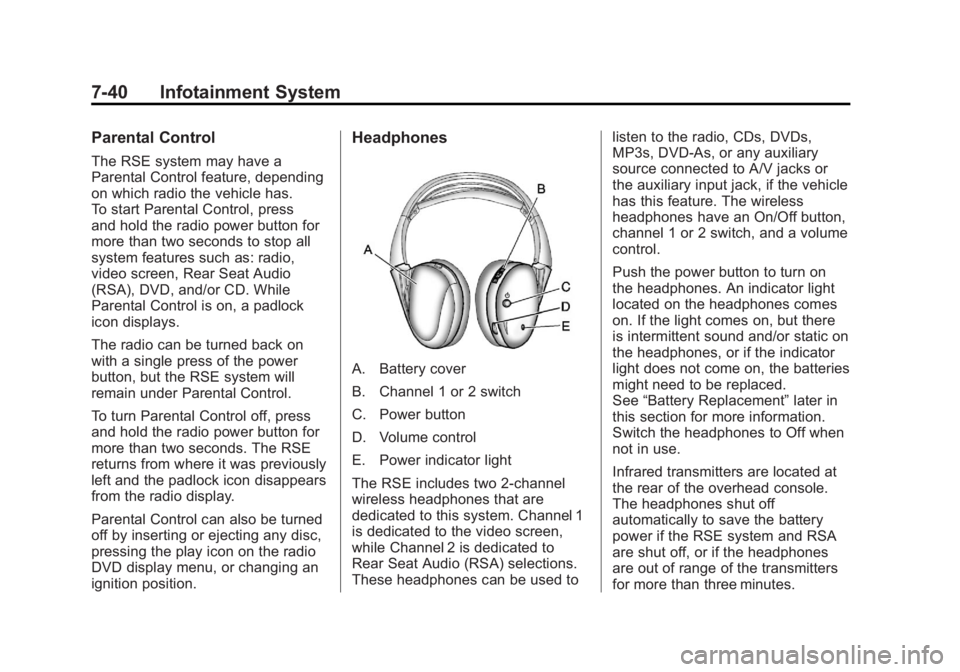
Headphones
A. Battery cover
B. Channel 1 or 2 switch
C. Power button
D. Volume control
E. Power indicator light
The RSE includes two 2-channel
wireless headphones that are
dedicated to this system. Channel 1
is dedicated to the video screen,
while Channel 2 is dedicated to
Rear Seat Audio (RSA) selections.
These headphones can be used tolisten to the radio, CDs, DVDs,
MP3s, DVD‐As, or any auxiliary
source connected to A/V jacks or
the auxiliary input jack, if the vehicle
has this feature. The wireless
headphones have an On/Off button,
channel 1 or 2 switch, and a volume
control.
Push the power button to turn on
the headphones. An indicator light
located on the headphones comes
on. If the light comes on, but there
is intermittent sound and/or static on
the headphones, or if the indicator
light does not come on, the batteries
might need to be replaced.
See
“Battery Replacement” later in
this section for more information.
Switch the headphones to Off when
not in use.
Infrared transmitters are located at
the rear of the overhead console.
The headphones shut off
automatically to save the battery
power if the RSE system and RSA
are shut off, or if the headphones
are out of range of the transmitters
for more than three minutes.
Page 270 of 594
Black plate (44,1)GMC Sierra Owner Manual - 2011
7-44 Infotainment System
Objects blocking the line of sight
could also affect the function of the
remote control.
If a CD or DVD is in the Radio DVD
slot, the remote control
O(power)
button can be used to turn on the
video screen display and start the
disc. The radio can also turn on the
video screen display. See Operation
on page 7‑2 for more information.
Notice: Storing the remote
control in a hot area or in direct
sunlight can damage it, and the
repairs will not be covered by the
warranty. Storage in extreme cold
can weaken the batteries. Keep
the remote control stored in a
cool, dry place.
If the remote control becomes
lost or damaged, a new universal
remote control can be purchased.
If this happens, make sure the
universal remote control uses a
code set of Toshiba
®. Remote Control Buttons
O(Power):
Press this button to
turn the video screen on and off.
P(Illumination): Press this button
to turn the remote control backlight
on. The backlight automatically
times out after 7 to 10 seconds
if no other button is pressed while
the backlight is on.
v(Title): Press this button to
return the DVD to the main menu of
the DVD. This function could vary
for each disc.
y(Main Menu): Press this button
to access the DVD menu. The DVD
menu is different on every DVD.
Use the navigation arrows to move
the cursor around the DVD menu.
After making a selection press
the enter button. This button only
operates when using a DVD.
n,q,p,o(Menu Navigation
Arrows): Use the arrow buttons to
navigate through a menu.
r(Enter): Press this button to
select the choice that is highlighted
in any menu.
z(Display Menu): Press this
button to adjust the brightness,
screen display mode (normal,
full, or zoom), and display the
language menu.
q(Return): Press this button
to exit the current active menu
and return to the previous menu.
This button operates only when
the display menu or a DVD menu
is active.
c(Stop): Press this button to
stop playing, fast reversing, or fast
forwarding a DVD. Press this button
twice to return to the beginning of
the DVD.
s(Play/Pause): Press this
button to start playing a DVD. Press
this button while a DVD is playing to
pause it. Press it again to continue
playing the DVD.
Page 271 of 594
Black plate (45,1)GMC Sierra Owner Manual - 2011
Infotainment System 7-45
While the DVD is playing, the DVD
can be played slowly by pressing
the play/pause button then pressing
the fast forward button. The DVD
continues playing in a slow play
mode. Also, reverse can be played
slowly by pressing the play/pause
button and then pressing the fast
reverse button. To cancel slow play
mode, press the play/pause button.
t(Previous Track/Chapter):
Press this button to return to the
start of the current track or chapter.
Press this button again to go to
the previous track or chapter.
This button might not work when
the DVD is playing the copyright
information or the previews.
u(Next Track/Chapter): Press
this button to go to the beginning
of the next chapter or track.
This button might not work while
the DVD is playing the copyright
information or the previews.
r(Fast Reverse): Press this
button to quickly reverse the DVD
or CD. To stop fast reversing a DVD
video, press the play/pause button.
To stop fast reversing a DVD audio
or CD, release the fast reverse
button. This button might not work
when the DVD is playing the
copyright information or the
previews.
[(Fast Forward): Press this
button to fast forward the DVD or
CD. To stop fast forwarding a DVD
video, press the play/pause button.
To stop fast forwarding a DVD audio
or CD, release the fast forward
button. This button might not work
while the DVD is playing the
copyright information or the
previews.
e(Audio): Press this button to
change audio tracks on DVDs that
have this feature when the DVD is
playing. The format and content of
this function vary for each disc.
{(Subtitles): Press this button to
turn on or off subtitles and to move
through subtitle options when a
DVD is playing. The format and
content of this function vary for
each disc.
AUX (Auxiliary): Press this button
to switch the system between the
DVD player and an auxiliary source.
2(Camera): Press this button to
change camera angles on DVDs
that have this feature while a DVD is
playing. The format and content of
this function vary for each disc.
1 through 0 (Numeric Keypad):
The numeric keypad provides the
capability of direct chapter or track
number selection.
\(Clear): Press this button within
three seconds after entering a
numeric selection, to clear all
numerical inputs.