See i GMC SIERRA 2013 Owner's Manual
[x] Cancel search | Manufacturer: GMC, Model Year: 2013, Model line: SIERRA, Model: GMC SIERRA 2013Pages: 534, PDF Size: 6.47 MB
Page 248 of 534
Black plate (48,1)GMC Sierra Owner Manual - 2013 - crc - 8/14/12
7-48 Infotainment System
SRCE (Source):Press this button
to switch between the radio (AM‐
FM), XM™ (if equipped), CD, and if
the vehicle has these features,
DVD, front auxiliary, and rear
auxiliary.
© ¨(Seek): When listening to FM,
AM, or XM™ (if equipped), press
the seek arrows to go to the
previous or to the next station or
channels and stay there. This
function is inactive, with some
radios, if the front seat passengers
are listening to the radio.
Press and hold either seek arrow
until the display flashes, to tune to
an individual station. The display
stops flashing after the buttons have
not been pushed for more than
two seconds. This function is
inactive, with some radios, if the
front seat passengers are listening
to the radio. While listening to a disc, press the
left seek arrow to go back to the
start of the current track or chapter
(if more than 10 seconds have
played). Press the right seek arrow
to go the next track or chapter on
the disc. This function is inactive,
with some radios, if the front seat
passengers are listening to the disc.
While a DVD video menu is being
displayed, press either seek arrow
to perform a cursor up or down on
the menu. Hold either seek arrow to
perform a cursor left or right on
the menu.
PROG (Program):
Press this
button to go to the next preset radio
station or channel set on the main
radio. This function is inactive, with
some radios, if the front seat
passengers are listening to the
radio. While a CD or DVD‐A disc is
playing, press this button to go to
the beginning of the CD or DVD‐A.
This function is inactive, with some
radios, if the front seat passengers
are listening to the CD or DVD‐A.
While a disc is playing in the CD or
DVD changer, press this button to
select the next disc, if multiple discs
are loaded. This function is inactive,
with some radios, if the front seat
passengers are listening to the disc.
While a DVD video menu is being
displayed, press the PROG button
to perform the menu function, Enter.
Page 249 of 534
Black plate (49,1)GMC Sierra Owner Manual - 2013 - crc - 8/14/12
Infotainment System 7-49
Phone
Bluetooth
For vehicles equipped with
Bluetooth capability, the system can
interact with many cell phones,
allowing:
.Placement and receipt of calls in
a hands-free mode.
.Sharing of the cell phone’s
address book or contact list with
the vehicle.
To minimize driver distraction,
before driving, and with the vehicle
parked:
.Become familiar with the
features of the cell phone.
Organize the phone book and
contact lists clearly and delete
duplicate or rarely used entries.
If possible, program speed dial
or other shortcuts.
.Review the controls and
operation of the infotainment
system.
.Pair cell phone(s) to the vehicle.
The system may not work with
all cell phones. See “Pairing”in
this section for more information.
.If the cell phone has voice
dialing capability, learn to use
that feature to access the
address book or contact list. See
“Voice Pass-Thru” in this section
for more information.
.See “Storing and Deleting Phone
Numbers” in this section for
more information.
{WARNING
When using a cell phone, it can
be distracting to look too long or
too often at the screen of the
phone or the infotainment
(navigation) system. Taking your
eyes off the road too long or too
often could cause a crash
resulting in injury or death. Focus
your attention on driving. A Bluetooth system can use a
Bluetooth-capable cell phone with a
Hands-Free Profile to make and
receive phone calls. The system
can be used while the key is in the
ON/RUN or ACC/ACCESSORY
position. The range of the Bluetooth
system can be up to 9.1 m (30 ft).
Not all phones support all functions,
and not all phones work with the
in-vehicle Bluetooth system. See
www.gm.com/bluetooth for more
information on compatible phones.
Voice Recognition
The Bluetooth system uses voice
recognition to interpret voice
commands to dial phone numbers
and name tags.
For additional information, say
“Help”
while you are in a voice
recognition menu.
Noise: Keep interior noise levels to
a minimum. The system may not
recognize voice commands if there
is too much background noise.
Page 250 of 534
Black plate (50,1)GMC Sierra Owner Manual - 2013 - crc - 8/14/12
7-50 Infotainment System
When to Speak:A short tone
sounds after the system responds
indicating when it is waiting for a
voice command. Wait until the tone
and then speak.
How to Speak: Speak clearly in a
calm and natural voice.
Audio System
When using the in-vehicle Bluetooth
system, sound comes through the
vehicle's front audio system
speakers and overrides the audio
system. Use the audio system
volume knob, during a call, to
change the volume level. The
adjusted volume level remains in
memory for later calls. To prevent
missed calls, a minimum volume
level is used if the volume is turned
down too low.
Bluetooth Controls
Use the buttons on the steering
wheel to operate the in-vehicle
Bluetooth system. See Steering
Wheel Controls on page 5‑2.
b/g(Push to Talk): Press to
answer incoming calls, confirm
system information, and start
speech recognition.
c/x(End): Press to end a call,
reject a call, or cancel an operation.
Pairing
A Bluetooth-enabled cell phone
must be paired to the Bluetooth
system and then connected to the
vehicle before it can be used. See
the cell phone manufacturer's user
guide for Bluetooth functions before
pairing the cell phone. If a Bluetooth
phone is not connected, calls will be
made using OnStar Hands-Free
Calling, if equipped. See OnStar
Overview on page 14‑1.
Pairing Information
.A Bluetooth phone with MP3
capability cannot be paired to
the vehicle as a phone and an
MP3 player at the same time.
.Up to five cell phones can be
paired to the Bluetooth system.
.The pairing process is disabled
when the vehicle is moving.
.Pairing only needs to be
completed once, unless the
pairing information on the cell
phone changes or the cell phone
is deleted from the system.
.Only one paired cell phone can
be connected to the Bluetooth
system at a time.
.If multiple paired cell phones are
within range of the system, the
system connects to the first
available paired cell phone in the
order that they were first paired
to the system. To connect to a
different paired phone, see
“Connecting to a Different
Phone” later in this section.
Pairing a Phone
1. Press and hold
b/gfor
two seconds.
2. Say “Bluetooth.” This command
can be skipped.
Page 251 of 534
Black plate (51,1)GMC Sierra Owner Manual - 2013 - crc - 8/14/12
Infotainment System 7-51
3. Say“Pair.”The system responds
with instructions and a four-digit
Personal Identification Number
(PIN). The PIN is used in Step 5.
4. Start the pairing process on the cell phone that you want to pair.
For help with this process, see
the cell phone manufacturer's
user guide.
5. Locate the device named “Your
Vehicle” in the list on the cell
phone. Follow the instructions
on the cell phone to enter the
PIN provided in Step 3. After the
PIN is successfully entered, the
system prompts you to provide a
name for the paired cell phone.
This name will be used to
indicate which phones are
paired and connected to the
vehicle. The system responds
with “
successfully paired” after the
pairing process is complete.
6. Repeat Steps 1–5 to pair additional phones. Listing All Paired and Connected
Phones
The system can list all cell phones
paired to it. If a paired cell phone is
also connected to the vehicle, the
system responds with
“is connected”
after that phone name.
1. Press and hold
b/gfor
two seconds.
2. Say “Bluetooth.”
3. Say “List.”
Deleting a Paired Phone
If the phone name you want to
delete is unknown, see “Listing All
Paired and Connected Phones.”
1. Press and hold
b/gfor
two seconds.
2. Say “Bluetooth.”
3. Say “Delete.” The system asks
which phone to delete.
4. Say the name of the phone you want to delete. Connecting to a Different Phone
To connect to a different cell phone,
the Bluetooth system looks for the
next available cell phone in the
order in which all the available cell
phones were paired. Depending on
which cell phone you want to
connect to, you may have to use
this command several times.
1. Press and hold
b/gfor
two seconds.
2. Say “Bluetooth.”
3. Say “Change phone.”
.If another cell phone is
found, the response will be
“
connected.”
.If another cell phone is not
found, the original phone
remains connected.
Page 255 of 534
Black plate (55,1)GMC Sierra Owner Manual - 2013 - crc - 8/14/12
Infotainment System 7-55
transferred. The connection process
can take up to two minutes after the
ignition is turned to ON/RUN.
Transferring Audio from the
Bluetooth System to a Cell Phone
During a call with the audio in the
vehicle:
1. Press
b/g.
2. Say “Transfer Call.”
Transferring Audio to the
Bluetooth System from a Cell
Phone
During a call with the audio on the
cell phone, press
b/g. The audio
transfers to the vehicle. If the audio
does not transfer to the vehicle, use
the audio transfer feature on the cell
phone. See your cell phone
manufacturer's user guide for more
information.
Voice Pass-Thru
Voice pass-thru allows access to the
voice recognition commands on the
cell phone. See your cell phone
manufacturer's user guide to see if
the cell phone supports this feature.
To access contacts stored in the cell
phone:
1. Press and hold
b/gfor
two seconds.
2. Say “Bluetooth.” This command
can be skipped.
3. Say “Voice.” The system
responds “OK, accessing
The cell phone's normal prompt
messages will go through their cycle
according to the phone's operating
instructions.
Dual Tone Multi-Frequency
(DTMF) Tones
The Bluetooth system can send
numbers and the numbers stored as
name tags during a call. You can use this feature when calling a
menu-driven phone system.
Account numbers can also be
stored for use.
Sending a Number or Name Tag
During a Call
1. Press
b/g. The system
responds “Ready,”followed by
a tone.
2. Say “Dial.”
3. Say the number or name tag to send.
Clearing the System
Unless information is deleted out of
the in-vehicle Bluetooth system, it
will be retained indefinitely. This
includes all saved name tags in the
phone book and phone pairing
information. For information on how
to delete this information, see the
previous section “Deleting a Paired
Phone” and the previous sections
on deleting name tags.
Page 256 of 534
Black plate (56,1)GMC Sierra Owner Manual - 2013 - crc - 8/14/12
7-56 Infotainment System
Other Information
The Bluetooth®word mark and
logos are owned by the Bluetooth®
SIG, Inc. and any use of such marks
by General Motors is under license.
Other trademarks and trade names
are those of their respective owners.
See Radio Frequency Statement on
page 13‑20 for information
regarding Part 15 of the Federal
Communications Commission (FCC)
rules and Industry Canada
Standards RSS-GEN/210/220/310.
Trademarks and
License Agreements
Manufactured under license under
U.S. Patent #'s: 5,451,942;
5,956,674; 5,974,380; 5,978,762;
6,487,535 & other U.S. and
worldwide patents issued &
pending. DTS and the Symbol are
registered trademarks and DTS
Digital Surround and the DTS logos
are trademarks of DTS Inc. All
Rights Reserved.
Manufactured under license from
Dolby Laboratories. Dolby and the
double-D symbol are trademarks of
Dolby Laboratories.
Page 262 of 534
Black plate (6,1)GMC Sierra Owner Manual - 2013 - crc - 8/14/12
8-6 Climate Controls
O(On/Off):Press to turn the
climate control system on or off.
Outside air still enters the vehicle,
and is directed to the floor. This
direction can be changed by
pressing the mode button.
Recirculation can be selected once
you have selected vent or bi-level
mode. The temperature can also be
adjusted using either temperature
button. If the air delivery mode or
temperature settings are adjusted
with the system off, the display
illuminates briefly to show the
settings and then returns to off. The
system can be turned back on by
pressing either
O,D,C,#, the
defrost or the AUTO button.
Driver and Passenger Side
Temperature Controls
The driver and passenger side
temperature buttons are used to
adjust the temperature of the air
coming through the system on the
driver or passenger side of the
vehicle. The temperature can be
adjusted even if the system is turned off. This is possible since
outside air always flows through the
system as the vehicle is moving
forward unless it is set to
recirculation mode. See
“Recirculation”
later in this section.
Press the + or −buttons to increase
or decrease the cabin temperature.
The driver side or passenger side
temperature display shows the
temperature setting increasing or
decreasing.
The passenger temperature setting
can be set to match the driver
temperature setting by pressing the
PASS button and turning off the
PASS indicator. When the
passenger temperature setting is set
different than the driver setting, the
indicator on the PASS button
illuminates and both the driver side
and passenger side temperature
displays are shown.
When in defrost mode the
passenger temperature setting
cannot be changed.
Automatic Operation
AUTO (Automatic): When
automatic operation is active, the
system controls the inside
temperature, the air delivery, and
the fan speed.
Use the steps below to place the
entire system in automatic mode:
1. Press the AUTO button.
When AUTO is selected, the
display changes to show the
current temperature(s) and
AUTO is lit on the display. The
current air delivery mode and
fan speed are also displayed for
about five seconds.
When AUTO is selected, the air
conditioning operation and air
inlet are automatically controlled.
The air conditioning compressor
may run when the outside
temperature is above freezing.
The air inlet will normally be set
to outside air. If it is hot outside,
the air inlet may automatically
switch to the recirculate mode to
Page 263 of 534
Black plate (7,1)GMC Sierra Owner Manual - 2013 - crc - 8/14/12
Climate Controls 8-7
help quickly cool down the air
inside the vehicle. The light on
the button comes on in
recirculation.
2. Set the driver and passenger temperature.
To find your comfort setting, start
with a 23°C (74°F) temperature
setting and allow about
20 minutes for the system to
regulate. Use the driver or
passenger temperature buttons
to adjust the temperature setting
as necessary. If a temperature
setting of 15°C (60°F) is chosen,
the system remains at the
maximum cooling setting. If a
temperature setting of 32°C
(90°F) is chosen, the system
remains at the maximum heat
setting. Choosing either
maximum setting will not cause
the vehicle to heat or cool any
faster.
Do not cover the solar sensor
located on the top of the instrument
panel near the windshield. This sensor regulates air temperature
based on sun load. For more
information on the solar sensor, see
“Sensors”
later in this section.
To avoid blowing cold air in cold
weather, the system delays turning
the fan on until warm air is
available. The length of delay
depends on the engine coolant
temperature. Pressing the fan
switch overrides this delay and
changes the fan to a selected
speed.
Manual Operation
D C(Fan Control): Press these
buttons to increase or decrease the
fan speed.
Pressing either fan button while in
automatic control places the fan
under manual control. The fan
setting remains displayed and the
AUTO light turns off. The air
delivery mode remains under
automatic control.
H G(Air Delivery Mode Control):
Press these buttons to change the
direction of the airflow in the vehicle.
Repeatedly press either button until
the desired mode appears on the
display.
Pressing either mode button while
the system is off changes the air
delivery mode without turning the
system on.
Pressing either mode button while in
automatic control places the mode
under manual control. The air
delivery mode setting displays and
the AUTO light turns off. The fan
remains under automatic control.
H(Vent): Air is directed to the
instrument panel outlets.
)(Bi-Level): Air is divided
between the instrument panel and
floor outlets. Some air is directed
toward the windshield and side
window outlets.
6(Floor): Air is directed to the
floor outlets, with some to the
windshield, side window outlets, and
Page 265 of 534
Black plate (9,1)GMC Sierra Owner Manual - 2013 - crc - 8/14/12
Climate Controls 8-9
The recirculation mode cannot be
used with floor, defog, or defrost
modes. If recirculation is selected
with one of those modes, the
indicator light flashes three times
and then turns off. The air
conditioning compressor also comes
on when this mode is activated.
While in recirculation mode, the
windows may fog when the weather
is cold and damp. To clear the fog,
select either the defog or defrost
mode and increase the fan speed.
The recirculation mode can be
turned off by pressing the outside
air button, or by turning off the
ignition.
;(Outside Air):Press to turn the
outside air mode on. An indicator
light on the button comes on to
show that outside is on. When
selected, air from outside the
vehicle circulates throughout the
vehicle. The recirculation mode
cannot be used with the outside
air mode.
Rear Window Defogger
The rear window defogger uses a
warming grid to remove fog from the
rear window.
1(Rear Window Defogger): For
vehicles with this feature, press to
turn the defogger on or off.
It automatically turns off several
minutes after it has been activated.
The defogger can also be turned off
by turning the engine off. Do not
drive the vehicle until all windows
are clear.
Notice: Do not use a razor blade
or sharp object to clear the inside
rear window. Do not adhere
anything to the defogger grid
lines in the rear glass. These
actions may damage the rear
defogger. Repairs would not be
covered by your warranty.
Heated Mirror: For vehicles with
heated outside rearview mirrors, the
mirrors heat to help clear fog or frost
from the surface of the mirror when the rear window defog button is
pressed. See
Power Mirrors on
page 2‑14.
Sensors
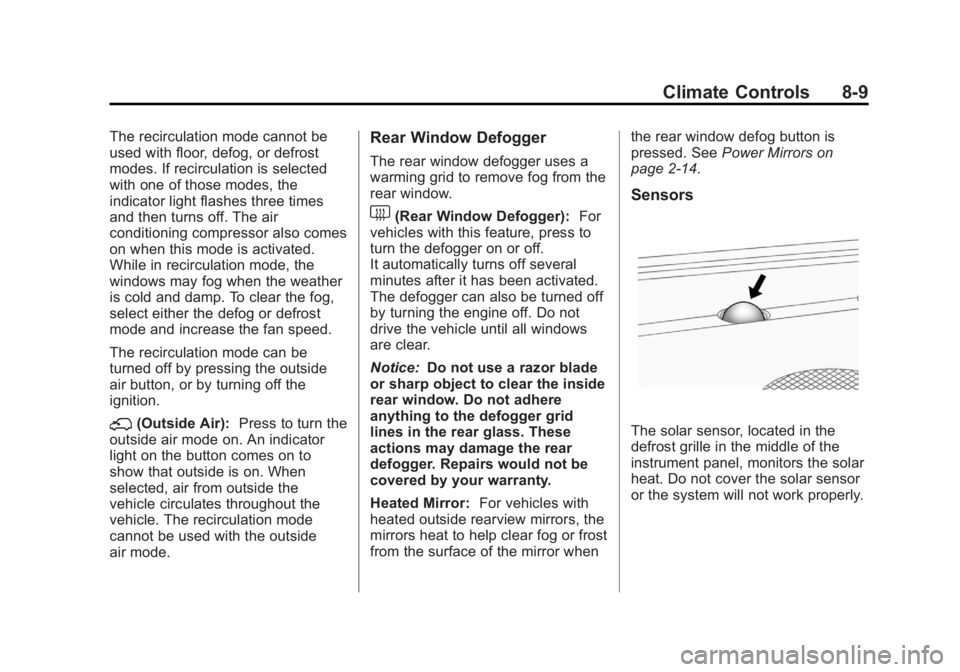
The solar sensor, located in the
defrost grille in the middle of the
instrument panel, monitors the solar
heat. Do not cover the solar sensor
or the system will not work properly.
Page 269 of 534
Black plate (3,1)GMC Sierra Owner Manual - 2013 - crc - 8/14/12
Driving and Operating 9-3
{WARNING
Taking your eyes off the road too
long or too often could cause a
crash resulting in injury or death.
Focus your attention on driving.
Refer to the infotainment section for
more information on using that
system, including pairing and using
a cell phone.
If equipped, refer to the navigation
manual for information on that
system, including pairing and using
a cell phone.
Defensive Driving
Defensive driving means “always
expect the unexpected.” The first
step in driving defensively is to wear
the safety belt. See Safety Belts on
page 3‑11.
.Assume that other road users
(pedestrians, bicyclists, and
other drivers) are going to be careless and make mistakes.
Anticipate what they might do
and be ready.
.Allow enough following distance
between you and the driver in
front of you.
.Focus on the task of driving.
Drunk Driving
Death and injury associated with
drinking and driving is a global
tragedy.
{WARNING
Drinking and then driving is very
dangerous. Your reflexes,
perceptions, attentiveness, and
judgment can be affected by even
a small amount of alcohol. You
can have a serious
—or even
fatal —collision if you drive after
drinking.
(Continued)
WARNING (Continued)
Do not drink and drive or ride with
a driver who has been drinking.
Ride home in a cab; or if you are
with a group, designate a driver
who will not drink.
Control of a Vehicle
Braking, steering, and accelerating
are important factors in helping to
control a vehicle while driving.
Braking
Braking action involves perception
time and reaction time. Deciding to
push the brake pedal is perception
time. Actually doing it is
reaction time.
Average driver reaction time is
about three-quarters of a second. In
that time, a vehicle moving at
100 km/h (60 mph) travels 20 m
(66 ft), which could be a lot of
distance in an emergency.