turn signal GMC SIERRA 2013 User Guide
[x] Cancel search | Manufacturer: GMC, Model Year: 2013, Model line: SIERRA, Model: GMC SIERRA 2013Pages: 534, PDF Size: 6.47 MB
Page 188 of 534
Black plate (58,1)GMC Sierra Owner Manual - 2013 - crc - 8/14/12
5-58 Instruments and Controls
4. The indicator lights will blinkslowly. Enter each switch setting
from Step 2 into your vehicle's
Universal Home Remote. You
will have two and one-half
minutes to complete Step 4. Now
press one button on the
Universal Home Remote for
each switch setting as follows:
.If you wrote “Left,”press
the left button (A) in the
vehicle.
.If you wrote “Right,”press
the right button (C) in the
vehicle.
.If you wrote “Middle,”press
the middle button (B) in the
vehicle.
5. After entering all of the switch positions, once again firmly
press and release all three
buttons at the same time. The
indicator lights will turn on. 6. Press and hold the button that
will be used to control the
garage door until the garage
door moves. The indicator light
above the selected button
should slowly blink. This button
may need to be held for up to
55 seconds.
7. Immediately release the button when the garage door moves.
The indicator light will blink
rapidly until programming is
complete.
8. Press and release the same button again. The garage door
should move, confirming that
programming is successful and
complete. To program another Fixed Code
device such as an additional garage
door opener, a security device,
or home automation device, repeat
Steps 1-8, choosing a different
button in Step 6 than what was used
for the garage door opener.
Universal Remote System
Operation
Press and hold the appropriate
button for at least half of a second.
The indicator light will come on
while the signal is being transmitted.
Reprogramming Universal
Home Remote Buttons
Any of the three buttons can be
reprogrammed by repeating the
instructions.
Page 191 of 534
Black plate (1,1)GMC Sierra Owner Manual - 2013 - crc - 8/14/12
Lighting 6-1
Lighting
Exterior Lighting
Exterior Lamp Controls . . . . . . . . 6-1
Exterior Lamps OffReminder . . . . . . . . . . . . . . . . . . . . 6-2
Headlamp High/Low-Beam Changer . . . . . . . . . . . . . . . . . . . . . 6-2
Flash-to-Pass . . . . . . . . . . . . . . . . . 6-3
Daytime Running Lamps (DRL) . . . . . . . . . . . . . . . . 6-3
Automatic Headlamp System . . . . . . . . . . . . . . . . . . . . . . 6-3
Hazard Warning Flashers . . . . . 6-5
Turn and Lane-Change Signals . . . . . . . . . . . . . . . . . . . . . . 6-5
Fog Lamps . . . . . . . . . . . . . . . . . . . . 6-6
Auxiliary Roof-Mounted Lamp . . . . . . . . . 6-6
Interior Lighting
Instrument Panel IlluminationControl . . . . . . . . . . . . . . . . . . . . . . 6-7
Cargo Lamp . . . . . . . . . . . . . . . . . . 6-7
Dome Lamps . . . . . . . . . . . . . . . . . 6-7
Reading Lamps . . . . . . . . . . . . . . . 6-8
Lighting Features
Entry Lighting . . . . . . . . . . . . . . . . . 6-8
Exit Lighting . . . . . . . . . . . . . . . . . . . 6-8
Battery Load Management . . . . 6-9
Battery Power Protection . . . . . . 6-9
Exterior Lighting
Exterior Lamp Controls
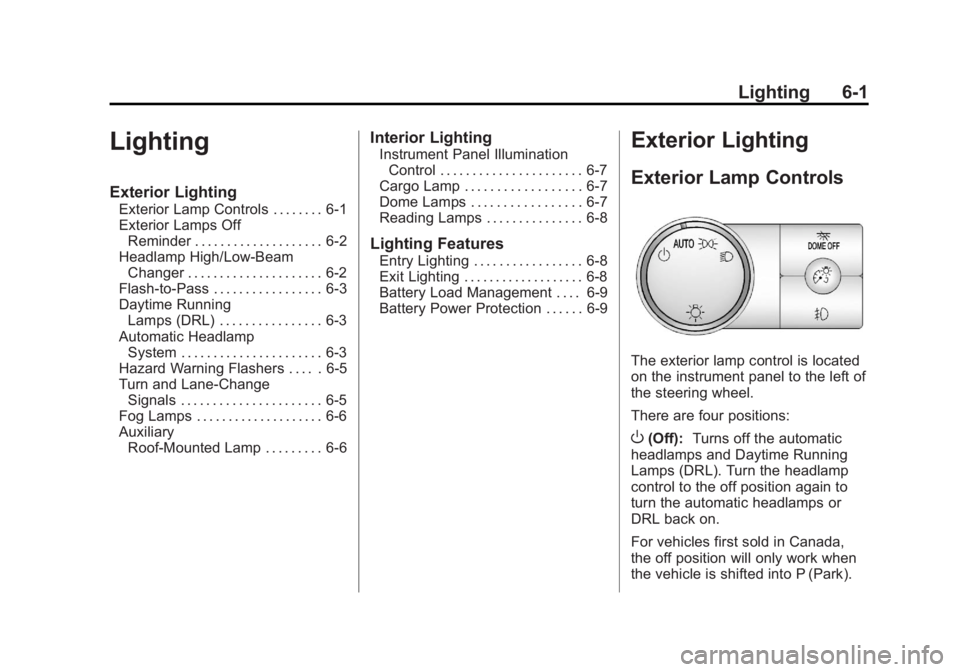
The exterior lamp control is located
on the instrument panel to the left of
the steering wheel.
There are four positions:
O(Off): Turns off the automatic
headlamps and Daytime Running
Lamps (DRL). Turn the headlamp
control to the off position again to
turn the automatic headlamps or
DRL back on.
For vehicles first sold in Canada,
the off position will only work when
the vehicle is shifted into P (Park).
Page 192 of 534
Black plate (2,1)GMC Sierra Owner Manual - 2013 - crc - 8/14/12
6-2 Lighting
AUTO (Automatic):Automatically
turns on the headlamps at normal
brightness, together with the
following:
.Parking Lamps
.Instrument Panel Lights
.Taillamps
.License Plate Lamps
.Roof Marker Lamps (If
Equipped)
When the vehicle is turned off and
the headlamps are in AUTO, the
headlamps may automatically
remain on for a set time. The time of
the delay can be changed using the
DIC. See Driver Information Center
(DIC) on page 5‑28.
;(Parking Lamps): Turns on the
parking lamps together with the
following:
.Instrument Panel Lights
.Taillamps
.License Plate Lamps
.Roof Marker Lamps (If
Equipped)
2(Headlamps): Turns on the
headlamps together with the
following:
.Parking Lamps
.Instrument Panel Lights
.Taillamps
.License Plate Lamps
.Roof Marker Lamps (If
Equipped)
When the headlamps are turned on
while the vehicle is on, the
headlamps turn off automatically
10 minutes after the ignition is
turned off. When the headlamps are
turned on while the vehicle is off,
the headlamps will stay on for
10 minutes before automatically
turning off to prevent the battery
from being drained. Turn the
headlamp control to off and then
back to the headlamp on position to
make the headlamps stay on for an
additional 10 minutes. Push the turn signal lever toward
the instrument panel to change the
headlamps from low beam to
high beam.
Exterior Lamps Off
Reminder
For vehicles with a radio, a reminder
chime sounds when the headlamps
or parking lamps are manually
turned on, the ignition is off, and a
door is open. To disable the chime,
turn the lamp off.
Headlamp High/
Low-Beam Changer
5 3
(Headlamp High/Low Beam
Changer): To change the
headlamps from low to high beam,
push the turn signal lever toward the
instrument panel. To return to
low-beam headlamps, pull the lever
toward you. Then release it.
Page 193 of 534
Black plate (3,1)GMC Sierra Owner Manual - 2013 - crc - 8/14/12
Lighting 6-3
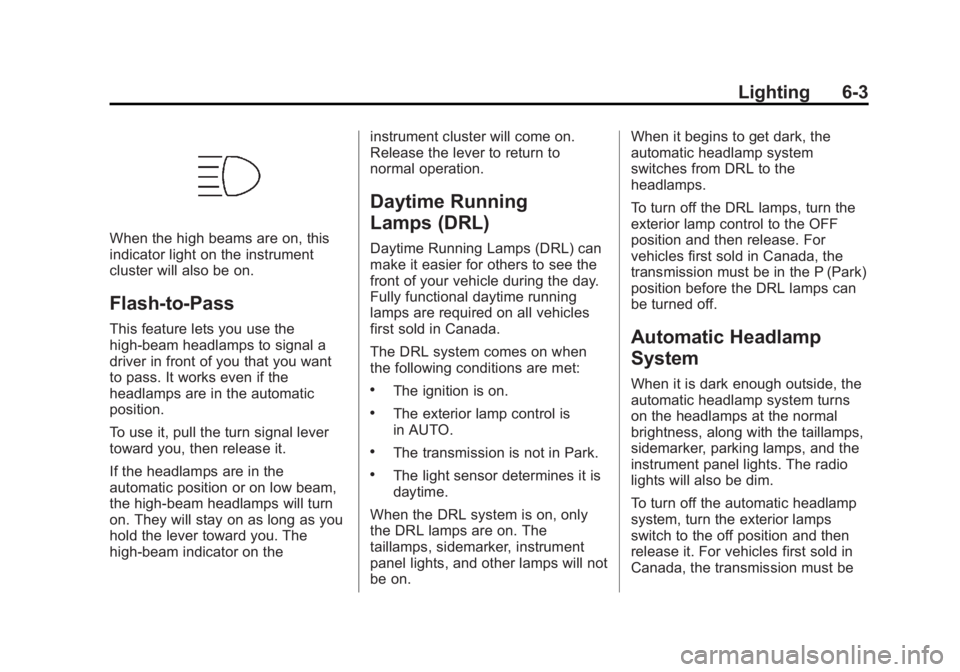
When the high beams are on, this
indicator light on the instrument
cluster will also be on.
Flash-to-Pass
This feature lets you use the
high-beam headlamps to signal a
driver in front of you that you want
to pass. It works even if the
headlamps are in the automatic
position.
To use it, pull the turn signal lever
toward you, then release it.
If the headlamps are in the
automatic position or on low beam,
the high-beam headlamps will turn
on. They will stay on as long as you
hold the lever toward you. The
high-beam indicator on theinstrument cluster will come on.
Release the lever to return to
normal operation.
Daytime Running
Lamps (DRL)
Daytime Running Lamps (DRL) can
make it easier for others to see the
front of your vehicle during the day.
Fully functional daytime running
lamps are required on all vehicles
first sold in Canada.
The DRL system comes on when
the following conditions are met:
.The ignition is on.
.The exterior lamp control is
in AUTO.
.The transmission is not in Park.
.The light sensor determines it is
daytime.
When the DRL system is on, only
the DRL lamps are on. The
taillamps, sidemarker, instrument
panel lights, and other lamps will not
be on. When it begins to get dark, the
automatic headlamp system
switches from DRL to the
headlamps.
To turn off the DRL lamps, turn the
exterior lamp control to the OFF
position and then release. For
vehicles first sold in Canada, the
transmission must be in the P (Park)
position before the DRL lamps can
be turned off.
Automatic Headlamp
System
When it is dark enough outside, the
automatic headlamp system turns
on the headlamps at the normal
brightness, along with the taillamps,
sidemarker, parking lamps, and the
instrument panel lights. The radio
lights will also be dim.
To turn off the automatic headlamp
system, turn the exterior lamps
switch to the off position and then
release it. For vehicles first sold in
Canada, the transmission must be
Page 195 of 534
Black plate (5,1)GMC Sierra Owner Manual - 2013 - crc - 8/14/12
Lighting 6-5
Lights On with Wipers
If the windshield wipers are
activated in daylight with the engine
on, and the exterior lamp control is
in AUTO, the headlamps, parking
lamps, and other exterior lamps
come on. The transition time for the
lamps coming on varies based on
wiper speed. When the wipers are
not operating, these lamps turn off.
Move the exterior lamp control to
P
or;to disable this feature.
Hazard Warning Flashers
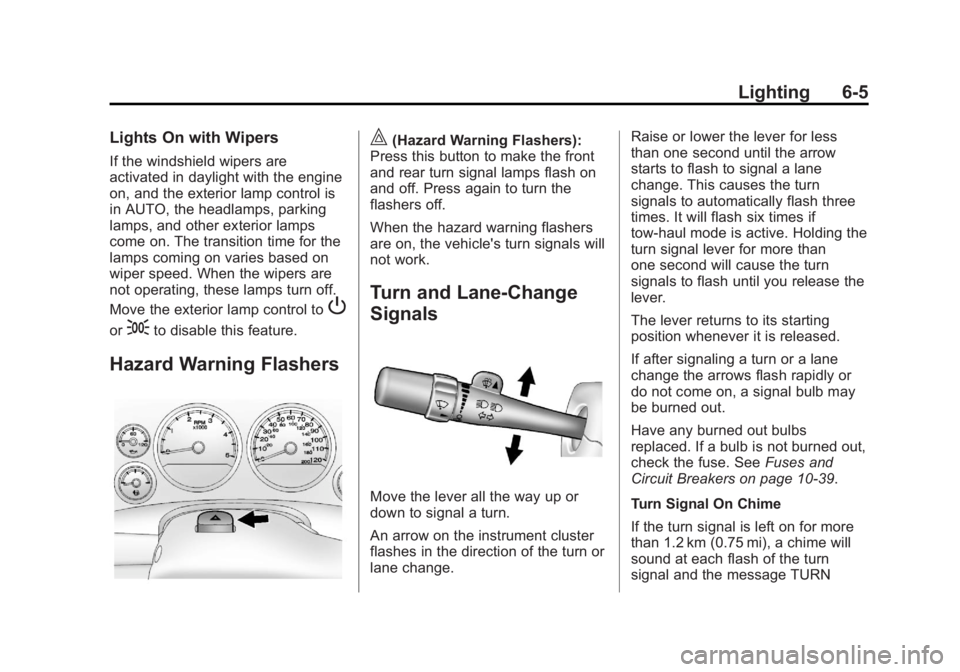
|(Hazard Warning Flashers):
Press this button to make the front
and rear turn signal lamps flash on
and off. Press again to turn the
flashers off.
When the hazard warning flashers
are on, the vehicle's turn signals will
not work.
Turn and Lane-Change
Signals
Move the lever all the way up or
down to signal a turn.
An arrow on the instrument cluster
flashes in the direction of the turn or
lane change. Raise or lower the lever for less
than one second until the arrow
starts to flash to signal a lane
change. This causes the turn
signals to automatically flash three
times. It will flash six times if
tow-haul mode is active. Holding the
turn signal lever for more than
one second will cause the turn
signals to flash until you release the
lever.
The lever returns to its starting
position whenever it is released.
If after signaling a turn or a lane
change the arrows flash rapidly or
do not come on, a signal bulb may
be burned out.
Have any burned out bulbs
replaced. If a bulb is not burned out,
check the fuse. See
Fuses and
Circuit Breakers on page 10‑39.
Turn Signal On Chime
If the turn signal is left on for more
than 1.2 km (0.75 mi), a chime will
sound at each flash of the turn
signal and the message TURN
Page 196 of 534
Black plate (6,1)GMC Sierra Owner Manual - 2013 - crc - 8/14/12
6-6 Lighting
SIGNAL ON will also appear in the
Driver Information Control (DIC). To
turn the chime and message off,
move the turn signal lever to the off
position.
Fog Lamps
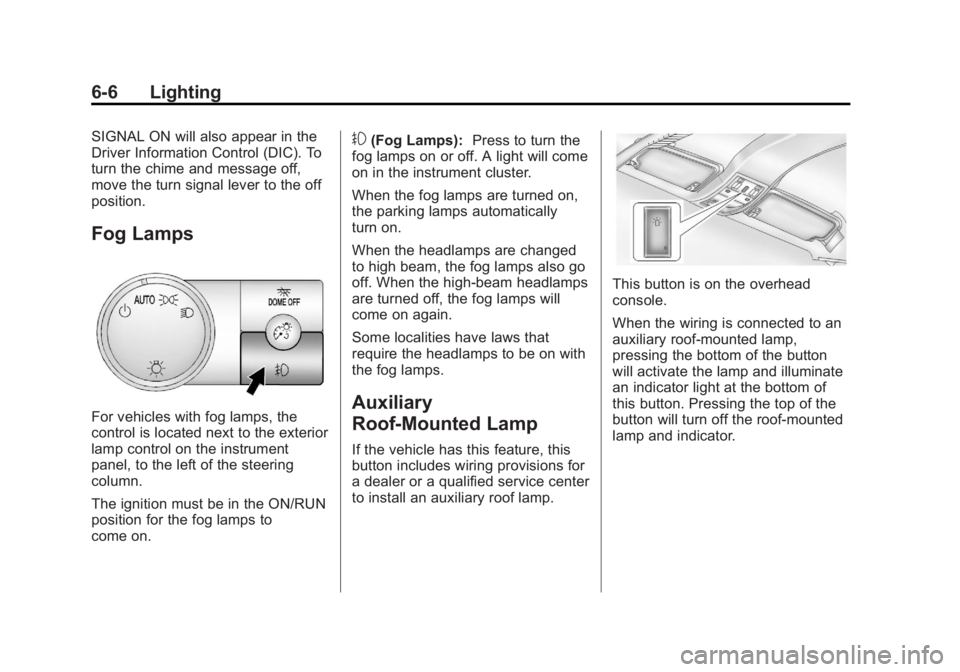
For vehicles with fog lamps, the
control is located next to the exterior
lamp control on the instrument
panel, to the left of the steering
column.
The ignition must be in the ON/RUN
position for the fog lamps to
come on.
#(Fog Lamps):Press to turn the
fog lamps on or off. A light will come
on in the instrument cluster.
When the fog lamps are turned on,
the parking lamps automatically
turn on.
When the headlamps are changed
to high beam, the fog lamps also go
off. When the high-beam headlamps
are turned off, the fog lamps will
come on again.
Some localities have laws that
require the headlamps to be on with
the fog lamps.
Auxiliary
Roof-Mounted Lamp
If the vehicle has this feature, this
button includes wiring provisions for
a dealer or a qualified service center
to install an auxiliary roof lamp.
This button is on the overhead
console.
When the wiring is connected to an
auxiliary roof-mounted lamp,
pressing the bottom of the button
will activate the lamp and illuminate
an indicator light at the bottom of
this button. Pressing the top of the
button will turn off the roof-mounted
lamp and indicator.
Page 211 of 534
Black plate (11,1)GMC Sierra Owner Manual - 2013 - crc - 8/14/12
Infotainment System 7-11
display and artist information
displays on the bottom line. When
information is not available,“NO
INFO” displays.
Finding a Station
BAND: Press to switch between
AM, FM, or SiriusXM®, if equipped.
f(Tune): Turn to manually select
radio stations.
©SEEK: Press to seek the
previous radio station. Press and
hold for a few seconds until a beep
sounds to scan for radio stations in
descending order; press the
©
SEEK button again to stop scanning
radio stations. The radio only seeks
and scans stations with a strong
signal that are in the selected band.
For the AM-FM Radio, press and
hold the
©SEEK for four seconds
until a double beep sounds to scan
the preset stations. The station
frequency flashes while the radio is
in the scan mode.
¨SEEK: Press to seek the next
radio station. Press and hold for a
few seconds until a beep sounds to
scan for radio stations in ascending
order; press the
¨SEEK button
again to stop scanning radio
stations. The radio only seeks and
scans stations with a strong signal
that are in the selected band.
For the AM-FM Radio, press and
hold the
¨SEEK for four seconds
until a double beep sounds to scan
the preset stations. The station
frequency flashes while the radio is
in the scan mode.
sREV: Press to manually tune to
a radio station in descending order.
\FWD: Press to manually tune to
a radio station in ascending order.
FAV (Favorites): Press to select
different favorites pages for stored
radio stations.
Storing Radio Stations
Drivers are encouraged to store the
radio station while the vehicle is
parked; see Defensive Driving on
page 9‑3. Tune to stored radio
stations using the presets, favorites
button, and steering wheel controls,
if the vehicle has this feature.
Radios that have a FAV button store
radio stations as favorites. Up to
36 stations can be programmed as
favorites using the six softkeys
below the radio station frequency
tabs and by using the FAV button.
Press the FAV button to go through
up to six pages of favorites, each
having six favorite stations available
per page. Each page of favorites
can contain any combination of AM,
FM, or SiriusXM, if equipped,
stations.
Radios that do not have a FAV
button store radio stations as
presets. Up to 18 stations (6 FM1,
6 FM2, and 6 AM), can be
programmed on the six numbered
pushbuttons.
Page 214 of 534
Black plate (14,1)GMC Sierra Owner Manual - 2013 - crc - 8/14/12
7-14 Infotainment System
Storing SiriusXM Channels
Drivers are encouraged to store
SiriusXM channels while the vehicle
is parked; seeDefensive Driving on
page 9‑3. Tune to stored radio
stations using the presets, favorites
button, and steering wheel controls,
if the vehicle has this feature.
Up to 36 stations can be
programmed as favorites using the
six softkeys below the radio station
frequency tabs and by using the
FAV button. Press the FAV button to
go through up to six pages of
favorites, each having six favorite
stations available per page. Each
page of favorites can contain any
combination of AM, FM,
or SiriusXM, if equipped, stations.
Storing an SiriusXM Channel as a
Favorite
To store a station as a favorite:
1. Tune to an SiriusXM channel.
2. Press the FAV button to display the page where the station will
be stored. 3. Press and hold one of the six
softkeys until a beep sounds.
4. Repeat Steps 1 through 3 to store additional radio stations.
The number of favorites pages can
be set up using the MENU button.
To set up the number of favorites
pages:
1. Press the MENU button.
2. Press the softkey located below the FAV 1-6 tab.
3. Select the number of favorites pages by pressing the softkey
located below the displayed
page numbers.
4. Press the FAV button, or let the menu time out, to return to the
original main radio screen
showing the radio station
frequency tabs and to begin the
process of programming
favorites.
SiriusXM Radio Messages
XL (Explicit Language
Channels): These channels, or any
others, can be blocked at a
customer's request, by calling
1-866-635-2349 (US) or
1-877-209-0079 (Canada).
XM Updating: The encryption code
in the receiver is being updated, and
no action is required. This process
should take no longer than
30 seconds.
No XM Signal: The system is
functioning correctly, but the vehicle
is in a location that is blocking the
SiriusXM signal. When the vehicle is
moved into an open area, the signal
should return.
Loading XM: The audio system is
acquiring and processing audio and
text data. No action is needed. This
message should disappear shortly.
Channel Off Air: This channel is
not currently in service. Tune in to
another channel.
Page 216 of 534
Black plate (16,1)GMC Sierra Owner Manual - 2013 - crc - 8/14/12
7-16 Infotainment System
interference or static, unplug the
item from the accessory power
outlet.
AM
The range for most AM stations is
greater than for FM, especially at
night. The longer range can cause
station frequencies to interfere with
each other. For better radio
reception, most AM radio stations
boost the power levels during the
day, and then reduce these levels
during the night. Static can also
occur when things like storms and
power lines interfere with radio
reception. When this happens, try
reducing the treble on the radio.
FM Stereo
FM signals only reach about
16 to 65 km (10 to 40 mi). Although
the radio has a built-in electronic
circuit that automatically works to
reduce interference, some static can
occur, especially around tall
buildings or hills, causing the sound
to fade in and out.
SiriusXM®Satellite Radio
Service
SiriusXM Satellite Radio Service
gives digital radio reception from
coast to coast in the 48 contiguous
United States, and in Canada. Just
as with FM, tall buildings or hills can
interfere with satellite radio signals,
causing the sound to fade in and
out. In addition, traveling or standing
under heavy foliage, bridges,
garages, or tunnels may cause loss
of the SiriusXM signal for a period
of time.
Cellular Phone Usage
Cellular phone usage may cause
interference with the vehicle's radio.
This interference may occur when
making or receiving phone calls,
charging the phone's battery,
or simply having the phone on. This
interference causes an increased
level of static while listening to the
radio. If static is received while
listening to the radio, unplug the
cellular phone and turn it off.
Fixed Mast Antenna
The fixed mast antenna can
withstand most car washes without
being damaged as long as it is
securely attached to the base. If the
mast becomes slightly bent,
straighten it out by hand. If the mast
is badly bent, replace it.
Occasionally check to make sure
the antenna is tightened to its base.
If tightening is required, tighten by
hand until fully seated plus
one quarter turn.
Satellite Radio Antenna
The XM Satellite Radio antenna is
located on the roof of the vehicle.
Keep the antenna clear of
obstructions for clear radio
reception.
If the vehicle has a sunroof, the
performance of the XM system (if
equipped) may be affected if the
sunroof is open.
Page 239 of 534
Black plate (39,1)GMC Sierra Owner Manual - 2013 - crc - 8/14/12
Infotainment System 7-39
The RSE includes two 2-channel
wireless headphones that are
dedicated to this system. Channel 1
is dedicated to the video screen,
while Channel 2 is dedicated to
Rear Seat Audio (RSA) selections.
These headphones can be used to
listen to the radio, CDs, DVDs,
MP3s, DVD-As, or any auxiliary
source connected to A/V jacks or
the auxiliary input jack, if the vehicle
has this feature. The wireless
headphones have a power button,
channel 1 or 2 switch, and a volume
control.
Push the power button to turn on
the headphones. An indicator light
located on the headphones comes
on. If the light comes on, but there
is intermittent sound and/or static on
the headphones, or if the indicator
light does not come on, the batteries
might need to be replaced. See
“Battery Replacement”later in this
section for more information. Switch
the headphones to Off when not
in use. Infrared transmitters are located at
the rear of the overhead console.
The headphones shut off
automatically to save the battery
power if the RSE system and RSA
are shut off, or if the headphones
are out of range of the transmitters
for more than three minutes. If you
move too far forward or step out of
the vehicle, the headphones lose
the audio signal.
To adjust the volume on the
headphones, use the volume control
located on the right side.
For optimal audio performance, the
headphones must be worn correctly.
Headphones should be worn with
the headband over the top of the
head for best audio reception. The
symbol L (Left) appears on the
outside bottom edge of the ear cup
and should be positioned on the left
ear. The symbol R (Right) appears
on the outside bottom edge of the
ear cup and should be positioned on
the right ear.
Notice:
Do not store the
headphones in heat or direct
sunlight. This could damage the
headphones and repairs will not
be covered by the warranty.
Storage in extreme cold can
weaken the batteries. Keep the
headphones stored in a cool, dry
place.
If the foam ear pads attached to the
headphones become worn or
damaged, the pads can be replaced
separately from the headphone set.
To purchase replacement ear pads,
call 1-888-293-3332, then prompt
zero (0), or contact your dealer.
Battery Replacement
To change the batteries on the
headphones:
1. Turn the screw to loosen the battery door located on the left
side of the headphones. Slide
the battery door open.