remote start GMC SIERRA 2013 Owner's Guide
[x] Cancel search | Manufacturer: GMC, Model Year: 2013, Model line: SIERRA, Model: GMC SIERRA 2013Pages: 534, PDF Size: 6.47 MB
Page 232 of 534
Black plate (32,1)GMC Sierra Owner Manual - 2013 - crc - 8/14/12
7-32 Infotainment System
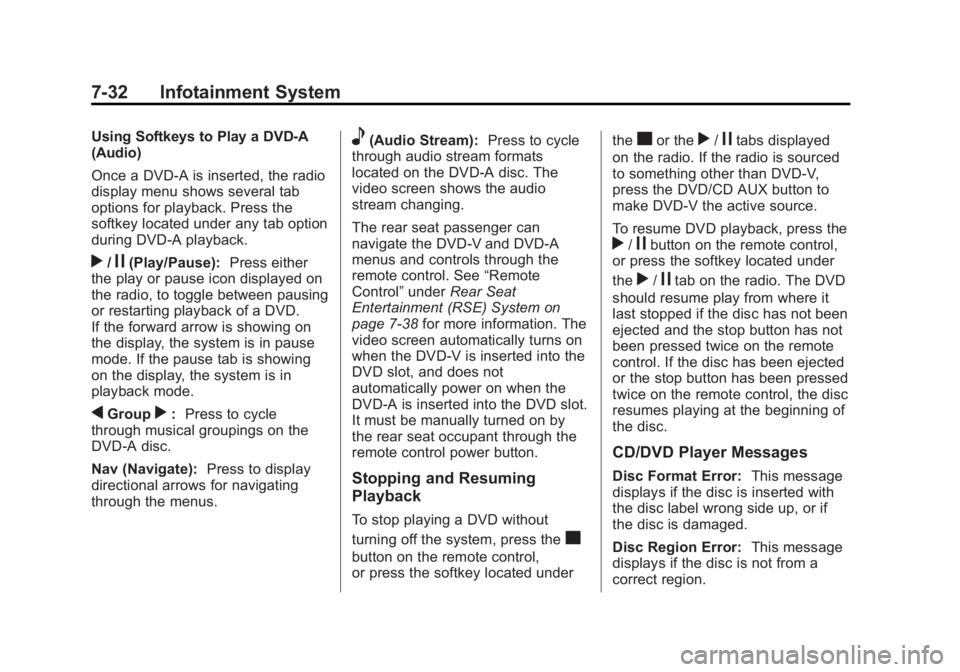
Using Softkeys to Play a DVD-A
(Audio)
Once a DVD-A is inserted, the radio
display menu shows several tab
options for playback. Press the
softkey located under any tab option
during DVD-A playback.
r/j(Play/Pause):Press either
the play or pause icon displayed on
the radio, to toggle between pausing
or restarting playback of a DVD.
If the forward arrow is showing on
the display, the system is in pause
mode. If the pause tab is showing
on the display, the system is in
playback mode.
qGroupr: Press to cycle
through musical groupings on the
DVD-A disc.
Nav (Navigate): Press to display
directional arrows for navigating
through the menus.
e(Audio Stream): Press to cycle
through audio stream formats
located on the DVD-A disc. The
video screen shows the audio
stream changing.
The rear seat passenger can
navigate the DVD-V and DVD-A
menus and controls through the
remote control. See “Remote
Control” underRear Seat
Entertainment (RSE) System on
page 7‑38 for more information. The
video screen automatically turns on
when the DVD-V is inserted into the
DVD slot, and does not
automatically power on when the
DVD-A is inserted into the DVD slot.
It must be manually turned on by
the rear seat occupant through the
remote control power button.
Stopping and Resuming
Playback
To stop playing a DVD without
turning off the system, press the
c
button on the remote control,
or press the softkey located under the
cor ther/jtabs displayed
on the radio. If the radio is sourced
to something other than DVD-V,
press the DVD/CD AUX button to
make DVD-V the active source.
To resume DVD playback, press the
r/jbutton on the remote control,
or press the softkey located under
the
r/jtab on the radio. The DVD
should resume play from where it
last stopped if the disc has not been
ejected and the stop button has not
been pressed twice on the remote
control. If the disc has been ejected
or the stop button has been pressed
twice on the remote control, the disc
resumes playing at the beginning of
the disc.
CD/DVD Player Messages
Disc Format Error: This message
displays if the disc is inserted with
the disc label wrong side up, or if
the disc is damaged.
Disc Region Error: This message
displays if the disc is not from a
correct region.
Page 238 of 534
Black plate (38,1)GMC Sierra Owner Manual - 2013 - crc - 8/14/12
7-38 Infotainment System
Rear Seat
Infotainment
Rear Seat Entertainment
(RSE) System
The vehicle may have a DVD Rear
Seat Entertainment (RSE) system.
The RSE system works with the
vehicle's audio system. The DVD
player is part of the front radio. The
RSE system includes a radio with a
DVD player, a video display screen,
audio/video jacks, two wireless
headphones, and a remote control.
SeeCD/DVD Player on page 7‑23
for more information on the vehicle's
CD/DVD player.
Before Driving
The RSE is designed for rear seat
passengers only. The driver cannot
safely view the video screen while
driving and should not try to do so.
In severe or extreme weather
conditions, the RSE system might
not work until the temperature is within the operating range. The
operating range for the RSE system
is above
−20°C (−4°F) or below
60°C (140°F). If the temperature of
the vehicle is outside this range,
heat or cool the vehicle until the
temperature is within the operating
range of the RSE system.
Parental Control
The RSE system may have a
Parental Control feature, depending
on which radio the vehicle has. To
start Parental Control, press and
hold the radio power button for more
than two seconds to stop all system
features such as: radio, video
screen, Rear Seat Audio (RSA),
DVD, and/or CD. While Parental
Control is on, a padlock icon
displays.
The radio can be turned back on
with a single press of the power
button, but the RSE system will
remain under Parental Control.
To turn Parental Control off, press
and hold the radio power button for
more than two seconds. The RSE returns from where it was previously
left and the padlock icon disappears
from the radio display.
Parental Control can also be turned
off by inserting or ejecting any disc,
pressing the play icon on the radio
DVD display menu, or changing an
ignition position.
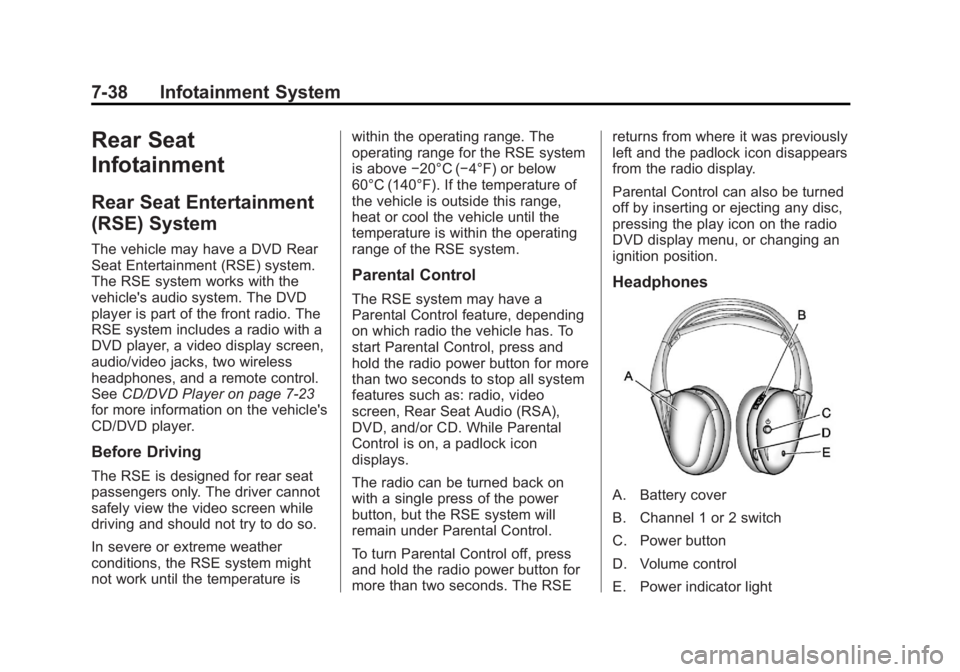
Headphones
A. Battery cover
B. Channel 1 or 2 switch
C. Power button
D. Volume control
E. Power indicator light
Page 242 of 534
Black plate (42,1)GMC Sierra Owner Manual - 2013 - crc - 8/14/12
7-42 Infotainment System
Remote Control
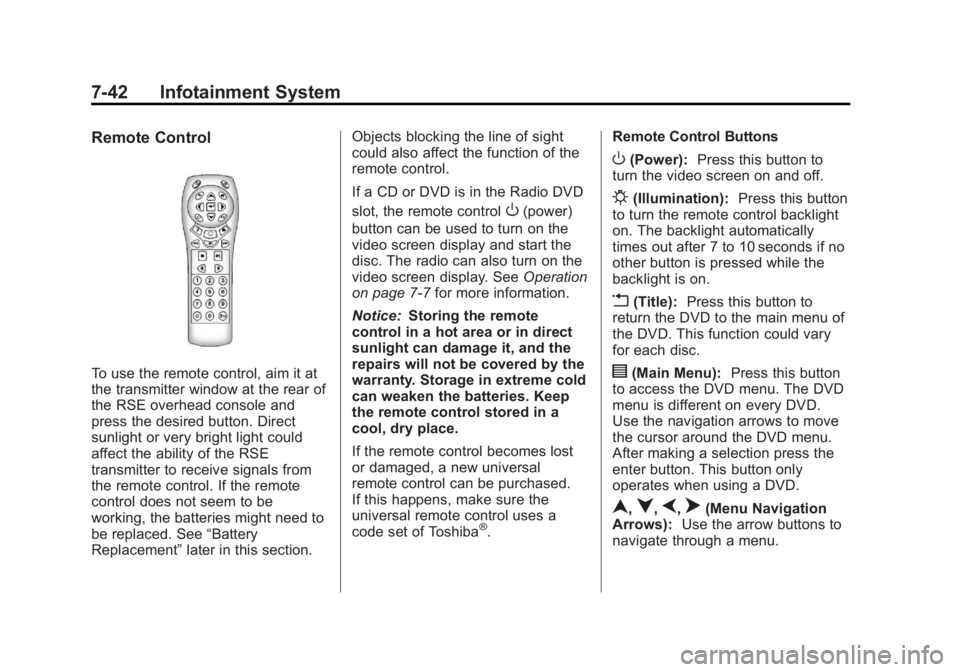
To use the remote control, aim it at
the transmitter window at the rear of
the RSE overhead console and
press the desired button. Direct
sunlight or very bright light could
affect the ability of the RSE
transmitter to receive signals from
the remote control. If the remote
control does not seem to be
working, the batteries might need to
be replaced. See“Battery
Replacement” later in this section. Objects blocking the line of sight
could also affect the function of the
remote control.
If a CD or DVD is in the Radio DVD
slot, the remote control
O(power)
button can be used to turn on the
video screen display and start the
disc. The radio can also turn on the
video screen display. See Operation
on page 7‑7 for more information.
Notice: Storing the remote
control in a hot area or in direct
sunlight can damage it, and the
repairs will not be covered by the
warranty. Storage in extreme cold
can weaken the batteries. Keep
the remote control stored in a
cool, dry place.
If the remote control becomes lost
or damaged, a new universal
remote control can be purchased.
If this happens, make sure the
universal remote control uses a
code set of Toshiba
®. Remote Control Buttons
O(Power):
Press this button to
turn the video screen on and off.
P(Illumination): Press this button
to turn the remote control backlight
on. The backlight automatically
times out after 7 to 10 seconds if no
other button is pressed while the
backlight is on.
v(Title): Press this button to
return the DVD to the main menu of
the DVD. This function could vary
for each disc.
y(Main Menu): Press this button
to access the DVD menu. The DVD
menu is different on every DVD.
Use the navigation arrows to move
the cursor around the DVD menu.
After making a selection press the
enter button. This button only
operates when using a DVD.
n,q,p,o(Menu Navigation
Arrows): Use the arrow buttons to
navigate through a menu.
Page 245 of 534
Black plate (45,1)GMC Sierra Owner Manual - 2013 - crc - 8/14/12
Infotainment System 7-45
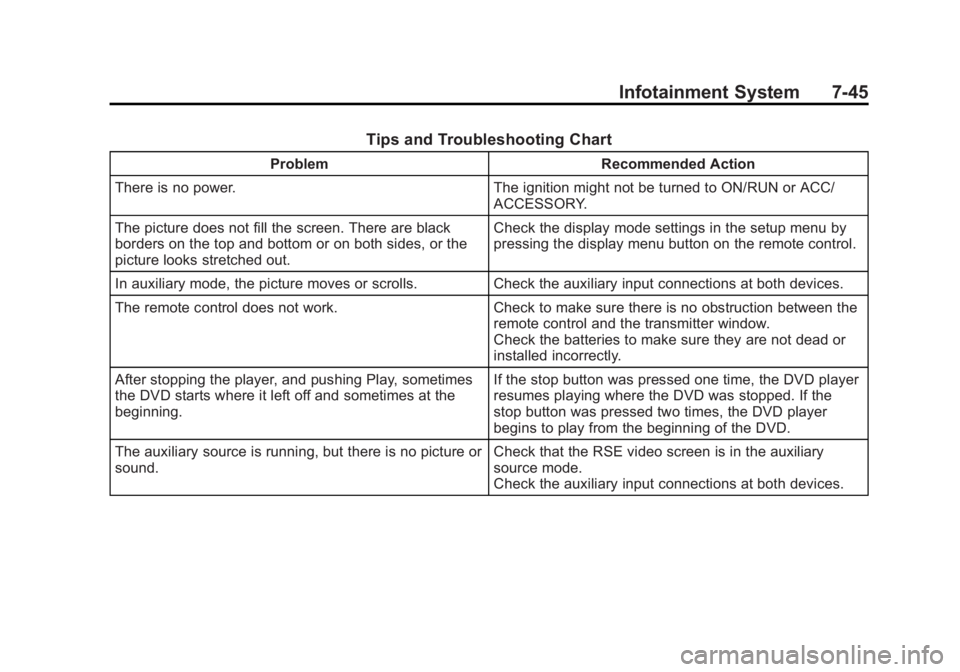
Tips and Troubleshooting Chart
ProblemRecommended Action
There is no power. The ignition might not be turned to ON/RUN or ACC/
ACCESSORY.
The picture does not fill the screen. There are black
borders on the top and bottom or on both sides, or the
picture looks stretched out. Check the display mode settings in the setup menu by
pressing the display menu button on the remote control.
In auxiliary mode, the picture moves or scrolls. Check the auxiliary input connections at both devices.
The remote control does not work. Check to make sure there is no obstruction between the
remote control and the transmitter window.
Check the batteries to make sure they are not dead or
installed incorrectly.
After stopping the player, and pushing Play, sometimes
the DVD starts where it left off and sometimes at the
beginning. If the stop button was pressed one time, the DVD player
resumes playing where the DVD was stopped. If the
stop button was pressed two times, the DVD player
begins to play from the beginning of the DVD.
The auxiliary source is running, but there is no picture or
sound. Check that the RSE video screen is in the auxiliary
source mode.
Check the auxiliary input connections at both devices.
Page 376 of 534
Black plate (6,1)GMC Sierra Owner Manual - 2013 - crc - 8/14/12
10-6 Vehicle Care
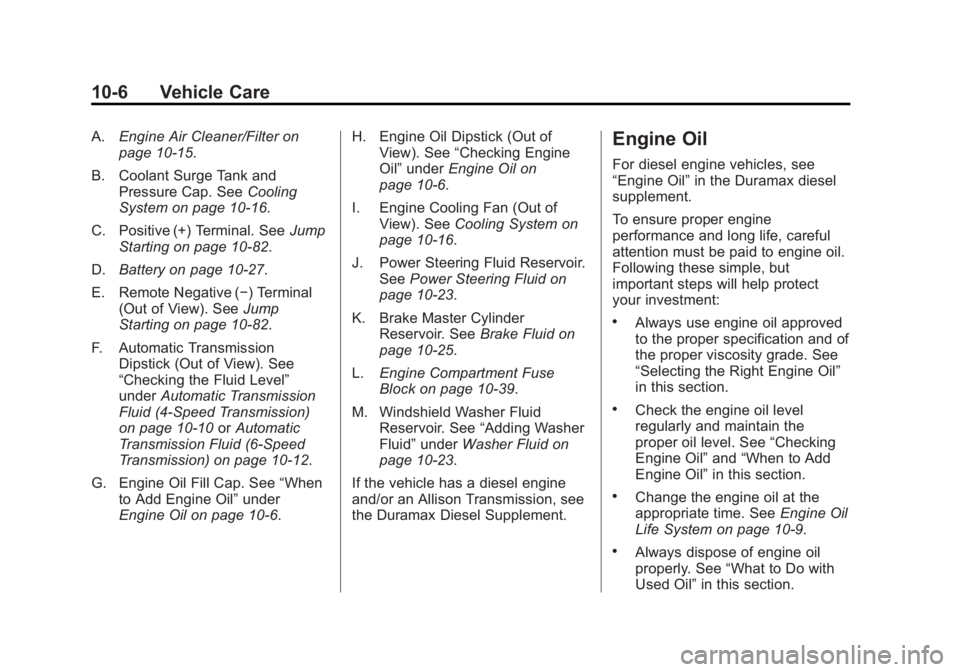
A.Engine Air Cleaner/Filter on
page 10‑15.
B. Coolant Surge Tank and Pressure Cap. See Cooling
System on page 10‑16.
C. Positive (+) Terminal. See Jump
Starting on page 10‑82.
D. Battery on page 10‑27.
E. Remote Negative (−) Terminal (Out of View). See Jump
Starting on page 10‑82.
F. Automatic Transmission Dipstick (Out of View). See
“Checking the Fluid Level”
under Automatic Transmission
Fluid (4-Speed Transmission)
on page 10‑10 orAutomatic
Transmission Fluid (6-Speed
Transmission) on page 10‑12.
G. Engine Oil Fill Cap. See “When
to Add Engine Oil” under
Engine Oil on page 10‑6. H. Engine Oil Dipstick (Out of
View). See “Checking Engine
Oil” under Engine Oil on
page 10‑6.
I. Engine Cooling Fan (Out of View). See Cooling System on
page 10‑16.
J. Power Steering Fluid Reservoir. See Power Steering Fluid on
page 10‑23.
K. Brake Master Cylinder Reservoir. See Brake Fluid on
page 10‑25.
L. Engine Compartment Fuse
Block on page 10‑39.
M. Windshield Washer Fluid Reservoir. See “Adding Washer
Fluid” under Washer Fluid on
page 10‑23.
If the vehicle has a diesel engine
and/or an Allison Transmission, see
the Duramax Diesel Supplement.Engine Oil
For diesel engine vehicles, see
“Engine Oil” in the Duramax diesel
supplement.
To ensure proper engine
performance and long life, careful
attention must be paid to engine oil.
Following these simple, but
important steps will help protect
your investment:
.Always use engine oil approved
to the proper specification and of
the proper viscosity grade. See
“Selecting the Right Engine Oil”
in this section.
.Check the engine oil level
regularly and maintain the
proper oil level. See “Checking
Engine Oil” and“When to Add
Engine Oil” in this section.
.Change the engine oil at the
appropriate time. See Engine Oil
Life System on page 10‑9.
.Always dispose of engine oil
properly. See “What to Do with
Used Oil” in this section.
Page 430 of 534
Black plate (60,1)GMC Sierra Owner Manual - 2013 - crc - 8/14/12
10-60 Vehicle Care
.Operating electronic devices or
being near facilities using radio
wave frequencies similar to the
TPMS could cause the TPMS
sensors to malfunction.
If the TPMS is not functioning
properly, it cannot detect or signal a
low tire condition. See your dealer
for service if the TPMS malfunction
light and DIC message come on
and stay on.
TPMS Sensor Matching
Process
Each TPMS sensor has a unique
identification code. The identification
code needs to be matched to a new
tire/wheel position after rotating the
vehicle’s tires or replacing one or
more of the TPMS sensors. Also,
the TPMS sensor matching process
should be performed after replacing
a spare tire with a road tire
containing the TPMS sensor. The
malfunction light and the DIC
message should go off at the next
ignition cycle. The sensors are
matched to the tire/wheel positions, using a TPMS relearn tool, in the
following order: driver side front tire,
passenger side front tire, passenger
side rear tire, and driver side rear.
See your dealer for service or to
purchase a relearn tool.
There are two minutes to match the
first tire/wheel position, and
five minutes overall to match all four
tire/wheel positions. If it takes
longer, the matching process stops
and must be restarted.
The TPMS sensor matching
process is:
1. Set the parking brake.
2. Turn the ignition to ON/RUN with
the engine off.
3. Press the Remote Keyless Entry (RKE) transmitter's
QandK
buttons at the same time for
approximately five seconds. The
horn sounds twice to signal the receiver is in relearn mode and
the TIRE LEARNING ACTIVE
message displays on the DIC
screen.
If the vehicle does not have
RKE, press the Driver
Information Center (DIC) vehicle
information button until the
PRESS
VTO RELEARN TIRE
POSITIONS message displays.
The horn sounds twice to signal
the receiver is in relearn mode
and TIRE LEARNING ACTIVE
message displays on the DIC
screen.
If the vehicle does not have RKE
or DIC buttons, press the trip
odometer reset stem on the
instrument cluster until the
PRESS
VTO RELEARN TIRE
POSITIONS message displays.
The horn sounds twice to signal
the receiver is in relearn mode
and TIRE LEARNING ACTIVE
message displays on the DIC
screen.
Page 454 of 534
Black plate (84,1)GMC Sierra Owner Manual - 2013 - crc - 8/14/12
10-84 Vehicle Care
5. Open the hood on the othervehicle and locate the
positive (+) and negative (−)
terminal locations on that
vehicle.
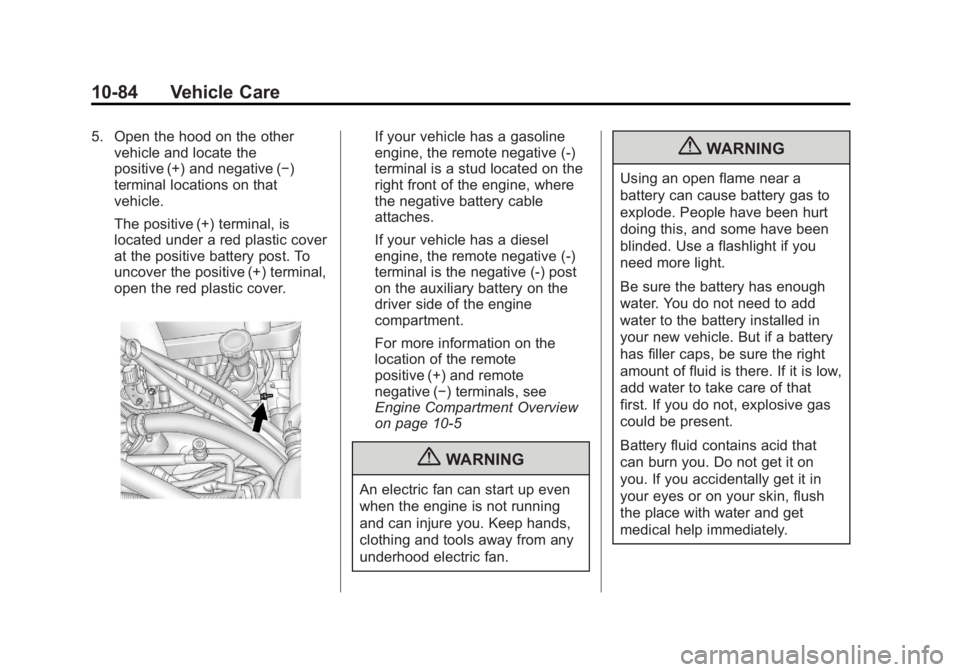
The positive (+) terminal, is
located under a red plastic cover
at the positive battery post. To
uncover the positive (+) terminal,
open the red plastic cover.If your vehicle has a gasoline
engine, the remote negative (-)
terminal is a stud located on the
right front of the engine, where
the negative battery cable
attaches.
If your vehicle has a diesel
engine, the remote negative (-)
terminal is the negative (-) post
on the auxiliary battery on the
driver side of the engine
compartment.
For more information on the
location of the remote
positive (+) and remote
negative (−) terminals, see
Engine Compartment Overview
on page 10‑5
{WARNING
An electric fan can start up even
when the engine is not running
and can injure you. Keep hands,
clothing and tools away from any
underhood electric fan.
{WARNING
Using an open flame near a
battery can cause battery gas to
explode. People have been hurt
doing this, and some have been
blinded. Use a flashlight if you
need more light.
Be sure the battery has enough
water. You do not need to add
water to the battery installed in
your new vehicle. But if a battery
has filler caps, be sure the right
amount of fluid is there. If it is low,
add water to take care of that
first. If you do not, explosive gas
could be present.
Battery fluid contains acid that
can burn you. Do not get it on
you. If you accidentally get it in
your eyes or on your skin, flush
the place with water and get
medical help immediately.
Page 455 of 534
Black plate (85,1)GMC Sierra Owner Manual - 2013 - crc - 8/14/12
Vehicle Care 10-85
{WARNING
Fans or other moving engine
parts can injure you badly. Keep
your hands away from moving
parts once the engine is running.
6. Check that the jumper cables do not have loose or missing
insulation. If they do, you could
get a shock. The vehicles could
be damaged too.
Before you connect the cables,
here are some basic things you
should know. Positive (+) will go
to positive (+) or to a remote
positive (+) terminal if the vehicle
has one. Negative (−) will go to a
heavy, unpainted metal engine
part or to a remote negative (−)
terminal if the vehicle has one. Do not connect positive (+) to
negative (−) or you will get a
short that would damage the
battery and maybe other parts
too. And do not connect the
negative (−) cable to the
negative (−) terminal on the dead
battery because this can cause
sparks.
5.3L Engine (4.3L, 4.8L, 6.0L, 6.2L
and 6.6L Similar)
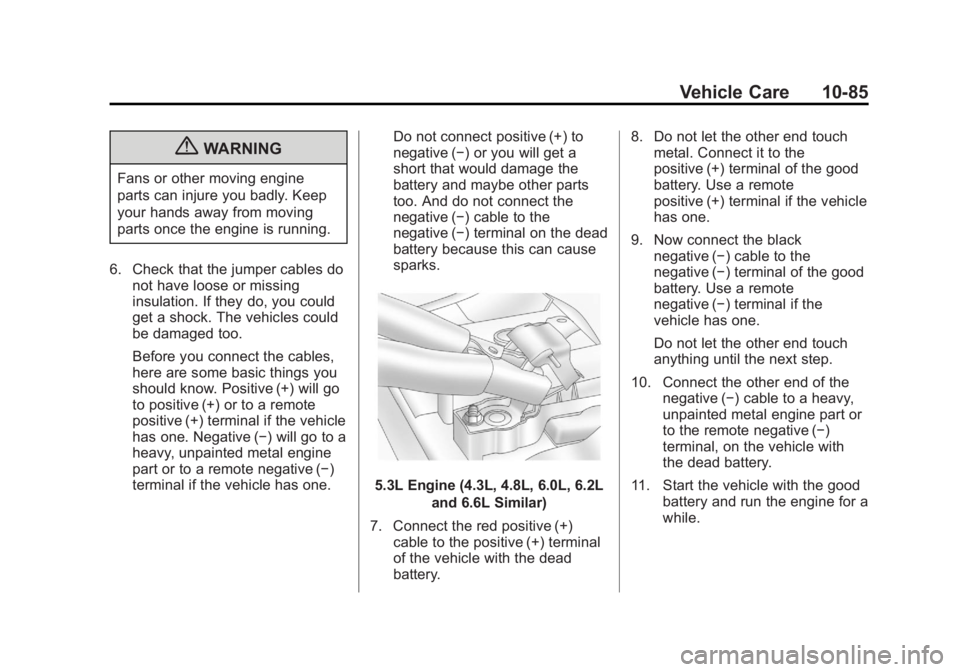
7. Connect the red positive (+) cable to the positive (+) terminal
of the vehicle with the dead
battery. 8. Do not let the other end touch
metal. Connect it to the
positive (+) terminal of the good
battery. Use a remote
positive (+) terminal if the vehicle
has one.
9. Now connect the black negative (−) cable to the
negative (−) terminal of the good
battery. Use a remote
negative (−) terminal if the
vehicle has one.
Do not let the other end touch
anything until the next step.
10. Connect the other end of the negative (−) cable to a heavy,
unpainted metal engine part or
to the remote negative (−)
terminal, on the vehicle with
the dead battery.
11. Start the vehicle with the good battery and run the engine for a
while.
Page 456 of 534
Black plate (86,1)GMC Sierra Owner Manual - 2013 - crc - 8/14/12
10-86 Vehicle Care
12. Try to start the vehicle that hadthe dead battery. If it will not
start after a few tries, it
probably needs service.
Notice: If the jumper cables are
connected or removed in the
wrong order, electrical shorting
may occur and damage the
vehicle. The repairs would not be
covered by the vehicle warranty.
Always connect and remove the
jumper cables in the correct
order, making sure that the
cables do not touch each other or
other metal.
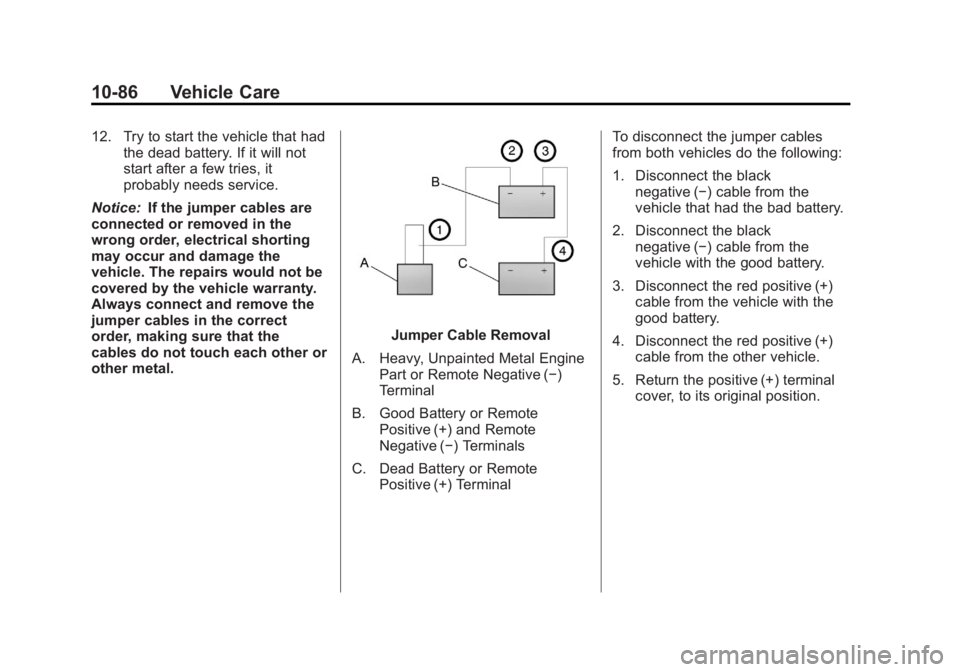
Jumper Cable Removal
A. Heavy, Unpainted Metal Engine Part or Remote Negative (−)
Terminal
B. Good Battery or Remote Positive (+) and Remote
Negative (−) Terminals
C. Dead Battery or Remote Positive (+) Terminal To disconnect the jumper cables
from both vehicles do the following:
1. Disconnect the black
negative (−) cable from the
vehicle that had the bad battery.
2. Disconnect the black negative (−) cable from the
vehicle with the good battery.
3. Disconnect the red positive (+) cable from the vehicle with the
good battery.
4. Disconnect the red positive (+) cable from the other vehicle.
5. Return the positive (+) terminal cover, to its original position.
Page 512 of 534
Black plate (20,1)GMC Sierra Owner Manual - 2013 - crc - 8/14/12
13-20 Customer Information
if the vehicle is leased, with the
consent of the lessee; in response
to an official request by police or
similar government office; as part of
GM's defense of litigation through
the discovery process; or, as
required by law. Data that GM
collects or receives may also be
used for GM research needs or may
be made available to others for
research purposes, where a need is
shown and the data is not tied to a
specific vehicle or vehicle owner.
OnStar®
If the vehicle is equipped with
OnStar®and has an active
subscription, additional data may be
collected through the OnStar
system. This includes information
about the vehicle’s operation; about
collisions involving the vehicle; the
use of the vehicle and its features;
and, in certain situations, the
location and approximate GPS
speed of the vehicle. Refer to the OnStar Terms and Conditions and
Privacy Statement on the OnStar
website.
Navigation System
If the vehicle is equipped with a
navigation system, use of the
system may result in the storage of
destinations, addresses, telephone
numbers, and other trip information.
See the navigation manual for
information on stored data and for
deletion instructions.
Radio Frequency
Identification (RFID)
RFID technology is used in some
vehicles for functions such as tire
pressure monitoring and ignition
system security, as well as in
connection with conveniences such
as Remote Keyless Entry (RKE)
transmitters for remote door locking/
unlocking and starting, and
in-vehicle transmitters for garage
door openers. RFID technology in
GM vehicles does not use or recordpersonal information or link with any
other GM system containing
personal information.
Radio Frequency
Statement
This vehicle has systems that
operate on a radio frequency that
comply with Part 15 of the Federal
Communications Commission (FCC)
rules and with Industry Canada
Standards RSS‐GEN/210/220/310.
Operation is subject to the following
two conditions:
1. The device may not cause
harmful interference.
2. The device must accept any interference received, including
interference that may cause
undesired operation of the
device.
Changes or modifications to any of
these systems by other than an
authorized service facility could void
authorization to use this equipment.