steering GMC SIERRA 2020 Workshop Manual
[x] Cancel search | Manufacturer: GMC, Model Year: 2020, Model line: SIERRA, Model: GMC SIERRA 2020Pages: 502, PDF Size: 8.04 MB
Page 240 of 502

GMC Sierra/Sierra Denali Owner Manual (GMNA-Localizing-U.S./Canada/
Mexico-13337776) - 2020 - CRC - 4/4/19
Driving and Operating 239
Vehicles with the MODE graphic on
the knob will have a menu selection
screen in the instrument cluster to
select the desired mode. When the
Drive Mode knob is turned to the
right, the mode list will display and
activate the next available mode.If equipped, select Terrain Mode by
pressing the
gbelow the 4m
transfer case button.
Modes:
Normal Mode
Use for normal city and highway
driving to provide a smooth, soft
ride. This mode provides a balanced
setting between comfort and
handling. This is the standard mode
and when selected, there is no
indicator in the instrument cluster.Sport Mode
Use where road conditions or
personal preference demand a more
controlled response.
When you enter this mode you will
immediately feel a down shift. In this
mode, the vehicle also monitors
driving behaviors and automatically
enables Performance Shift Features
when spirited driving is detected.
These features maintain lower
transmission gears to increase
available engine braking and
improve acceleration response. The
vehicle will exit these features and
return to normal operation after a
short period when no spirited driving
is detected. The steering will
change to provide more precise
control. If the vehicle has Magnetic
Ride Control, the suspension will
change to provide better cornering
performance.
When selected, the Sport Mode light
displays in the instrument cluster.
Page 241 of 502

GMC Sierra/Sierra Denali Owner Manual (GMNA-Localizing-U.S./Canada/
Mexico-13337776) - 2020 - CRC - 4/4/19
240 Driving and Operating
Off-Road Mode
Use to improve driving at moderate
speeds, on grass, gravel, dirt,
unpaved roads, or snow-covered
roads that have not been groomed
or plowed.
The accelerator pedal will be more
sensitive to provide finer control of
the torque at the wheels.
StabiliTrak/Electronic Stability
Control (ESC), the Antilock Brake
System (ABS), and the Traction
Control System (TCS) will change
for optimal off-road performance.
Use this mode for public off-road
recreational driving. SeeOff-Road
Driving 0191.
When selected, the Off-Road Mode
indicator light displays in the
instrument cluster. Tow/Haul Mode
This feature assists when pulling a
heavy trailer or a heavy load. See
Tow/Haul Mode
0226.
Tow/Haul Mode is designed to be
most effective when the vehicle and
trailer combined weight is at least
75% of the vehicle’s Gross
Combined Weight Rating (GCWR).
See “Weight of the Trailer” under
Trailer Towing 0292.
Tow/Haul Mode is most useful when
pulling a heavy trailer or a heavy
load under the following conditions:
. Through rolling terrain
. In stop-and-go traffic
. In busy parking lots where
improved low speed control of
the vehicle is desired
Operating the vehicle in Tow/Haul
Mode when lightly loaded or with no
trailer at all will not cause damage.
However, there is no benefit to
selecting Tow/Haul Mode when the
vehicle is unloaded. Such a
selection when unloaded may result
in unpleasant engine and transmission driving characteristics,
heavy or light steering, and reduced
fuel economy.
When selected, the Tow/Haul Mode
light will display in the instrument
cluster.
If the vehicle is turned off with Tow/
Haul Mode active and then restarted
within four hours or less, Tow/Haul
will remain active. Otherwise the
vehicle will start in Normal Mode.
Terrain Mode
Use for finer control during low
speed, off-road driving. When using
this mode it will mimic the
characteristics of four-wheel-drive
low (4
n) without the torque
capabilities.
Page 242 of 502
GMC Sierra/Sierra Denali Owner Manual (GMNA-Localizing-U.S./Canada/
Mexico-13337776) - 2020 - CRC - 4/4/19
Driving and Operating 241
Use when:
.Traveling on very rough roads at
very low speeds, such as a
two-track or heavily rutted road.
. Traveling slowly in grassy fields.
. Pulling a boat out of the water
on a trailer.
. Using the vehicle for public
off-road recreational driving. See
Off-Road Driving 0191 and
Hill and Mountain Roads 0197.
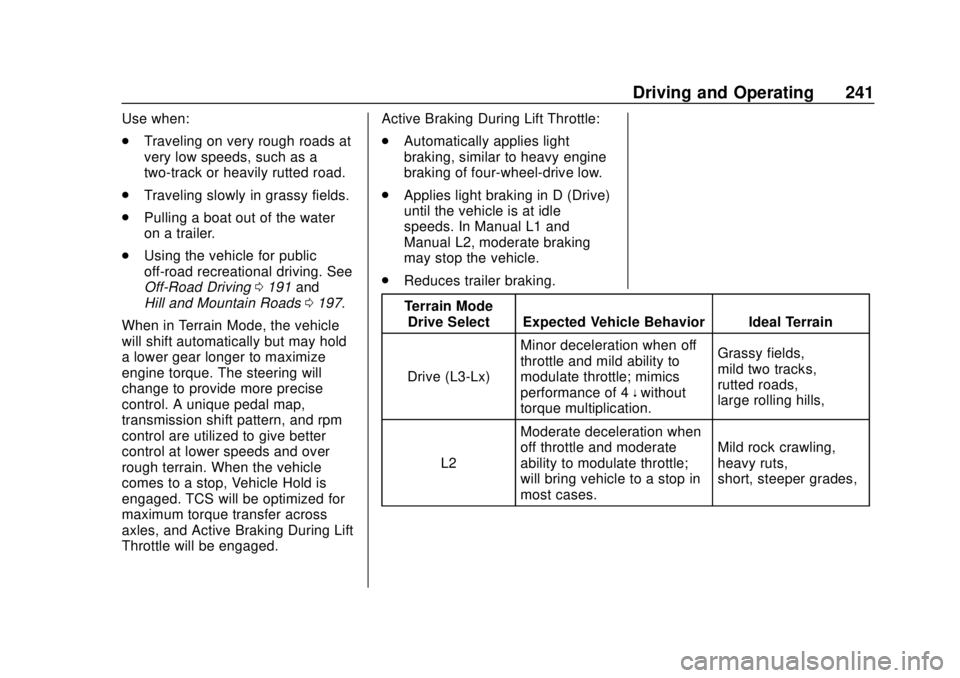
When in Terrain Mode, the vehicle
will shift automatically but may hold
a lower gear longer to maximize
engine torque. The steering will
change to provide more precise
control. A unique pedal map,
transmission shift pattern, and rpm
control are utilized to give better
control at lower speeds and over
rough terrain. When the vehicle
comes to a stop, Vehicle Hold is
engaged. TCS will be optimized for
maximum torque transfer across
axles, and Active Braking During Lift
Throttle will be engaged. Active Braking During Lift Throttle:
.
Automatically applies light
braking, similar to heavy engine
braking of four-wheel-drive low.
. Applies light braking in D (Drive)
until the vehicle is at idle
speeds. In Manual L1 and
Manual L2, moderate braking
may stop the vehicle.
. Reduces trailer braking.
Terrain Mode Drive Select Expected Vehicle Behavior Ideal Terrain
Drive (L3-Lx) Minor deceleration when off
throttle and mild ability to
modulate throttle; mimics
performance of 4
nwithout
torque multiplication. Grassy fields,
mild two tracks,
rutted roads,
large rolling hills,
L2 Moderate deceleration when
off throttle and moderate
ability to modulate throttle;
will bring vehicle to a stop in
most cases. Mild rock crawling,
heavy ruts,
short, steeper grades,
Page 250 of 502

GMC Sierra/Sierra Denali Owner Manual (GMNA-Localizing-U.S./Canada/
Mexico-13337776) - 2020 - CRC - 4/4/19
Driving and Operating 249
When the accelerator pedal is
pressed, ACC will not brake
because it is overridden. The
ACC indicator will turn blue on
the instrument cluster.
. Press and hold RES+ until the
desired set speed is displayed,
then release it.
. To increase vehicle speed in
smaller increments, press RES+
briefly. For each press, the
vehicle goes about 1 km/h (1
mph) faster.
. To increase vehicle speed in
larger increments, hold RES+.
While holding RES+, the vehicle
speed increases to the next
5 km/h (5 mph) step, then
continues to increase by 5 km/h
(5 mph) at a time.
The set speed can also be
increased while the vehicle is
stopped.
. If stopped with the brake pedal
applied, press RES+ until the
desired set speed is displayed. .
Pressing RES+ when there is no
longer a vehicle ahead or the
vehicle ahead is pulling away
and the brake is not applied with
cause the ACC to resume.
When it is determined that there is
no vehicle ahead or the vehicle
ahead is beyond the selected
following gap, then the vehicle
speed will increase to the set speed.
Reducing Speed While ACC Is at a
Set Speed
If ACC is already activated, do one
of the following:
. Use the brake to get to the
desired lower speed. Release
the brake and press SET–. The
vehicle will now cruise at the
lower speed.
. Press and hold SET– until the
desired lower speed is reached,
then release it.
. To decrease the vehicle speed in
smaller increments, press SET−
briefly. For each press, the
vehicle goes about 1 km/h
(1 mph) slower. .
To decrease the vehicle speed in
larger increments, hold SET−.
While holding SET−, the vehicle
speed decreases to the next
5 km/h (5 mph) step, then
continues to decrease by 5 km/h
(5 mph) at a time.
The set speed can also be
decreased while the vehicle is
stopped.
. If stopped with the brake
applied, press or hold SET− until
the desired set speed is
displayed.
Selecting the Follow Distance Gap
When a slower moving vehicle is
detected ahead within the selected
following gap, ACC will adjust the
vehicle's speed and attempt to
maintain the follow distance gap
selected.
Press
[on the steering wheel to
adjust the following gap. Each press
cycles the gap button through three
settings: Far, Medium, or Near.
Page 266 of 502
GMC Sierra/Sierra Denali Owner Manual (GMNA-Localizing-U.S./Canada/
Mexico-13337776) - 2020 - CRC - 4/4/19
Driving and Operating 265
the infotainment system, shift into
P (Park), or, while in D (Drive),
reach a vehicle speed of
approximately 12 km/h (8 mph).
Available camera views:
.Front/Rear Standard View
. Front/Rear Top-Down View
. Rear Bowl View
. Front/Rear Side View
. Hitch View
. Surround View
. Guidance Lines
. Hitch Guidance
Surround Vision
If equipped, this feature provides,
additional views to aid in trailering/
towing. The Front Vision Camera
and Surround Vision cameras are
not supported. The system can
show various views in the
infotainment display using cameras
mounted in and around the vehicle
and trailer. The rear camera is in the
tailgate handle and the cargo bed
camera is mounted on the rear of the cab. Up to two accessory
cameras can be mounted to the rear
and/or interior of the trailer. See
your dealer for these accessory
cameras.
The system can be accessed by
selecting CAMERA in the
infotainment display or when the
vehicle is shifted into R (Reverse).
To return to the previous screen
sooner, when not in R (Reverse),
press the Home or Back button on
the infotainment system or shift into
P (Park).
Available camera views:
.
Rear Standard View
. Hitch View
. Bed View
. Rear Trailer View
. Interior Trailer View
. Guidance Lines
. Hitch Guidance Troubleshooting
The Transparent Trailer calibration
may take longer than expected or
not calibrate if:
.
The vehicle is driven too fast
during calibration. Speed should
be maintained below 50 km/h
(31 mph).
. The vehicle is not driven straight
during calibration. Steering
should be maintained as straight
as possible, excessive steering
during calibration may extend
calibration time.
. The calibration is attempted in
low light. Calibration should be
attempted when there is enough
light.
. The calibration is attempted
during adverse weather
conditions. Calibration during
conditions such as snow or
heavy rain should be avoided.
. The road surface is not ideal for
calibration. Calibration should be
attempted on an alternate road
surface.
Page 271 of 502
GMC Sierra/Sierra Denali Owner Manual (GMNA-Localizing-U.S./Canada/
Mexico-13337776) - 2020 - CRC - 4/4/19
270 Driving and Operating
Tailgating Alert
The vehicle ahead indicator will
display amber when you are
following a vehicle ahead much too
closely.
Selecting the Alert Timing
The Collision Alert control is on the
steering wheel. Press
[to set the
FCA timing to Far, Medium, or Near.
The first button press shows the
current setting on the DIC.
Additional button presses will
change this setting. The chosen
setting will remain until it is changed
and will affect the timing of both the
Collision Alert and the Tailgating
Alert features. The timing of both
alerts will vary based on vehicle
speed. The faster the vehicle speed,
the farther away the alert will occur.
Consider traffic and weather
conditions when selecting the alert timing. The range of selectable alert
timings may not be appropriate for
all drivers and driving conditions.
If your vehicle is equipped with
Adaptive Cruise Control (ACC),
changing the FCA timing setting
automatically changes the following
gap setting (Far, Medium, or Near).
Following Distance Indicator
The following distance to a moving
vehicle ahead in your path is
indicated in following time in
seconds on the Driver Information
Center (DIC). The minimum
following time is 0.5 seconds away.
If there is no vehicle detected
ahead, or the vehicle ahead is out of
sensor range, dashes will be
displayed.
Unnecessary Alerts
FCA may provide unnecessary
alerts for turning vehicles, vehicles
in other lanes, objects that are not
vehicles, or shadows. These alerts
are normal operation and the
vehicle does not need service.
Cleaning the System
If the FCA system does not seem to
operate properly, this may correct
the issue:
.
Clean the outside of the
windshield in front of the
rearview mirror.
. Clean the entire front of the
vehicle.
. Clean the headlamps.
Automatic Emergency
Braking (AEB)
If the vehicle has Forward Collision
Alert (FCA), it also has AEB (1500
series only), which includes
Intelligent Brake Assist (IBA). When
the system detects a vehicle ahead
in your path that is traveling in the
same direction that you may be
about to crash into, it can provide a
boost to braking or automatically
brake the vehicle. This can help
avoid or lessen the severity of
crashes when driving in a forward
gear. Depending on the situation,
the vehicle may automatically brake
Page 277 of 502

GMC Sierra/Sierra Denali Owner Manual (GMNA-Localizing-U.S./Canada/
Mexico-13337776) - 2020 - CRC - 4/4/19
276 Driving and Operating
SeeVehicle Personalization 0157.
If LCA is disabled by the driver, the
LCA mirror displays will not light up.
When the System Does Not
Seem to Work Properly
The LCA system requires some
driving for the system to calibrate to
maximum performance. This
calibration may occur more quickly if
the vehicle is driving on a straight
highway road with traffic and
roadside objects (e.g., guardrails,
barriers).
LCA displays may not come on
when passing a vehicle quickly, for
a stopped vehicle, or when towing a
trailer. The LCA detection zones
that extend back from the side of
the vehicle do not move further back
when a trailer is towed. Use caution
while changing lanes when towing a
trailer. LCA may alert to objects
attached to the vehicle, such as a
trailer, bicycle, or object extending
out to either side of the vehicle.
Attached objects may also interfere with the detection of vehicles. This
is normal system operation; the
vehicle does not need service.
LCA may not always alert the driver
to vehicles in the next lane over,
especially in wet conditions or when
driving on sharp curves. The system
does not need to be serviced. The
system may light up due to
guardrails, signs, trees, shrubs, and
other non-moving objects. This is
normal system operation; the
vehicle does not need service.
LCA may not operate when the LCA
sensors in the left or right corners of
the rear bumper are covered with
mud, dirt, snow, ice, or slush, or in
heavy rainstorms. For cleaning
instructions, see "Washing the
Vehicle" under
Exterior Care0429.
If the DIC still displays the system
unavailable message after cleaning
both sides of the vehicle toward the
rear corners of the vehicle, see your
dealer.
If the LCA displays do not light up
when moving vehicles are in the
side blind zone or are rapidly
approaching this zone and the system is clean, the system may
need service. Take the vehicle to
your dealer.
Radio Frequency Information
See
Radio Frequency Statement
0 472.
Lane Departure Warning
(LDW) (2500/3500 Series)
If equipped, LDW may help avoid
crashes due to unintentional lane
departures. LDW uses a camera
sensor to detect the lane markings
at speeds of 56 km/h (35 mph) or
greater. It may provide an alert if the
vehicle is crossing a lane without
using a turn signal in that direction.
LDW light will not alert if the turn
signal is active in the direction of
lane departure, or if LDW detects
that you are accelerating, braking or
actively steering.
Page 278 of 502

GMC Sierra/Sierra Denali Owner Manual (GMNA-Localizing-U.S./Canada/
Mexico-13337776) - 2020 - CRC - 4/4/19
Driving and Operating 277
{Warning
The LDW system does not steer
the vehicle. The LDW system
may not:. Provide enough time to
avoid a crash.
. Detect lane markings under
poor weather or visibility
conditions. This can occur if
the windshield or
headlamps are blocked by
dirt, snow, or ice; if they are
not in proper condition; or if
the sun shines directly into
the camera.
. Detect road edges.
. Detect lanes on winding or
hilly roads.
If LDW only detects lane
markings on one side of the road,
it will only warn you when
departing the lane on the side
where it has detected a lane
marking. Always keep your (Continued)
Warning (Continued)
attention on the road and
maintain proper vehicle position
within the lane, or vehicle
damage, injury, or death could
occur. Always keep the
windshield, headlamps, and
camera sensors clean and in
good repair. Do not use LDW in
bad weather conditions.
How the System Works
LDW utilizes camera sensor
installed on the windshield ahead of
the rearview mirror to detect lane
markings.
To turn LDW on and off, press
@on
the instrument panel to the left of
the steering wheel. The control
indicator will light when LDW is on.
When LDW is on,@is green if
LDW is available to warn of a lane
departure. If the vehicle crosses a
detected lane marking without using
the turn signal in that direction,
@
changes to amber and flashes.
Additionally, there will be three
beeps, on the right or left,
depending on the lane departure
direction. LDW will not alert if the
turn signal is active in the direction
of lane departure or if LDA detects
that you are accelerating, braking or
actively steering.
When the System Does Not
Seem to Work Properly
The system may not detect lanes as
well when there are:
. Close vehicles ahead.
. Sudden lighting changes, such
as when driving through tunnels.
Page 279 of 502

GMC Sierra/Sierra Denali Owner Manual (GMNA-Localizing-U.S./Canada/
Mexico-13337776) - 2020 - CRC - 4/4/19
278 Driving and Operating
.Banked roads.
If the LDW system is not functioning
properly when lane markings are
clearly visible, cleaning the
windshield may help.
LDW alerts may occur due to tar
marks, shadows, cracks in the road,
temporary or construction lane
markings, or other road
imperfections. This is normal system
operation; the vehicle does not need
service. Turn LDW off if these
conditions continue.
Lane Keep Assist (LKA)
(1500 Series)
If equipped, LKA may help avoid
crashes due to unintentional lane
departures. This system uses a
camera to detect lane markings
between 60 km/h (37 mph) and 180
km/h (112 mph). It may assist by
gently turning the steering wheel if
the vehicle approaches a detected
lane marking. It may also provide a
Lane Departure Warning (LDW)
alert if the vehicle crosses a
detected lane marking. LKA can be overriden by turning the steering
wheel. This system is not intended
to keep the vehicle centered in the
lane. LKA will not assist and alert if
the turn signal is active in the
direction of lane departure, or if it
detects that you are accelerating,
braking or actively steering.
{Warning
The LKA system does not
continuously steer the vehicle.
It may not keep the vehicle in the
lane or give a Lane Departure
Warning (LDW) alert, even if a
lane marking is detected.
The LKA and LDW systems
may not:
. Provide an alert or enough
steering assist to avoid a
lane departure or crash.
. Detect lane markings under
poor weather or visibility
conditions. This can occur if
the windshield or
headlamps are blocked by
(Continued)
Warning (Continued)
dirt, snow, or ice; if they are
not in proper condition; or if
the sun shines directly into
the camera.
. Detect road edges.
. Detect lanes on winding or
hilly roads.
If LKA only detects lane markings
on one side of the road, it will
only assist or provide an LDW
alert when approaching the lane
on the side where it has detected
a lane marking. Even with LKA
and LDW, you must steer the
vehicle. Always keep your
attention on the road and
maintain proper vehicle position
within the lane, or vehicle
damage, injury, or death could
occur. Always keep the
windshield, headlamps, and
camera sensors clean and in
good repair. Do not use LKA in (Continued)
Page 280 of 502

GMC Sierra/Sierra Denali Owner Manual (GMNA-Localizing-U.S./Canada/
Mexico-13337776) - 2020 - CRC - 4/4/19
Driving and Operating 279
Warning (Continued)
bad weather conditions or on
roads with unclear lane markings,
such as construction zones.
{Warning
Using LKA while towing a trailer
or on slippery roads could cause
loss of control of the vehicle and
a crash. Turn the system off.
How the System Works
LKA uses a camera sensor installed
on the windshield ahead of the
rearview mirror to detect lane
markings. It may provide brief
steering assist if it detects an
unintended lane departure. It may
further provide an audible alert or
the driver seat may pulse indicating
that a lane marking has been
crossed.To turn LKA on and off, press
A
on the center stack. If equipped, the
indicator light on the button comes
on when LKA is on and turns off
when LKA is disabled.
When on,
Ais white, if equipped,
indicating that the system is not
ready to assist.
Ais green if LKA
is ready to assist. LKA may assist
by gently turning the steering wheel
if the vehicle approaches a detected
lane marking.
Ais amber when
assisting. It may also provide a
Lane Departure Warning (LDW)
alert by flashing
Aamber if the
vehicle crosses a detected lane
marking. Additionally, there may be
three beeps, or the driver seat may
pulse three times, on the right or
left, depending on the lane
departure direction.
Take Steering
The LKA system does not
continuously steer the vehicle.
If LKA does not detect active driver
steering, an alert and chime may be
provided. Steer the vehicle to dismiss. LKA may become
temporarily unavailable after
repeated take steering alerts.
When the System Does Not
Seem to Work Properly
The system performance may be
affected by:
.
Close vehicles ahead.
. Sudden lighting changes, such
as when driving through tunnels.
. Banked roads.
. Roads with poor lane markings,
such as two-lane roads.
A system unavailable message may
display if the camera is blocked.
The LKA system does not need
service.
A camera blocked message may
display if the camera is blocked.
Some driver assistance systems
may have reduced performance or
not work at all. An LKA or LDW
unavailable message may display if
the systems are temporarily
unavailable. This message could be
due to a blocked camera. The LKA