Sound Mode GMC SIERRA 2022 Owners Manual
[x] Cancel search | Manufacturer: GMC, Model Year: 2022, Model line: SIERRA, Model: GMC SIERRA 2022Pages: 474, PDF Size: 15.09 MB
Page 123 of 474
GMC Sierra/Sierra Denali 1500 Owner Manual (GMNA-Localizing-U.S./
Canada/Mexico-15883563) - 2022 - CRC - 11/19/21
122 Instruments and Controls
A message may also display in the Driver
Information Center (DIC). SeeElectric Parking
Brake 0245.
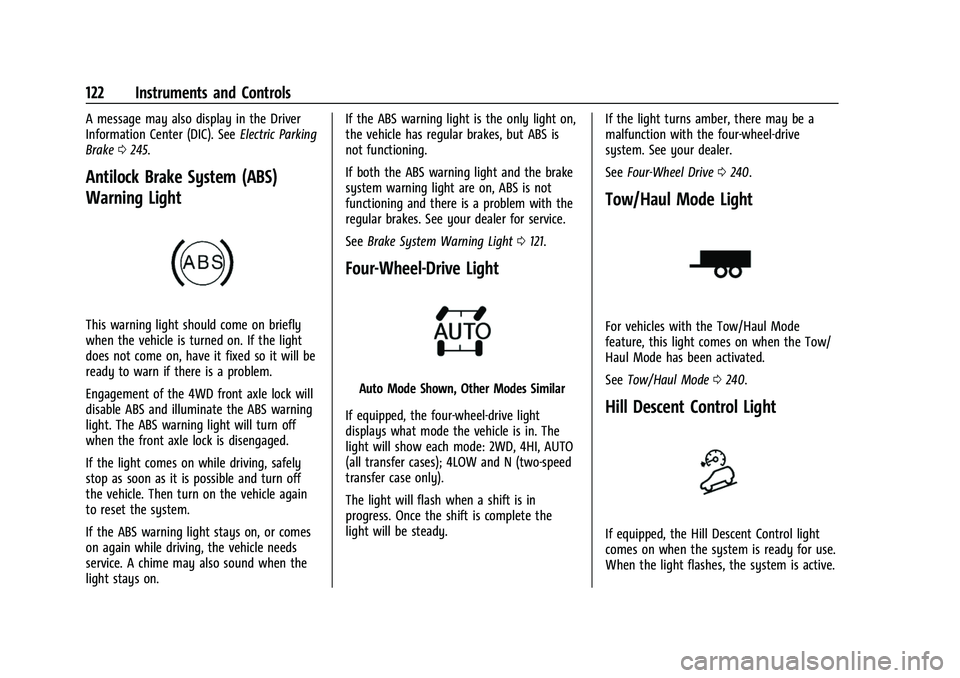
Antilock Brake System (ABS)
Warning Light
This warning light should come on briefly
when the vehicle is turned on. If the light
does not come on, have it fixed so it will be
ready to warn if there is a problem.
Engagement of the 4WD front axle lock will
disable ABS and illuminate the ABS warning
light. The ABS warning light will turn off
when the front axle lock is disengaged.
If the light comes on while driving, safely
stop as soon as it is possible and turn off
the vehicle. Then turn on the vehicle again
to reset the system.
If the ABS warning light stays on, or comes
on again while driving, the vehicle needs
service. A chime may also sound when the
light stays on. If the ABS warning light is the only light on,
the vehicle has regular brakes, but ABS is
not functioning.
If both the ABS warning light and the brake
system warning light are on, ABS is not
functioning and there is a problem with the
regular brakes. See your dealer for service.
See
Brake System Warning Light 0121.
Four-Wheel-Drive Light
Auto Mode Shown, Other Modes Similar
If equipped, the four-wheel-drive light
displays what mode the vehicle is in. The
light will show each mode: 2WD, 4HI, AUTO
(all transfer cases); 4LOW and N (two-speed
transfer case only).
The light will flash when a shift is in
progress. Once the shift is complete the
light will be steady. If the light turns amber, there may be a
malfunction with the four-wheel-drive
system. See your dealer.
See
Four-Wheel Drive 0240.
Tow/Haul Mode Light
For vehicles with the Tow/Haul Mode
feature, this light comes on when the Tow/
Haul Mode has been activated.
See Tow/Haul Mode 0240.
Hill Descent Control Light
If equipped, the Hill Descent Control light
comes on when the system is ready for use.
When the light flashes, the system is active.
Page 150 of 474
GMC Sierra/Sierra Denali 1500 Owner Manual (GMNA-Localizing-U.S./
Canada/Mexico-15883563) - 2022 - CRC - 11/19/21
Lighting 149
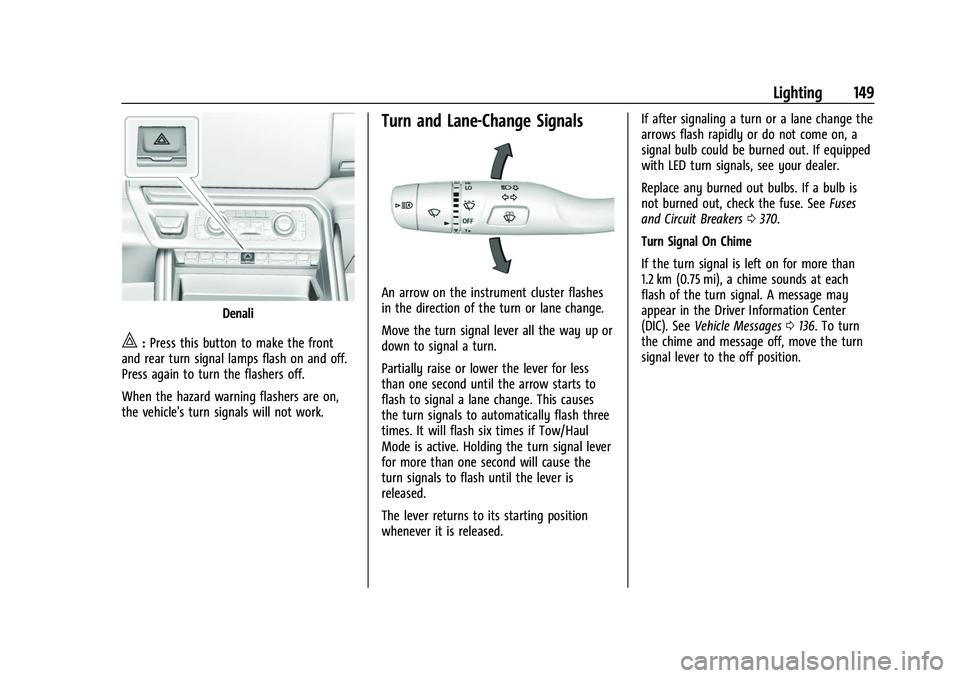
Denali
|:Press this button to make the front
and rear turn signal lamps flash on and off.
Press again to turn the flashers off.
When the hazard warning flashers are on,
the vehicle's turn signals will not work.
Turn and Lane-Change Signals
An arrow on the instrument cluster flashes
in the direction of the turn or lane change.
Move the turn signal lever all the way up or
down to signal a turn.
Partially raise or lower the lever for less
than one second until the arrow starts to
flash to signal a lane change. This causes
the turn signals to automatically flash three
times. It will flash six times if Tow/Haul
Mode is active. Holding the turn signal lever
for more than one second will cause the
turn signals to flash until the lever is
released.
The lever returns to its starting position
whenever it is released. If after signaling a turn or a lane change the
arrows flash rapidly or do not come on, a
signal bulb could be burned out. If equipped
with LED turn signals, see your dealer.
Replace any burned out bulbs. If a bulb is
not burned out, check the fuse. See
Fuses
and Circuit Breakers 0370.
Turn Signal On Chime
If the turn signal is left on for more than
1.2 km (0.75 mi), a chime sounds at each
flash of the turn signal. A message may
appear in the Driver Information Center
(DIC). See Vehicle Messages 0136. To turn
the chime and message off, move the turn
signal lever to the off position.
Page 165 of 474
GMC Sierra/Sierra Denali 1500 Owner Manual (GMNA-Localizing-U.S./
Canada/Mexico-15883563) - 2022 - CRC - 11/19/21
164 Infotainment System
The number of favorites is displayed
automatically.
Audio Settings
From the AM or FM screen, touchkand
the following may display:
Equalizer : Touch to adjust Bass, Midrange,
or Treble using the options on the
infotainment display.
Fade/Balance : Touch to adjust by using the
controls on the infotainment display or by
tapping/dragging the crosshair.
Sound Mode : If equipped, touch to display
the following:
‐ Normal: Adjusts the audio to provide the
best sound for all seating positions.
‐ Driver: Adjusts the audio to provide the
best sound for the driver.
‐ Centerpoint: This setting creates a
surround sound from nearly any audio
source.
‐ Rear: Adjusts the audio to provide the
best sound for the rear seat passengers.
Bose AudioPilot : This feature adjusts the
volume based on the noise in the vehicle
and the speed.
Touch Off or On. Manage Favorites :
Touch to display a list of
Audio favorites.
Favorites can be moved or deleted.
To move, touch and hold the move icon, and
then drag up or down to rearrange the
position.
Radio Text (RDS) : This allows Radio Text
(RDS) to be turned on or off.
Touch Off or On.
AM Station Update : Touch to update the
AM station list. This is only shown when
tuned to AM.
Radio Data System (RDS)
If equipped, RDS features are available for
use only on FM stations that broadcast RDS
information. With RDS, the radio can:
.Display a Station Name
.Display messages from radio stations.
This system relies on receiving specific
information from these stations and only
works when the information is available.
It is possible that a radio station could
broadcast incorrect information that causes
the radio features to work improperly. When information is broadcast from a RDS
station, the station name or call letters
display on the audio screen. Radio text
supporting the currently playing broadcast
may also appear.
To turn this feature on or off, see
“Audio
Settings” underAM-FM Radio (Uplevel Radio)
0 163 orAM-FM Radio (Base Radio) 0161.
Satellite Radio
SiriusXM Radio Service
If equipped, vehicles with a valid SiriusXM
radio subscription can receive SiriusXM
programming.
SiriusXM radio has a wide variety of
programming and commercial-free music,
coast to coast, in digital-quality sound. In
the U.S., see www.siriusxm.com or call
1-888-601-6296. In Canada, see
www.siriusxm.ca or call 1-877-438-9677.
When SiriusXM is active, the channel name,
number, song title, and artist appear on the
display.
SiriusXM with 360L
SiriusXM with 360L interface has enhanced
in-vehicle listening experience for
subscribers. The experience now offers more
Page 169 of 474
GMC Sierra/Sierra Denali 1500 Owner Manual (GMNA-Localizing-U.S./
Canada/Mexico-15883563) - 2022 - CRC - 11/19/21
168 Infotainment System
2. Touch the album to view a list of allsongs on the album.
3. Touch a song from the list to begin playback.
Songs 1. Touch to display a list of all songs on the USB.
2. To begin playback, touch a song from the list.
Bluetooth Audio (Base Radio)
Music may be played from a paired
Bluetooth device. See Bluetooth (Overview)
0 174 orBluetooth (Pairing and Using a
Phone for Uplevel Radio) 0178 or
Bluetooth (Pairing and Using a Phone for
Base Radio) 0175 for help pairing a device.
Volume and song selection may be
controlled by using the infotainment
controls or the mobile device. If Bluetooth is
selected and no volume is present, check the
volume setting on the infotainment system.
Music can be launched by touching
Bluetooth from the recent sources list on
the left of the display or by touching the
More option and then touching the
Bluetooth device. To play music via Bluetooth:
1. Power on the device, and pair to connect the device.
2. Once paired, touch Audio from the Home Page, then touch Bluetooth from the
recent sources list on the left of the
display.
Bluetooth Sound Menu
See “Infotainment System Sound Menu”
under AM-FM Radio (Uplevel Radio) 0163 or
AM-FM Radio (Base Radio) 0161.
Manage Bluetooth Devices
From the Home Page: 1. Touch Audio.
2. Touch More.
3. Touch Bluetooth.
4. Touch Devices to add or delete devices.
When touching Bluetooth, the radio may
not be able to launch the audio player on
the connected device to start playing. When
the vehicle is not moving, use the mobile
device to begin playback. All devices launch audio differently. When
selecting Bluetooth as a source, the radio
may show as paused on the display. Press
play on the device or touch
pon the
vehicle display to begin playback.
Browse functionality will be provided where
supported by the Bluetooth device. This
media content will not be part of the
MyMedia source mode.
Some smartphones support sending
Bluetooth music information to display on
the radio. When the radio receives this
information, it will check to see if any is
available and display it. For more
information about supported Bluetooth
features, visit your brand website. See
Online Owner Center 0444 for details.
See Radio Frequency Statement 0450.
Bluetooth Audio (Uplevel Radio)
Music may be played from a connected
Bluetooth device.
Volume and song selection may be
controlled by using the infotainment
controls or the mobile device. If Bluetooth is
selected and no volume is present, check the
volume setting on the infotainment system.
Page 175 of 474
GMC Sierra/Sierra Denali 1500 Owner Manual (GMNA-Localizing-U.S./
Canada/Mexico-15883563) - 2022 - CRC - 11/19/21
174 Infotainment System
“How much gas do I have left”:Find out
how much fuel your vehicle has left.
“Set temperature to
degrees” :Set to a specific temperature
inside your vehicle.
Phone Assistant Voice Recognition
While a device is connected via Bluetooth,
press and hold
gon the steering wheel
controls to pass through and launch Google
assistant on the phone or Siri.
Phone
Bluetooth (Overview)
The Bluetooth-capable system can interact
with many mobile devices to:
.Place and receive calls in a
hands-free mode.
.Share the device’s address book or
contact list with the vehicle.
.Stream audio (music, podcasts).
.Notify receipt of text messages.
To minimize driver distraction, before
driving, and with the vehicle parked:
.Become familiar with the features of the
mobile device. Organize the phone book
and contact lists clearly and delete
duplicate or rarely used entries.
.Review the controls and operation of the
infotainment system.
.Pair mobile device(s) to the vehicle. The
system may not work with all mobile
devices. See “Pairing”later in this section.
Vehicles with a Bluetooth system can use a
Bluetooth-capable mobile device with a
Hands-Free Profile to make and receive
phone calls. The infotainment system and
voice recognition are used to control the
system. The system can be used while the
vehicle is on. The range of the Bluetooth
system can be up to 9.1 m (30 ft). Not all
mobile devices support all functions and not
all mobile devices work with the Bluetooth
system. See my.gmc.com for more
information about compatible mobile
devices.
Controls
Use the controls on the infotainment display
and the steering wheel to operate the
Bluetooth system. Steering Wheel Controls
g:
Press and release to answer incoming
calls on your connected Bluetooth mobile
device. Press and hold for mobile device
assistant.
c: Press to end a call, decline a call,
or cancel an operation. Press to mute or
unmute the infotainment system when not
on a call.
Infotainment System Controls
For information about how to navigate the
menu system using the infotainment
controls, see Using the System 0159.
Audio System
When using the Bluetooth mobile device
system, sound comes through the vehicle's
front audio system speakers and overrides
the audio system. The volume level while on
a mobile device call can be adjusted by
pressing the steering wheel controls or the
volume control on the center stack. The
adjusted volume level remains in memory
for later calls. The volume cannot be
lowered beyond a certain level.
Page 188 of 474
GMC Sierra/Sierra Denali 1500 Owner Manual (GMNA-Localizing-U.S./
Canada/Mexico-15883563) - 2022 - CRC - 11/19/21
Infotainment System 187
Audio
Depending on the current audio source,
different options will be available.
Touch and the following may display:
.Tone Settings: Touch to adjust Equalizer,
Fade/Balance, or Sound Mode. See
“Infotainment System Sound Menu”in
AM-FM Radio (Uplevel Radio) 0163 or
AM-FM Radio (Base Radio) 0161.
.Auto Volume: This feature adjusts the
volume based on the vehicle speed.
Touch Off, Low, Medium-Low, Medium,
Medium-High, or High.
.Manage Favorites: Touch to display a list
of Audio or Mobile Devices favorites.
Favorites can be moved, renamed,
or deleted.
To move, touch and hold the favorite, and
then drag up or down to rearrange the
position.
.Set Number of Audio Favorites: Touch to
select how many favorites pages can be
viewed from the audio application. The
auto setting will automatically adjust this
number based on the number of favorites
you have saved. Select Auto, 5, 10, 15, 20,
25, 30, 35, or 40.
.RDS: This allows RDS to be turned off
or on.
Touch Off or On
.Explicit Content Filter: This allows Explicit
Content Filter to be turned off or on.
Touch Off or On
.Manage Phones: Touch to connect to a
different phone source, disconnect a
phone, or delete a phone.
.Reset Music Index: This allows the music
index to be reset if you are having
difficulty accessing all of the media
content on your device.
Touch YES or NO.
Phone
Touch and the following may display:
.My Number: Displays the cell phone
number of the Bluetooth connected
device.
.Privacy: Only show call alerts in cluster.
Touch Off or On.
.Sort Contacts: Touch to sort by first or
last name.
.Re-sync Device Contacts:
This allows the device contacts to re-sync
if you are having difficulty accessing all of
the contacts on your cell phone.
.Delete All Vehicle Contacts: Touch to
delete all vehicle stored contacts.
Vehicle
This menu allows adjustment of different
vehicle features. See Vehicle Personalization
0 137.
Settings (Uplevel Radio)
To access the personalization menus:
1. Touch Settings on the Home Page on the infotainment display.
2. Touch the desired category to display a list of available options.
3. Touch to select the desired feature setting.
4. Touch the options on the infotainment display to disable or enable a feature.
5. Touch
Sto go back.
The Settings menu may contain the
following:
Connections
Phones
Touch Add Phone to pair a Bluetooth device.
Page 190 of 474
GMC Sierra/Sierra Denali 1500 Owner Manual (GMNA-Localizing-U.S./
Canada/Mexico-15883563) - 2022 - CRC - 11/19/21
Infotainment System 189
.Automatic Date and Time: Touch Off or
On to enable or disable automatic update
of the time and date. Select Off to
manually set time and date
To manually set time or date, scroll up or
down on the month, day, year, hour,
minute and AM/PM.
Display
Touch and the following may display:
.Mode: This adjusts the appearance of the
navigation map view and any
downloaded apps optimized for day or
night time conditions. Set to Auto for the
display to automatically adjust based on
bright/dark conditions.
Touch Auto, Light, or Dark to adjust the
display.
.Turn Display Off: Touch to turn the
display off. Touch anywhere on the
infotainment display to turn the
display on.
Sounds
Touch and the following may display:
.Maximum Startup Volume: This feature
limits the volume of the infotainment
system when the vehicle is started. To setthe maximum startup volume, touch the
controls on the infotainment display to
increase or decrease.
.Audible Touch Feedback: This setting
determines if a sound plays when
touching the infotainment display or
radio controls. This feature can be turned
off or on.
Users
You can create multiple user profiles on the
vehicle. Most settings will be shared with
other user profiles on the vehicle. Settings
that are personalized to the user’s profile
include Accounts, Apps and Permissions,
Display, Google Settings (if applicable), and
various Vehicle settings. Between drive
cycles, the settings for the last logged in
user will remain active until a different user
profile is selected.
Touch and the following may display:
.You (Driver)
.Guest
Touch Add user to add another person to
the system.
Accounts
Touch to show Accounts for Driver and the
following may display:
.Accounts
.Automatically sync data: This feature can
be turned off or on.
Touch Add account to add a Google or
vehicle account and follow the on-screen
prompts.
Privacy
Touch and the following may display:
Location Services
.Location Services for Android: Touch to
show Recent Location Requests, App level
permissions, and Location Services.
.Location Services for OnStar: This feature
can be turned off or on.
App permissions
Activity controls
Autofill service from Google
Usage and diagnostics
GM Privacy Statement
Google legal
Page 224 of 474
GMC Sierra/Sierra Denali 1500 Owner Manual (GMNA-Localizing-U.S./
Canada/Mexico-15883563) - 2022 - CRC - 11/19/21
Driving and Operating 223
{Warning
Turning off the vehicle while moving may
cause loss of power assist in the brake
and steering systems and disable the
airbags. While driving, only shut the
vehicle off in an emergency.
Stopping the Engine/LOCK/OFF (No Indicator
Lights) : When the vehicle is stopped, press
ENGINE START/STOP once to turn the
engine off.
If the vehicle is in P (Park), the vehicle will
turn off, and Retained Accessory Power (RAP)
will remain active. See Retained Accessory
Power (RAP) 0227.
If the vehicle is not in P (Park), the vehicle
will return to ACC/ACCESSORY and display
the message SHIFT TO PARK in the Driver
Information Center (DIC). When the vehicle is
shifted into P (Park), the vehicle will turn off.
The vehicle may have an electric steering
column lock. The lock is activated when the
ignition is turned off and driver door is
opened. A sound may be heard as the lock
actuates or releases. The steering column
lock may not release with the wheels turned
off center. If this happens, the vehicle may
not start. Move the steering wheel from left to right while attempting to start the
vehicle. If this does not work, the vehicle
needs service.
Unless an emergency exists, do not turn the
engine off when the vehicle is moving. This
will cause a loss of power assist in the brake
and steering systems and disable the
airbags.
If the vehicle must be shut off in an
emergency:
1. If the vehicle cannot be pulled over, and must be shut off while driving, press and
hold ENGINE START/STOP button for
longer than two seconds, or press twice
in five seconds.
2. Brake using a firm and steady pressure. Do not pump the brakes repeatedly. This
may deplete power assist, requiring
increased brake pedal force.
3. Shift the vehicle to N (Neutral). This can be done while the vehicle is moving.
After shifting to N (Neutral), firmly apply
the brakes and steer the vehicle to a
safe location.
4. Come to a complete stop, shift to P (Park), and make sure engine is off.
The shift lever must be in P (Park) to
turn the vehicle off. 5. Set the parking brake. See
Electric
Parking Brake 0245.
{Warning
Turning off the vehicle while moving may
cause loss of power assist in the brake
and steering systems and disable the
airbags. While driving, only shut the
vehicle off in an emergency.
ACC/ACCESSORY (Amber Indicator Light) :
This mode allows some electrical accessories
to be used when the engine is off.
With the vehicle off, pressing the ENGINE
START/STOP button one time without the
brake pedal applied will place the vehicle in
ACC/ACCESSORY.
The vehicle will switch from ACC/ACCESSORY
to off after five minutes to prevent battery
rundown.
ON/RUN/START (Green Indicator Light) : This
mode is for driving and starting. With the
vehicle off, and the brake pedal applied,
pressing ENGINE START/STOP button once
will turn the ignition on. Once engine
cranking begins, release the button. Engine
cranking will continue until the engine
starts. See Starting the Engine 0224.
Page 299 of 474
GMC Sierra/Sierra Denali 1500 Owner Manual (GMNA-Localizing-U.S./
Canada/Mexico-15883563) - 2022 - CRC - 11/19/21
298 Driving and Operating
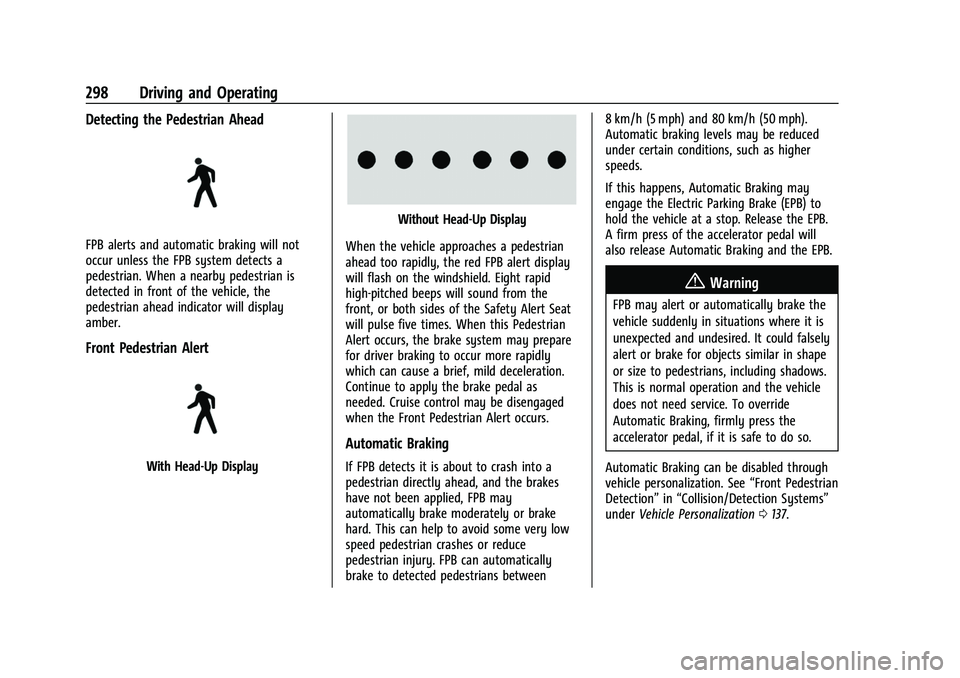
Detecting the Pedestrian Ahead
FPB alerts and automatic braking will not
occur unless the FPB system detects a
pedestrian. When a nearby pedestrian is
detected in front of the vehicle, the
pedestrian ahead indicator will display
amber.
Front Pedestrian Alert
With Head-Up Display
Without Head-Up Display
When the vehicle approaches a pedestrian
ahead too rapidly, the red FPB alert display
will flash on the windshield. Eight rapid
high-pitched beeps will sound from the
front, or both sides of the Safety Alert Seat
will pulse five times. When this Pedestrian
Alert occurs, the brake system may prepare
for driver braking to occur more rapidly
which can cause a brief, mild deceleration.
Continue to apply the brake pedal as
needed. Cruise control may be disengaged
when the Front Pedestrian Alert occurs.
Automatic Braking
If FPB detects it is about to crash into a
pedestrian directly ahead, and the brakes
have not been applied, FPB may
automatically brake moderately or brake
hard. This can help to avoid some very low
speed pedestrian crashes or reduce
pedestrian injury. FPB can automatically
brake to detected pedestrians between 8 km/h (5 mph) and 80 km/h (50 mph).
Automatic braking levels may be reduced
under certain conditions, such as higher
speeds.
If this happens, Automatic Braking may
engage the Electric Parking Brake (EPB) to
hold the vehicle at a stop. Release the EPB.
A firm press of the accelerator pedal will
also release Automatic Braking and the EPB.
{Warning
FPB may alert or automatically brake the
vehicle suddenly in situations where it is
unexpected and undesired. It could falsely
alert or brake for objects similar in shape
or size to pedestrians, including shadows.
This is normal operation and the vehicle
does not need service. To override
Automatic Braking, firmly press the
accelerator pedal, if it is safe to do so.
Automatic Braking can be disabled through
vehicle personalization. See “Front Pedestrian
Detection” in“Collision/Detection Systems”
under Vehicle Personalization 0137.
Page 331 of 474
GMC Sierra/Sierra Denali 1500 Owner Manual (GMNA-Localizing-U.S./
Canada/Mexico-15883563) - 2022 - CRC - 11/19/21
330 Driving and Operating
After a profile is imported, it can be selected
from the trailer list. The Tow/Haul Mode
reminder, Brake Gain Setting and Trailer Tire
Pressure sensor learning, if equipped, do not
import.
Trailer Feature Setup
Tow/Haul Mode Reminder
To turn the Tow/Haul Mode Reminder
setting on, touch Yes. To turn it off,
touch No.
Trailer Tire Pressure Setup
If the Trailer TTPMS is detected, touch the
Tire Pressure Monitoring icon to set up tire
pressure monitoring.
The trailer tire pressure sensors can transmit
up to 7 m (23 feet) from the hitch receiver of
the vehicle.
A trailer must be electrically connected to
the vehicle before starting the
sensor-to-vehicle learn process.
After selecting Start from the Learn Sensors
screen, use the Tool Method or the Manual
Method (described below) to learn each tire
sensor, during which the current tire number
will be highlighted.Each sensor has a maximum of two minutes
to learn. After a sensor is learned, a
checkmark appears next to the tire, the
vehicle horn sounds, the vehicle brake lamps
flash, and all working trailer lamps flash.
It then moves to the next sensor.
Touch Stop to cancel the process.
The recommended tire pressure must be
entered for the trailer tires. This allows the
vehicle to alert when the tire pressure is
high or low.
TTPMS must learn the location of the
installed tire sensors to show correct air
pressure and temperature for each tire. To
set up, use one of the following options or
see a tire or trailer dealer for service. The
learning process must be repeated when the
trailer tires are rotated or replaced.
Tool Method: A TTPMS activation tool can
be purchased separately to learn the sensor
locations.
Manual Method: Without the tool, the air
pressure can be increased or decreased in
each tire for 10 seconds. Do not exceed the
maximum inflation pressure found on the
tire sidewalls. Make sure to readjust tire
pressure to the recommended level when
the process is complete.Sensor Learning Steps
To complete the sensor-to-vehicle learn
process:
1. Touch Start on the Learn Sensors screen. The horn chirps twice and the Learning
Active screen appears on the
infotainment screen.
2. Start with the driver side front trailer tire.
3. Activate the tool near the valve stem or adjust the air pressure of this tire until
the horn chirps and all working vehicle
and trailer lights flash.
The process stops without saving the
sensor locations if this step takes more
than two minutes.
4. Move to the next tire and repeat Step 3 for each sensor. The horn chirps twice
when all sensors are completed.
5. Return to the vehicle to complete the setup.
Maintenance Reminders
To set up maintenance reminders, touch the
Trailer Maintenance icon. Follow the
onscreen prompts. The maximum number of
reminders is 50.