light GMC SIERRA 2022 Owners Manual
[x] Cancel search | Manufacturer: GMC, Model Year: 2022, Model line: SIERRA, Model: GMC SIERRA 2022Pages: 474, PDF Size: 15.09 MB
Page 275 of 474
GMC Sierra/Sierra Denali 1500 Owner Manual (GMNA-Localizing-U.S./
Canada/Mexico-15883563) - 2022 - CRC - 11/19/21
274 Driving and Operating
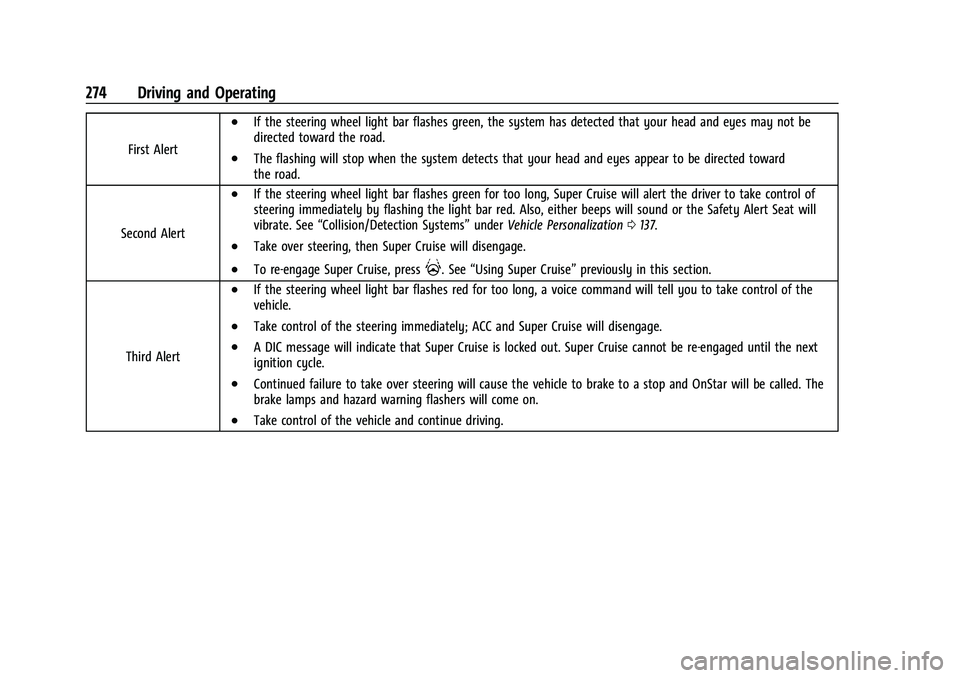
First Alert
.If the steering wheel light bar flashes green, the system has detected that your head and eyes may not be
directed toward the road.
.The flashing will stop when the system detects that your head and eyes appear to be directed toward
the road.
Second Alert
.If the steering wheel light bar flashes green for too long, Super Cruise will alert the driver to take control of
steering immediately by flashing the light bar red. Also, either beeps will sound or the Safety Alert Seat will
vibrate. See “Collision/Detection Systems” underVehicle Personalization 0137.
.Take over steering, then Super Cruise will disengage.
.To re-engage Super Cruise, press]. See “Using Super Cruise” previously in this section.
Third Alert
.If the steering wheel light bar flashes red for too long, a voice command will tell you to take control of the
vehicle.
.Take control of the steering immediately; ACC and Super Cruise will disengage.
.A DIC message will indicate that Super Cruise is locked out. Super Cruise cannot be re-engaged until the next
ignition cycle.
.Continued failure to take over steering will cause the vehicle to brake to a stop and OnStar will be called. The
brake lamps and hazard warning flashers will come on.
.Take control of the vehicle and continue driving.
Page 277 of 474
GMC Sierra/Sierra Denali 1500 Owner Manual (GMNA-Localizing-U.S./
Canada/Mexico-15883563) - 2022 - CRC - 11/19/21
276 Driving and Operating
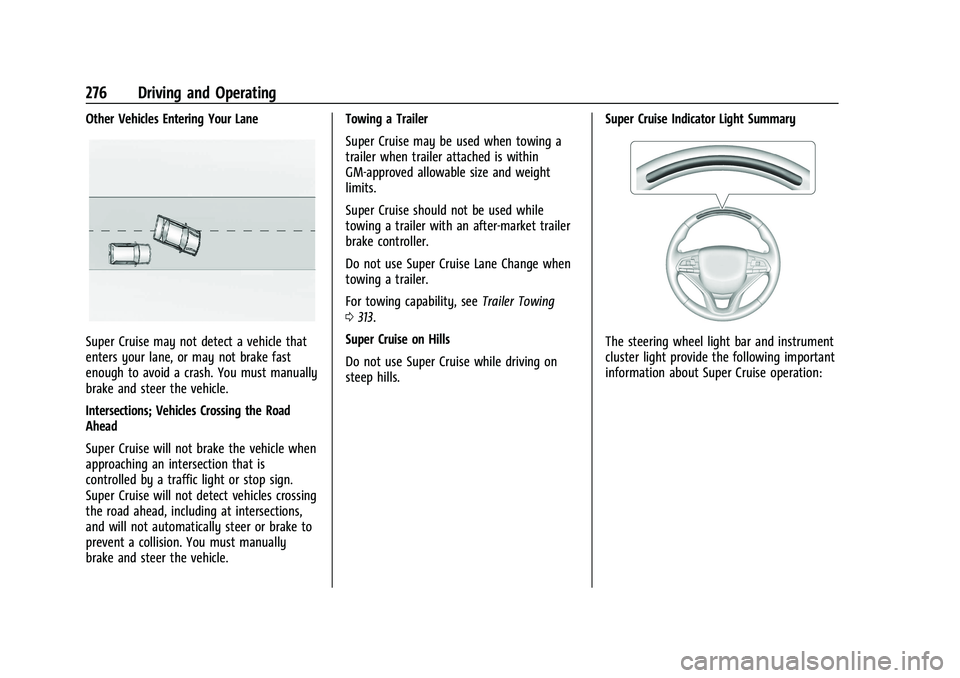
Other Vehicles Entering Your Lane
Super Cruise may not detect a vehicle that
enters your lane, or may not brake fast
enough to avoid a crash. You must manually
brake and steer the vehicle.
Intersections; Vehicles Crossing the Road
Ahead
Super Cruise will not brake the vehicle when
approaching an intersection that is
controlled by a traffic light or stop sign.
Super Cruise will not detect vehicles crossing
the road ahead, including at intersections,
and will not automatically steer or brake to
prevent a collision. You must manually
brake and steer the vehicle.Towing a Trailer
Super Cruise may be used when towing a
trailer when trailer attached is within
GM-approved allowable size and weight
limits.
Super Cruise should not be used while
towing a trailer with an after-market trailer
brake controller.
Do not use Super Cruise Lane Change when
towing a trailer.
For towing capability, see
Trailer Towing
0 313.
Super Cruise on Hills
Do not use Super Cruise while driving on
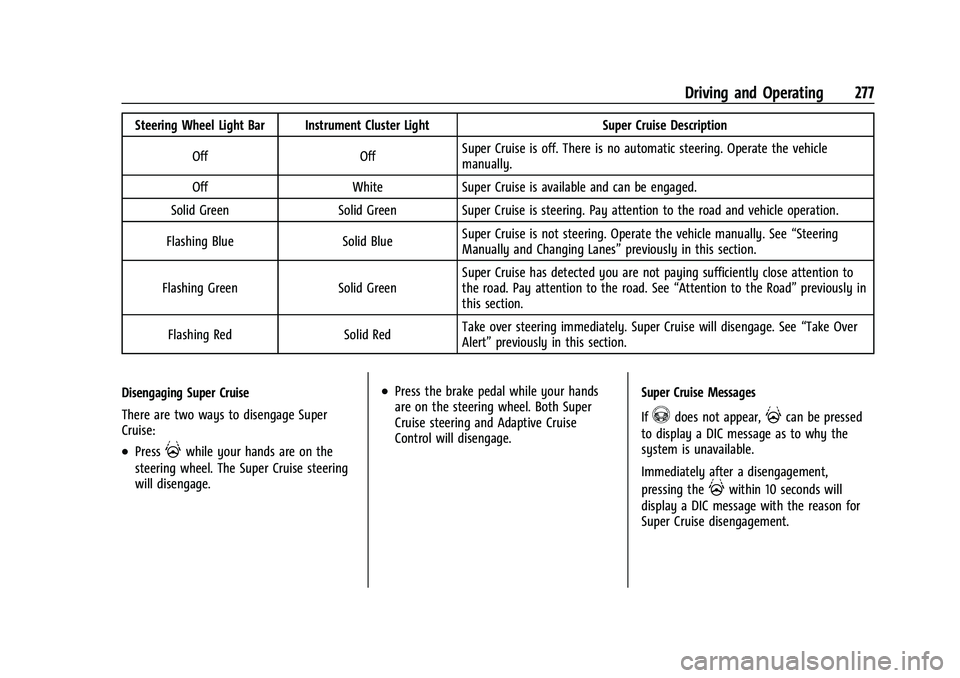
steep hills. Super Cruise Indicator Light SummaryThe steering wheel light bar and instrument
cluster light provide the following important
information about Super Cruise operation:
Page 278 of 474
GMC Sierra/Sierra Denali 1500 Owner Manual (GMNA-Localizing-U.S./
Canada/Mexico-15883563) - 2022 - CRC - 11/19/21
Driving and Operating 277
Steering Wheel Light Bar Instrument Cluster LightSuper Cruise Description
Off OffSuper Cruise is off. There is no automatic steering. Operate the vehicle
manually.
Off WhiteSuper Cruise is available and can be engaged.
Solid Green Solid Green Super Cruise is steering. Pay attention to the road and vehicle operation.
Flashing Blue Solid BlueSuper Cruise is not steering. Operate the vehicle manually. See
“Steering
Manually and Changing Lanes” previously in this section.
Flashing Green Solid GreenSuper Cruise has detected you are not paying sufficiently close attention to
the road. Pay attention to the road. See
“Attention to the Road”previously in
this section.
Flashing Red Solid RedTake over steering immediately. Super Cruise will disengage. See
“Take Over
Alert” previously in this section.
Disengaging Super Cruise
There are two ways to disengage Super
Cruise:
.Press]while your hands are on the
steering wheel. The Super Cruise steering
will disengage.
.Press the brake pedal while your hands
are on the steering wheel. Both Super
Cruise steering and Adaptive Cruise
Control will disengage. Super Cruise Messages
If
^does not appear,]can be pressed
to display a DIC message as to why the
system is unavailable.
Immediately after a disengagement,
pressing the
]within 10 seconds will
display a DIC message with the reason for
Super Cruise disengagement.
Page 280 of 474
GMC Sierra/Sierra Denali 1500 Owner Manual (GMNA-Localizing-U.S./
Canada/Mexico-15883563) - 2022 - CRC - 11/19/21
Driving and Operating 279
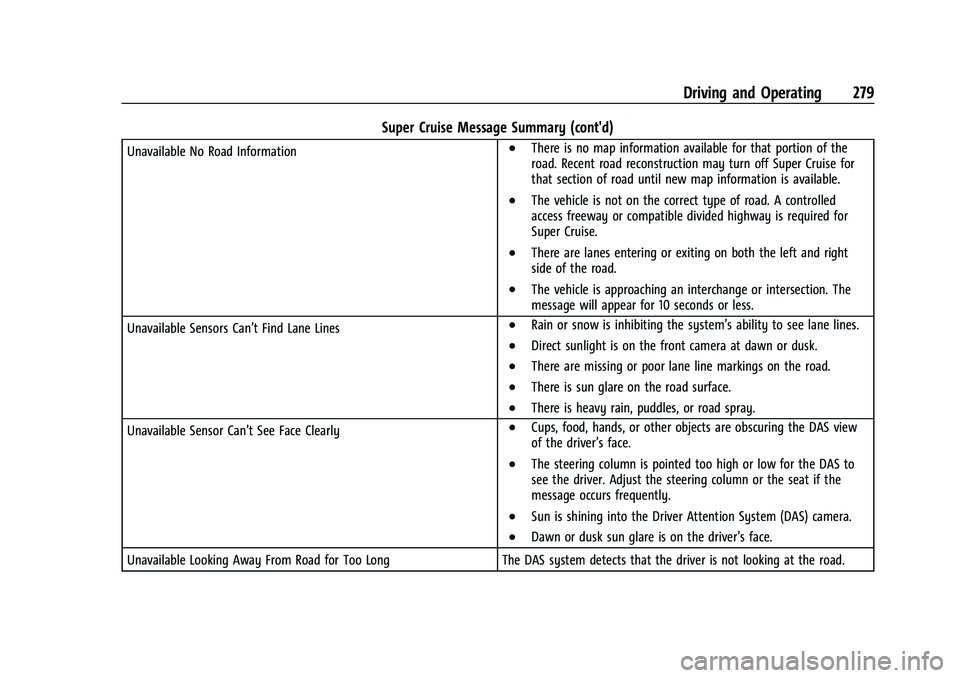
Super Cruise Message Summary (cont'd)
Unavailable No Road Information.There is no map information available for that portion of the
road. Recent road reconstruction may turn off Super Cruise for
that section of road until new map information is available.
.The vehicle is not on the correct type of road. A controlled
access freeway or compatible divided highway is required for
Super Cruise.
.There are lanes entering or exiting on both the left and right
side of the road.
.The vehicle is approaching an interchange or intersection. The
message will appear for 10 seconds or less.
Unavailable Sensors Can’t Find Lane Lines
.Rain or snow is inhibiting the system’s ability to see lane lines.
.Direct sunlight is on the front camera at dawn or dusk.
.There are missing or poor lane line markings on the road.
.There is sun glare on the road surface.
.There is heavy rain, puddles, or road spray.
Unavailable Sensor Can’t See Face Clearly
.Cups, food, hands, or other objects are obscuring the DAS view
of the driver’s face.
.The steering column is pointed too high or low for the DAS to
see the driver. Adjust the steering column or the seat if the
message occurs frequently.
.Sun is shining into the Driver Attention System (DAS) camera.
.Dawn or dusk sun glare is on the driver’s face.
Unavailable Looking Away From Road for Too Long The DAS system detects that the driver is not looking at the road.
Page 288 of 474
GMC Sierra/Sierra Denali 1500 Owner Manual (GMNA-Localizing-U.S./
Canada/Mexico-15883563) - 2022 - CRC - 11/19/21
Driving and Operating 287
Interior Trailer View. The view will
close after 8 seconds and can be
closed early by selecting X, Home
or Back.
9. Cargo Bed View/Bed Hitch View
Use the plus and minus icons on the
infotainment display to zoom in
or out.
.Cargo Bed View
Displays a view of the truck bed
and the area behind the vehicle to
assist in cargo or hitch monitoring
or hitching to a fifth wheel or
gooseneck trailer. To view, select
Cargo Bed View on the
infotainment display when the
Camera App is active. To access
this view when in a forward gear
above 12 km/h (8 mph), select
CAMERA on the infotainment
display and select Cargo Bed View.
The view will close after 8 seconds
and can be closed early by
selecting X, Home or Back. When
the Cargo Bed View is selected
when not in Drive the cargo bed
lighting is turned on automatically.The feature can be enabled or
disabled. See
Vehicle
Personalization 0137.
.Bed Hitch View
Displays a zoomed-in view of the
bed hitch area to assist with
aligning the vehicle’s hitch with
the trailer coupler and monitoring
the trailer connection. To view,
select Bed Hitch View on the
infotainment display when the
Camera App is active. To access
this view when in a forward gear
above 12 km/h (8 mph), select
CAMERA on the infotainment
display and select Bed Hitch View.
The view will close after 8 seconds
and can be closed early by
selecting X, Home or Back. When
the Bed Hitch View is selected
when not in Drive the cargo bed
lighting is turned on automatically.
The feature can be enabled or
disabled. See Vehicle
Personalization 0137.
10. Transparent Trailer View
Displays a view that allows the driver
to virtually “see through” the trailer.
The feature is available when a compatible trailer is connected, a valid
profile is selected and the vehicle is
not in Reverse. The feature requires
user installation of an accessory trailer
camera on the rear exterior surface of
the trailer per the accessory trailer
camera installation instructions (see
your dealer for accessory trailer
camera(s) and information). To view,
select Transparent Trailer View on the
infotainment display when the Camera
App is active. To access this view
when in a forward gear above
12 km/h (8 mph), select CAMERA on
the infotainment display and select
Transparent Trailer View. The view can
be closed by selecting X, Home
or Back.
When the system is calibrated and
trailer position is known one of three
views will be shown; Transparent
Trailer View, Left Transparent Trailer
View or Right Transparent Trailer
View. The Transparent Trailer View is
shown when the position of the trailer
is relatively straight behind the
vehicle. The Left or Right Transparent
Trailer view is shown when the
position of the trailer is too far to the
left or right. When the system is not
Page 291 of 474
GMC Sierra/Sierra Denali 1500 Owner Manual (GMNA-Localizing-U.S./
Canada/Mexico-15883563) - 2022 - CRC - 11/19/21
290 Driving and Operating
Surround Vision (360 Degrees)
If equipped, the Surround Vision system can
display various views surrounding the
vehicle in the infotainment display using
four cameras mounted around the vehicle.
The front camera is in the grille under the
front emblem, the side cameras are on the
bottom of the outside mirrors, and the rear
camera is in the tailgate handle.
The Surround Vision system can be accessed
by selecting CAMERA in the infotainment
display or when the vehicle is shifted into
R (Reverse). To return to the previous screen
sooner, when not in R (Reverse), press the
Home or Back button on the infotainment
system, shift into P (Park), or, while in D
(Drive), reach a vehicle speed of
approximately 12 km/h (8 mph).
Available camera views:
.Front/Rear Standard View
.Front/Rear Top-Down View
.Rear Bowl View
.Front/Rear Side View
.Hitch View
.Surround View
.Guidance Lines
.Hitch GuidanceSurround Vision
If equipped, this feature provides, additional
views to aid in trailering/towing. The Front
Vision Camera and Surround Vision cameras
are not supported. The system can show
various views in the infotainment display
using cameras mounted in and around the
vehicle and trailer. The rear camera is in the
tailgate handle and the cargo bed camera is
mounted on the rear of the cab. Up to two
accessory cameras can be mounted to the
rear and/or interior of the trailer. See your
dealer for these accessory cameras.
The system can be accessed by selecting
CAMERA in the infotainment display or
when the vehicle is shifted into R (Reverse).
To return to the previous screen sooner,
when not in R (Reverse), press the Home or
Back button on the infotainment system or
shift into P (Park).
Available camera views:
.Rear Standard View
.Hitch View
.Bed View
.Rear Trailer View
.Interior Trailer View
.Guidance Lines
.Hitch GuidanceTroubleshooting
The Transparent Trailer calibration may take
longer than expected or not calibrate if:
.The vehicle is driven too fast during
calibration. Speed should be maintained
below 50 km/h (31 mph).
.The vehicle is not driven straight during
calibration. Steering should be maintained
as straight as possible, excessive steering
during calibration may extend
calibration time.
.The calibration is attempted in low light.
Calibration should be attempted when
there is enough light.
.The calibration is attempted during
adverse weather conditions. Calibration
during conditions such as snow or heavy
rain should be avoided.
.The road surface is not ideal for
calibration. Calibration should be
attempted on an alternate road surface.
.The accessory trailer cameras are
swapped at the hitch connector. Ensure
that the camera mounted to the rear of
the trailer is connected to the rear trailer
camera input.
Page 293 of 474
GMC Sierra/Sierra Denali 1500 Owner Manual (GMNA-Localizing-U.S./
Canada/Mexico-15883563) - 2022 - CRC - 11/19/21
292 Driving and Operating
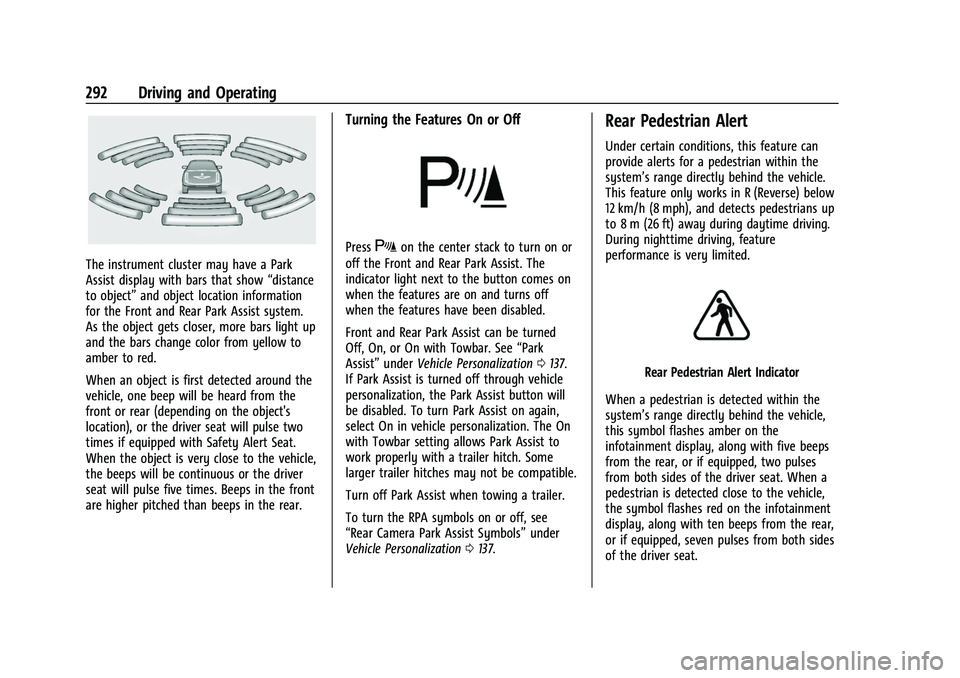
The instrument cluster may have a Park
Assist display with bars that show“distance
to object” and object location information
for the Front and Rear Park Assist system.
As the object gets closer, more bars light up
and the bars change color from yellow to
amber to red.
When an object is first detected around the
vehicle, one beep will be heard from the
front or rear (depending on the object's
location), or the driver seat will pulse two
times if equipped with Safety Alert Seat.
When the object is very close to the vehicle,
the beeps will be continuous or the driver
seat will pulse five times. Beeps in the front
are higher pitched than beeps in the rear.
Turning the Features On or Off
PressXon the center stack to turn on or
off the Front and Rear Park Assist. The
indicator light next to the button comes on
when the features are on and turns off
when the features have been disabled.
Front and Rear Park Assist can be turned
Off, On, or On with Towbar. See “Park
Assist” underVehicle Personalization 0137.
If Park Assist is turned off through vehicle
personalization, the Park Assist button will
be disabled. To turn Park Assist on again,
select On in vehicle personalization. The On
with Towbar setting allows Park Assist to
work properly with a trailer hitch. Some
larger trailer hitches may not be compatible.
Turn off Park Assist when towing a trailer.
To turn the RPA symbols on or off, see
“Rear Camera Park Assist Symbols” under
Vehicle Personalization 0137.
Rear Pedestrian Alert
Under certain conditions, this feature can
provide alerts for a pedestrian within the
system’s range directly behind the vehicle.
This feature only works in R (Reverse) below
12 km/h (8 mph), and detects pedestrians up
to 8 m (26 ft) away during daytime driving.
During nighttime driving, feature
performance is very limited.
Rear Pedestrian Alert Indicator
When a pedestrian is detected within the
system’s range directly behind the vehicle,
this symbol flashes amber on the
infotainment display, along with five beeps
from the rear, or if equipped, two pulses
from both sides of the driver seat. When a
pedestrian is detected close to the vehicle,
the symbol flashes red on the infotainment
display, along with ten beeps from the rear,
or if equipped, seven pulses from both sides
of the driver seat.
Page 295 of 474
GMC Sierra/Sierra Denali 1500 Owner Manual (GMNA-Localizing-U.S./
Canada/Mexico-15883563) - 2022 - CRC - 11/19/21
294 Driving and Operating
rapidly beeps. FCA also lights an amber
visual alert if following another vehicle
much too closely.
FCA detects vehicles within a distance of
approximately 60 m (197 ft) and operates at
speeds above 8 km/h (5 mph). If the vehicle
has Adaptive Cruise Control (ACC), it can
detect vehicles to distances of approximately
110 m (360 ft) and operates at all speeds.
SeeAdaptive Cruise Control (Camera) 0256.
{Warning
FCA is a warning system and does not
apply the brakes. When approaching a
slower-moving or stopped vehicle ahead
too rapidly, or when following a vehicle
too closely, FCA may not provide a
warning with enough time to help avoid
a crash. It also may not provide any
warning at all. FCA does not warn of
pedestrians, animals, signs, guardrails,
bridges, construction barrels, or other
objects. Be ready to take action and
apply the brakes. See Defensive Driving
0 206.
FCA can be disabled. See “Collision/Detection
Systems” underVehicle Personalization
0 137.
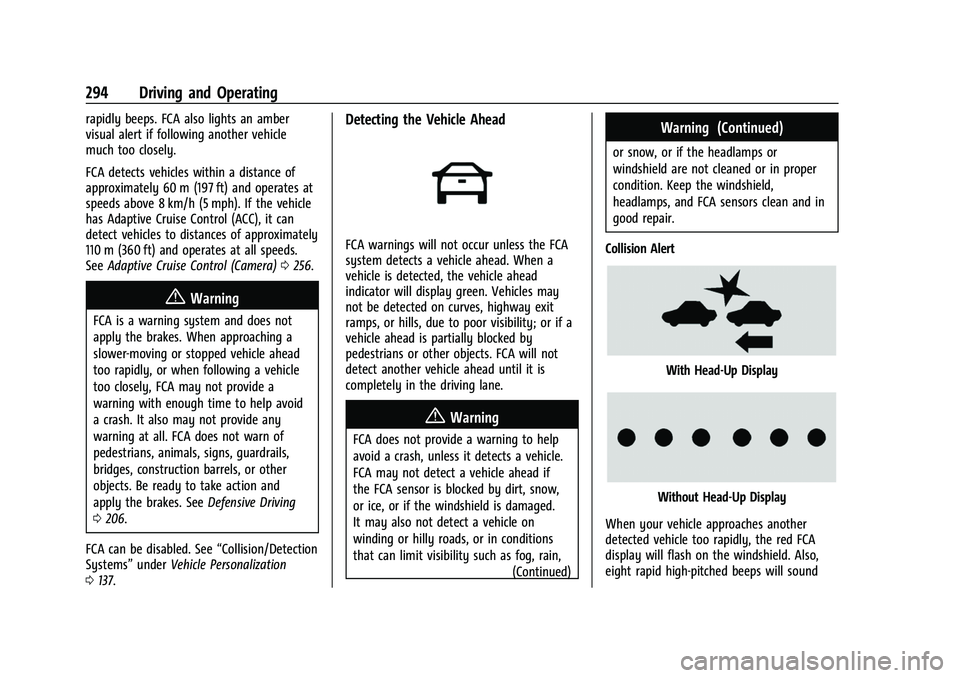
Detecting the Vehicle Ahead
FCA warnings will not occur unless the FCA
system detects a vehicle ahead. When a
vehicle is detected, the vehicle ahead
indicator will display green. Vehicles may
not be detected on curves, highway exit
ramps, or hills, due to poor visibility; or if a
vehicle ahead is partially blocked by
pedestrians or other objects. FCA will not
detect another vehicle ahead until it is
completely in the driving lane.
{Warning
FCA does not provide a warning to help
avoid a crash, unless it detects a vehicle.
FCA may not detect a vehicle ahead if
the FCA sensor is blocked by dirt, snow,
or ice, or if the windshield is damaged.
It may also not detect a vehicle on
winding or hilly roads, or in conditions
that can limit visibility such as fog, rain,
(Continued)
Warning (Continued)
or snow, or if the headlamps or
windshield are not cleaned or in proper
condition. Keep the windshield,
headlamps, and FCA sensors clean and in
good repair.
Collision Alert
With Head-Up Display
Without Head-Up Display
When your vehicle approaches another
detected vehicle too rapidly, the red FCA
display will flash on the windshield. Also,
eight rapid high-pitched beeps will sound
Page 300 of 474
GMC Sierra/Sierra Denali 1500 Owner Manual (GMNA-Localizing-U.S./
Canada/Mexico-15883563) - 2022 - CRC - 11/19/21
Driving and Operating 299
{Warning
Using the Front Pedestrian Braking
system while towing a trailer could cause
you to lose control of the vehicle and
crash. Turn the system to Alert or Off
when towing a trailer.
Cleaning the System
If FPB does not seem to operate properly,
cleaning the outside of the windshield in
front of the rearview mirror may correct the
issue.
Side Blind Zone Alert (SBZA)
If equipped, the SBZA system is a
lane-changing aid that assists drivers with
avoiding crashes that occur with moving
vehicles in the side blind zone, or blind spot
areas. When the vehicle is in a forward gear,
the left or right side mirror display will light
up if a moving vehicle is detected in that
blind zone. If the turn signal is activated and
a vehicle is also detected on the same side,
the display will flash as an extra warning
not to change lanes. Since this system is
part of the Lane Change Alert (LCA) system,
read the entire LCA section before using this
feature.
Lane Change Alert (LCA)
If equipped, the Lane Change Alert (LCA)
system is a lane-changing aid that can assist
drivers with avoiding lane change crashes
with moving vehicles in the side blind zone,
or blind spot areas or with vehicles rapidly
approaching these areas from behind. When
a vehicle is detected in the blind zone, the
LCA warning display will light up in the
corresponding side mirror and will flash if
the turn signal is on. The Side Blind Zone
Alert (SBZA) system is included as part of
the LCA system.
{Warning
LCA does not alert the driver to vehicles
outside of the system detection zones,
pedestrians, bicyclists, or animals. It may
not provide alerts when changing lanes
under all driving conditions. Failure to use
proper care when changing lanes may
result in injury, death, or vehicle damage.
Before making a lane change, always
check mirrors, glance over your shoulder,
and use the turn signals.LCA Detection Zones
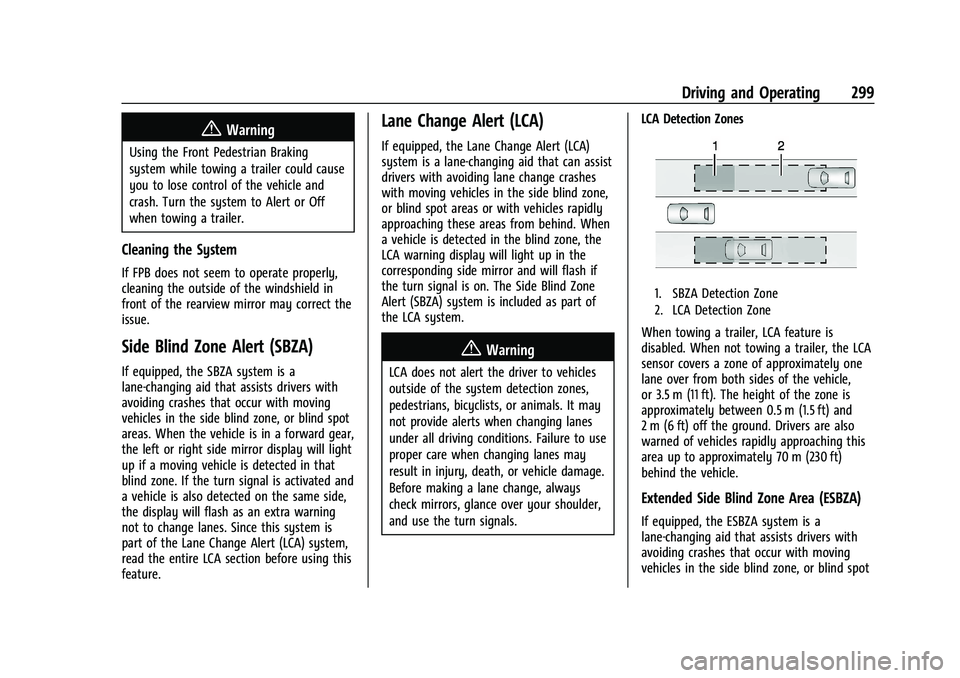
1. SBZA Detection Zone
2. LCA Detection Zone
When towing a trailer, LCA feature is
disabled. When not towing a trailer, the LCA
sensor covers a zone of approximately one
lane over from both sides of the vehicle,
or 3.5 m (11 ft). The height of the zone is
approximately between 0.5 m (1.5 ft) and
2 m (6 ft) off the ground. Drivers are also
warned of vehicles rapidly approaching this
area up to approximately 70 m (230 ft)
behind the vehicle.
Extended Side Blind Zone Area (ESBZA)
If equipped, the ESBZA system is a
lane-changing aid that assists drivers with
avoiding crashes that occur with moving
vehicles in the side blind zone, or blind spot
Page 301 of 474
GMC Sierra/Sierra Denali 1500 Owner Manual (GMNA-Localizing-U.S./
Canada/Mexico-15883563) - 2022 - CRC - 11/19/21
300 Driving and Operating
areas. The extended side blind zone area
adds the blind zone area along the side of a
trailer that the host vehicle is pulling.
When the vehicle is in a forward gear, the
left or right side mirror display will light up
if a moving vehicle is detected in that
extended blind zone. If the turn signal is
activated and a vehicle is also detected on
the same side, the display will flash as an
extra warning not to change lanes. Since
this system is part of the Lane Change Alert
system, read the entire Lane Change Alert
section before using this feature.
{Warning
ESBZA does not alert the driver to
vehicles outside of the system detection
zones, pedestrians, bicyclists, or animals.
It may not provide alerts when changing
lanes under all driving conditions. Failure
to use proper care when changing lanes
may result in injury, death, or vehicle
damage. Before making a lane change,
always check mirrors, glance over your
shoulder, and use the turn signals.ESBZA Detection Zones
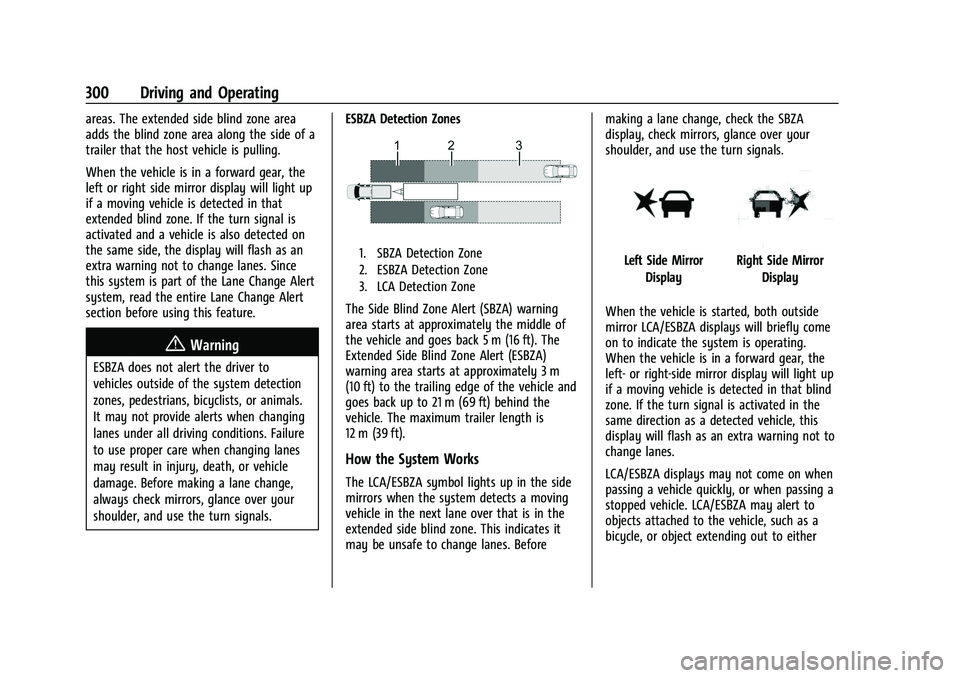
1. SBZA Detection Zone
2. ESBZA Detection Zone
3. LCA Detection Zone
The Side Blind Zone Alert (SBZA) warning
area starts at approximately the middle of
the vehicle and goes back 5 m (16 ft). The
Extended Side Blind Zone Alert (ESBZA)
warning area starts at approximately 3 m
(10 ft) to the trailing edge of the vehicle and
goes back up to 21 m (69 ft) behind the
vehicle. The maximum trailer length is
12 m (39 ft).
How the System Works
The LCA/ESBZA symbol lights up in the side
mirrors when the system detects a moving
vehicle in the next lane over that is in the
extended side blind zone. This indicates it
may be unsafe to change lanes. Before making a lane change, check the SBZA
display, check mirrors, glance over your
shoulder, and use the turn signals.
Left Side Mirror
DisplayRight Side Mirror Display
When the vehicle is started, both outside
mirror LCA/ESBZA displays will briefly come
on to indicate the system is operating.
When the vehicle is in a forward gear, the
left- or right-side mirror display will light up
if a moving vehicle is detected in that blind
zone. If the turn signal is activated in the
same direction as a detected vehicle, this
display will flash as an extra warning not to
change lanes.
LCA/ESBZA displays may not come on when
passing a vehicle quickly, or when passing a
stopped vehicle. LCA/ESBZA may alert to
objects attached to the vehicle, such as a
bicycle, or object extending out to either