turn signal GMC SIERRA 2022 Owner's Manual
[x] Cancel search | Manufacturer: GMC, Model Year: 2022, Model line: SIERRA, Model: GMC SIERRA 2022Pages: 474, PDF Size: 15.09 MB
Page 166 of 474
GMC Sierra/Sierra Denali 1500 Owner Manual (GMNA-Localizing-U.S./
Canada/Mexico-15883563) - 2022 - CRC - 11/19/21
Infotainment System 165
categories and system learned
recommendations toward discovering more
personalized content.
To use the full SiriusXM 360L program,
including streaming content and listening
recommendations, OnStar Connected Access
is required. Connected vehicle services vary
by model and require a complete working
electrical system, cell reception, and GPS
signal. An active connected plan is required.
Reference the SiriusXM user guide for use
and subscription information.
Finding a Channel
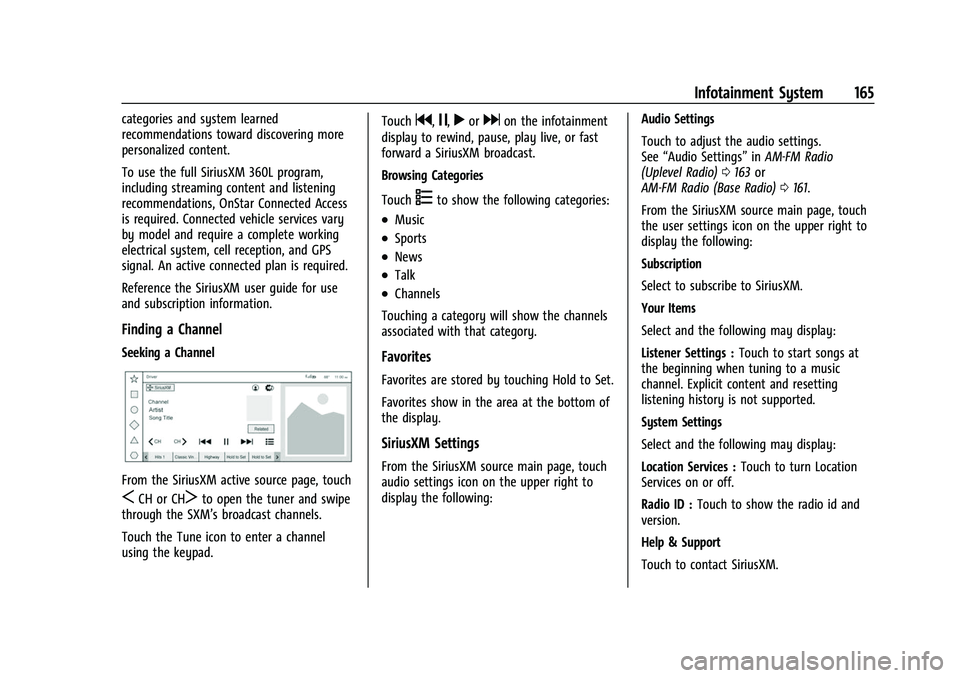
Seeking a Channel
From the SiriusXM active source page, touch
SCH or CHTto open the tuner and swipe
through the SXM’s broadcast channels.
Touch the Tune icon to enter a channel
using the keypad. Touch
g,j,rordon the infotainment
display to rewind, pause, play live, or fast
forward a SiriusXM broadcast.
Browsing Categories
Touch
(to show the following categories:
.Music
.Sports
.News
.Talk
.Channels
Touching a category will show the channels
associated with that category.
Favorites
Favorites are stored by touching Hold to Set.
Favorites show in the area at the bottom of
the display.
SiriusXM Settings
From the SiriusXM source main page, touch
audio settings icon on the upper right to
display the following: Audio Settings
Touch to adjust the audio settings.
See
“Audio Settings” inAM-FM Radio
(Uplevel Radio) 0163 or
AM-FM Radio (Base Radio) 0161.
From the SiriusXM source main page, touch
the user settings icon on the upper right to
display the following:
Subscription
Select to subscribe to SiriusXM.
Your Items
Select and the following may display:
Listener Settings : Touch to start songs at
the beginning when tuning to a music
channel. Explicit content and resetting
listening history is not supported.
System Settings
Select and the following may display:
Location Services : Touch to turn Location
Services on or off.
Radio ID : Touch to show the radio id and
version.
Help & Support
Touch to contact SiriusXM.
Page 167 of 474
GMC Sierra/Sierra Denali 1500 Owner Manual (GMNA-Localizing-U.S./
Canada/Mexico-15883563) - 2022 - CRC - 11/19/21
166 Infotainment System
Radio Reception
Unplug electronic devices from the accessory
power outlets if there is interference or
static in the radio.
FM
FM signals only reach about 16 to 65 km (10
to 40 mi). Although the radio has a built-in
electronic circuit that automatically works to
reduce interference, some static can occur,
especially around tall buildings or hills,
causing the sound to fade in and out.
AM
The range for most AM stations is greater
than for FM, especially at night. The longer
range can cause station frequencies to
interfere with each other. Static can also
occur when things like storms and power
lines interfere with radio reception. When
this happens, try reducing the treble on the
radio.
SiriusXM Satellite Radio Service
If equipped, SiriusXM Satellite Radio Service
provides digital radio reception. Tall
buildings or hills can interfere with satellite
radio signals, causing the sound to fade in
and out. In addition, traveling or standingunder heavy foliage, bridges, garages,
or tunnels may cause loss of the SiriusXM
signal for a period of time. Some cellular
services may interfere with SXM reception
causing loss of signal.
Mobile Device Usage
Mobile device usage, such as making or
receiving calls, charging, or just having the
mobile device on may cause static
interference in the radio. Unplug the mobile
device or turn it off if this happens.
Multi-Band Antenna
The roof antenna may be used for radio,
navigation, and OnStar, depending on the
equipped options. Keep clear of obstructions
for clear reception. If the vehicle has a
sunroof, and it is open, reception can also
be affected.
Audio Players
Avoiding Untrusted Media Devices
When using media devices such as SD cards,
USB devices, and mobile devices, consider
the source. Untrusted media devices could
contain files that affect system operation or
performance. Avoid use if the content or
origin cannot be trusted.
USB Port
The vehicle may be equipped with two USB
ports in the center console under the
armrest and another two on the center
stack. These ports are for data and charging.
There may also be two USB ports at the
rear of the center console and a USB port on
each side of the third row seats for
charging only.
Caution
To avoid vehicle damage, unplug all
accessories and disconnect all accessory
cables from the vehicle when not in use.
Accessory cables left plugged into the
vehicle, unconnected to a device, could be
damaged or cause an electrical short if
the unconnected end comes in contact
with liquids or another power source such
as the accessory power outlet.
Playing from a USB
A USB mass storage device can be connected
to the USB port.
Page 172 of 474
GMC Sierra/Sierra Denali 1500 Owner Manual (GMNA-Localizing-U.S./
Canada/Mexico-15883563) - 2022 - CRC - 11/19/21
Infotainment System 171
Adding a Stop on Route1. While in turn-by-turn navigation, touch the Search icon at the bottom.
2. Select a category and touch the location.
3. Touch Add stop.
4. Touch the Google Assistant mic icon and say the destination to search by voice.
5. Touch Add stop, then Confirm.
Adding a Home or Work Address
To edit a home or work address, a user
account must be logged in. See Accounts
under Settings (Uplevel Radio) 0187 or
Settings (Base Radio) 0185.
1. Open Google Maps.
2. Touch Settings and then touch Edit home or work.
3. Enter the address.
Search by Category
Destinations can be searched by category,
such as restaurant or grocery store. 1. Open Google Maps.
2. Touch the search bar.
3. Touch Categories, then select a category.
4. Touch the desired location, then touch Start. Avoid Tolls, Highways, or Ferries
1. Open Google Maps.
2. Search destination and touch the destination on the map.
3. Touch Route overview and then Route options.
4. Touch an option and then touch Back.
Traffic Layers 1. Open Google Maps.
2. Touch Settings.
3. Toggle between Traffic on or off.
Global Positioning System (GPS)
The current position of the vehicle is
determined by using satellite signals and
various vehicle signals.
At times, other interference such as the
satellite condition, road configuration,
condition of the vehicle, and/or other
circumstances can affect the navigation
system's ability to determine the accurate
position of the vehicle.
This system might not be available or
interference can occur if any of the
following are true:
.Signals are obstructed by tall buildings,
trees, large trucks, or a tunnel.
.Satellites are being repaired or improved.
For more information if the GPS is not
functioning properly, see Problems with
Route Guidance 0172.
Vehicle Positioning
At times, the position of the vehicle on the
map could be inaccurate due to one or more
of the following reasons:
.The road system has changed.
.The vehicle is driving on slippery road
surfaces such as sand, gravel, or snow.
.The vehicle is traveling on winding roads
or long, straight roads.
.The vehicle is approaching a tall building
or a large vehicle.
.The surface streets run parallel to a
freeway.
.The vehicle has been transferred by a
vehicle carrier or a ferry.
.The current position calibration is set
incorrectly.
.The vehicle is traveling at high speed.
.The vehicle changes directions more than
once, or the vehicle is turning on a turn
table in a parking lot.
Page 173 of 474
GMC Sierra/Sierra Denali 1500 Owner Manual (GMNA-Localizing-U.S./
Canada/Mexico-15883563) - 2022 - CRC - 11/19/21
172 Infotainment System
.The vehicle is entering and/or exiting a
parking lot, garage, or a lot with a roof.
.The GPS signal is not received.
.A roof carrier is installed on the vehicle.
.Tire chains are installed on the vehicle.
.The tires are replaced or worn.
.The tire pressure for the tires is incorrect.
.This is the first navigation use after the
map data is updated.
.The 12-volt battery has been disconnected
for several days.
.The vehicle is driving in heavy traffic
where driving is at low speeds, and the
vehicle is stopped and started repeatedly.
Problems with Route Guidance
Inappropriate route guidance can occur
under one or more of the following
conditions:
.The turn was not made on the road
indicated.
.Route guidance might not be available
when using automatic rerouting for the
next right or left turn.
.The route might not be changed when
using automatic rerouting.
.There is no route guidance when turning
at an intersection.
.Automatic rerouting might display a route
returning to the set waypoint if heading
for a destination without passing through
a set waypoint.
.The route prohibits the entry of a vehicle
due to a regulation by time or season or
any other regulation which may be given.
.Some routes might not be searched.
.The route to the destination might not be
shown if there are new roads, if roads
have recently changed, or if certain roads
are not listed in Maps.
To recalibrate the vehicle's position on the
map, park with the vehicle running for two
to five minutes, until the vehicle position
updates. Make sure the vehicle is parked in
a location that is safe and has a clear view
of the sky and away from large
obstructions.
Voice Recognition
If equipped, Google Assistant allows for
hands-free use of, media and messaging,
navigation and climate control functionality
in the vehicle. This feature can be started by
pressing
gon the steering wheel, touching Google Assistant on the Home screen, or by
using the wake up words
“Hey Google”or
“OK Google.”
However, not all features within these areas
are supported by voice commands and
requires the user to have a data subscription
in order to use the Google Assistant feature.
Using Voice Recognition
Voice recognition becomes available once
the system is initialized. This begins when
the vehicle is turned on. Initialization may
take a few moments.
1. Press
gon the steering wheel controls,
touch Google Assistant on the Home
screen, or use the wake up words “Hey
Google” or“OK Google” to activate voice
recognition.
2. Clearly speak one of the commands described later in this section.
Canceling Google Assistant
.Presscon the steering wheel controls
to cancel the Google Assistant request.
Page 215 of 474
GMC Sierra/Sierra Denali 1500 Owner Manual (GMNA-Localizing-U.S./
Canada/Mexico-15883563) - 2022 - CRC - 11/19/21
214 Driving and Operating
.Allow greater following distance and
watch for slippery spots. Icy patches can
occur on otherwise clear roads in shaded
areas. The surface of a curve or an
overpass can remain icy when the
surrounding roads are clear. Avoid sudden
steering maneuvers and braking while
on ice.
.Turn off cruise control.
Cold Weather Mode
In very low temperatures, a cold weather
message may display on the Driver
Information Center (DIC). The engine speed,
transmission shift patterns, and cabin fan
speed may operate differently to enable the
vehicle to warm up quicker. You can
manually override the cabin fan speed in
cold weather mode.
Blizzard Conditions
Stop the vehicle in a safe place and signal
for help. Stay with the vehicle unless there
is help nearby. If possible, use Roadside
Assistance. SeeRoadside Assistance Program
0 445. To get help and keep everyone in the
vehicle safe:
.Turn on the hazard warning flashers.
.Tie a red cloth to an outside mirror.
{Warning
Snow can trap engine exhaust under the
vehicle. This may cause exhaust gases to
get inside. Engine exhaust contains
carbon monoxide (CO), which cannot be
seen or smelled. It can cause
unconsciousness and even death.
If the vehicle is stuck in snow:
.Clear snow from the base of the
vehicle, especially any blocking the
exhaust pipe.
.Open a window about 5 cm (2 in) on
the vehicle side that is away from the
wind, to bring in fresh air.
.Fully open the air outlets on or under
the instrument panel.
.Adjust the climate control system to
circulate the air inside the vehicle and
set the fan speed to the highest
setting. See “Climate Control Systems.”
For more information about CO, see
Engine Exhaust 0230. To save fuel, run the engine for short
periods to warm the vehicle and then shut
the engine off and partially close the
window. Moving about to keep warm also
helps.
If it takes time for help to arrive, when
running the engine, push the accelerator
pedal slightly so the engine runs faster than
the idle speed. This keeps the battery
charged to restart the vehicle and to signal
for help with the headlamps. Do this as
little as possible, to save fuel.
If the Vehicle Is Stuck
Slowly and cautiously spin the wheels to
free the vehicle when stuck in sand, mud,
ice, or snow. See
“Rocking the Vehicle to Get
It Out” later in this section.
If equipped, the front and rear axles may
be locked to improve traction. See Locking
Front Axle 0253 and
Locking Rear Axle 0253.
The Traction Control/Electronic Stability
Control can often help to free a stuck
vehicle. See Traction Control/Electronic
Stability Control 0247. If TC/ESC cannot free
the vehicle, see “Rocking the Vehicle to Get
it Out” following.
Page 263 of 474
GMC Sierra/Sierra Denali 1500 Owner Manual (GMNA-Localizing-U.S./
Canada/Mexico-15883563) - 2022 - CRC - 11/19/21
262 Driving and Operating
Alerting the Driver
With Head-Up Display
Without Head-Up Display
If ACC is engaged, driver action may be
required when ACC cannot apply sufficient
braking because of approaching a vehicle
too rapidly.
When this condition occurs, the collision
alert symbol will flash on the windshield.
Either eight beeps will sound from the front,
or both sides of the Safety Alert Seat,
if equipped, will pulse five times. See
“Collision/Detection Systems” underVehicle
Personalization 0137.
See Defensive Driving 0206. Approaching and Following a Vehicle
The vehicle ahead indicator is in the
instrument cluster and HUD (if equipped).
It only displays when a vehicle is detected
in your vehicle’s path moving in the same
direction. If this symbol is not displaying,
ACC will not respond to or brake for vehicles
ahead.
ACC automatically slows the vehicle down
and adjusts vehicle speed to follow a
detected vehicle ahead at the selected
following gap. The vehicle speed increases or
decreases to follow a detected vehicle in
front of your vehicle when that vehicle is
traveling slower than your vehicle set speed.
It may apply limited braking, if necessary.
When braking is active, the brake lamps will
come on. The automatic braking may feel or
sound different than if the brakes were
applied manually. This is normal.
Passing a Vehicle While Using ACC
If the set speed is high enough, and the left
turn signal is used to pass a vehicle ahead
in the selected following gap, ACC may
assist by gradually accelerating the vehicle
prior to the lane change.{Warning
When using ACC to pass a vehicle or
perform a lane change, the following
distance to the vehicle being passed may
be reduced. ACC may not apply sufficient
acceleration or braking when passing a
vehicle or performing a lane change.
Always be ready to manually accelerate
or brake to complete the pass or lane
change.
Stationary or Very Slow-Moving Objects
{Warning
ACC may not detect and react to stopped
or slow-moving vehicles ahead of you. For
example, the system may not brake for a
vehicle it has never detected moving. This
can occur in stop-and-go traffic or when a
vehicle suddenly appears due to a vehicle (Continued)
Page 268 of 474
GMC Sierra/Sierra Denali 1500 Owner Manual (GMNA-Localizing-U.S./
Canada/Mexico-15883563) - 2022 - CRC - 11/19/21
Driving and Operating 267
Do not modify the hood, headlamps, or fog
lamps, as this may limit the camera’s ability
to detect an object.
Cleaning the Sensing System
The camera sensor on the windshield behind
the rearview mirror can become blocked by
snow, ice, dirt, mud, or debris. This area
needs to be cleaned for ACC to operate
properly.
If equipped with Super Cruise, the radar
sensors on the front of the vehicle can also
become blocked by snow, ice, dirt, mud,
or debris. These areas need to be cleaned
for ACC to operate properly.
The vehicle headlamps may need to be
cleaned due to dirt, snow, or ice. Objects
that are not illuminated correctly may be
difficult to detect.
If ACC will not operate, regular cruise control
may be available. See“Switching Between
ACC and Regular Cruise Control” previously
in this section. Always consider driving
conditions before using either cruise control
system.
For cleaning instructions, see “Washing the
Vehicle” underExterior Care 0414.Super Cruise
If equipped, Super Cruise can steer to
maintain lane position under certain
conditions on Super Cruise-enabled roads
that are separated from opposing traffic.
Super Cruise can also steer to perform a
lane change under certain conditions on
Super Cruise-enabled roads. when a lane
change is initiated by the driver using the
turn signal lever.
A lane change can be initiated by the driver
using the turn signal lever.
The Super Cruise System may initiate a lane
change maneuver in following scenarios:
.to pass slower traffic
.when the current lane is ending ahead
.to return to the initial lane
See “Super Cruise Lane Change” later in this
section and Turn and Lane-Change Signals
0 149.
{Warning
Super Cruise can only assist to maintain
lane position, or steer to change lanes,
when driving on compatible roads. You
(Continued)
Warning (Continued)
must supervise the driving task and
monitor the road conditions. You may
need to respond to traffic events by
steering, braking, or accelerating. See
Defensive Driving.
Super Cruise is:
.Not a self-driving system
.Not a crash avoidance or warning
system
.Not a substitute for proper supervision
of the driving task.
Super Cruise uses the following to detect
the current lane position and lane markings
ahead on compatible roads under certain
conditions:
.Cameras
.Global Positioning System (GPS) sensing
.A high-precision map
.GPS-enhancement data downloaded
through OnStar
Super Cruise works with Adaptive Cruise
Control (ACC), which controls acceleration
and braking while Super Cruise is enabled
and operating. Review and understand both
Page 272 of 474
GMC Sierra/Sierra Denali 1500 Owner Manual (GMNA-Localizing-U.S./
Canada/Mexico-15883563) - 2022 - CRC - 11/19/21
Driving and Operating 271
When the steering wheel is moved
manually, the steering wheel light bar
flashes blue and
^on the instrument
cluster turns blue to indicate Super Cruise is
not steering the vehicle.
When ready to allow Super Cruise to
resume steering again, position the vehicle
in the center of the lane, hold the steering
wheel until the steering wheel light bar
turns green, and then release the steering
wheel when it is safe to do so.
{Warning
To help prevent crashes before making a
lane change:
.Always check mirrors.
.Glance over your shoulder.
.Use the turn signals.
Super Cruise Lane Change
Super Cruise can steer to perform a single
lane change under certain conditions when
requested by the driver or initiated by the
Super Cruise System. To request a lane change:
1. Verify the lane next to your vehicle is clear and conditions are safe to make a
lane change.
2. Use the turn signal lever to activate the turn signal in the direction of the desired
lane change.
3. Return the turn signal lever to the neutral position after the lane change.
See Turn and Lane-Change Signals 0149.
Super Cruise System may initiate a single
lane change when enabled through Vehicle
Personalization under following conditions:
.The Super Cruise System may initiate a
lane change to the left to pass a slower
moving vehicle ahead and a subsequent
lane change to right to return to your
original lane.
.Super Cruise System may initiate a lane
change to left or right when current lane
is ending ahead.
.To cancel a Super Cruise lane change,
return the turn signal lever to the neutral
position or move the turn signal lever.
.Super Cruise steering can be overridden
with manual steering at any time to
cancel a Super Cruise lane change.
If Super Cruise detects that traffic is clear,
Super Cruise will steer the vehicle to
perform the lane change. A message appears
on the Driver Information Center (DIC)
during the lane change to provide more
information on the status of the lane
change.
Super Cruise Lane Change functionality is
only available on Super Cruise capable
divided roads.
The Super Cruise Lane Change feature can
be enabled or disabled through the vehicle
personalization menu. See “Super Cruise
Lane Change” underVehicle Personalization
0 137.
Super Cruise Lane Change may be disabled
when a trailer or other accessory (e.g. bike
rack, cargo tray, etc) is detected.
Do not use Super Cruise Lane Change
feature when towing a trailer.
Page 281 of 474
GMC Sierra/Sierra Denali 1500 Owner Manual (GMNA-Localizing-U.S./
Canada/Mexico-15883563) - 2022 - CRC - 11/19/21
280 Driving and Operating
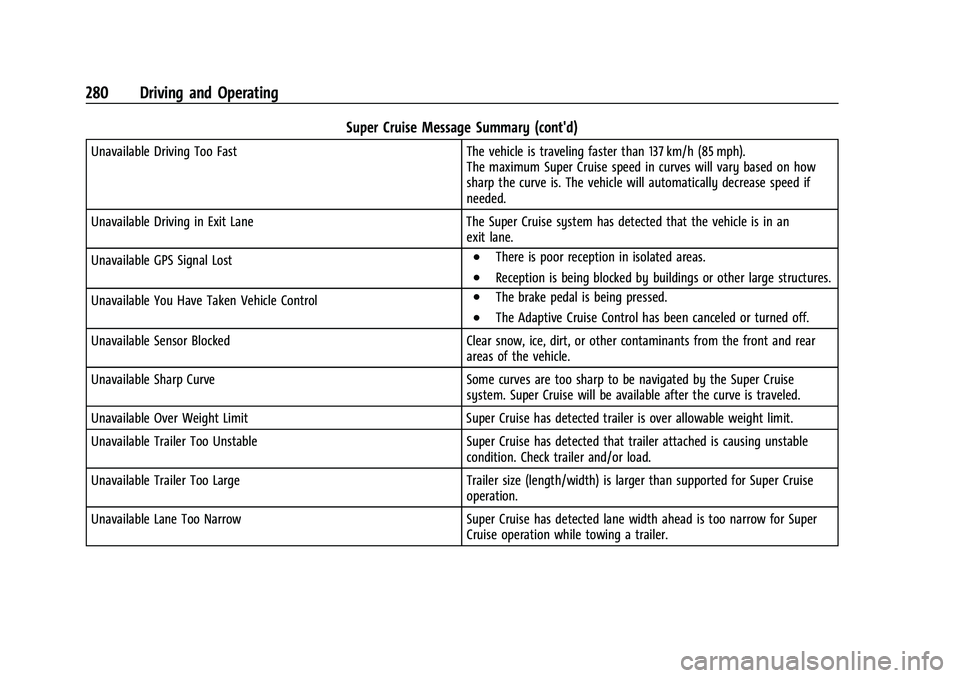
Super Cruise Message Summary (cont'd)
Unavailable Driving Too FastThe vehicle is traveling faster than 137 km/h (85 mph).
The maximum Super Cruise speed in curves will vary based on how
sharp the curve is. The vehicle will automatically decrease speed if
needed.
Unavailable Driving in Exit Lane The Super Cruise system has detected that the vehicle is in an
exit lane.
Unavailable GPS Signal Lost
.There is poor reception in isolated areas.
.Reception is being blocked by buildings or other large structures.
Unavailable You Have Taken Vehicle Control
.The brake pedal is being pressed.
.The Adaptive Cruise Control has been canceled or turned off.
Unavailable Sensor Blocked Clear snow, ice, dirt, or other contaminants from the front and rear
areas of the vehicle.
Unavailable Sharp Curve Some curves are too sharp to be navigated by the Super Cruise
system. Super Cruise will be available after the curve is traveled.
Unavailable Over Weight Limit Super Cruise has detected trailer is over allowable weight limit.
Unavailable Trailer Too Unstable Super Cruise has detected that trailer attached is causing unstable
condition. Check trailer and/or load.
Unavailable Trailer Too Large Trailer size (length/width) is larger than supported for Super Cruise
operation.
Unavailable Lane Too Narrow Super Cruise has detected lane width ahead is too narrow for Super
Cruise operation while towing a trailer.
Page 289 of 474
GMC Sierra/Sierra Denali 1500 Owner Manual (GMNA-Localizing-U.S./
Canada/Mexico-15883563) - 2022 - CRC - 11/19/21
288 Driving and Operating
calibrated or trailer position is not
known the Transparent Trailer
Picture-in-Picture View will be shown.
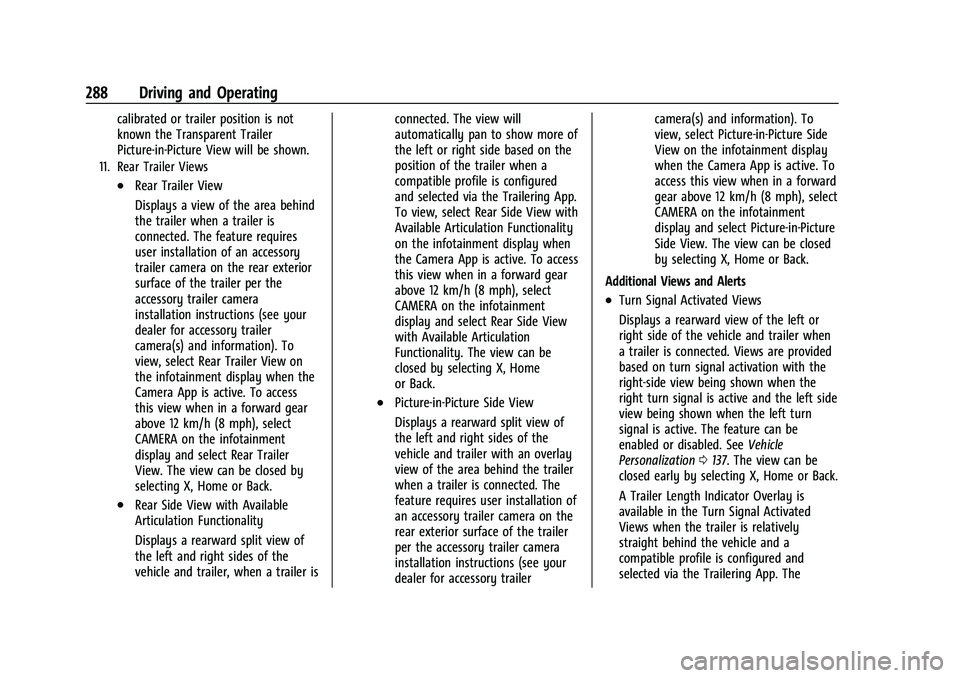
11. Rear Trailer Views
.Rear Trailer View
Displays a view of the area behind
the trailer when a trailer is
connected. The feature requires
user installation of an accessory
trailer camera on the rear exterior
surface of the trailer per the
accessory trailer camera
installation instructions (see your
dealer for accessory trailer
camera(s) and information). To
view, select Rear Trailer View on
the infotainment display when the
Camera App is active. To access
this view when in a forward gear
above 12 km/h (8 mph), select
CAMERA on the infotainment
display and select Rear Trailer
View. The view can be closed by
selecting X, Home or Back.
.Rear Side View with Available
Articulation Functionality
Displays a rearward split view of
the left and right sides of the
vehicle and trailer, when a trailer isconnected. The view will
automatically pan to show more of
the left or right side based on the
position of the trailer when a
compatible profile is configured
and selected via the Trailering App.
To view, select Rear Side View with
Available Articulation Functionality
on the infotainment display when
the Camera App is active. To access
this view when in a forward gear
above 12 km/h (8 mph), select
CAMERA on the infotainment
display and select Rear Side View
with Available Articulation
Functionality. The view can be
closed by selecting X, Home
or Back.
.Picture-in-Picture Side View
Displays a rearward split view of
the left and right sides of the
vehicle and trailer with an overlay
view of the area behind the trailer
when a trailer is connected. The
feature requires user installation of
an accessory trailer camera on the
rear exterior surface of the trailer
per the accessory trailer camera
installation instructions (see your
dealer for accessory trailercamera(s) and information). To
view, select Picture-in-Picture Side
View on the infotainment display
when the Camera App is active. To
access this view when in a forward
gear above 12 km/h (8 mph), select
CAMERA on the infotainment
display and select Picture-in-Picture
Side View. The view can be closed
by selecting X, Home or Back.
Additional Views and Alerts
.Turn Signal Activated Views
Displays a rearward view of the left or
right side of the vehicle and trailer when
a trailer is connected. Views are provided
based on turn signal activation with the
right-side view being shown when the
right turn signal is active and the left side
view being shown when the left turn
signal is active. The feature can be
enabled or disabled. See Vehicle
Personalization 0137. The view can be
closed early by selecting X, Home or Back.
A Trailer Length Indicator Overlay is
available in the Turn Signal Activated
Views when the trailer is relatively
straight behind the vehicle and a
compatible profile is configured and
selected via the Trailering App. The