PAGE 12 GMC SIERRA 2023 User Guide
[x] Cancel search | Manufacturer: GMC, Model Year: 2023, Model line: SIERRA, Model: GMC SIERRA 2023Pages: 430, PDF Size: 18.76 MB
Page 47 of 430
GMC Sierra/Sierra Denali 2500 HD/3500 HD Owner Manual (GMNA-
Localizing-U.S./Canada-16504257) - 2023 - CRC - 5/9/22
46 Keys, Doors, and Windows
Programming the Power Windows
Programming may be necessary if the
vehicle battery has been disconnected or
discharged. If the window is unable to
express-up, program each express-close
window:1. Close all doors.
2. Turn the ignition on or to ACC/ACCESSORY.
3. Partially open the window to be programmed. Then close it and continue
to pull the switch briefly after the
window has fully closed.
4. Open the window and continue to press the switch briefly after the window has
fully opened.
Remote Window Operation
If equipped, this feature allows the windows
to be opened remotely. If enabled in vehicle
personalization, press and hold
Kon the
RKE transmitter. To view available settings
for this feature, touch the Settings icon on
the infotainment home page. Select
“Vehicle” to display the list of available
options and select “Remote Lock, Unlock,
Start”.
Rear Windows
Power Sliding Rear Window
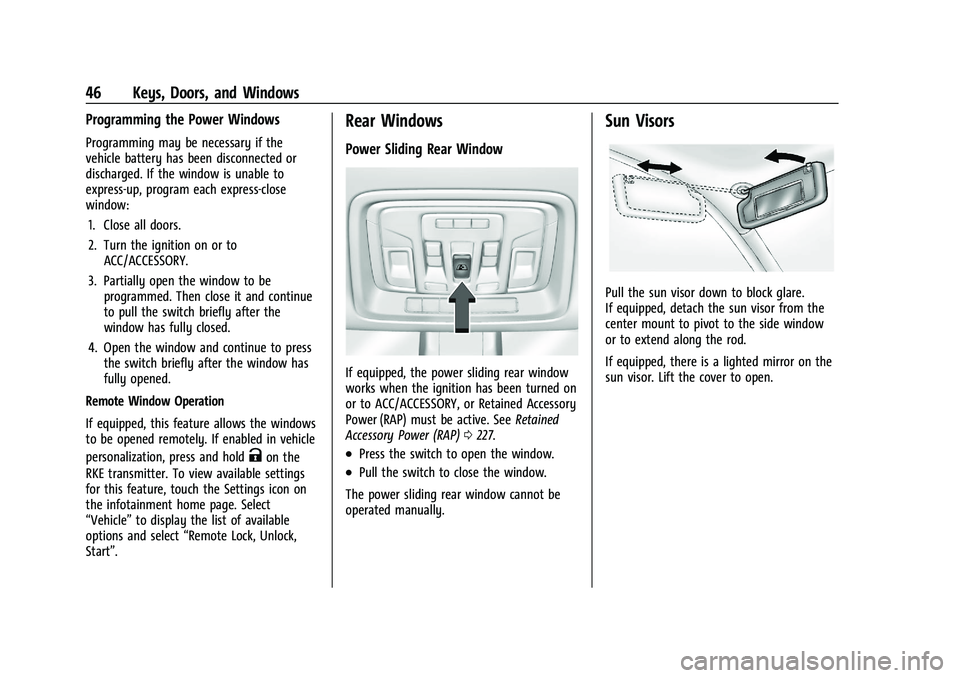
If equipped, the power sliding rear window
works when the ignition has been turned on
or to ACC/ACCESSORY, or Retained Accessory
Power (RAP) must be active. See Retained
Accessory Power (RAP) 0227.
.Press the switch to open the window.
.Pull the switch to close the window.
The power sliding rear window cannot be
operated manually.
Sun Visors
Pull the sun visor down to block glare.
If equipped, detach the sun visor from the
center mount to pivot to the side window
or to extend along the rod.
If equipped, there is a lighted mirror on the
sun visor. Lift the cover to open.
Page 115 of 430
GMC Sierra/Sierra Denali 2500 HD/3500 HD Owner Manual (GMNA-
Localizing-U.S./Canada-16504257) - 2023 - CRC - 5/9/22
114 Instruments and Controls
.Home
.Info App. This is where the selected Driver
Information Center (DIC) displays can be
viewed. SeeDriver Information Center
(DIC) (Base Level) 0128 or
Driver Information Center (DIC) (Midlevel
and Uplevel) 0130.
.Audio
.Navigation
.Phone
.Options
Home
Information displayed here can be
customized from the Options menu.
Speedometer : Displays how fast the vehicle
is moving in either kilometers per hour
(km/h) or miles per hour (mph).
Speed Sign : Shows sign information, which
comes from a roadway database in the
onboard navigation, if equipped.
Time : Displays the current time.
Fuel Range : Displays the approximate
distance the vehicle can be driven without
refueling. The fuel range estimate is based
on an average of the vehicle’s fuel economy over recent driving history and the amount
of fuel remaining in the fuel tank. Fuel
range cannot be reset.
Audio
In the Audio menu, use the thumbwheel to
scroll through options, browse for music,
select from favorites, or change the audio
source. In the main view, scroll to change
the station or go to the next or previous
track.
Navigation
In the Navigation menu, if there is no active
route, a compass will be displayed. If there
is an active route, press the thumbwheel to
cancel or resume route guidance, mute or
unmute voice guidance, or access Recents or
Favorites.
Phone
In the Phone menu, if there is no active
phone call, view recent calls, scroll through
contacts, select from the favorites, or change
the phone source. If there is an active call,
mute the phone or switch to handset
operation.
Options
Use the thumbwheel to scroll through items
in the Options menu.
Head-up Display (HUD) :
If equipped, this
feature allows for adjusting the angle of the
HUD image and changing or turning off the
Speed Limit Sign.
HUD Rotation: Press the thumbwheel while
Adjust Rotation is highlighted to enter
Adjust Mode. Scroll to adjust the angle of
the HUD display. Press the thumbwheel to
confirm and save the setting. This feature
may only be available in P (Park).
Speed Limit Style: Press the thumbwheel
while Speed Limit Style is highlighted to
change the speed sign style.
Units : Press the thumbwheel while Units is
displayed to enter the Units menu. Choose
US or metric units by pressing the
thumbwheel while the desired item is
highlighted. A selected mark will be
displayed next to the selected item.
Info Page Options : Press the thumbwheel
while Info Page Options is displayed to
enter and select the items to be displayed
in the Info app. A selected mark will be
displayed next to the selected item.
Page 116 of 430
GMC Sierra/Sierra Denali 2500 HD/3500 HD Owner Manual (GMNA-
Localizing-U.S./Canada-16504257) - 2023 - CRC - 5/9/22
Instruments and Controls 115
Home :Press the thumbwheel to select the
available elements to display. Not all
elements will be available on all vehicles:
Speedometer, Speed Sign, Time, and Fuel
Range.
Display (Uplevel) : Press the thumbwheel to
enter the Display menu. Select to turn on or
off the compass or speed sign.
Speed Warning : The Speed Warning display
allows the driver to set a speed that they
do not want to exceed. To set the Speed
Warning, press the thumbwheel when Speed
Warning is displayed, or press the
thumbwheel on the main view to set the
speed value. Scroll to adjust the value. Press
the thumbwheel to set the speed. Once the
speed is set, this feature can be turned off
by pressing the thumbwheel while viewing
this page. If the selected speed limit is
exceeded, a pop-up warning is displayed
with a chime.
Software Information : Press the
thumbwheel while Software Information is
highlighted to display open source software
information.Speedometer
The speedometer shows the vehicle speed in
either kilometers per hour (km/h) or miles
per hour (mph).
Odometer
The odometer shows how far the vehicle has
been driven, in either kilometers or miles.
Trip Odometer
The trip odometer shows how far the
vehicle has been driven since the trip
odometer was last reset.
The trip odometer is accessed and reset
through the Driver Information Center (DIC).
See Driver Information Center (DIC) (Base
Level) 0128 or
Driver Information Center (DIC) (Midlevel and
Uplevel) 0130.
Tachometer
The tachometer displays the engine speed in
revolutions per minute (rpm).
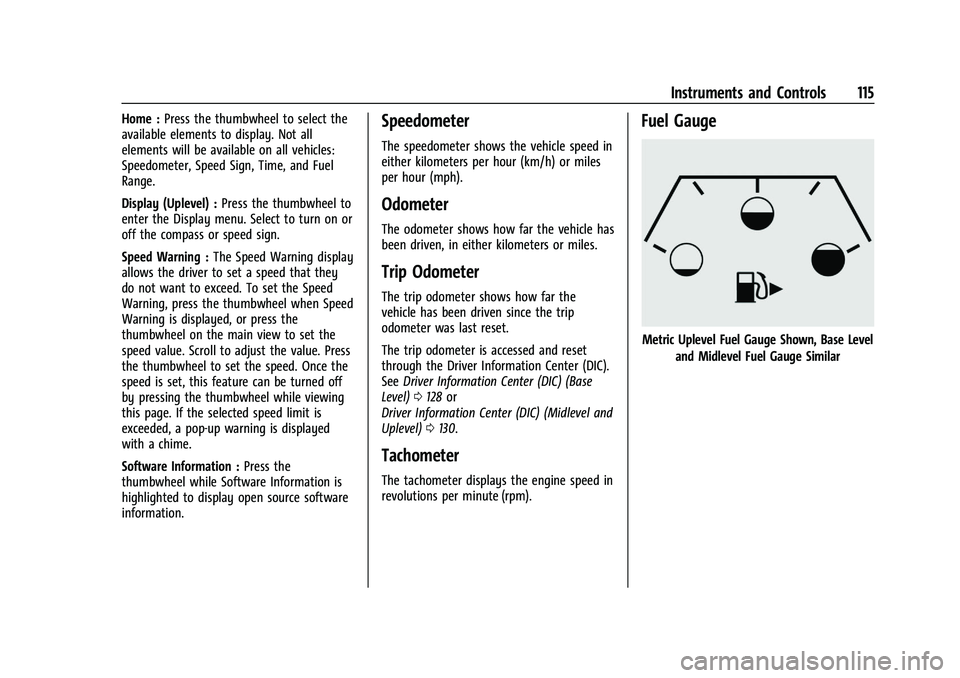
Fuel Gauge
Metric Uplevel Fuel Gauge Shown, Base Level
and Midlevel Fuel Gauge Similar
Page 131 of 430
GMC Sierra/Sierra Denali 2500 HD/3500 HD Owner Manual (GMNA-
Localizing-U.S./Canada-16504257) - 2023 - CRC - 5/9/22
130 Instruments and Controls
wear and the state of the system. Reset the
Brake Pad Life display after replacing the
brake pads. SeeBrake Pad Life System 0317.
Driver Information Center (DIC)
(Midlevel and Uplevel)
The DIC displays are shown in the center of
the instrument cluster in the Info app. See
Instrument Cluster 0111. The displays show
the status of many vehicle systems.
If the vehicle has a diesel engine, see the
Duramax diesel supplement.
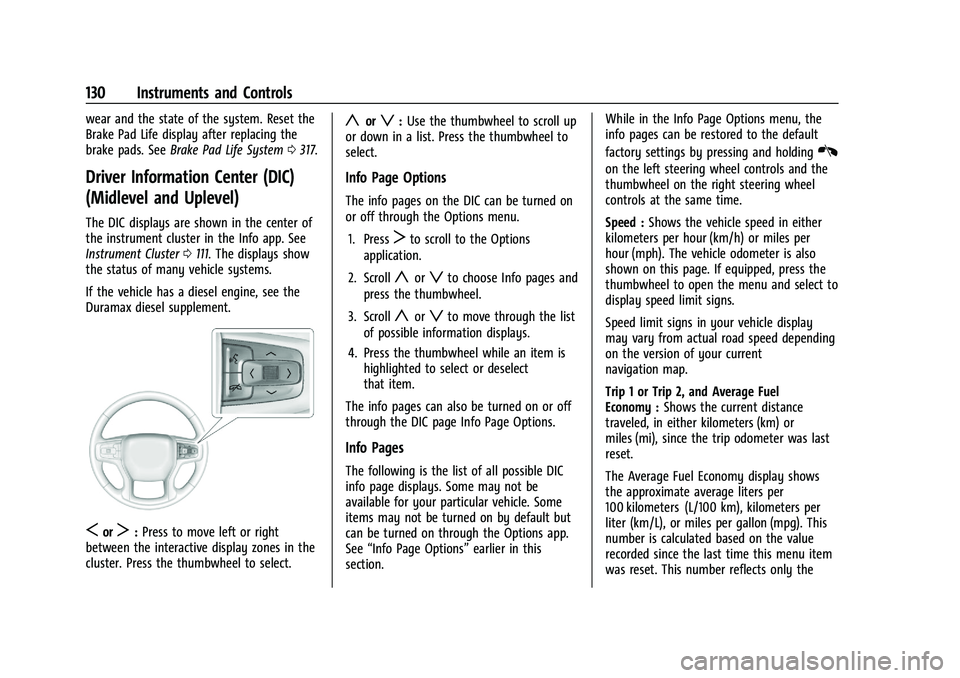
SorT: Press to move left or right
between the interactive display zones in the
cluster. Press the thumbwheel to select.
yorz: Use the thumbwheel to scroll up
or down in a list. Press the thumbwheel to
select.
Info Page Options
The info pages on the DIC can be turned on
or off through the Options menu.
1. Press
Tto scroll to the Options
application.
2. Scroll
yorzto choose Info pages and
press the thumbwheel.
3. Scroll
yorzto move through the list
of possible information displays.
4. Press the thumbwheel while an item is highlighted to select or deselect
that item.
The info pages can also be turned on or off
through the DIC page Info Page Options.
Info Pages
The following is the list of all possible DIC
info page displays. Some may not be
available for your particular vehicle. Some
items may not be turned on by default but
can be turned on through the Options app.
See “Info Page Options” earlier in this
section. While in the Info Page Options menu, the
info pages can be restored to the default
factory settings by pressing and holding
K
on the left steering wheel controls and the
thumbwheel on the right steering wheel
controls at the same time.
Speed :
Shows the vehicle speed in either
kilometers per hour (km/h) or miles per
hour (mph). The vehicle odometer is also
shown on this page. If equipped, press the
thumbwheel to open the menu and select to
display speed limit signs.
Speed limit signs in your vehicle display
may vary from actual road speed depending
on the version of your current
navigation map.
Trip 1 or Trip 2, and Average Fuel
Economy : Shows the current distance
traveled, in either kilometers (km) or
miles (mi), since the trip odometer was last
reset.
The Average Fuel Economy display shows
the approximate average liters per
100 kilometers (L/100 km), kilometers per
liter (km/L), or miles per gallon (mpg). This
number is calculated based on the value
recorded since the last time this menu item
was reset. This number reflects only the
Page 133 of 430
GMC Sierra/Sierra Denali 2500 HD/3500 HD Owner Manual (GMNA-
Localizing-U.S./Canada-16504257) - 2023 - CRC - 5/9/22
132 Instruments and Controls
Engine Hours (Hourmeter) :Shows the total
number of hours the engine has run. This
display also shows the engine idle hours.
Transmission Fluid Temperature : Shows the
temperature of the automatic transmission
fluid in either degrees Celsius (°C) or degrees
Fahrenheit (°F).
Trailer Brake : On vehicles with the
Integrated Trailer Brake Control (ITBC)
system, the trailer brake display appears in
the DIC.
TRAILER GAIN shows the trailer gain setting.
This setting can be adjusted from 0.0 to 10.0
with either a trailer connected or
disconnected.
TRAILER OUTPUT shows the power output to
the trailer any time a trailer with electric
brakes is connected. Output is displayed as a
bar graph. Dotted lines may appear in the
OUTPUT display if a trailer is not connected.
Off Road : Displays vehicle pitch and roll
information, road wheel angle, and
four-wheel drive (4WD) status.
Follow Distance : If equipped, the current
follow time to the vehicle ahead is displayed
as a time value on this page. Driver Assistance :
If equipped, shows
information for Lane Departure Warning
(LDW) and Forward Collision Alert (FCA).
Info Page Options : Scroll to choose which
info pages appear on the DIC. Press the
thumbwheel to select or deselect.
Blank Page : Shows no information.
Head-Up Display (HUD)
{Warning
If the HUD image is too bright or too
high in your field of view, it may take
you more time to see things you need to
see when it is dark outside. Be sure to
keep the HUD image dim and placed low
in your field of view.
If equipped with HUD, some information
about the operation of the vehicle is
projected onto the windshield. The image is
projected through the HUD lens on top of
the instrument panel. The information
appears as an image focused out toward the
front of the vehicle.
Caution
If you try to use the HUD image as a
parking aid, you may misjudge the
distance and damage your vehicle. Do not
use the HUD image as a parking aid.
The HUD information can be displayed in
various languages. The speedometer reading
and other numerical values can be displayed
in either English or metric units.
The language selection is changed through
the radio, and the units of measurement are
changed through the instrument cluster. See
Settings 0182 and “Options” under
Instrument Cluster 0111.
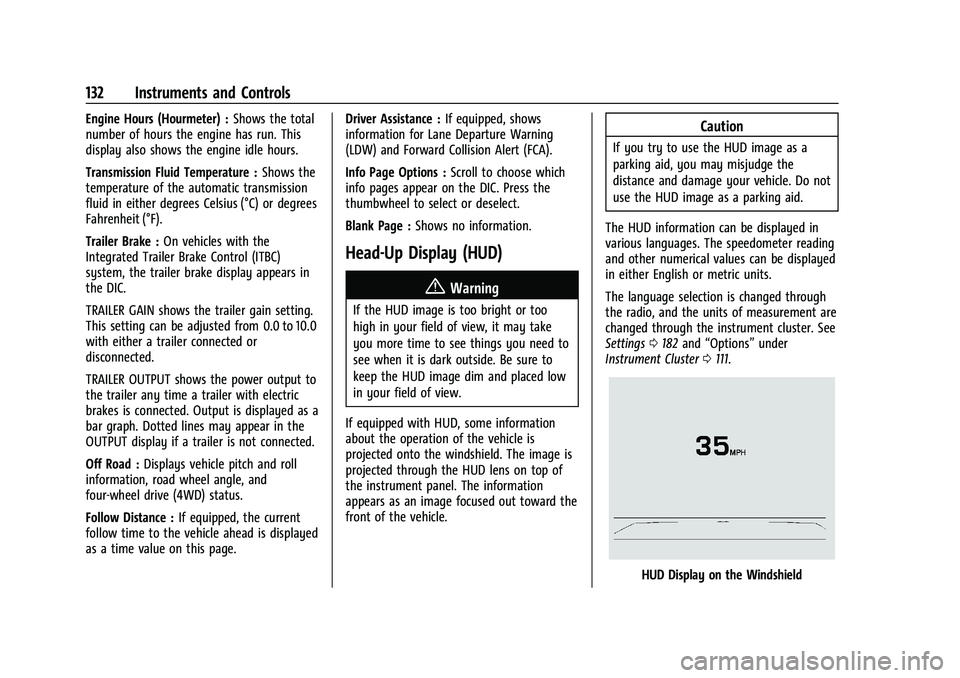
HUD Display on the Windshield
Page 147 of 430
GMC Sierra/Sierra Denali 2500 HD/3500 HD Owner Manual (GMNA-
Localizing-U.S./Canada-16504257) - 2023 - CRC - 5/9/22
146 Lighting
+ON/OFF :Press to turn the dome lamps
on or off manually.
Reading Lamps
There are reading lamps on the overhead
console and over the rear seats. These lamps
come on when any door is opened,
Kon
the remote key is pressed, or when the
vehicle is turned off.
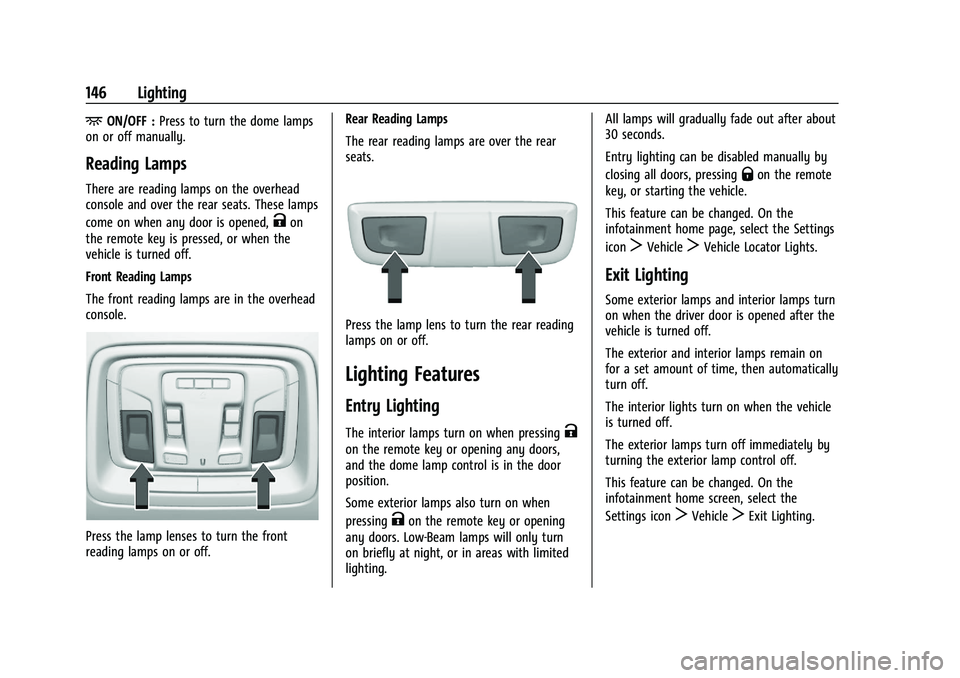
Front Reading Lamps
The front reading lamps are in the overhead
console.
Press the lamp lenses to turn the front
reading lamps on or off. Rear Reading Lamps
The rear reading lamps are over the rear
seats.
Press the lamp lens to turn the rear reading
lamps on or off.
Lighting Features
Entry Lighting
The interior lamps turn on when pressingK
on the remote key or opening any doors,
and the dome lamp control is in the door
position.
Some exterior lamps also turn on when
pressing
Kon the remote key or opening
any doors. Low-Beam lamps will only turn
on briefly at night, or in areas with limited
lighting. All lamps will gradually fade out after about
30 seconds.
Entry lighting can be disabled manually by
closing all doors, pressing
Qon the remote
key, or starting the vehicle.
This feature can be changed. On the
infotainment home page, select the Settings
icon
TVehicleTVehicle Locator Lights.
Exit Lighting
Some exterior lamps and interior lamps turn
on when the driver door is opened after the
vehicle is turned off.
The exterior and interior lamps remain on
for a set amount of time, then automatically
turn off.
The interior lights turn on when the vehicle
is turned off.
The exterior lamps turn off immediately by
turning the exterior lamp control off.
This feature can be changed. On the
infotainment home screen, select the
Settings icon
TVehicleTExit Lighting.
Page 149 of 430
GMC Sierra/Sierra Denali 2500 HD/3500 HD Owner Manual (GMNA-
Localizing-U.S./Canada-16504257) - 2023 - CRC - 5/18/22
148 Infotainment System
Infotainment System
Introduction
Introduction . . . . . . . . . . . . . . . . . . . . . . . . . . . 148
Overview . . . . . . . . . . . . . . . . . . . . . . . . . . . . . . 149
Steering Wheel Controls . . . . . . . . . . . . . . . 151
Using the System . . . . . . . . . . . . . . . . . . . . . . 152
Software Updates . . . . . . . . . . . . . . . . . . . . . . 154
Radio
AM-FM Radio . . . . . . . . . . . . . . . . . . . . . . . . . . 154
HD Radio Technology . . . . . . . . . . . . . . . . . . 156
Radio Data System (RDS) . . . . . . . . . . . . . . 157
Satellite Radio . . . . . . . . . . . . . . . . . . . . . . . . . 157
Radio Reception . . . . . . . . . . . . . . . . . . . . . . . . 157
Fixed Mast Antenna . . . . . . . . . . . . . . . . . . . 158
Multi-Band Antenna . . . . . . . . . . . . . . . . . . . 158
Audio Players
Avoiding Untrusted Media Devices . . . . . 158
USB Port . . . . . . . . . . . . . . . . . . . . . . . . . . . . . . . 158
Auxiliary Jack . . . . . . . . . . . . . . . . . . . . . . . . . . 159
Bluetooth Audio . . . . . . . . . . . . . . . . . . . . . . . 160
Navigation
Using the Navigation System . . . . . . . . . 160
Maps . . . . . . . . . . . . . . . . . . . . . . . . . . . . . . . . . . 163
Navigation Symbols . . . . . . . . . . . . . . . . . . . 164
Destination . . . . . . . . . . . . . . . . . . . . . . . . . . . . 164
Global Positioning System (GPS) . . . . . . . 170
Vehicle Positioning . . . . . . . . . . . . . . . . . . . . 170Problems with Route Guidance . . . . . . . . 170
If the System Needs Service . . . . . . . . . . . 171
Map Data Updates . . . . . . . . . . . . . . . . . . . . . 171
Database Coverage Explanations . . . . . . . 171
Voice Recognition
Voice Recognition . . . . . . . . . . . . . . . . . . . . . . 171
Phone
Bluetooth (Overview) . . . . . . . . . . . . . . . . . . 176
Bluetooth (Pairing and Using a
Phone) . . . . . . . . . . . . . . . . . . . . . . . . . . . . . . . 177
Apple CarPlay and Android Auto . . . . . . . 181
Settings
Settings . . . . . . . . . . . . . . . . . . . . . . . . . . . . . . . 182
Teen Driver . . . . . . . . . . . . . . . . . . . . . . . . . . . . 186
Trademarks and License Agreements
Trademarks and License Agreements . . . . . . . . . . . . . . . . . . . . . . . . . 189
Introduction
Read the following pages to become familiar
with the features.
{Warning
Taking your eyes off the road for too
long or too often while using any
infotainment feature can cause a crash.
You or others could be injured or killed.
Do not give extended attention to
infotainment tasks while driving. Limit
your glances at the vehicle displays and
focus your attention on driving. Use voice
commands whenever possible.
The infotainment system has built-in
features intended to help avoid distraction
by disabling some features when driving.
These features may gray out when they are
unavailable. Many infotainment features are
also available through the instrument cluster
and steering wheel controls.
Before driving:
.Become familiar with the operation,
center stack controls, steering wheel
controls, and infotainment display.
Page 151 of 430
GMC Sierra/Sierra Denali 2500 HD/3500 HD Owner Manual (GMNA-
Localizing-U.S./Canada-16504257) - 2023 - CRC - 5/18/22
150 Infotainment System
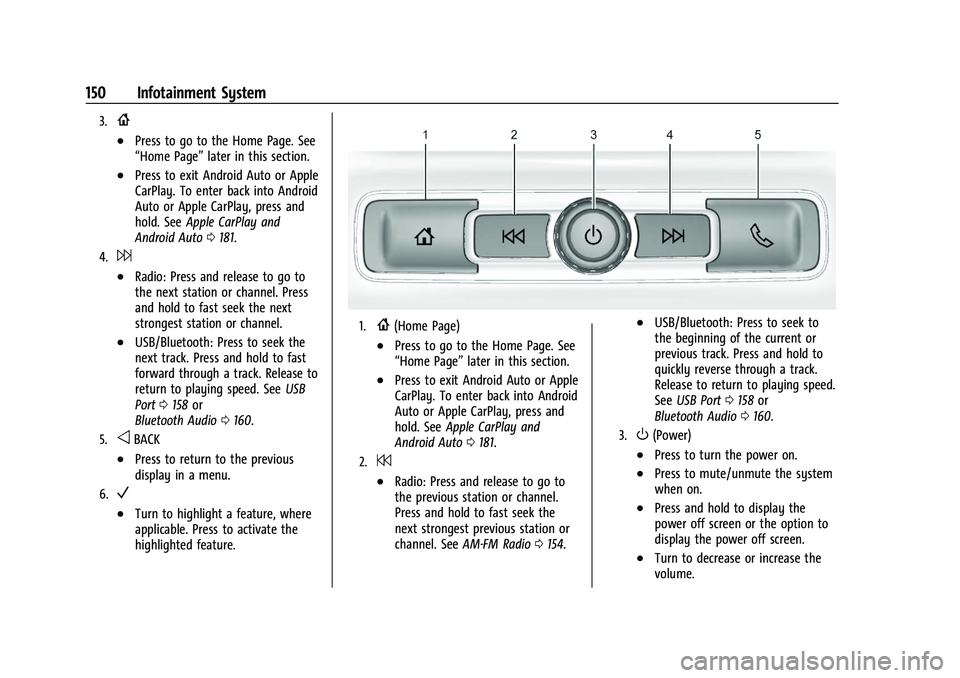
3.{
.Press to go to the Home Page. See
“Home Page”later in this section.
.Press to exit Android Auto or Apple
CarPlay. To enter back into Android
Auto or Apple CarPlay, press and
hold. SeeApple CarPlay and
Android Auto 0181.
4.6
.Radio: Press and release to go to
the next station or channel. Press
and hold to fast seek the next
strongest station or channel.
.USB/Bluetooth: Press to seek the
next track. Press and hold to fast
forward through a track. Release to
return to playing speed. See USB
Port 0158 or
Bluetooth Audio 0160.
5.oBACK
.Press to return to the previous
display in a menu.
6.V
.Turn to highlight a feature, where
applicable. Press to activate the
highlighted feature.
1.{(Home Page)
.Press to go to the Home Page. See
“Home Page” later in this section.
.Press to exit Android Auto or Apple
CarPlay. To enter back into Android
Auto or Apple CarPlay, press and
hold. SeeApple CarPlay and
Android Auto 0181.
2.7
.Radio: Press and release to go to
the previous station or channel.
Press and hold to fast seek the
next strongest previous station or
channel. See AM-FM Radio 0154.
.USB/Bluetooth: Press to seek to
the beginning of the current or
previous track. Press and hold to
quickly reverse through a track.
Release to return to playing speed.
See USB Port 0158 or
Bluetooth Audio 0160.
3.O(Power)
.Press to turn the power on.
.Press to mute/unmute the system
when on.
.Press and hold to display the
power off screen or the option to
display the power off screen.
.Turn to decrease or increase the
volume.
Page 152 of 430
GMC Sierra/Sierra Denali 2500 HD/3500 HD Owner Manual (GMNA-
Localizing-U.S./Canada-16504257) - 2023 - CRC - 5/18/22
Infotainment System 151
4.6
.Radio: Press and release to go to
the next station or channel. Press
and hold to fast seek the next
strongest station or channel.
.USB/Bluetooth: Press to seek the
next track. Press and hold to fast
forward through a track. Release to
return to playing speed. SeeUSB
Port 0158 or
Bluetooth Audio 0160.
5.v
.Press and release to access the
phone display or answer an
incoming call.
Home Page
The Home Page is where vehicle application
icons are accessed. Some applications are
disabled when the vehicle is moving.
Swipe left or right across the display to
access the pages of icons.
Managing Home Page Icons 1. Touch and hold any of the Home Page icons to enter edit mode.
2. Continue holding the icon and drag it to the desired position. 3. Release your finger to drop the icon in
the desired position.
4. To move an application to another page, drag the icon to the edge of the display
toward the desired page.
5. Continue dragging and dropping application icons as desired.
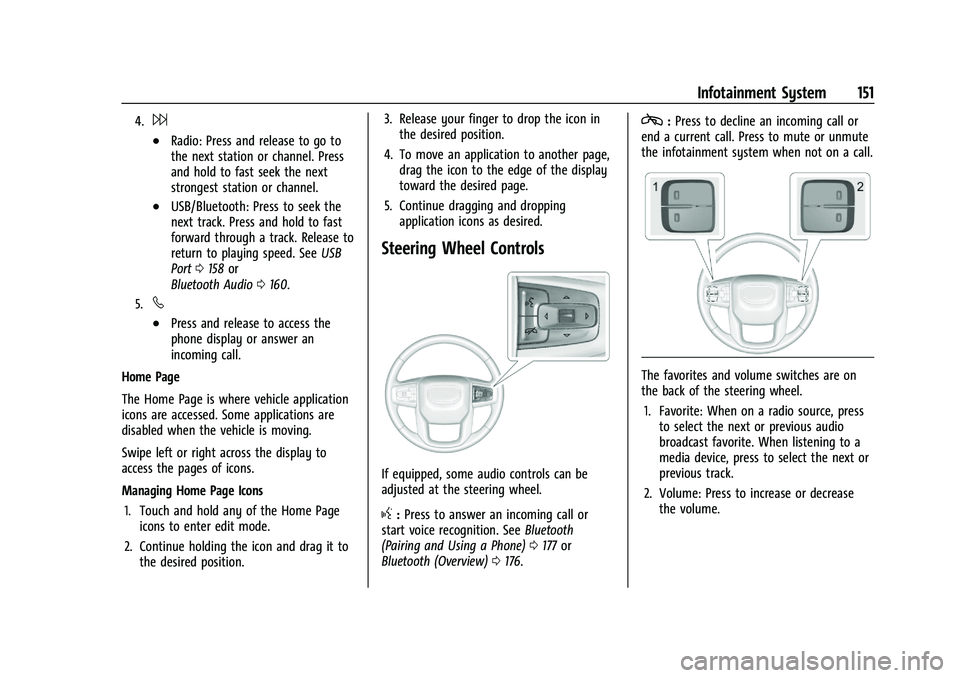
Steering Wheel Controls
If equipped, some audio controls can be
adjusted at the steering wheel.
g:Press to answer an incoming call or
start voice recognition. See Bluetooth
(Pairing and Using a Phone) 0177 or
Bluetooth (Overview) 0176.
c:Press to decline an incoming call or
end a current call. Press to mute or unmute
the infotainment system when not on a call.
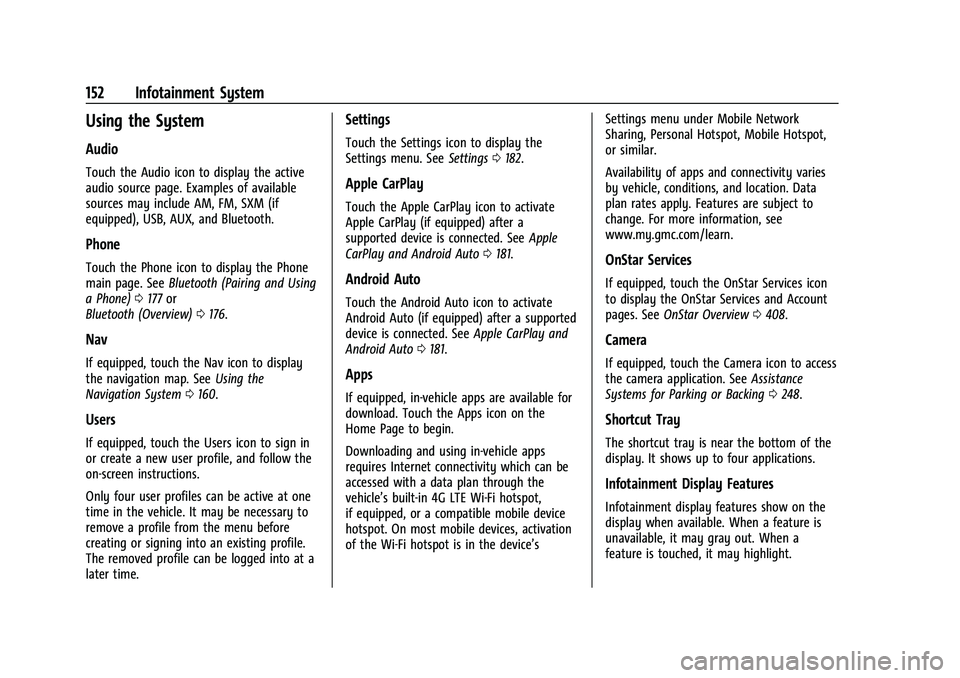
The favorites and volume switches are on
the back of the steering wheel.
1. Favorite: When on a radio source, press to select the next or previous audio
broadcast favorite. When listening to a
media device, press to select the next or
previous track.
2. Volume: Press to increase or decrease the volume.
Page 153 of 430
GMC Sierra/Sierra Denali 2500 HD/3500 HD Owner Manual (GMNA-
Localizing-U.S./Canada-16504257) - 2023 - CRC - 5/18/22
152 Infotainment System
Using the System
Audio
Touch the Audio icon to display the active
audio source page. Examples of available
sources may include AM, FM, SXM (if
equipped), USB, AUX, and Bluetooth.
Phone
Touch the Phone icon to display the Phone
main page. SeeBluetooth (Pairing and Using
a Phone) 0177 or
Bluetooth (Overview) 0176.
Nav
If equipped, touch the Nav icon to display
the navigation map. See Using the
Navigation System 0160.
Users
If equipped, touch the Users icon to sign in
or create a new user profile, and follow the
on-screen instructions.
Only four user profiles can be active at one
time in the vehicle. It may be necessary to
remove a profile from the menu before
creating or signing into an existing profile.
The removed profile can be logged into at a
later time.
Settings
Touch the Settings icon to display the
Settings menu. See Settings0182.
Apple CarPlay
Touch the Apple CarPlay icon to activate
Apple CarPlay (if equipped) after a
supported device is connected. See Apple
CarPlay and Android Auto 0181.
Android Auto
Touch the Android Auto icon to activate
Android Auto (if equipped) after a supported
device is connected. See Apple CarPlay and
Android Auto 0181.
Apps
If equipped, in-vehicle apps are available for
download. Touch the Apps icon on the
Home Page to begin.
Downloading and using in-vehicle apps
requires Internet connectivity which can be
accessed with a data plan through the
vehicle’s built-in 4G LTE Wi-Fi hotspot,
if equipped, or a compatible mobile device
hotspot. On most mobile devices, activation
of the Wi-Fi hotspot is in the device’s Settings menu under Mobile Network
Sharing, Personal Hotspot, Mobile Hotspot,
or similar.
Availability of apps and connectivity varies
by vehicle, conditions, and location. Data
plan rates apply. Features are subject to
change. For more information, see
www.my.gmc.com/learn.
OnStar Services
If equipped, touch the OnStar Services icon
to display the OnStar Services and Account
pages. See
OnStar Overview 0408.
Camera
If equipped, touch the Camera icon to access
the camera application. See Assistance
Systems for Parking or Backing 0248.
Shortcut Tray
The shortcut tray is near the bottom of the
display. It shows up to four applications.
Infotainment Display Features
Infotainment display features show on the
display when available. When a feature is
unavailable, it may gray out. When a
feature is touched, it may highlight.