infotainment GMC SIERRA 2024 Owner's Manual
[x] Cancel search | Manufacturer: GMC, Model Year: 2024, Model line: SIERRA, Model: GMC SIERRA 2024Pages: 440, PDF Size: 9.21 MB
Page 155 of 440
GMC Sierra/Sierra Denali 2500 HD/3500 HD Owner Manual (GMNA-
Localizing-U.S./Canada-16908340) - 2024 - CRC - 12/7/22
Infotainment System 153
Infotainment System
Introduction
Introduction . . . . . . . . . . . . . . . . . . . . . . . . . . . 153
Overview (Base Radio) . . . . . . . . . . . . . . . . . 154
Overview (Uplevel Radio) . . . . . . . . . . . . . . 155
Steering Wheel Controls . . . . . . . . . . . . . . . 156
Using the System . . . . . . . . . . . . . . . . . . . . . . 157
Software Updates . . . . . . . . . . . . . . . . . . . . . 159
Radio
AM-FM Radio (Base Radio) . . . . . . . . . . . . . 159
AM-FM Radio (Uplevel Radio) . . . . . . . . . . 161
Satellite Radio . . . . . . . . . . . . . . . . . . . . . . . . . 162
Radio Reception . . . . . . . . . . . . . . . . . . . . . . . 162
Multi-Band Antenna . . . . . . . . . . . . . . . . . . . 163
Audio Players
Avoiding Untrusted Media Devices . . . . 163
USB Port . . . . . . . . . . . . . . . . . . . . . . . . . . . . . . . 163
Bluetooth Audio (Base Radio) . . . . . . . . . . 163
Bluetooth Audio (Uplevel Radio) . . . . . . . 164
Navigation
Using the Navigation System . . . . . . . . . . 165
Maps . . . . . . . . . . . . . . . . . . . . . . . . . . . . . . . . . . 165
Navigation Symbols . . . . . . . . . . . . . . . . . . . 166
Destination . . . . . . . . . . . . . . . . . . . . . . . . . . . . 166
Global Positioning System (GPS) . . . . . . . 167
Vehicle Positioning . . . . . . . . . . . . . . . . . . . . 167
Problems with Route Guidance . . . . . . . . 168
Voice Recognition
Voice Recognition . . . . . . . . . . . . . . . . . . . . . 168
Phone
Bluetooth (Overview) . . . . . . . . . . . . . . . . . . 170
Bluetooth (Pairing and Using a Phonefor Uplevel Radio) . . . . . . . . . . . . . . . . . . . . 171
Bluetooth (Pairing and Using a Phone for Base Radio) . . . . . . . . . . . . . . . . . . . . . . 174
Apple CarPlay and Android Auto (Base Radio) . . . . . . . . . . . . . . . . . . . . . . . . . . . . . . . . 177
Apple CarPlay and Android Auto (Uplevel Radio) . . . . . . . . . . . . . . . . . . . . . . 179
Settings
Settings (Base Radio) . . . . . . . . . . . . . . . . . . 181
Settings (Uplevel Radio) . . . . . . . . . . . . . . . 183
Teen Driver . . . . . . . . . . . . . . . . . . . . . . . . . . . . 185
Trademarks and License Agreements
Trademarks and LicenseAgreements . . . . . . . . . . . . . . . . . . . . . . . . . 188
Introduction
Read the following pages to become familiar
with the features.
{Warning
Taking your eyes off the road for too
long or too often while using any
infotainment feature can cause a crash.
You or others could be injured or killed.
Do not give extended attention to
infotainment tasks while driving. Limit
your glances at the vehicle displays and
focus your attention on driving. Use voice
commands whenever possible.
The infotainment system has built-in
features intended to help avoid distraction
by disabling some features when driving.
These features may gray out when they are
unavailable. Many infotainment features are
also available through the instrument cluster
and steering wheel controls.
Before driving:
.Become familiar with the operation,
center stack controls, steering wheel
controls, and infotainment display.
Page 156 of 440
GMC Sierra/Sierra Denali 2500 HD/3500 HD Owner Manual (GMNA-
Localizing-U.S./Canada-16908340) - 2024 - CRC - 12/7/22
154 Infotainment System
.Set up the audio by presetting favorite
stations, setting the tone, and adjusting
the speakers.
.Set up phone numbers in advance so they
can be called easily by pressing a single
control or by using a single voice
command.
See Distracted Driving 0199.
Active Noise Cancellation (ANC)
If equipped, ANC reduces engine noise in the
vehicle’s interior. ANC requires the
factory-installed audio system, radio,
speakers, amplifier (if equipped), induction
system, and exhaust system to work
properly. Deactivation is required by your
dealer if related aftermarket equipment is
installed.
Overview (Base Radio)
Infotainment System
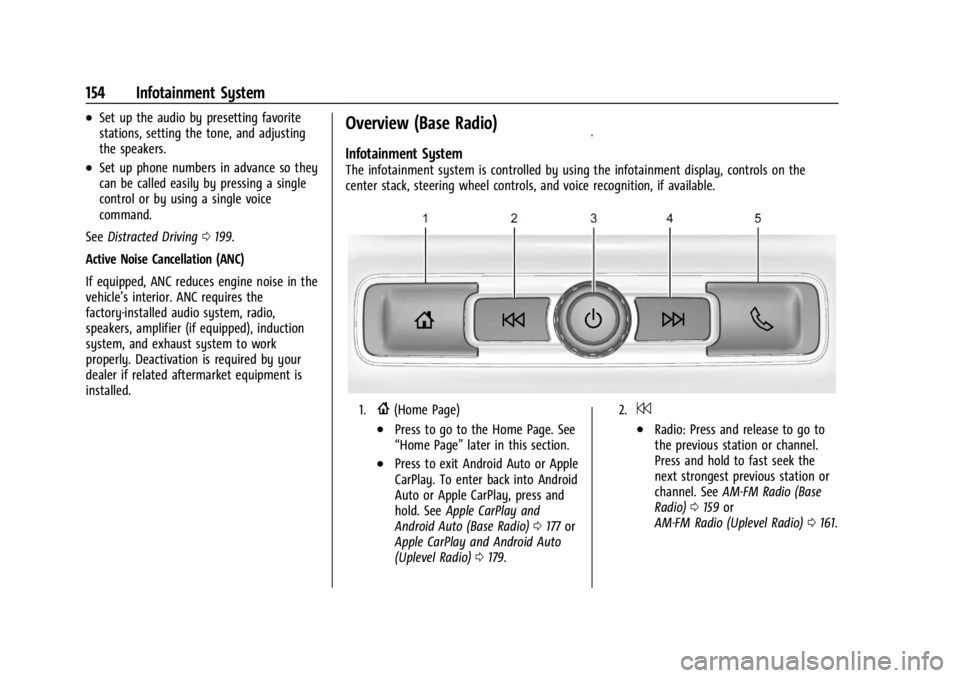
The infotainment system is controlled by using the infotainment display, controls on the
center stack, steering wheel controls, and voice recognition, if available.
1.{(Home Page)
.Press to go to the Home Page. See
“Home Page” later in this section.
.Press to exit Android Auto or Apple
CarPlay. To enter back into Android
Auto or Apple CarPlay, press and
hold. SeeApple CarPlay and
Android Auto (Base Radio) 0177 or
Apple CarPlay and Android Auto
(Uplevel Radio) 0179.
2.7
.Radio: Press and release to go to
the previous station or channel.
Press and hold to fast seek the
next strongest previous station or
channel. See AM-FM Radio (Base
Radio) 0159 or
AM-FM Radio (Uplevel Radio) 0161.
Page 157 of 440
GMC Sierra/Sierra Denali 2500 HD/3500 HD Owner Manual (GMNA-
Localizing-U.S./Canada-16908340) - 2024 - CRC - 12/7/22
Infotainment System 155
.USB/Bluetooth: Press to seek to
the beginning of the current or
previous track. Press and hold to
quickly reverse through a track.
Release to return to playing speed.
SeeUSB Port 0163 or
Bluetooth Audio (Base Radio) 0163
or
Bluetooth Audio (Uplevel Radio)
0 164.
3.O(Power)
.Press to turn the power on.
.Press to mute/unmute the system
when on.
.Press and hold to display the
power off screen or the option to
display the power off screen.
.Turn to decrease or increase the
volume.
4.6
.Radio: Press and release to go to
the next station or channel. Press
and hold to fast seek the next
strongest station or channel.
.USB/Bluetooth: Press to seek the
next track. Press and hold to fast
forward through a track. Release to
return to playing speed. See USB
Port 0163 or
Bluetooth Audio (Base Radio) 0163
or
Bluetooth Audio (Uplevel Radio)
0 164.
5.v
.Press and release to access the
phone display or answer an
incoming call.
Home Page
The Home Page is where vehicle application
icons are accessed. Some applications are
disabled when the vehicle is moving.
Swipe left or right across the display to
access the pages of icons.
Managing Home Page Icons 1. Touch and hold any of the Home Page icons to enter edit mode.
2. Continue holding the icon and drag it to the desired position.
3. Release your finger to drop the icon in the desired position. Move an Icon to Another Page
1. Drag the icon to the edge of the display toward the desired page.
2. Continue dragging and dropping application icons as desired.
Overview (Uplevel Radio)
Infotainment System
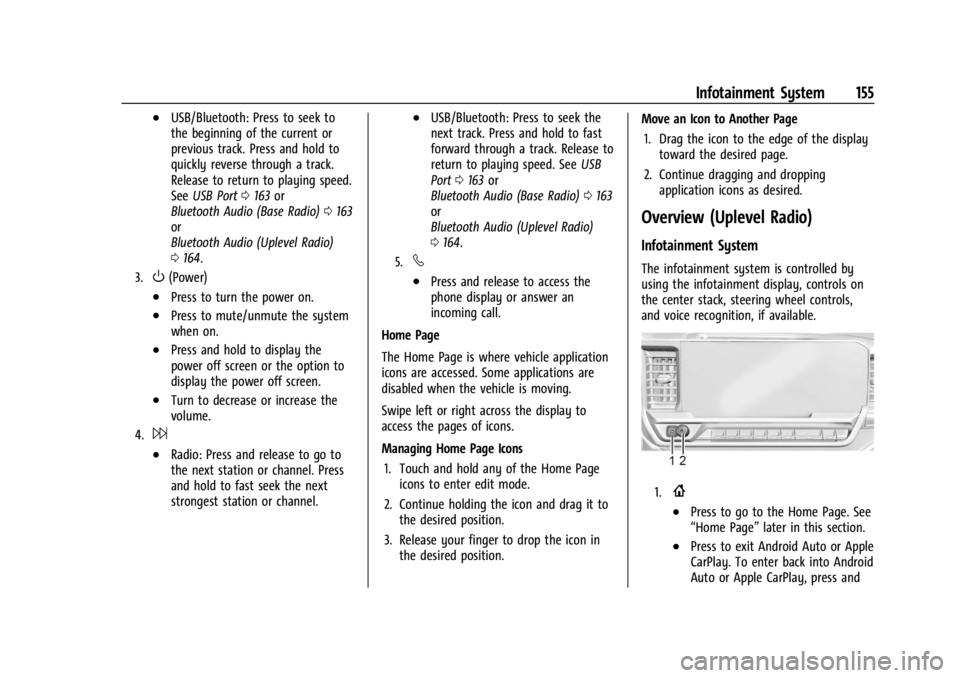
The infotainment system is controlled by
using the infotainment display, controls on
the center stack, steering wheel controls,
and voice recognition, if available.
1.{
.Press to go to the Home Page. See
“Home Page” later in this section.
.Press to exit Android Auto or Apple
CarPlay. To enter back into Android
Auto or Apple CarPlay, press and
Page 158 of 440
GMC Sierra/Sierra Denali 2500 HD/3500 HD Owner Manual (GMNA-
Localizing-U.S./Canada-16908340) - 2024 - CRC - 12/7/22
156 Infotainment System
hold. SeeApple CarPlay and
Android Auto (Base Radio) 0177 or
Apple CarPlay and Android Auto
(Uplevel Radio) 0179.
2.O(Power)
.Press to turn the power on.
.Press and hold to turn the
power off.
.Press to mute/unmute the system
when on.
.Turn to decrease or increase the
volume.
Home Page
The Home Page is where vehicle application
icons are accessed. Some applications are
disabled when the vehicle is moving.
Swipe left or right across the display to
access the pages of icons.
Card view is located on the right side of the
screen. Scroll up and down through the
different cards. Individual cards cannot be
added or deleted. For most of the apps in
the cards, an open card view app will
temporarily not be shown in card view.
Managing Home Page Icons 1. Touch and hold any of the Home Page icons to enter edit mode. 2. Continue holding the icon and drag it to
the desired position.
3. Release your finger to drop the icon in the desired position.
Move an Icon to Another Page 1. Drag the icon to the edge of the display toward the desired page.
2. Continue dragging and dropping application icons as desired.
Move an Icon to the Application Tray
To move an icon to the application tray on
the left side of the screen, drag the icon to
the applications tray.
Steering Wheel Controls
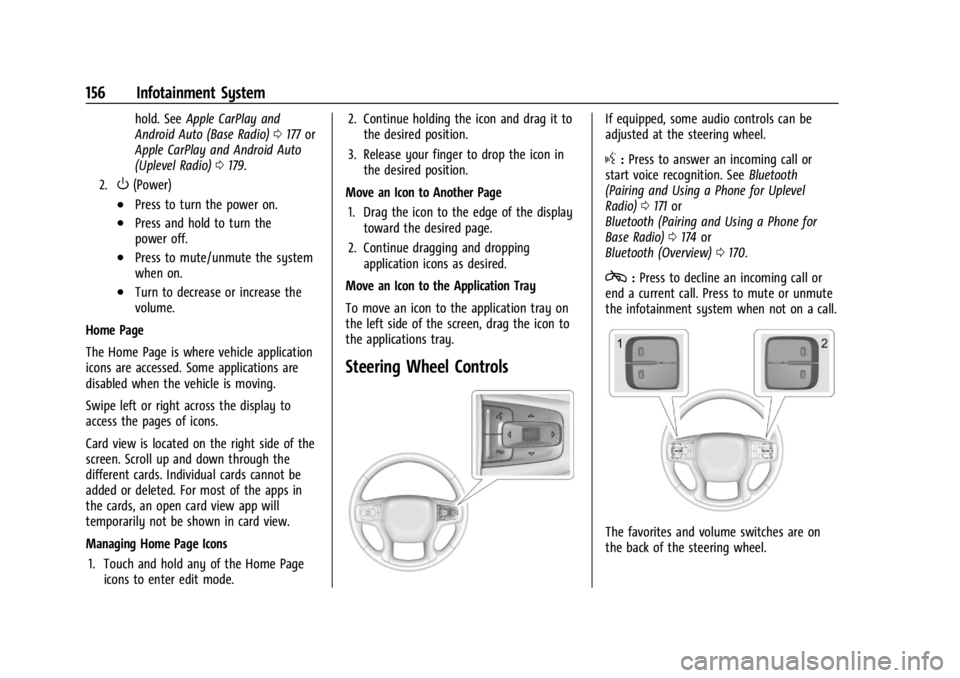
If equipped, some audio controls can be
adjusted at the steering wheel.
g: Press to answer an incoming call or
start voice recognition. See Bluetooth
(Pairing and Using a Phone for Uplevel
Radio) 0171 or
Bluetooth (Pairing and Using a Phone for
Base Radio) 0174 or
Bluetooth (Overview) 0170.
c:Press to decline an incoming call or
end a current call. Press to mute or unmute
the infotainment system when not on a call.
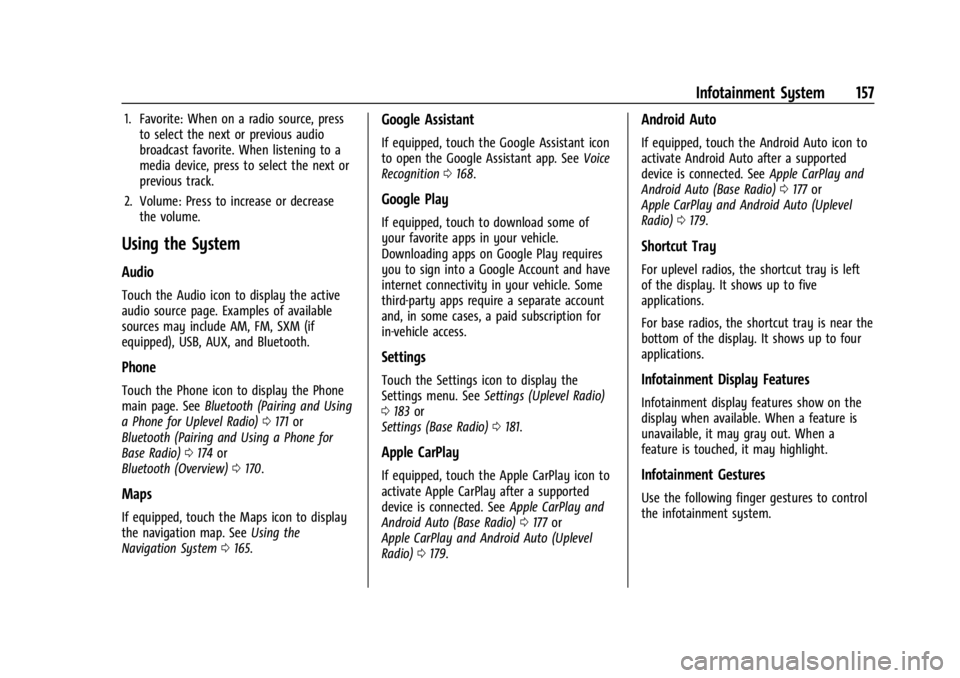
The favorites and volume switches are on
the back of the steering wheel.
Page 159 of 440
GMC Sierra/Sierra Denali 2500 HD/3500 HD Owner Manual (GMNA-
Localizing-U.S./Canada-16908340) - 2024 - CRC - 12/7/22
Infotainment System 157
1. Favorite: When on a radio source, pressto select the next or previous audio
broadcast favorite. When listening to a
media device, press to select the next or
previous track.
2. Volume: Press to increase or decrease the volume.
Using the System
Audio
Touch the Audio icon to display the active
audio source page. Examples of available
sources may include AM, FM, SXM (if
equipped), USB, AUX, and Bluetooth.
Phone
Touch the Phone icon to display the Phone
main page. See Bluetooth (Pairing and Using
a Phone for Uplevel Radio) 0171 or
Bluetooth (Pairing and Using a Phone for
Base Radio) 0174 or
Bluetooth (Overview) 0170.
Maps
If equipped, touch the Maps icon to display
the navigation map. See Using the
Navigation System 0165.
Google Assistant
If equipped, touch the Google Assistant icon
to open the Google Assistant app. See Voice
Recognition 0168.
Google Play
If equipped, touch to download some of
your favorite apps in your vehicle.
Downloading apps on Google Play requires
you to sign into a Google Account and have
internet connectivity in your vehicle. Some
third-party apps require a separate account
and, in some cases, a paid subscription for
in-vehicle access.
Settings
Touch the Settings icon to display the
Settings menu. See Settings (Uplevel Radio)
0 183 or
Settings (Base Radio) 0181.
Apple CarPlay
If equipped, touch the Apple CarPlay icon to
activate Apple CarPlay after a supported
device is connected. See Apple CarPlay and
Android Auto (Base Radio) 0177 or
Apple CarPlay and Android Auto (Uplevel
Radio) 0179.
Android Auto
If equipped, touch the Android Auto icon to
activate Android Auto after a supported
device is connected. See Apple CarPlay and
Android Auto (Base Radio) 0177 or
Apple CarPlay and Android Auto (Uplevel
Radio) 0179.
Shortcut Tray
For uplevel radios, the shortcut tray is left
of the display. It shows up to five
applications.
For base radios, the shortcut tray is near the
bottom of the display. It shows up to four
applications.
Infotainment Display Features
Infotainment display features show on the
display when available. When a feature is
unavailable, it may gray out. When a
feature is touched, it may highlight.
Infotainment Gestures
Use the following finger gestures to control
the infotainment system.
Page 160 of 440
GMC Sierra/Sierra Denali 2500 HD/3500 HD Owner Manual (GMNA-
Localizing-U.S./Canada-16908340) - 2024 - CRC - 12/7/22
158 Infotainment System
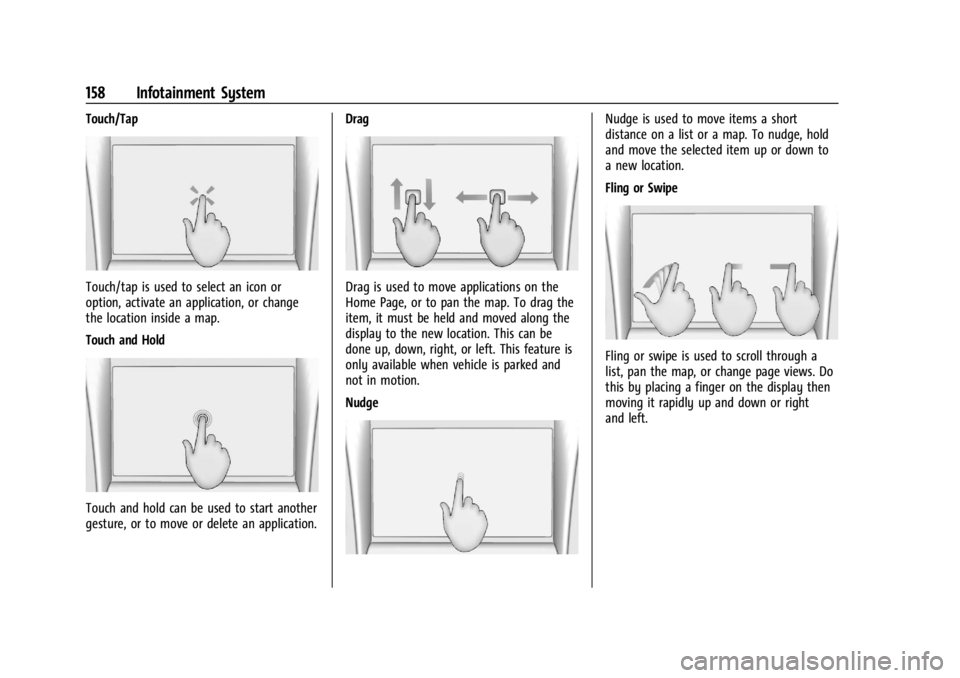
Touch/Tap
Touch/tap is used to select an icon or
option, activate an application, or change
the location inside a map.
Touch and Hold
Touch and hold can be used to start another
gesture, or to move or delete an application.Drag
Drag is used to move applications on the
Home Page, or to pan the map. To drag the
item, it must be held and moved along the
display to the new location. This can be
done up, down, right, or left. This feature is
only available when vehicle is parked and
not in motion.
Nudge
Nudge is used to move items a short
distance on a list or a map. To nudge, hold
and move the selected item up or down to
a new location.
Fling or Swipe
Fling or swipe is used to scroll through a
list, pan the map, or change page views. Do
this by placing a finger on the display then
moving it rapidly up and down or right
and left.
Page 161 of 440
GMC Sierra/Sierra Denali 2500 HD/3500 HD Owner Manual (GMNA-
Localizing-U.S./Canada-16908340) - 2024 - CRC - 12/7/22
Infotainment System 159
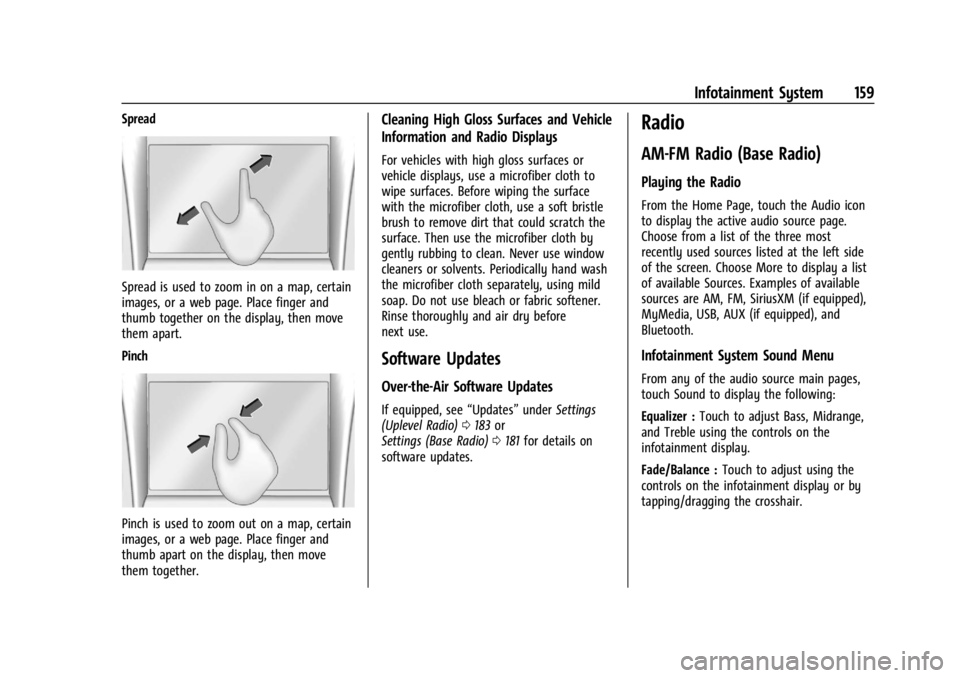
Spread
Spread is used to zoom in on a map, certain
images, or a web page. Place finger and
thumb together on the display, then move
them apart.
Pinch
Pinch is used to zoom out on a map, certain
images, or a web page. Place finger and
thumb apart on the display, then move
them together.
Cleaning High Gloss Surfaces and Vehicle
Information and Radio Displays
For vehicles with high gloss surfaces or
vehicle displays, use a microfiber cloth to
wipe surfaces. Before wiping the surface
with the microfiber cloth, use a soft bristle
brush to remove dirt that could scratch the
surface. Then use the microfiber cloth by
gently rubbing to clean. Never use window
cleaners or solvents. Periodically hand wash
the microfiber cloth separately, using mild
soap. Do not use bleach or fabric softener.
Rinse thoroughly and air dry before
next use.
Software Updates
Over-the-Air Software Updates
If equipped, see“Updates”underSettings
(Uplevel Radio) 0183 or
Settings (Base Radio) 0181 for details on
software updates.
Radio
AM-FM Radio (Base Radio)
Playing the Radio
From the Home Page, touch the Audio icon
to display the active audio source page.
Choose from a list of the three most
recently used sources listed at the left side
of the screen. Choose More to display a list
of available Sources. Examples of available
sources are AM, FM, SiriusXM (if equipped),
MyMedia, USB, AUX (if equipped), and
Bluetooth.
Infotainment System Sound Menu
From any of the audio source main pages,
touch Sound to display the following:
Equalizer : Touch to adjust Bass, Midrange,
and Treble using the controls on the
infotainment display.
Fade/Balance : Touch to adjust using the
controls on the infotainment display or by
tapping/dragging the crosshair.
Page 162 of 440
GMC Sierra/Sierra Denali 2500 HD/3500 HD Owner Manual (GMNA-
Localizing-U.S./Canada-16908340) - 2024 - CRC - 12/7/22
160 Infotainment System
Finding a Station
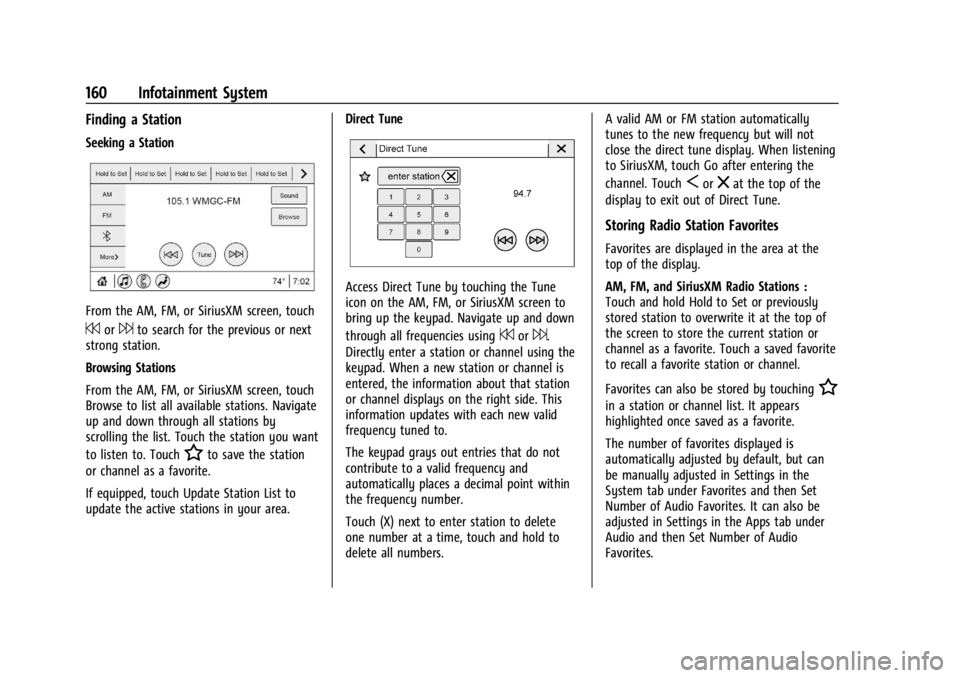
Seeking a Station
From the AM, FM, or SiriusXM screen, touch
7or6to search for the previous or next
strong station.
Browsing Stations
From the AM, FM, or SiriusXM screen, touch
Browse to list all available stations. Navigate
up and down through all stations by
scrolling the list. Touch the station you want
to listen to. Touch
Hto save the station
or channel as a favorite.
If equipped, touch Update Station List to
update the active stations in your area. Direct Tune
Access Direct Tune by touching the Tune
icon on the AM, FM, or SiriusXM screen to
bring up the keypad. Navigate up and down
through all frequencies using
7or6.
Directly enter a station or channel using the
keypad. When a new station or channel is
entered, the information about that station
or channel displays on the right side. This
information updates with each new valid
frequency tuned to.
The keypad grays out entries that do not
contribute to a valid frequency and
automatically places a decimal point within
the frequency number.
Touch (X) next to enter station to delete
one number at a time, touch and hold to
delete all numbers. A valid AM or FM station automatically
tunes to the new frequency but will not
close the direct tune display. When listening
to SiriusXM, touch Go after entering the
channel. Touch
Sorzat the top of the
display to exit out of Direct Tune.
Storing Radio Station Favorites
Favorites are displayed in the area at the
top of the display.
AM, FM, and SiriusXM Radio Stations :
Touch and hold Hold to Set or previously
stored station to overwrite it at the top of
the screen to store the current station or
channel as a favorite. Touch a saved favorite
to recall a favorite station or channel.
Favorites can also be stored by touching
H
in a station or channel list. It appears
highlighted once saved as a favorite.
The number of favorites displayed is
automatically adjusted by default, but can
be manually adjusted in Settings in the
System tab under Favorites and then Set
Number of Audio Favorites. It can also be
adjusted in Settings in the Apps tab under
Audio and then Set Number of Audio
Favorites.
Page 163 of 440
GMC Sierra/Sierra Denali 2500 HD/3500 HD Owner Manual (GMNA-
Localizing-U.S./Canada-16908340) - 2024 - CRC - 12/7/22
Infotainment System 161
AM-FM Radio (Uplevel Radio)
Playing the Radio
From the Home Page, touch the Audio icon
to display the now playing screen for the
active audio source. Touch the source button
such as FM or AM in the left corner to
change your source.
Finding a Station
Seeking a Station
From the AM or FM screen, touch the back
or forward buttons to search for the
previous or next strong station.
Tune
Touch
Yon the infotainment display to
enter the Tune screen. Enter a frequency
using the keypad.
Touch the
Hto save the station as a
favorite.
Entering a valid AM or FM frequency will
automatically tune to the new station but
not close the Tune screen.
Touch the Go button or frequency in the list
to begin playing the station. The tune page
will close and return to the now playing
screen.
Storing Radio Station Favorites
Saved favorite stations will show at the
bottom of the now playing screen.
AM or FM favorites can be stored by
pressing and holding a favorite slot.
Audio Settings
Audio settings vary by region.
From the now playing screen, touch
kand
the following may display.
Sound
.Equalizer
.Fade/Balance
.Sound Mode (if equipped)
Bose AudioPilot
If equipped, adjusts the volume based on
the noise inside the vehicle and vehicle
speed.
Manage Radio Favorites
Displays a list of audio favorites that can be
moved or deleted.
Radio Text (RDS)
When on, radio station call letters and
messages from radio stations will be shown. Radio Text Category
When on, category information about
current radio content will be shown.
Radio Data System (RDS)
RDS relies on receiving specific RDS
information from radio stations and only
works when the information is available.
It is possible that a radio station could
broadcast information that causes the radio
to work improperly.
In addition, RDS features are region and
country of sale specific. This means specific
RDS content may not be available in your
listening area or in the country you operate
the vehicle.
To turn RDS features on or off, see "Audio
Settings" previously.
The following RDS features may be
supported by radio broadcasters in your
listening area:
RDS features
.Display radio station call letters
.Display messages from radio stations
.Provide radio station category information
(when available)
Page 164 of 440
GMC Sierra/Sierra Denali 2500 HD/3500 HD Owner Manual (GMNA-
Localizing-U.S./Canada-16908340) - 2024 - CRC - 12/7/22
162 Infotainment System
Satellite Radio
SiriusXM Radio Service
If equipped, vehicles with a valid SiriusXM
radio subscription can receive SiriusXM
programming.
SiriusXM radio has a wide variety of
programming and commercial-free music,
coast to coast, in digital-quality sound. In
the U.S., see www.siriusxm.com or call
1-888-601-6296. In Canada, see
www.siriusxm.ca or call 1-877-438-9677.
When SiriusXM is active, the channel name,
number, song title, and artist appear on the
display.
SiriusXM with 360L
SiriusXM with 360L interface has enhanced
in-vehicle listening experience for
subscribers. The experience now offers more
categories and system learned
recommendations toward discovering more
personalized content.
To use the full SiriusXM 360L program,
including streaming content and listening
recommendations, OnStar Connected Access
is required and Terms and Conditions
accepted. Connected vehicle services vary bymodel and require a complete working
electrical system, cell reception, and GPS
signal.
Reference the SiriusXM user guide for use
and subscription information.
Playing SiriusXM Content
Touchr,j,ror[on the now playing
screen to rewind, pause, play, or fast
forward content.
Finding a Channel
From the SiriusXM now playing screen,
touch
oCH or CHpto open the SXM tuner
channel list.
To directly tune to a channel, touch the
Tune icon to enter a channel number using
the keypad.
Browsing Content
Touch(to view different browsing
content.
Browse will include Channels, Music, On
Demand shows and episodes, Sports and
News content.
SiriusXM Settings
From the SiriusXM now playing screen,
touch the user settings icon in the upper
right to display the SiriusXM settings
The settings include subscription
information, help and support, and listener
preferences.
Radio Reception
Unplug electronic devices from the accessory
power outlets if there is interference or
static in the radio.
FM
FM signals only reach about 16 to 65 km
(10 to 40 mi). Although the radio has a
built-in electronic circuit that automatically
works to reduce interference, some static
can occur, especially around tall buildings or
hills, causing the sound to fade in and out.
AM
The range for most AM stations is greater
than for FM, especially at night. The longer
range can cause station frequencies to
interfere with each other. Static can also
occur when things like storms and power