infotainment center GMC SIERRA 2024 Owners Manual
[x] Cancel search | Manufacturer: GMC, Model Year: 2024, Model line: SIERRA, Model: GMC SIERRA 2024Pages: 440, PDF Size: 9.21 MB
Page 8 of 440

GMC Sierra/Sierra Denali 2500 HD/3500 HD Owner Manual (GMNA-
Localizing-U.S./Canada-16908340) - 2024 - CRC - 12/13/22
6 Introduction
1. Tow/Haul Mode (On Some Models). SeeDriver Mode Control 0238.
Automatic Transfer Case Control (If
Equipped). See Four-Wheel Drive 0228.
Driver Mode Control 0238 (If Equipped).
2. Air Vents 0196.
3. Turn Signal Lever. See Turn and
Lane-Change Signals 0147.
Windshield Wiper/Washer 0106.
4. Head-Up Display (HUD) 0135 (If
Equipped).
5. Instrument Cluster (Base Level) 0112 or
Instrument Cluster (Uplevel) 0113.
6. Shift Lever. See Automatic Transmission
0 223.
Range Selection Mode. See Manual Mode
0 226.
7. Light Sensor. See Automatic Headlamp
System 0145.
8. Infotainment Controls. See Overview
(Uplevel Radio) 0155 or
Overview (Base Radio) 0154.
9. Upper Glove Box. See Glove Box099. 10. Lower Glove Box. See
Glove Box099.
11. Climate Control Systems 0191 (If
Equipped).
Dual Automatic Climate Control System
0 193 (If Equipped).
12.
XPark Assist Switch (If Equipped). See
Assistance Systems for Parking or Backing
0 253.
5Power Release Tailgate (If
Equipped). See Tailgate024.
|Hazard Warning Flashers 0146.
gTraction Control/Electronic Stability
Control 0236.
-DC/AC Switch. See Power Outlets
0 107.
@Lane Departure Warning (LDW) 0270
(If Equipped).
5Hill Descent Control Switch (If
Equipped). See Hill Descent Control (HDC)
0 237.
jPower Assist Steps 031 (If
Equipped).
LExpress Window Down Button (If
Equipped). See Power Windows 042.
Tow/Haul Mode 0227 (On Some
Models).
Exhaust Brake (If Equipped). See Duramax
Diesel Supplement.
Power Take-Off (PTO) (If Equipped). See
Duramax Diesel Supplement.
13. Power Outlet (Alternating Current) (If Equipped). See Power Outlets0107.
14. Power Outlets 0107.
15. USB Port 0163.
16. Trailer Brake Control Panel (If Equipped). See“Integrated Trailer Brake Control
System” underTowing Equipment 0284.
17. ENGINE START/STOP. See Ignition
Positions 0216.
18. Steering Wheel Controls 0156 (If
Equipped).
Driver Information Center (DIC) Controls.
See Driver Information Center (DIC) (Base
Level) 0131 or
Driver Information Center (DIC) (Uplevel)
0 133.
Page 11 of 440

GMC Sierra/Sierra Denali 2500 HD/3500 HD Owner Manual (GMNA-
Localizing-U.S./Canada-16908340) - 2024 - CRC - 12/13/22
Introduction 9
1.Head-Up Display (HUD) 0135 (If
Equipped).
2. Air Vents 0196.
3. Turn Signal Lever. See Turn and
Lane-Change Signals 0147.
Windshield Wiper/Washer 0106.
4. Instrument Cluster (Base Level) 0112 or
Instrument Cluster (Uplevel) 0113.
5. Shift Lever. See Automatic Transmission
0 223.
Range Selection Mode. See Manual Mode
0 226.
6. Infotainment System. See Overview
(Uplevel Radio) 0155 or
Overview (Base Radio) 0154.
7. Light Sensor. See Automatic Headlamp
System 0145.
Vehicle Alarm System. See Vehicle
Security 032.
8. Upper Glove Box. See Glove Box099.
9. Lower Glove Box. See Glove Box099.
10. Upper Glove Box Button. See Glove Box
0 99. 11. Power Release Tailgate (If Equipped). See
Tailgate 024.
Hazard Warning Flashers 0146.
Traction Control/Electronic Stability
Control 0236.
Hill Descent Control Switch (If Equipped).
See Hill Descent Control (HDC) 0237.
Power Assist Steps 031 (If Equipped).
Express Window Down Button (If
Equipped). See Power Windows 042.
Tow/Haul Mode 0227 (On Some
Models).
Exhaust Brake (If Equipped). See Duramax
Diesel Supplement.
Power Take-Off (PTO) (If Equipped). See
Duramax Diesel Supplement.
12. USB Port 0163.
13. Climate Control Systems 0191 (If
Equipped).
Dual Automatic Climate Control System
0 193 (If Equipped).
Heated and Ventilated Front Seats 054
(If Equipped).
Heated Steering Wheel 0105 (If
Equipped). 14. Front Center Console Storage.
15.
Cupholders 0100.
16. Trailer Brake Control Panel (If Equipped). See“Integrated Trailer Brake Control
System” underTowing Equipment 0284.
17. ENGINE START/STOP. See Ignition
Positions 0216.
18. Steering Wheel Controls 0156.
Driver Information Center (DIC) Controls.
See Driver Information Center (DIC) (Base
Level) 0131 or
Driver Information Center (DIC) (Uplevel)
0 133.
19. Horn 0106.
20. Steering Wheel Adjustment 0105 (Out
of View).
21. Hood Release. See Hood0312.
22. Cruise Control 0239.
Adaptive Cruise Control (Camera) 0241
(If Equipped).
Forward Collision Alert (FCA) System
0 263 (If Equipped).
Page 14 of 440

GMC Sierra/Sierra Denali 2500 HD/3500 HD Owner Manual (GMNA-
Localizing-U.S./Canada-16908340) - 2024 - CRC - 12/13/22
12 Introduction
1.Air Vents 0196.
2. Head-Up Display (HUD) 0135 (If
Equipped).
3. Turn Signal Lever. See Turn and
Lane-Change Signals 0147.
Windshield Wiper/Washer 0106.
4. Instrument Cluster (Base Level) 0112 or
Instrument Cluster (Uplevel) 0113.
5. Shift Lever. See Automatic Transmission
0 223.
Range Selection Mode. See Manual Mode
0 226.
6. Infotainment System. See Overview
(Uplevel Radio) 0155 or
Overview (Base Radio) 0154.
7. Light Sensor. See Automatic Headlamp
System 0145.
Vehicle Alarm System. See Vehicle
Security 032.
8. Upper Glove Box Button. See Glove Box
0 99.
9. Upper Glove Box. See Glove Box099.
10. Lower Glove Box. See Glove Box099. 11.
Climate Control Systems 0191 (If
Equipped).
Dual Automatic Climate Control System
0 193 (If Equipped).
Heated and Ventilated Front Seats 054
(If Equipped).
Heated Steering Wheel 0105 (If
Equipped).
12. Power Release Tailgate (If Equipped). See Tailgate 024.
Hazard Warning Flashers 0146.
Traction Control/Electronic Stability
Control 0236.
Hill Descent Control Switch (If Equipped).
See Hill Descent Control (HDC) 0237.
Power Assist Steps 031 (If Equipped).
Express Window Down Button (If
Equipped). See Power Windows 042.
Tow/Haul Mode 0227 (On Some
Models).
Exhaust Brake (If Equipped). See Duramax
Diesel Supplement.
Power Take-Off (PTO) (If Equipped). See
Duramax Diesel Supplement. 13. Front Center Console Storage.
14.
USB Port 0163.
15. Cupholders 0100.
16. Trailer Brake Control Panel (If Equipped). See“Integrated Trailer Brake Control
System” underTowing Equipment 0284.
17. ENGINE START/STOP. See Ignition
Positions 0216.
18. Steering Wheel Controls 0156.
Driver Information Center (DIC) Controls.
See Driver Information Center (DIC) (Base
Level) 0131 or
Driver Information Center (DIC) (Uplevel)
0 133.
19. Horn 0106.
20. Hood Release. See Hood0312.
21. Steering Wheel Adjustment 0105 (Out
of View).
22. Cruise Control 0239.
Adaptive Cruise Control (Camera) 0241
(If Equipped).
Forward Collision Alert (FCA) System
0 263 (If Equipped).
Page 20 of 440
GMC Sierra/Sierra Denali 2500 HD/3500 HD Owner Manual (GMNA-
Localizing-U.S./Canada-16908340) - 2024 - CRC - 12/7/22
18 Keys, Doors, and Windows
indicate access is disabled. Using any
exterior handle to unlock the doors or open
the tailgate will cause the turn signal lamps
to flash four times quickly, indicating access
is disabled. If disabled, disarm the alarm
system before starting the vehicle.
Enabling Keyless Unlocking:
With the vehicle off, press and hold
Qand
Kon the remote key at the same time for
approximately three seconds. The turn signal
lamps will flash twice quickly to indicate
access is enabled.
Passive Locking
This feature will lock the vehicle several
seconds after all doors are closed, if the
vehicle is off and at least one remote key
has been removed from the interior, or none
remain in the interior.
If other electronic devices interfere with the
remote key signal, the vehicle may not
detect the remote key inside the vehicle.
If passive locking is enabled, the doors may
lock with the remote key inside the vehicle.
Do not leave the remote key in an
unattended vehicle. To view available settings from the
infotainment screen, touch Settings >
Vehicle > Remote Lock, Unlock, Start.
Temporary Disable of Passive Locking
Temporarily disable passive locking by
pressing and holding
Kon the interior door
switch with a door open for at least
four seconds, or until three chimes are
heard. Passive locking will then remain
disabled until
Qon the interior door is
pressed, or until the vehicle is turned on.
Remote Left in Vehicle Alert
When the vehicle is turned off and an
remote key is left in the vehicle, the horn
will chirp three times after all doors are
closed. To view available settings from the
infotainment screen, touch Settings >
Vehicle > Remote Lock, Unlock, Start.
Remote No Longer in Vehicle Alert
If the vehicle is on with a door open and
then all doors are closed, the vehicle will
check for remote keys inside. If an remote
key is not detected, the Driver Information
Center (DIC) will display NO REMOTE
DETECTED and the horn will chirp three times. This occurs only once each time the
vehicle is driven. To view available settings
from the infotainment screen, touch
Settings > Vehicle > Remote Lock, Unlock,
Start.
Key Access
To access a vehicle with a dead remote key
battery, see
Door Locks022.Programming Remote Keys to the
Vehicle
Only remote keys programmed to the
vehicle will work. If a remote key is lost or
stolen, a replacement can be purchased and
programmed through your dealer. The
vehicle can be reprogrammed so that lost or
stolen remote keys no longer work. Each
vehicle can have up to eight remote keys
matched to it.
Starting the Vehicle with a Low Remote
Key Battery
If the remote key battery is weak or if there
is interference with the signal, the DIC may
display NO KEY FOUND, REPLACE BATTERY IN
KEY or NO REMOTE KEY WAS DETECTED
PLACE KEY IN KEY POCKET THEN START YOUR
VEHICLE when starting the vehicle.
Page 45 of 440

GMC Sierra/Sierra Denali 2500 HD/3500 HD Owner Manual (GMNA-
Localizing-U.S./Canada-16908340) - 2024 - CRC - 12/7/22
Keys, Doors, and Windows 43
If equipped, pull the window switch up fully
and quickly release to express close the
window.
Briefly press or pull the window switch in
the same direction to stop that window’s
express movement.
Express Window Down
L: If equipped, this button will be on the
center stack.
Press and hold
Lto open all windows.
Release
Lto stop all movement.
Use the power window switches to close
each window.
Window Automatic Reversal System
The express-close feature will reverse
window movement if it comes in contact
with an object. Extreme cold or ice could
cause the window to auto-reverse. The
window will operate normally after the
object or condition is removed.
Automatic Reversal System Override
{Warning
If automatic reversal system override is
active, the window will not reverse
automatically. You or others could be
injured and the window could be
damaged. Before using automatic reversal
system override, make sure that all
people and obstructions are clear of the
window path.
When the engine is on, override the
automatic reversal system by pulling and
holding the window switch if conditions
prevent it from closing.
Programming the Power Windows
Programming may be necessary if the
vehicle battery has been disconnected or
discharged. If the window is unable to
express-up, program each express-close
window: 1. Close all doors.
2. Turn the ignition on or to accessory mode. 3. Partially open the window to be
programmed. Then close it and continue
to pull the switch briefly after the
window has fully closed.
4. Open the window and continue to press the switch briefly after the window has
fully opened.
Remote Window Operation
If equipped, this feature allows the windows
to be opened remotely. If enabled in vehicle
settings, double press and hold
Kon the
remote key. To view available settings from
the infotainment screen, touch Settings >
Vehicle > Remote Lock, Unlock, Start.
Page 60 of 440
GMC Sierra/Sierra Denali 2500 HD/3500 HD Owner Manual (GMNA-
Localizing-U.S./Canada-16908340) - 2024 - CRC - 12/7/22
58 Seats and Restraints
Questions and Answers About Seat Belts
Q: Will I be trapped in the vehicle after acrash if I am wearing a seat belt?
A: You could be— whether you are
wearing a seat belt or not. Your chance
of being conscious during and after a
crash, so you canunbuckle and get out,
is much greater if you are belted.
Q: If my vehicle has airbags, why should I have to wear seat belts?
A: Airbags are supplemental systems only.
They work withseat belts —not instead
of them. Whether or not an airbag is
provided, all occupants still have to
buckle up to get the most protection.
Also, in nearly all states and in all
Canadian provinces, the law requires
wearing seat belts.
Buckle To Drive
If equipped, this feature delays the vehicle
from shifting out of P (Park) when the driver
seat belt is not buckled. The Buckle to Drive
feature must be turned ON in the
infotainment system to work. To turn the
Buckle to Drive feature on or off, select
Settings > Vehicle > Buckle to Drive. See
Teen Driver 0185, if equipped. If the vehicle is on and the brake pedal is
pressed with the vehicle in P (Park) but the
driver seat belt is not buckled, a message
displays in the Driver Information
Center (DIC) and the vehicle will be delayed
from shifting out of P (Park). Buckle the
driver seat belt to clear the message and
shift out of P (Park). Shifting from P (Park)
will be delayed once for each time the
vehicle is started.
For some fleet vehicles, the feature is
always ON and cannot be turned OFF in the
infotainment system. The vehicle will be
delayed from shifting from P (Park) each
time the driver attempts to do so while the
driver seat belt is not buckled. Turning the
vehicle off then on will not change this
condition.
On some models, Buckle to Drive may also
delay shifting out of P (Park) if a front
passenger seat belt is unbuckled. A message
displays in the DIC. Buckle the front
passenger seat belt to shift out of P (Park).
This feature may delay the vehicle from
shifting out of P (Park) if an object, such as
a briefcase, handbag, grocery bag, laptop,
or other electronic device, is on the front
passenger seat. If this happens, remove the
object from the seat or buckle the seat belt
to shift out of P (Park).
If the driver, or on some vehicles, the
present front passenger remains unbuckled,
the DIC message will turn off after several
seconds and the vehicle can be shifted out
of P (Park). See
“Seat Belts”and“Child
Restraints” in the Index for information
about the importance of proper
restraint use.
If the driver seat belt or the front passenger
seat belt is unbuckled when driving, the seat
belt reminder chime and light(s) will come
on. See Seat Belt Reminders 0120. This
feature may not function properly if the
airbag readiness light is on. See Airbag
Readiness Light 0121.
How to Wear Seat Belts Properly
Follow these rules for everyone's protection.
There are additional things to know about
seat belts and children, including smaller
children and infants. If a child will be riding
in the vehicle, see Older Children075 or
Infants and Young Children 076. Review
and follow the rules for children in addition
to the following rules.
Page 109 of 440
GMC Sierra/Sierra Denali 2500 HD/3500 HD Owner Manual (GMNA-
Localizing-U.S./Canada-16908340) - 2024 - CRC - 12/15/22
Instruments and Controls 107
on the windshield and controls the
frequency of the windshield wiper based on
the current sensitivity setting.
Keep this area of the windshield clear of
debris to allow for best system performance.
To turn the Rain Sense feature on or off, see
“Rain Sense Wipers”under Settings >
Vehicle > Comfort and Convenience > Rain
Sense > Enable/Disable.
If Rain Sense is enabled in Settings, turning
the wiper lever to INT will activate Rain
Sense.
Front Surround Vision Camera Wash
If equipped, pressLon the windshield
wiper lever to spray washer fluid on the
front surround vision camera lens. See
Surround Vision System 0254.
Compass
The vehicle may have a compass display on
the Driver Information Center (DIC). The
compass receives its heading and other
information from the Global Positioning
System (GPS) antenna, Electronic Stability
Control (ESC), and vehicle speed information.
The compass system is designed to operate
for a certain number of miles or degrees of
turn before needing a signal from the GPS
satellites. When the compass display shows
CAL, drive the vehicle for a short distance in
an open area where it can receive a GPS
signal. The compass system will
automatically determine when a GPS signal
is restored and provide a heading again.
Clock
Set the time and date using the
infotainment system. See "Time/Date" under
Settings (Uplevel Radio) 0183 or
Settings (Base Radio) 0181.
Power Outlets
Accessory power outlets can be used to plug
in electrical equipment, such as a cell phone
or MP3 player.
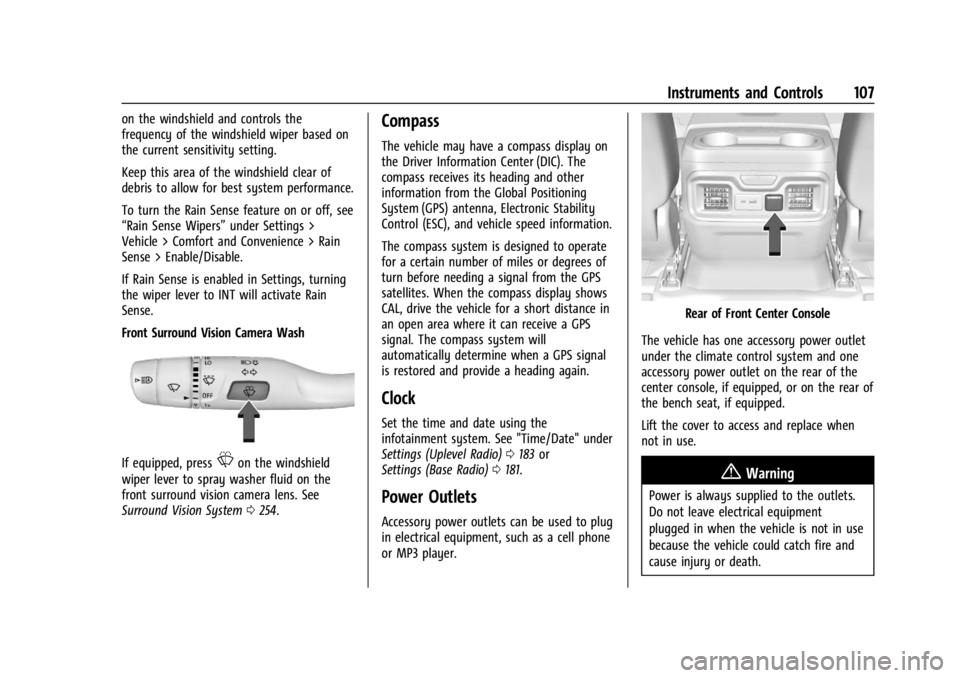
Rear of Front Center Console
The vehicle has one accessory power outlet
under the climate control system and one
accessory power outlet on the rear of the
center console, if equipped, or on the rear of
the bench seat, if equipped.
Lift the cover to access and replace when
not in use.
{Warning
Power is always supplied to the outlets.
Do not leave electrical equipment
plugged in when the vehicle is not in use
because the vehicle could catch fire and
cause injury or death.
Page 111 of 440

GMC Sierra/Sierra Denali 2500 HD/3500 HD Owner Manual (GMNA-
Localizing-U.S./Canada-16908340) - 2024 - CRC - 12/15/22
Instruments and Controls 109
An indicator light on the outlet illuminates
when power is provided to the outlet and
no system fault is detected. The outlets will
not operate when the ignition is off, the
DC/AC switch is not pressed, or the plug is
not fully seated into the outlet.
If equipment is connected using more than
400 watts or a system fault is detected, a
protection circuit shuts off the power supply
and the indicator light turns off.
Do not use a power outlet with a missing or
damaged cover.
The power outlet is not designed for the
following, and may not work properly if
they are plugged in:
.Equipment with high initial peak wattage,
such as compressor-driven refrigerators
and electric power tools
.Other equipment requiring an extremely
stable power supply, such as
microcomputer-controlled electric blankets
and touch sensor lamps
.Medical equipment
Wireless Charging
If equipped and enabled, the vehicle has
wireless charging on the center console in
front of the cupholders. The system
operates at 145 kHz and wirelessly charges
one Qi compatible smartphone. The power
output of the system is capable of charging
at a rate up to 3 amp (15 W), as requested
by the compatible smartphone. SeeRadio
Frequency Statement 0413.
{Warning
Wireless charging may affect the
operation of an implanted pacemaker or
other medical devices. If you have one, it
is recommended to consult with your
doctor before using the wireless charging
system.
The vehicle must be on, in ACC/ACCESSORY,
or Retained Accessory Power (RAP) must be
active. The wireless charging feature may
not correctly indicate charging when the
vehicle is in RAP, during a Bluetooth phone
call, or when phone projection (e.g. Apple
CarPlay / Android Auto) is active. See
Retained Accessory Power (RAP) 0220. The operating temperature is
−40 °C (−40 °F)
to 85 °C (185 °F) for the charging system and
0 °C (32 °F) to 35 °C (95 °F) for the phone.
A charging stopped alert may be displayed
on the infotainment screen, if the wireless
charger or smartphone are outside of
normal operating temperature. Charging will
automatically resume when a normal
operating temperature is reached.
{Warning
Remove all objects from the charger
before charging your compatible
smartphone. Objects, such as coins, keys,
rings, paper clips, or cards, between the
smartphone and charger may become
very hot.
On the rare occasion that the charging
system does not detect an object, and
the object gets wedged between the
smartphone and charger, remove the
smartphone and allow the object to cool
before removing it from the charger, to
prevent burns.
Page 112 of 440
GMC Sierra/Sierra Denali 2500 HD/3500 HD Owner Manual (GMNA-
Localizing-U.S./Canada-16908340) - 2024 - CRC - 12/15/22
110 Instruments and Controls
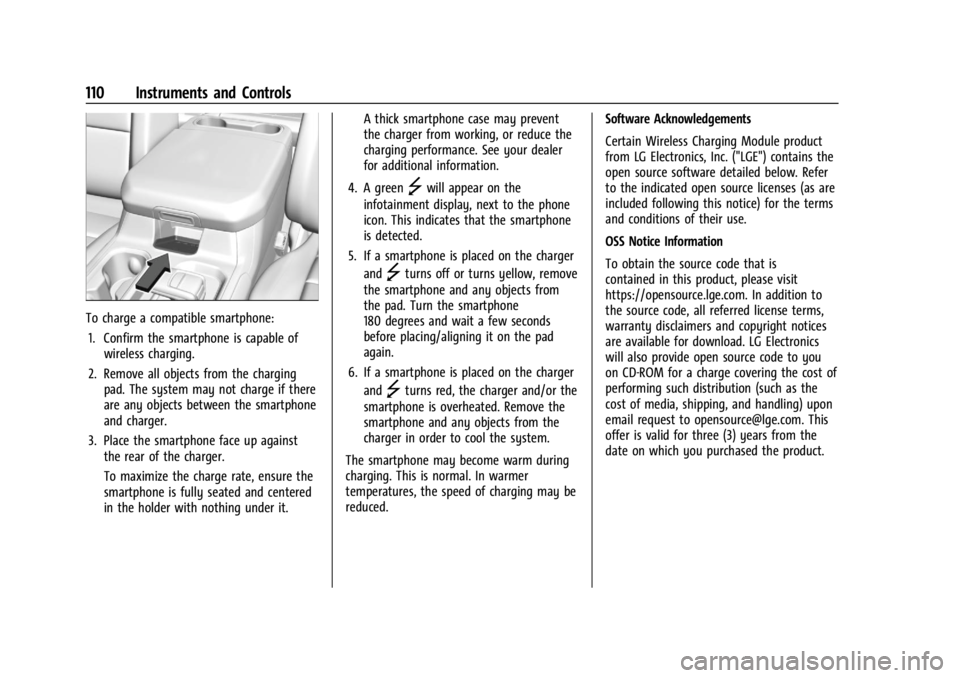
To charge a compatible smartphone:1. Confirm the smartphone is capable of wireless charging.
2. Remove all objects from the charging pad. The system may not charge if there
are any objects between the smartphone
and charger.
3. Place the smartphone face up against the rear of the charger.
To maximize the charge rate, ensure the
smartphone is fully seated and centered
in the holder with nothing under it. A thick smartphone case may prevent
the charger from working, or reduce the
charging performance. See your dealer
for additional information.
4. A green
]will appear on the
infotainment display, next to the phone
icon. This indicates that the smartphone
is detected.
5. If a smartphone is placed on the charger and
]turns off or turns yellow, remove
the smartphone and any objects from
the pad. Turn the smartphone
180 degrees and wait a few seconds
before placing/aligning it on the pad
again.
6. If a smartphone is placed on the charger and
]turns red, the charger and/or the
smartphone is overheated. Remove the
smartphone and any objects from the
charger in order to cool the system.
The smartphone may become warm during
charging. This is normal. In warmer
temperatures, the speed of charging may be
reduced. Software Acknowledgements
Certain Wireless Charging Module product
from LG Electronics, Inc. ("LGE") contains the
open source software detailed below. Refer
to the indicated open source licenses (as are
included following this notice) for the terms
and conditions of their use.
OSS Notice Information
To obtain the source code that is
contained in this product, please visit
https://opensource.lge.com. In addition to
the source code, all referred license terms,
warranty disclaimers and copyright notices
are available for download. LG Electronics
will also provide open source code to you
on CD-ROM for a charge covering the cost of
performing such distribution (such as the
cost of media, shipping, and handling) upon
email request to [email protected]. This
offer is valid for three (3) years from the
date on which you purchased the product.
Page 155 of 440
GMC Sierra/Sierra Denali 2500 HD/3500 HD Owner Manual (GMNA-
Localizing-U.S./Canada-16908340) - 2024 - CRC - 12/7/22
Infotainment System 153
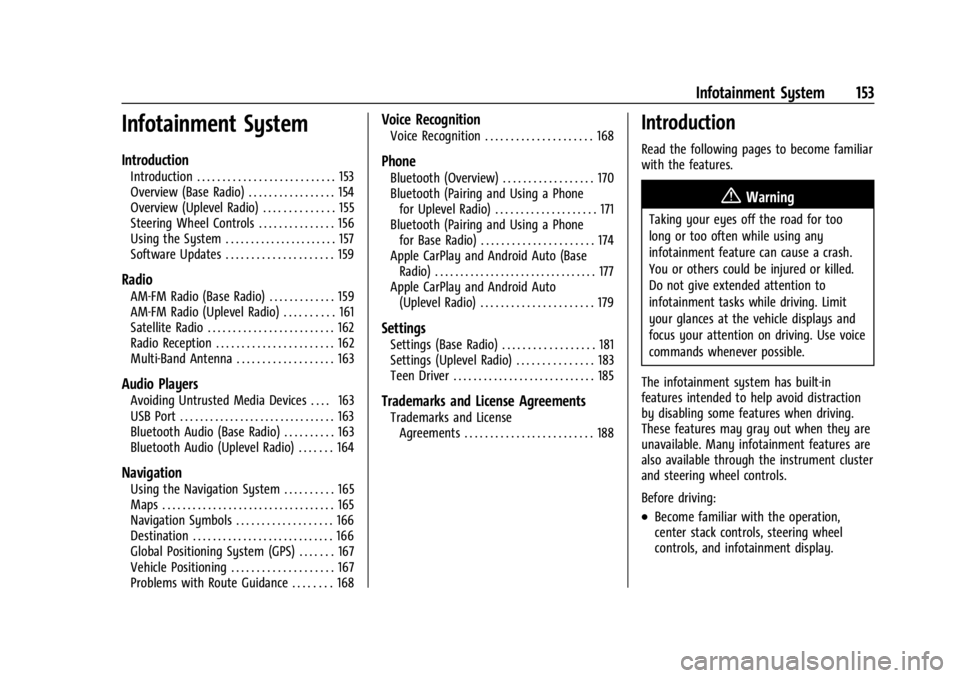
Infotainment System
Introduction
Introduction . . . . . . . . . . . . . . . . . . . . . . . . . . . 153
Overview (Base Radio) . . . . . . . . . . . . . . . . . 154
Overview (Uplevel Radio) . . . . . . . . . . . . . . 155
Steering Wheel Controls . . . . . . . . . . . . . . . 156
Using the System . . . . . . . . . . . . . . . . . . . . . . 157
Software Updates . . . . . . . . . . . . . . . . . . . . . 159
Radio
AM-FM Radio (Base Radio) . . . . . . . . . . . . . 159
AM-FM Radio (Uplevel Radio) . . . . . . . . . . 161
Satellite Radio . . . . . . . . . . . . . . . . . . . . . . . . . 162
Radio Reception . . . . . . . . . . . . . . . . . . . . . . . 162
Multi-Band Antenna . . . . . . . . . . . . . . . . . . . 163
Audio Players
Avoiding Untrusted Media Devices . . . . 163
USB Port . . . . . . . . . . . . . . . . . . . . . . . . . . . . . . . 163
Bluetooth Audio (Base Radio) . . . . . . . . . . 163
Bluetooth Audio (Uplevel Radio) . . . . . . . 164
Navigation
Using the Navigation System . . . . . . . . . . 165
Maps . . . . . . . . . . . . . . . . . . . . . . . . . . . . . . . . . . 165
Navigation Symbols . . . . . . . . . . . . . . . . . . . 166
Destination . . . . . . . . . . . . . . . . . . . . . . . . . . . . 166
Global Positioning System (GPS) . . . . . . . 167
Vehicle Positioning . . . . . . . . . . . . . . . . . . . . 167
Problems with Route Guidance . . . . . . . . 168
Voice Recognition
Voice Recognition . . . . . . . . . . . . . . . . . . . . . 168
Phone
Bluetooth (Overview) . . . . . . . . . . . . . . . . . . 170
Bluetooth (Pairing and Using a Phonefor Uplevel Radio) . . . . . . . . . . . . . . . . . . . . 171
Bluetooth (Pairing and Using a Phone for Base Radio) . . . . . . . . . . . . . . . . . . . . . . 174
Apple CarPlay and Android Auto (Base Radio) . . . . . . . . . . . . . . . . . . . . . . . . . . . . . . . . 177
Apple CarPlay and Android Auto (Uplevel Radio) . . . . . . . . . . . . . . . . . . . . . . 179
Settings
Settings (Base Radio) . . . . . . . . . . . . . . . . . . 181
Settings (Uplevel Radio) . . . . . . . . . . . . . . . 183
Teen Driver . . . . . . . . . . . . . . . . . . . . . . . . . . . . 185
Trademarks and License Agreements
Trademarks and LicenseAgreements . . . . . . . . . . . . . . . . . . . . . . . . . 188
Introduction
Read the following pages to become familiar
with the features.
{Warning
Taking your eyes off the road for too
long or too often while using any
infotainment feature can cause a crash.
You or others could be injured or killed.
Do not give extended attention to
infotainment tasks while driving. Limit
your glances at the vehicle displays and
focus your attention on driving. Use voice
commands whenever possible.
The infotainment system has built-in
features intended to help avoid distraction
by disabling some features when driving.
These features may gray out when they are
unavailable. Many infotainment features are
also available through the instrument cluster
and steering wheel controls.
Before driving:
.Become familiar with the operation,
center stack controls, steering wheel
controls, and infotainment display.